Rooms 2 Weekly Updates
Rooms 2 releases weekly with enhancements and bug fixes.
For more information about using Rooms 2, see Getting started with Rooms 2.
Rooms 2 weekly update topic is linked in Point Release Notes.
May 29, 2026
Enhancements
Enhanced Owner Information Display
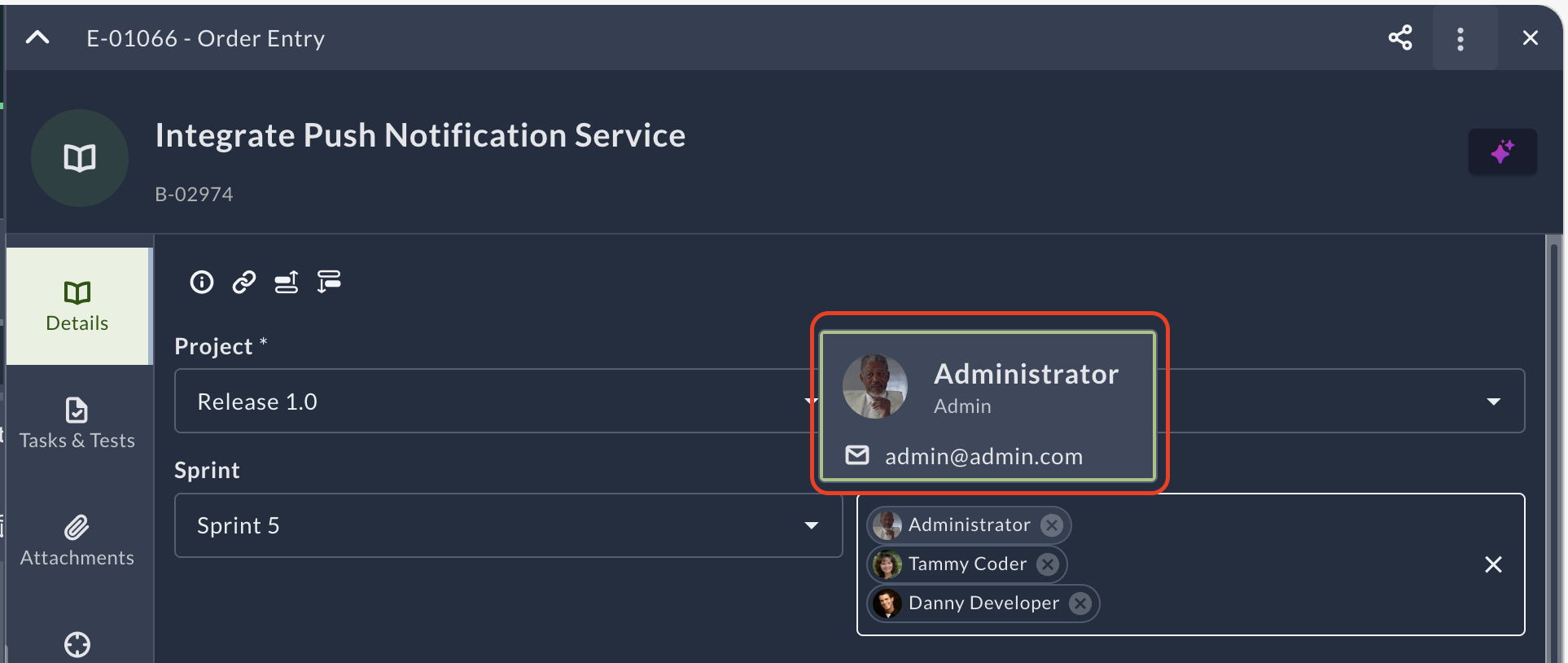
Rooms 2 now displays detailed member information when you hover over owner fields, making it easier to identify and distinguish between team members with similar names. The hover tooltip shows the member's full name, email address, and phone number.
What changed:
- Hover over any owner field to view a detailed information card
- Member information includes full name, email address, and phone number
- Enhanced owner display appears throughout Rooms 2, including the Asset Detail Drawer and owner filters
- Consistent hover behavior across all member fields where individual members are displayed
- Helps distinguish between members with similar or identical names
Identify team members quickly and confidently when assigning work or filtering by owner, especially in organizations with members who share common names.
Saved Views with Column Configuration for OKRs
Saved views for OKR Objectives now include your selected column configuration along with applied filters. Customize which columns display in the Objectives list, save the view with a custom name, and your column preferences persist across browser sessions.
What changed:
- Save views now include both filter criteria and selected column configuration
- Column configuration chip displays when columns differ from default, showing count of selected columns (for example, "8/19 selected")
- Customize Columns modal includes a Reset button to restore default column settings
- Save as new view button creates a new saved view with current filters and column configuration
- Save view button updates the currently selected view with any changes
- Saved views dropdown displays your custom view names and automatically loads the last selected view
- Clear All button resets both applied filters and column configuration to default state
- Manage views modal shows configured columns for each saved view, allowing you to preview, rename, duplicate, share, or delete saved views
- Success notification confirms when a saved view is created
Return to your preferred OKR Objectives layout instantly without reconfiguring filters and columns each time you access the page.
Improved Field Order for OKR Sessions
The Begin Date field now appears before the End Date field in the OKR Session Create page, providing a more intuitive and logical sequence when creating new sessions.
What changed:
- Begin Date field displays before End Date field in the OKR Session Create page
- Field order follows chronological sequence for better user experience
- Consistent with standard date range input patterns
Create OKR sessions with a more natural field sequence that aligns with how date ranges are typically entered.
Created By Filter for Boards
The filter panel now includes a "Created By" option, allowing you to filter work items based on who created them. This enhancement brings Rooms 2 closer to feature parity with Rooms Classic filtering capabilities.
What changed:
- "Created By" appears as a filter option in the board filter panel
- Select one or more members to filter work items they created
- Use standard filter operators ("is", "is not", etc.) to refine your criteria
- Combine with other filters to create precise views of your work
- Apply filters to focus on work items created by specific team members
Filter by creator to track work item origins, analyze contribution patterns, or quickly locate items created by specific team members.
View Board Policies in Rooms 2
View board policies directly from your Rooms 2 boards without navigating to Core Agility Team Room. The policies icon appears in the board toolbar when policies have been configured, providing quick access to workflow rules and team agreements for each workflow state.
What changed:
- Policies icon displays in the board toolbar between the board dropdown and refresh icon
- Available on Storyboard, Taskboard, and Testboard views in Sprint Execution and Kanban rooms
- Hover over the policies icon to see the "Show Policies" label
- Click the policies icon to open a modal displaying configured policies for each workflow state
- Policies display is view-only in Rooms 2
- Icon appears only when policies have been configured in Core Agility Team Room
Access workflow rules and team agreements instantly without leaving your board view, keeping policy information readily available during sprint execution activities.
Improved Member Selection Performance
Member selection dropdowns now load faster with optimized query performance. The member autocomplete field uses a single, efficient query sorted by the current user flag instead of running separate queries and merging results.
What changed:
- Member selection uses a single optimized database query instead of two separate queries
- Query sorts results by "isSelf" flag to prioritize the current user at the top of the list
- Reduced database overhead eliminates redundant query processing and result merging
- Performance improvement applies to all member selection fields including Owners and assignment fields
- Faster response time when typing to search for team members
Experience quicker member selection across Rooms 2, especially in organizations with large user lists.
May 22, 2026
There is no Rooms 2 release this week.
May 15, 2026
Enhancements
Add Child Assets with Sage
Sage can create child assets for Epics, Stories, and Defects while respecting required field validations. Ask Sage to add child work items, and the AI assistant validates required fields before creating the asset.
What changed:
- Sage creates child assets for Epics, Stories, and Defects
- Required field validation ensures all mandatory fields are completed before asset creation
- Error messages identify missing required fields and prompt you to provide the necessary information
- Consistent behavior across all supported asset types
Ask Sage to create child work items with confidence that required fields are validated and completed.
For more information about using Sage, see Getting Started with Sage.
Blocked Work Item Indicators
Rooms 2 displays visual indicators on work item cards when blocking issues prevent progress. Teams can quickly identify impediments across Sprint Planning, Sprint Execution, and Testboard views.
What changed:
- Red triangle warning icon and Blocked bubble appear on work items with blocking issues
- Blocked indicators display on Story and Defect cards in Storyboard and Taskboard views
- Testboard swimlane headers show blocked indicators for parent work items
- Hover over the blocked indicator to view blocking issue details in a tooltip
- Indicators update automatically when blocking issues are added or resolved
Identify impediments during sprint planning and execution to maintain sprint progress and team velocity.
For more information about blocked work items, see View Blocked Work Items.
Improved Board Layout Spacing
Column padding in Rooms 2 boards has been reduced from 12px to 4px, creating a more compact and efficient board layout. The optimized spacing allows you to see more work items on screen without sacrificing readability.
What changed:
- Column padding reduced from 12px to 4px across all Rooms 2 board views
- More efficient use of screen space for viewing work items
- Improved board density without compromising visual clarity
- Consistent spacing across Sprint Planning, Sprint Execution, and Testboard views
View more work items at once and reduce scrolling while maintaining clear visual separation between columns.
Bullet and Numbered Lists in Long Text Fields
Rooms 2 now supports bullet lists and numbered lists in long text fields. Format descriptions, acceptance criteria, and other text content with structured lists for better readability and organization.
What changed:
- Bullet list formatting available in all Rooms 2 long text fields
- Numbered list formatting available in all Rooms 2 long text fields
- List formatting toolbar buttons appear in the text editor
- Create nested lists with proper indentation
- Consistent list formatting across Stories, Defects, Tasks, and Tests
Organize information in descriptions and other text fields with structured lists for clearer communication and better documentation.
Interactive Swimlane and Group-By Headers
Swimlane and group-by headers in Rooms 2 now display hover information and allow direct access to work items. Interact with parent work items directly from board headers without navigating away from the current view.
What changed:
- Hover over swimlane or group-by headers to view work item details including icon, ID, title, and description
- Copy icon available in the hover tooltip for quick reference
- Click swimlane or group-by headers to open the Asset Detail Drawer
- Access parent work items (Epics, Portfolio Items) directly from the board
- Consistent hover and click behavior across Sprint Planning, Sprint Execution, and Testboard views
Access parent work item details and make updates without leaving your current board view.
Updated Work Item Card Visual Design
Work item cards display status indicator dots in an updated position to align with the latest design standards. The colored dot now appears next to the work item ID for improved visual consistency.
What changed:
- Status indicator dots repositioned next to the work item ID on cards
- Improved visual alignment with design specifications
- Consistent dot placement across all work item types (Stories, Defects, Tasks, Tests)
- Enhanced card readability with optimized color indicator positioning
- Available across Sprint Planning, Sprint Execution, Testboard, and Kanban boards
Status indicators are more prominent and easier to identify with the updated card layout.
Draft Recovery for Long Text Fields
Long text fields now include automatic draft recovery to prevent accidental data loss. When you enter text in a long text field and navigate away without saving, your input is temporarily preserved and automatically restored when you return to the work item.
What changed:
- Unsaved text in long text fields is stored as a user-specific draft
- When you reopen the same work item, unsaved content is automatically restored
- A message displays to inform you that unsaved content has been recovered
- Drafts are private and not visible to other users
- Draft recovery applies to all long text fields including Description and custom text fields
- Reduces the risk of losing work when navigating between work items or closing the Asset Detail Drawer
Enter text confidently in long text fields without the risk of data loss if you navigate away before saving.
May 8, 2026
There is no Rooms 2 release this week.
May 1, 2026
Enhancements
OKR Map View
Visualize the hierarchical alignment of objectives and key results directly from the OKR details drawer. Map View displays cascade relationships in an interactive tree structure, helping you understand how objectives connect across your team, department, and organization.
What changed:
- Map View tab available in the details drawer for objectives and key results
- Interactive hierarchy displays cascaded from items (parent objectives or key results) and cascaded to items (child objectives)
- Expand and collapse controls reveal multiple levels of the OKR hierarchy, from individual objectives to organizational goals
- Key results display in a distinct color to differentiate them from objectives
- Zoom and pan controls navigate large OKR hierarchies
- Click objective or key result cards to view details or change the focal point
- Progress indicators show completion percentages on key results
Access Map View by opening any objective or key result details drawer and selecting the Map View tab. Explore strategic alignment by expanding parent items to see how your work connects to higher-level goals, or expand child items to see supporting objectives.
For more information about Map View features, see Map View in OKRs.
OKR Tab in Asset Details Drawer
The OKR tab is now available in the asset details drawer when you open Stories, Defects, and Portfolio Items from the Release Planning Board. Associate your work items with objectives and key results to track how daily work contributes to strategic goals.
What changed:
- OKR tab available in the details drawer for Stories, Defects, and Portfolio Items opened from the Release Planning Board
- View associated key results for the current work item
- Add new key result associations by searching for objectives and key results
- Remove key result associations directly from the OKR tab
- Consistent OKR association functionality matches behavior in Backlog and Portfolio planning views
Access the OKR tab by opening any Story, Defect, or Portfolio Item from the Release Planning Board and selecting the OKR tab in the details drawer.
For background on managing key result associations in backlog items, see Assign Key Results to a Backlog Item.
Loading Indicator for Work Item Menu
A loading message displays when the work item menu (three-dot menu) takes time to load. This provides clear feedback that the system is processing your request when menu options require additional queries.
What changed:
- Loading indicator displays when you click the three-dot menu on work item cards
- Visual feedback shows while menu options load
- Loading message appears automatically when the menu takes longer than expected to display
See immediate feedback when accessing work item menus, indicating the system is loading menu options rather than appearing unresponsive.
Rollup Category Column Colors
Execution board columns now display distinct colors based on their rollup category, making it easier to identify workflow stages at a glance. Columns are color-coded by status category: gray for Not Started, blue for In Progress, and green for Done.
What changed:
- Column headers and backgrounds display colors matching their rollup category status
- Gray columns indicate Not Started workflow stages
- Blue columns indicate In Progress workflow stages
- Green columns indicate Done or Completed workflow stages
- Colors work consistently in both light mode and dark mode
- Available on Scrum and Kanban execution boards
Identify which columns belong to each rollup category instantly without checking team process configuration, improving board readability and workflow visualization.
Fixes
Epic Card Display on Release Planning Board
Fixed an issue where Epic cards disappeared from the Backlog or Release columns on the Release Planning Board when you opened the Epic details drawer. Epic cards now remain visible on the board when you open the asset details drawer.
What changed:
- Epic cards stay visible in their columns when you open the details drawer
- Cards display correctly in both Backlog and Release columns after opening the drawer
- Consistent card visibility across Portfolio Item View interactions
- Board state maintains proper Epic card positioning
Open Epic details drawers from the Release Planning Board without losing visibility of the Epic card on the board.
Move Items Between Columns with Capability, Epic, or Feature Swimlanes
Fixed an issue where items could not be moved between columns on the Current Sprint page when swimlanes were grouped by Capability, Epic, or Feature. This prevented users from updating item status directly on the board when using these groupings.
What changed:
- Items can now be moved between columns when swimlanes are grouped by Capability
- Items can now be moved between columns when swimlanes are grouped by Epic
- Items can now be moved between columns when swimlanes are grouped by Feature
- Consistent drag-and-drop behavior across all supported swimlane groupings
- Board interactions align with behavior seen in Priority and Portfolio Item groupings
Move items between columns seamlessly regardless of the selected swimlane grouping on the Current Sprint board.
April 24, 2026
There is no Rooms 2 release this week.
April 17, 2026
Enhancements
Enhanced Column Hover Tooltips with Descriptions
Column title hover tooltips now include column descriptions in addition to configuration details, providing complete context about each column's purpose and usage. This enhancement aligns with the hover behavior available in Agility Classic Room.
What changed:
- Column descriptions display in hover tooltips when configured for the column
- Tooltip shows column description along with rollup category and team assignment
- Improved popup positioning and reliability across all board types
- Consolidated popup implementation provides consistent behavior for column titles, work item descriptions, links, and dependencies
- Available in sprint execution boards, Kanban boards, and planning rooms
View complete column information including descriptions directly from hover tooltips, helping you understand each column's purpose without navigating to configuration settings.
Fixes
Comment Text Formatting and Markdown Rendering
Fixed an issue where comments did not display list formatting and markdown syntax properly in Rooms 2. Comments now render with correct text styling including lists, headers, and other markdown elements, matching the formatting behavior in Agility Classic Room.
What changed:
- List items in comments now display with proper bullet points and numbered list formatting
- Markdown syntax renders correctly (for example,
##displays as a header instead of literal hash symbols) - Text styling in Rooms 2 comments matches the formatting displayed in Classic Room conversations
- Improved visual consistency across comment displays in both Rooms 2 and Classic Room
View formatted text in comments with proper list display and markdown rendering, ensuring consistent formatting whether you're working in Rooms 2 or Classic Room.
April 10, 2026
Enhancements
Display Work Item Types Consistently
All primary work item types (Story, Defect, and TestSet) display consistently across the application. TestSets appear in all areas where Stories and Defects are shown.
What changed:
- TestSets display in all boards, filters, and views alongside Stories and Defects
- Work item type filtering includes TestSets in all areas
- Search and selection interfaces show all three primary work item types
- Consistent work item type visibility across planning rooms, execution boards, and Kanban boards
View and work with all primary work item types in any part of Rooms 2 without missing TestSets from the interface.
Save and Manage Views in Portfolio Planning Tree
Save custom filter and column configurations as reusable views in the Portfolio Planning Tree. Switch between different portfolio perspectives without manually reapplying filters and column settings each time.
What changed:
- Save button appears when you apply filters or change column visibility from the default configuration
- Save your current filter and column setup with a custom name
- Access saved views from the Saved views dropdown next to the search input
Quickly switch between different portfolio perspectives without manually reapplying filters and column settings, improving efficiency and consistency across your portfolio planning sessions.
Filter Panel for Epic Board
A filter panel is available on the Epic Board, providing filtering and navigation capabilities to help you focus on specific epics and their related work items.
What changed:
- Filter panel added to the Epic Board in Rooms 2
- Access filtering options directly from the Epic Board interface
- Filter epics based on various criteria to narrow your view
- Improved navigation through filtered epic views
- Consistent filter panel design matching other Rooms 2 boards
Filter your Epic Board view to focus on relevant epics and improve navigation through large portfolios.
Column Title Hover Tooltips
Column titles display tooltips on hover showing configuration details.
What changed:
- Hover over any column title to view its configuration information
- Tooltip displays column name, rollup category, and team assignment
- Available across all board types in Rooms 2
View column configuration details without leaving the board, helping you understand column workflow stages at a glance.
Fixes
Description Field Persistence After Page Refresh
Fixed an issue where the Description field disappeared after refreshing the page when you added text to the Description field and saved the work item. Description field content persists correctly after page refresh.
What changed:
- Description field content remains visible after you save and refresh the page
- Data merge logic correctly handles Description field updates during board refresh
- Asset detail drawer displays Description field data consistently
- Race condition resolved between board state updates and asset detail drawer API requests
Add text to the Description field without losing it after page refresh, ensuring your work item descriptions remain visible and accessible.
Backlog Drag-and-Drop Positioning with Swimlanes
Fixed an issue where work items could not be dragged to specific positions in the Backlog column on Kanban boards when swimlanes were enabled. Work items can be dropped at any position within the Backlog column.
What changed:
- Drag work items from the board to any position in the Backlog column when swimlanes are enabled
- Drop work items at the top, middle, or bottom of the Backlog list
- Consistent drag-and-drop behavior for both Board to Backlog and Backlog to Board movements
- Swimlane configuration no longer restricts Backlog positioning
Reorder work items within the Backlog column on Kanban boards with swimlanes enabled, providing full control over backlog prioritization.
Epic Grouping Display in TeamRoom
Fixed an issue where work items did not appear under Epic groupings in TeamRoom boards when grouped by Epic, while they correctly displayed in Classic Agility. Work items display properly under Epic swimlanes in Rooms 2.
What changed:
- Work items display correctly under Epic swimlanes when you group by Epic in TeamRoom
- Epic grouping behavior matches Classic Agility functionality
- Swimlanes populate with all work items assigned to each Epic
- Consistent Epic grouping across Rooms 2 and Classic Agility
View all work items organized by their Epic assignments in TeamRoom boards, ensuring consistent grouping behavior between Rooms 2 and Classic Agility.
Asset Details Drawer Refresh on Type Conversion
Fixed an issue where converting a Story to a Defect (or vice versa) did not properly refresh the Asset Details drawer. The drawer updates correctly to display the converted asset's details.
What changed:
- Asset Details drawer refreshes automatically after converting Story to Defect or Defect to Story
- Converted asset details display without errors
- Drawer shows the correct asset type, fields, and data after conversion
- Close option functions properly after type conversion
Convert work item types without encountering drawer errors, ensuring the Asset Details drawer displays accurate information for the converted asset.
April 3, 2026
There is no Rooms 2 release this week.
March 27, 2026
Enhancements
Activity Section for Multi-Valued Attributes
The Activity section displays only changes (values added or removed) for multi-valued attributes, instead of showing "None" as the previous value when items already exist.
What changed:
- Activity entries for multi-valued attributes display only the changes: added or removed values
- Previous incorrect "None" display is eliminated when adding values to fields that already contain items
- Applies to multi-valued fields including Owners, Upstream Dependencies, Downstream Dependencies, Tags, Epic, Requests assigned to an Epic, and Backlog Goals assigned to an Epic
- Activity stream shows change history for these fields
This change makes the activity history easier to read and reduces confusion when you review updates to these fields.
Fixes
Sage-Generated Acceptance Criteria Field Mapping
Fixed an issue where acceptance criteria generated by Sage were incorrectly saved in the Description field instead of the Acceptance Criteria field. Sage-generated acceptance criteria are saved in the Acceptance Criteria field when that custom field is configured in your Agility instance.
What changed:
- Sage-generated acceptance criteria populate the Acceptance Criteria field when the custom field exists
- Description field remains unchanged unless explicitly edited
- Acceptance criteria generated by Sage display in the Acceptance Criteria field on work item details
- If Acceptance Criteria is not configured as a custom field in your Agility instance, Sage continues to generate content in the Description field
Sage-generated acceptance criteria are stored in the Acceptance Criteria field. The Description field is not overwritten.
March 20, 2026
Enhancements
Filter by Me
Added a quick "Filter by me" option on the board that allows you to view work items assigned to you with a single click, mirroring the functionality available in Agility Classic Room.
What changed:
- See your profile avatar icon in the board toolbar alongside other filtering options
- Click your avatar icon to filter and show only your assigned work items
- Filter state persists during the current session
- Clear indication when the "Filter by me" option is active
- Available across all board types including sprint planning, sprint execution, and Kanban boards
Quickly focus on your assigned work items without manually configuring filters, improving personal task visibility and reducing time spent searching for relevant work.
Full Height Option for Swimlanes
Added a new Full height toggle for swimlanes that expands a specific swimlane to display all related work items without truncation, providing complete visibility of work within that group.
What changed:
- Full height toggle added to swimlane headers, appearing on hover over the right side of the header
- Toggle includes a label and info icon to explain its functionality
- Enabling the toggle expands the swimlane to fit all work items inside without the default 250px height limit
- Toggle remains visible once enabled until manually disabled
- Swimlanes without "Full height" enabled maintain the default 250px height constraint
- Multiple swimlanes can have different height settings independently
- Toggle disappears when the cursor moves away from the swimlane header (unless enabled)
- Available on boards with group-by configurations including sprint execution and Kanban boards
Expand specific swimlanes to view all work items at once while keeping other swimlanes compact, improving board flexibility and reducing scrolling within individual groups.
Show Closed Work Items on Board
Added the ability to display closed work items directly on the board, allowing you to view completed work alongside active items without switching to the Closed Items panel.
What changed:
- Show Closed Items toggle added to the Filter drawer under Display options
- Closed work items display in the column where they were closed
- Closed items appear with a distinct "Closed" badge for easy visual identification
- Available across Storyboard, Taskboard, and Testboard
- Supported in both Iteration and Kanban team flows
- Closed items remain visible on the board in addition to appearing in the Closed Items side panel
- Drag-and-drop is disabled for closed work items to prevent accidental status changes
- Limited editing capabilities for closed items: add Tasks and Tests (created in Closed state), add Links and Attachments
- Assign actions and Split To operations are not available for closed items
- Populated fields cannot be changed; unpopulated fields remain empty
Review completed work in context with active items on the board without navigating to separate views, improving visibility into sprint progress and team accomplishments.
Fixes
Quick Close Visibility on Work Item Cards
Fixed an issue where the Quick Close option did not appear on work item card menus until after opening and closing the asset detail drawer. Quick Close displays correctly on work item cards from the initial load based on field validation rules.
What changed:
- Quick Close option renders correctly on work item card menus without requiring the drawer to be opened first
- Validation logic properly evaluates field requirements on initial card display
- Quick Close remains hidden when a mandatory field is empty (for example, if the field was marked mandatory after the work item was created)
- Quick Close remains hidden when an important field is empty while "Enforce Soft Requirement of values at Close" is enabled
- Consistent Quick Close visibility across card menus and asset detail drawer
Access Quick Close directly from work item card menus without opening the drawer first, while maintaining proper field validation to prevent premature closure.
Long Text Field Filtering
Fixed an issue where filters applied to long text fields did not properly display matching work items unless you had previously clicked on those items. Filters on long text fields such as Description work correctly on initial application.
What changed:
- Long text field filters evaluate all work items correctly without requiring prior interaction
- Filter results display immediately when filtering by long text field content
- Consistent filtering behavior across all field types
- Work items matching long text field criteria appear on the board without opening the asset detail drawer first
Filter by long text fields such as Description with reliable results, ensuring all matching work items display correctly from the initial filter application.
March 13, 2026
Enhancements
Add Child Items from Epics on Execution Boards
Create child items directly from Epics on team execution boards. Previously, this functionality was only available in planning rooms, but you can now add Portfolio Items, Backlog Items, Defects, and Tests from Epics on execution boards.
What changed:
- Add button in the Child Items section of Epic detail drawers now works on execution boards
- Create Portfolio Items, Backlog Items, Defects, and Tests directly from Epic detail drawer on team execution boards
- Form fields display readable names for Timebox, Team, and dropdown selections
- Required fields are validated with clear error messages
- Timebox and Team fields are automatically filled in based on the Epic's settings
- Consistent behavior between planning rooms and execution boards
This enhancement lets you create child work items directly from Epics on execution boards without switching to planning rooms.
Fixes
Add Tasks and Tests from Direct Asset Links
Fixed an issue where clicking Add to create Tasks or Tests from Stories or Defects accessed via direct URLs resulted in errors. The system now properly loads the necessary context when navigating to assets via direct links, allowing you to create Tasks and Tests without errors.
Clear Numeric Field Values
Fixed an issue where clearing numeric field values like Estimate and then clicking outside the field caused errors. The system now correctly handles empty numeric fields, allowing you to clear values without triggering errors when changing focus.
March 6, 2026
Enhancements
Back to Rooms Navigation Button
Added the ability to navigate from Rooms 2 back to Agility Classic Room with a single click. The Back to Rooms button appears in the top right of Rooms 2 boards, providing quick access to the Agility Classic Room interface.
What changed:
- Back to Rooms button added to the top right of Rooms 2 interface
- Single-click navigation from Rooms 2 to Agility Classic Room
- Available across all board types including sprint planning, sprint execution, and Kanban boards
- Reduces steps required to switch between Rooms 2 and Agility Classic Room interfaces
You can now quickly switch back to Agility Classic Room without navigating through the hamburger menu, improving cross-room navigation and reducing context switching.
Asset Detail Drawer Navigation Improvements
Enhanced the navigation experience within the asset detail drawer with improved visual identification, seamless navigation between related assets, and bug fixes that improve reliability.
What changed:
- Asset-type icons added next to story and portfolio item titles for faster visual recognition
- Consolidated navigation components provide consistent behavior across all asset types
- Click tasks or tests to navigate directly to the item, then use the back arrow to return to the parent story
- Navigate up to parent items (such as epics) from child items using the parent navigation arrow
- Fixed issue where clicking task or test icons prevented navigation to other tabs
- Fixed issue where hash URLs in the address bar prevented switching between tabs in the asset detail drawer
- Fixed issue where navigating to upstream or downstream dependencies from the asset detail drawer caused crashes
You can now navigate between assets and their related items with clear visual indicators and reliable navigation controls, improving context awareness and reducing navigation effort.
Show Rollup Category Configuration Option
Introduced a new Show rollup category toggle in the Configure panel that allows users to view execution boards organized by rollup categories (Not Started, In Progress, and Completed) for better progress visualization.
What changed:
- Configure panel accessible from the board toolbar displays configuration options
- Show rollup category toggle added to the Configure panel alongside other board configuration options
- Enabling the Show rollup category toggle displays board columns according to rollup categories: Not Started, In Progress, and Completed
- Disabling the toggle reverts board columns to the original status-based view
- Available in sprint execution and Kanban boards
- Rooms 2 respects rollup category settings configured in Agility Classic Room
- Configuration changes in Rooms 2 are stored locally per user and do not affect Agility Classic Room settings
- Swimlane and group-by settings are respected from Agility Classic Room configuration
You can now visualize work progress by rollup categories in Rooms 2 using the Configure panel, with user-specific preferences stored locally for a personalized board experience.
Swimlane Design Update with Expand All Toggle
Updated the swimlane capability to align with the latest design standards, providing clearer visual organization and an expand-all toggle for improved board visibility.
What changed:
- Swimlane headers redesigned with a modern layout that replaces dot separators with cleaner visual grouping
- Group-by option label now displays in the swimlane header (such as Priority, Status, Source, Project, Epic)
- Work item icons and IDs shown in swimlane headers when grouping by work items
- Toggle button added to swimlane headers that expands the swimlane to show all items across all columns simultaneously
- Toggle appears on hover when disabled and remains visible when enabled
- Label and info icon added to the toggle to explain its functionality
- Expanded swimlanes provide complete visibility of all work items without scrolling through individual columns
- Available across Storyboard, Taskboard, Testboard, and sprint execution boards
You can now quickly identify grouping criteria and expand swimlanes to view all work items at once, reducing noise while improving board visibility and navigation efficiency.
Fixes
Numeric Field Clear Behavior
Fixed an issue where numeric fields such as Estimate would not clear properly and reverted to the previous value after a page refresh. Numeric fields now correctly submit empty values and persist as blank after clearing.
What changed:
- Numeric fields now submit an explicit empty value when cleared and the field is blurred
- Update requests are sent to the server when numeric fields are cleared, ensuring the value persists
- Numeric field updates correctly handle both numeric values and null/empty states
- Page refresh now correctly displays empty numeric fields instead of reverting to old values
You can now clear numeric fields such as Estimate with confidence that the change persists after save and page refresh.
Information Section Display in Asset Detail Drawer
Fixed an issue where the Information section in the asset detail drawer did not display Created By and Changed By details. The Information section now correctly shows user information for who created and last changed the asset.
What changed:
- Created By information now displays correctly in the Information section
- Changed By information now displays correctly in the Information section
- User details are properly retrieved and rendered in the asset detail drawer
- Information section provides complete audit trail visibility
You can now view complete audit information including who created and last modified work items directly from the asset detail drawer.
Kanban Backlog Drag-and-Drop with Swimlanes
Fixed an issue where work items could not be moved from the Backlog column to other columns when swimlanes were enabled in Kanban TeamRooms. Drag-and-drop functionality now works correctly regardless of swimlane configuration.
What changed:
- Work items can now be dragged from the Backlog column to any other column when swimlanes are enabled
- Drag-and-drop operations function correctly across all swimlane configurations
- Backlog column interactions are now consistent with other columns on the Kanban board
- Error handling improved to prevent drag-and-drop failures when board displays multiple team processes
You can now move work items from Backlog to other columns in Kanban TeamRooms without disabling swimlanes, ensuring smoother workflow management.
February 27, 2026
Enhancements
Sage Interface Refresh with Availability Status
The Sage interface is refreshed with an updated design and a real-time availability status indicator that shows when Sage is ready to respond to your requests.
What changed:
- The interface design is updated.
- A real-time availability status indicator shows when Sage is online and ready.
- The interface updates are based on user feedback.
You can now see when Sage is available before you submit a request.
Fixes
Board Column Width Optimization
Improved the board column width logic to better use available screen space. Columns now adjust their width based on your browser window size.
What changed:
- Column widths adjust based on available screen space
- Wider screens display more work items across columns
- Narrower screens display more content within each work item
- Consistent behavior across different screen sizes
This fix ensures boards use screen space effectively regardless of window size.
Asset Detail Drawer Loading Indicator
Fixed an issue where the asset detail drawer did not display a loading spinner when data retrieval was delayed. The drawer now shows a loading indicator while fetching content.
What changed:
- Loading spinner displays when the drawer is fetching data
- Clear feedback during data retrieval
You can now determine whether content is loading or unresponsive.
Board Switching Reliability
Fixed an issue where switching between Storyboard, Taskboard, and Testboard did not work reliably. Board navigation now functions correctly.
What changed:
- Switching between Storyboard, Taskboard, and Testboard works consistently
- Board transitions complete successfully
- Reliable navigation between board views in TeamRooms
You can now switch between board types without errors.
Owner Icon Display Without Avatar
Fixed an issue where owner icons appeared grayed out when users did not have avatar images. Owner icons now display user initials in a colored background when no avatar is available.
What changed:
- Owner icons display user initials when no avatar image is set
- Initials appear in a colored background
- Icons are no longer grayed out for users without avatars
- Consistent display across work item cards and the asset detail drawer
Owner information is now clearly visible for all users.
February 13, 2026
Enhancements
Activity Section in Asset Detail Drawer
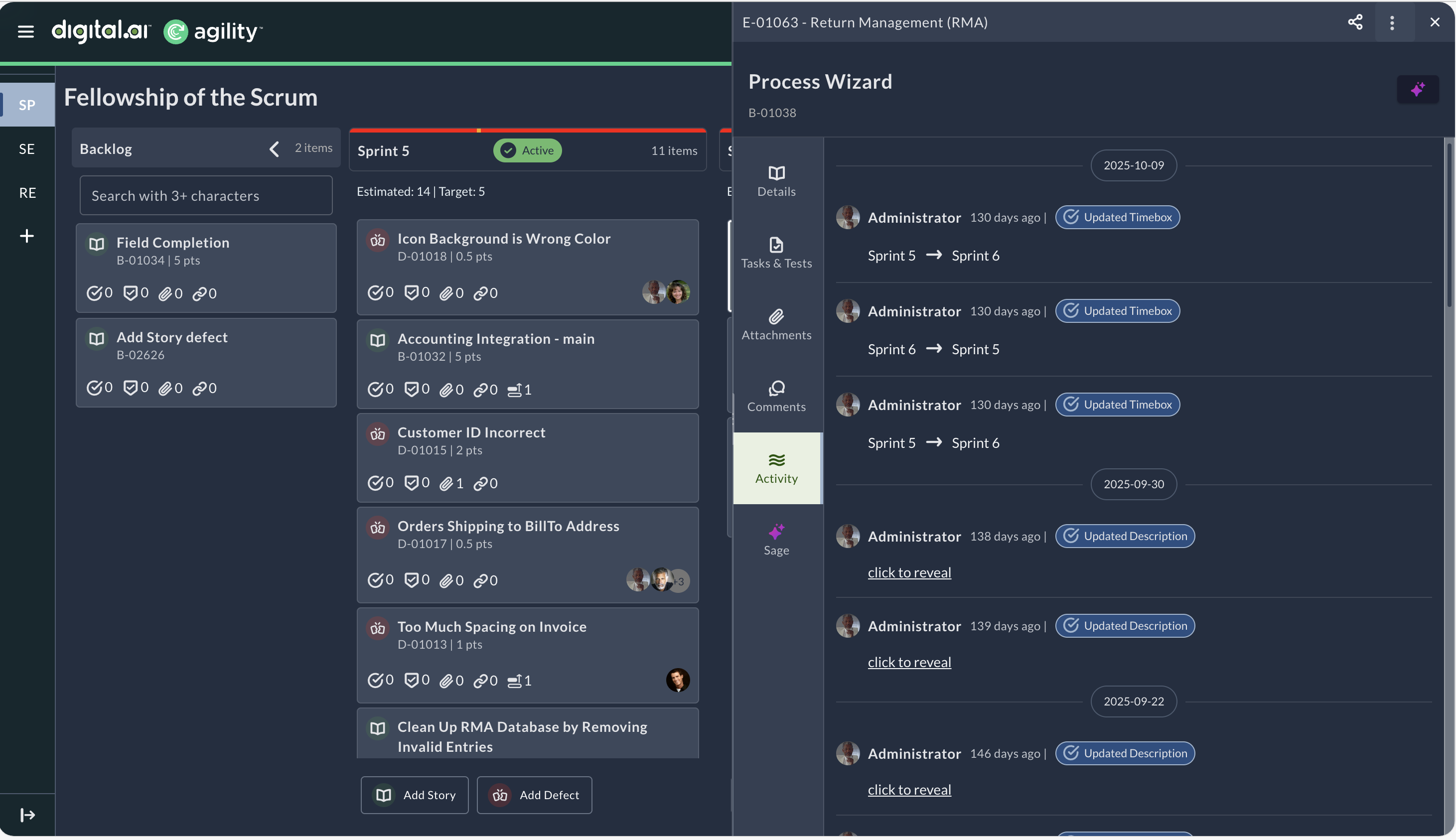
A new Activity section is now available within the Asset Detail Drawer, providing a clear chronological view of recent changes and actions related to each work item. Track updates, status changes, and field modifications directly from the drawer without navigating away from your current context.
What you can do:
- View a chronological timeline of all changes made to the work item
- See who made each change and when it occurred
- Review field updates, status transitions, and other modifications
- Click to reveal full details for long text changes
- Scroll through the activity history with infinite scroll for work items with extensive change history
The Activity section keeps you informed about work item progress and helps teams maintain visibility into how work evolves over time. Access the Activity section by opening any work item in the Asset Detail Drawer and selecting the Activity tab.
For more information, see View Work Item Activity History.
Sage Redesign with Enhanced Capabilities
Sage has been redesigned and upgraded to deliver improved performance, faster and more accurate responses, new speech recognition capabilities, and a new indicator showing LLM availability. The enhanced Sage experience provides more reliable AI assistance throughout Rooms 2.
What changed:
- Improved performance delivers faster response times and more accurate answers
- New speech recognition capabilities allow you to interact with Sage using voice input
- LLM availability indicator shows when the AI service is ready to respond
- Enhanced reliability ensures consistent AI assistance across your workflow
The upgraded Sage helps you work more efficiently by providing quick access to information and assistance directly within your Rooms 2 workspace.
For more information, see Getting Started with Sage.
Release included several Sage infrastructure improvements and risk-mitigation changes that required us to adjust our support for older major versions. This is not something that will accompany every update, this release was an exception driven by technical necessity. Lowest supported Agility version changed to 25.2.14.
Fixes
Work Item Animation During Drag-and-Drop
Resolved an issue where work items briefly reappeared in the original column before displaying in the destination column during drag-and-drop operations. When you drag a work item from one column to another (for example, from Dev to Testing), the work item now moves directly to the destination column without flickering back to the original column, providing a smoother and more predictable drag-and-drop experience.
Duplicate Images in Long-Text Fields
Fixed an issue where images pasted into long-text fields were unintentionally duplicated. When you paste an image into a Description or other long-text field, the image now appears only once as expected, preventing unwanted duplication.
February 6, 2026
Enhancements
Improved Task and Test Editing in Asset Detail Drawer
The Task and Test sections in the Asset Detail Drawer provide a smoother, more consistent editing experience.
What changed:
- Task and Test editing follows the same inline editing behavior as other work items.
- You no longer see separate Save and Cancel buttons at the bottom of the drawer when you edit Tasks or Tests.
- Changes save automatically when you click outside the edited field or press ENTER, matching the standard editing flow for Stories, Defects, and other work items.
Improved navigation:
- The tab order changed from "Test | Task" to "Task | Test".
- The Task tab is now the default view when you open the Task & Test section.
These improvements streamline the editing workflow and provide a more intuitive experience when working with Tasks and Tests across both TeamRooms and PlanningRooms.
Fixes
- Quick Close now respects the "Enforce Soft Requirement of values at Close" setting.
- Filter drawer prevents duplicate filter selection for the same field.
- Portfolio Kanban columns display consistently across all views.
Quick Close Respects Enforced Important Fields
Fixed an issue where the Quick Close option remained available even when enforced important fields were empty. Quick Close now correctly respects the "Enforce Soft Requirement of values at Close" setting configured in your Project Workspace Planning Level.
What changed:
- The Quick Close option is now hidden when mandatory or enforced important fields are empty.
- If important fields are marked but not enforced, Quick Close remains available.
- This brings Rooms 2 behavior in line with Classic TeamRooms.
This ensures that work items cannot be closed prematurely when your project requires specific field values at closure.
Filter Drawer Prevents Duplicate Filter Selection
Fixed an issue where you could create multiple instances of the same filter instead of selecting multiple values within a single filter. The filter drawer now removes already-selected filter options from the available choices, preventing duplicate filters.
What changed:
- After you apply a filter (such as Risk = High), that filter option no longer appears in the filter drawer as an additional choice.
- To filter by multiple values for the same field, select multiple values within the same filter instance.
- The filter interface now displays multiple selected values with individual remove (X) buttons, making it easier to manage multi-value filters.
Example: To filter by both High and Low Risk stories, select "High" and "Low" from the same Risk filter dropdown. Previously, you might have created two separate Risk filters, which caused filtering issues.
This improves filter clarity and prevents confusion when applying multiple criteria to the same field.
Portfolio Kanban Column Display Consistency
Fixed an issue where Portfolio Kanban columns displayed inconsistently, causing confusion about the workflow layout. Columns now appear in a reliable and predictable order, ensuring the Portfolio Kanban view accurately reflects your configured workflow.
What changed:
- Portfolio Kanban columns now display consistently across all views and sessions.
- Column order matches your configured workflow progression.
- Eliminates discrepancies between expected and actual column layouts.
This fix ensures you can rely on the Portfolio Kanban view to accurately represent your work structure and track progress across portfolio items.
January 30, 2026
Enhancements
Resize and Reorder Columns in Portfolio Tree
Portfolio Tree supports resizing and reordering columns, giving you greater flexibility to customize your workspace and quickly access the information that matters most.
Resize columns:
- Drag the edge of any column header to adjust the column width
- Resize columns to accommodate longer text fields such as Title or to make better use of available screen space
Reorder columns:
- Click the = icon next to any column header
- Drag and drop the column to a new position in the table
Persistent preferences:
- Your column widths and column order automatically save and restore across sessions
- Preferences are stored locally in your browser
These improvements help you organize and view portfolio items more efficiently by tailoring the layout to your specific needs.
Fixes
Asset Detail Drawer Responsive Behavior in Planning Rooms
Fixed issues with the resizable Asset Detail drawer in Planning Rooms that affected the viewing experience when resizing the drawer or browser window. The drawer now automatically adjusts to available screen space, ensuring a smoother viewing experience and making asset information easier to read across different device sizes.
Resolved issues:
- The parent title now truncates properly when the drawer is narrowed, preventing the title from overflowing and pushing the Share, menu, and Close icons off the screen
- The drawer automatically adapts to changes in screen resolution or browser window size, preventing the drawer from extending beyond the visible area
Retrospective Timer Visibility in Dark Theme
Improved the visibility of the Retrospective Timer when using the Dark theme. The color and contrast have been adjusted to ensure the timer is clearly visible during team retrospective sessions, providing a more accessible and consistent experience.