Portfolio Level Release Planning
Portfolio Level Release Planning enables strategic roadmap planning by organizing Epics and Features across multiple releases. Product managers, release managers, and portfolio managers use this approach to define Epic roadmaps, break down initiatives into Features, and align delivery with release timelines based on priority and capacity.
Who uses portfolio-level planning: Portfolio managers define Epic roadmaps and strategic alignment, program managers coordinate multi-team delivery, release managers balance capacity across releases, product owners prioritize feature delivery.
Permission requirement: Viewing portfolio-level release planning requires read access to the portfolio items and releases. Moving Epics between releases requires edit permissions on the Epics. Creating releases requires administrator or program manager permissions.
Overview
Portfolio Level Release Planning allows you to:
- Select Portfolio Items from the item type dropdown to view Epics
- View all Epics for a selected planning level in a flat list
- Assign Epics to specific releases to establish your release roadmap
- Automatically cascade release assignments to child Features, Sub-Features, and Stories
- Manage feature-level planning aligned with future releases
- Track progress of strategic initiatives across the release lifecycle
Use this when:
- Planning which Epics will be delivered in upcoming releases
- Creating an Epic roadmap aligned with release timelines
- Balancing release capacity by moving Epics between releases
- Coordinating multi-team delivery of strategic initiatives
Prerequisites
- Release Planning enabled in your Agility instance
- A Value Stream created with at least one active release
- Appropriate permissions to view and edit portfolio items
- Portfolio items (Epics and Features) created in your planning hierarchy
For information about the Release Planning Board interface, see Release Planning Board.
Access Portfolio Level Planning
- Log in to Agility and click the hamburger menu > Release Planning.
- Select your Value Stream from the list.
- In the Release Planning Board, locate the item type dropdown in the top-right area (next to "Show closed items").
- Click the dropdown (it may show "Backlog Items" by default).
- Select Portfolio Items from the options.
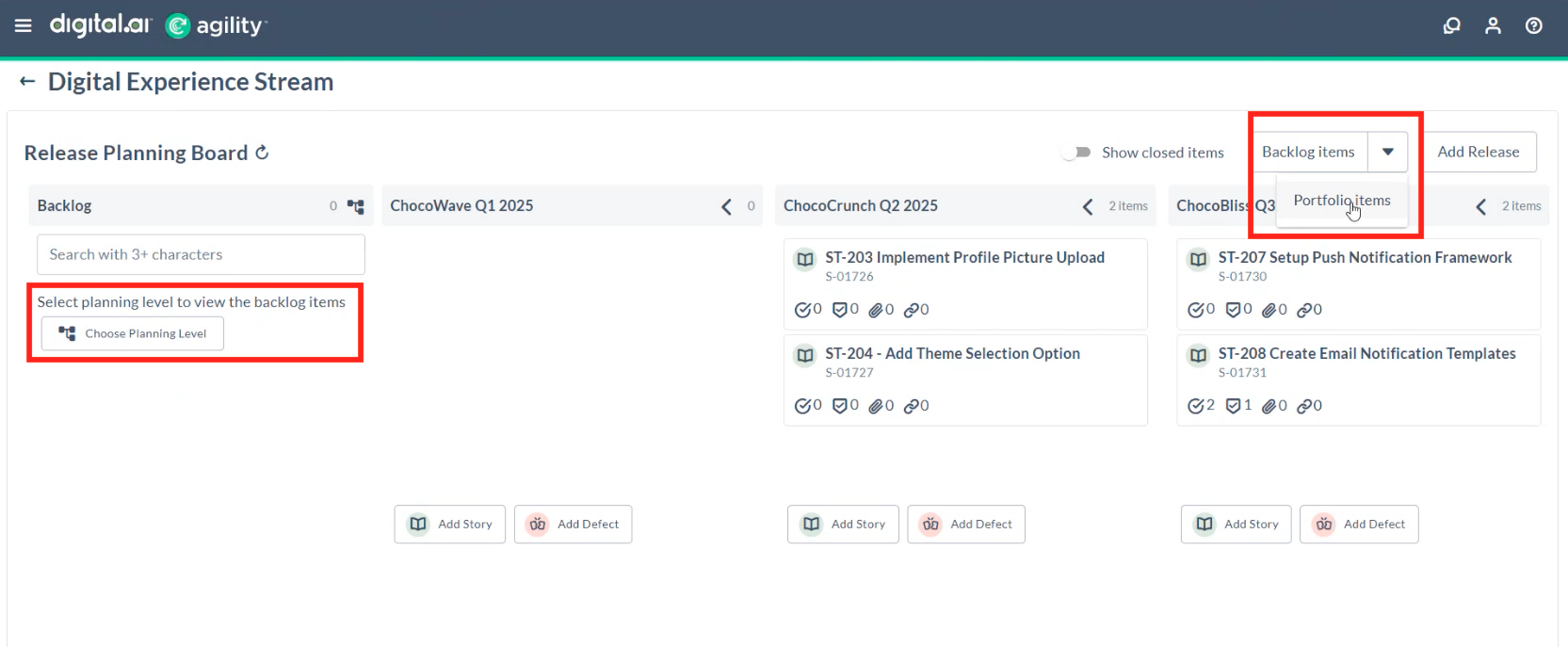
The board displays all Epics for the current planning level context in a flat list view. Each Epic appears as its own card, with no hierarchy or nested grouping displayed.
Filter by Planning Level
To view Epics for a specific planning level context:
- In the left sidebar under the search box, click Choose Planning Level.
- Select the desired planning level (Program, Portfolio, Value Stream).
- The board refreshes to show only Epics associated with that planning level.
You must select a planning level to view Epics. If no planning level is selected, the backlog column displays an empty list.
Portfolio Items View
Flat List Display
When you select Portfolio Items from the item type dropdown, Agility displays Epics in a flat list structure:
- Each Epic appears as its own card: No parent-child hierarchy is shown on the cards
- No nested grouping: Sub-epics, Features, and Sub-Features are not displayed indented or as branches
- Planning level context: You must select a planning level filter to view Epics; if no planning level is selected, the backlog column shows an empty list
- Clear visibility: This flat structure makes it easy to see all strategic initiatives at once
Backlog Column
The Backlog column shows all Epics that are not yet assigned to a release:
- Epics appear in priority order or by creation date
- Each Epic card shows key information: ID, Title, Tags, Links, and Attachment
- You can search or filter Epics in the backlog to find specific items (only from the chosen planning level)
- Unassigned Epics indicate work that needs to be planned into future releases
Release Columns
Each release column displays Epics assigned to that specific release:
- Epics are organized by the release they're planned for
- You can view which strategic initiatives are targeted for each release
- The column header shows the total count of Epics and related metrics
- This view provides a clear release roadmap at the Epic level
Assign Epics to Releases
Assign from Backlog to Release
- In the Release Planning Board, ensure Portfolio Items is selected from the item type dropdown (top-right area).
- Locate the Epic you want to assign in the Backlog column.
- Click and drag the Epic card to the desired release column.
- Release the Epic card in the target release column.
Agility displays a success notification confirming the Epic and its open child items have been moved to the new release. Items already linked to another release remain in their current location.
Move Between Releases
- In the Release Planning Board with Portfolio Items selected from the item type dropdown.
- Locate the Epic in its current release column.
- Click and drag the Epic card to a different release column.
- Release the Epic card in the new target release.
The Epic moves to the new release, and open child items are reassigned accordingly.
Assign Multiple Epics at Once
- In the Release Planning Board, select Portfolio Items from the item type dropdown.
- Select multiple Epic cards using the checkbox available on each card.
- Drag the selected Epics to the target release column, or click Move To, select the release from the dropdown, and click Move.
- Release to assign all selected Epics.
All selected Epics move to the target release with their respective child items.
Automatic Child Item Movement
When you move an Epic to a new release, Agility automatically handles the assignment of all related child items based on intelligent rules.
What Happens When You Move an Epic
When you assign an Epic to a release, the following open items move with it automatically:
| Child Item Type | Movement Behavior |
|---|---|
| Features | All Features under the Epic move to the new release |
| Sub-Features | All Sub-Features under those Features move to the new release |
| Stories | All Stories under Features and Sub-Features move to the new release |
| Defects | All Defects linked to the Epic or its children move to the new release |
| Sub-Epics | All Sub-Epics under the parent Epic move to the new release |
Items That Do Not Move
The following items remain in their current location and are not moved:
| Item Condition | Reason for Not Moving |
|---|---|
| Already assigned to a different release | Items explicitly assigned to another release stay in that release to preserve intentional planning decisions |
| Closed items | Closed items never move; they remain where they were originally closed to maintain historical accuracy |
| Items without edit permission | Child items you don't have permission to edit remain in their current location for security compliance |
| Items in a different planning level | Items associated with a different planning context stay in their assigned location |
Movement Examples
Example 1: Move Epic from Backlog to Release A
Before Move:
- Epic 100 (in backlog)
- Feature 101 (in backlog)
- Feature 102 (in backlog)
- Story 201 under Feature 101 (in backlog)
- Story 202 under Feature 102 (in backlog)
After moving Epic 100 to Release A:
- Epic 100 → Release A
- Feature 101 → Release A
- Feature 102 → Release A
- Story 201 → Release A
- Story 202 → Release A
All open child items move with the Epic to Release A.
Example 2: Move Epic with Items Already Assigned
Before Move:
- Epic 100 (in backlog)
- Feature 101 (in backlog)
- Feature 102 (already in Release B)
- Story 201 under Feature 101 (in backlog)
- Story 202 under Feature 102 (in Release B)
After moving Epic 100 to Release A:
- Epic 100 → Release A
- Feature 101 → Release A
- Feature 102 → Stays in Release B (already assigned)
- Story 201 → Release A
- Story 202 → Stays in Release B (already assigned to Release B)
Only items in the backlog move to Release A. Items already assigned to Release B remain there.
Example 3: Move Epic Between Releases
Before Move:
- Epic 100 (in Release A)
- Feature 101 (in Release A)
- Feature 102 (in Release B)
- Story 201 under Feature 101 (in Release A, closed)
- Story 202 under Feature 102 (in Release B)
After moving Epic 100 to Release C:
- Epic 100 → Release C
- Feature 101 → Release C
- Feature 102 → Stays in Release B (already assigned to different release)
- Story 201 → Stays in Release A (closed)
- Story 202 → Stays in Release B (already assigned to Release B)
Only open items without explicit release assignments move to Release C.
Visual Confirmation and Notifications
Success Notification
When you successfully move an Epic, Agility displays a snackbar notification with the following information:
Success
Epic and open child items (Sub-Features, Stories, and Defects) moved to the new release, except those already linked to another release.
This confirmation helps you understand exactly what happened during the move operation.
What the Notification Tells You
- Epic moved — The Epic itself has been assigned to the selected release
- Open child items moved — Features, Sub-Features, Stories, and Defects that were unassigned or in the backlog have been moved
- Exception noted — Items already linked to another release remained in their current location
- Closed items unaffected — Closed items stayed where they were originally closed
Assign Epics from the Detail Page
- Navigate to Portfolio > Planning > Portfolio Tree.
- Click an Epic to open its detail page.
- In the Epic details section, locate the Release field.
- Click the Release dropdown and select the target release.
- Click Save.
The Epic is assigned to the release with automatic child item movement as described above.
Release Assignment Restrictions
Agility enforces the following restrictions to maintain data integrity and prevent conflicts.
Cannot Close a Release with Open Portfolio Items
You cannot close a release if it contains any open portfolio items (Epics, Features, or Sub-Features).
Why this restriction exists:
- Prevents accidentally closing releases with incomplete strategic initiatives
- Ensures all Epics are properly delivered or reassigned before release closure
- Maintains accurate release completion tracking
How to resolve:
- Review all portfolio items assigned to the release.
- Either:
- Close all portfolio items if they are delivered
- Move incomplete portfolio items to a future release
- Move incomplete items back to the backlog for future planning
- Once all portfolio items are closed or moved, you can close the release.
Permission-Based Movement
Agility respects your user permissions when moving child items:
- Items you have permission to edit: Move with the Epic automatically
- Items without edit permission: Remain in their current location
- Notification clarity: The system moves only what you're authorized to change
Example: You move Epic 100 to Release A, but you don't have permission to edit Feature 102 under that Epic.
- Epic 100 moves to Release A
- Feature 101 (you have permission) moves to Release A
- Feature 102 (no permission) stays in its current location
- You receive notification confirming partial movement
Use Cases
Epic Roadmap Planning
A product manager defines an Epic roadmap with multiple Epics representing major initiatives. Each Epic needs to be aligned with specific releases based on strategic priorities.
- Create Epics representing strategic initiatives ("Mobile Login & Biometric", "Push Notifications", "Offline Mode").
- Define Features under each Epic representing functional capabilities.
- Use Portfolio Level Planning to assign Epics to target releases (Release A, Release B, Release C).
- As Epics are assigned, all Features and Stories automatically align with the target release.
- Track Epic progress across releases to ensure strategic goals are met.
This provides clear visibility into which strategic initiatives are planned for each release, enabling better stakeholder communication and alignment.
Feature-Level Planning Across Releases
A release manager plans Features across multiple releases, with some Features delivered in early releases and others in later releases.
- Start with Portfolio Items view by selecting it from the item type dropdown.
- Assign Epics to initial target releases based on priority.
- Switch to Backlog Items view (if needed) to fine-tune specific Story or Defect assignments.
- If a Feature needs to move to a different release, use the Portfolio Tree or Epic detail view to reassign that Feature without affecting the Epic.
- The Epic remains in its original release while the Feature moves independently.
This supports flexible planning with both top-down (Epic-driven) and bottom-up (Feature-driven) release planning approaches.
Release Rebalancing
During planning, a release becomes overloaded with work. The release manager moves some Epics to a future release to balance capacity.
- Use the item type dropdown to select Portfolio Items view.
- View all Epics in the overloaded release.
- Identify Epics that can be deferred to the next release.
- Drag and drop selected Epics to the next release column.
- All child Features and Stories move automatically, except those explicitly assigned elsewhere.
- Review the rebalanced releases to confirm capacity is appropriate.
This enables quick rebalancing of release scope at the strategic level without manually moving individual Features and Stories.
Multi-Team Release Coordination
Multiple teams contribute to the same release. Portfolio managers assign Epics to releases while ensuring each team's work is properly allocated.
- Use the item type dropdown to select Portfolio Items view.
- Assign Epics representing different functional areas to the target release.
- Features under each Epic are automatically assigned to the release.
- Teams can switch to Backlog Items view to see their assigned Stories and break them down further.
- Progress on Features rolls up to the Epic, providing visibility to portfolio managers.
- Release managers track overall Epic completion across all contributing teams.
This enables coordinated release planning across multiple teams with clear visibility at both the strategic (Epic) and execution (Feature/Story) levels.
Best Practices
Start with the Epic Roadmap
- Define your strategic initiatives as Epics before assigning them to releases
- Ensure Epics have clear business value and acceptance criteria
- Use lean business cases to justify Epic prioritization
- Align Epics with strategic themes and organizational goals
Use Planning Levels and Item Types Intentionally
- Use the item type dropdown (Backlog Items vs. Portfolio Items) to switch between strategic and tactical views
- Select Portfolio Items view for strategic, high-level release planning with Epics
- Switch to Backlog Items view for detailed team-level sprint planning with Stories and Defects
- Use the Choose Planning Level button to filter items by planning level context (e.g., Team, Program, Portfolio)
- Avoid mixing strategic and tactical planning in the same view
- Use the appropriate item type based on your role and planning activity
Review Child Item Assignments
- After moving an Epic, review which child items moved and which stayed in place
- Verify that items assigned to different releases are intentionally placed
- Check for items that didn't move due to permission restrictions
- Communicate with other teams if cross-team items are affected
Balance Releases Appropriately
- Avoid overloading a single release with too many Epics
- Consider team capacity and dependencies when assigning Epics
- Use historical velocity data to inform Epic-to-release assignments
- Leave buffer capacity in each release for unplanned work
Maintain Release Integrity
- Close Epics and Features when they are delivered
- Move incomplete Epics to future releases rather than leaving them in closed releases
- Ensure all portfolio items are closed or reassigned before closing a release
- Use consistent naming conventions for releases to improve clarity
Communicate Changes
- Notify stakeholders when Epics are reassigned to different releases
- Explain the rationale for release rebalancing decisions
- Keep roadmaps updated to reflect current release assignments
- Use comments and notifications to keep teams informed
Troubleshooting
Don't see any Epics in the backlog
Ensure you have selected a planning level from the "Choose Planning Level" dropdown. The backlog displays empty if no planning level is selected.
Can't move an Epic to a different release
Verify you have edit permissions on the Epic and that the target release is active. Closed releases don't accept Epic assignments.
What happens to child Features when I move an Epic
All open child Features, Sub-Features, and Stories automatically move with the Epic, except items already assigned to a different release or items you don't have permission to edit.
Epic moved but some child items didn't move
Check if those items are already assigned to a different release—items with explicit release assignments stay in place. Verify you have edit permissions for those items—items without permission don't move. Check if those items are closed—closed items never move from their original location. Review the success notification to understand which items moved and which did not.
Cannot close a release
Review all portfolio items assigned to the release. Ensure all Epics, Features, and Sub-Features are closed or moved to another release. Use the Portfolio Tree or Portfolio Kanban to identify open portfolio items in the release. Close or reassign all open portfolio items, then retry closing the release.
Epic doesn't appear in Portfolio Items view
Verify you have selected Portfolio Items from the item type dropdown (not Backlog Items). If you've selected a specific planning level using "Choose Planning Level," verify the Epic belongs to that planning level context. Check that you have permission to view the Epic. Ensure the Epic is not filtered out by active filters or search criteria. Confirm the Epic is not closed (closed items may be hidden depending on your "Show closed items" setting).
Child items not moving as expected
Verify those items are children of the Epic you moved (check hierarchy in Portfolio Tree). Check if those items are already assigned to a different release. Ensure you have edit permissions for those items. Confirm those items are open (closed items never move).
Release field not visible
Verify that Release Planning is enabled in your Agility instance. Check that you have appropriate permissions to assign releases. Ensure you're viewing an Epic (not a different portfolio item type). Contact your Agility administrator if the field remains unavailable.