Ansible Automation Controller Plugin
The Ansible Automation Controller plugin is developed to integrate Ansible Automation Platform Controller API with Digital.ai Release. It acts as a bridge between Digital.ai Release, a comprehensive release orchestration solution, and Ansible Tower (Ansible Automation Platform Controller). It allows users to incorporate Ansible Tower tasks and playbooks directly into their release pipelines, ensuring smooth integration of infrastructure provisioning, configuration management, and application deployments.
Prerequisites
Before you set up the Ansible Automation Controller plugin, ensure you have:
- An Ansible Automation Platform Controller installation (version 2.5 or later recommended).
- Valid credentials (username/password or API token) for the Ansible Automation Platform.
- A Connection to the Ansible Automation Platform Controller.
Set Up a Connection to the Ansible Automation Platform Controller
To set up a connection to the Ansible Automation Platform Controller:
-
From the navigation pane, select Configuration > Connections.
-
Under HTTP Server Connections, next to Ansible Automation Platform Controller: Server, click
 .
. -
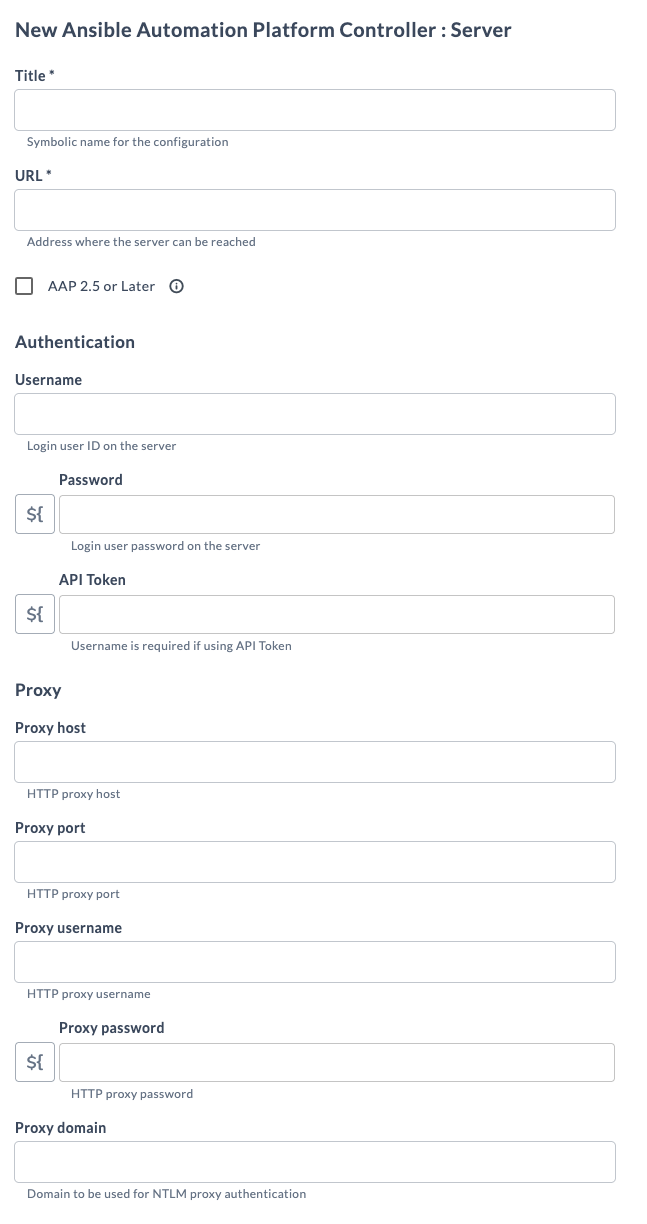
Configure the connection with the following fields:
Field Description Title* Symbolic name for the configuration URL* Address where the server can be reached AAP 2.5 or Later Select this checkbox to use the new API for Ansible Automation Platform version 2.5 or later. Default is unchecked (uses the older API) Username Login user ID on the server Password Login user password on the server API Token API token generated from the Ansible Automation Platform. Username is required if using API Token Proxy host HTTP proxy host Proxy port HTTP proxy port Proxy username HTTP proxy username Proxy password HTTP proxy password Proxy domain Domain to be used for NTLM proxy authentication -
Click Test to verify the connection.
-
Click Save to save the configuration.
Available Tasks
The Ansible Automation Controller plugin includes the following tasks:
- Run Job Template
- Wait for Job Status
- Run Job Template and Wait for Status
- Get Information
- Inventory List
- Add/Remove Credential
Run Job Template
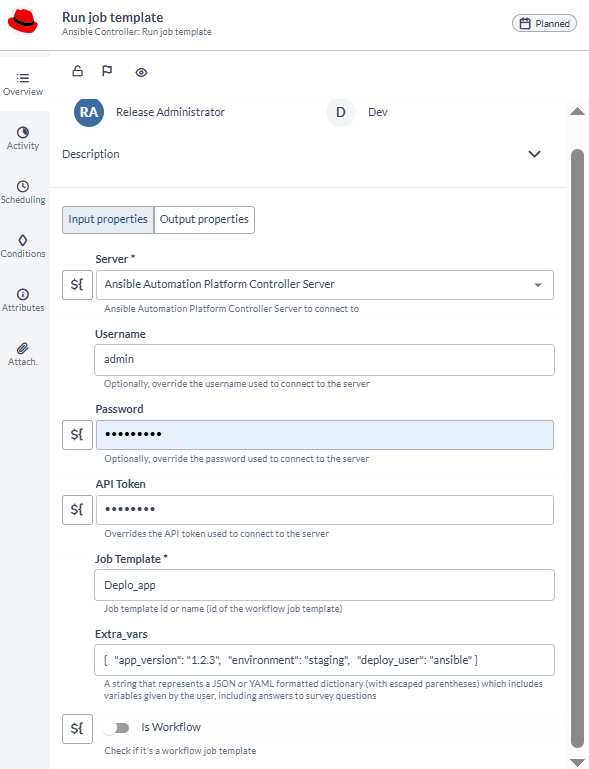
Use the Run a Job Template task to execute a job template in the Ansible Automation Platform Controller.
To add a Run a Job Template task:
- In your release template, add a task of type Ansible Automation Controller: Run Job Template.
- Configure the task with the options described in the following table.
- Save the task.
Input Properties
| Option | Description |
|---|---|
| Server * | Ansible Automation Platform Controller server connection. Select from the dropdown or create a new connection if you don't have one |
| Username | Overwrites username if defined in the connection form |
| Password | Overwrites password if defined in the connection form |
| Api token | Overwrites API token if defined in the connection form |
| Job Template ID * | The ID of the job template to run |
| Extra_vars | A string that represents a JSON or YAML formatted dictionary (with escaped parentheses) which includes variables given by the user, including answers to survey questions |
| Is Workflow | Check this if it's a workflow job template |
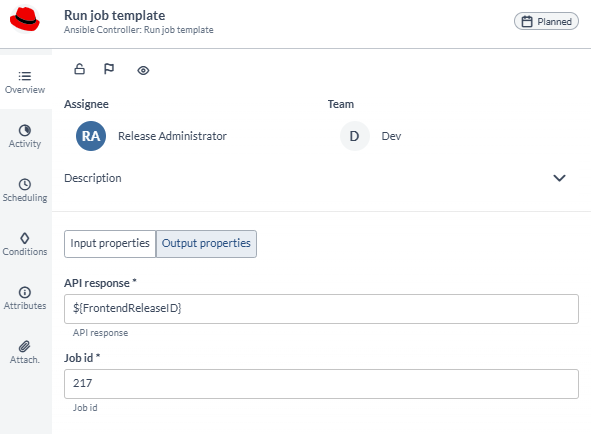
Output Properties
| Property | Description |
|---|---|
| API response | The ID of the job that was launched |
| Job id | The current status of the job |
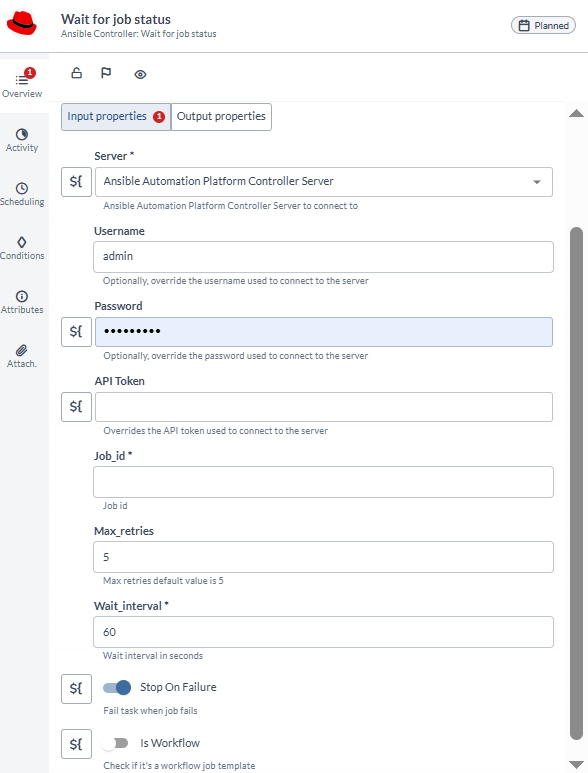
Wait for Job Status
Use the Wait for Job Status task to monitor and wait for a job to complete in the Ansible Automation Platform Controller.
To add a Wait for Job Status task:
- In your release template, add a task of type Ansible Automation Controller: Wait for Job Status.
- Configure the task with the options described in the following table.
- Save the task.
Input Properties
| Option | Description |
|---|---|
| Server * | Ansible Automation Platform Controller server connection |
| Username | Overwrites username if defined in the connection form |
| Password | Overwrites password if defined in the connection form |
| Api token | Overwrites API token if defined in the connection form |
| Job ID * | The ID of the job to monitor |
| Max_retries | Defines maximum retries. The default value is infinity |
| Wait_interval * | Defines the wait interval in seconds |
| Stop On Failure | If selected, it fails the task when the job fails |
| Is workflow | Check this if it's a workflow job template |
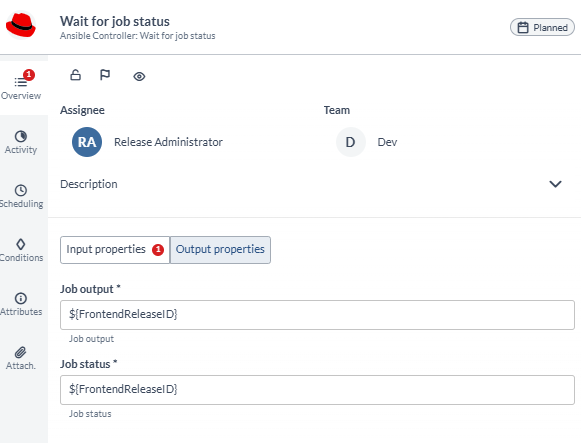
Output Properties
| Property | Description |
|---|---|
| Job Output | Detailed information about the job execution |
| Job Status | The final status of the job |
Run Job Template and Wait for Status
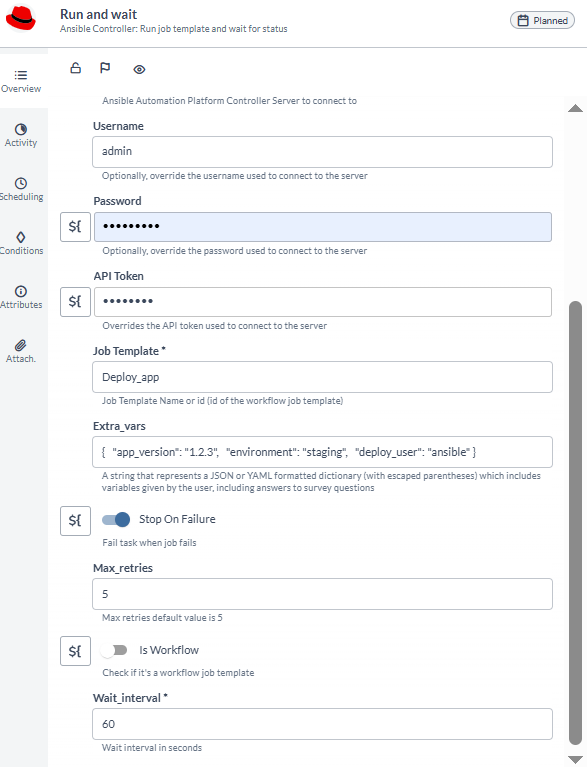
Use the Run Job Template and Wait for Status task to execute a job template and wait for its completion in a single task. This task combines the functionality of the Run Job Template and Wait for Job Status tasks.
To add a Run Job Template and Wait for Status task:
- In your release template, add a task of type Ansible Automation Controller: Run and Wait.
- Configure the task with the options described in the following table.
- Save the task.
Input Properties
| Option | Description |
|---|---|
| Server * | Ansible Automation Platform Controller server connection |
| Username | Overwrites username if defined in the connection form |
| Password | Overwrites password if defined in the connection form |
| Api token | Overwrites API token if defined in the connection form |
| Job Template ID * | The ID of the job template to run |
| Extra_vars | A string that represents a JSON or YAML formatted dictionary (with escaped parentheses) which includes variables given by the user, including answers to survey questions |
| Max_retries | Defines maximum retries. The default value is infinity |
| Wait_interval * | Defines the wait interval in seconds |
| Stop On Failure | If selected, it fails the task when the job fails |
| Is workflow | Check this if it's a workflow job template |
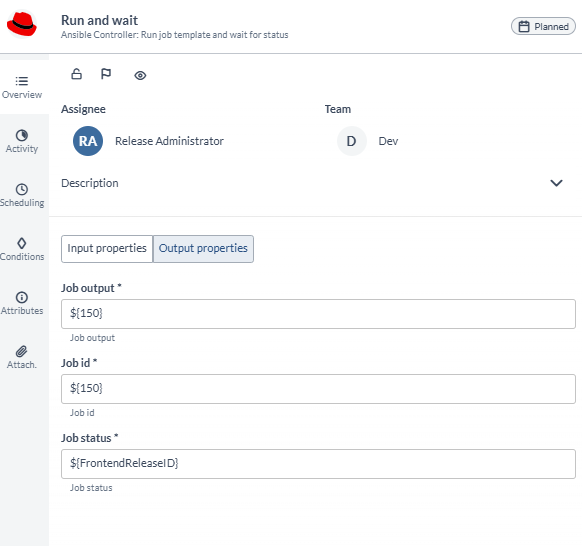
Output Properties
| Property | Description |
|---|---|
| Job Output | Detailed information about the job execution |
| Job ID | The ID of the job that was launched |
| Job Status | The final status of the job |
Get Information
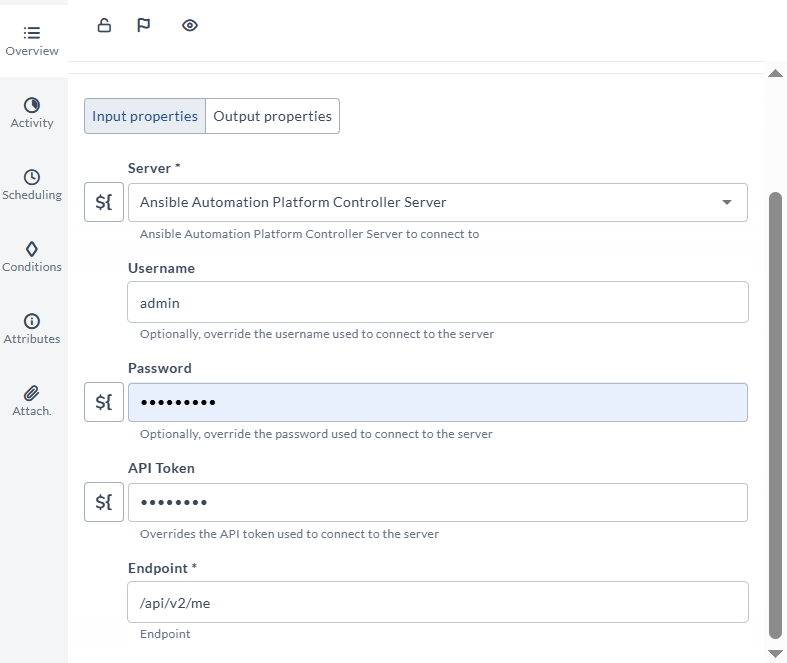
Use the Get Information task to retrieve information from a specific Ansible Automation Platform Controller API endpoint.
To add a Get Information task:
- In your release template, add a task of type Ansible Automation Controller: Get Information.
- Configure the task with the options described in the following table.
- Save the task.
Input Properties
| Option | Description |
|---|---|
| Server * | Ansible Automation Platform Controller server connection |
| Username | Overwrites username if defined in the connection form |
| Password | Overwrites password if defined in the connection form |
| API token | Overwrites API token if defined in the connection form |
| API Endpoint * | API endpoint to query (example: /api/v2/me) |
Output Properties
| Property | Description |
|---|---|
| API Output | JSON response from the API endpoint |
Inventory List
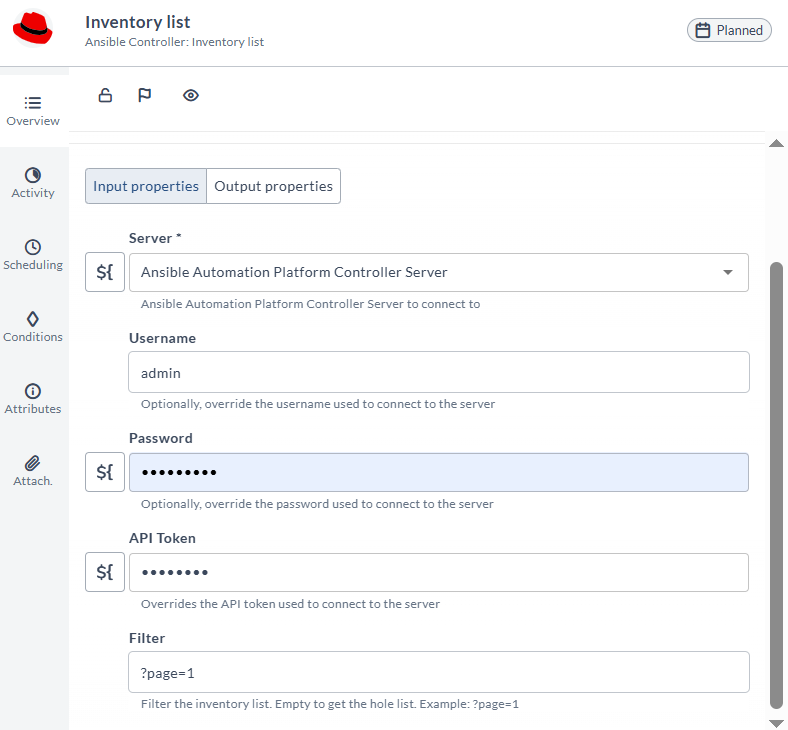
Use the Inventory List task to retrieve the list of inventories from the Ansible Automation Platform Controller.
To add a Inventory List task:
- In your release template, add a task of type Ansible Automation Controller: Inventory List.
- Configure the task with the options described in the following table.
- Save the task.
Input Properties
| Option | Description |
|---|---|
| Server * | Ansible Automation Platform Controller server connection |
| Username | Overwrites username if defined in the connection form |
| Password | Overwrites password if defined in the connection form |
| Api token | Overwrites API token if defined in the connection form |
| Filter | Filters the inventory list. Leave empty to get the whole list. Example: ?page=1 |
Output Properties
| Property | Description |
|---|---|
| API Output | List of inventories with their details |
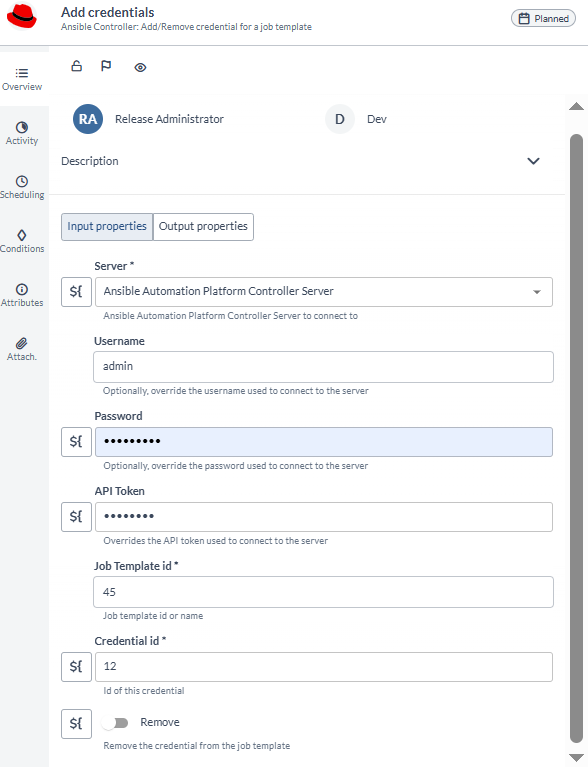
Add/Remove Credential
Use the Add/Remove Credential task to associate or disassociate a credential from a job template in the Ansible Automation Platform Controller.
To add an Add/Remove Credential task:
- In your release template, add a task of type Ansible Automation Controller: Add/Remove Credential.
- Configure the task with the options described in the following table.
- Save the task.
Input Properties
| Option | Description |
|---|---|
| Server * | Ansible Automation Platform Controller server connection |
| Username | Overwrites username if defined in the connection form |
| Password | Overwrites password if defined in the connection form |
| Api token | Overwrites API token if defined in the connection form |
| Job Template ID * | The ID of the job template |
| Credential ID * | ID of the credential to add or remove |
| Remove | Check this if you want to disassociate the credential from the job template |
Output Properties
| Property | Description |
|---|---|
| API Status | API resopnse status code |