Create Release Task
The Create Release task enables you to automatically create and start a release based on a configured template.
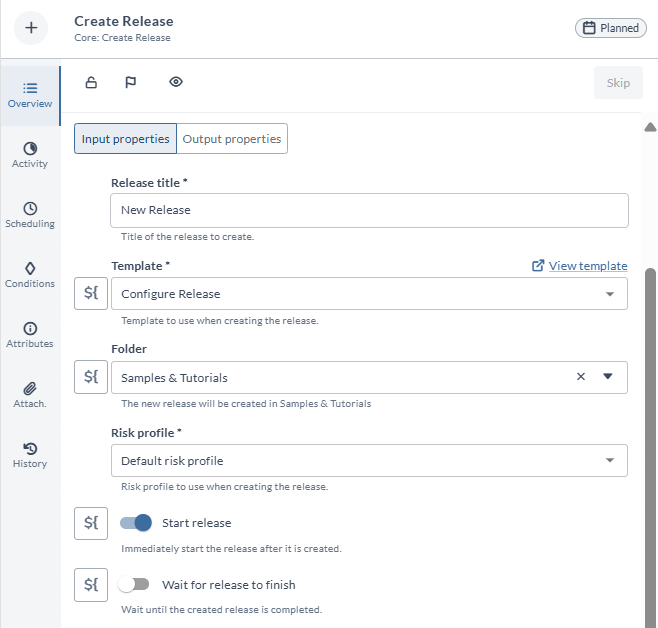
Input Properties
The following properties configure the behavior of the Create Release task:
| Property | Description |
|---|---|
| Release Title | The title for the newly created release |
| Template | The template to create the release from, or a variable containing the template ID |
| Folder | The destination folder for the new release |
| Risk Profile | The risk profile to assign to the release |
| Start Release | When enabled, automatically starts the release after creation (enabled by default) |
| Release Tags | Tags to add to the new release (supports variables using ${...} syntax) |
| Variables | Required template variables to populate (if applicable) |
| Release ID | Output property storing the ID of the created release |
| Wait for Release to Finish | Controls task completion behavior: - Enabled: Task waits for sub-release completion - Disabled: Task completes after initiating sub-release |
In the Release Flow Editor, Create Release tasks are visually distinguished with a green border.
Template Selection Dropdown
The Template dropdown now displays both folder paths and template names, improving template selection.
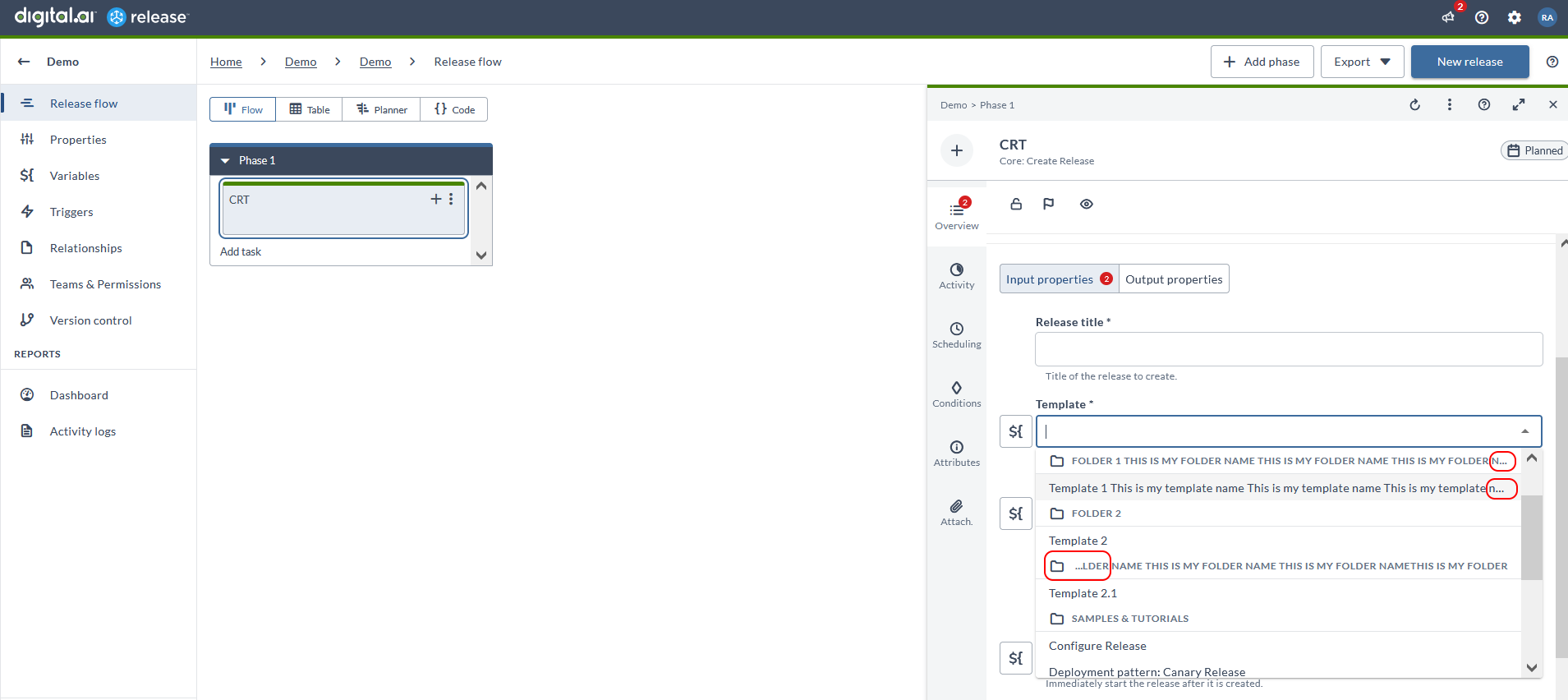
The system applies intelligent name truncation:
- Single root folders: Names truncate at the end
- Nested folders: Names truncate at the beginning
- Template names: Always truncate at the end
- Hovering reveals full names via tooltip
View Template Quick Access
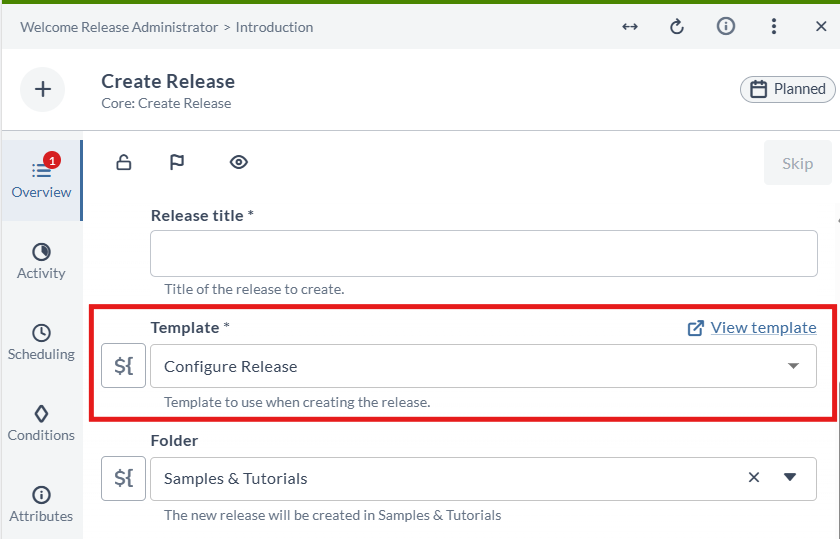
When configuring a Create Release task, a View Template link now appears above the Template dropdown. Clicking this link opens the selected template in a new tab, allowing you to quickly review or modify it without leaving the current release workflow.
Automated Tasks User Configuration
Create Release tasks require an assigned automated tasks user. This user must have:
- The "Create Release" permission on the specified template
- Assignment through the "Run automated tasks as user" release property
The automated tasks user carries over to the new release, overriding any template-specific user assignments. For more details, see Configure Release Properties.
Passing the Run As Password to Child Releases
A release runs its automated tasks as the user set in the Run automated tasks as user and Password release properties. The password in the Password field is the Run As password.
In the Password field, you can type a password or reference a password variable. A password variable can store the password itself, or point to a secret in a secret manager.
When the Password field references a password variable, the Create Release task passes the same reference to the child release instead of the password value. The child release resolves the password variable when tasks in the child release execute.
The Enable passing Run As password variables to child releases setting in System Settings > Tasks controls this behavior and is enabled by default. For more information, see Task Settings.
The password variable must be in scope for the child release. If it is not, the Create Release task fails before it runs. Scope depends on the type of Run As password:
- Global password variable or secret manager reference – Always in scope, so the reference is always passed to the child release.
- Folder password variable – In scope only when the destination folder defines the variable or inherits it from a parent folder. The destination folder can differ from the folder that holds the parent release.
- Release password variable – Never in scope, because a release password variable belongs to only one release.
- Password typed directly – Not a variable, so the password value is passed to the child release, as it was before.
When the task fails, the error names the variable. For example:
Run As Password references folder variable '${folder.password}' which is not accessible from the destination folder.Run As Password references release variable '${password}' which cannot be propagated to the child release.
To fix either error, set the Run As password to a global password variable, to a folder password variable that the destination folder can use, or to a secret manager reference. You can also clear the setting to go back to passing the password value.
Child releases created before you upgrade to Release 26.3 still hold a password value instead of a reference. Update or recreate them to use the reference.
Dynamic Template and Variable Assignment
Templates can be dynamically assigned using release variables. Toggle the template selector to variable mode to:
- Select from existing global/release variables
- Create new variables directly
- Configure dynamic variable values
- Pass template variables through the Create Release task
Folder Variable Selection
The destination folder can be dynamically set using a text-type variable:
- Create a folder variable if needed
- Toggle the folder selector to variable mode
- Choose from available release/folder/global variables
The selected variable's value determines the Folder ID at runtime.
Working with the Created Release ID
The new release's unique ID is stored in the task's "Created Release ID" output property. You can:
- Map this ID to a variable for use in other tasks
- Use it in Gate tasks to coordinate release flow
- Track the sub-release progress when needed
Without saving the ID to a variable, the release proceeds normally but cannot reference the sub-release.
Concurrent Release Limits
To maintain optimal performance, Release enforces a default limit of 100 concurrent releases from Create Release tasks. To modify this limit:
- Locate
XL_RELEASE_SERVER_HOME/conf/deployit-defaults.properties - Uncomment and adjust
xlrelease.Release.maxConcurrentReleases - Restart the Release server to apply changes