Create a Jython Script task
Jython Script task contains a Jython script that is executed on the Release server. It is an automated task that completes when the script is successfully executed.
A newer Python 3 Script (Container) task is also available, running on Python 3.12 with typed API access. See Python 3 Script (Container) Task.
For detailed information about the contents of the task, see Task Drawer for Tasks.
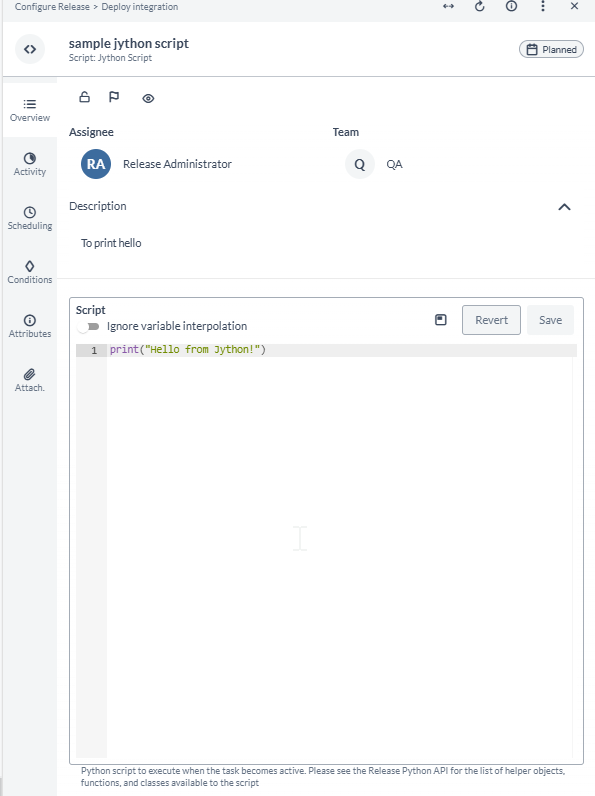
In the Overview tab of the Jython Script task, you can:
- Add tags to your Jython Script task in the Task Tags field for filtering.
- Type or paste a Jython script into the Script field. Click Save to save the changes or click Revert to undo your changes. If you navigate away from the Task Drawer without saving, the Script field retains your changes within your session and an Unsaved changes label appears next to the field. For more information, see Unsaved Changes in Script Fields.
You can toggle on the Ignore variable interpolation toggle button to ignore variables from being used in the script. See the Variable Interpolation section below for more information on variable interpolation.
Release supports Jython 2.7. Jython is the Java implementation of Python. This means that you have access to standard Python as well as the Java libraries included in Java 8.
The output of the Jython Script task is in markdown format. For more information, refer to Using Markdown in Release.
You can access and modify release variables in your scripts using the dictionary named releaseVariables. This sample script shows how to access and modify a variable:
print(releaseVariables['xldeployPackage'])
releaseVariables['xldeployPackage'] = 'Release'
In a similar way, you can modify global variables using the dictionary named globalVariables.
If you want to update global variables, the Run automated tasks as user variable must be set to a user that has the Edit global variables permission.
To set this variable:
- In the left navigation bar, click Releases.
- Click a release.
- In the Show dropdown, click properties.
- In the Run automated tasks as user field, set a user.
- Click Save.
In the release flow editor, Jython Script tasks have a gray border.
Security and Jython Script tasks
When a Jython Script task becomes active, Release executes the script in a sandbox on the Release server. The sandbox restricts access to system resources and Java classes. The security controls the sandbox uses depend on whether Release is running on JDK 21 or JDK 25.
For a description of each xl.security.scripting.sandbox.* setting referenced in this section, see xl-release.conf Configuration Settings Reference. For the full script security configuration and upgrade considerations, see Configure Script Security.
JDK 21
On JDK 21, Release can use the Java Security Manager and the XL_RELEASE_SERVER_HOME/conf/script.policy file to restrict script access to resources and Java classes.
When the sandbox is enabled, restricted scripts use the Security Manager permissions defined by the built-in grants and script.policy, and configured Jython script validation is applied. If a script requires additional permissions or access to Java classes, configure the appropriate permissions in script.policy.
JDK 25
JDK 25 does not support the Java Security Manager, so Release enforces Java class access directly without using script.policy.
Release provides a built-in allowlist of Java classes that scripts can access. To allow a script to load additional Java classes or packages, add them to the xl.security.scripting.sandbox.allowedJavaClasses list in the XL_RELEASE_SERVER_HOME/conf/xl-release.conf file:
xl.security.scripting.sandbox.allowedJavaClasses = ["com.company.domain.*", "com.company.utils.HelperClass"]
You can also explicitly prevent scripts from accessing Java classes or packages by configuring xl.security.scripting.sandbox.deniedJavaClasses.
In addition to runtime Java class restrictions, Release validates Jython scripts before execution. On JDK 25, the recommended security configuration restricts potentially unsafe Jython modules, functions, attributes, and built-ins. To allow a module that is currently restricted, remove it from the xl.security.scripting.sandbox.jython.restricted-modules list in the XL_RELEASE_SERVER_HOME/conf/xl-release.conf file:
xl.security.scripting.sandbox.jython.restricted-modules = [
    "importlib",
    "imp",
    "os",
    "subprocess"
]
In earlier versions, class access was managed through a script.policy file, which is no longer used on JDK 25. For the recommended configuration, Java class access settings, Jython restrictions, and upgrade considerations, see Configure Script Security.
Disable the script sandbox
The script sandbox is enabled by default. Disabling it is not recommended.
To disable the sandbox, set the following property in the XL_RELEASE_SERVER_HOME/conf/xl-release.conf file:
xl.security.scripting.sandbox.enabled = false
The effect of disabling the sandbox depends on the JDK version:
- JDK 21: Security Manager policy enforcement, restricted script-engine selection, and Jython validation are bypassed.
- JDK 25: Java class access restrictions and Jython validation are bypassed.
Disabling the sandbox removes important script security controls. This is particularly significant on JDK 25 because the Java Security Manager is not available.
By default, all password properties for release, phase, and task are encrypted in script task context. It is possible to get decrypted password properties by updating the XL_RELEASE_SERVER_HOME/conf/xl-release.conf file:
xl.security.scripting.sandbox.decryptPasswords = true
This is a deprecated feature and it will be removed in future releases.
As a part of security improvement, release will now restrict users to pass encrypted values for any create or update operation.
From Release 9.7.7, you can fall back to previous behaviour by updating the script task in the XL_RELEASE_SERVER_HOME/conf/xl-release.conf with the following config:
xl {
  security {
    accept-encrypted-secrets {
      enabled = false
    }
  }
}
You must restart the Release server after changing the XL_RELEASE_SERVER_HOME/conf/xl-release.conf file.
Using Jython datetime in scripts
Sometimes it is desirable to write Java code while writing Jython scripts.
However if you try using Jython datetime in the following way:
import datetime
currentDT = datetime.datetime.now() # here this will be converted to java.sql.Timestamp
print(str(currentDT))
the printed result will be incorrect.
You can overcome this problem by calling Jython datetime directly like this:
import datetime
print(datetime.datetime.now())
print(datetime.datetime.now().day)
The Jython will sometimes convert Jython instances that are assigned to a variable to Java, and because you can't know what kind of Java instance it will be, it is better to use Java in this case when you are dealing with Jython datetime.
from java.text import SimpleDateFormat
from java.util import Date

date = Date()
sdf = SimpleDateFormat("MM/dd/yyyy HH:mm:ss")
print(sdf.format(date))
Sample scripts
This sample script shows how to download a file from a web site and save it locally:
import httplib
url = 'www.xebialabs.com'
file = '/tmp/xebialabs.html'
xl = httplib.HTTPConnection(url)
xl.request('GET', '/')
response = xl.getresponse()
myFile = open(file, 'w')
myFile.write(response.read())
myFile.close()
print "Save %s to %s" % (url, file)
By default, the sandbox blocks the network and file system access that this script requires. For more information about adjusting the sandbox restrictions, see Configure Script Security.
Variable Interpolation
You can insert release, folder, or global variables directly into the script using the standard ${variable_name} syntax. However, users should exercise caution when interpolating variables because of the potential for insecurities and code injections, and it is not a recommended practice. This capability will be removed in a future update.
Variable interpolation replaces the ${variable_name} text in the script with the variable value "as is", without any escaping. This means that it will definitely fail if your variable value contains double quotes or new lines and if your Jython code looks like this:
x = "${myvariable}"
You can still work around this issue using triple quotes, but only in the case that your variable itself does not contain triple quotes, for example:
x = """${myvariable}"""
If you wish to use this feature, it is strongly recommended to avoid such characters as quotes, parentheses, and so on in the body of your variable. It is much preferred to use the releaseVariables['variable_name'] syntax as mentioned above.
Reserved variables
Script execution environment defines and uses set of variables, which you should consider as reserved variables and do not assign in your scripts.
DANGER: assigning to any of these variables may result in unpredictable behavior of your script.
- any variables starting with underscore, please avoid using variables starting with underscore
releasephasetaskglobalVariablesfolderVariablesreleaseVariables- API helper objects, functions and classes listed here