Create Release Variables
In Digital.ai Release, release variables are scope-specific configuration elements that help manage dynamic values within release templates and instances. Unlike global variables, release variables are confined to the template or release where they are created.
A release variable can be created using the release flow editor or the Variables screen.
Create a Variable in the Release Flow Editor
The Release Flow Editor provides a quick way to create variables while configuring tasks. Here's how:
To create a release variable, type its name in a task in the Release flow editor, using the ${ } syntax.
Example: Typing ${name} creates a variable called name, which can then be edited on the Variables screen.
The variable's type depends on the type of the field where the variable was created.
Example: Typing ${name} in a text field makes name of the type text, and typing ${name} in a password field makes it of the type password.
Other properties, such as the variable's label and description, will be left blank. These can be edited on the Variables screen.
A password entered in the ${variable} format is treated as a variable, so this format cannot be used for the text of the password itself.
Create a Variable on the Variables Screen
For more detailed variable configuration, use the Variables screen:
- In a release or template, navigate to CONFIGURATION > Variables from the left navigation pane.
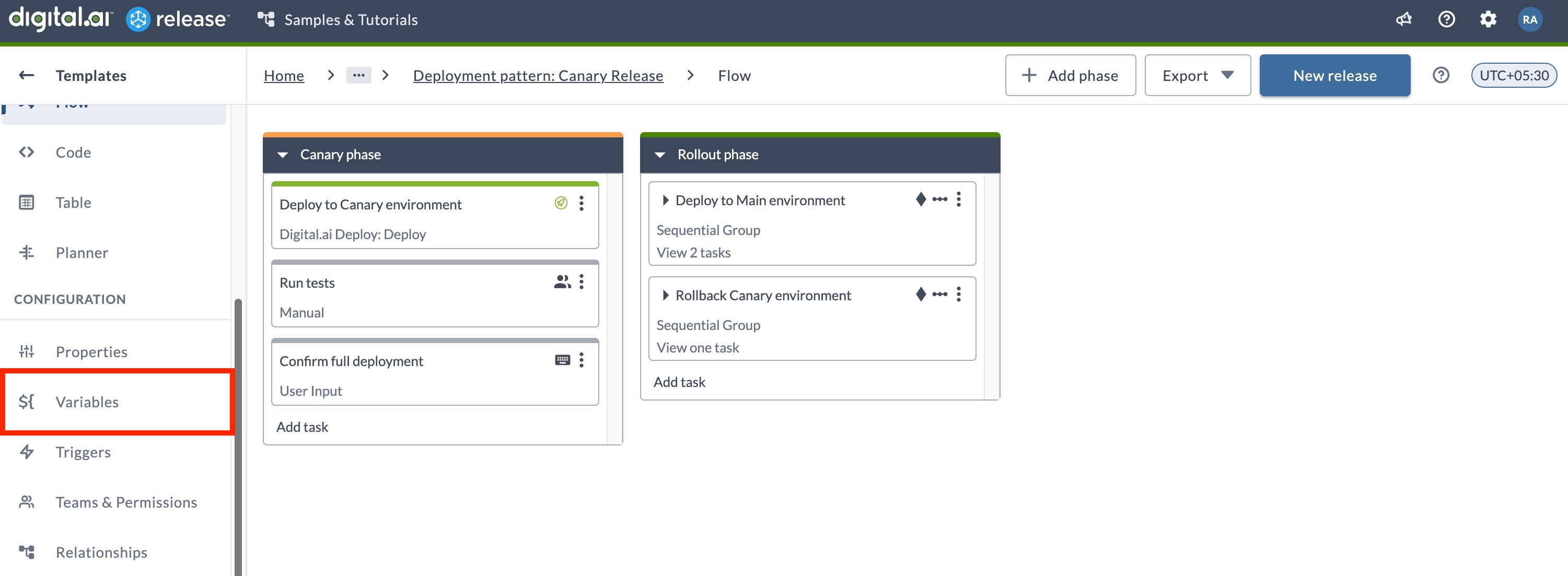
- The Variables page displays. Use the Release variables and Folder variables tabs to switch between the variables defined in the release or template and the variables inherited from its folder.
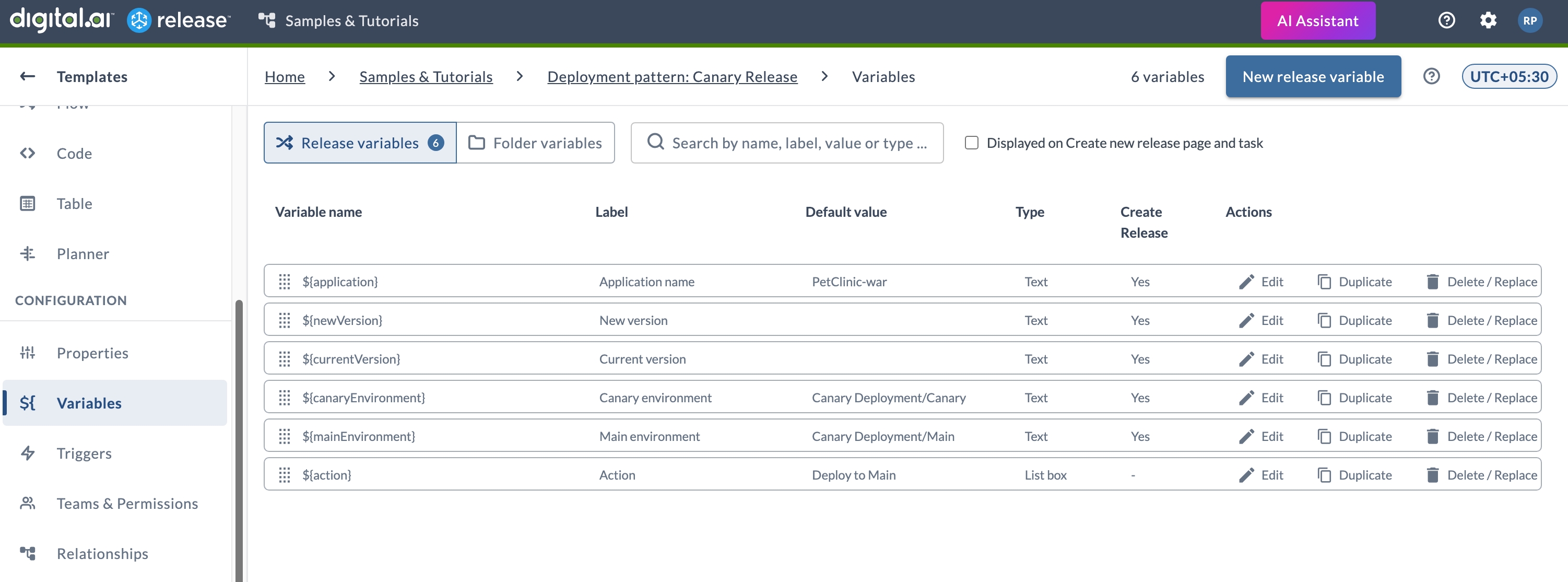
- Click New release variable. The Create variable modal opens.
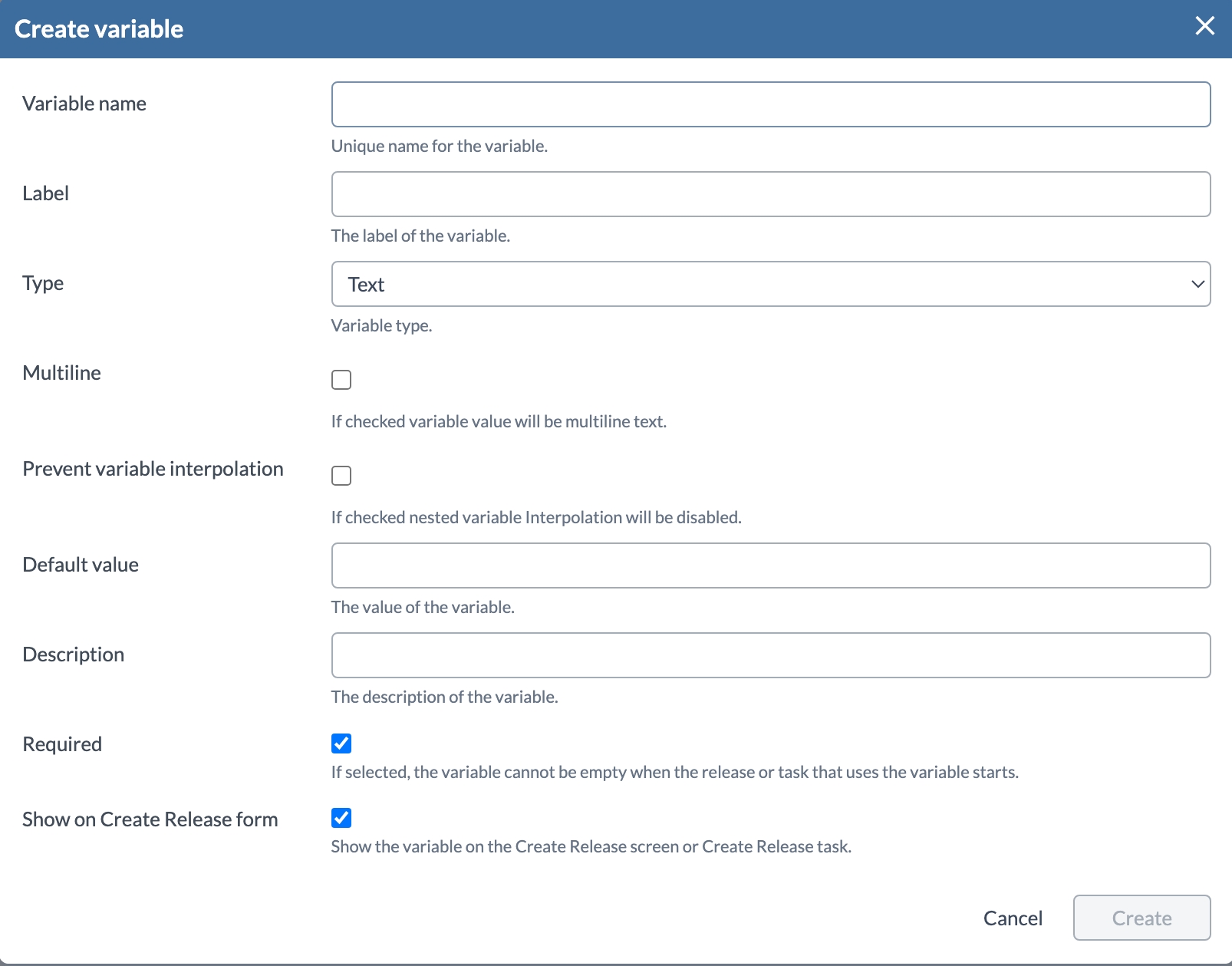
- In the Variable name field, type a name for the variable.
- In the Label field, enter a label for the variable. This will display next to the fields in which users can enter a value for the variable.
- Select the variable type from the Type list:
- Text: A string of letters or numbers
- List box: A drop-down list of selectable values that can be reordered and can contain duplicates
- Password: A password
- Checkbox: A true or false Boolean value
- Number: An integer
- List: A list of values that can be reordered and can contain duplicates
- Multi-select List box: A drop-down list to select the multiple values
- Date: A value with formatted time and date
- Key-value map: A set of keys and corresponding values
- Set: A set of values that cannot be reordered and cannot contain duplicates
- Reference: This variable type is used to support Http server connections as a reference in multiple tasks of the same release. In the Referenced type drop-down list, select the relevant HTTP server connection for which the variable is being created. This variable type is available at the release, folder and global levels.
noteTo prevent the display of passwords, password variables can only be used in password fields. Any other type of variable cannot be used in password fields unless the 'Allow passwords in all fields' is checked on the release properties tab. If selected, passwords can be used in any text field, and the value will be scrubbed from the task output. Certain variable types will open additional fields, such as Value provider type or Possible values. Enter the values here if needed.
- To store the value as multiline text, select Multiline. This option is available for text-based types.
- To disable interpolation of nested variables in the value, select Prevent variable interpolation. This option is available for Text type variables only.
- In the Default value field, enter the value for the variable. To add a value to a list or a set, type the value in the box and press ENTER.
- In the Description field, enter a description. The description displays below the field where users enter a value for the variable.
- If the variable must have a value, select Required.
- To allow users to enter or change the value when starting a release, select Show on Create Release form.
- Click Create.
Show on Create Release form appears only when creating or editing a template-scoped variable. It is not available when creating a variable directly in a release.
How Required Variables Work
If a variable is required and Show on Create Release form is selected, the variable must have a value before the release can start. This can be the default value that is set for the variable in the template or a value that the user enters when starting the release.
Similarly for tasks, if a variable is required and it is used in a task, then it must have a value before the task can start. This can be the default value that is set for the variable in the template or release, or a value that the user enters before the task becomes active. If a required variable is missing a value when the task becomes active, the task is not started and remains in the needs input state until a user enters a value.
Searching Variables
Use the search box on the Variables screen to narrow a long list. The search matches the variable name, label, default value, and type.
Select the Displayed on Create new release page and task check box to list only the variables that are set to appear on the Create Release form.
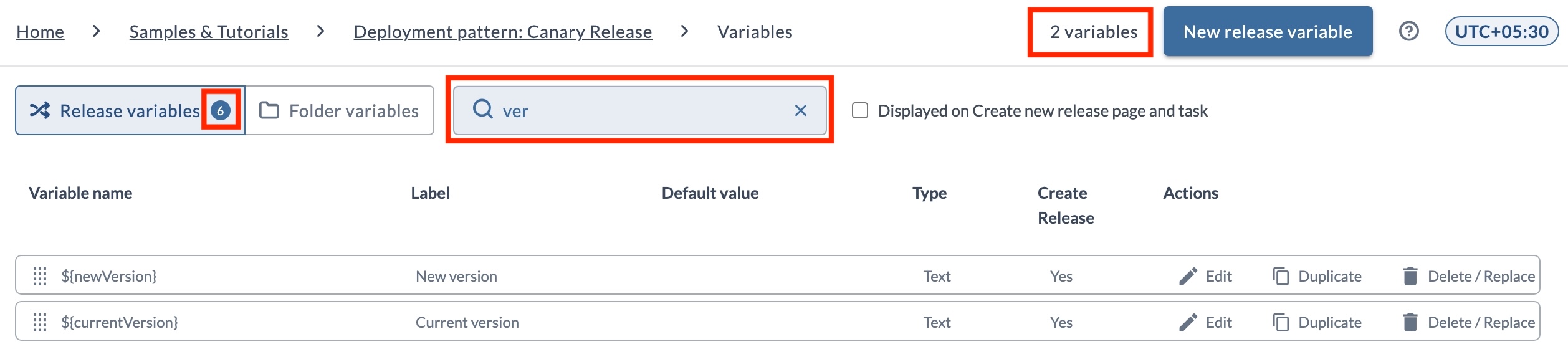
The count beside New release variable shows how many variables are currently listed, so it changes as you search. The counts on the Release variables and Folder variables tabs are totals for each tab and do not change when you search.
How Variables Appear on the Create Release Form
When a user starts a release from a template, the configured variables appear on the Create Release form so the user can review or set their values before the release starts.
On the Variables screen, the Create Release column shows which variables appear on the form. A variable shows Yes when Show on Create Release form is selected for it, and a dash (-) when it is not.
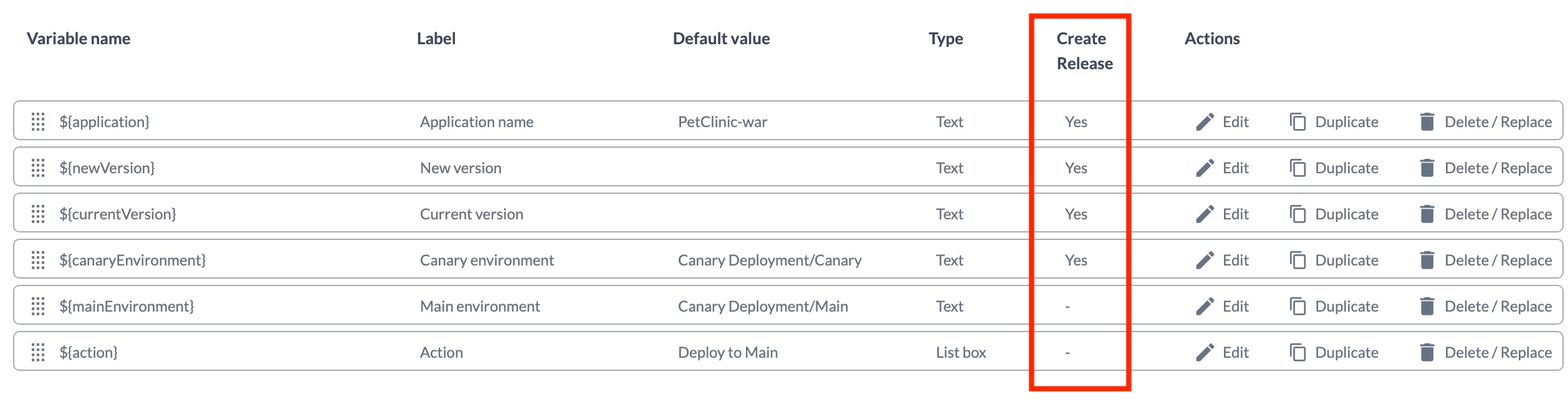
In this example, application, newVersion, currentVersion, and canaryEnvironment are set to show on the form, so they appear on the Create Release form. The mainEnvironment and action variables are marked with a dash and do not appear.
Each field is pre-filled with the variable's default value from the template, which the user can override. Fields for required variables are marked with an asterisk (*) and must have a value before the release can start.
In this example, Application name is pre-filled with PetClinic-war and Canary environment with Canary Deployment/Canary, while the required New version and Current version fields are empty and must be filled in.
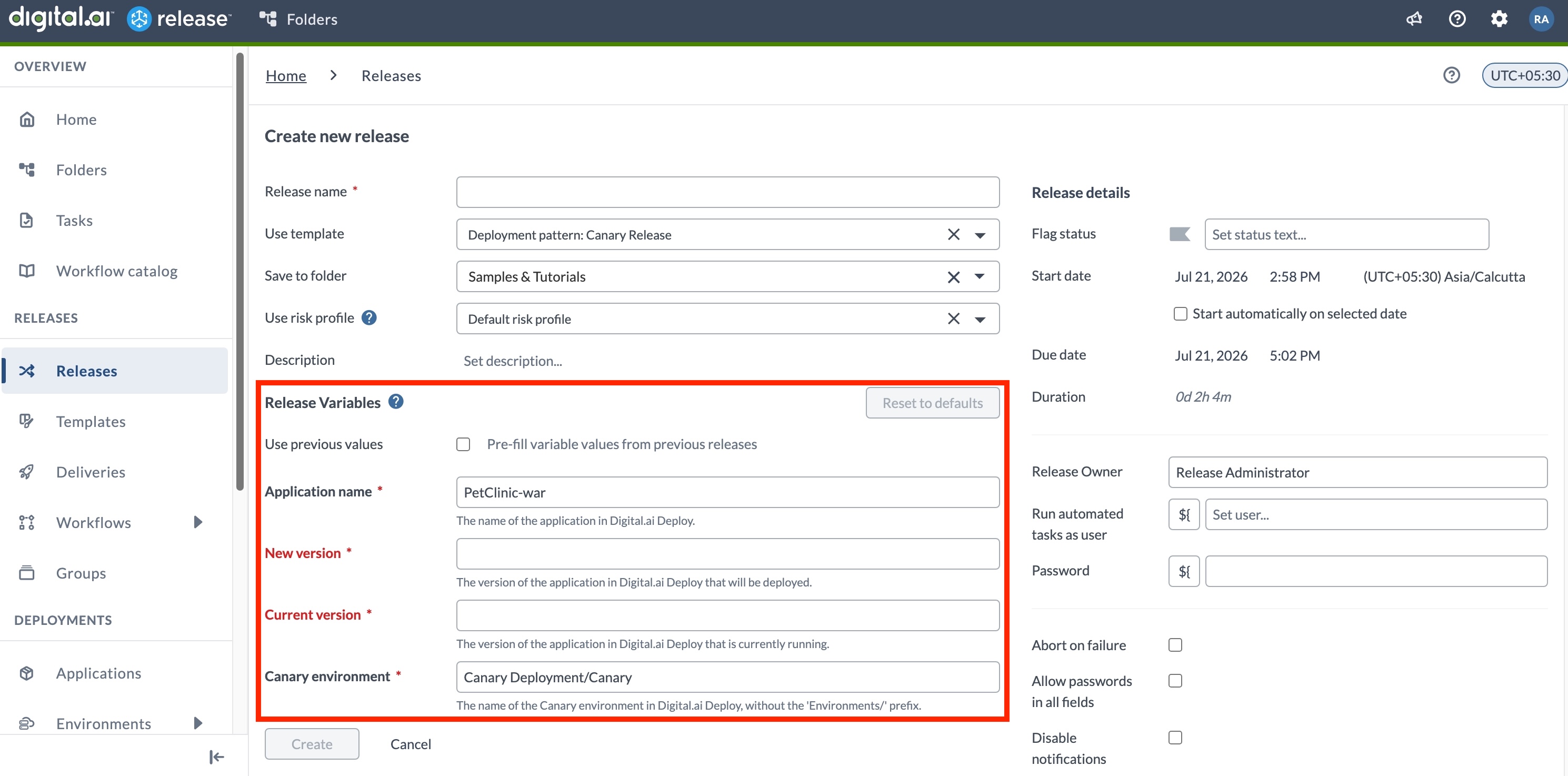
The fields appear in the same order as the variables are arranged on the Variables screen. To change the order, drag and drop the variables on the Variables screen. To pre-fill the fields with values used in a previous release from the template, select Use previous values.
Searching List and List Box Variable Values
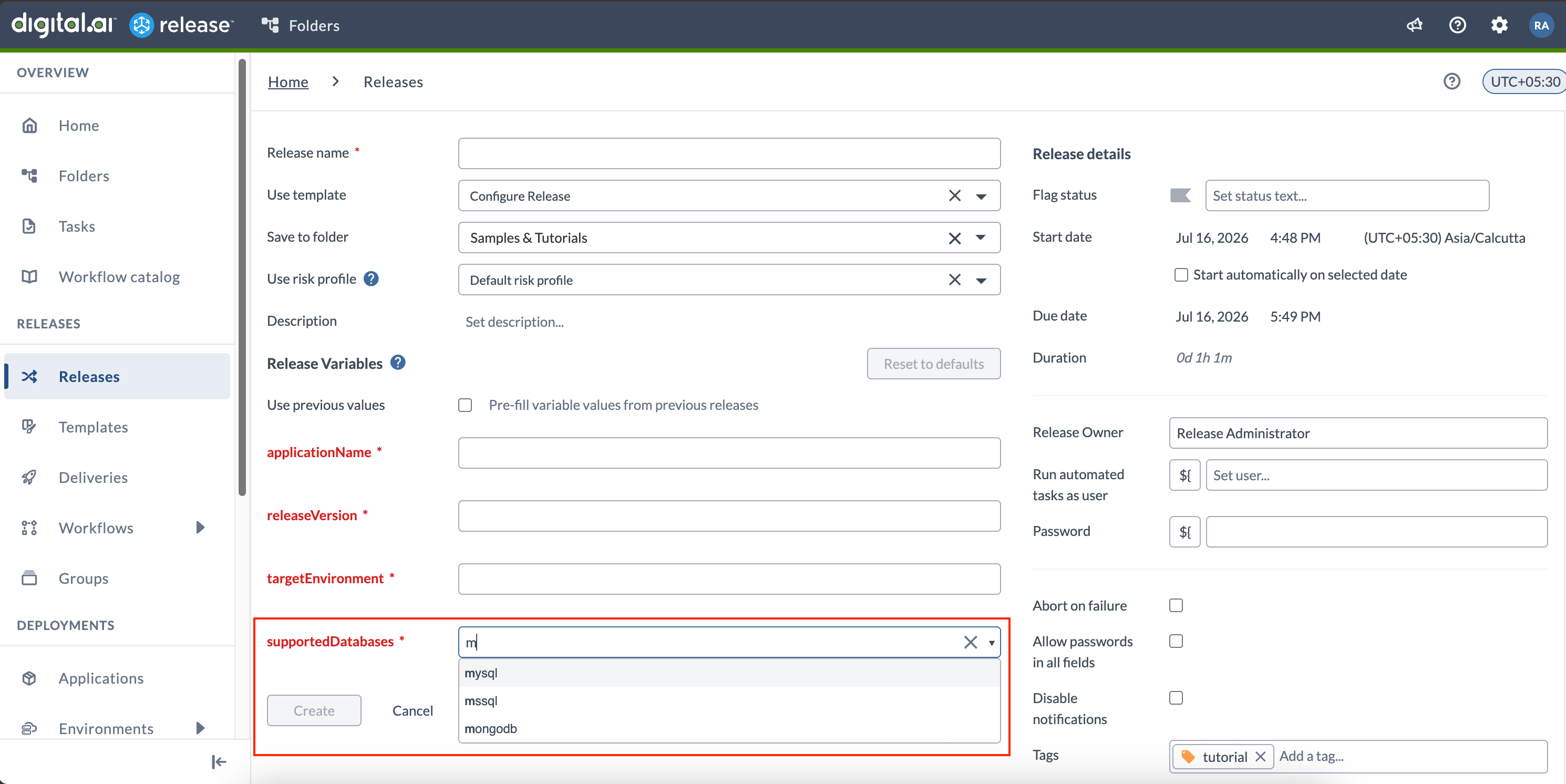
On the Create Release page and the Triggers page, List and List box variables let you search their values by typing a substring. Type part of a value to narrow the list, then select the value you want. This makes it easier to set the correct value for variables that have long lists of possible values.
Edit a Variable
To edit a variable in a template or a running release, navigate to CONFIGURATION > Variables from the left navigation pane, then click the desired variable.
The variable's type cannot be changed.
If the variable's value is changed, planned tasks that use that variable will reflect the new value. Completed, skipped, or failed tasks will reflect the old value, except in the case of user input tasks, which always show the variable's current value.
Use Direct Links to Access Variables
Each variable has a direct link that opens the Variables screen with that variable's modal open. Use these links to point team members to a specific variable.
To get a direct link to a variable:
- In a release or template, navigate to CONFIGURATION > Variables from the left navigation pane.
- Click the variable to open its modal.
- Copy the URL from the browser's address bar.
Anyone who opens the link is taken to the Variables screen with that variable's modal open.
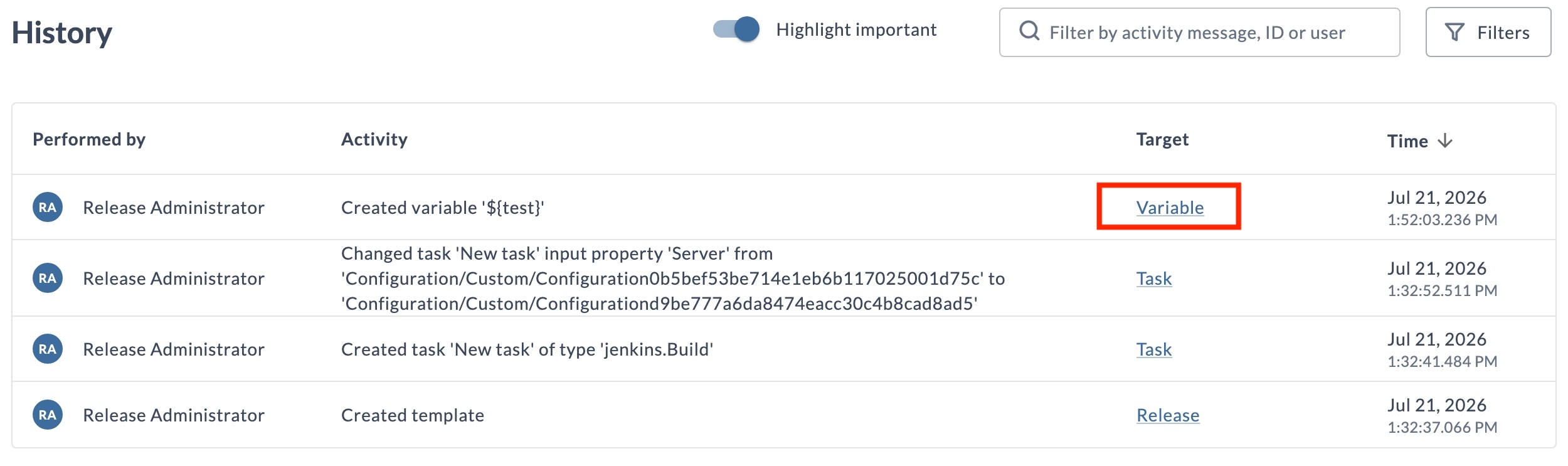
The Insights > History page logs every change made to a variable, so changes to a variable can be tracked in a template or release. Each entry links to the variable and opens the Variables screen with the variable's modal open.
Duplicate a Variable
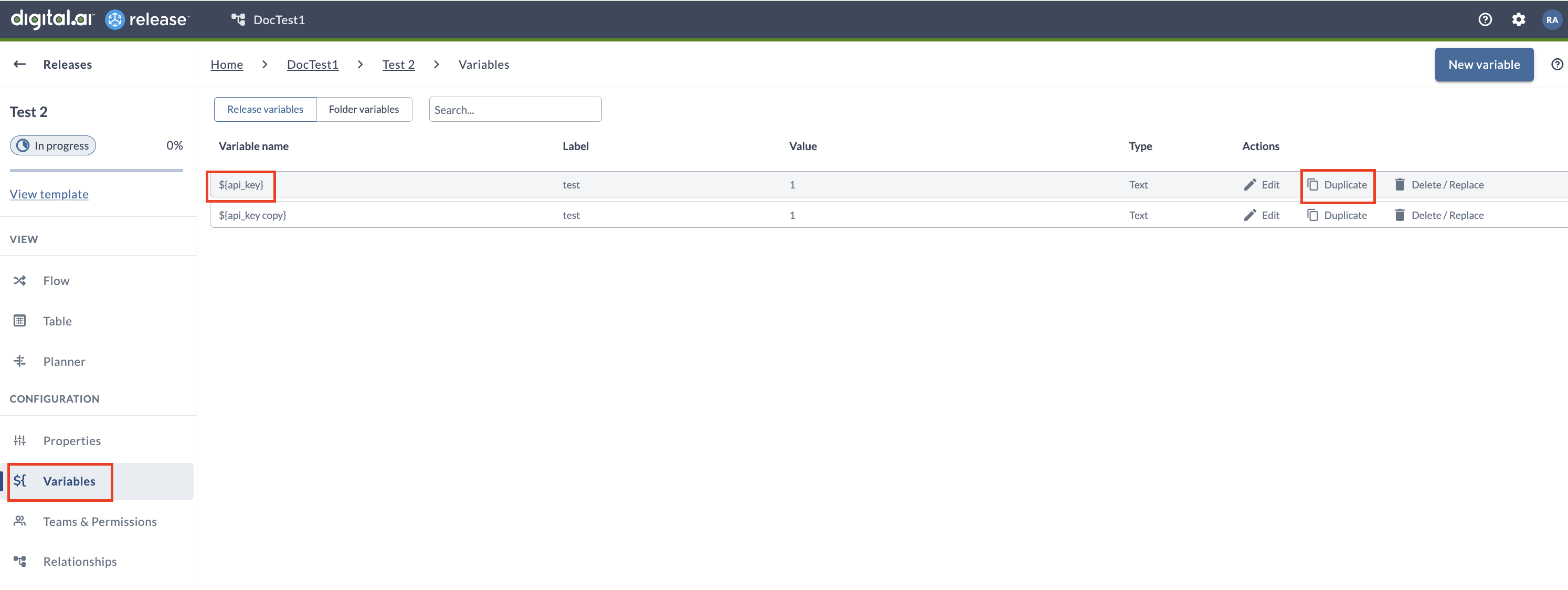
Duplicating a variable creates a copy with all properties pre-filled, at the same scope as the original, whether release, template, folder, or global. Duplication is available in the UI and through the REST API.
To duplicate a variable in a release:
- Select Variables from the left navigation pane.
- Click Duplicate in the Actions column next to the variable to be copied.
- In the Duplicate Variable dialog, all fields are pre-filled with values from the original variable:
- The Variable name field is automatically suffixed with
copyto maintain uniqueness. For example, duplicatingapi_keyresults inapi_key copy. - All other properties are copied from the original variable, except for password values, which must be entered manually for security.
- The Variable name field is automatically suffixed with
- Modify any properties as needed.
- Click Duplicate to create the duplicate variable.
Delete or Replace a Variable
To delete or replace a variable in a template or a running release, navigate to CONFIGURATION > Variables from the left navigation pane, then click Delete/Replace next to the desired variable.
If the variable is not being used in the template or release, confirm the deletion.
If the variable is still in use, choose what replaces it wherever it appears in the template or release. The variable can be replaced with:
- A static value
- A different variable (in
${ }format) - A blank space
After Release replaces all occurrences of the variable, it deletes the variable.
How to Use Variable(s) Inside a Variable
Variables can be used inside another variable. For examples, see Variables in Release.