GitLab Plugin
The GitLab Plugin (Jython-based) integrates Digital.ai Release with GitLab to automate repository operations, manage merge requests, and trigger or monitor CI/CD pipelines as part of your release workflows.
This plugin runs directly on the Release server and is best suited for event-driven workflows, lightweight automation, and visibility use cases, such as triggers and dashboard tiles.
For scalable, runner-based execution, use the GitLab Container Plugin.
What You Can Do With This Plugin
- Manage branches, tags, and repositories
- Create, approve, close, and merge merge requests
- Trigger and monitor GitLab pipelines
- Query commits, projects, pipelines, and merge requests
- Use webhooks and triggers to start releases
- Visualize GitLab data using dashboard tiles
Prerequisites
Before using this plugin, ensure the following:
GitLab Access
- Access to a GitLab instance (SaaS or self-managed)
- Ensure that all required projects exist in GitLab. You can create new projects in advance or dynamically as part of your release pipeline using the Create Project task.
Authentication
You must provide a GitLab API token:
- Use a Personal Access Token (PAT) or Project Access Token
- Required scopes typically include:
api(recommended for full functionality)read_api(for read-only operations)
Some tasks (such as triggering pipelines) require a pipeline trigger token, which is different from a Personal or Project Access Token.
Required Information
You should have the following details available:
- GitLab Server URL (for example,
https://gitlab.com) - Project ID (numeric ID from GitLab project settings)
- Branch, tag, or ref names (depending on task)
- Merge Request ID (for MR-related tasks)
When To Use This Plugin
Use the GitLab Plugin (Jython) when you need:
- Event-driven automation using GitLab triggers or webhooks
- GitLab dashboards and reporting inside Release
- Lightweight orchestration without distributed execution
For scalable, runner-based execution, use the GitLab Container Plugin.
Common Pitfalls
Using the wrong token type
Pipeline trigger tokens and API tokens are different. Most tasks require an API token with the correct scopes.
Missing required token scopes
If the token does not include the api scope, operations such as merge, create, or trigger may fail.
Using project name instead of Project ID
The plugin expects a numeric Project ID, not the repository name.
Incorrect Merge Request ID
Use the internal MR ID from GitLab, not the title or branch name.
Set up a Connection to the GitLab Server
-
From the navigation pane, click Configuration > Connections.
-
Under configurations, beside GitLab: Server, click

-
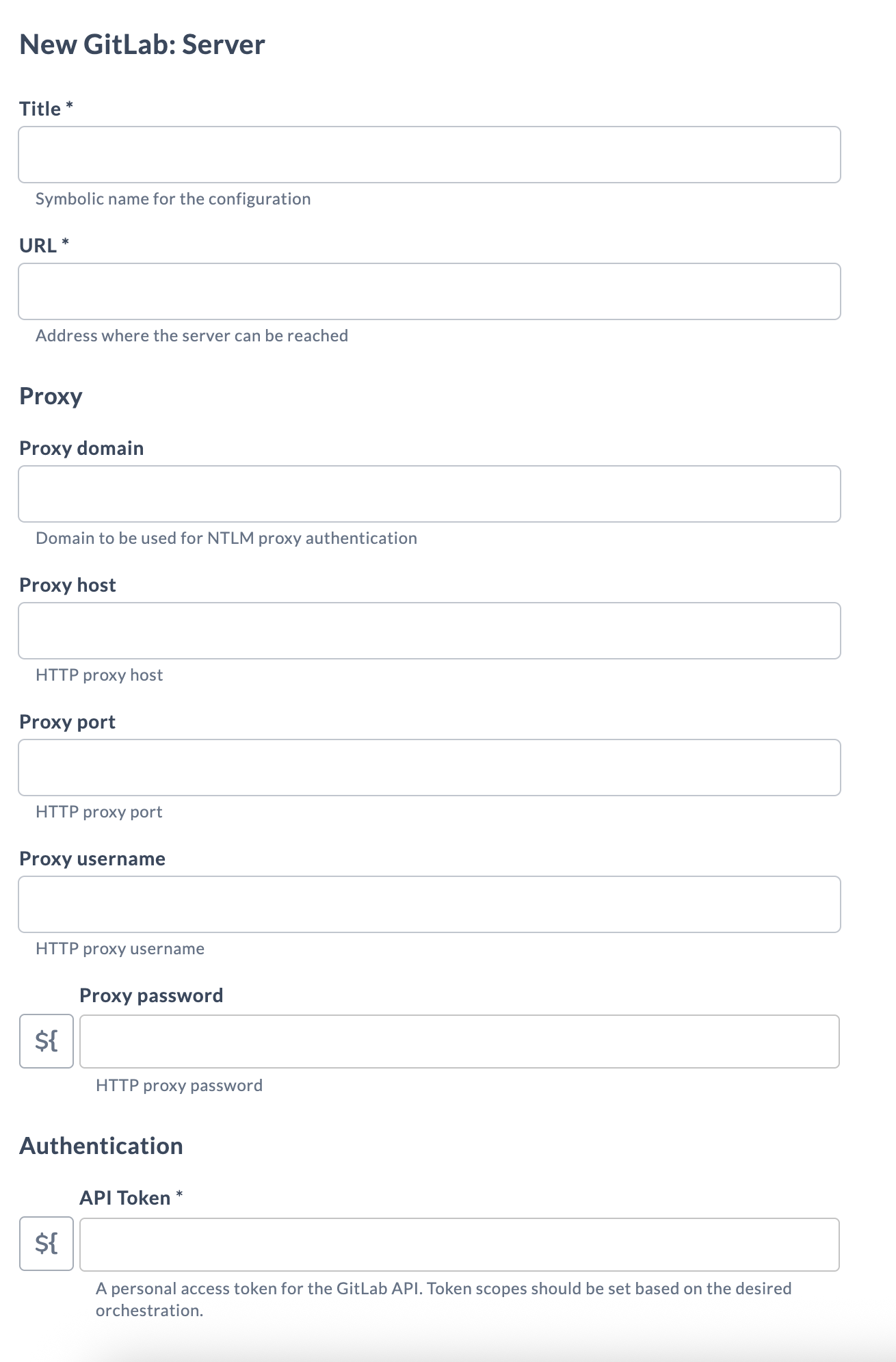
Provide the connection details:
Field Name Description Title* Symbolic name for the configuration URL* Address where the server can be reached Proxy domain Domain to use for NTLM proxy authentication Proxy host HTTP proxy host Proxy port HTTP proxy port Proxy username HTTP proxy username Proxy password HTTP proxy password API Token* A personal access token for the GitLab API. Token scopes should be set based on the desired orchestration. -
Click Test to test the connection.
-
Click Save to save the configuration.
Set up a Connection for Commit Webhook
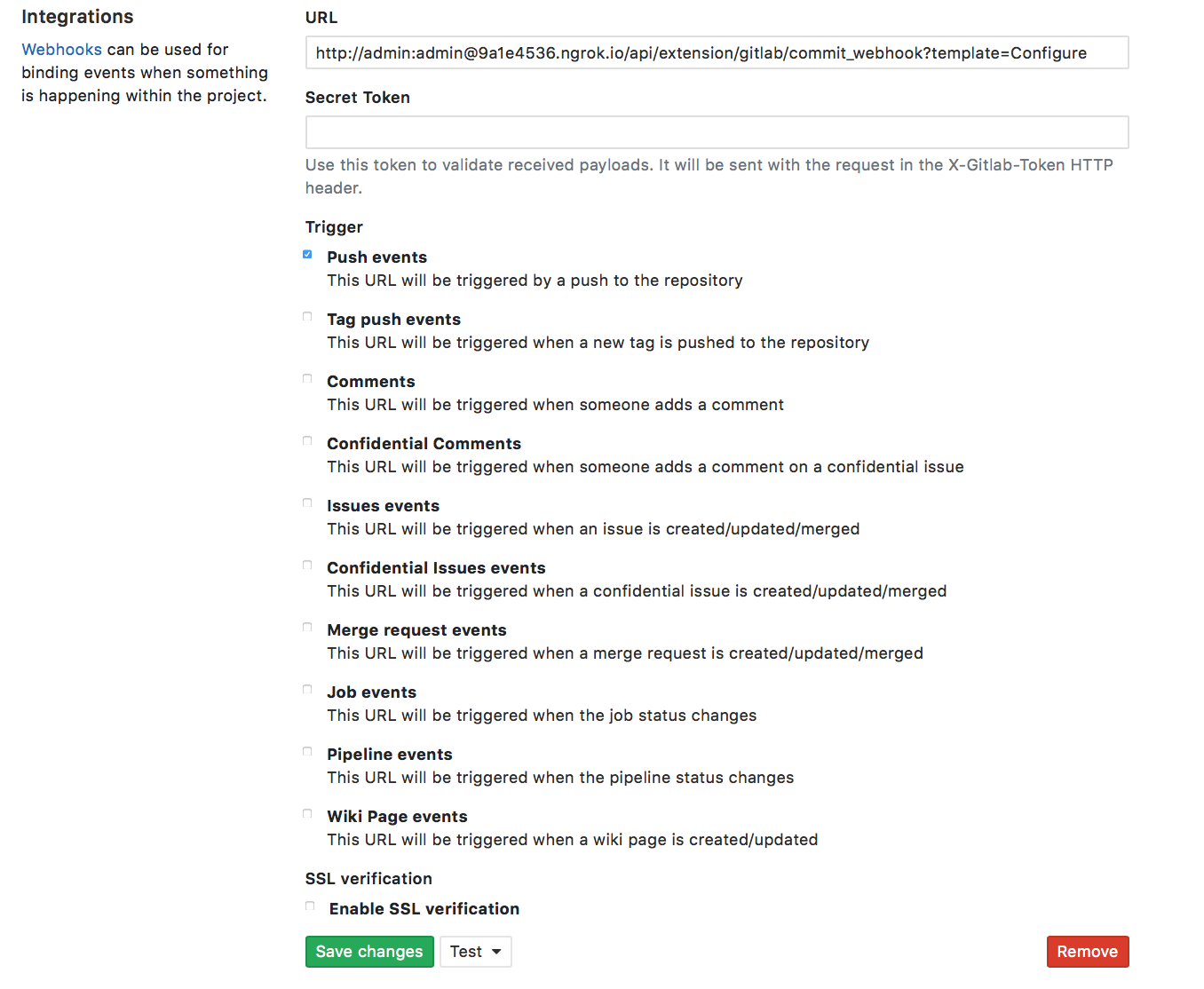
- In your GitLab instance, add a webhook
- Select Push events
- Specify the Release URL as:
http://username:password@xlrserver:port/api/extension/gitlab/commit_webhook?template=<templateName/prefix> - The following variables are available in Release:
- project_name
- repo_full_name
- branch_name
- commit_message
- current_commit_hash
Set up a Connection for Merge Request Webhook
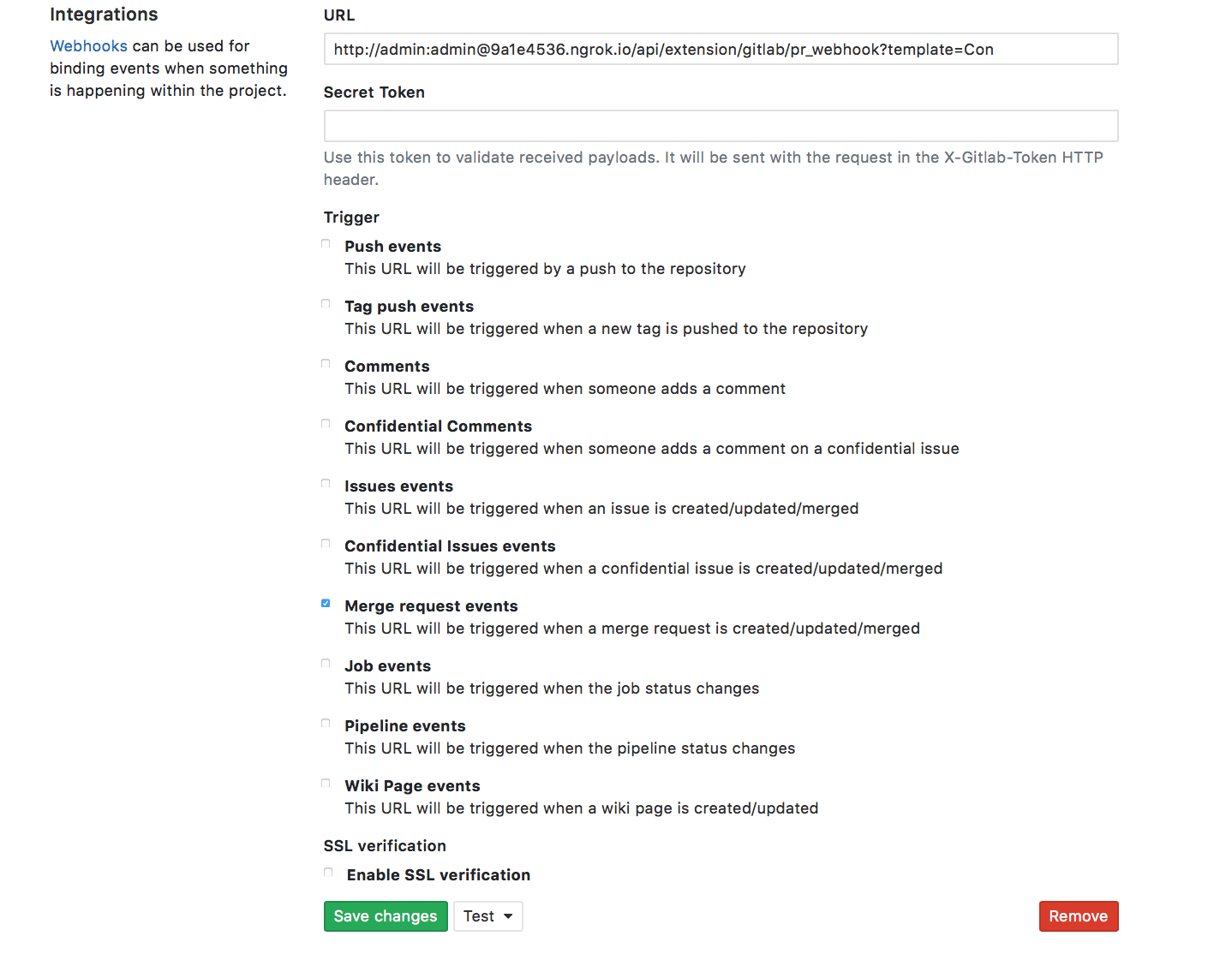
- In your GitLab instance, add a webhook
- Select Push events
- Specify the Release URL as:
http://username:password@xlrserver:port/api/extension/gitlab/pr_webhook?template=<templateName/prefix> - The following variables are available in Release:
- pull_request_number
- pull_request_title
- repository_name
- proj_name
- source_hash
- source_branch
- source_project
- source_repo
- target_branch
- target_project
- target_repo
Features
- Webhooks event for GitLab.
- GitLab tiles on the release dashboard.
- GitLab triggers - Used to poll GitLab for triggering releases
Available Tasks
The following tasks are available in Digital.ai Release:
- GitLab: Accept Merge Request
- GitLab: Create Branch
- GitLab: Create Group
- GitLab: Create Merge Request
- GitLab: Create Project
- GitLab: Create Project Webhook
- GitLab: Create Tag
- GitLab: Query Commits
- GitLab: Query Data
- GitLab: Query File Data
- GitLab: Query Merge Requests
- GitLab: Query Pipeline Status
- GitLab: Query Pipelines
- GitLab: Query Project
- GitLab: Query Secure Data
- GitLab: Query Tags
- GitLab: Run Job
- GitLab: Trigger Pipeline
- GitLab: Create Pipeline
- GitLab: Revert Commit
- GitLab: Clone Repository
- GitLab: Commit Files
- GitLab: Close Merge Request
- GitLab: Delete Tag
- GitLab: Delete Branch
- GitLab: Approve Merge Request
You cannot run the clone and commit tasks simultaneously in a clustered setup.
Tile and Dashboard Configuration
There are seven tiles available:
- GitLab Commits Tile
- GitLab Contributions Tile
- GitLab Merge Requests Tile
- GitLab Pipelines Tile
- GitLab Pipeline Trends
- GitLab Tags Timeline Tile
- GitLab Timeline Tile
-
From the navigation pane, click Reports.
-
Select the dashboard where you want to add the new tile.
noteIf you have not created a dashboard yet, click Add dashboard in the top right of the screen to create a dashboard.
-
In the top right of the screen, click Configure dashboard.
-
In the top right of the screen, click Add tiles.
-
Hover over GitLab Commits Tile, and click Add.
-
Click Configure option present in the tile.
-
Enter a name for the tile in the Title field.
-
Select the server configured in the GitLab Server field.
-
Enter the project key in the Project ID field.
-
Enter the name of branch from where data can be fetched in the Branch Name field.
-
Enter the limit of list in numbers, in the Results Limit field.
-
Click Save.
You can configure the rest of the tiles using the same process described above.
Accept Merge Request
This task accepts (merges) a merge request in a GitLab project after review and approval. Use it to automate the process of merging feature or bugfix branches into your main branch as part of a release workflow.
Field Descriptions
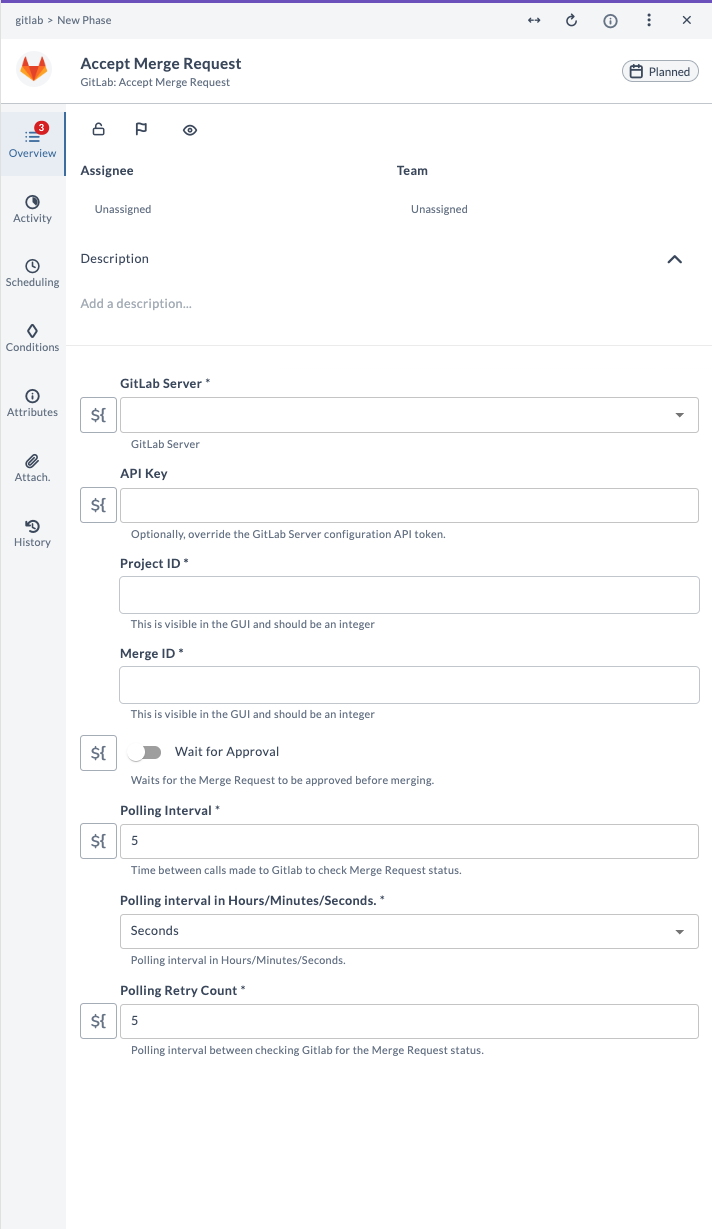
| Field Name | Description | Example |
|---|---|---|
| GitLab Server | The configured GitLab server connection to use. | gitlab.example.com |
| API Key | (Optional) Override the GitLab Server configuration API token for this task. | your-api-token |
| Project ID | Numeric ID of the GitLab project. Do not use the project name. | 12345 |
| Merge ID | Internal numeric ID of the merge request to accept. Not the title or branch name. | 42 |
| Wait for Approval | If enabled, waits for the merge request to be approved before merging. | true |
| Polling Interval | Time between calls made to GitLab to check merge request status. | 5 |
| Polling Interval Unit | Unit for polling interval: Seconds, Minutes, or Hours. | Seconds |
| Polling Retry Count | Number of polling attempts before giving up. | 5 |
Example Usage
Suppose you want to accept a merge request for project ID 12345 and merge ID 42, waiting for approval, with a polling interval of 5 seconds and 5 retries:
| Field | Value |
|---|---|
| GitLab Server | gitlab.example.com |
| API Key | your-api-token |
| Project ID | 12345 |
| Merge ID | 42 |
| Wait for Approval | true |
| Polling Interval | 5 |
| Polling Interval Unit | Seconds |
| Polling Retry Count | 5 |
This will wait for the merge request to be approved, then merge it when ready, polling GitLab every 5 seconds up to 5 times.
Create Branch
This task creates a new branch in a GitLab project, allowing you to start a new line of development separate from the main codebase.
Input Fields
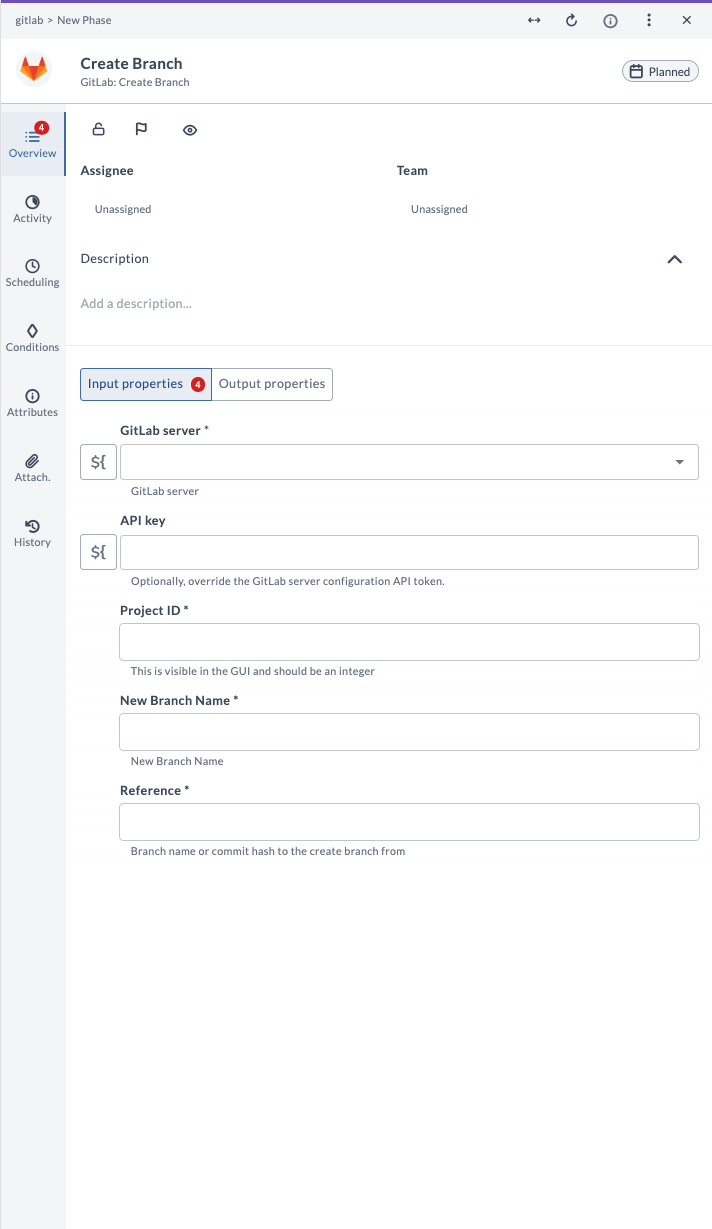
| Field Name | Description | Example |
|---|---|---|
| GitLab Server | The configured GitLab server connection to use. | gitlab.example.com |
| API Key | (Optional) Override the GitLab Server configuration API token for this task. | your-api-token |
| Project ID | Numeric ID of the GitLab project. | 12345 |
| New Branch Name | Name of the new branch to create. | feature/new-login |
| Reference | Branch name or commit hash to create the branch from. | main |
Output Fields
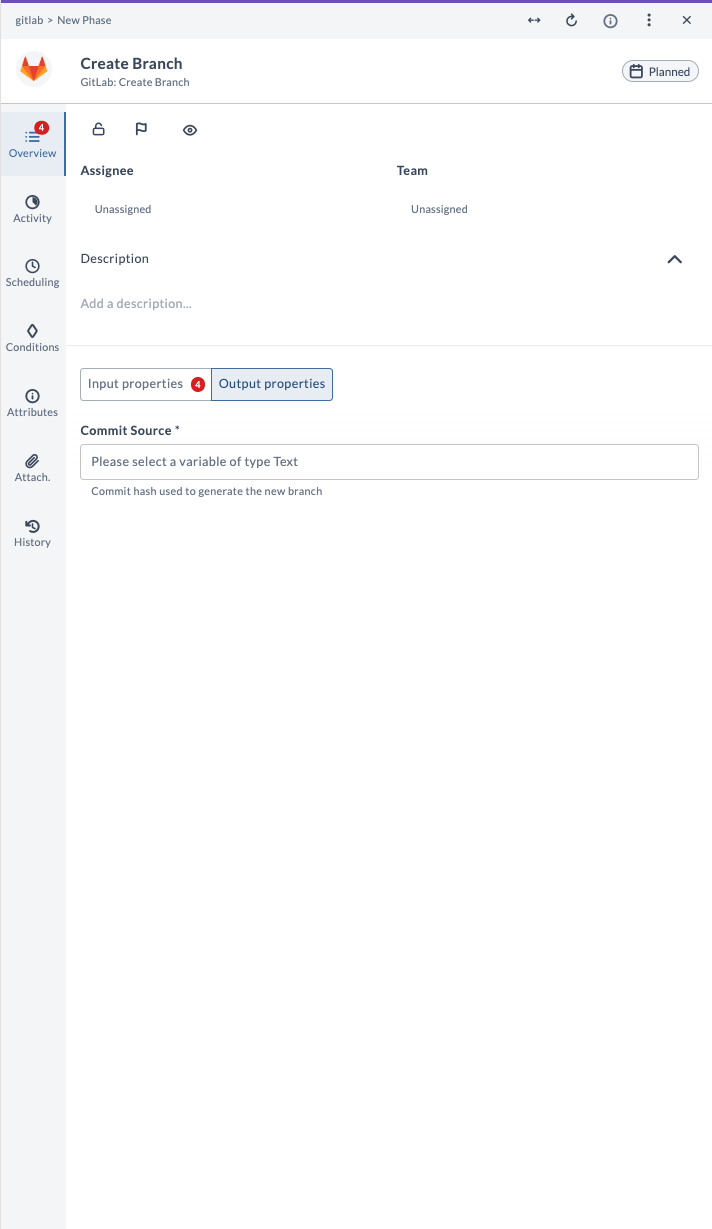
| Output Property | Description |
|---|---|
| Commit Source | Commit hash used to generate the new branch. |
Example Usage
Suppose you want to create a branch called feature/new-login from the main branch in project ID 12345:
| Field | Value |
|---|---|
| GitLab Server | gitlab.example.com |
| API Key | your-api-token |
| Project ID | 12345 |
| New Branch Name | feature/new-login |
| Reference | main |
After running the task, the output will provide the commit hash used to generate the new branch.
Create Group
This task creates a new group in GitLab, which is used to organize projects and manage permissions for a collection of related projects.
Input Fields
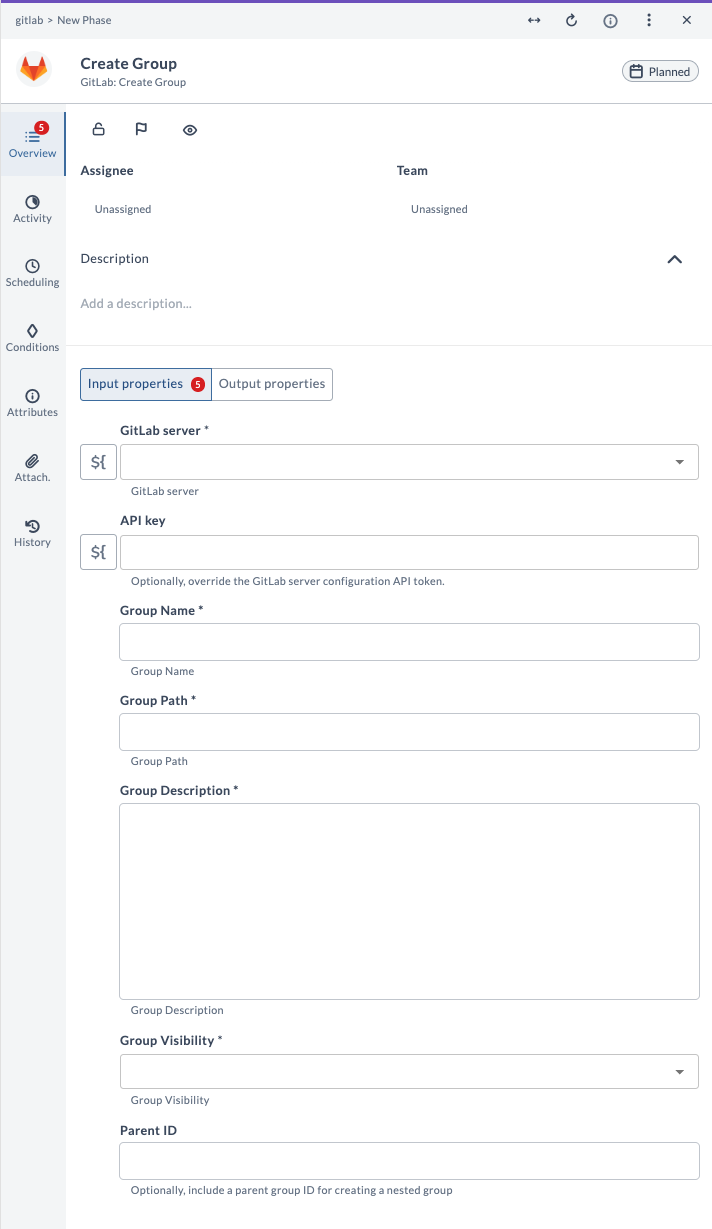
| Field Name | Description | Example |
|---|---|---|
| GitLab Server | The configured GitLab server connection to use. | gitlab.example.com |
| Group Name | The name of the new group to create. | devops-team |
| Path | The URL-friendly path for the group (used in URLs). | devops-team |
| Parent ID | (Optional) Numeric ID of the parent group if creating a subgroup. | 1234 |
| Description | (Optional) Description for the group. | "DevOps team group" |
| Group Visibility | (Optional) Visibility level: private, internal, or public. Default is private. | private |
Output Fields
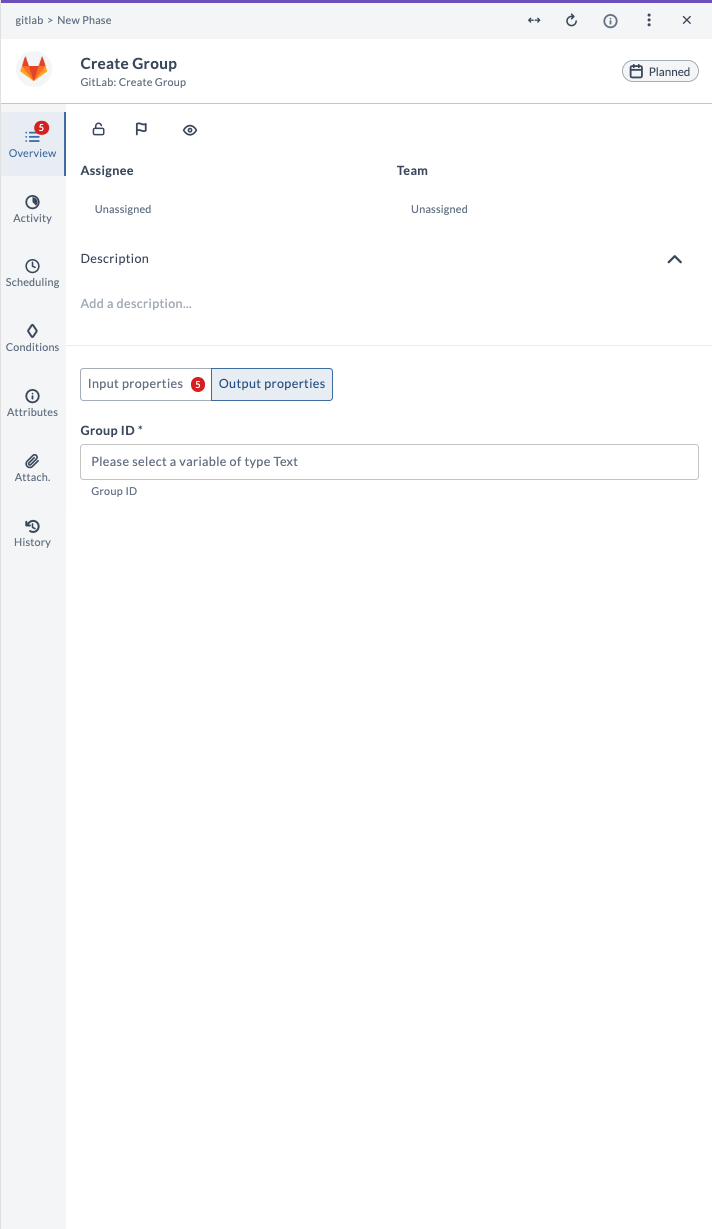
| Output Property | Description |
|---|---|
| Group ID | The numeric ID of the created group. |
Example Usage
Suppose you want to create a group called devops-team with a description and private visibility:
| Field | Value |
|---|---|
| GitLab Server | gitlab.example.com |
| Group Name | devops-team |
| Path | devops-team |
| Description | DevOps team group |
| Visibility | private |
After running the task, the output will confirm group creation and provide the group ID, name, path, and a link to view the group in GitLab.
Create Merge Request
This task creates a merge request (MR) in GitLab, allowing you to propose changes from one branch to be merged into another, often involving code review and approval processes. You can optionally remove the source branch after the merge request is accepted.
Input Fields
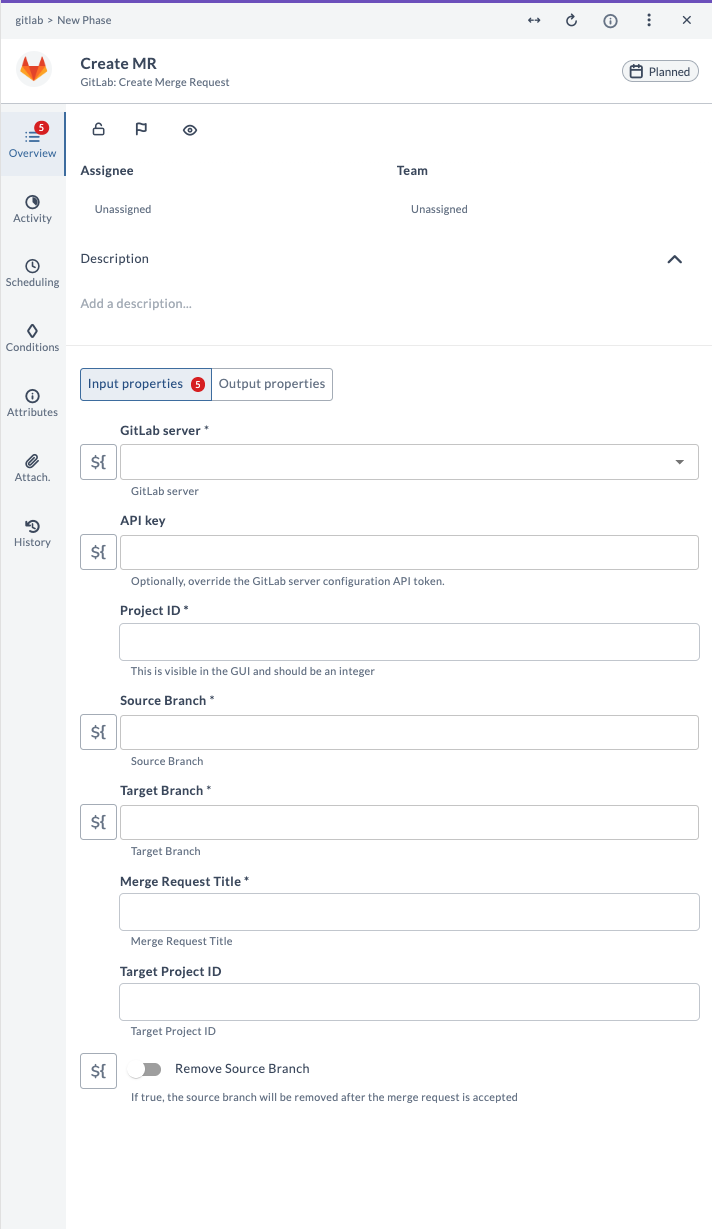
| Field Name | Description | Example |
|---|---|---|
| GitLab Server | The configured GitLab server connection to use. | gitlab.example.com |
| API Key | (Optional) Override the GitLab Server configuration API token for this task. | your-api-token |
| Project ID | Numeric ID of the GitLab project. | 12345 |
| Source Branch | Name of the branch with your changes. | feature/new-login |
| Target Branch | Name of the branch you want to merge into. | main |
| Merge Request Title | Title for the merge request. | "Add login feature" |
| Target Project ID | (Optional) Numeric ID of the target project for cross-project MRs. | 67890 |
| Remove Source Branch | (Optional) If true, the source branch will be removed after merge. | true |
Output Fields
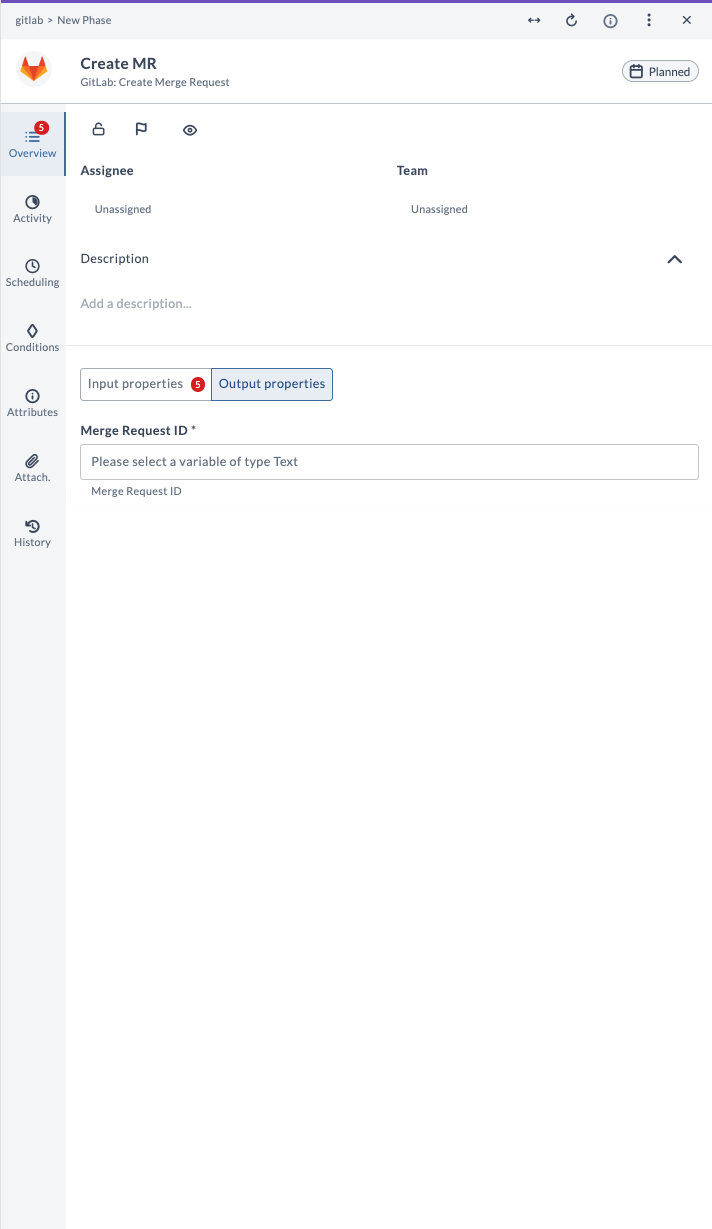
| Output Property | Description |
|---|---|
| Merge Request ID | The numeric ID of the created MR. |
Example Usage
Suppose you want to create a merge request from feature/new-login to main in project ID 12345:
| Field | Value |
|---|---|
| GitLab Server | gitlab.example.com |
| API Key | your-api-token |
| Project ID | 12345 |
| Source Branch | feature/new-login |
| Target Branch | main |
| Merge Request Title | Add login feature |
| Remove Source Branch | true |
After running the task, the output will provide the Merge Request ID of the newly created MR.
Create Project
This task creates a new project in GitLab, initializing a new repository within a specified namespace or group.
Input Fields
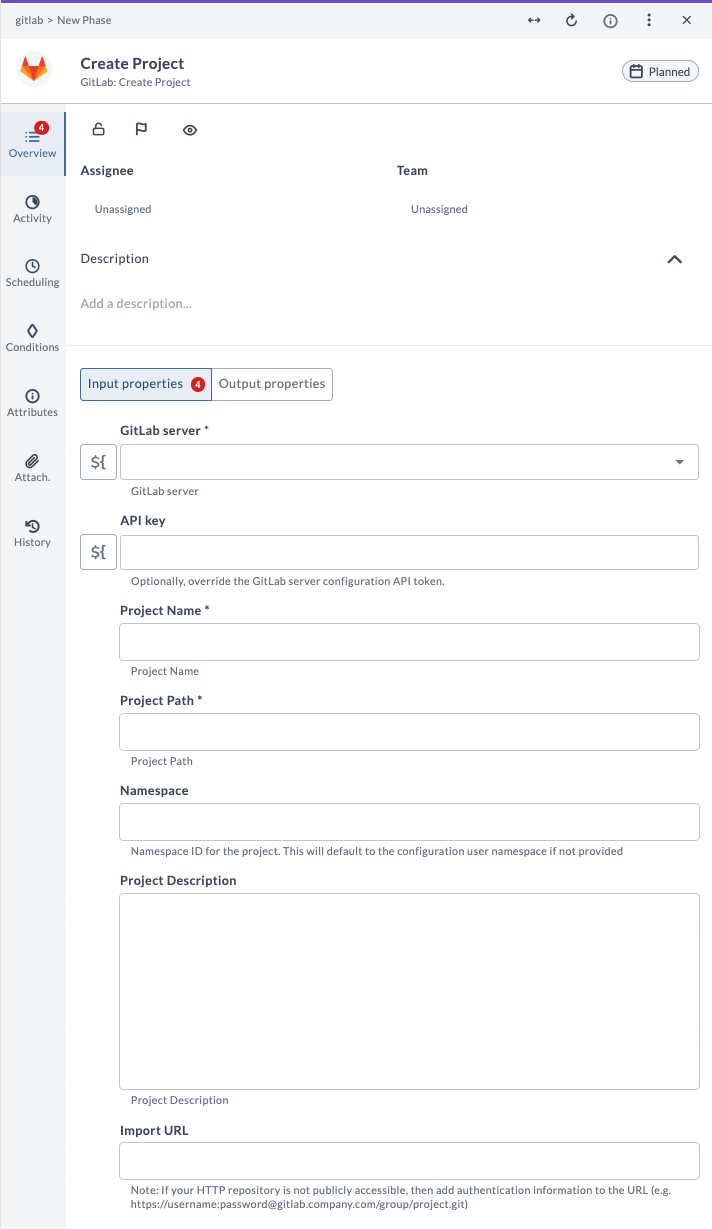
| Field Name | Description | Example |
|---|---|---|
| GitLab Server | The configured GitLab server connection to use. | gitlab.example.com |
| API Key | (Optional) Override the GitLab Server configuration API token for this task. | your-api-token |
| Project Name | Name of the new project. | my-new-project |
| Project Path | URL-friendly path for the project (used in URLs). | my-new-project |
| Namespace | (Optional) Namespace ID for the project. Defaults to user namespace if blank. | 12345 |
| Project Description | (Optional) Description for the project. | "Demo project repo" |
| Import URL | (Optional) URL to import an existing repository. | https://.../repo.git |
Output Fields
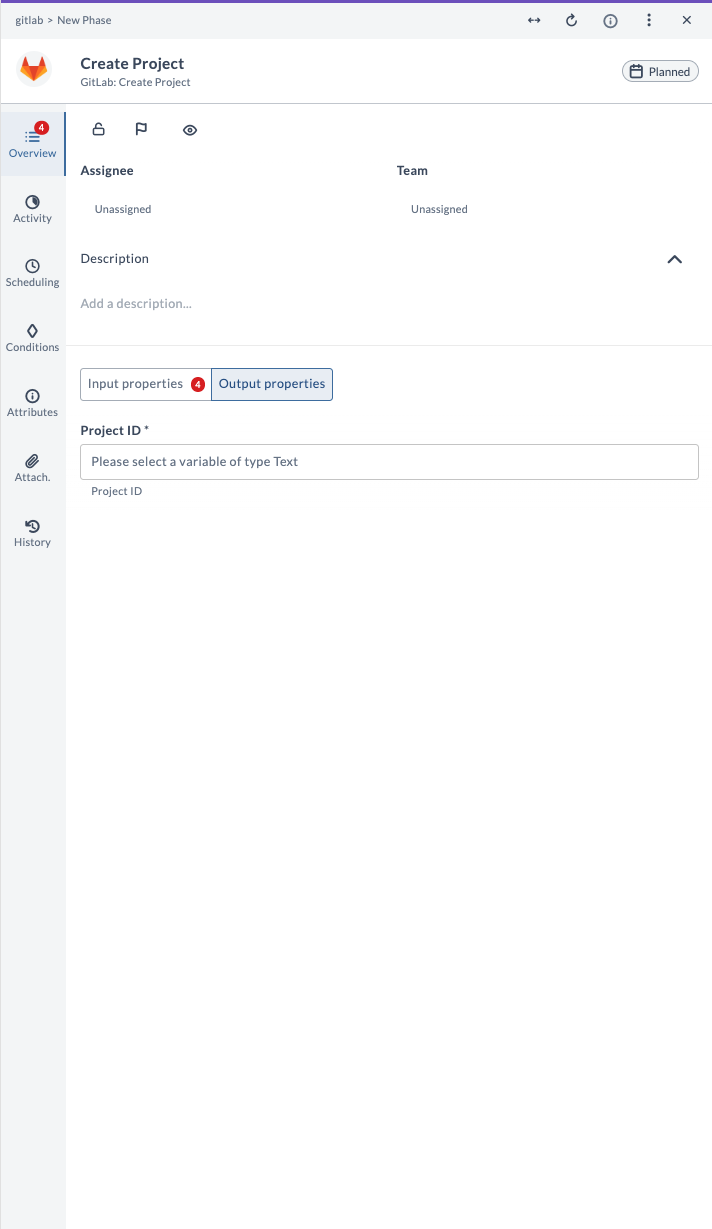
| Output Property | Description |
|---|---|
| Project ID | The numeric ID of the created project. |
Example Usage
Suppose you want to create a project called my-new-project in your default namespace:
| Field | Value |
|---|---|
| GitLab Server | gitlab.example.com |
| API Key | your-api-token |
| Project Name | my-new-project |
| Project Path | my-new-project |
| Project Description | Demo project repo |
After running the task, the output will provide the Project ID of the newly created project.
Create Project Webhook
This task creates a project webhook in GitLab, allowing you to set up notifications for specific events (such as commits, issues, merge requests, and more) occurring in a project.
Input Fields
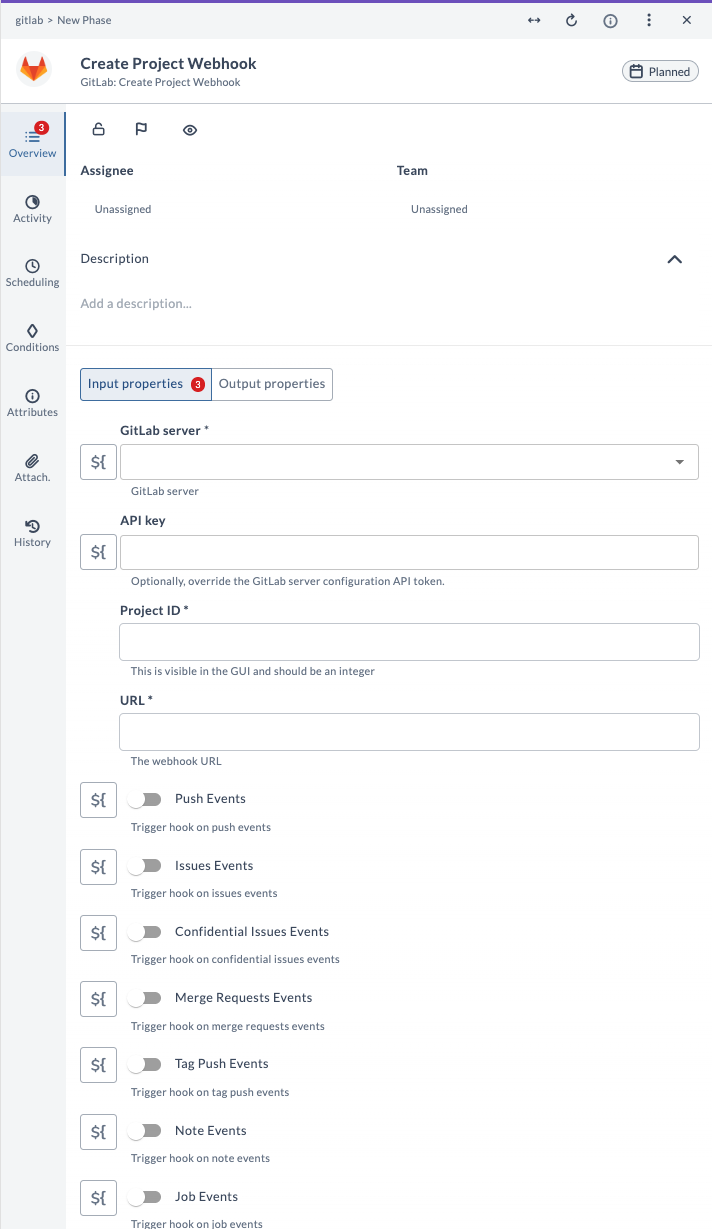
| Field Name | Description | Example |
|---|---|---|
| GitLab Server | The configured GitLab server connection to use. | gitlab.example.com |
| API Key | (Optional) Override the GitLab Server configuration API token for this task. | your-api-token |
| Project ID | Numeric ID of the GitLab project. | 12345 |
| URL | The webhook URL to receive event notifications. | https://.../webhook |
| Push Events | Trigger hook on push events. | true |
| Issues Events | Trigger hook on issues events. | true |
| Confidential Issues Events | Trigger hook on confidential issues events. | false |
| Merge Requests Events | Trigger hook on merge requests events. | true |
| Tag Push Events | Trigger hook on tag push events. | false |
| Note Events | Trigger hook on note events. | false |
| Job Events | Trigger hook on job events. | false |
Output Fields
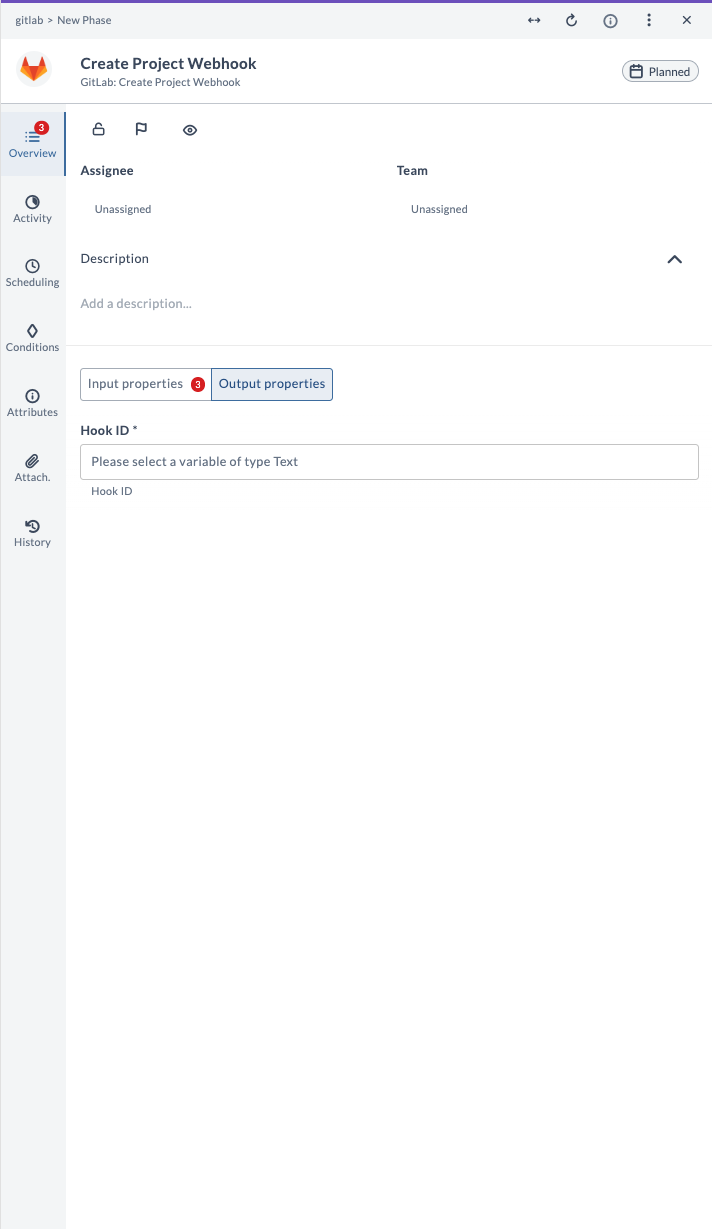
| Output Property | Description |
|---|---|
| Hook ID | The numeric ID of the created webhook. |
Example Usage
Suppose you want to create a webhook for project ID 12345 that triggers on push and merge request events:
| Field | Value |
|---|---|
| GitLab Server | gitlab.example.com |
| API Key | your-api-token |
| Project ID | 12345 |
| URL | https://.../webhook |
| Push Events | true |
| Merge Requests Events | true |
After running the task, the output will provide the Hook ID of the newly created webhook.
Create Tag
This task creates a tag in GitLab. Tags are used to mark a specific point in the repository history, often for releases or significant milestones.
Input Fields
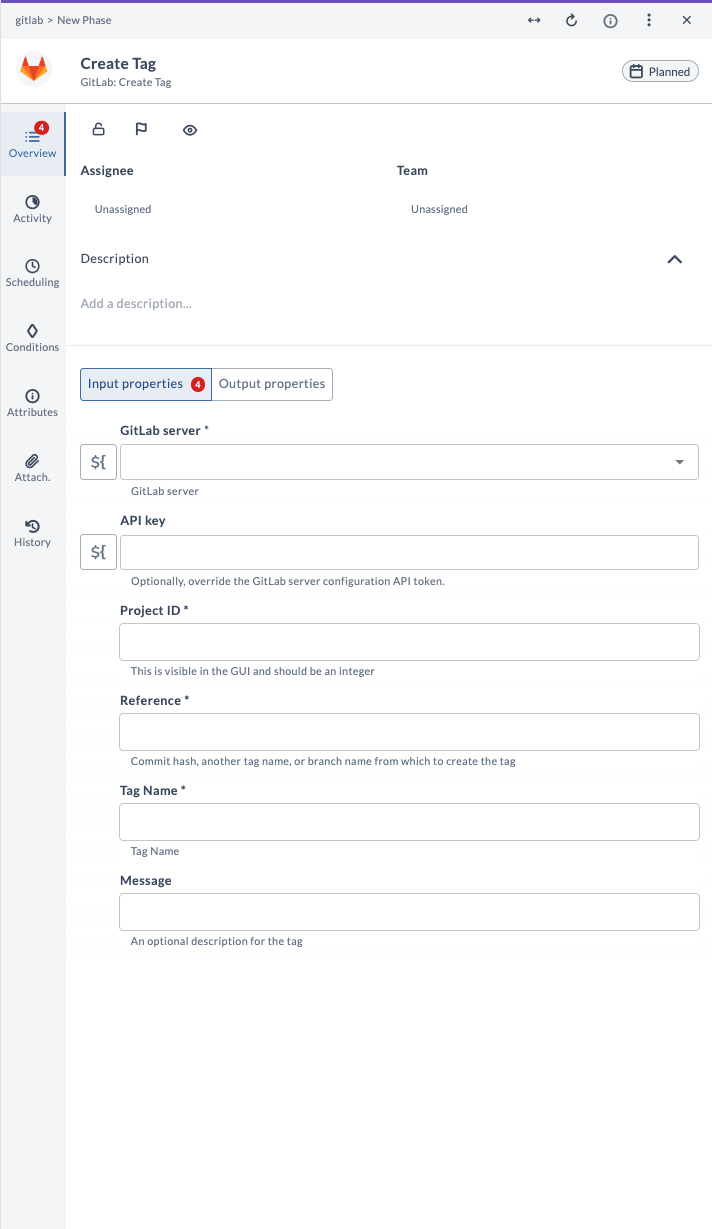
| Field Name | Description | Example |
|---|---|---|
| GitLab Server | The configured GitLab server connection to use. | gitlab.example.com |
| API Key | (Optional) Override the GitLab Server configuration API token for this task. | your-api-token |
| Project ID | Numeric ID of the GitLab project. | 12345 |
| Reference | Commit hash, another tag name, or branch name from which to create the tag. | main |
| Tag Name | Name of the tag to create. | v1.0.0 |
| Message | (Optional) Description for the tag. | Release version 1.0.0 |
Output Fields
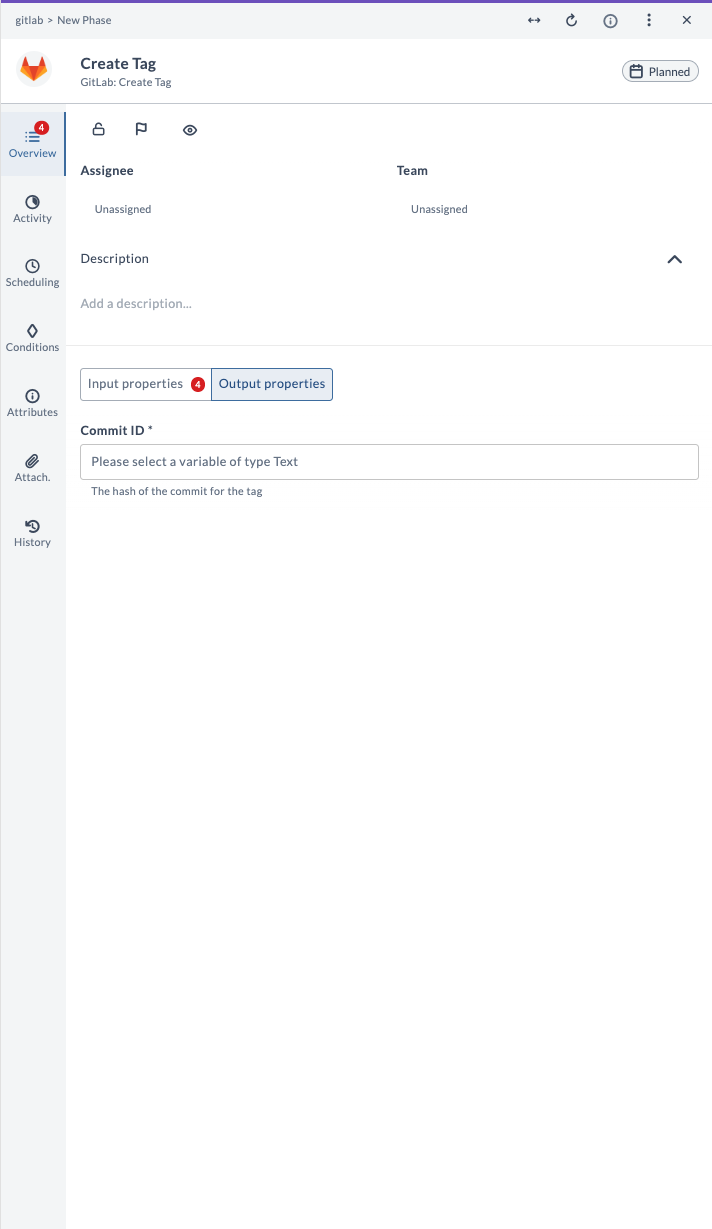
| Output Property | Description |
|---|---|
| Commit ID | The hash of the commit for the tag. |
Example Usage
Suppose you want to create a tag called v1.0.0 from the main branch in project ID 12345:
| Field | Value |
|---|---|
| GitLab Server | gitlab.example.com |
| API Key | your-api-token |
| Project ID | 12345 |
| Reference | main |
| Tag Name | v1.0.0 |
| Message | Release version 1.0.0 |
After running the task, the output will provide the Commit ID (hash) for the created tag.
Query Commits
This task queries commits in a GitLab project. It is used to retrieve a list of commits from a repository, including details such as author, date, commit message, and more.
Input Fields
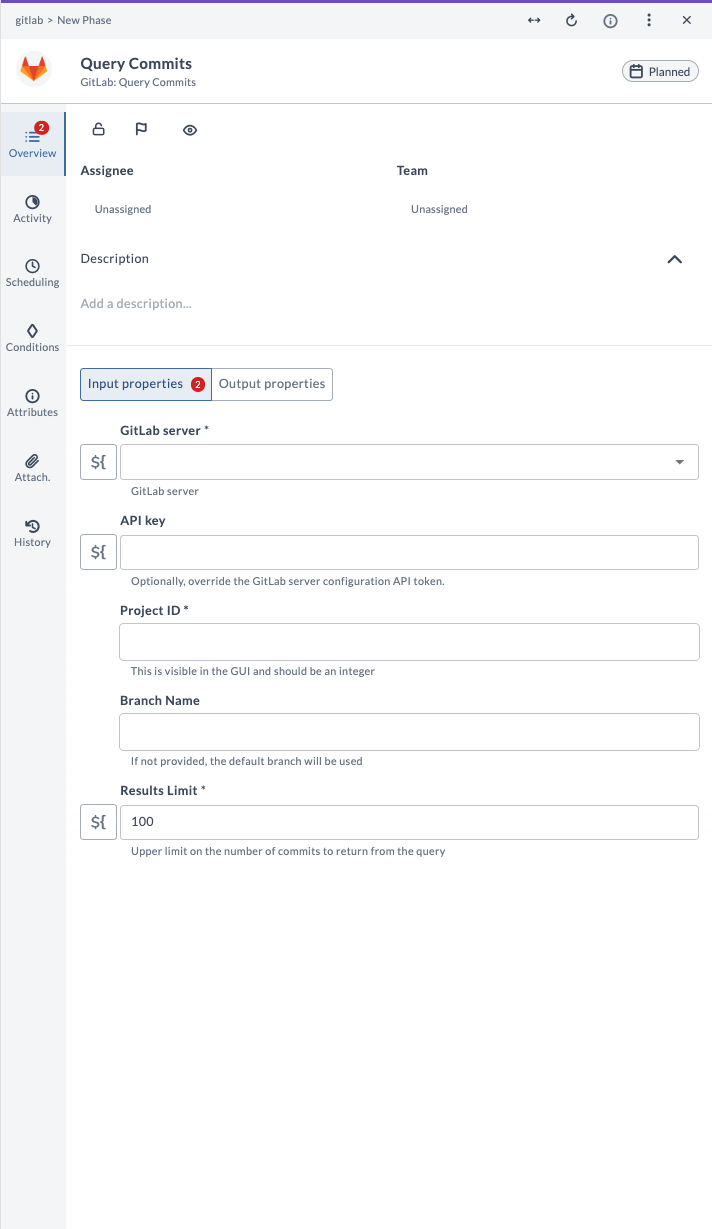
| Field Name | Description | Example |
|---|---|---|
| GitLab Server | The configured GitLab server connection to use. | gitlab.example.com |
| API Key | (Optional) Override the GitLab Server configuration API token for this task. | your-api-token |
| Project ID | Numeric ID of the GitLab project. | 12345 |
| Branch Name | (Optional) Branch to filter commits. If not provided, the default branch is used. | main |
| Results Limit | Upper limit on the number of commits to return from the query. | 10 |
Output Fields
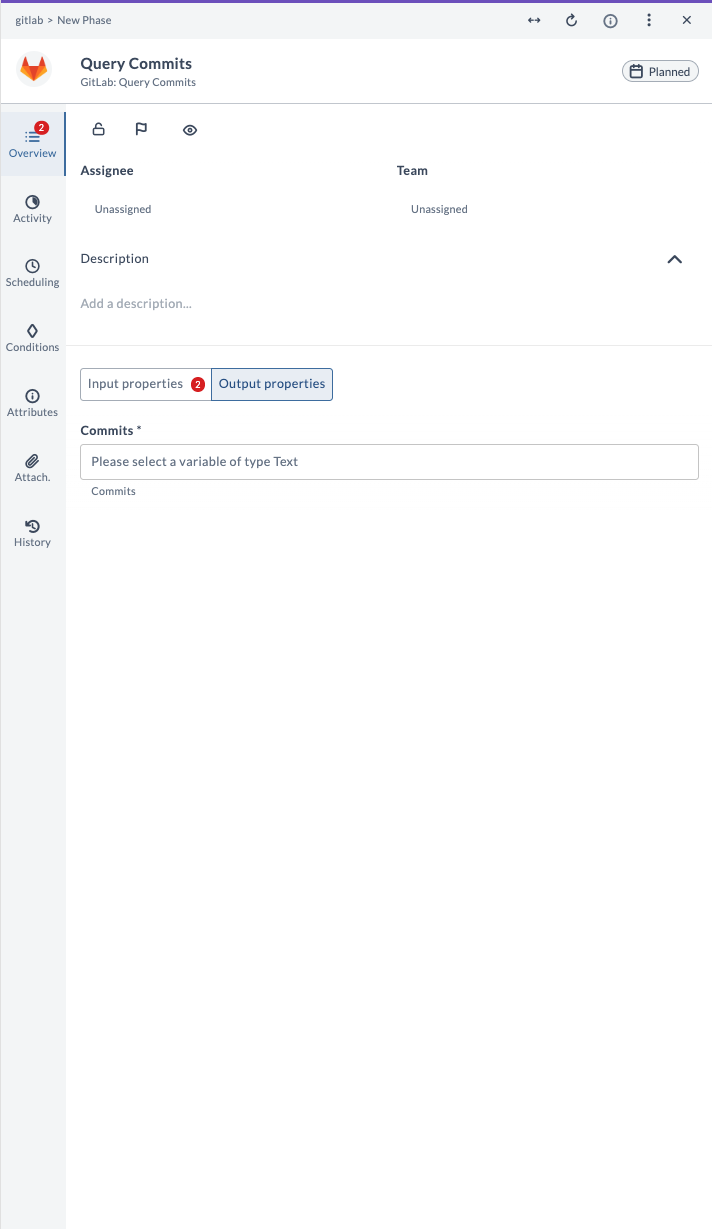
| Output Property | Description |
|---|---|
| Commits | List of commit objects with details (ID, message, author, date, etc.). |
Example Usage
Suppose you want to query the last 5 commits on the main branch for project ID 12345:
| Field | Value |
|---|---|
| GitLab Server | gitlab.example.com |
| API Key | your-api-token |
| Project ID | 12345 |
| Branch Name | main |
| Results Limit | 5 |
After running the task, the output will provide a list of the latest 5 commits, including their commit IDs, messages, authors, and dates.
Query Data
This task queries data from a GitLab project or repository using a custom API endpoint. It is used to fetch general data, such as metrics or logs, and extract specific values using a JSON path expression. In Release 25.3, a new Query Parameters field is added to narrow search results.
Input Fields
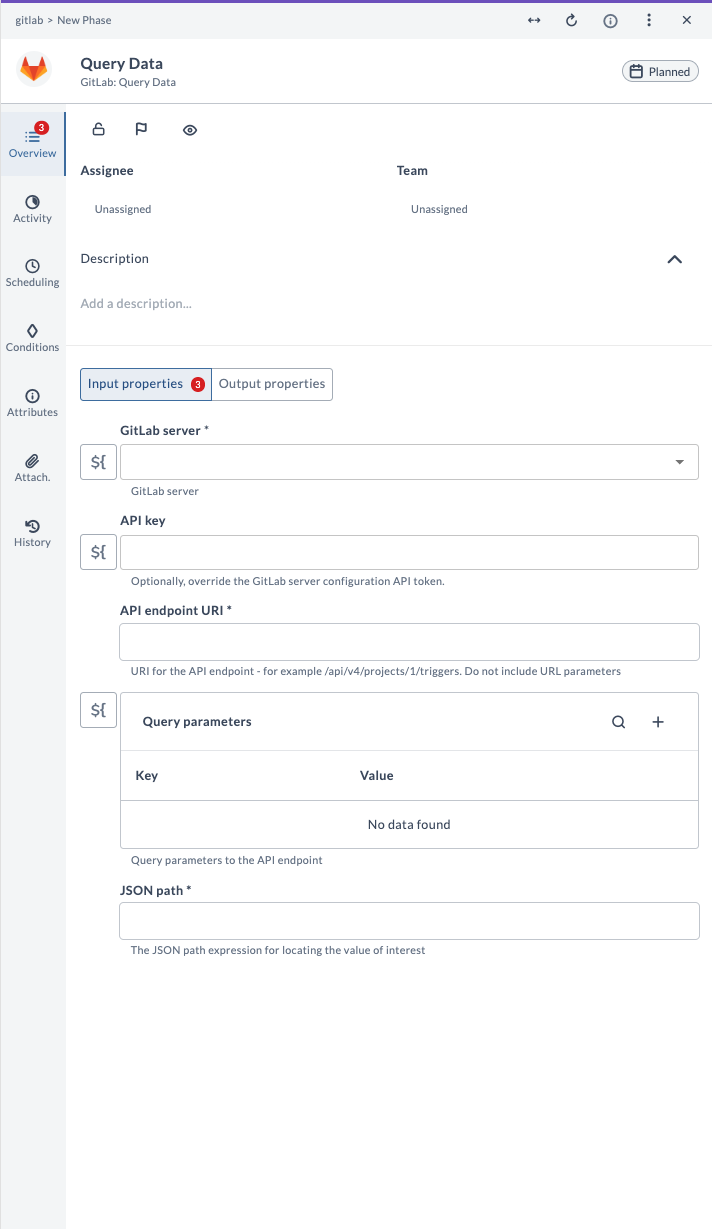
| Field Name | Description | Example |
|---|---|---|
| GitLab Server | The configured GitLab server connection to use. | gitlab.example.com |
| API Key | (Optional) Override the GitLab Server configuration API token for this task. | your-api-token |
| API endpoint URI | URI for the API endpoint (for example, /api/v4/projects/1/triggers). Do not include URL parameters. | /api/v4/projects/1/triggers |
| Query parameters | (Optional) Key-value pairs to add as query parameters to the API endpoint. | key: status, value: success |
| JSON path | The JSON path expression for locating the value of interest in the response. | $.[0].id |
Output Fields
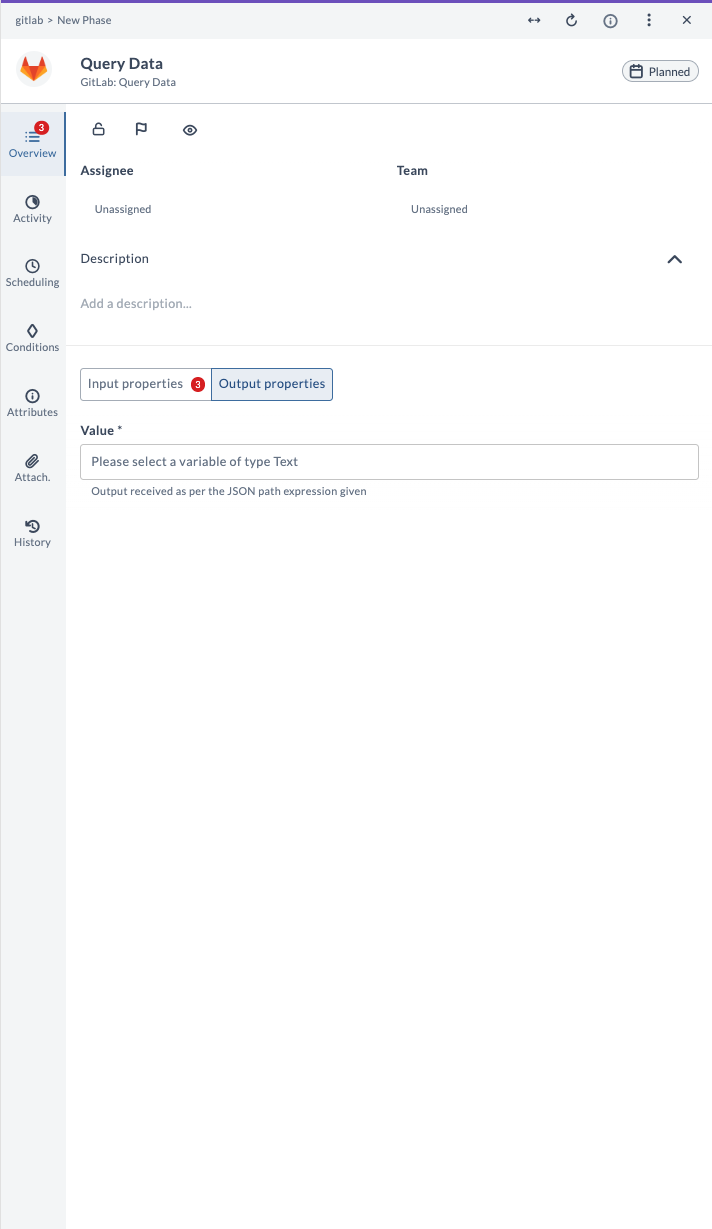
| Output Property | Description |
|---|---|
| Value | Output received as per the JSON path expression given. |
Example Usage
Suppose you want to fetch the ID of the first trigger for a project using the endpoint /api/v4/projects/1/triggers and extract the ID using the JSON path $. [0].id:
| Field | Value |
|---|---|
| GitLab Server | gitlab.example.com |
| API Key | your-api-token |
| API endpoint URI | /api/v4/projects/1/triggers |
| Query parameters | (leave blank for all triggers) |
| JSON path | $.[0].id |
After running the task, the output will provide the value of the first trigger's ID as specified by the JSON path.
Query File Data
This task queries file data from a JSON or YAML file in a GitLab repository. It uses the Project ID, File path, and Revision to locate the file, and can extract a specific value using a JSON path expression.
Input Fields
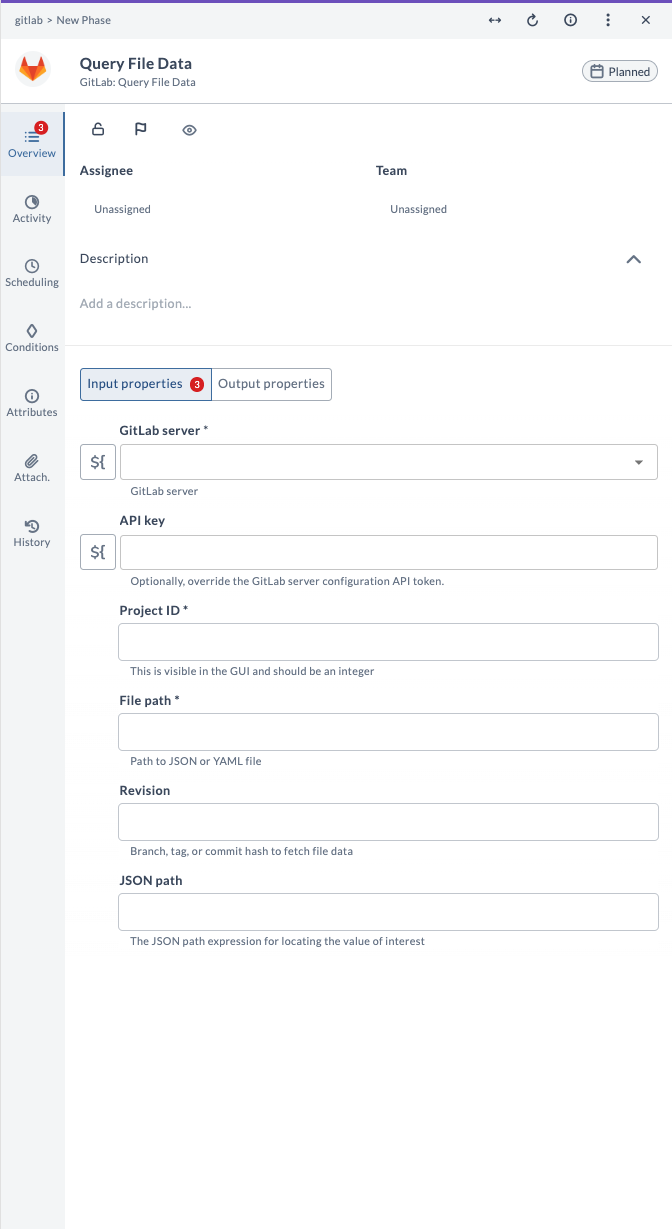
| Field Name | Description | Example |
|---|---|---|
| GitLab Server | The configured GitLab server connection to use. | gitlab.example.com |
| API Key | (Optional) Override the GitLab Server configuration API token for this task. | your-api-token |
| Project ID | Numeric ID of the GitLab project. | 12345 |
| File path | Path to the JSON or YAML file in the repository. | config/settings.json |
| Revision | (Optional) Branch, tag, or commit hash to fetch file data. | main |
| JSON path | (Optional) The JSON path expression for locating the value of interest. | $.version |
Output Fields
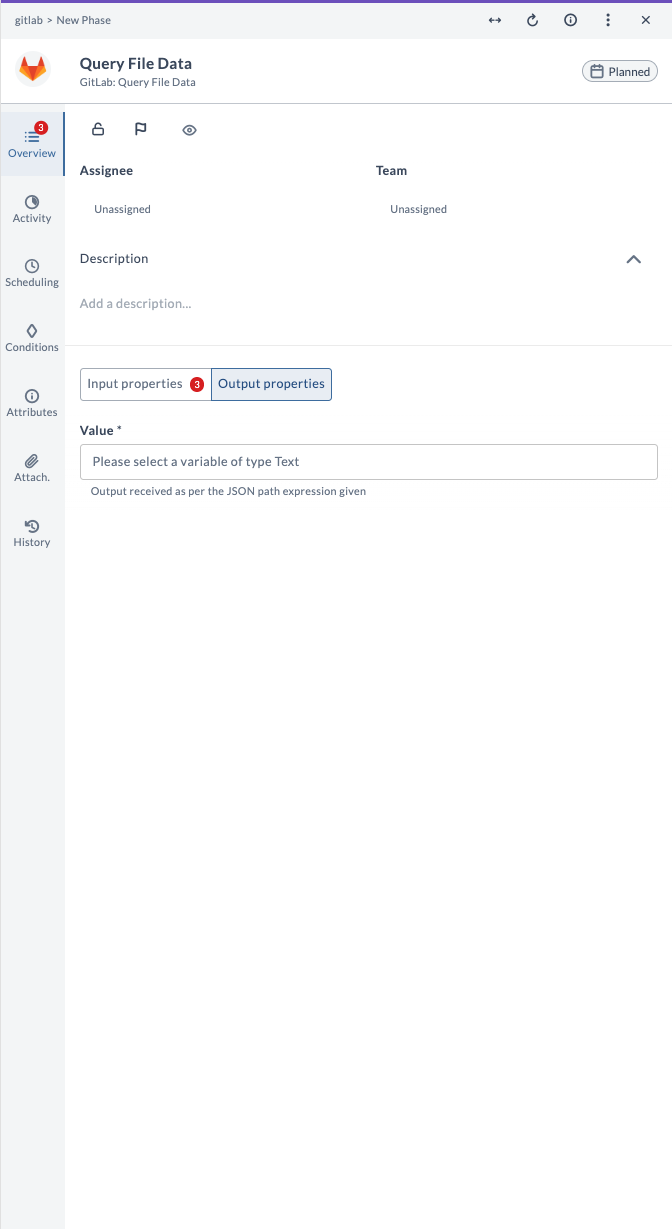
| Output Property | Description |
|---|---|
| Value | Output received as per the JSON path expression given. |
Example Usage
Suppose you want to fetch the value of the version property from the file config/settings.json in project ID 12345 on the main branch:
| Field | Value |
|---|---|
| GitLab Server | gitlab.example.com |
| API Key | your-api-token |
| Project ID | 12345 |
| File path | config/settings.json |
| Revision | main |
| JSON path | $.version |
After running the task, the output will provide the value of the version property as specified by the JSON path.
Query Merge Requests
This task queries merge requests (MRs) in a GitLab project. It is used to retrieve a list of merge requests, along with their statuses and details, with options to filter, sort, and control the output format.
Input Fields
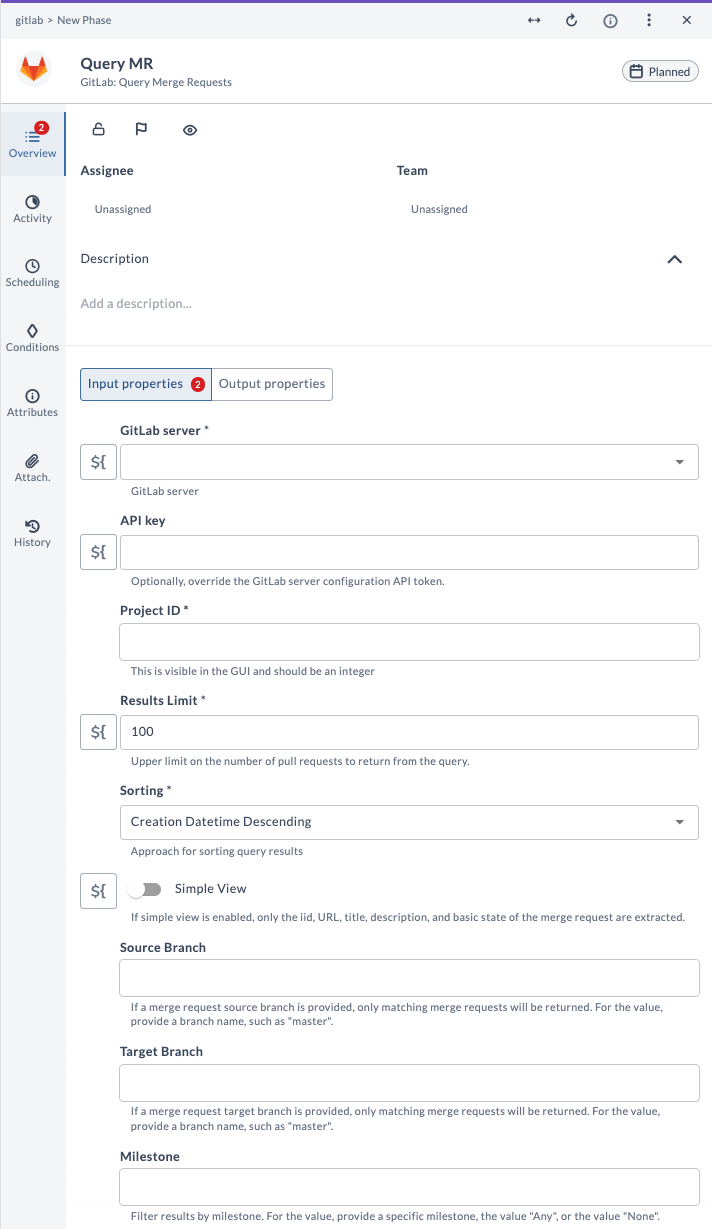
| Field Name | Description | Example |
|---|---|---|
| GitLab Server | The configured GitLab server connection to use. | gitlab.example.com |
| API Key | (Optional) Override the GitLab Server configuration API token for this task. | your-api-token |
| Project ID | Numeric ID of the GitLab project. | 12345 |
| Results Limit | Upper limit on the number of merge requests to return from the query. | 10 |
| Sorting | Approach for sorting query results. | Creation Datetime Descending |
| Simple View | If enabled, only the id, URL, title, description, and basic state are extracted. | true |
| Source Branch | (Optional) Only matching merge requests with this source branch will be returned. | feature/new-login |
| Target Branch | (Optional) Only matching merge requests with this target branch will be returned. | main |
| Milestone | (Optional) Filter results by milestone. Provide a specific milestone, "Any", or "None". | v1.0.0 |
Output Fields
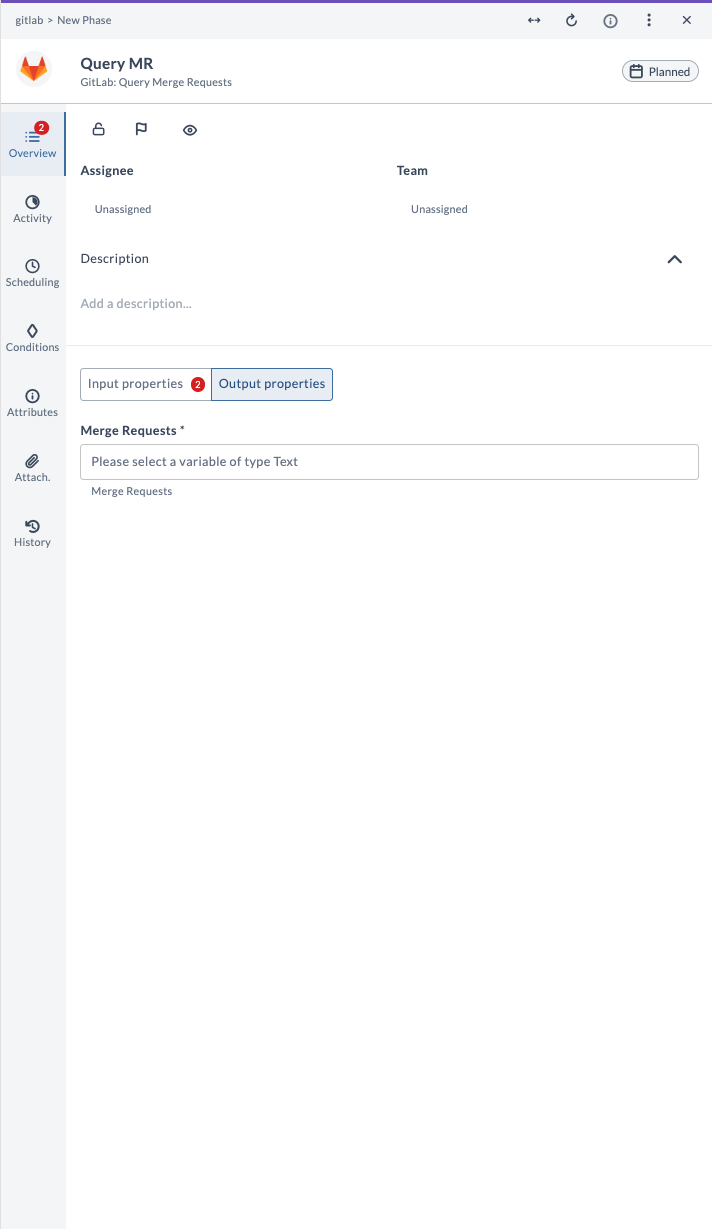
| Output Property | Description |
|---|---|
| Merge Requests | List of merge request objects with details (ID, title, state, etc.). |
Example Usage
Suppose you want to query the last 5 merge requests for project ID 12345, sorted by creation date (descending), and only show simple view:
| Field | Value |
|---|---|
| GitLab Server | gitlab.example.com |
| API Key | your-api-token |
| Project ID | 12345 |
| Results Limit | 5 |
| Sorting | Creation Datetime Descending |
| Simple View | true |
After running the task, the output will provide a list of the latest 5 merge requests, including their IDs, URLs, titles, descriptions, and basic states.
Query Pipelines
This task queries pipelines in a GitLab project. It is used to fetch information about CI/CD pipelines, including their statuses and results.
Input Fields
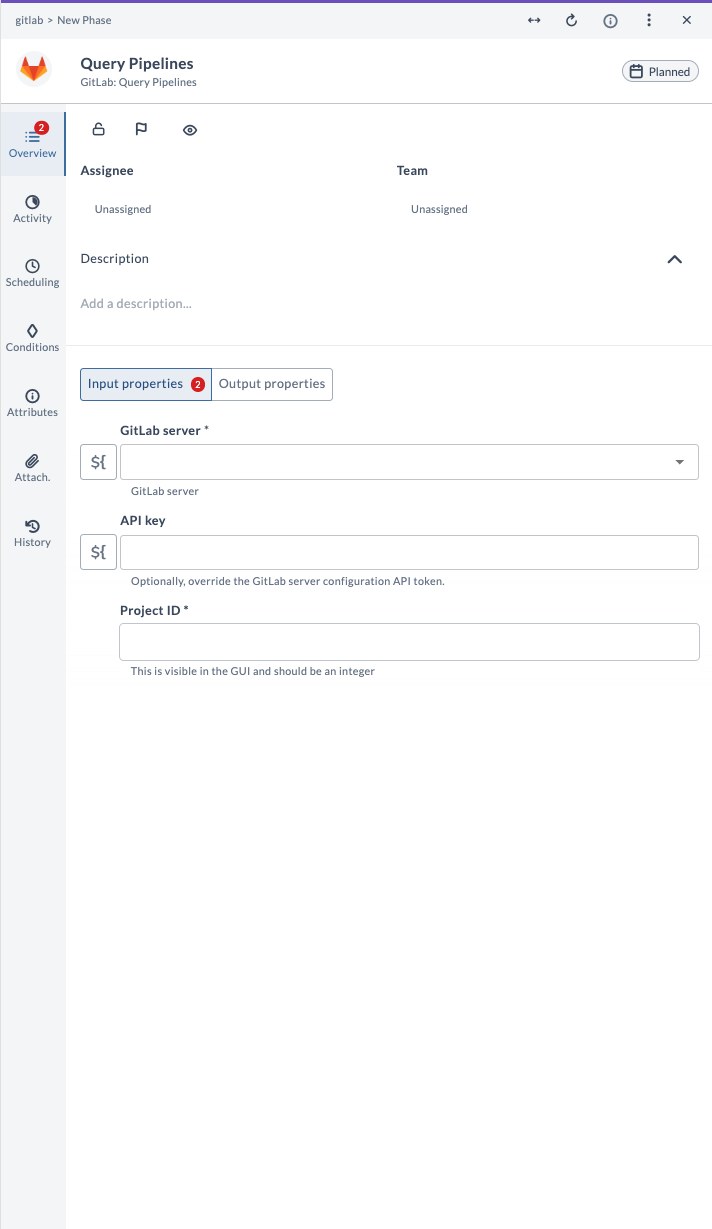
| Field Name | Description | Example |
|---|---|---|
| GitLab Server | The configured GitLab server connection to use. | gitlab.example.com |
| API Key | (Optional) Override the GitLab Server configuration API token for this task. | your-api-token |
| Project ID | Numeric ID of the GitLab project. | 12345 |
Output Fields
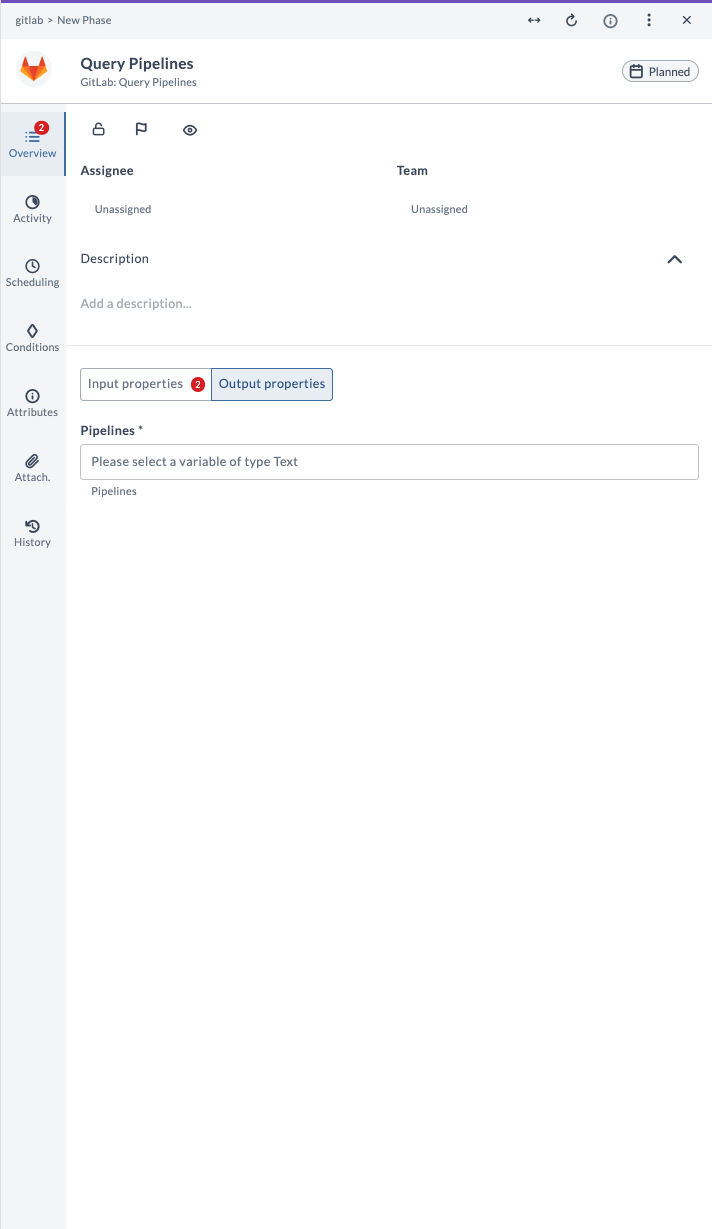
| Output Property | Description |
|---|---|
| Pipelines | List of pipeline objects with details (ID, status, etc.). |
Example Usage
Suppose you want to query all pipelines for project ID 12345:
| Field | Value |
|---|---|
| GitLab Server | gitlab.example.com |
| API Key | your-api-token |
| Project ID | 12345 |
After running the task, the output will provide a list of pipelines, including their IDs, statuses, and other details.
Query Project
This task queries a project in GitLab. It is used to retrieve details about a specific project, such as its settings, members, and activity.
Input Fields
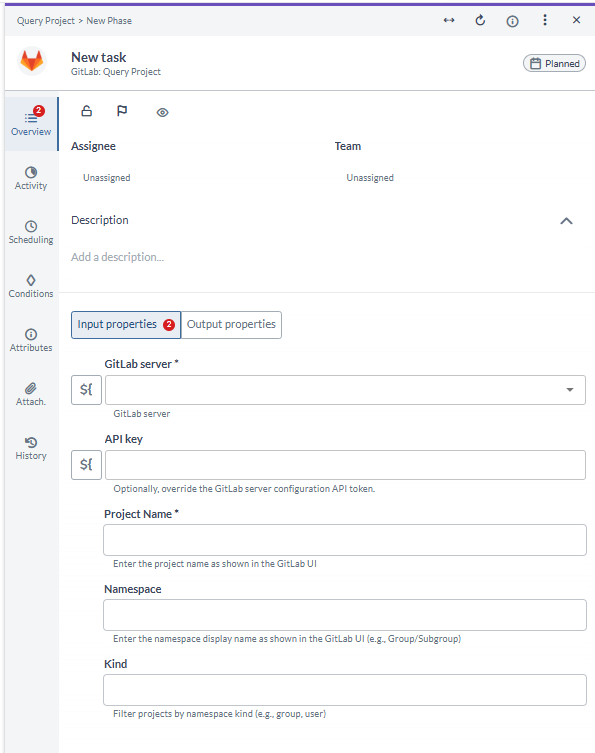
| Field Name | Description | Example |
|---|---|---|
| GitLab Server | The configured GitLab server connection to use. | gitlab.example.com |
| API Key | (Optional) Override the GitLab Server configuration API token for this task. | your-api-token |
| Project Name | Name of the project to query, as shown in the GitLab UI. | my-project |
| Namespace | (Optional) Namespace display name as shown in the GitLab UI (for example, Group/Subgroup). | my-group |
| Kind | (Optional) Filter projects by namespace kind (for example, group or user). | group |
Output Fields
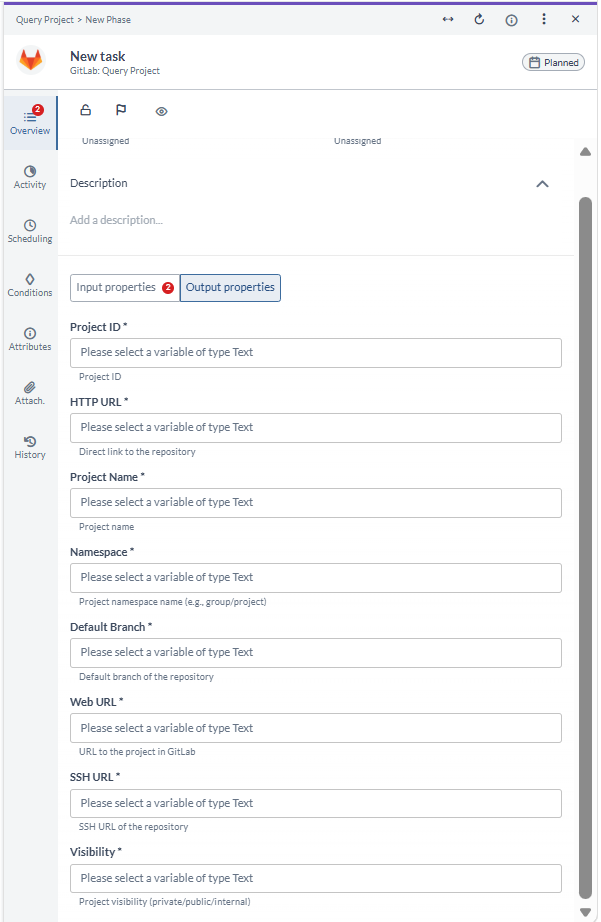
| Output Property | Description |
|---|---|
| Project ID | The numeric ID of the queried project. |
| HTTP URL | Direct link to the repository. |
| Project Name | The name of the project. |
| Namespace | The project namespace name (for example, group/project). |
| Default Branch | The default branch of the repository. |
| Web URL | URL to the project in GitLab. |
| SSH URL | The SSH URL of the repository. |
| Visibility | The project visibility (private, public, or internal). |
Example Usage
Suppose you want to query a project named my-project in the namespace my-group:
| Field | Value |
|---|---|
| GitLab Server | gitlab.example.com |
| API Key | your-api-token |
| Project Name | my-project |
| Namespace | my-group |
| Kind | group |
After running the task, the output provides the project details, including the Project ID, HTTP URL, Project Name, Namespace, Default Branch, Web URL, SSH URL, and Visibility.
Query Secure Data
This task queries secure data from a GitLab project. It is used to fetch sensitive or protected information related to a project, typically with appropriate access controls.
Input Fields
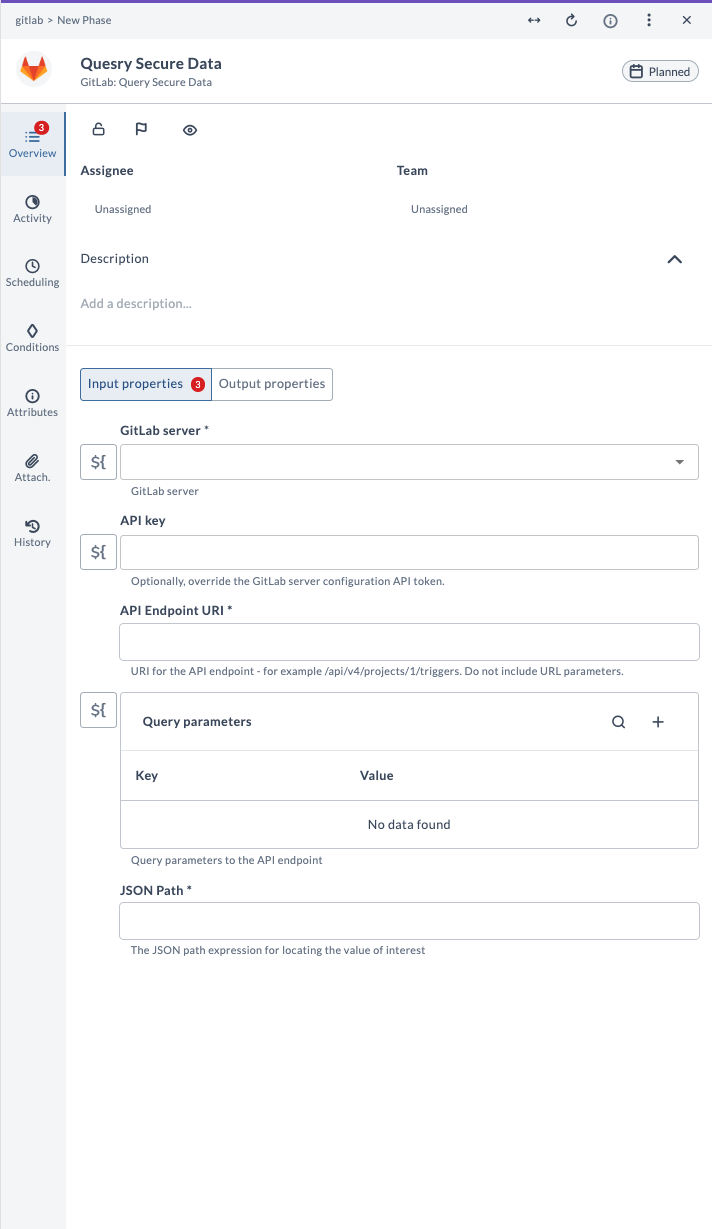
| Field Name | Description | Example |
|---|---|---|
| GitLab Server | The configured GitLab server connection to use. | gitlab.example.com |
| API Key | (Optional) Override the GitLab Server configuration API token for this task. | your-api-token |
| API Endpoint URI | URI for the API endpoint (for example, /api/v4/projects/1/triggers). Do not include URL parameters. | /api/v4/projects/1/triggers |
| Query parameters | (Optional) Key-value pairs to add as query parameters to the API endpoint. | key: status, value: success |
| JSON Path | The JSON path expression for locating the value of interest in the response. | $.[0].id |
Output Fields
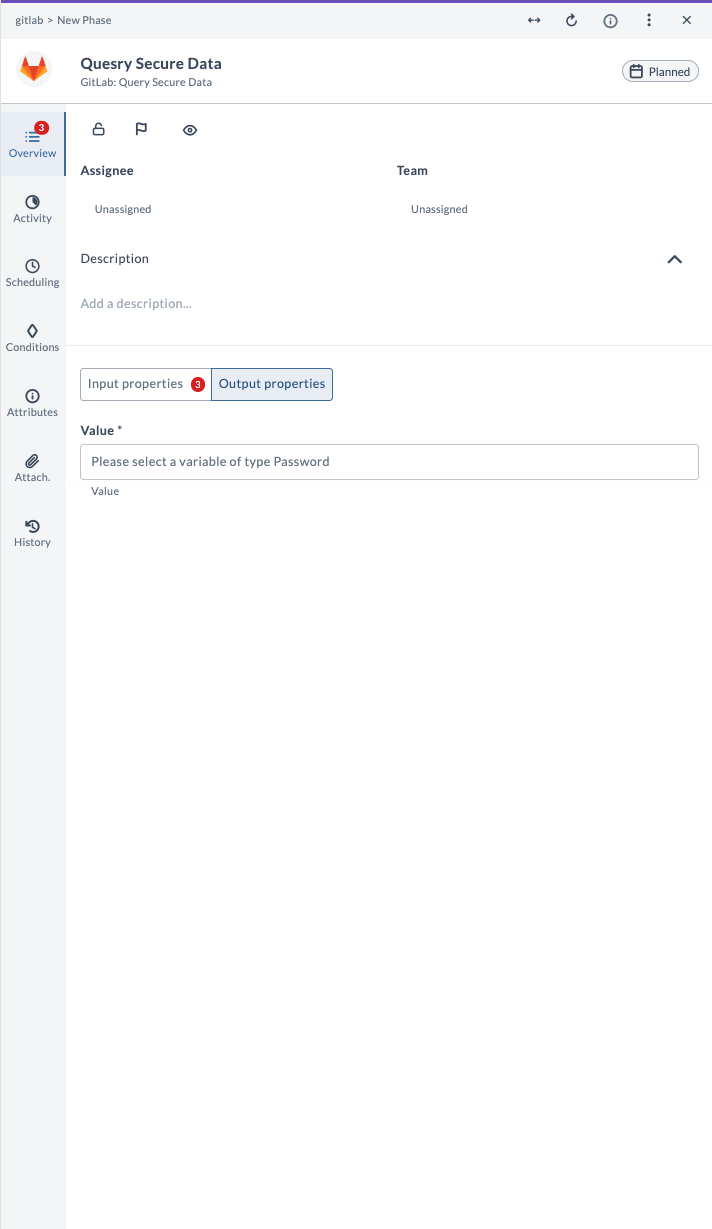
| Output Property | Description |
|---|---|
| Value | Output received as per the JSON path expression given. |
Example Usage
Suppose you want to fetch a sensitive value from the endpoint /api/v4/projects/1/triggers and extract the ID using the JSON path $. [0].id:
| Field | Value |
|---|---|
| GitLab Server | gitlab.example.com |
| API Key | your-api-token |
| API Endpoint URI | /api/v4/projects/1/triggers |
| Query parameters | (leave blank for all triggers) |
| JSON Path | $.[0].id |
After running the task, the output will provide the sensitive value as specified by the JSON path.
Query Tags
This task queries tags in a GitLab project. It is used to list all tags in a repository, often with details about the tagged commits. You can filter, sort, and limit the results.
Input Fields
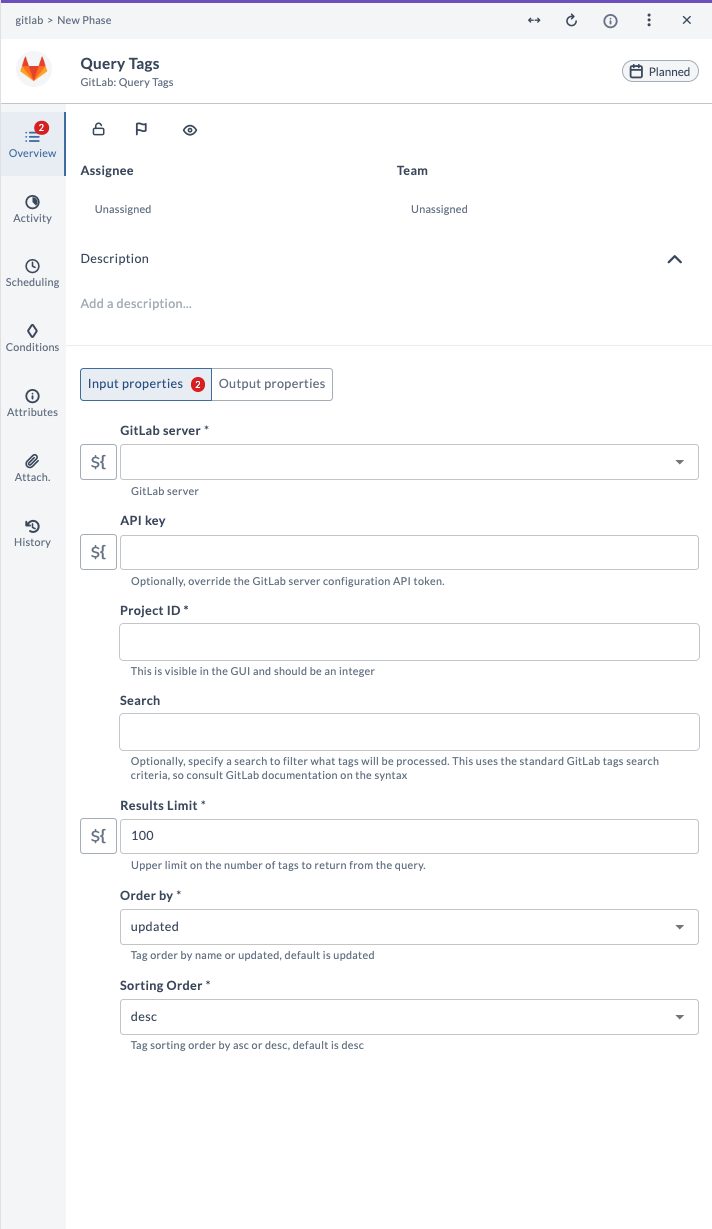
| Field Name | Description | Example |
|---|---|---|
| GitLab Server | The configured GitLab server connection to use. | gitlab.example.com |
| API Key | (Optional) Override the GitLab Server configuration API token for this task. | your-api-token |
| Project ID | Numeric ID of the GitLab project. | 12345 |
| Search | (Optional) Search string to filter tags. | v1.0 |
| Results Limit | Upper limit on the number of tags to return from the query. | 10 |
| Order by | Tag order by name or updated. Default is updated. | updated |
| Sorting Order | Tag sorting order by asc or desc. Default is desc. | desc |
Output Fields
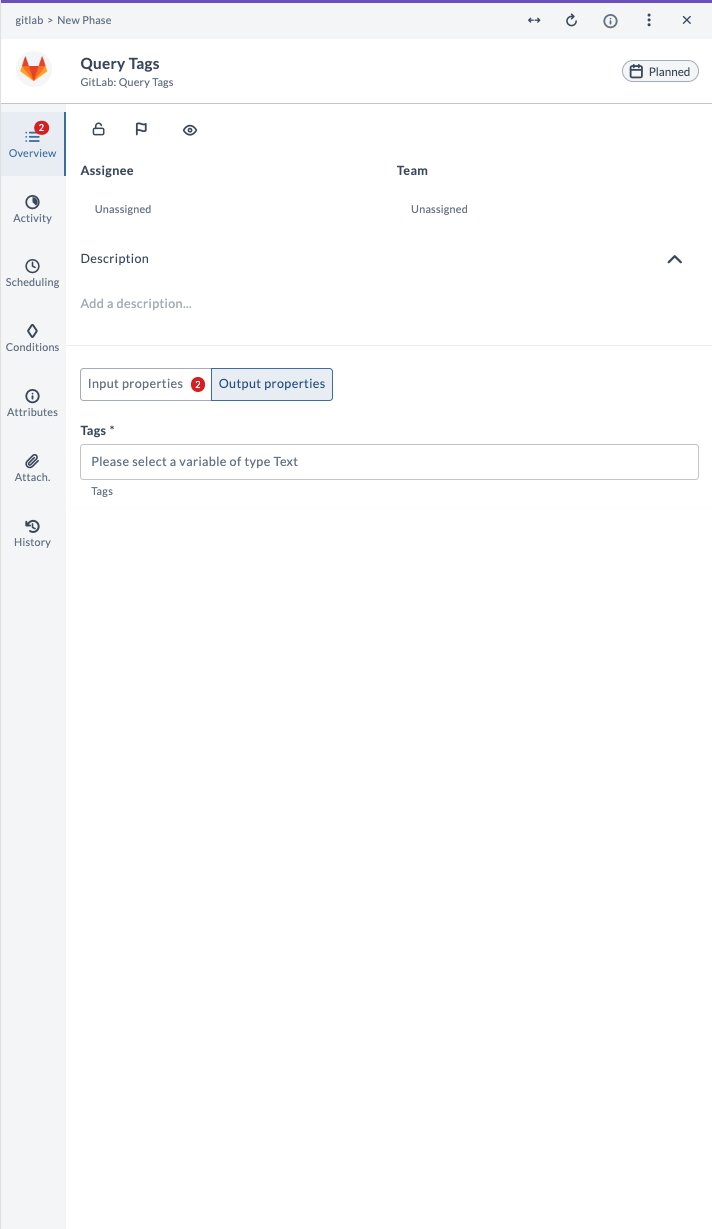
| Output Property | Description |
|---|---|
| Tags | List of tag objects with details (name, commit, etc.). |
Example Usage
Suppose you want to query the 5 most recently updated tags for project ID 12345:
| Field | Value |
|---|---|
| GitLab Server | gitlab.example.com |
| API Key | your-api-token |
| Project ID | 12345 |
| Results Limit | 5 |
| Order by | updated |
| Sorting Order | desc |
After running the task, the output will provide a list of the latest 5 tags, including their names, associated commits, and other details.
Run Job
This task runs a GitLab job manually. It is used to trigger a specific job defined in a GitLab CI/CD pipeline, with options to pass variables and control completion behavior.
Input Fields
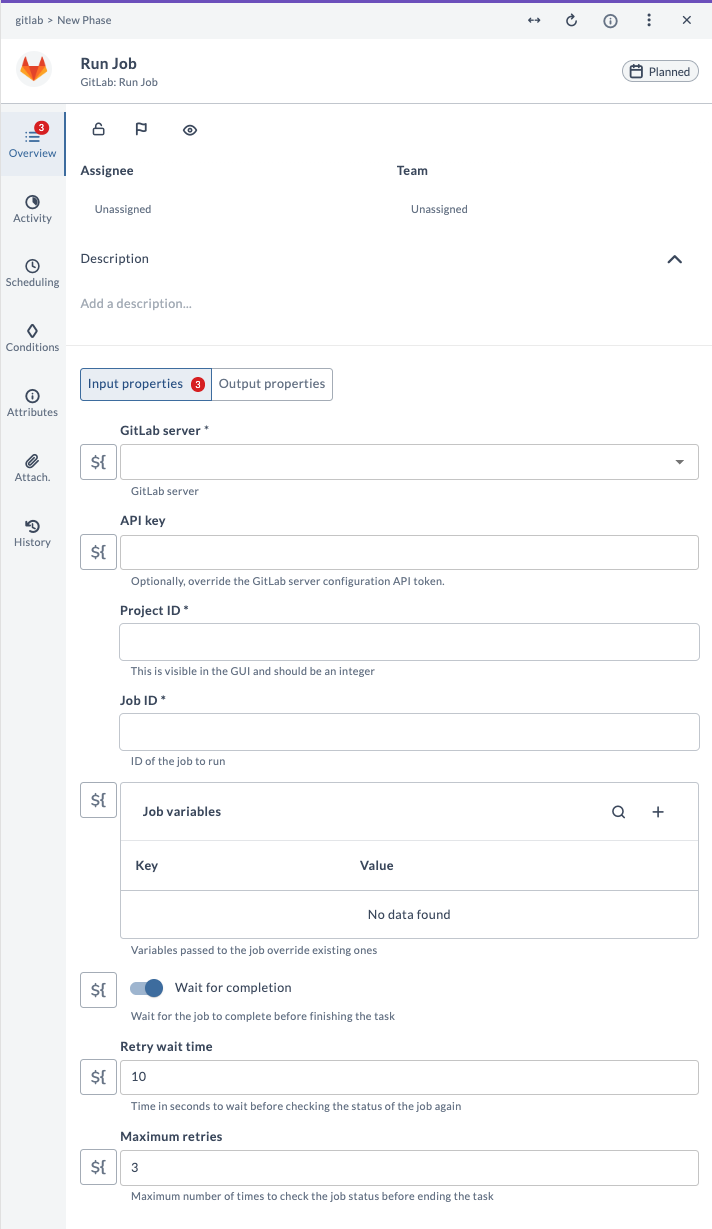
| Field Name | Description | Example |
|---|---|---|
| GitLab Server | The configured GitLab server connection to use. | gitlab.example.com |
| API Key | (Optional) Override the GitLab Server configuration API token for this task. | your-api-token |
| Project ID | Numeric ID of the GitLab project. | 12345 |
| Job ID | ID of the job to run. | 678 |
| Job variables | (Optional) Variables passed to the job, overriding existing ones. | key: ENV, value: prod |
| Wait for completion | Wait for the job to complete before finishing the task. | true |
| Retry wait time | Time in seconds to wait before checking the status of the job again. | 10 |
| Maximum retries | Maximum number of times to check the job status before ending the task. | 3 |
Output Fields
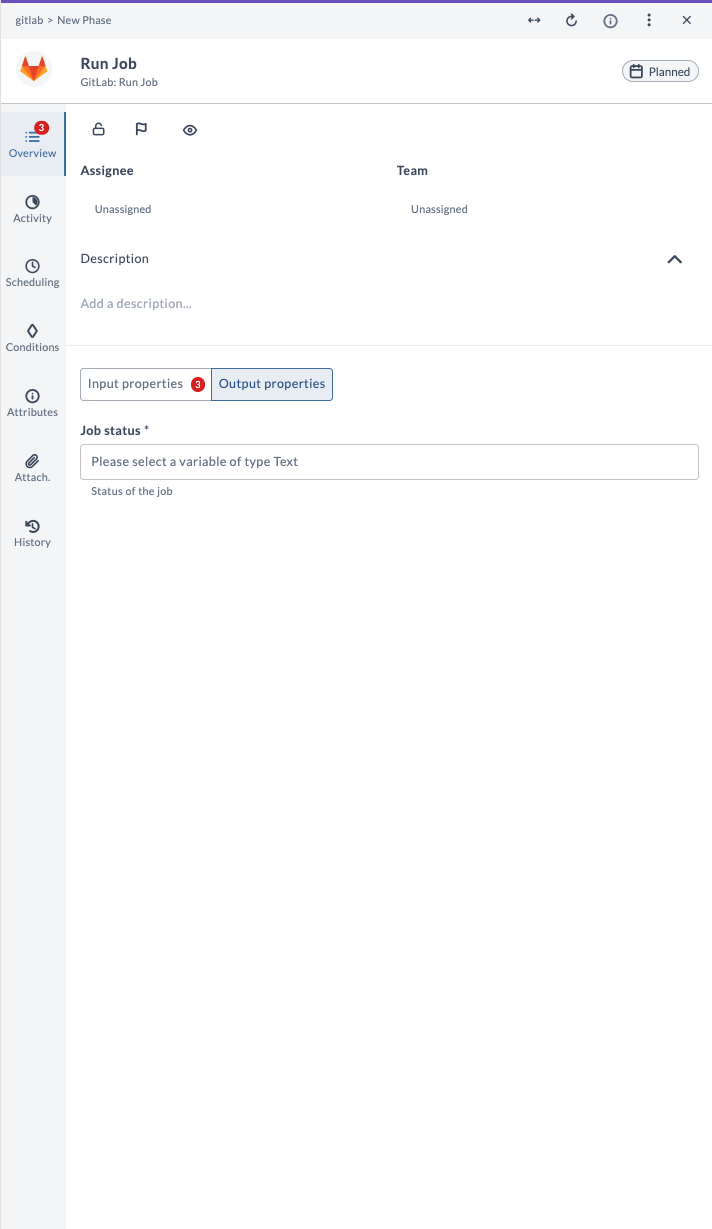
| Output Property | Description |
|---|---|
| Job status | Status of the job (for example, success, failed, running). |
Example Usage
Suppose you want to run job ID 678 in project ID 12345, wait for completion, and check the status every 10 seconds up to 3 times:
| Field | Value |
|---|---|
| GitLab Server | gitlab.example.com |
| API Key | your-api-token |
| Project ID | 12345 |
| Job ID | 678 |
| Wait for completion | true |
| Retry wait time | 10 |
| Maximum retries | 3 |
After running the task, the output will provide the final status of the job (for example, success, failed).
Trigger Pipeline
This task triggers a pipeline in GitLab. It is used to start a new CI/CD pipeline run for a project, usually after a commit or merge, using a Pipeline Trigger Token (not a Personal Access Token).
This task requires a GitLab Pipeline Trigger Token. Do not use a Personal Access Token - the task will fail.
To create a trigger token in GitLab:
- Go to your GitLab project
- Navigate to: Settings → CI/CD → Pipeline triggers
- Click Add trigger
- Copy the generated token and keep it handy
Also see, Create Pipeline.
Input Fields
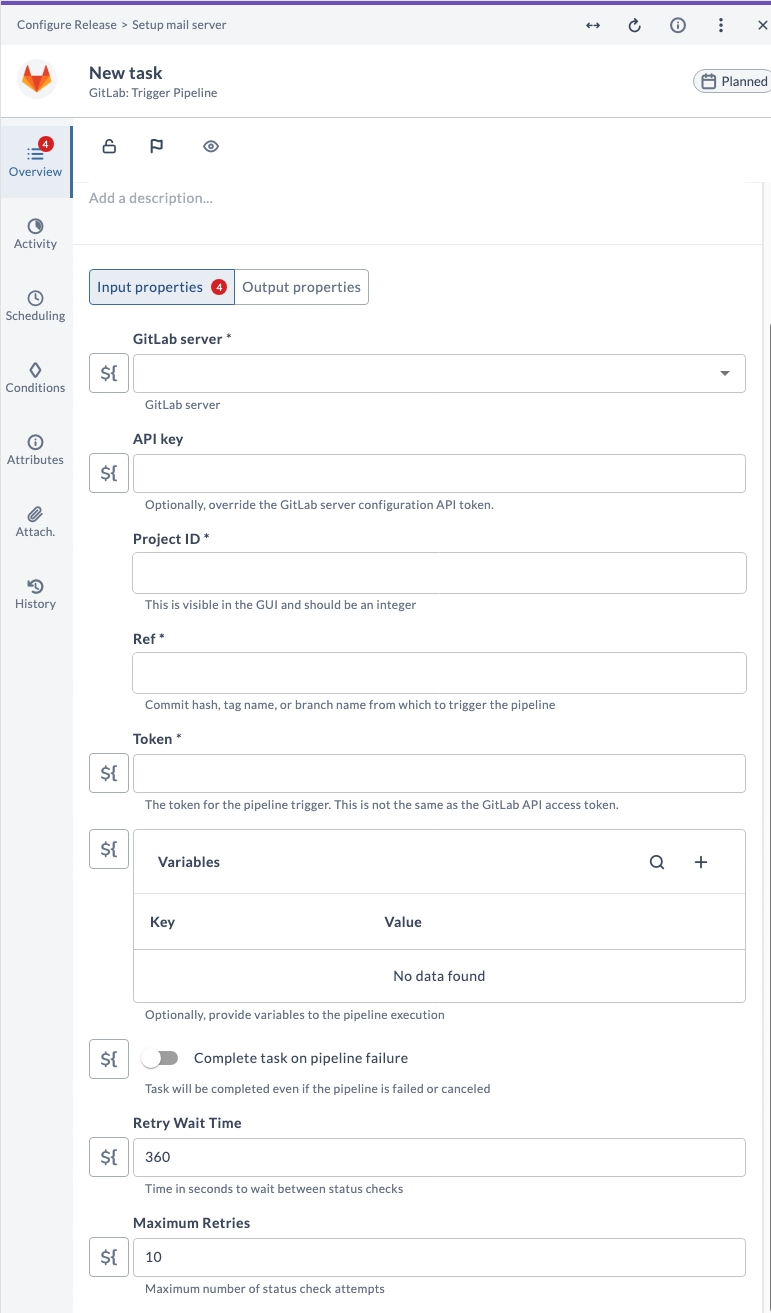
| Field Name | Description | Example |
|---|---|---|
| GitLab Server | The configured GitLab server connection to use. | gitlab.example.com |
| API Key | (Optional) Override the GitLab Server configuration API token for this task. | your-api-token |
| Project ID | Numeric ID of the GitLab project. | 12345 |
| Ref | Commit hash, tag name, or branch name from which to trigger the pipeline. | main |
| Token | Pipeline Trigger Token (not a Personal Access Token). | glptt-abc123 |
| Variables | (Optional) Key-value pairs to provide variables to the pipeline execution. | key: ENV, value: prod |
| Complete task on pipeline failure | If enabled, the task will be completed even if the pipeline is failed or canceled. | true |
| Retry wait time | Time in seconds to wait before checking the status of the pipeline again. | 360 |
| Maximum retries | Maximum number of times to check the pipeline status before the task stops polling and fails if the pipeline has not reached a final state. | 10 |
Output Fields
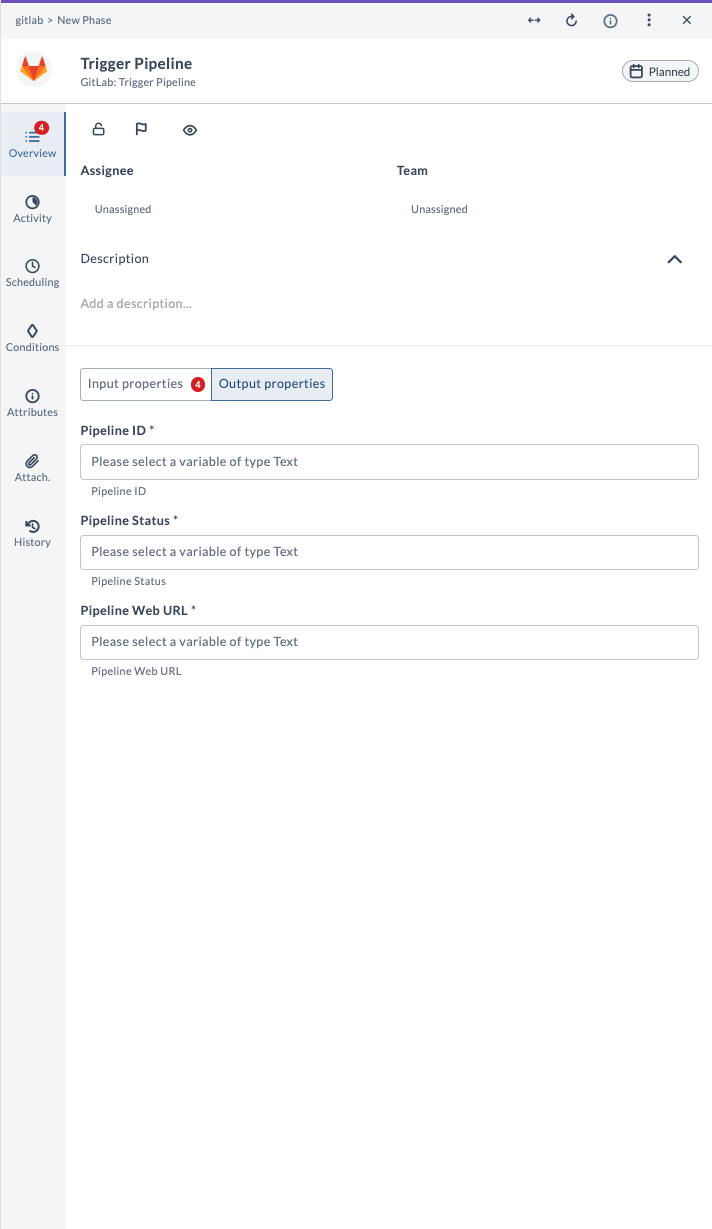
| Output Property | Description |
|---|---|
| Pipeline ID | The numeric ID of the triggered pipeline. |
| Pipeline Status | The status of the triggered pipeline. |
| Pipeline Web URL | The web URL to view the pipeline in GitLab. |
Example Usage
Suppose you want to trigger a pipeline for project ID 12345 on the main branch, using a pipeline trigger token:
| Field | Value |
|---|---|
| GitLab Server | gitlab.example.com |
| API Key | your-api-token |
| Project ID | 12345 |
| Ref | main |
| Token | glptt-abc123 |
| Variables | ENV=prod |
After running the task, the output will provide the Pipeline ID, status, and a link to view the pipeline in GitLab.
Query Pipeline Status
This task queries the status of a pipeline in GitLab. It is used to check the current state and results of a specific pipeline run, such as after triggering a pipeline.
Input Fields
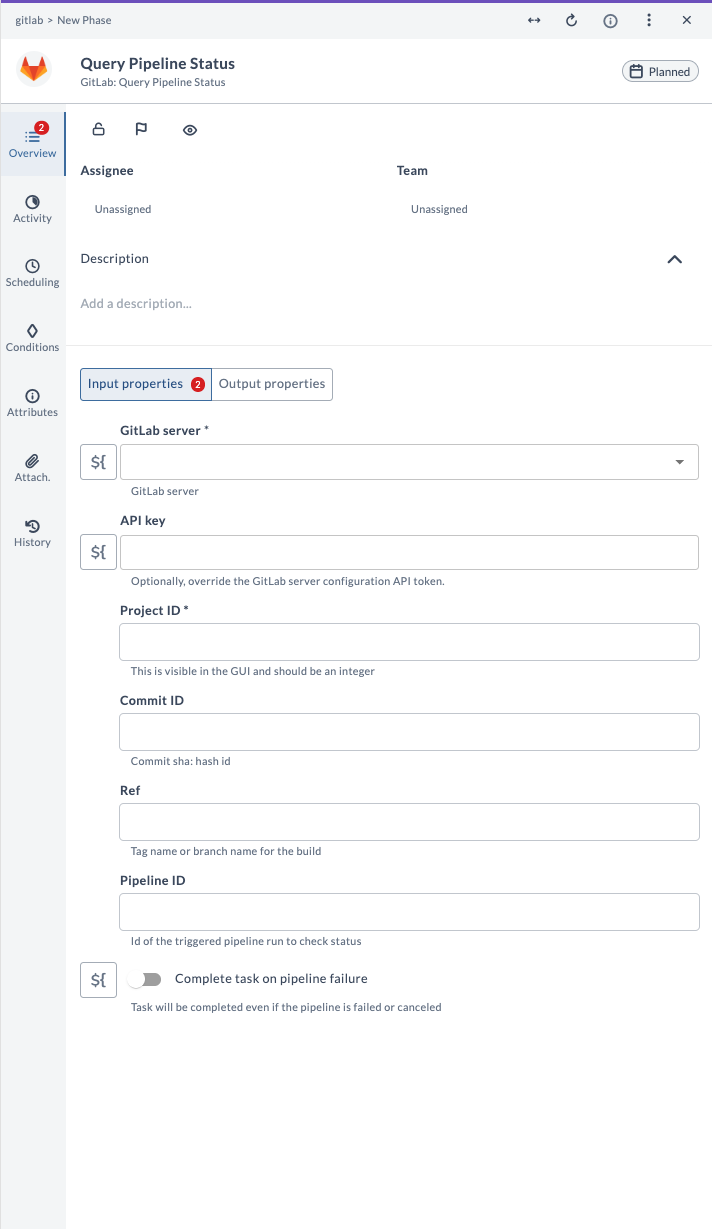
| Field Name | Description | Example |
|---|---|---|
| GitLab Server | The configured GitLab server connection to use. | gitlab.example.com |
| API Key | (Optional) Override the GitLab Server configuration API token for this task. | your-api-token |
| Project ID | Numeric ID of the GitLab project. | 12345 |
| Commit ID | (Optional) Commit SHA (hash) to filter the pipeline status. | 1a2b3c4d |
| Ref | (Optional) Tag name or branch name for the build. | main |
| Pipeline ID | (Optional) ID of the triggered pipeline run to check status. | 6789 |
| Complete task on pipeline failure | If enabled, the task will be completed even if the pipeline is failed or canceled. | true |
Output Fields
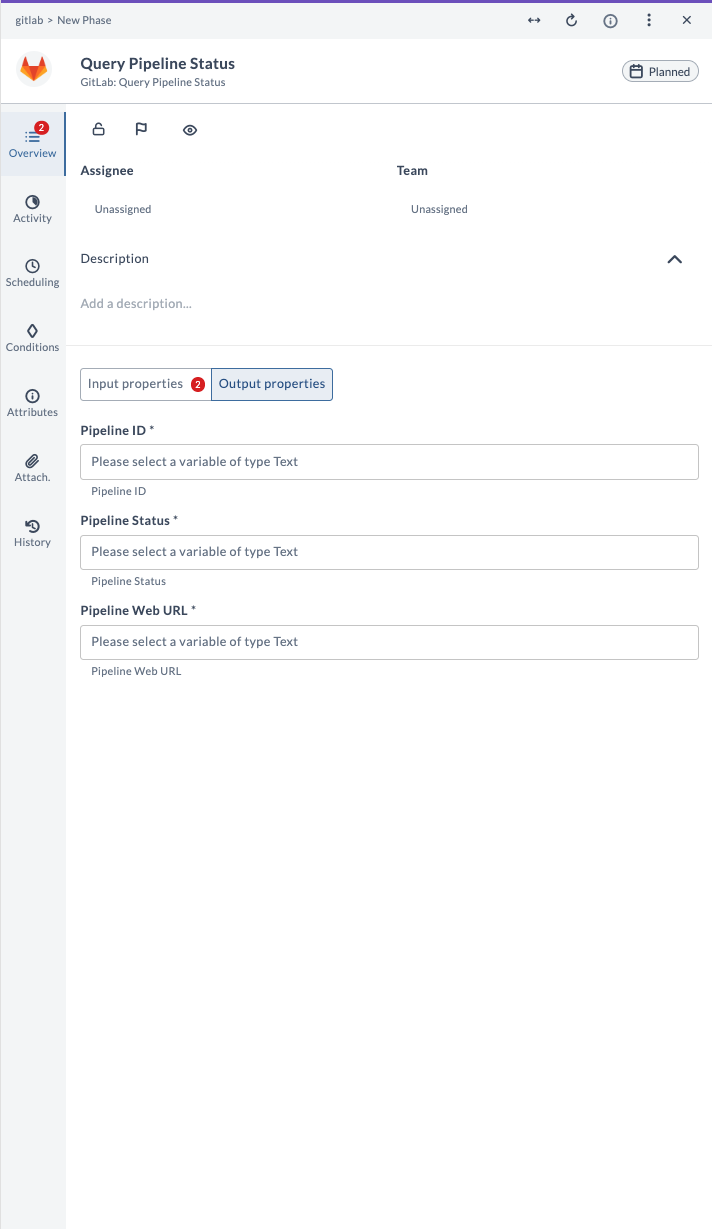
| Output Property | Description |
|---|---|
| Pipeline ID | The numeric ID of the pipeline. |
| Pipeline Status | The status of the pipeline (for example, running, success, failed). |
| Pipeline Web URL | The web URL to view the pipeline in GitLab. |
Example Usage
Suppose you want to check the status of pipeline ID 6789 for project ID 12345:
| Field | Value |
|---|---|
| GitLab Server | gitlab.example.com |
| API Key | your-api-token |
| Project ID | 12345 |
| Pipeline ID | 6789 |
After running the task, the output will provide the Pipeline ID, its current status, and a link to view the pipeline in GitLab.
Clone Repository
This task clones a repository from GitLab. It is used to create a local copy of a remote repository for development or analysis.
Input Fields
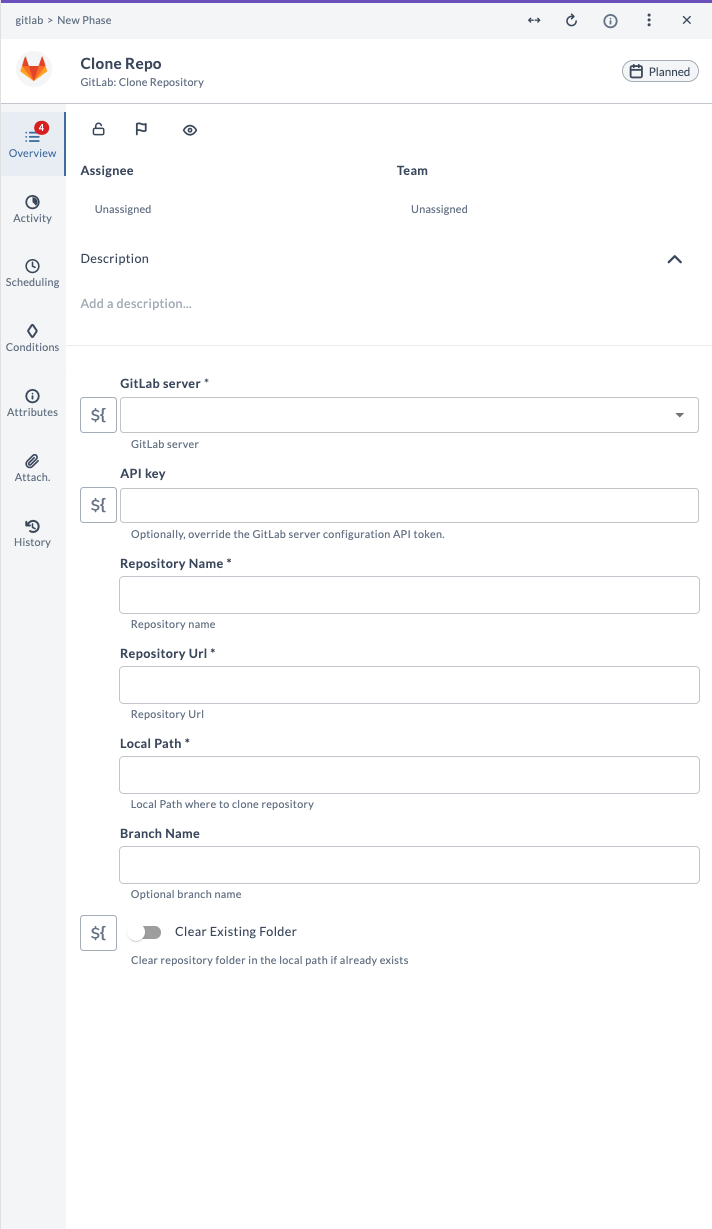
| Field Name | Description | Example |
|---|---|---|
| GitLab Server | The configured GitLab server connection to use. | gitlab.example.com |
| API Key | (Optional) Override the GitLab Server configuration API token for this task. | your-api-token |
| Repository Name | Name of the repository to clone. | my-repo |
| Repository URL | The full URL of the repository to clone. | https://gitlab.com/my-group/my-repo.git |
| Local Path | Local path where the repository will be cloned. | /home/user/projects/my-repo |
| Branch Name | (Optional) Branch to checkout after cloning. | main |
| Clear Existing Folder | If enabled, clears the local path folder if it already exists. | true |
Example Usage
Suppose you want to clone the repository my-repo from GitLab to your local machine:
| Field | Value |
|---|---|
| GitLab Server | gitlab.example.com |
| API Key | your-api-token |
| Repository Name | my-repo |
| Repository URL | https://gitlab.com/my-group/my-repo.git |
| Local Path | /home/user/projects/my-repo |
| Branch Name | main |
| Clear Existing Folder | true |
After running the task, the specified repository will be cloned to the given local path, and the specified branch (if provided) will be checked out.
Commit Files
This task commits files to a GitLab repository. It is used to save changes to the repository with a new commit, typically including a commit message describing the changes. You can also push the commit to the remote repository if desired.
Input Fields
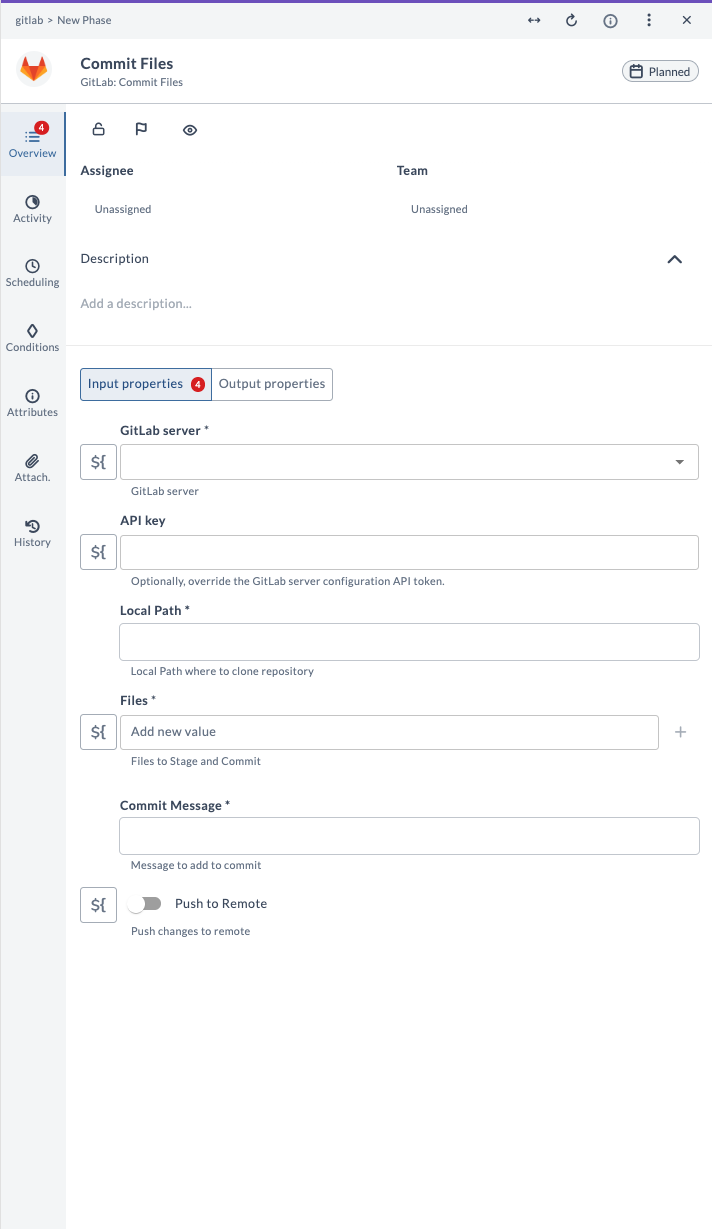
| Field Name | Description | Example |
|---|---|---|
| GitLab Server | The configured GitLab server connection to use. | gitlab.example.com |
| API Key | (Optional) Override the GitLab Server configuration API token for this task. | your-api-token |
| Local Path | Local path to the repository where files will be committed. | /home/user/projects/my-repo |
| Files | List of files to stage and commit. | src/app.py, README.md |
| Commit Message | Message to add to the commit. | Update app logic |
| Push to Remote | If enabled, pushes the commit to the remote repository. | true |
Output Fields
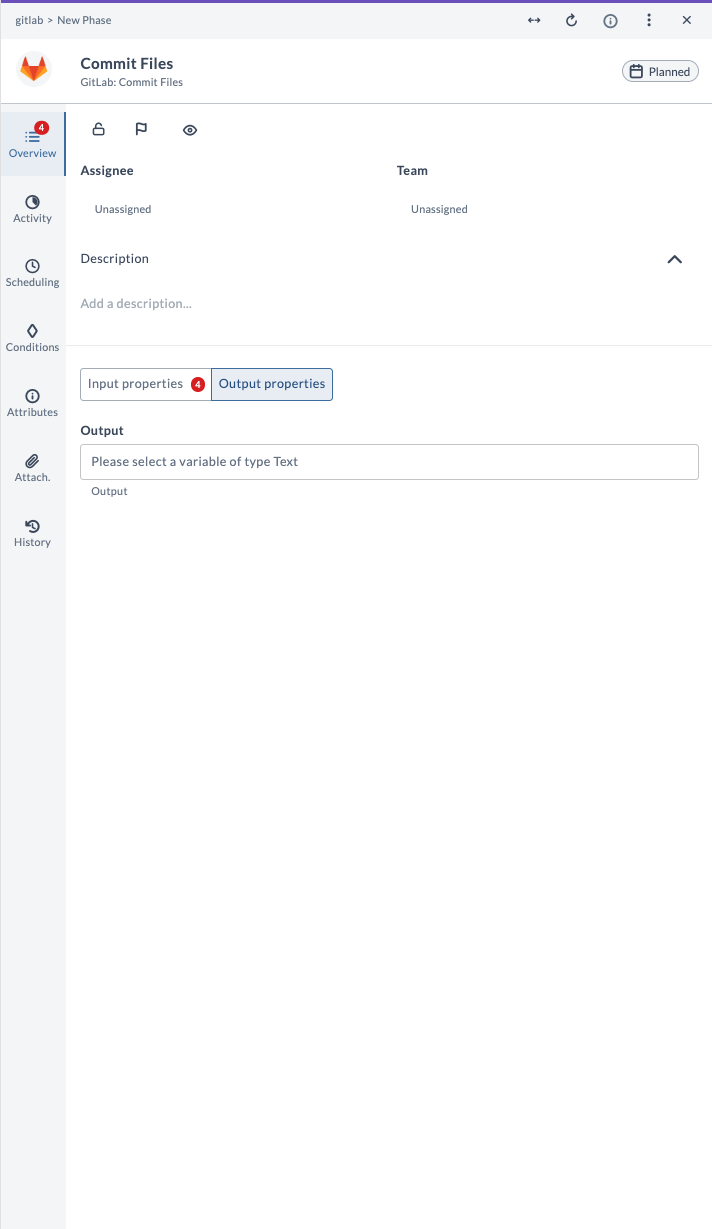
| Output Property | Description |
|---|---|
| Output | Output message from the commit and push operation. |
Example Usage
Suppose you want to commit changes to src/app.py and README.md in your local repository and push them to the remote:
| Field | Value |
|---|---|
| GitLab Server | gitlab.example.com |
| API Key | your-api-token |
| Local Path | /home/user/projects/my-repo |
| Files | src/app.py, README.md |
| Commit Message | Update app logic |
| Push to Remote | true |
After running the task, the output will provide a message about the result of the commit and push operation.
Revert Commit
This task reverts a commit in a GitLab repository. It is used to undo the changes introduced by a specific commit, creating a new commit that reverses those changes on a specified branch.
Input Fields
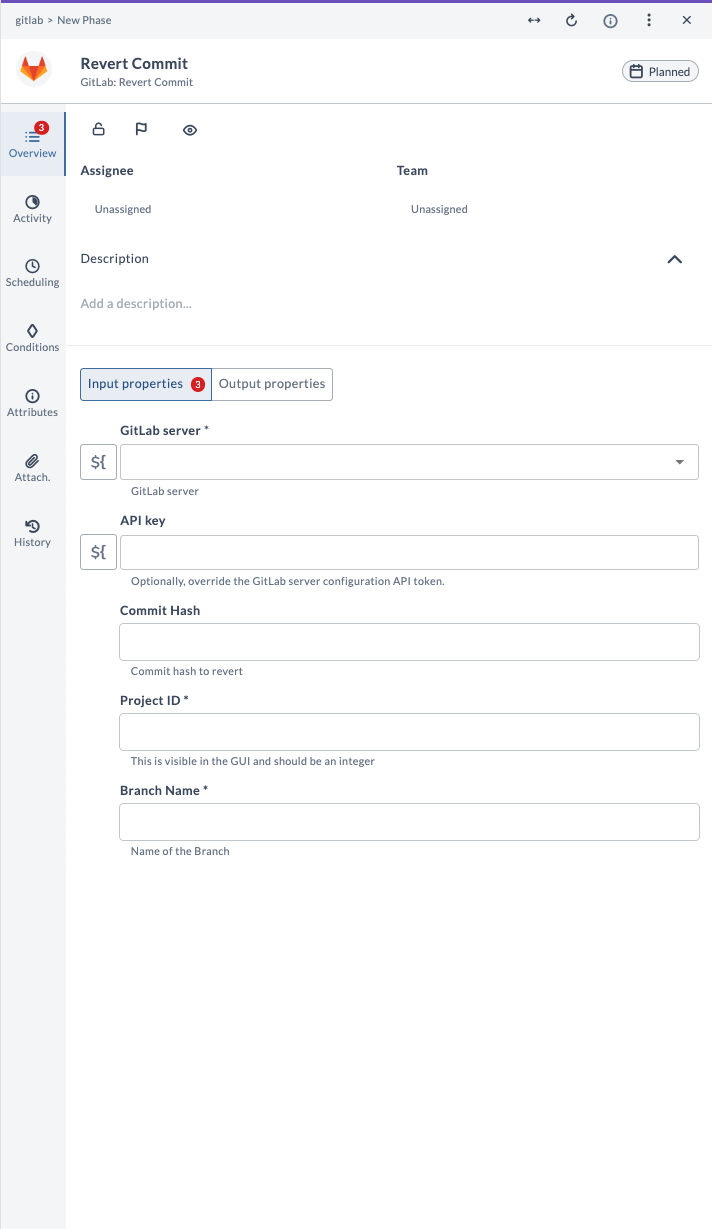
| Field Name | Description | Example |
|---|---|---|
| GitLab Server | The configured GitLab server connection to use. | gitlab.example.com |
| API Key | (Optional) Override the GitLab Server configuration API token for this task. | your-api-token |
| Commit Hash | Commit hash to revert. | 1a2b3c4d5e6f7g8h9i0j |
| Project ID | Numeric ID of the GitLab project. | 12345 |
| Branch Name | Name of the branch where the revert will be applied. | main |
Output Fields
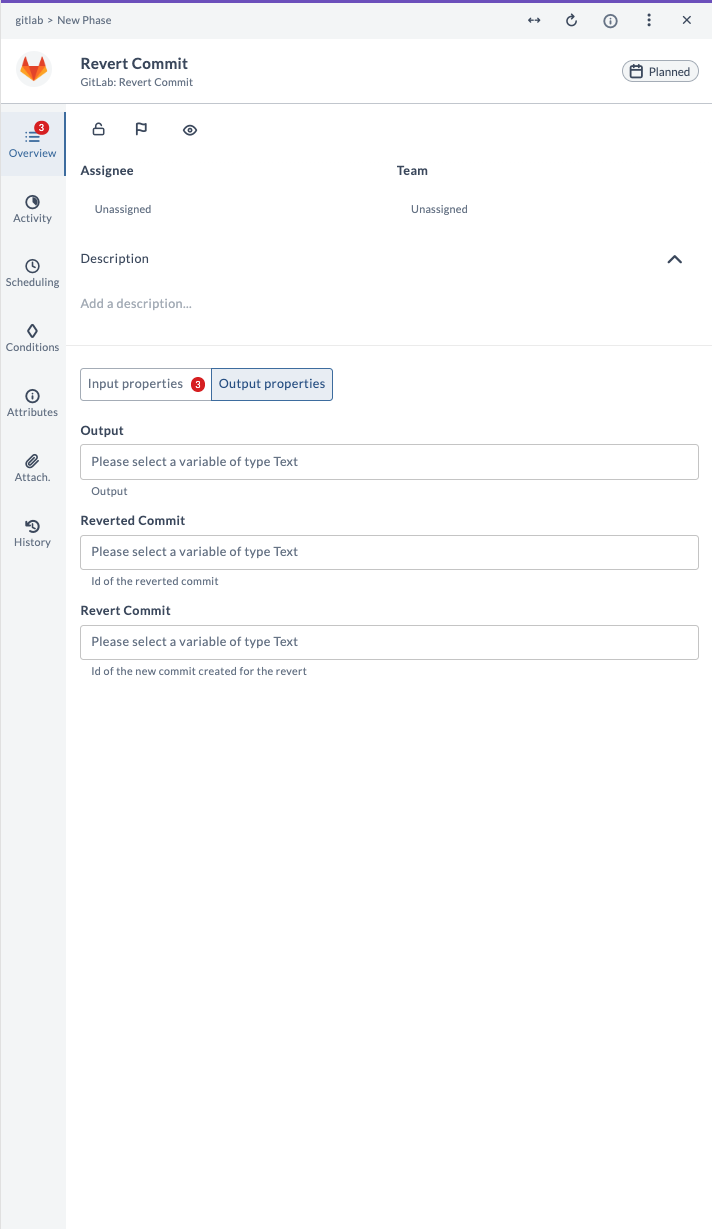
| Output Property | Description |
|---|---|
| Output | Output message from the revert operation. |
| Reverted Commit | ID of the reverted commit. |
| Revert Commit | ID of the new commit created for the revert. |
Example Usage
Suppose you want to revert commit 1a2b3c4d5e6f7g8h9i0j in project ID 12345 on the main branch:
| Field | Value |
|---|---|
| GitLab Server | gitlab.example.com |
| API Key | your-api-token |
| Commit Hash | 1a2b3c4d5e6f7g8h9i0j |
| Project ID | 12345 |
| Branch Name | main |
After running the task, the output will provide a message about the revert operation, the ID of the reverted commit, and the ID of the new commit created by the revert.
Approve Merge Request
This task approves a merge request in GitLab. It is used to indicate that a merge request has been reviewed and is ready to be merged.
Input Fields
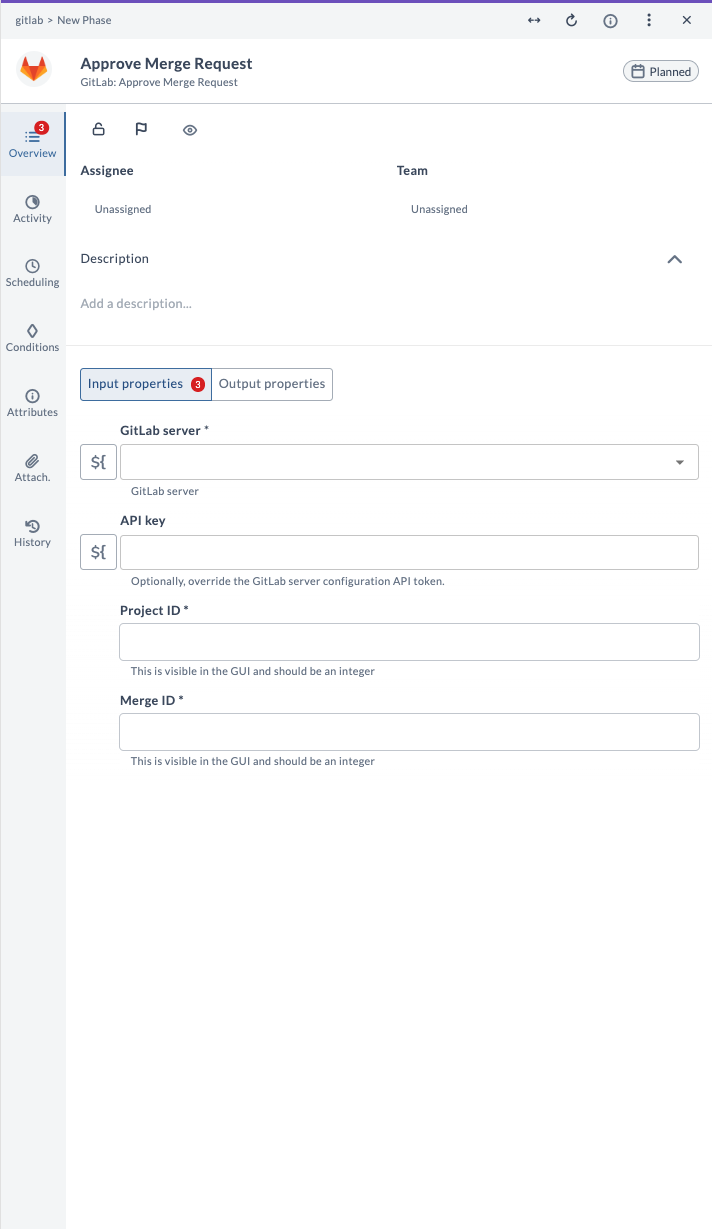
| Field Name | Description | Example |
|---|---|---|
| GitLab Server | The configured GitLab server connection to use. | gitlab.example.com |
| API Key | (Optional) Override the GitLab Server configuration API token for this task. | your-api-token |
| Project ID | Numeric ID of the GitLab project. | 12345 |
| Merge ID | Numeric ID of the merge request to approve. | 678 |
Output Fields
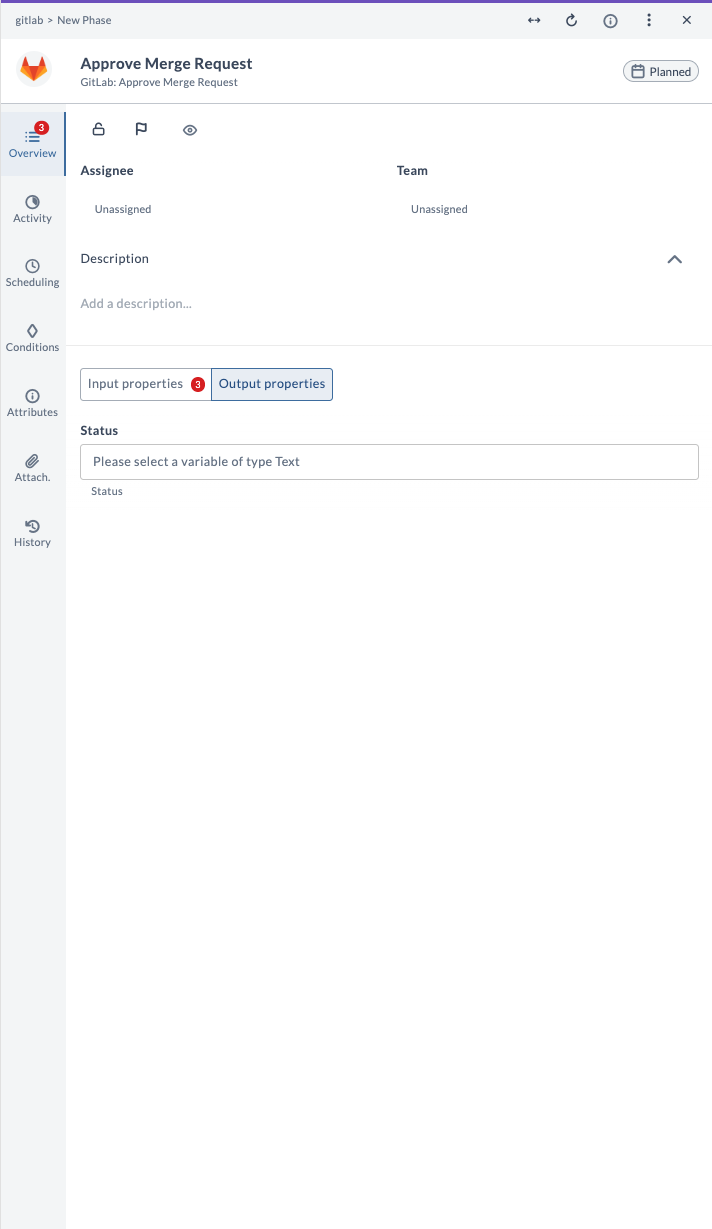
| Output Property | Description |
|---|---|
| Status | Status of the merge request approval (for example, approved, failed). |
Example Usage
Suppose you want to approve merge request ID 678 for project ID 12345:
| Field | Value |
|---|---|
| GitLab Server | gitlab.example.com |
| API Key | your-api-token |
| Project ID | 12345 |
| Merge ID | 678 |
After running the task, the output will provide the status of the merge request approval.
Close Merge Request
This task closes a merge request in GitLab. It is used to mark a merge request as closed without merging it, often due to changes being no longer needed or handled differently. You can optionally add a comment when closing the merge request.
Input Fields
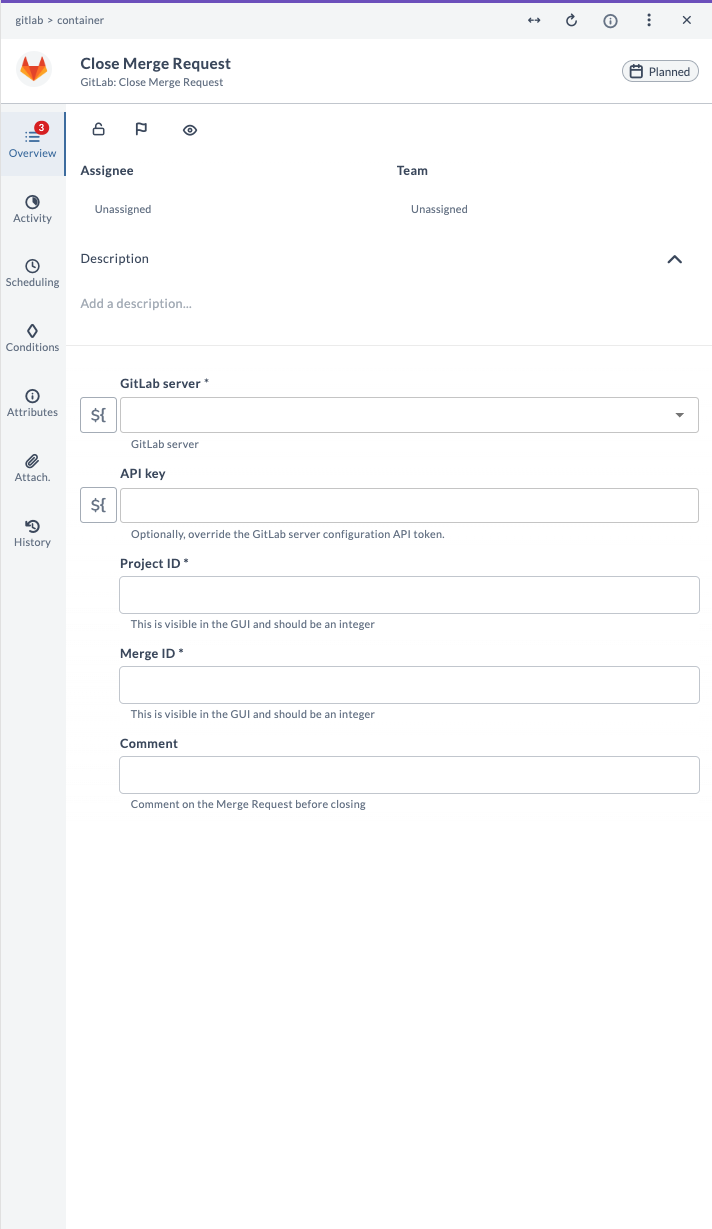
| Field Name | Description | Example |
|---|---|---|
| GitLab Server | The configured GitLab server connection to use. | gitlab.example.com |
| API Key | (Optional) Override the GitLab Server configuration API token for this task. | your-api-token |
| Project ID | Numeric ID of the GitLab project. | 12345 |
| Merge ID | Numeric ID of the merge request to close. | 678 |
| Comment | (Optional) Comment to add to the merge request before closing. | Closing as not needed |
Example Usage
Suppose you want to close merge request ID 678 for project ID 12345 with a comment:
| Field | Value |
|---|---|
| GitLab Server | gitlab.example.com |
| API Key | your-api-token |
| Project ID | 12345 |
| Merge ID | 678 |
| Comment | Closing as not needed |
After running the task, the specified merge request will be closed and the comment will be added if provided.
Delete Tag
This task deletes a tag in a GitLab repository. It is used to remove a tag from the repository, often when it is no longer relevant or was created by mistake.
Input Fields
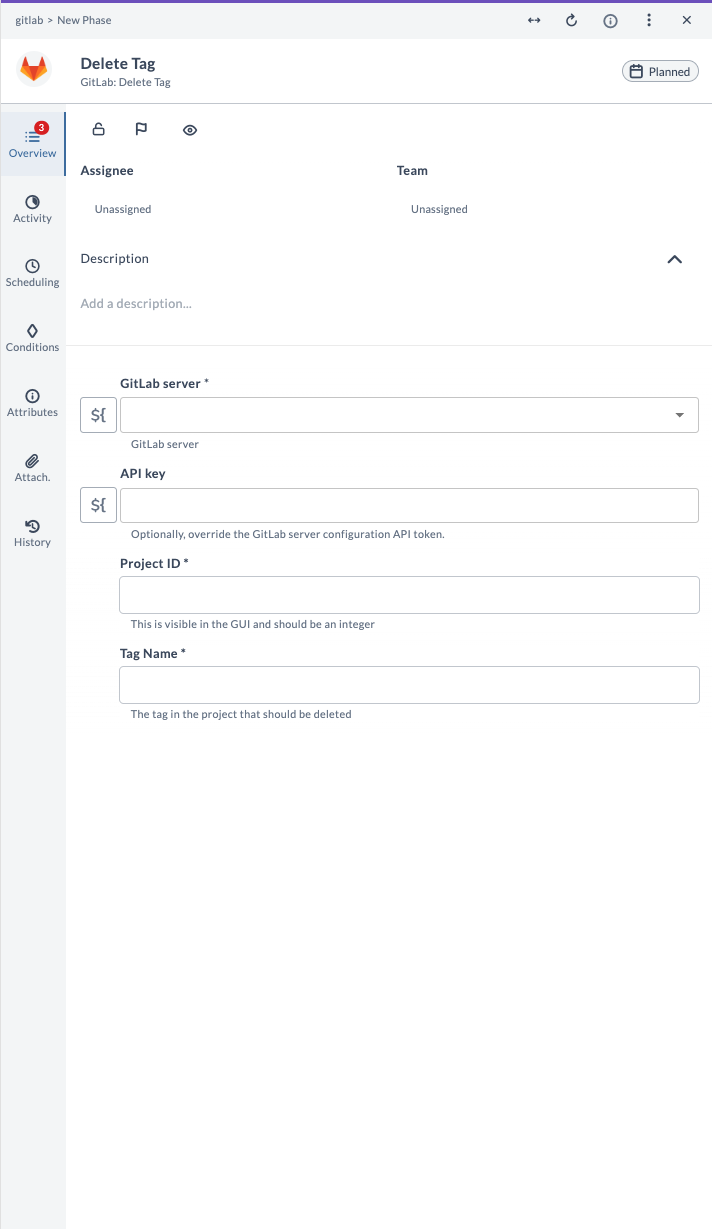
| Field Name | Description | Example |
|---|---|---|
| GitLab Server | The configured GitLab server connection to use. | gitlab.example.com |
| API Key | (Optional) Override the GitLab Server configuration API token for this task. | your-api-token |
| Project ID | Numeric ID of the GitLab project. | 12345 |
| Tag Name | The tag in the project that should be deleted. | v1.0 |
Example Usage
Suppose you want to delete the tag v1.0 from project ID 12345:
| Field | Value |
|---|---|
| GitLab Server | gitlab.example.com |
| API Key | your-api-token |
| Project ID | 12345 |
| Tag Name | v1.0 |
After running the task, the specified tag will be deleted from the project.
Delete Branch
This task deletes a branch in a GitLab repository. It is used to remove an existing branch that is no longer needed. To delete a branch, you must provide the project ID and the branch name. Once executed, the specified branch will be permanently removed from the repository.
Input Fields
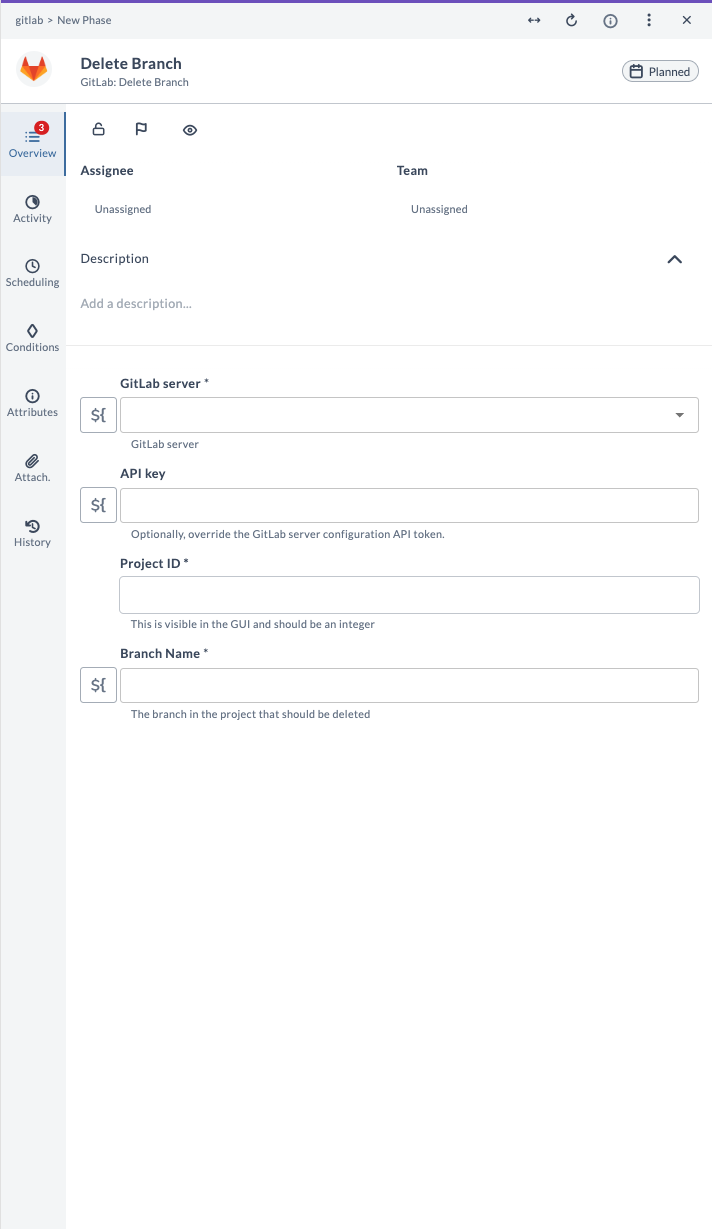
| Field Name | Description | Example |
|---|---|---|
| GitLab Server | The configured GitLab server connection to use. | gitlab.example.com |
| API Key | (Optional) Override the GitLab Server configuration API token for this task. | your-api-token |
| Project ID | Numeric ID of the GitLab project. | 12345 |
| Branch Name | The branch in the project that should be deleted. | feature/old-branch |
Example Usage
Suppose you want to delete the branch feature/old-branch from project ID 12345:
| Field | Value |
|---|---|
| GitLab Server | gitlab.example.com |
| API Key | your-api-token |
| Project ID | 12345 |
| Branch Name | feature/old-branch |
After running the task, the specified branch will be deleted from the project.
Create Pipeline
This task creates a pipeline in GitLab using the GitLab API. It is used to start a new CI/CD pipeline run for a project using a GitLab API token (Personal Access Token or Project Access Token).
Unlike the Trigger Pipeline task, this task does not use a pipeline trigger token. Instead, it uses standard GitLab API authentication and is recommended for Release-managed automation workflows.
This task requires a GitLab API token with appropriate permissions (typically api scope). Do not use a Pipeline Trigger Token - the task will fail.
This task provides more control and flexibility compared to Trigger Pipeline, as it uses the GitLab API and supports standard authentication mechanisms.
Input Fields
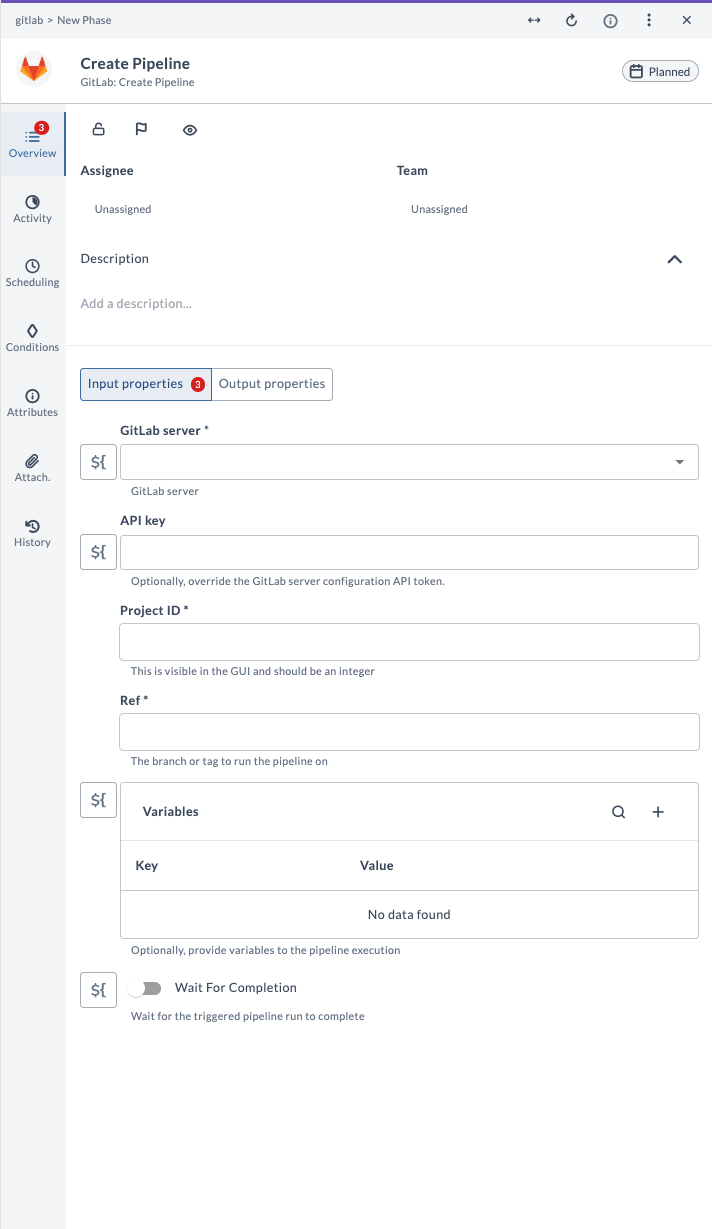
| Field Name | Description | Example |
|---|---|---|
| GitLab Server | The configured GitLab server connection to use. | gitlab.example.com |
| API Key | (Optional) Override the GitLab Server configuration API token for this task. | your-api-token |
| Project ID | Numeric ID of the GitLab project. | 12345 |
| Ref | The branch or tag to run the pipeline on. | main |
| Variables | (Optional) Key-value pairs to provide variables to the pipeline execution. | key: ENV, value: prod |
| Wait For Completion | If enabled, waits for the triggered pipeline run to complete. | true |
Output Fields
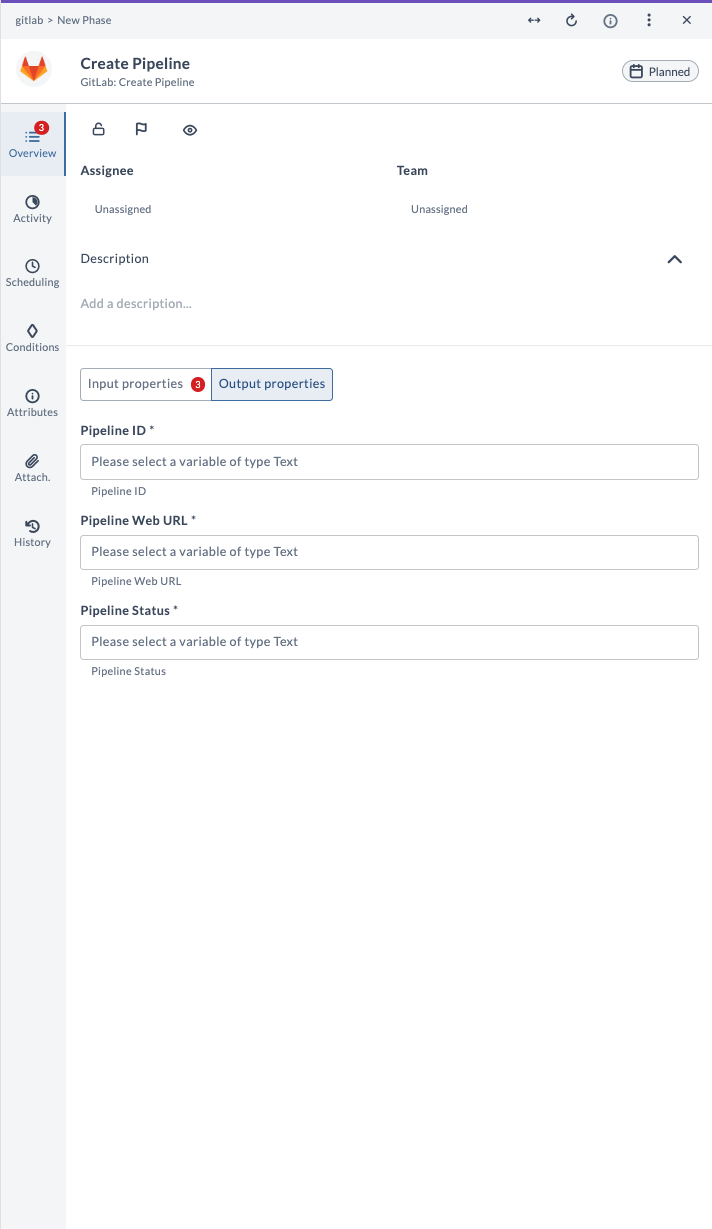
| Output Property | Description |
|---|---|
| Pipeline ID | The numeric ID of the created pipeline. |
| Pipeline Web URL | The web URL to view the pipeline in GitLab. |
| Pipeline Status | The status of the created pipeline. |
Example Usage
Suppose you want to create a pipeline for project ID 12345 on the main branch, passing a variable and waiting for completion:
| Field | Value |
|---|---|
| GitLab Server | gitlab.example.com |
| API Key | your-api-token |
| Project ID | 12345 |
| Ref | main |
| Variables | ENV=prod |
| Wait For Completion | true |
After running the task, the output will provide the Pipeline ID, status, and a link to view the pipeline in GitLab.