Folder Teams and Permissions
Teams are used to group one or more users in Release. Folder, template, or release-level permissions can be assigned to one or more teams.
This topic discusses how to set up folder, template, or release-level permissions. See Global Permissions to learn more about global permissions.
You must have the Admin permission to set up connections both at the global and folder levels.
You can also restrict the ability to set up connections at the folder level by assigning the Edit connections permission to one or more teams of your choice on a folder-by-folder basis.
Create New Teams
To create a new team in Release:
- Log in to Release.
- Select Folders from the sidebar.
- Select the folder for which you want to create a team.
- Select Teams & permissions from the sidebar.
- Click New team. The Create a new team dialog opens.
- Enter a name and click Create.
- Add roles and users by typing in the Global role and Users columns respectively. For more information, see how to configure roles and configure users.
- Click Save.
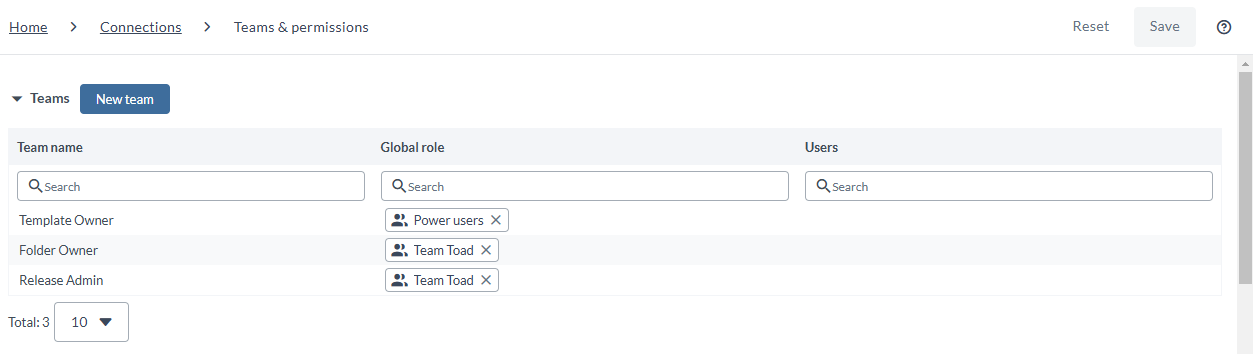
The following are the system-defined teams that are created by default in Release, and cannot be removed.
| Team | Description | Default permissions |
|---|---|---|
| Folder Owner | Users who manage folders, subfolders, and folder security. | All folder permissions |
| Release Admin | Users who are responsible for executing the release. Members of this team receive extra notifications. For example, when a task fails and the release is stopped. | All release permissions |
| Template Owner | Users who design templates. | All template permissions |
Revoking some of the permissions from the system-defined teams is not recommended as it may result in unpredictable behavior.
In Release, the following permissions are required for templates and releases that are not stored in a folder:
- The Edit templates permission, to edit the content of a specific template.
- The Edit release permission, to edit the content of a specific release.
- The Edit template security permission, to manage teams and permissions on a specific template.
- The Edit release security permission, to manage teams and permissions on a specific release.
The global Edit security permission grants access to manage teams and permissions on any template or release, and overrides the need for Edit template security or Edit release security on a specific item.
If a template or release does not have a folder, permissions can be set on the Teams & Permissions page in the sidebar. This page is available when you select a folder, a release, or a template.
Set up Folder-level Permissions
In a hierarchical file system, files and folders inherit the security settings of their parent folder. This means that any templates or releases stored in a folder will inherit the teams and permissions defined at the folder level, and will not have individual settings. Additionally, a subfolder will inherit the settings of its parent folder and so on.
When you create a child folder within a parent folder, the child folder will inherit the teams and permissions of the parent folder (the Inherit teams and permissions from parent folder check box is selected by default). If you want the child folder to have different permissions, you will need to clear this check box. Then you can set the teams and permissions for the child folder independently. This way, you can control the access to the content in the child folder differently from the parent folder.
To set up folder-level teams and permissions:
- Select Folders from the sidebar and select the folder you want to set up teams and permissions for.
- Select Teams & Permissions from the sidebar.
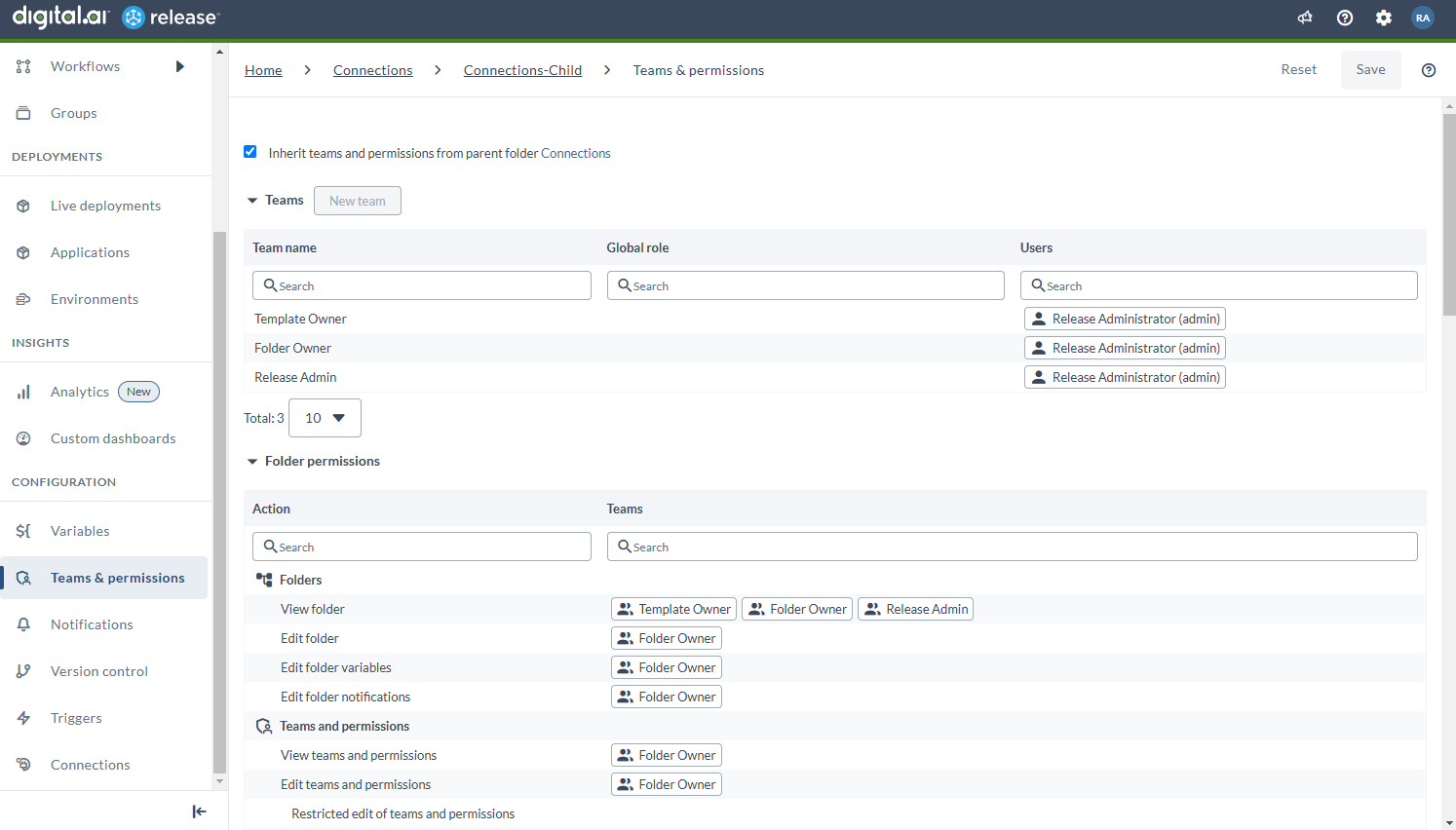 When you create a folder, Release gives it three default teams and puts you in each team as the only member. You can think of a "team" as a local role that only applies to the folder and to the releases and templates that are in it. Note that all templates and releases in a folder will have the security settings that are defined on the folder.
The default teams are:
- Folder owner: For Release admins who require access to administrative tasks on the folder
- Template owner: For template designers/release engineers
- Release Admin: For the release managers
At this point, you should define who has access to what. For example, assume that you have the following global roles:
- Power users manage the Release server instance
- Team Toad develops the Release product and manages the release process
- Users everybody in the organization
An easy configuration would be:
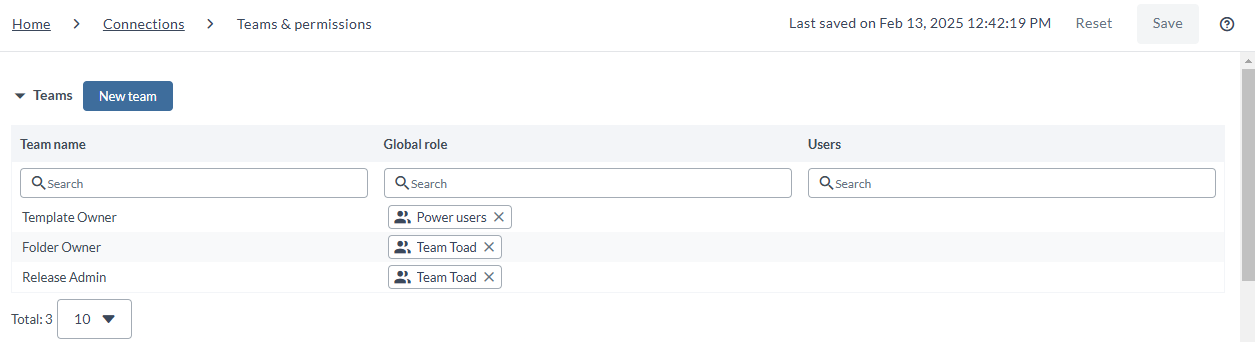
The folder-level covers all the permissions. This means that when you set teams and permissions for a folder, those same permissions will apply to any templates or releases that are located within that folder.
The following permissions apply to folders:
Folders
| Permission | Description |
|---|---|
View folder (folder#view) | Permission to see the folder. |
Edit folder (folder#edit) | Rename, move, delete, or add a subfolder to the current folder. |
Edit folder variables (folder#edit_variables) | Edit variables on the current folder. For more information, see folder variables. |
Edit folder notifications (folder#edit_notifications) | Edit the notifications on the current folder. |
Teams and permissions
| Permission | Description |
|---|---|
View teams and permissions (folder#view_security) | View contents of the Teams & permissions page. This permission does not allow modifying the content of this page. You need specific edit permissions to modify the content. |
Edit teams and permissions (folder#edit_security) | Edit the teams and permissions on the current folder. |
Restricted edit of teams and permissions (folder#edit_teams) | Edit the teams and permissions on the current folder, with the following limitations: (1) Cannot modify teams that have the Edit teams and permissions or Restricted edit of teams and permissions permission. (2) Cannot add or remove the Edit teams and permissions or Restricted edit of teams and permissions permissions. |
Templates
| Permission | Description |
|---|---|
View templates (template#view) | Applicable to release and workflow templates. View templates in folders and in the Templates page. View workflow templates in folders and workflow template management pages. |
Edit templates (template#edit) | Applicable to release and workflow templates. Change templates by adding and editing tasks and phases. Edit workflow templates by configuring steps. |
Lock task (template#lock_task) | When a template task is locked, only users with lock permissions are able to edit or unlock it. For more information, see Configuring lock tasks. |
Edit task precondition (template#edit_precondition) | Edit the precondition on a task in a template. |
Edit task failure handler (template#edit_failure_handler) | Edit the failure handler on a task in a template. |
Releases
| Permission | Description |
|---|---|
View release (release#view) | View all releases in this folder, and any releases that do not have a folder. |
Edit release (release#edit) | Edit certain aspects of a release such as phases, variables, dashboards, and certain task operations. |
Create release (release#create) | Create a new release from a template. |
Create release in another folder (template#create_release_other_folder) | Create a release from a template in other folders. |
Start release (release#start) | Start a planned release. |
Abort release (release#abort) | Abort an active or planned release. |
Restart phase (release#restart_phase) | Restart phase in a release. |
Release tasks
| Permission | Description |
|---|---|
Lock tasks (release#lock_task) | Lock tasks to prevent users without lock permissions from editing them. For more information, see Configuring lock tasks. |
Assign locked task ownership (release#reassign_lock_task) | Assign task ownership of a locked task to another user or team. |
All task permissions (release#edit_task) | Provides edit task permissions to a release, including adding tasks to a release, as well as inheriting all edit task permissions listed below. |
Perform task transitions (release#task_transition) | Change the state of a task. Task transitions include: Complete, Skip, Fail, Retry, Abort, Reopen. This permission applies to all assigned tasks in a release (including when the permission is granted at the folder level via inheritance), regardless of whether the task is assigned to the user or their team. Note: members of the assigned team can always transition their own tasks without this permission. Tasks with no user or team assigned cannot be transitioned. |
Perform task transitions in advance (release#advance_task_transition) | Change the state of a task in advance. Task transitions include: Complete, Skip. This permission applies to all assigned tasks in a release (including when the permission is granted at the folder level via inheritance), regardless of whether the task is assigned to the user or their team. Note: members of the assigned team can always transition their own tasks in advance without this permission. Tasks with no user or team assigned cannot be transitioned in advance. |
Assign task ownership (release#reassign_task) | Assign task ownership to another user or team. If the user has task ownership, this permission is given by default. |
Edit title and description (release#edit_task_description) | Edit task title and description. |
Edit task-specific properties (release#edit_task_input_output_properties) | Edit configuration data that is specific to the task type; for example, input and output properties on integration tasks, conditions and dependencies on Gate tasks, and the variable list on the User Input task. |
Edit scripts (release#edit_task_script) | Edit scripts for Jython, Groovy, or External Script tasks. |
Edit flag (release#edit_task_flag) | Change the alert status and description for task flags. |
Edit tags (release#edit_task_tags) | Add or remove tags on tasks in a release. |
Edit dates (release#edit_task_dates) | Change start date, end date, and duration on tasks in a release. |
Allow rescheduling for blackouts and environments (release#edit_blackout) | Enable or disable the Postpone during blackout period and Check environment availability settings at the task level. |
Edit preconditions (release#edit_precondition) | Edit preconditions on tasks in a release. |
Edit failure handlers (release#edit_failure_handler) | Edit failure handlers on tasks in a release. |
Edit reporting attributes (release#edit_task_configuration_facet) | Edit reporting attributes on tasks in a release. |
Manage attachments (release#edit_task_attachments) | Add or remove attachments from tasks in a release. |
Workflows
| Permission | Description |
|---|---|
View workflow executions (workflow#view_execution) | View all running and completed workflow executions in this folder. |
Start workflow execution (workflow#start_execution) | Workflows can be started and run in this folder. |
Abort workflow executions (workflow#abort_execution) | Users (who are not the workflow execution owners) can abort workflow executions in this folder. |
Live deployments
These permissions also apply to the Applications and Environments pages in the folder.
| Permission | Description |
|---|---|
View Live deployments (app_pipelines#view) | View all live deployments in this folder. |
Edit Live deployments (app_pipelines#edit) | Edit, create, and delete live deployments. |
Delivery patterns
| Permission | Description |
|---|---|
View delivery patterns (delivery_pattern#view) | View the Patterns tab in a folder. |
Edit delivery patterns (delivery_pattern#edit) | View, edit, or create delivery patterns. |
Deliveries
| Permission | Description |
|---|---|
View Deliveries tab (delivery#view) | View the Deliveries tab in a folder. |
Edit deliveries (delivery#edit) | View, edit, or create deliveries. |
Edit tracked items (delivery#edit_tracked_item) | View deliveries and perform operations on their tracked items. |
Insights
| Permission | Description |
|---|---|
View insights (dashboard#view) | View custom dashboards and Analytics. |
Edit Custom dashboards (dashboard#edit) | Edit custom dashboards in folders. |
Release groups
| Permission | Description |
|---|---|
View release groups (group#view) | View the Groups tab in a folder. |
Edit release groups (group#edit) | Edit or create release groups. |
Git versioning
| Permission | Description |
|---|---|
View Git versioning (folder#view_versions) | View folder’s Git versioning page and list of saved versions. |
Edit Git versioning settings (folder#edit_versions) | Configure or delete Git versioning for the folder. |
Create new version (folder#generate_configuration) | Create a new version and store it in source control management. |
Apply version (folder#apply_changes) | Take a version from source control management and apply it to the folder, replacing the current contents. This overrides any other edit permissions to put the new version in place. |
Connections
| Permission | Description |
|---|---|
View connections (folder#view_configuration) | View the list of configured connections and connection details in a folder. This permission does not allow creating, editing, deleting, or testing a connection. |
Edit connections (folder#edit_configuration) | View, create, edit, delete, and test connections in a folder. |
Triggers
| Permission | Description |
|---|---|
View triggers (trigger#view_trigger) | View triggers. |
Manage triggers (trigger#edit_trigger) | View, edit, create, delete, enable, and disable triggers. |
Migrate Templates to Folders
To avoid confusion while managing permissions, it is generally considered a best practice to move all templates into folders. This allows you to set specific teams and permissions for each folder, which will then be inherited by all templates within that folder. This makes it easier to manage access to different templates and ensure that only the appropriate users have access to them. By moving all templates into folders, you can ensure that your permissions are organized and easy to understand, making it simpler to manage and maintain access to your templates. For more information, see Migrating templates to folders.