Agility Plugin
This topic describes how to configure the Digital.ai Release—Agility integration plugin.
Install the Digital.ai Agility Integration plugin
- Make sure you have the Digital.ai Agility Integration plugin JAR file in the Digital.ai Release's
plugins/xlr-officialdirectory. - Click Plugins from the top navigation bar and use the Digital.ai Release's Plugin Manager to verify that the plugin is installed. If not installed, search for the plugin and install the Digital.ai Agility Integration plugin.
Requirements
- Digital.ai Agility 20.0.0+: Digital.ai Release 9.5.0+
Add Digital.ai Release as a third-party application in Agility
- Log on to Agility as an Administrator.
- Click Applications from the Admin menu.
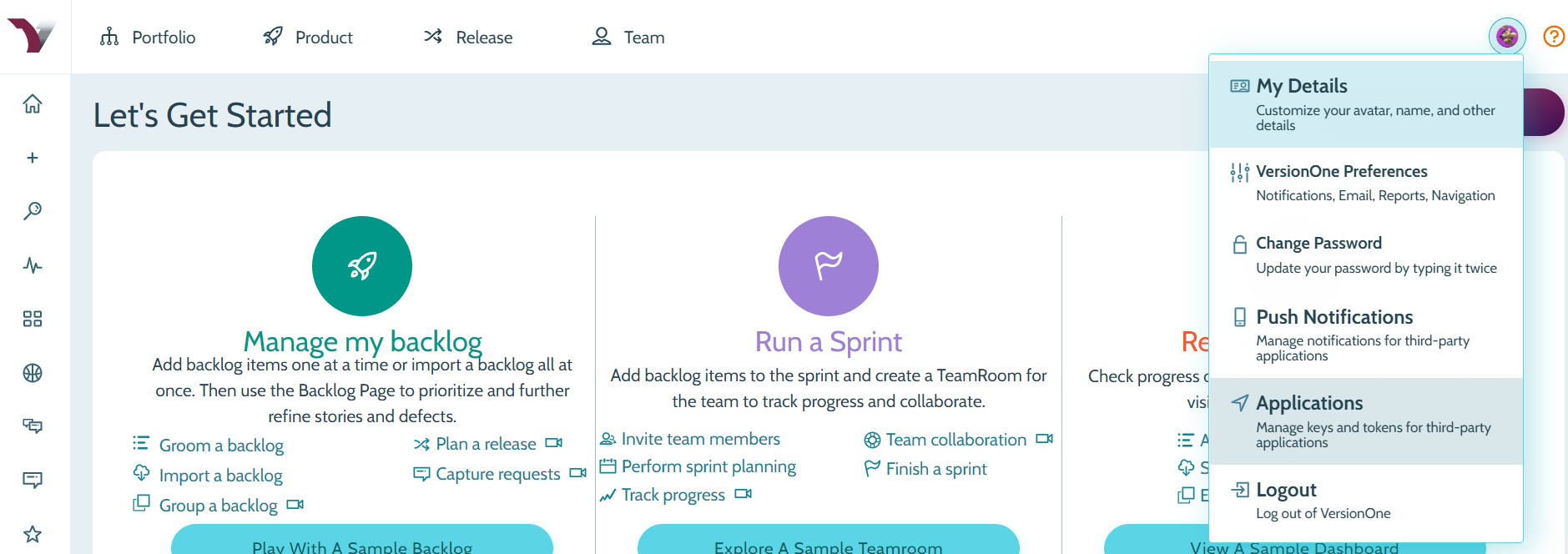
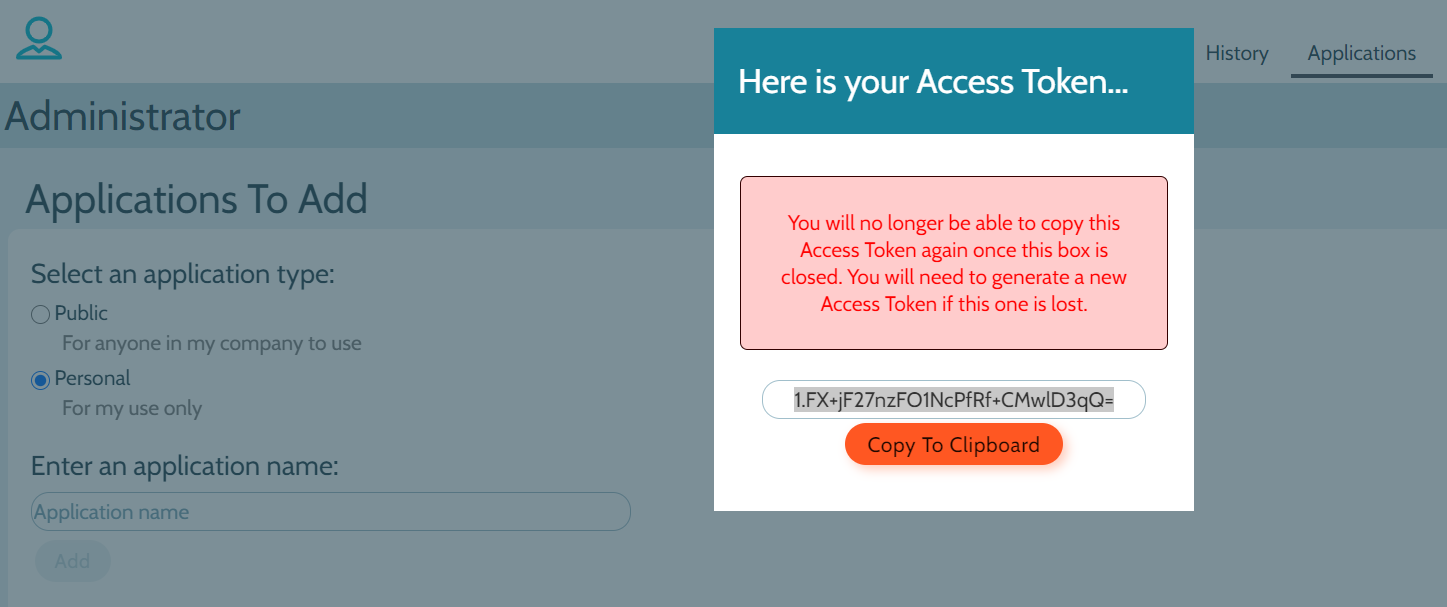
- Add Digital.ai Release as a third-party application and click Add.
- Copy the access token generated and keep it handy for configuring the Agility server in Release.
Configure the Agility Server in Digital.ai Release
- Log on to Digital.ai Release as an Administrator.
- Select Settings > Connections and click the
+icon next to Agility: Server. - Type a title, URL and paste the Agility access token generated earlier.
- Click Test to verify your connection to the Agility server.
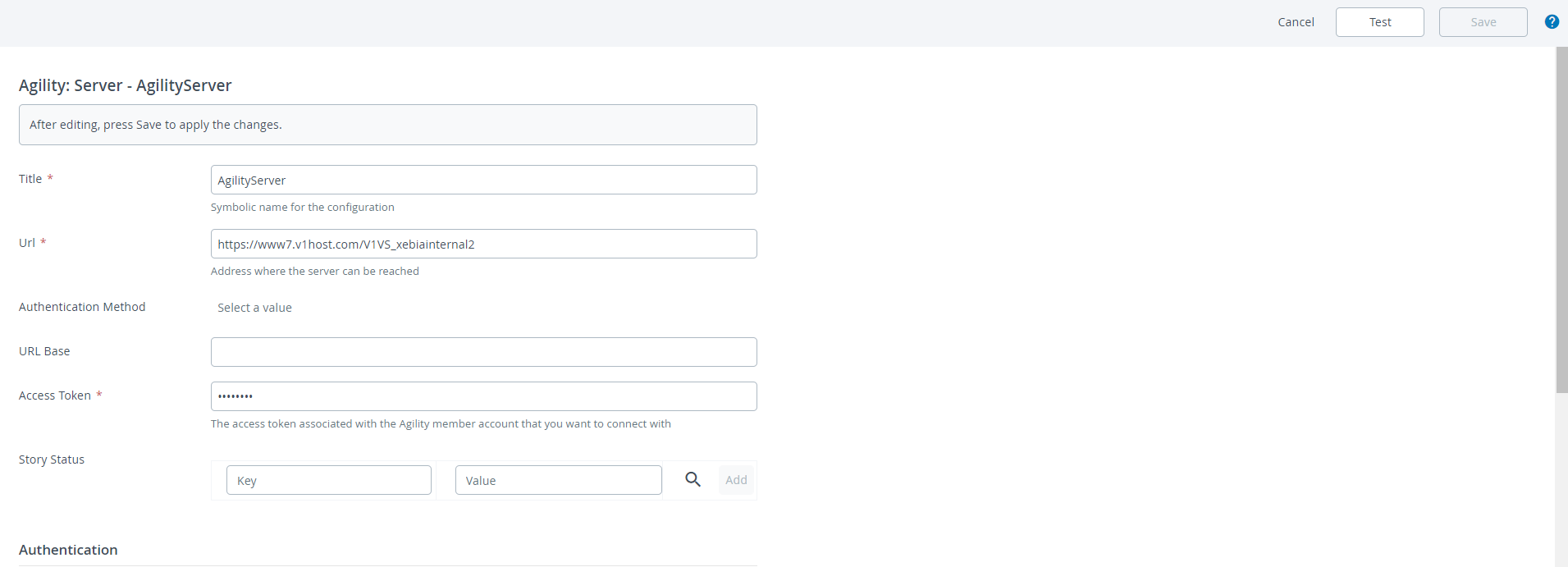
- Click Save when the connection is successful.
Release Tasks
Here's a list of tasks that you can perform with Agility.
- Create Asset
- Create Asset From Template
- Create Issue
- Get Stories
- Get Asset
- Update Asset
- Update Story Status
- Check Issue
- Check Asset
- Check Query
- Update Multiple Asset Status
- Create Portfolio Items
- Get Portfolio Items
- Execute Query
- Get Story (legacy)
Create Asset
This task lets you create new assets of type Story, Test, Defect, and Task in Digital.ai Agility.
Input Properties
- You must pass the Agility project's oid for creating new assets such as Story, Test or Defect.
- You must pass the Story's oid in case you want Task type assets created in Agility.
- You must pass the mandatory attributes required for the asset you want to create. For example, you must pass Name as an attribute (which is used as the Title for the asset in Agility) for creating a new Story.
Create Story example
- Task configuration for creating an Agility Story.
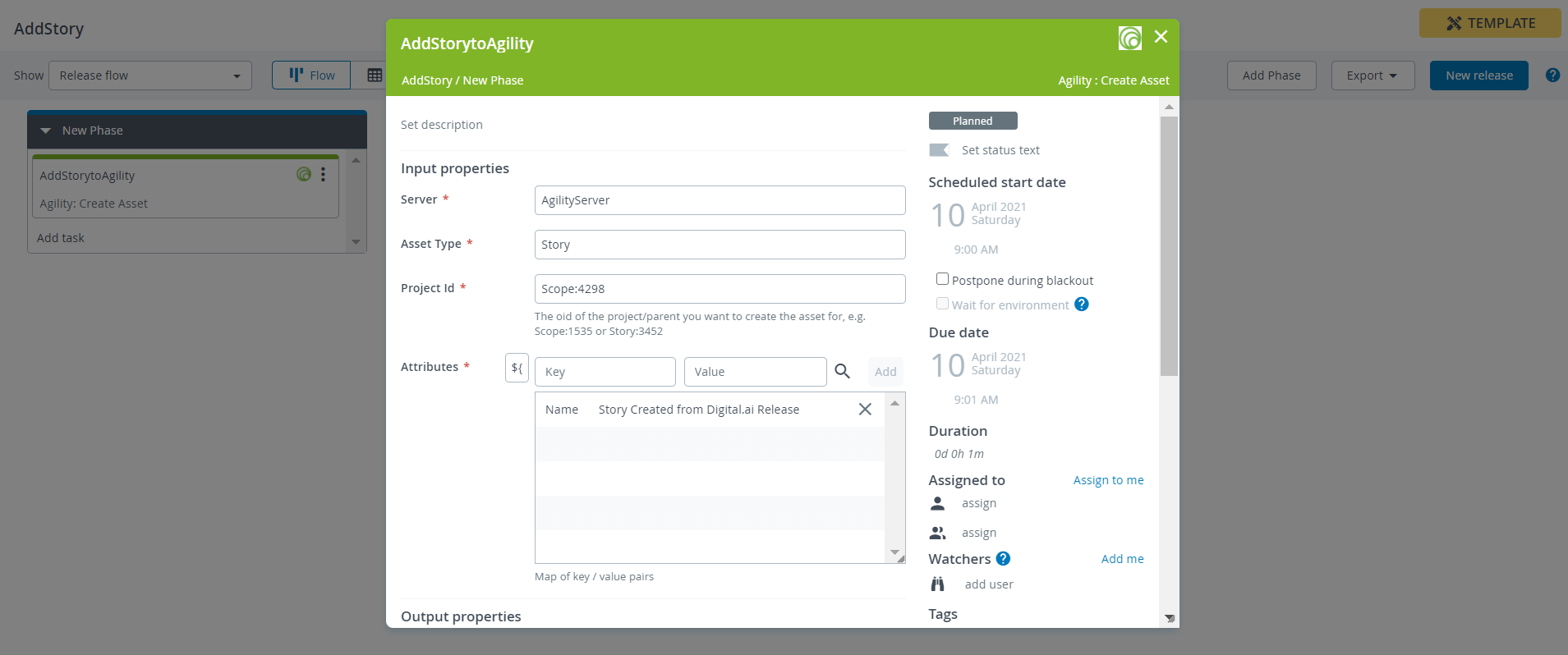
- Once you run the task, a new Story is created in Agility. You can find the new Story's number in Output properties.
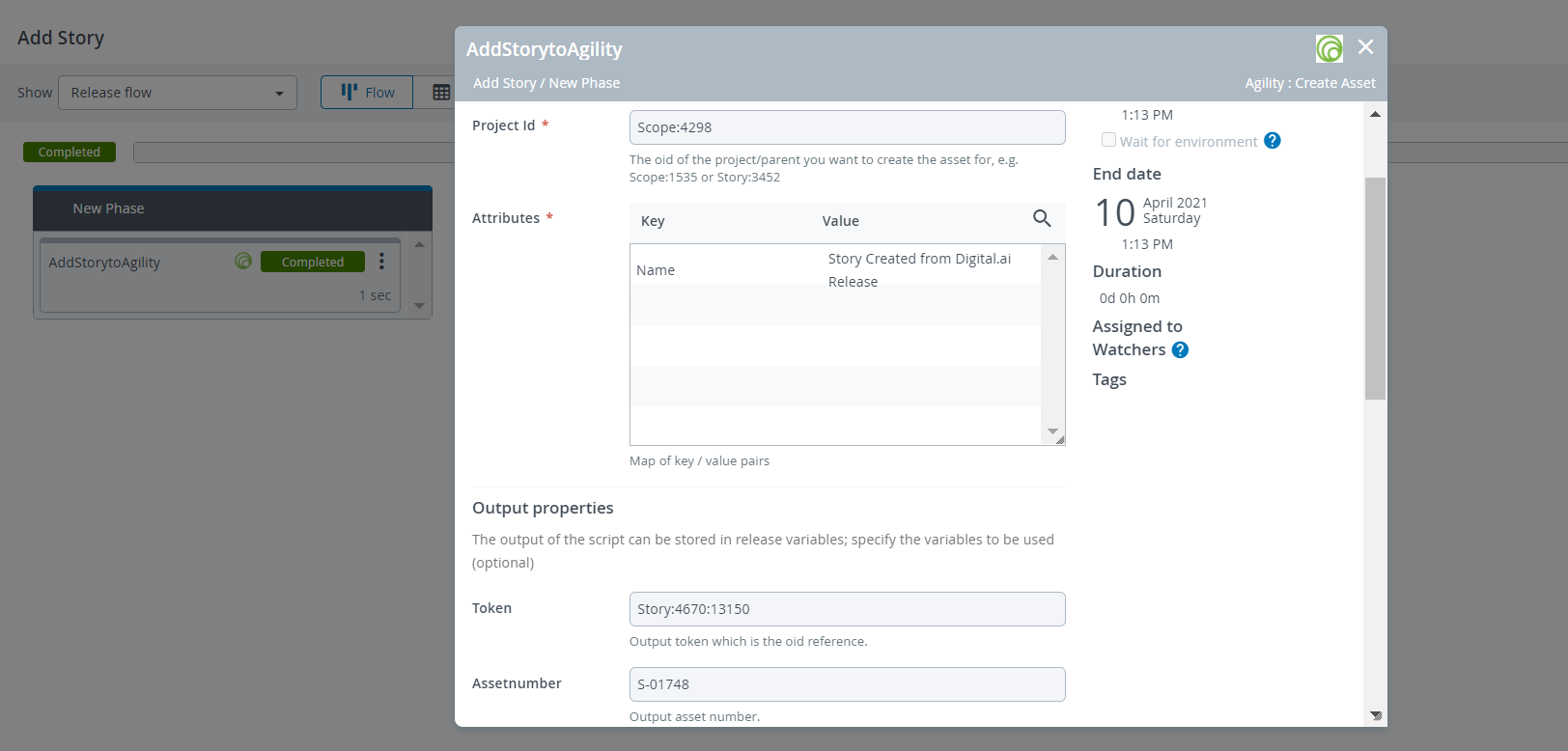 Added Functionality to showcase the Asset Number and the Token from the Data section in Output properties.
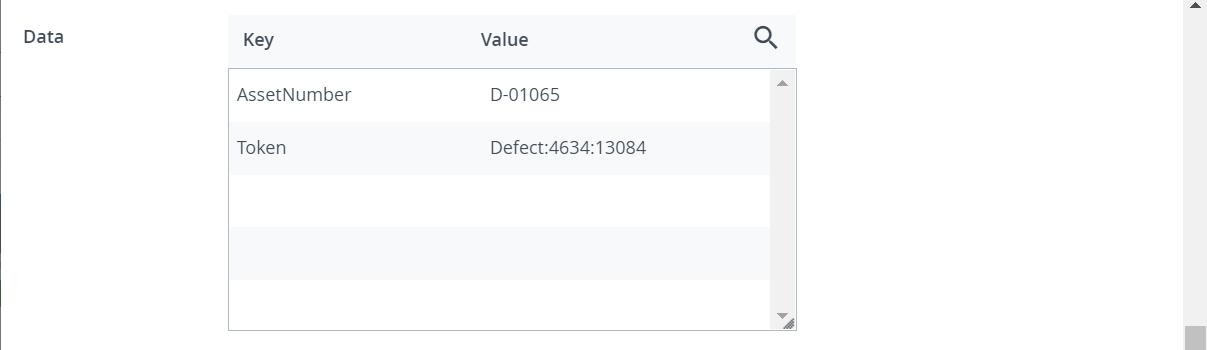
Create Task example
-
Task configuration for creating an Agility Task.
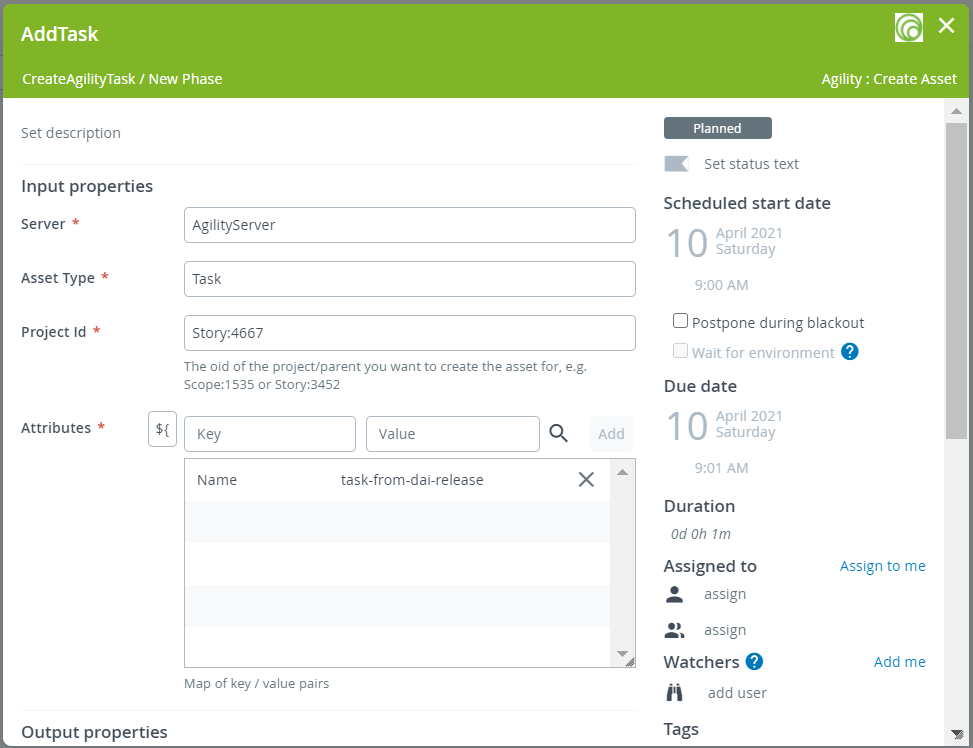
-
Once you run the task, a new Agility task is created in Agility. You can find the new Task's number in Output properties.
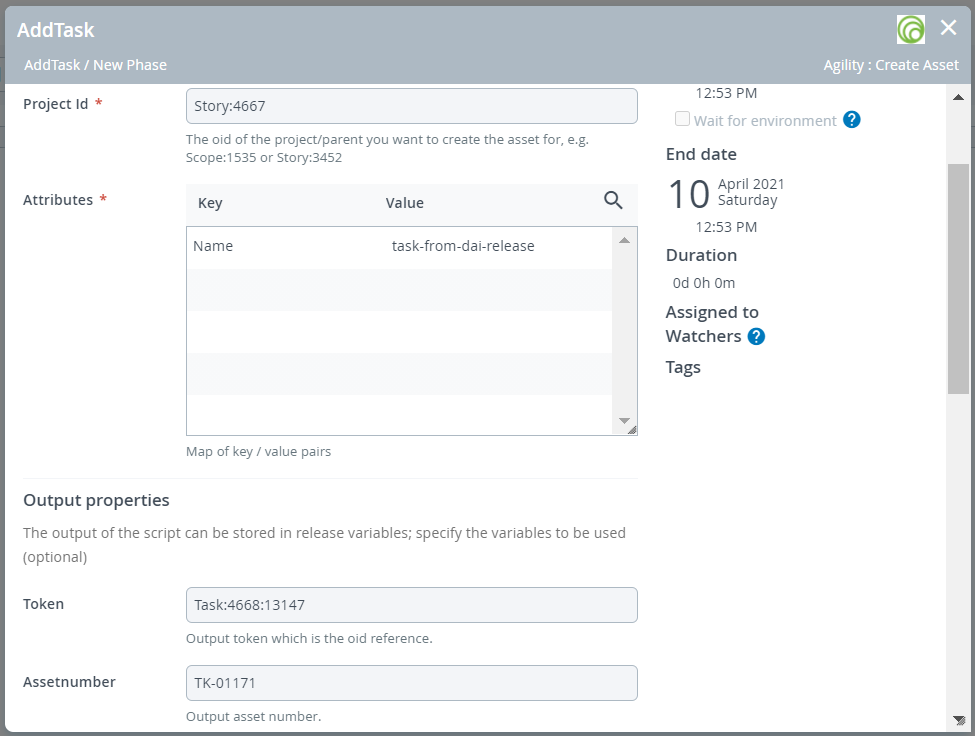 Added Functionality to showcase the Asset Number and the Token from the Data section in Output properties.
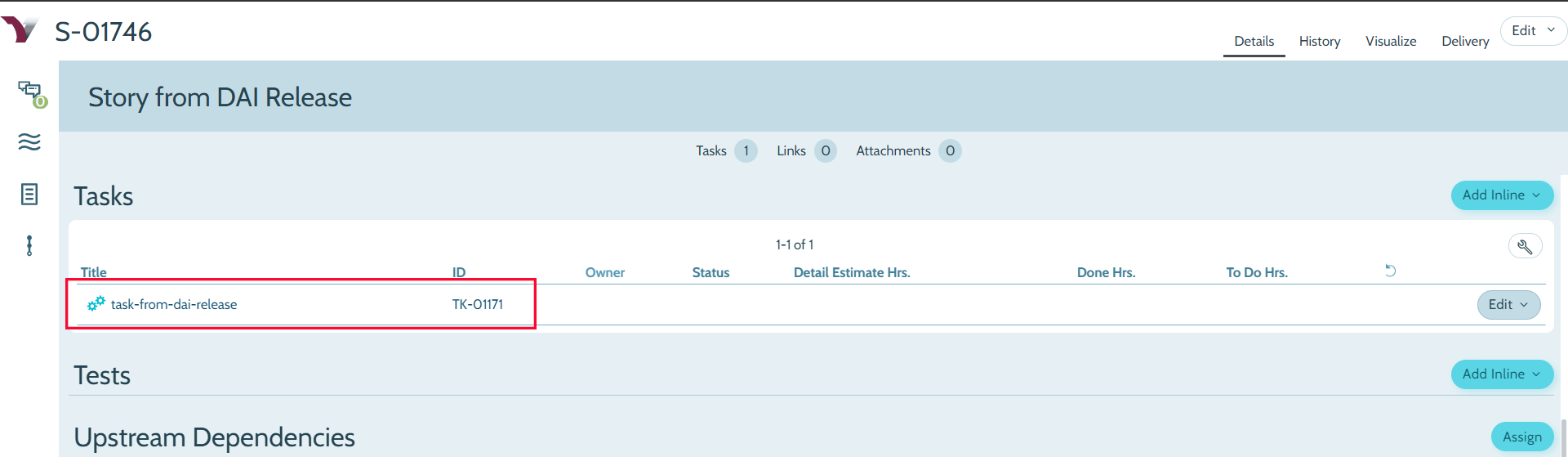
Task created in Agility.
Create Asset from Template
This task lets you create a new asset from an existing template.
Create Asset From Template example
- Task configuration for creating a Story from an existing template. In this example,
S-01654is the ID of the template that's used to create a new story.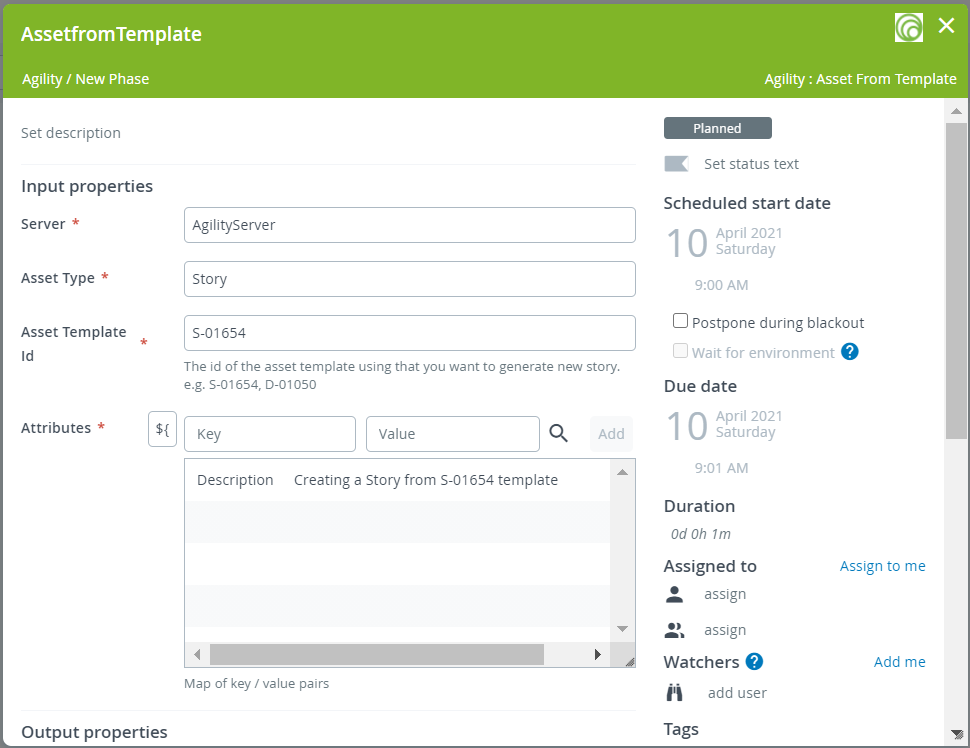
- Asset created from template. The new asset's ID can be found in Output properties.
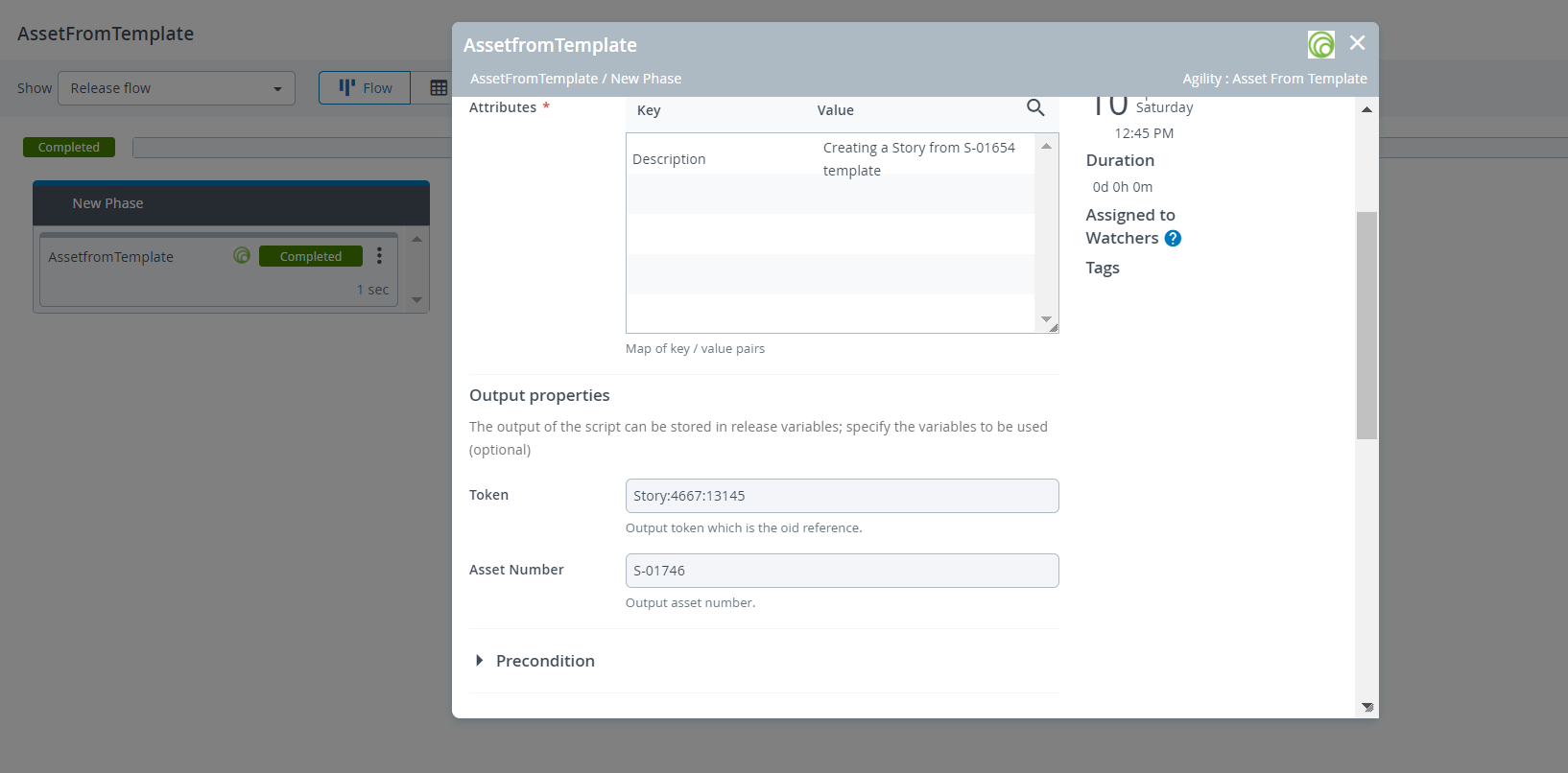
Added Functionality to showcase the Asset Number and the Token from the Data section in Output properties.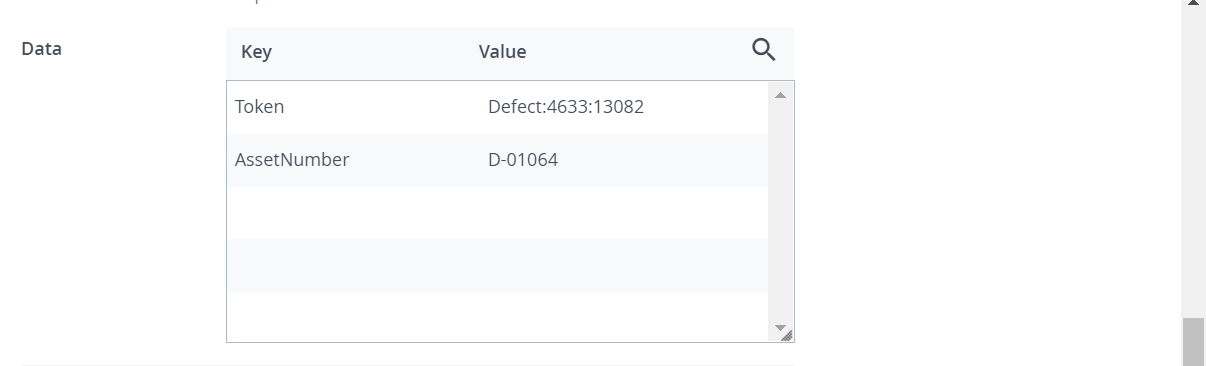
Create Issue
This task lets you create a new issue in Agility. See Asset Types for a list of possible values.
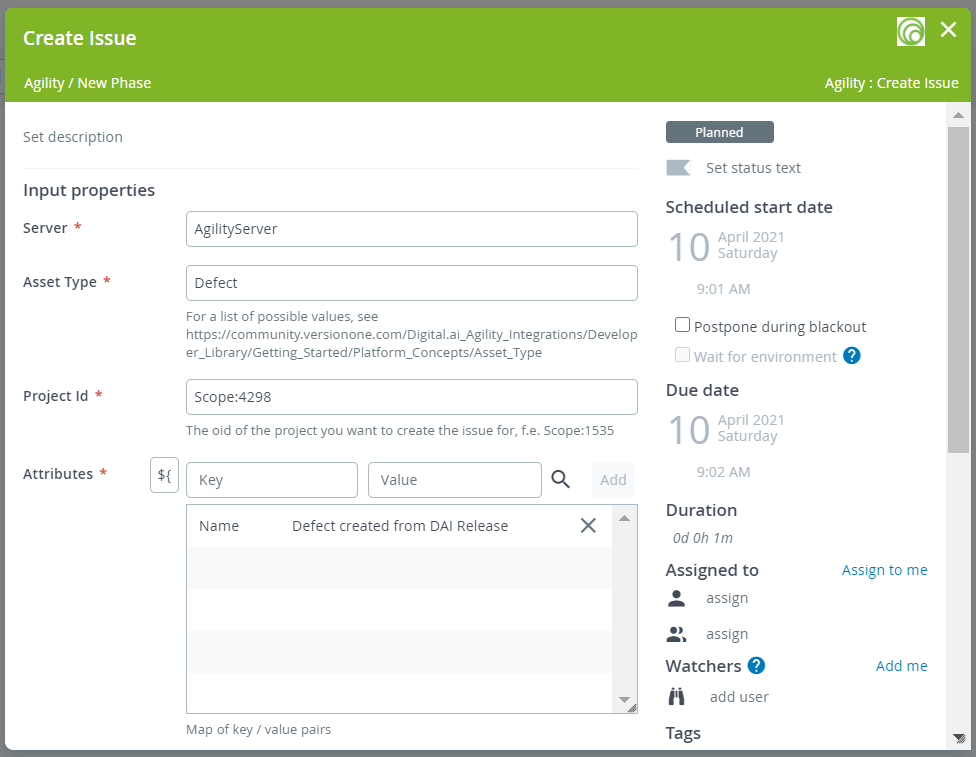
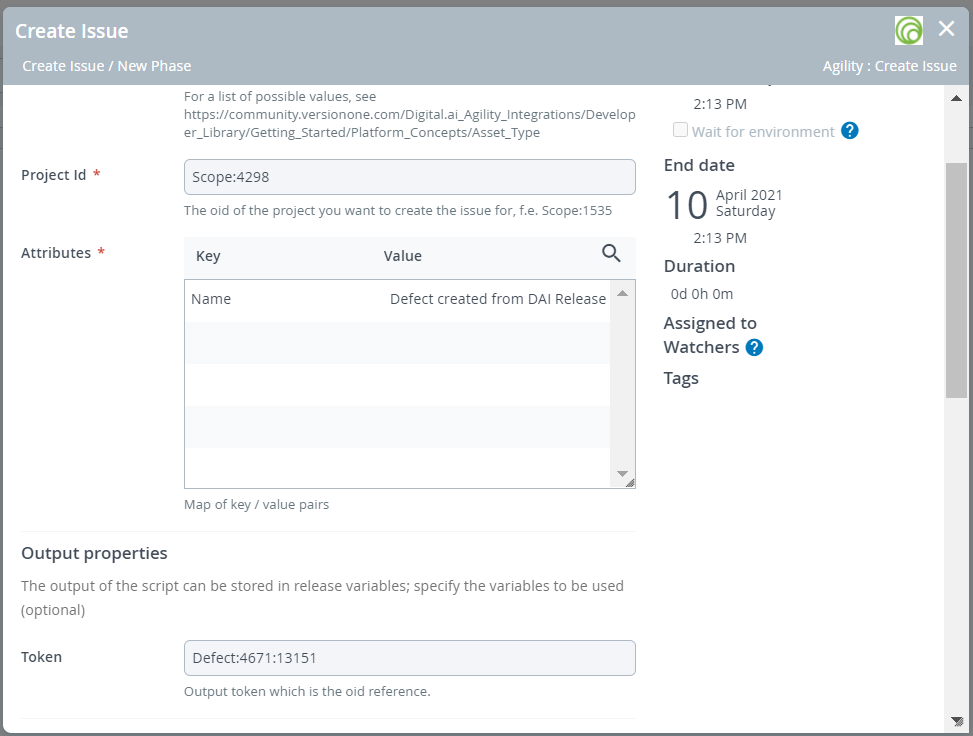 Added Functionality to showcase the Asset Number and the Token from the Data section in Output properties.
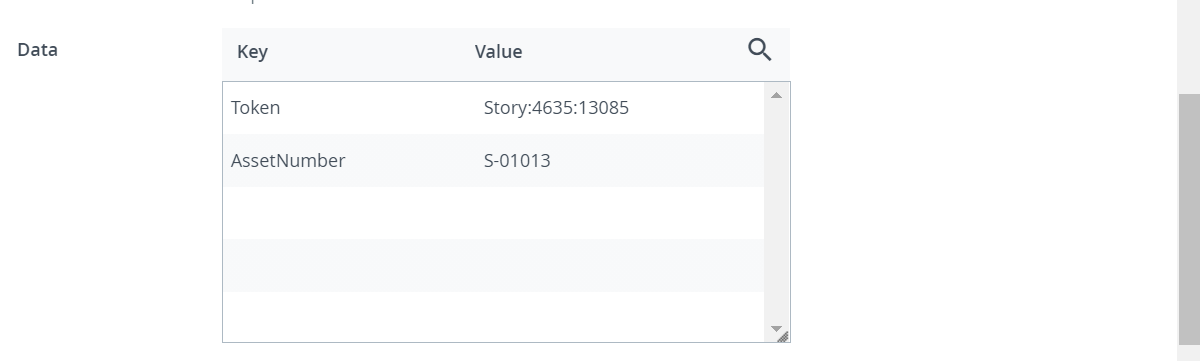
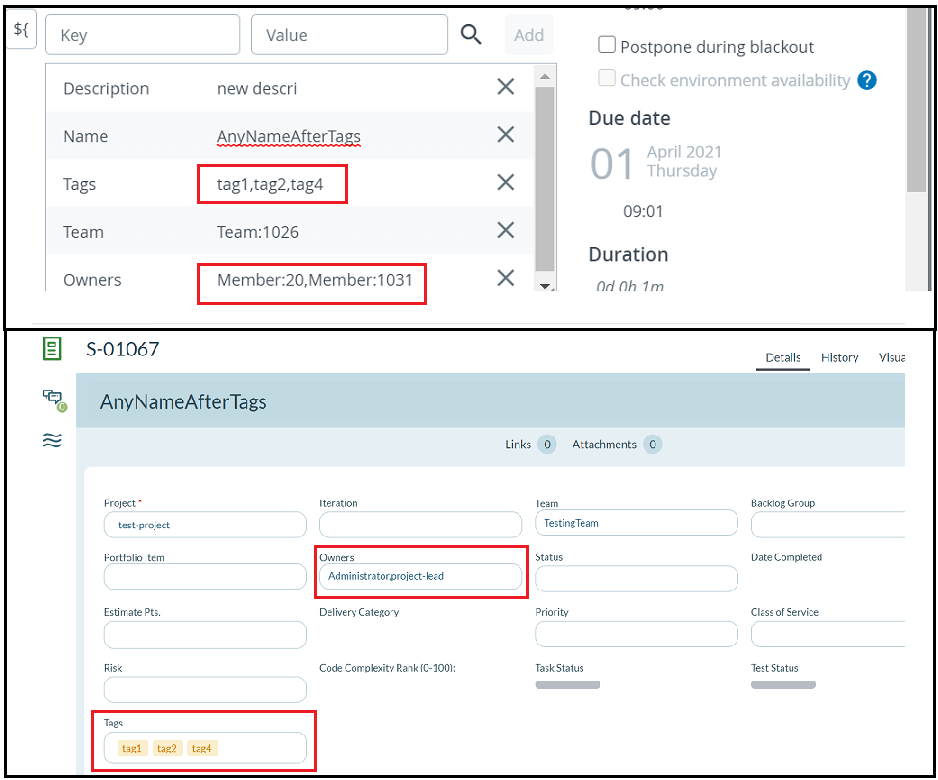
You can add both single and multi-value attributes.
To add a multi-value attribute, type the attribute's name in the Key field, type the comma-separated values in the Value field, and click Add.
For example, the following example shows two multi-value attributes—Owners and Tags—with comma-separated values.
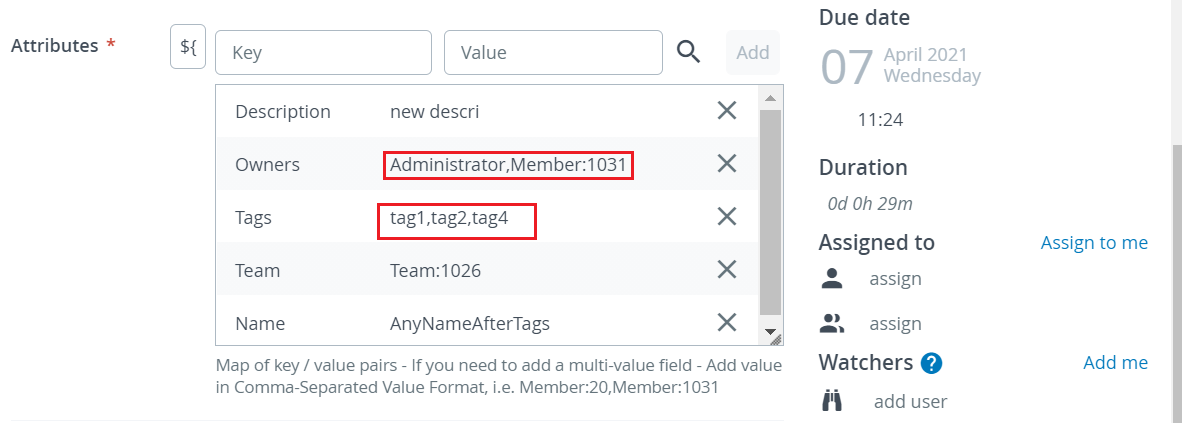
These values show up in Agility when you execute this Release task.
Get Stories
This task lets you query the Digital.ai Agility and get a list of stories. For example, you may want to query and get the list of stories owned by you. Refer to Agility's documentation for example queries.
Default:
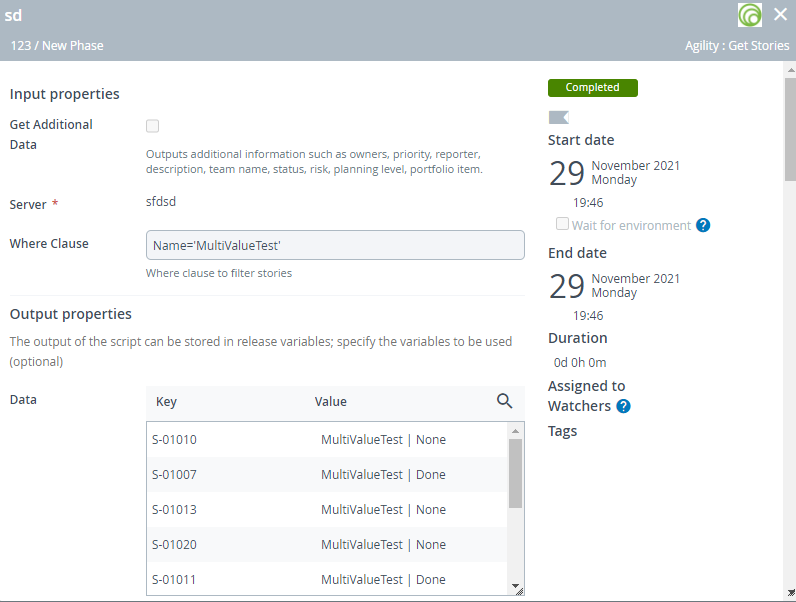
Get Additional Data is disabled by default. This means that the response will simply contain the Description and a Status of the story in the following format: “SomeDescription | SomeStatus”, for example:
Other Get Story options:
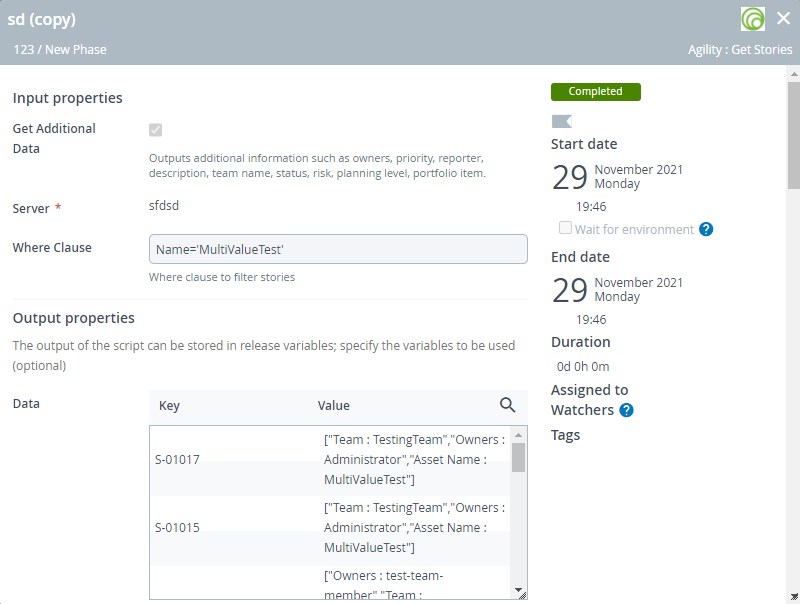
The "Get Additional Data" checkbox allows users to retrieve more information on top of the default behavior for this task. Once 'Get Additional Data' is selected, the response gets displayed in a different format ["Team : TestingTeam","Owners : Administrator","Asset Name : MultiValueTest"], for example:
Get Asset
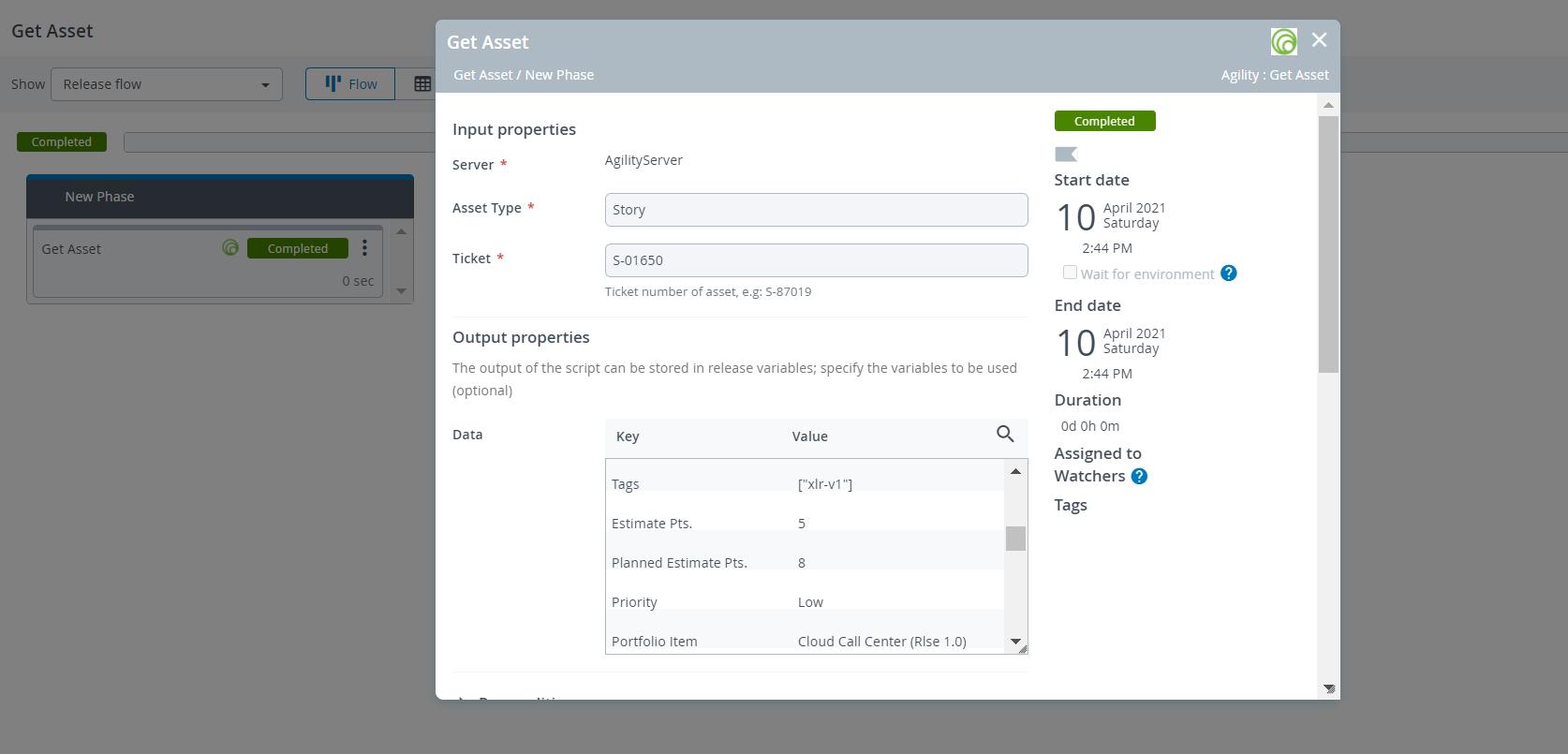
This task lets you retrieve data for an asset of interest.
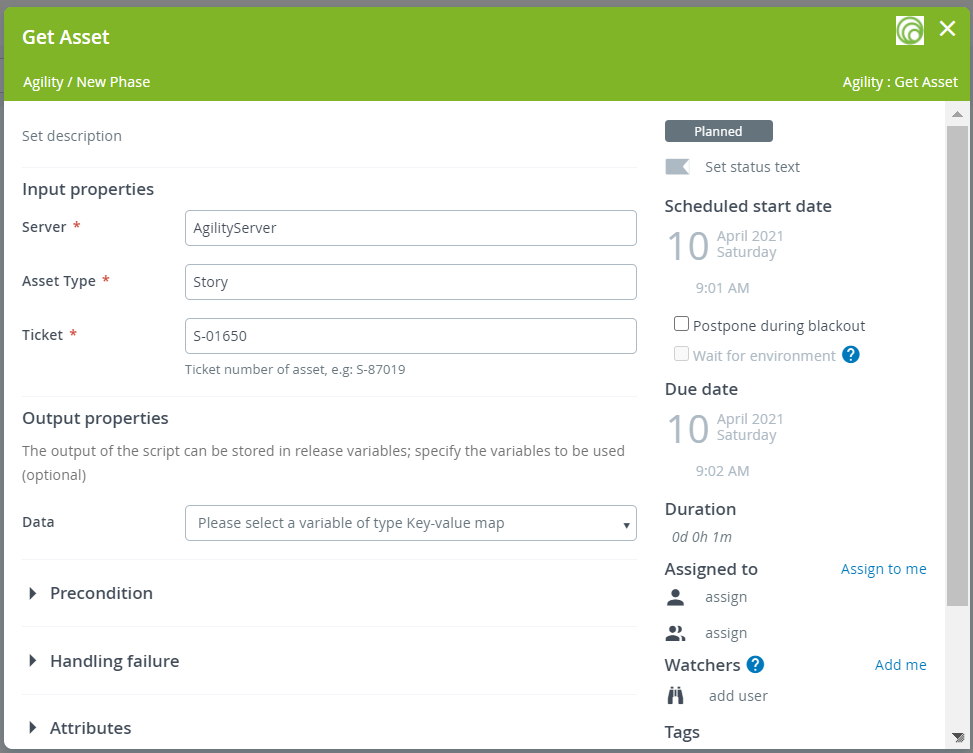
Once you run the task, the asset data shows up in the Data section of Output properties.
Update Asset
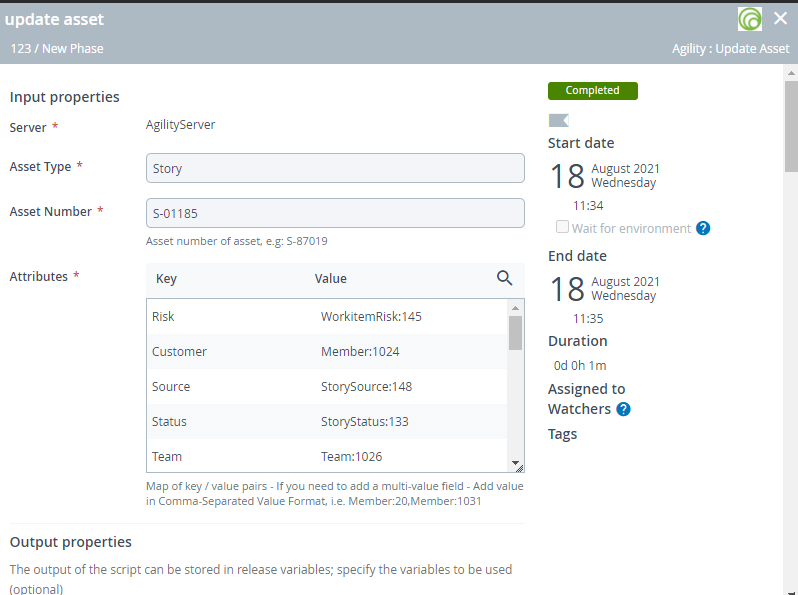
This task lets you update assets of type Story, Test, Defect, and Task in Digital.ai Agility. The values created at the time of create task can be updated using this *Update Asset task.
Update Portfolio Item Feature
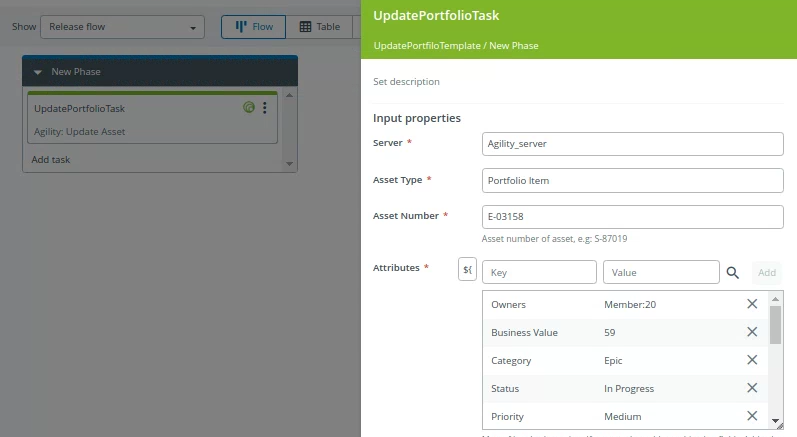
This task allows you to update the attributes of a portfolio item.
Attributes to be updated can be given as a key value pair, where key represents attribute name and value represents its actual value, which will be updated in Agility.
The task configuration for updating an Agility Portfolio item.
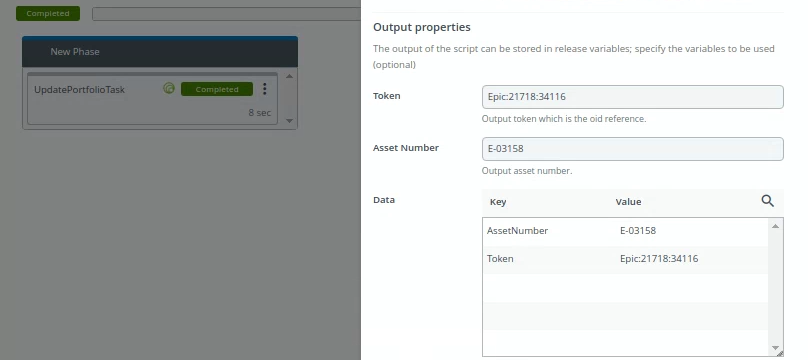
Once you run the task, the specified portfolio item is updated in Agility.
Update Story Status
This task lets you update an Agility Story's status.
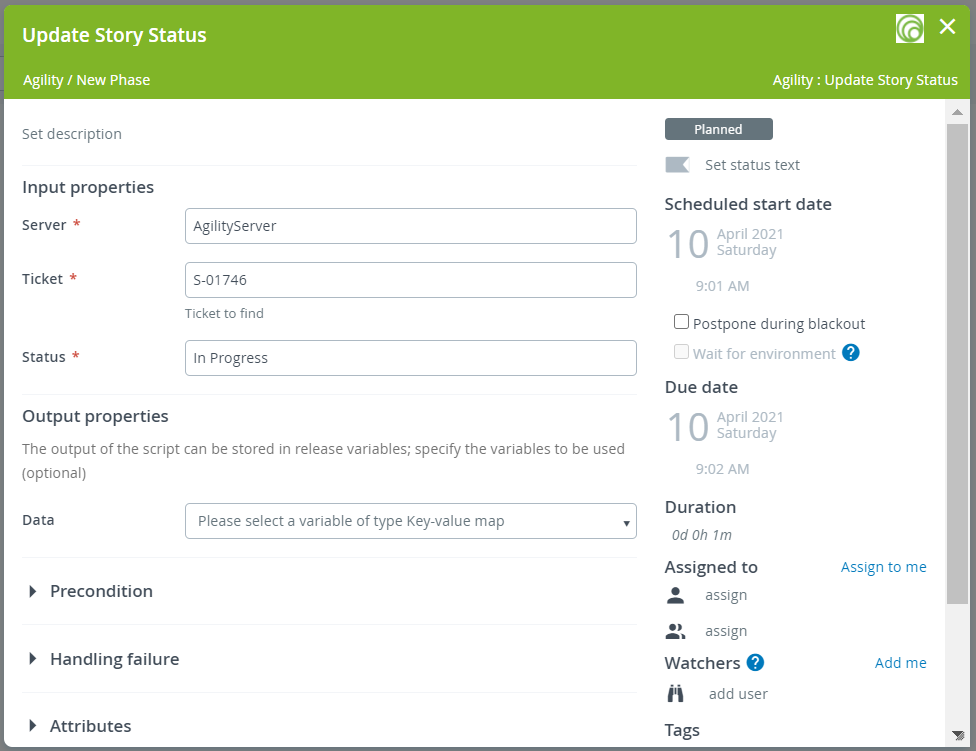
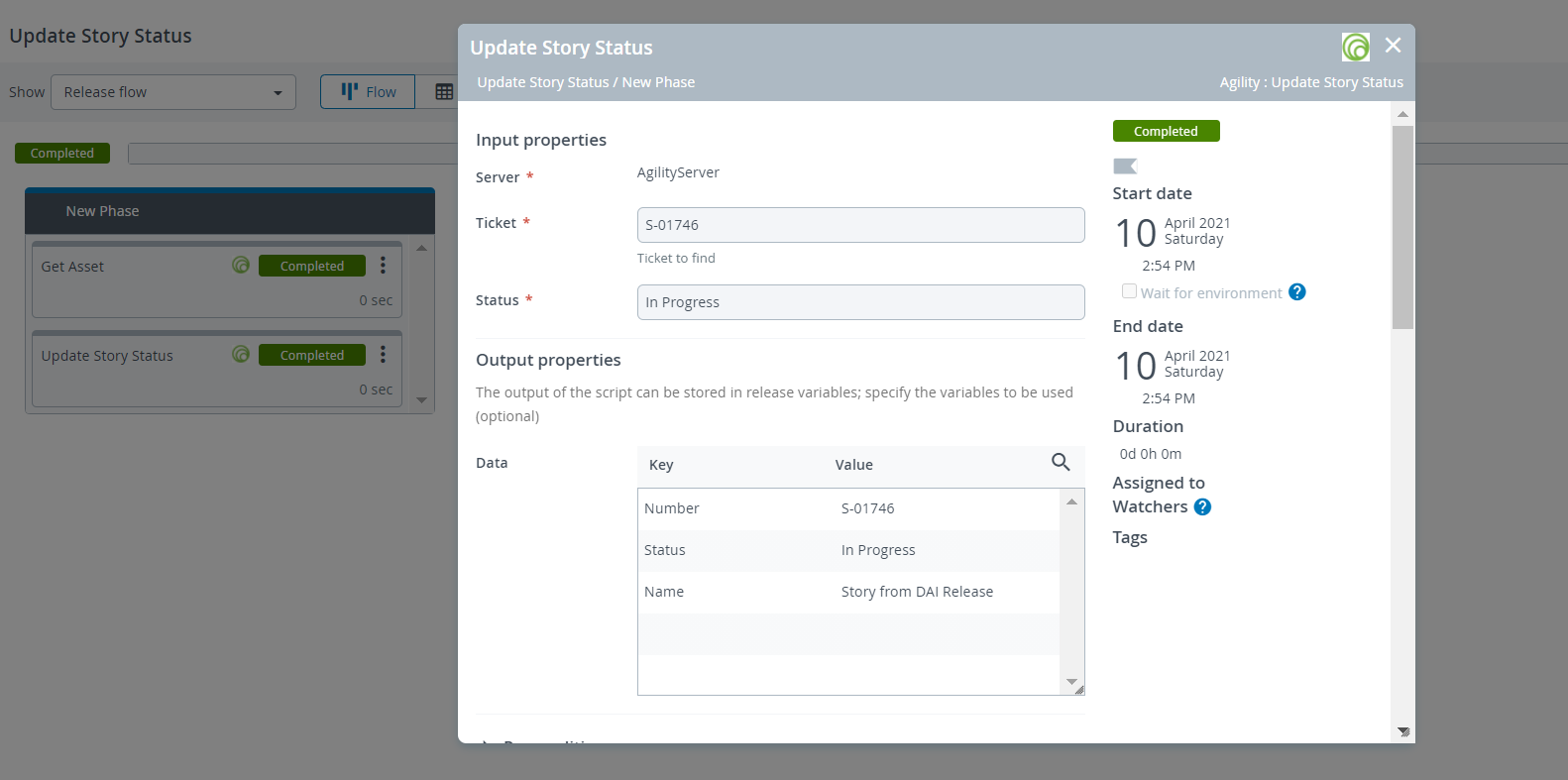
Once you run the task, the story's status is updated, which you can verify from the Data section of the Output properties.
Update Multiple Asset Status
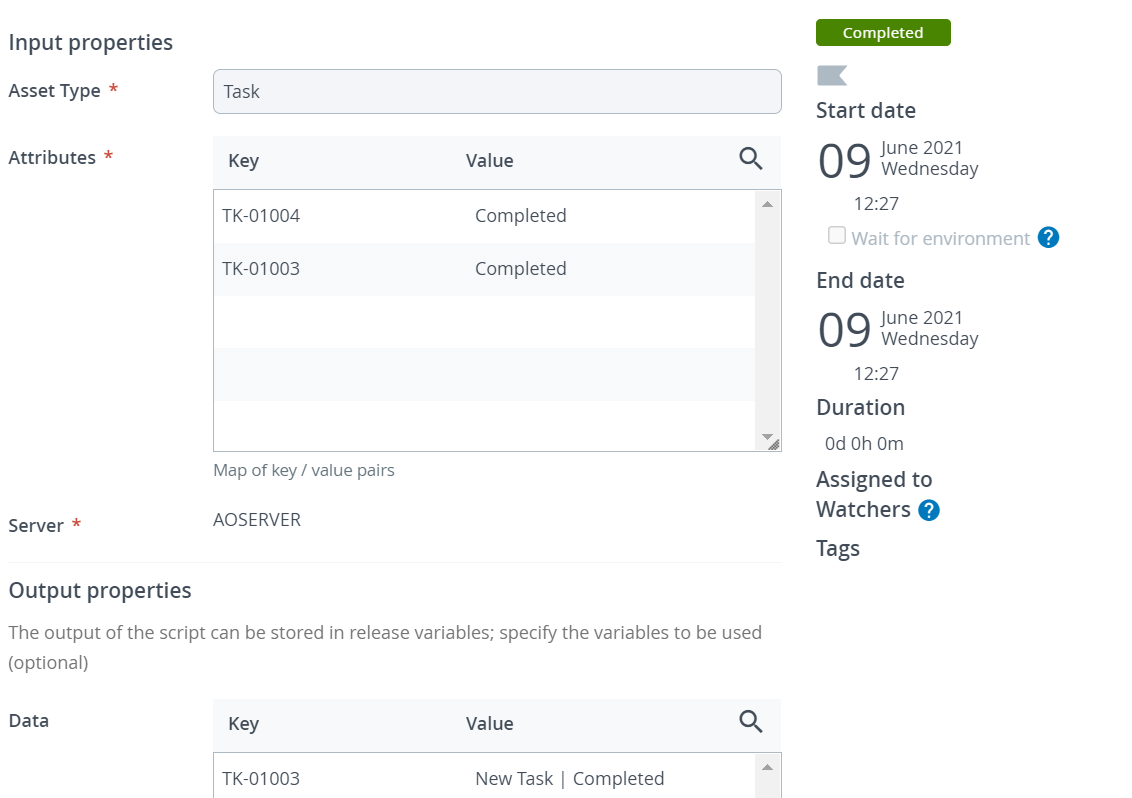
Update Multiple Asset status of the same type at once from available workspace statuses.
Check Issue
Check the issue (Story) by continuous polling until the given Agility issue returns one or more of the expected statuses.
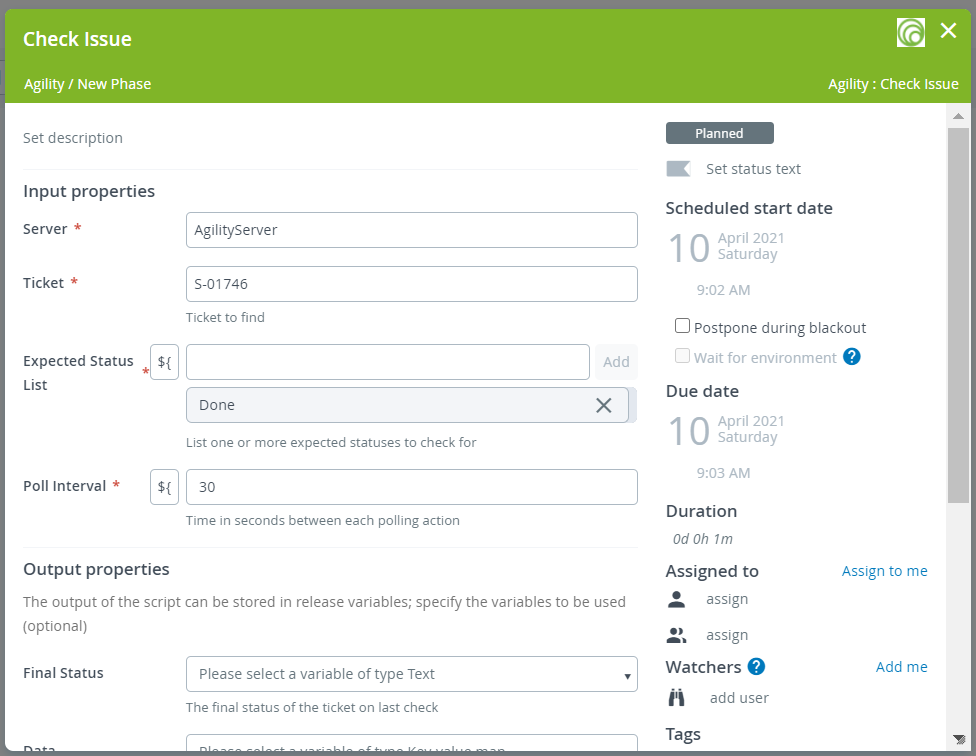
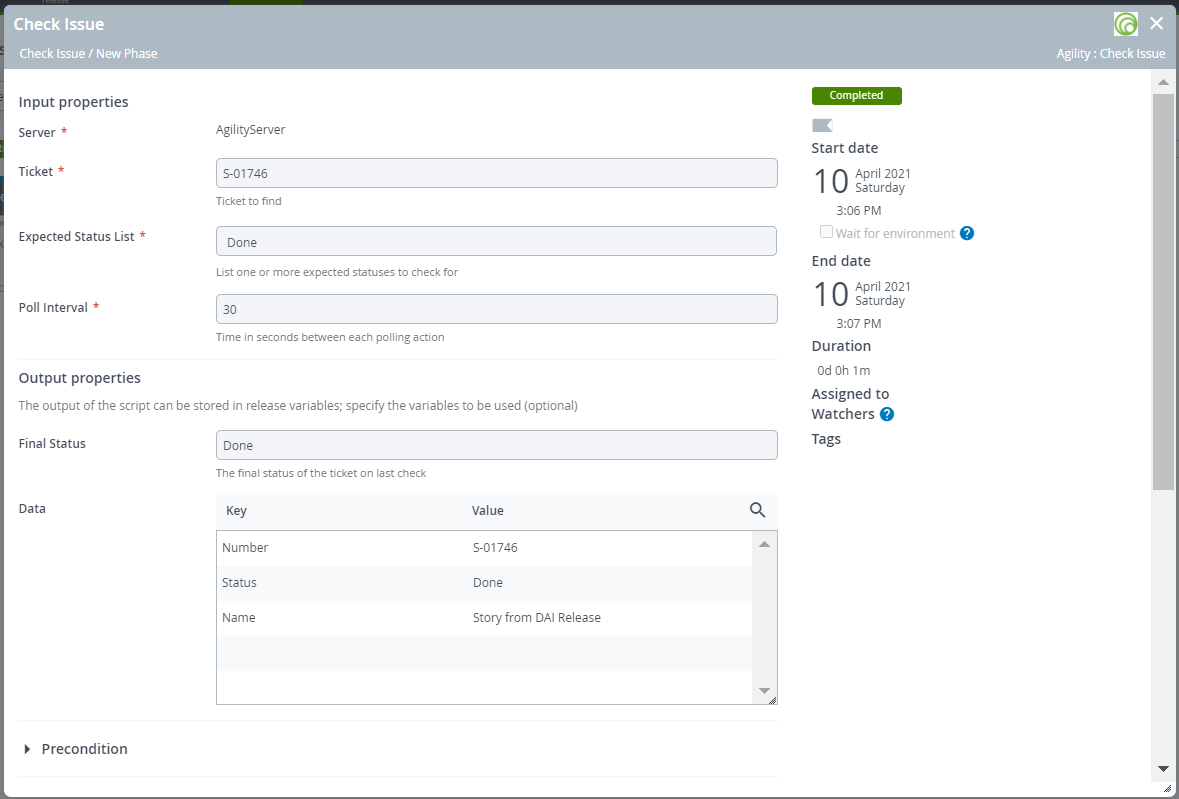
The following input properties are available:
Server: The Digital.ai Agility server where Digital.ai Release connects.
Ticket: The ID of the ticket to check.
Expected Status List: A list of statuses to check for.
Poll Interval: The time in seconds between each polling action.
The output of the task is Final Status which is the final status of the ticket on last check.
Check Asset
Check asset (Story, Defect, Test, Task) by continuous polling until the given Agility asset returns an expected status.
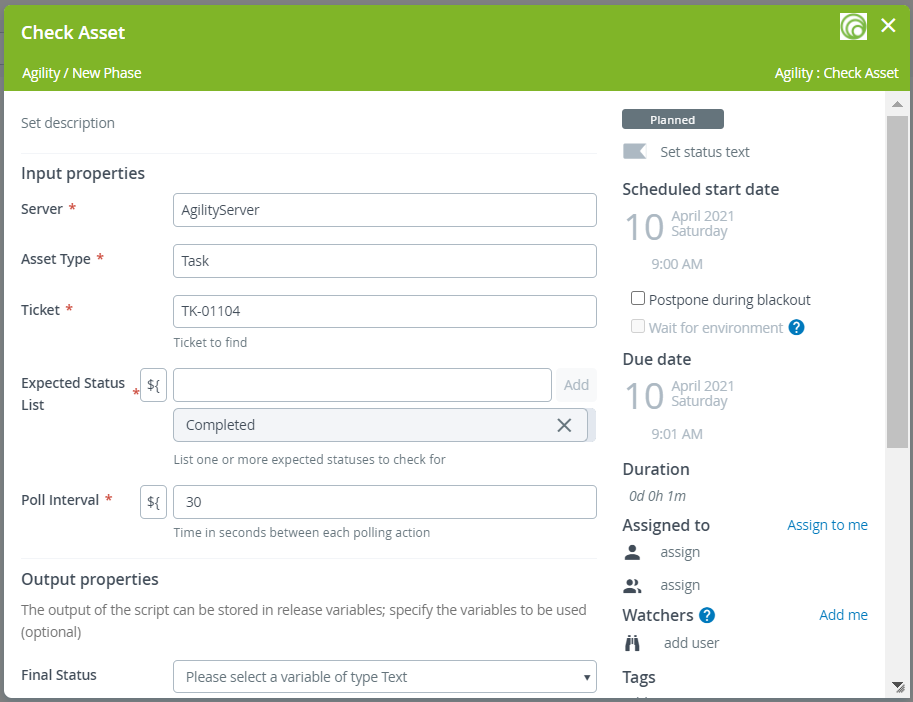
The following input properties are available:
Server: The Digital.ai Agility server where Digital.ai Release connects.
Asset Type: List of available asset type (Story, Defect, Test, Task).
Ticket: The ticket number of the associated asset type, such as a story number, a defect number, etc.
Expected Status List: A list of statuses to check for.
Poll Interval: The time in seconds between each polling action.
The output of the task is tickets. This is a key-value map that contains the issue IDs (keys) and the summaries (values) of the tickets that were found.
Check Query
Check a list of issues by continuous polling until the queried Digital.ai Agility issues return an expected status.
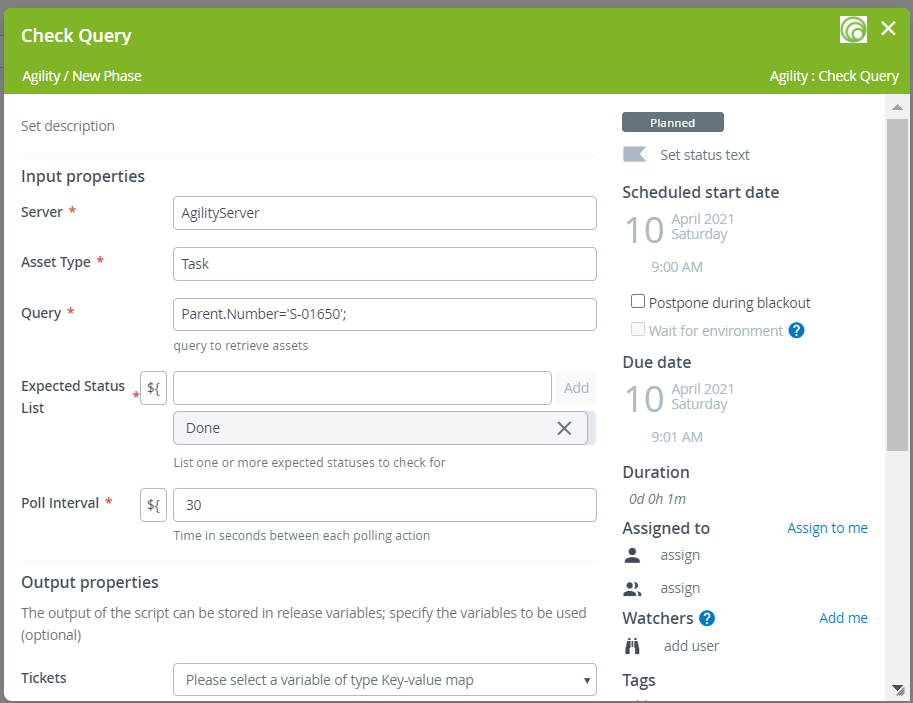
Find Story by Id
This task allows you to get story information based on Oid.
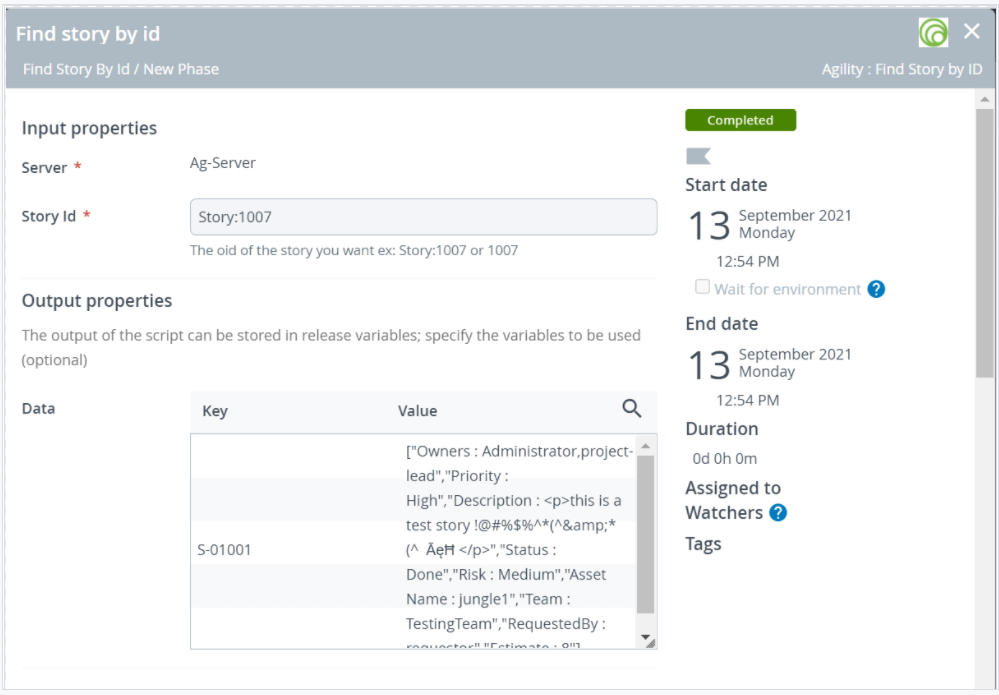
The following input properties are available:
Server: The Digital.ai Agility server where Digital.ai Release connects.
Asset Type: List of available asset type (Story, Defect, Test, Task).
Query: A Digital.ai Agility query that finds the tickets that will be checked in this task.
Expected Status List: A list of statuses to check for.
Poll Interval: The time in seconds between each polling action.
The output of the task is tickets. This is a key-value map that contains the issue IDs (keys) and the summaries (values) of the tickets that were found.
Create Portfolio Items
This task allows you to create a new portfolio items like Epic, Capability, and Feature in Digital.ai Agility.
Input Properties
- You must pass the Agility project’s oid for creating new portfolio item.
- You must pass the title of the portfolio item.
- You can pass the various attributes for the portfolio item you want to create. For example, you can pass
Descriptionas an attribute (which is used as the Description for the portfolio item in Agility).
Note: Project’s ID and title of the portfolio item are mandatory fields.
Example
You can configure the Input properties as shown for creating an portfolio item.
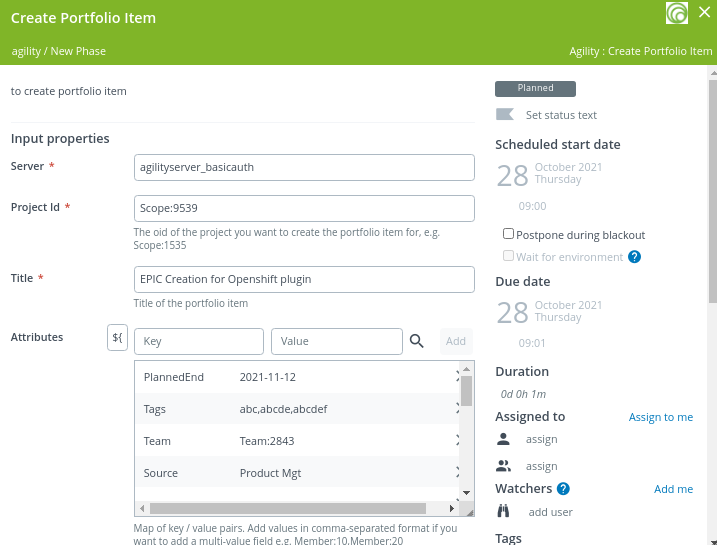
Once you run the task, a new portfolio item is created in Agility. You can find the new Portfolio Item’s number in Output properties.
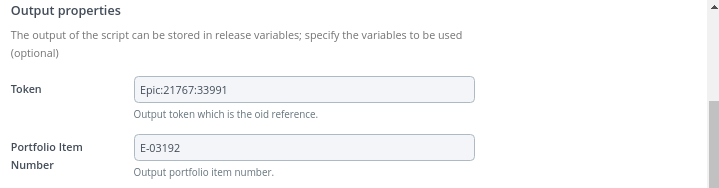
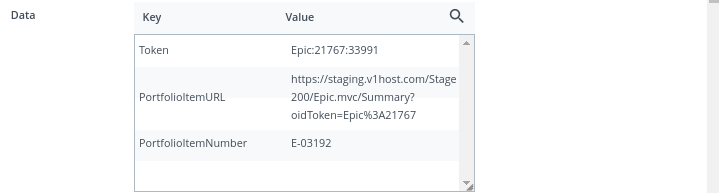
Added Functionality to showcase the Portfolio Item Number, Portfolio Item URL and the Token from the Data section in Output properties.
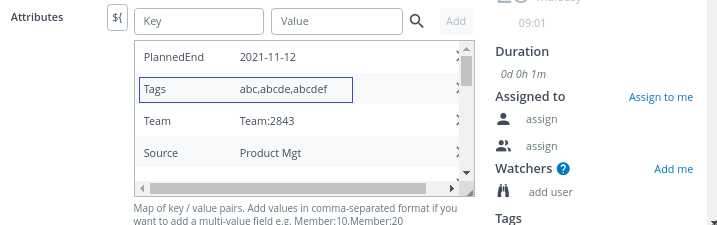
Note: You can add both single and multi-value attributes.
To add a multi-value attribute, enter the attribute’s name in the Key field, enter the comma-separated values in the Value field, and click Add.
The following example shows both single and multi-value attributes:
- Tags (multi-value)—with comma-separated values
- Source(single-value)—single value
Get Portfolio Items
This task allows you to get a list of portfolio items and its information available in Agility.
The detailed information of portfolio items and its attributes are available inside Output properties.
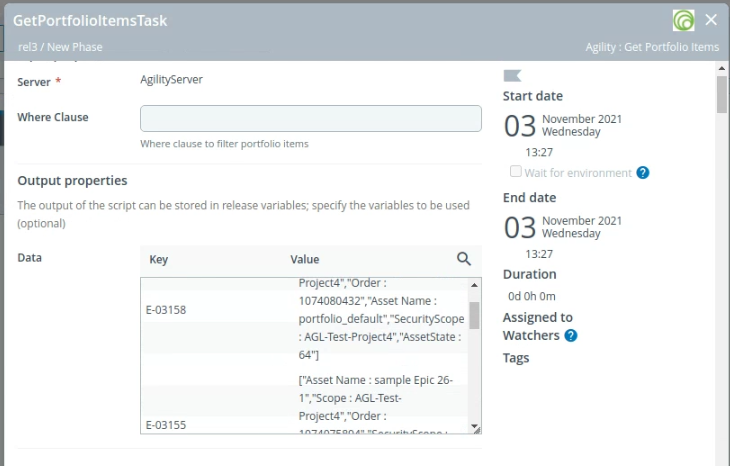
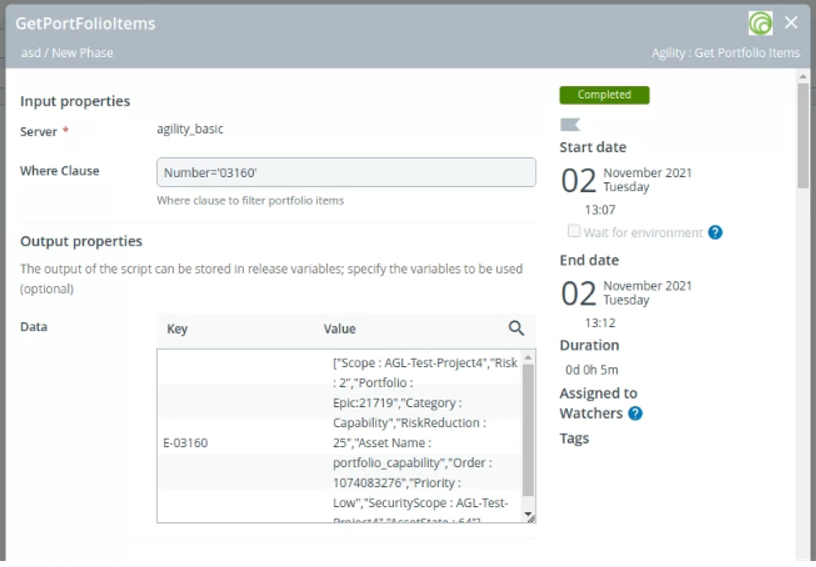
The Get Portfolio Items task has the feature of filtering portfolio items based on a query input.
You can specify the query in Where Clause field to select portfolio items based on the condition described in example.
Execute Query
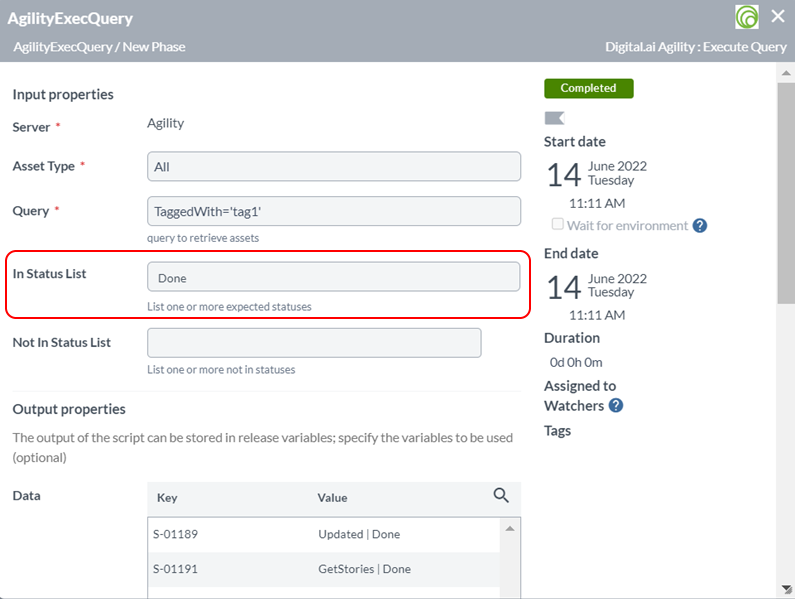
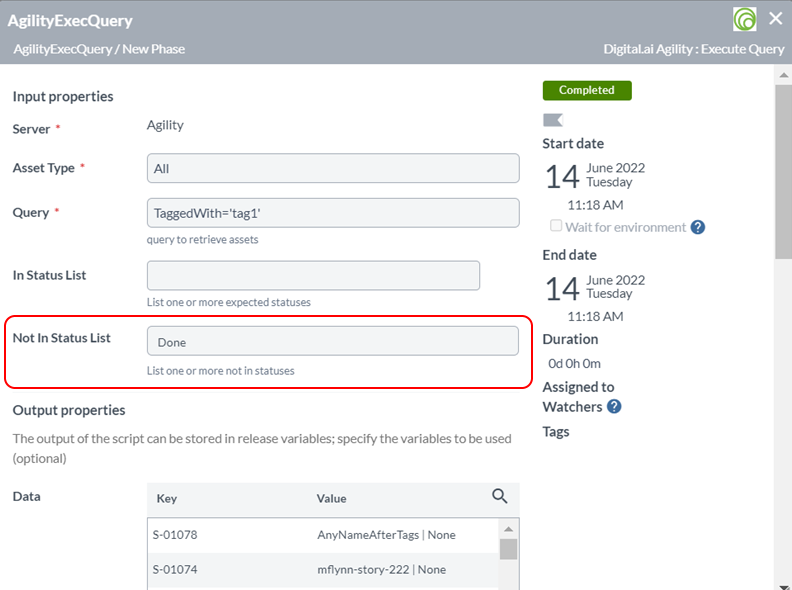
This task allows you to enter a query in the Query field. Now, you can execute the query and return the output assets based on the status provided in the In Status List and Not In Status List fields.
Get Story (Legacy)
This task retrieves the input details of the specified ticket and displays them in the Get Story task. Additionally, this task is retained for backward compatibility.
Create an Agility Query Tile
The Agility query tile retrieves information from the Agility server based on a query specified in the tile configuration. The tile summarizes assets by their status in Agility.
To configure a Agility query tile:
-
From the navigation pane, under Reports, click Custom Dashboards.
-
Click Create custom dashboard to create a new dashboard.
-
On the right-hand side, select Blank template.
noteYou can select an existing template, such as Delivery Insights Dashboard, Deployments template, or Release statistics template.
-
Add dashboard details to create a custom dashboard.
-
Once the dashboard is created, click Configure dashboard to begin editing the layout.
-
Click Add tiles > Agility query, and click Add. The Agility assests appears.
-
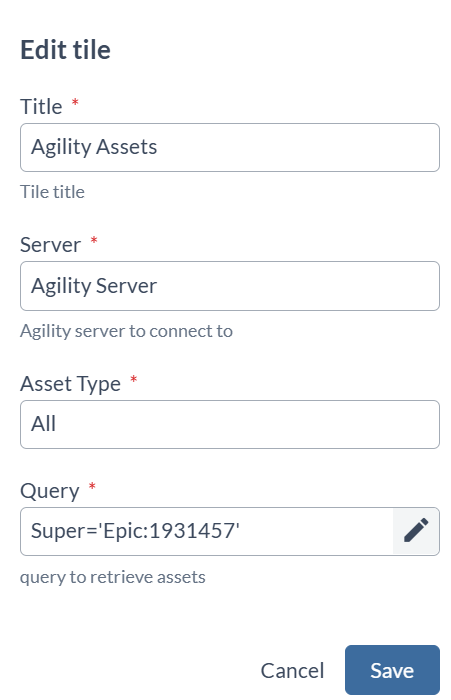
Click the gear icon on the Agility Assets tile to configure it. The Edit tile appears.
-
In the Title field, enter a name for the tile.
-
In the Server field, select an existing Agility server configuration.
-
in the Asset Type field, select the type of asset you want to query.
-
In the Query field, enter the query to retrieve the assets.
-
Click Save.
After saving, the Agility Assets tile displays a summary of assets with their status, and count of assests.
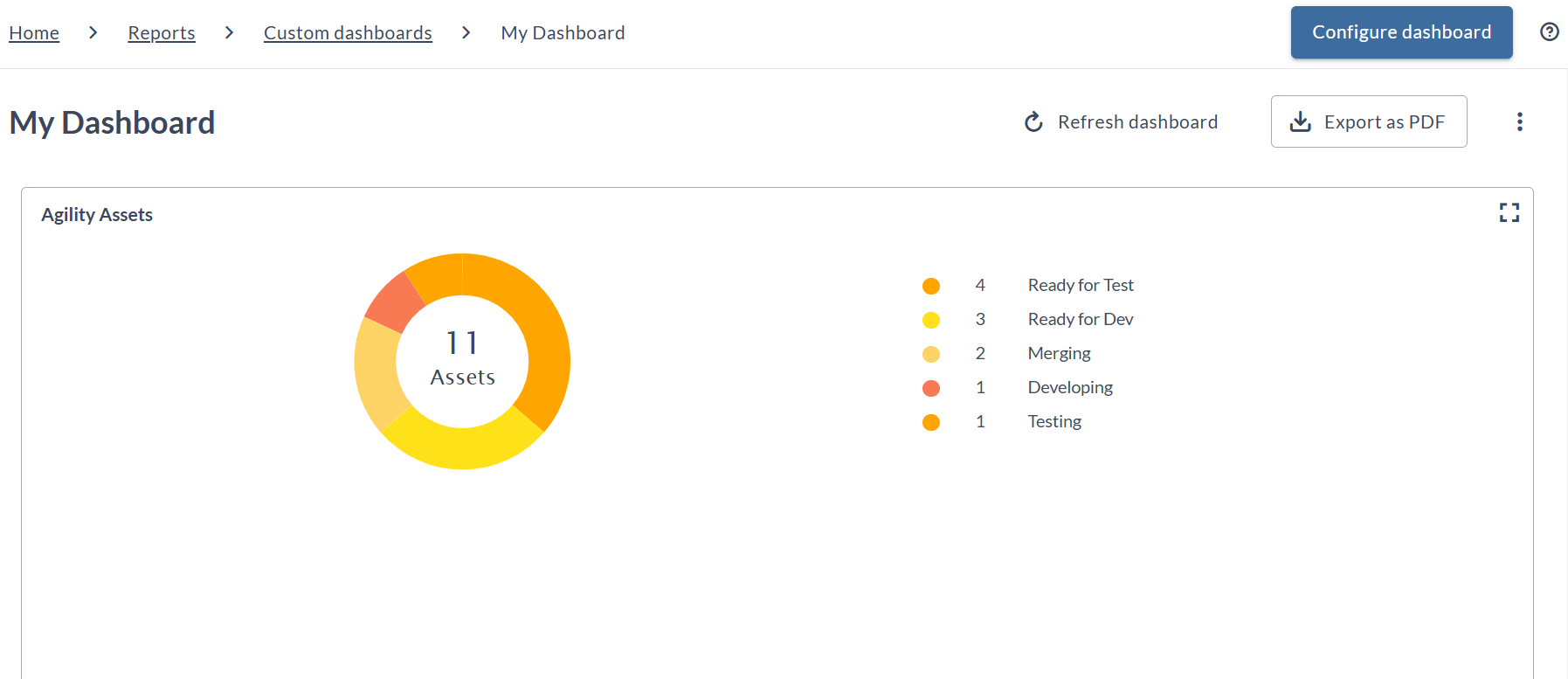
- To view more details about the assets, click the expand icon on the Agility Assets tile.
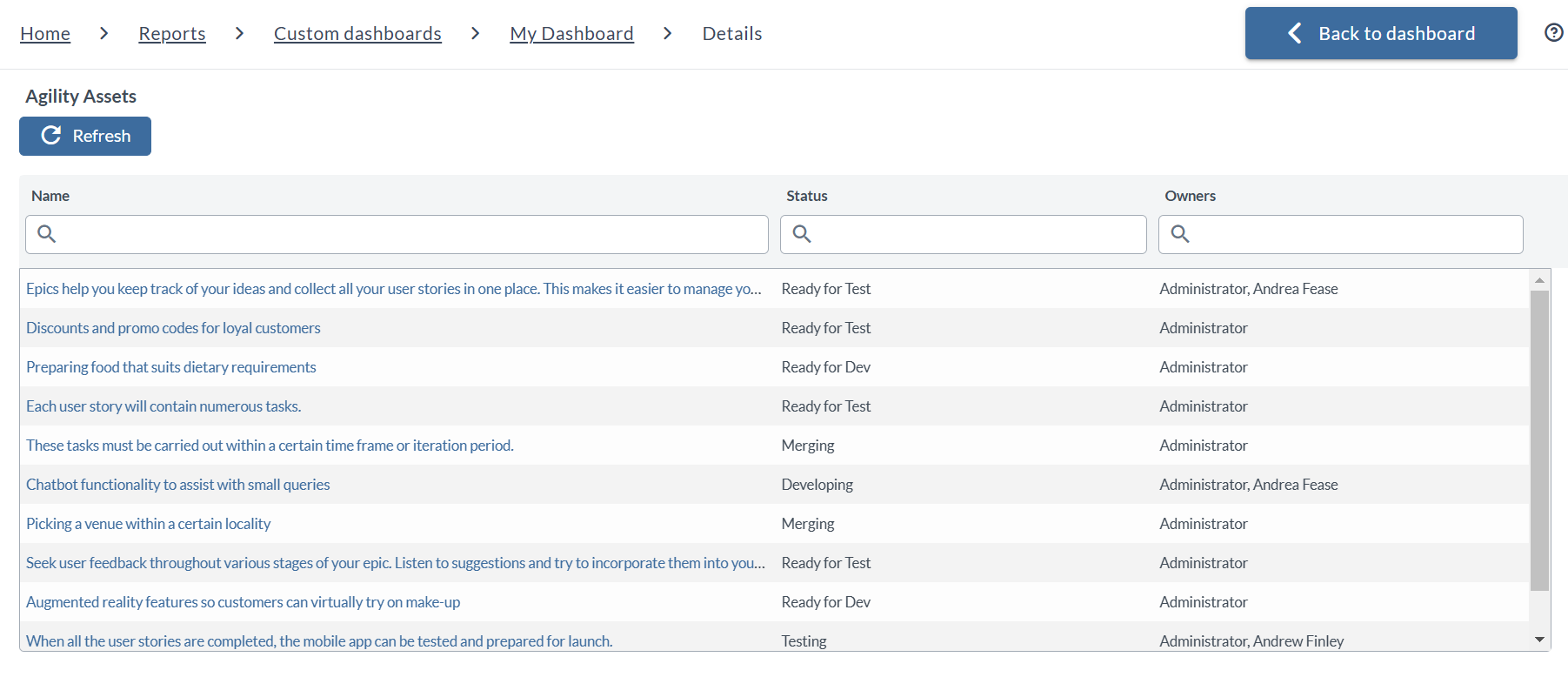
You can click the Refresh within the view details section to refresh the data and display the latest information.
- Click the Refresh dashboard to update the displayed information on the entire dashboard.