Overview of Release Runner
Release Runners, introduced in Digital.ai Release 23.1, are designed to efficiently manage the execution of container-based tasks within a Kubernetes cluster. By isolating task and script execution, Release Runners provide greater stability and scalability for running tasks.
Container-based task functionality is not compatible with DB2.
What are Runners?
A Release Runner is a standalone application that runs inside a container, which you can deploy on a cluster or in Docker. Its main job is to execute tasks and scripts for container-based plugins. When you use a Release Runner, you separate execution from the Digital.ai Release server, allowing you to run tasks closer to your applications—whether they’re in the cloud or on-premises.
With Release Runner, you get better stability and horizontal scalability for executions. Plugins are isolated from each other, and you can use both Python and Go-based plugins. Since execution is detached from the Release server, you can scale task and script executors up or down as needed. Runners can also connect to infrastructure behind a firewall.
Release Runners are built with fail-safe mechanisms. When an execution finishes, the result is processed immediately by the Runner service or as soon as it restarts. Results are sent to the Digital.ai Release server right away. If the server is temporarily unavailable, the Runner queues the result and sends it as soon as it can reconnect and re-register.
Communication between Digital.ai Release and Runner is secured with TLS 1.2 and later, and encrypted using AES-256 GCM.
Runner Capabilities
Runner Capabilities are labels you assign to a Release Runner to define what kinds of tasks it can execute. They’re a core part of routing container plugin tasks to the right execution environment.
Capabilities are simple labels (or tags) you configure during Runner setup. Each capability is a single value that describes the environment, tools, or purpose of that runner. For example, you might use labels like gitlab, docker, kubernetes, aws, prod, or dev. A runner can have multiple capabilities.
gitlab
dev, qa, prod
gitlab, terraform, helm
k8s, aws, onprem
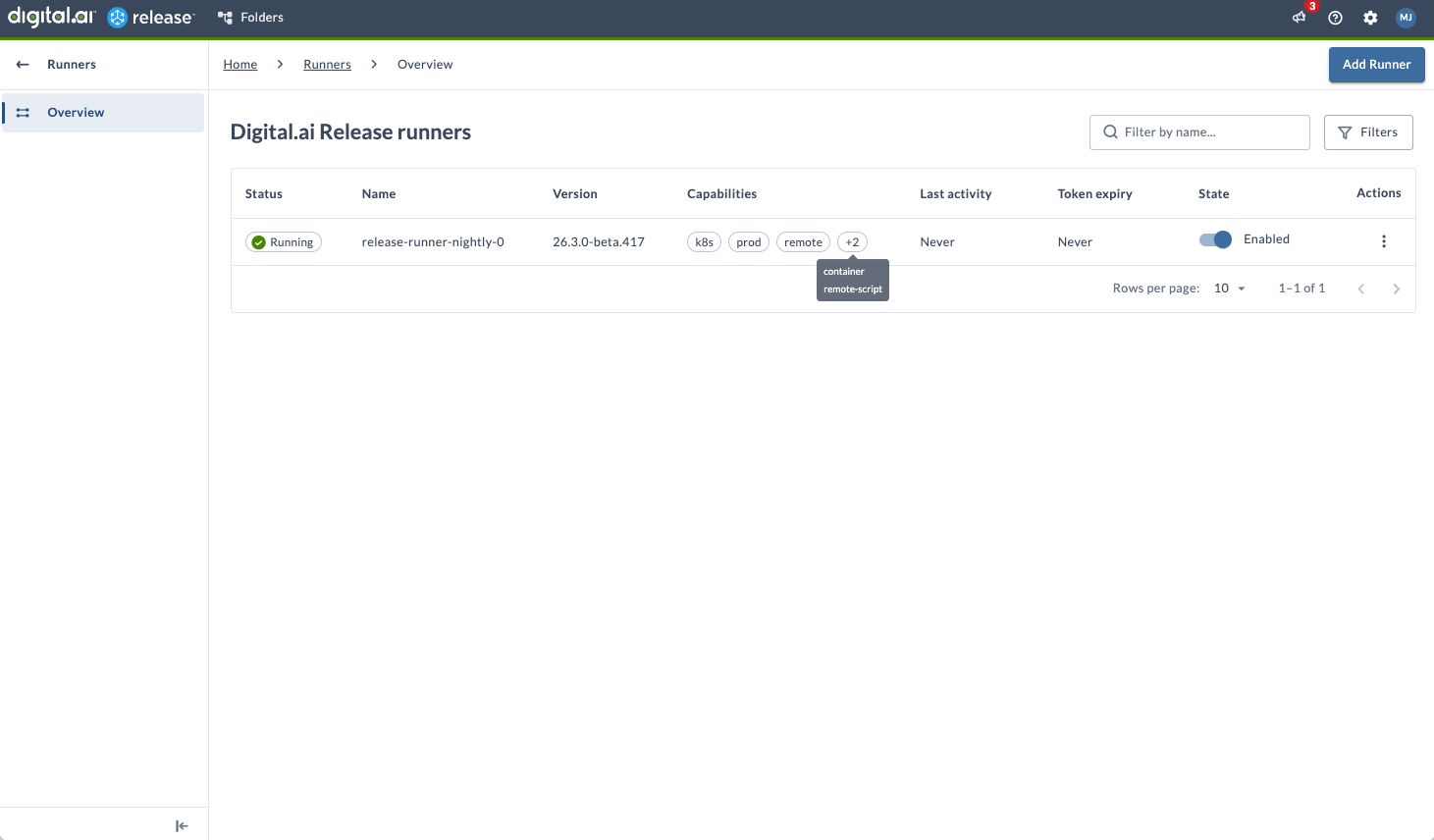
Here’s how it works: you assign capabilities to runners, tasks declare which capabilities they require, and Release matches tasks to runners based on these labels. This approach enables controlled, scalable, and environment-aware execution.
Why Capabilities Matter
Capabilities let Release route tasks to the right runner, separate environments (like dev vs prod), and ensure the required tools or connectivity are available. You can control where tasks run for security and compliance, and enable scalable, distributed execution.
When you configure a container plugin task, you specify one or more capabilities. These act as requirements for execution. A task will only run on a runner whose capabilities match the specified values.
How Matching Works
Suppose a task requires the prod capability. Release looks for available runners, and only those with the prod label are eligible. For example, if Runner A has gitlab and prod, and Runner B has gitlab and dev, only Runner A is eligible for a task that requires prod.
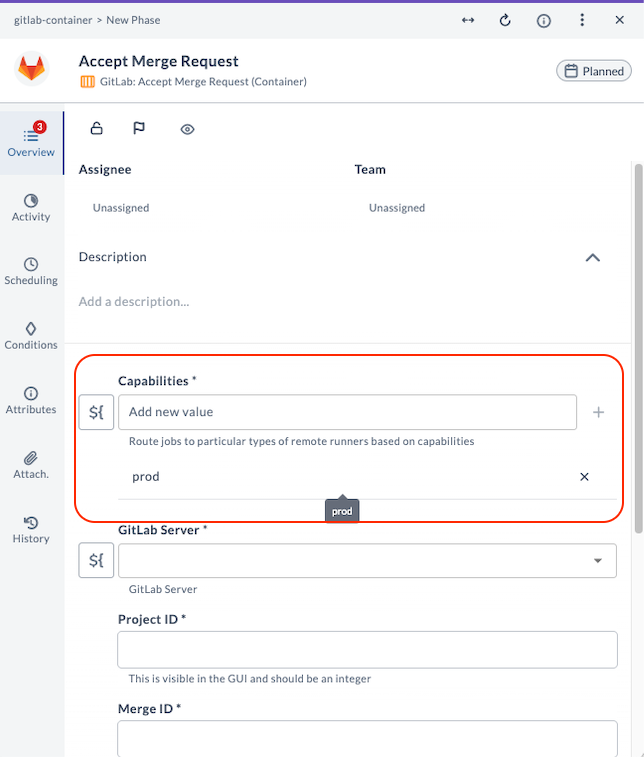
You can also define multiple capabilities to refine routing. For instance, if a task requires both gitlab and prod, it will only run on runners that have both labels.
Practical Usage Patterns
You might use capabilities for environment routing (like dev, qa, prod), tool-based routing (gitlab, terraform, helm), infrastructure-specific routing (k8s, aws, onprem), or to restrict sensitive tasks to specific runners for security isolation.
When naming capabilities, keep them clear and consistent. Use simple, predictable names, and avoid making labels too granular unless necessary. Align capabilities with real infrastructure or responsibility boundaries.
Aborting Container-based Tasks
If you abort a container-based task, it stops running. While the abort is in progress, the task status shows as Aborting. Once the task is stopped, the status changes to Failed. You can set an abortTimeout to wait for the container to exit normally; by default, this is 30 seconds.