GitOps in Deploy
GitOps in Deploy connects Digital.ai Deploy to a Git repository so you can manage Configuration Items (CIs) and trigger deployments from Git. It provides two capabilities that share the same Git connection:
- Infrastructure as Code: Import and export configuration, infrastructure, environment, and application CIs between Deploy and Git as YAML files. See Infrastructure as Code.
- Deployments on Event: Poll a deployment file in Git and run a deployment automatically when it changes. See Deployments on Event.
Both capabilities use a git.GitSource CI for the repository connection and a git.GitDirectory CI for the folder mapping. This page describes the shared setup: the GitOps menu, creating a Git Source, verifying connectivity, and creating a Git Directory.
The following Git providers are supported: GitHub, GitLab, Azure DevOps, and Bitbucket. Currently, only HTTPS repository URLs are supported.
GitOps Menu
GitOps CIs have a dedicated home in the Deploy left navigation pane. The Operations section, below Library, contains two menu items:
- Monitoring - the task monitoring view.
- GitOps - a dedicated view for your GitOps CIs.
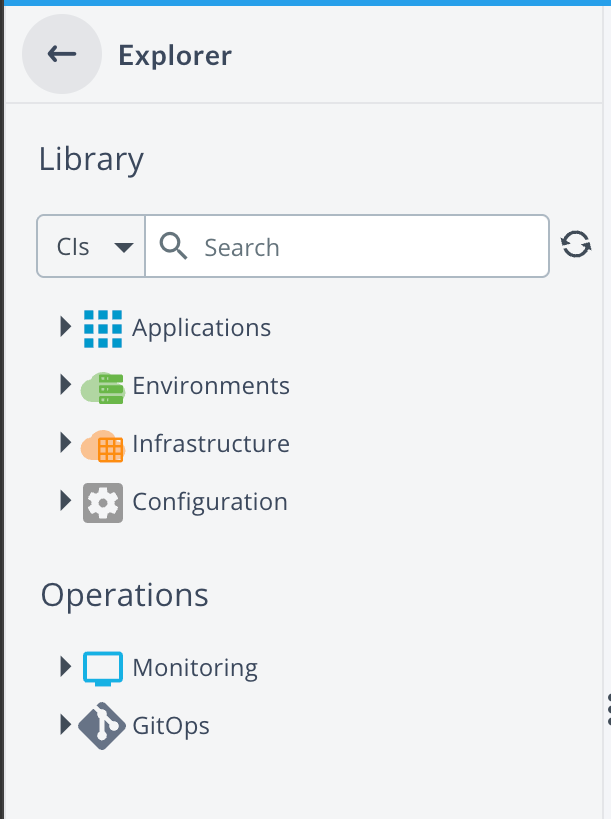
The GitOps menu is a filtered view of the Configuration tree that displays only GitOps-related CIs along with the directories that contain them. It gives GitOps a visible entry point and easier navigation. Deploy provides dedicated icons for the GitOps menu, Git Source CIs, and Git Directory CIs.
The GitOps and Configuration views show the same underlying CIs, and any change made in one view is immediately reflected in the other.
From the GitOps menu you can:
- Create new
git.GitSourceandgit.GitDirectoryCIs - Edit and delete GitOps CIs
- Run GitOps control tasks such as Check Connection, Import from Git, and Export to Git
- Drag and drop CIs, the same as in Configuration. As with the Configuration tree, CIs can only be moved within the same root. You cannot drag a CI from the GitOps view into another root.
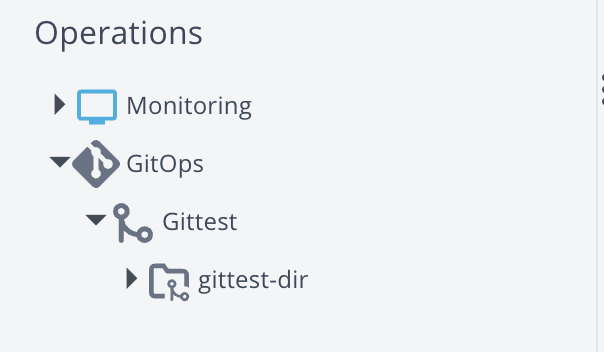
The following restrictions apply in the GitOps view:
- Only GitOps CI types can be created. Other CI types must be created under Configuration.
- Directories cannot be renamed, deleted, or duplicated from the GitOps view. The only allowed operation on a directory in this view is creating a new
git.GitSourceunder it. A directory can contain other, non-GitOps CIs that are not visible in the filtered GitOps view. To prevent accidental deletion of those hidden CIs, rename and delete directories from Configuration instead. - A directory is displayed in the GitOps view only while it contains at least one GitOps CI. If you move the last GitOps CI out of a directory, the directory is no longer shown in the GitOps view. It still exists under Configuration.
Prerequisites
Before configuring GitOps in Deploy, ensure the following prerequisites are met:
- A Git repository that Deploy can reach over HTTPS.
- Git credentials with access to the repository and a personal access token (PAT) generated from your Git provider. Both classic and fine-grained tokens are supported, provided they have the appropriate repository permissions.
- Users performing GitOps operations must have the appropriate Deploy permissions. OIDC users are supported both when they are added directly as principals and when they receive access through group membership, where an OIDC group, such as a Keycloak group, is mapped to a Deploy role.
Step 1: Create a Git Source CI
A git.GitSource is a CI that defines how Deploy connects to a specific Git repository.
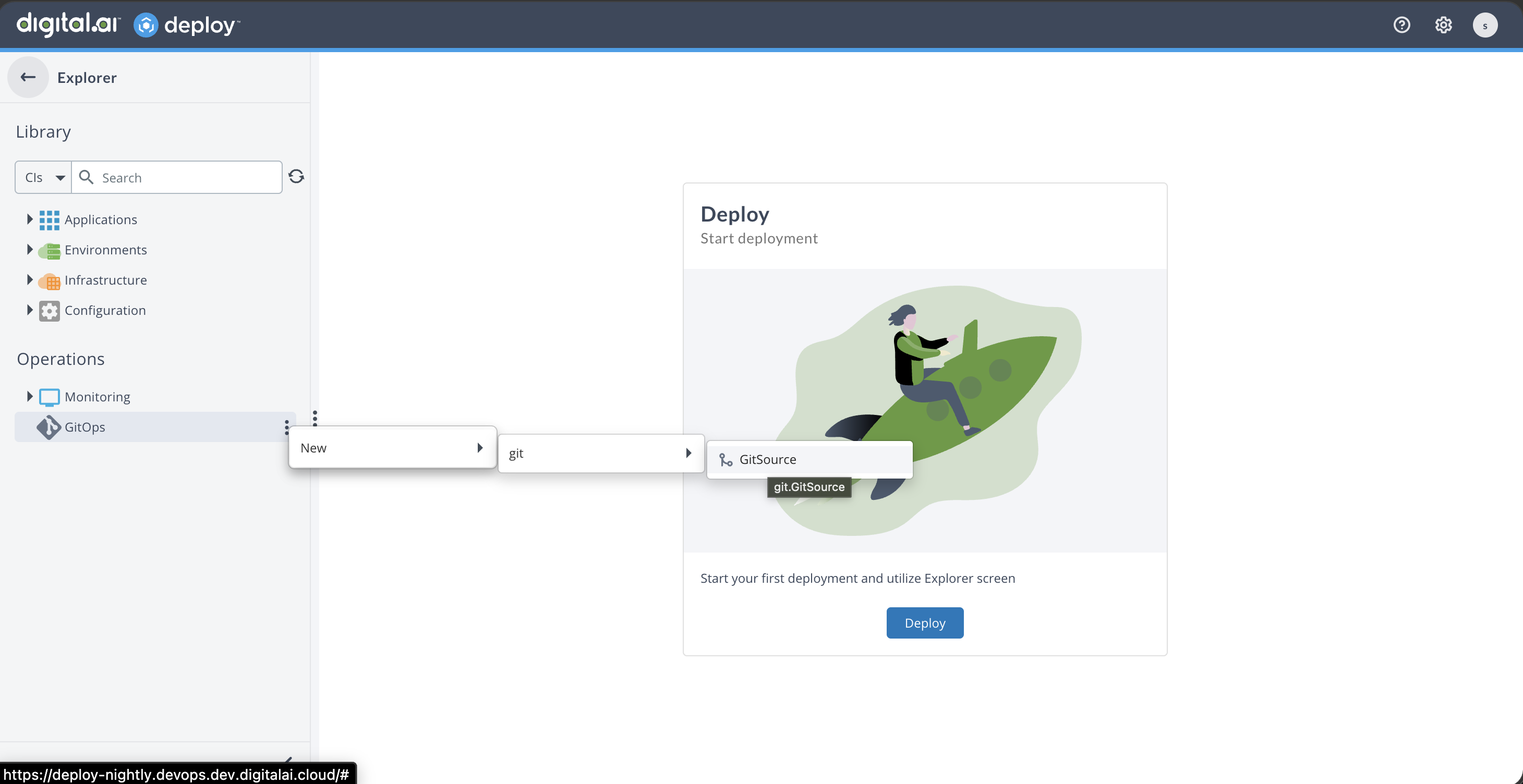
- In Deploy, go to Operations > GitOps in the left navigation pane. Alternatively, you can create the CI under Configuration.
- Create a new CI of type
git.GitSource. - Provide the following details:
- Name: A name for this Git Source CI
- URL: The Git repository URL. Currently, only HTTPS is supported
- Username: The Git account username
- Password: A personal access token (PAT) generated from your Git provider. Both classic and fine-grained tokens are supported
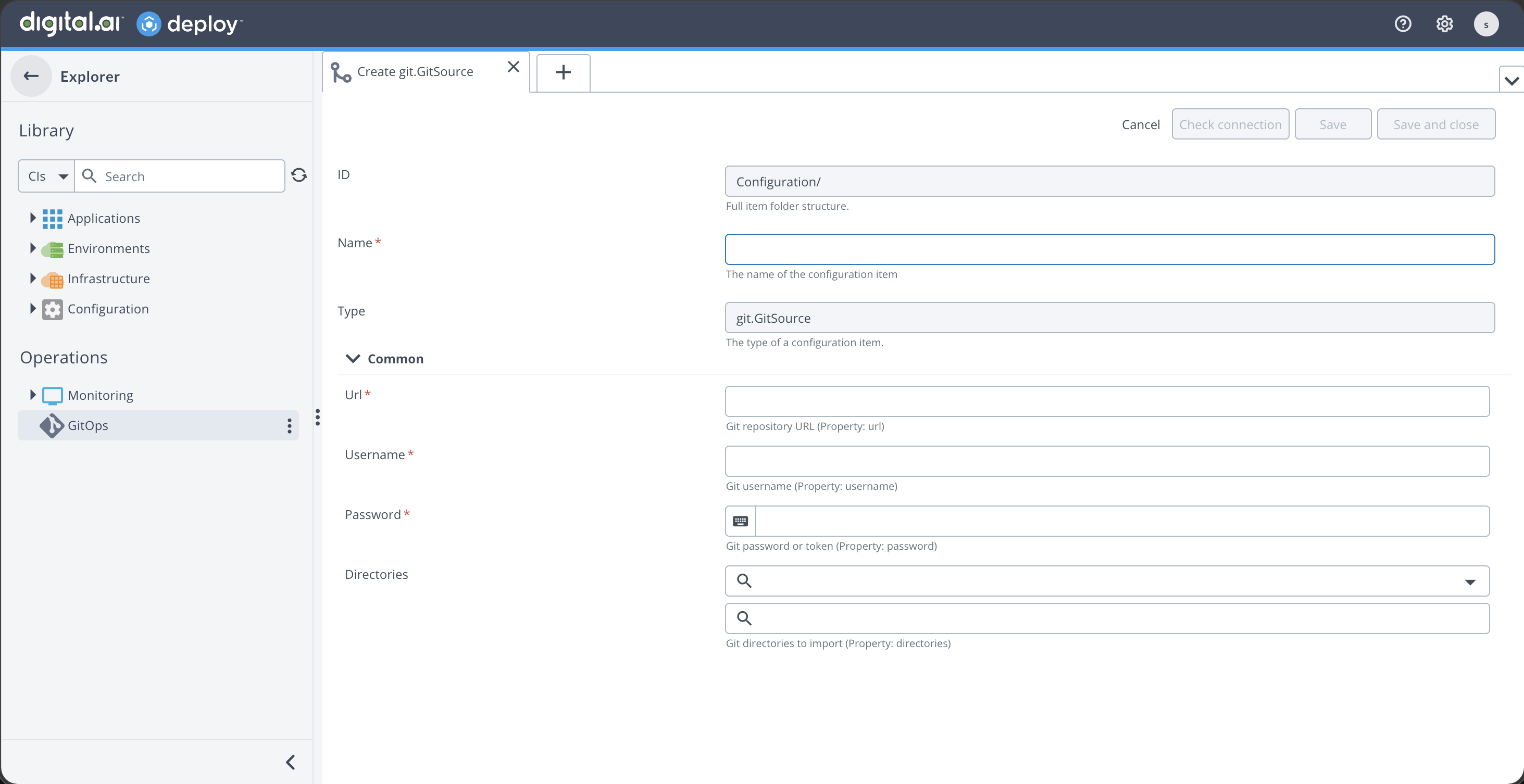
Generate a personal access token (PAT) from your Git provider's settings. Both classic and fine-grained tokens are supported. Ensure the token has the appropriate repository permissions.
- For import-only, read access to the repository is sufficient.
- For export, Deploy updates YAML files in the repository, so the PAT must have write access to the target path/branch.
Step 2: Verify Repository Connectivity
Verifying the connection confirms that Deploy can authenticate and reach the Git repository. The Check Connection button is available in the CI editor toolbar of the Git Source CI, between Save and Cancel. When you create a new Git Source CI, this button stays disabled until you save the CI.
- Open the saved Git Source CI from GitOps or Configuration.
- In the CI editor toolbar, click Check Connection.
Deploy runs the check connection control task entirely in the background. No task tab opens and no navigation occurs. You stay on the CI editor and receive a notification with the result and the task ID:
- Success: A green notification displays Check connection succeeded. (Task: task ID). The repository is reachable and the credentials are valid.
- Failure: A red notification displays Check connection failed. (Task: task ID).
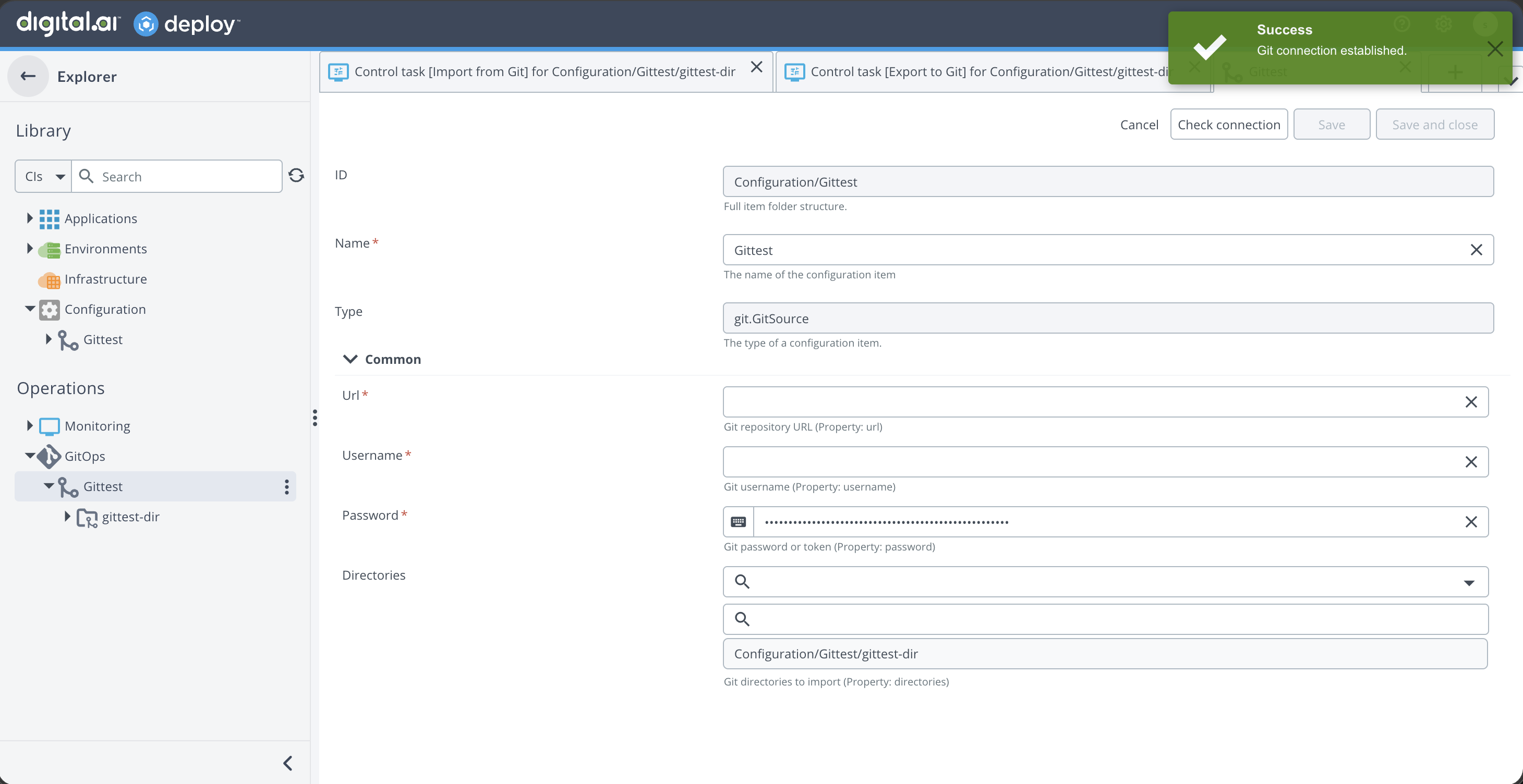
The task starts and archives automatically. You do not need to click Execute or Finish. Archived tasks are available under Reports. To inspect a failed check, use the task ID from the notification to locate the task under Operations > Monitoring. For full step-log diagnostics, you can also run Check Connection from the CI context menu, which opens the task execution tab with the manual Execute and Finish flow.
If the check fails, verify that your credentials are correct and that Deploy has network connectivity to the Git server.
Step 3: Create a Git Directory CI
A git.GitDirectory is a CI in Deploy that maps a folder in Git by defining its branch and repository path. Using a Git Directory, you can import and export CIs as YAML.
Create a Git Directory CI under your Git Source.
- In GitOps or in the Configuration tree, find your git.GitSource CI.
- Right-click the git.GitSource CI and select New → git → GitDirectory.
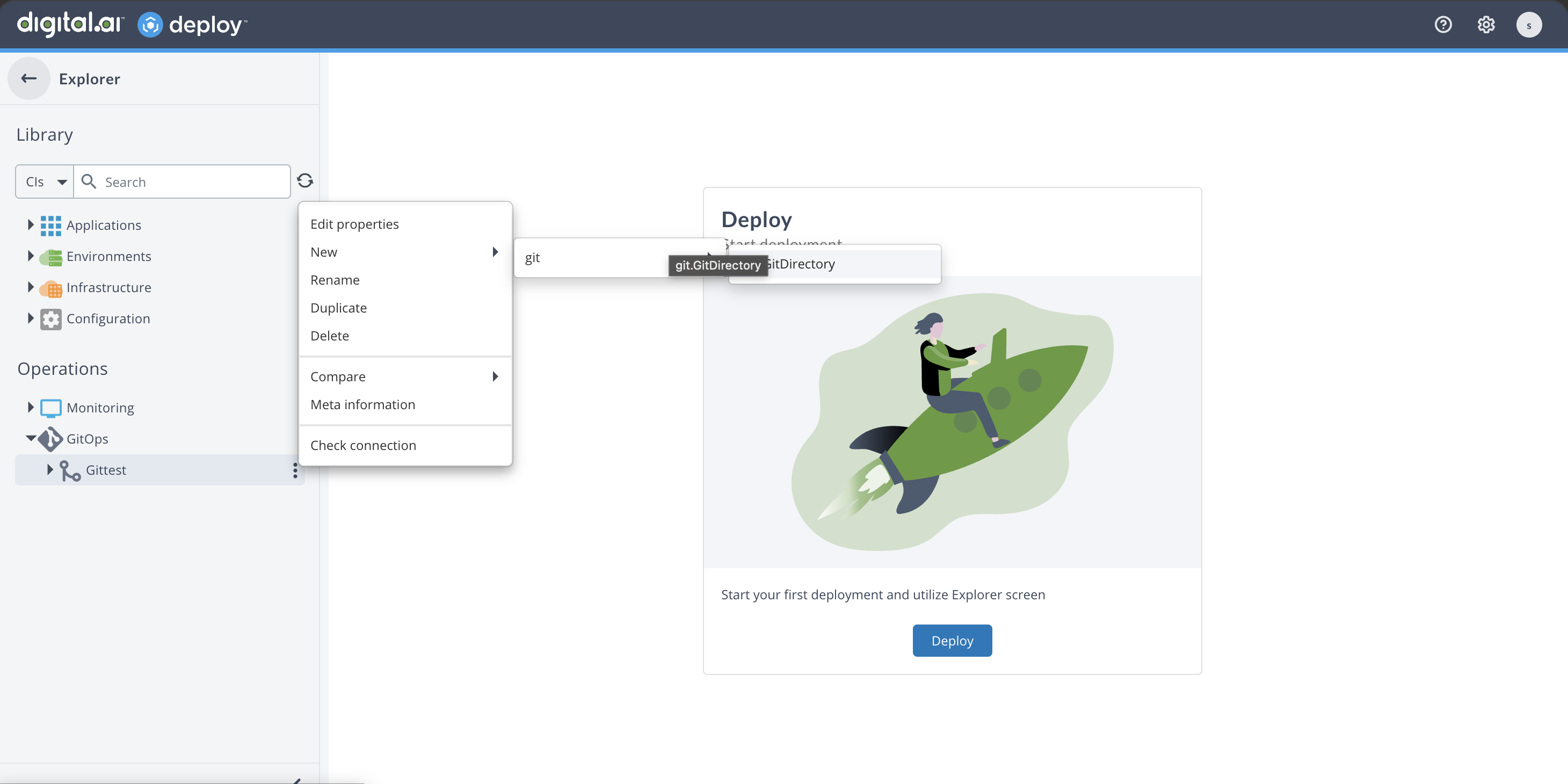
- Provide the following details:
- Name: The name of the CI
- Branch: The Git branch to use
- Git repository path: Path to the folder within the Git repository
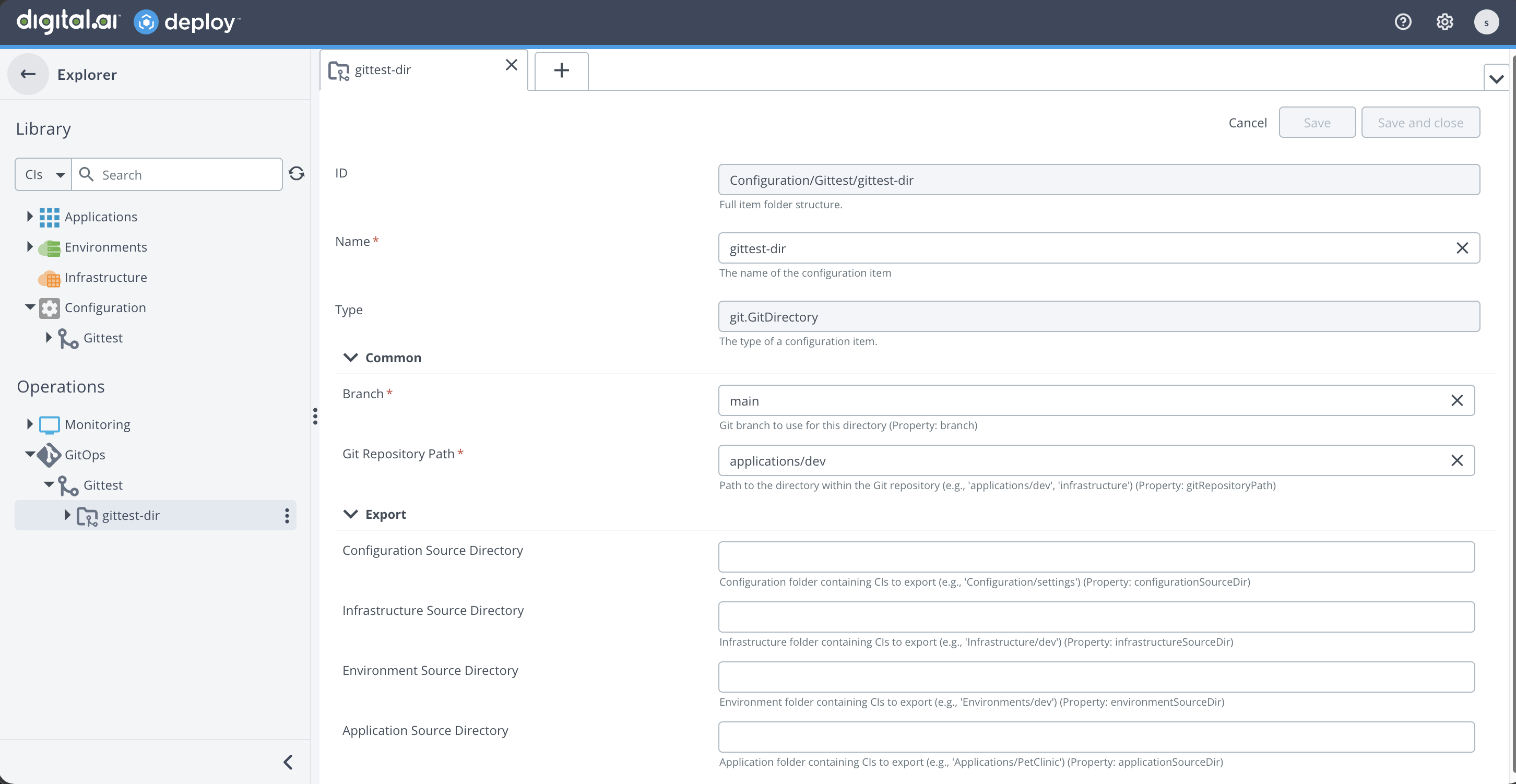
Export fields (optional for import):
The following fields are only required for export operations. They define which directories in Deploy to export from.
- Configuration source directory: The directory path under Configuration to export. For example,
Configuration/settings. - Infrastructure source directory: The directory path under Infrastructure to export. For example,
Infrastructure/dev. - Environment source directory: The directory path under Environments to export. For example,
Environments/dev. - Application source directory: The directory path under Application to export. For example,
Applications/PetClinic.
When you use import only, you can leave them empty.
A single git.GitSource can have multiple git.GitDirectory CIs, each pointing to different folders or branches in your repository.
Next steps
After you create a Git Source and a Git Directory, choose the GitOps workflow you need:
- Infrastructure as Code: Export and import configuration, infrastructure, environment, and application CIs between Deploy and Git as YAML files.
- Deployments on Event: Poll a deployment file in Git and run a deployment automatically when it changes.