Assets
Assets are the fundamental building blocks of Digital.ai Agility. This guide explains asset business objects, their states, and the various asset types available in the system.
Asset Business Objects
In Digital.ai Agility, business objects are called Assets, which are instances of concrete asset types. Each asset is uniquely identified by its asset type and OID Token (an integer). For example, Member:20 identifies the Member asset with ID of 20. This article is intended for developers writing API queries.
Asset Types
Asset types describe the "classes" of data available. Each asset type contains a collection of attribute definitions, a collection of operations, and a number of useful attribute definitions for things like sorting. Asset types form an inheritance hierarchy, such that each asset type inherits attribute definitions, operations, and rules from its parent asset type. Those asset types at the leaves of this hierarchy are concrete, whereas asset types with children asset types are abstract. Assets are all instances of concrete asset types. Asset types are identified by unique names.
By way of example, Story and Defect are concrete asset types. On the other hand, Workitem is an abstract asset type, from which Story and Defect ultimately derive.
Most asset types have the same name as found in the application user interface. A Defect in the user interface is also a Defect as an asset type. However, many of the most common asset types have a different name.
Asset Type Diagram
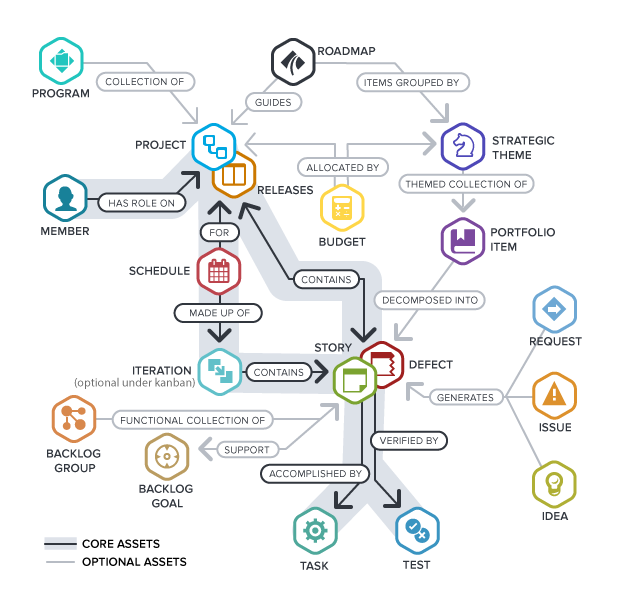
Mapping of System Asset Types to UI Names
The following table shows the mappings from the system name to the name displayed in the Digital.ai Agility user interface:
| System Name | XP Display Name | Scrum Display Name | AgileUP Display Name | DSDM Display Name |
|---|---|---|---|---|
| Defect | Defect | Defect | Defect | Defect |
| Environment | Environment | Environment | Environment | Environment |
| Scope | Project | Project | Project | Project |
| ScopeLabel | Program | Program | Program | Program |
| Story | Story | Backlog Item | Requirement | Requirement |
| TestSet | TestSet | TestSet | TestSet | TestSet |
| Timebox | Iteration | Sprint | Iteration | Iteration |
| Theme | Theme | Feature Group | Use Case | Feature Group |
| Task | Task | Task | Task | Task |
| Test | Test | Test | Test | Test |
| RegressionTest | RegressionTest | RegressionTest | RegressionTest | RegressionTest |
| RegressionPlan | RegressionPlan | RegressionPlan | RegressionPlan | RegressionPlan |
| RegressionSuite | RegressionSuite | RegressionSuite | RegressionSuite | RegressionSuite |
Asset States
AssetState defines the system-known life-cycle for an asset. The UI, for example, will typically query assets that are not = 'Dead' to automatically exclude those items from the return results.
| ID | Name | Meaning |
|---|---|---|
| 0 | Future | |
| 64 | Active | The asset has been assigned to a user-defined workflow status. |
| 128 | Closed | The asset has been closed or quick-closed. |
| 200 | Template (Dead) | The asset is only used to create new copies as part of creating from Templates or Quick Add. |
| 208 | Broken Down (Dead) | The asset was converted to an Epic for further break-down. |
| 255 | Deleted (Dead) | The asset has been deleted. |
Note: You may see an AssetState of 209 when looking at Members. This means that member is a Guest Collaborator.