External Script Tasks
External Script task points to a Jython or Groovy script that is executed on the Release server. It is an automated task that completes when the script is successfully executed. This task detects the language of the script by the file name extension.
The External Script task type only supports basic HTTP authentication. You must provide an HTTP/HTTPS URL that points to a script file. The task type does not support other protocols.
For an example showing how you can use the External Script task type, see Create a release from a Git repository.
For detailed information about the contents of the task, see Task Drawer for Tasks.
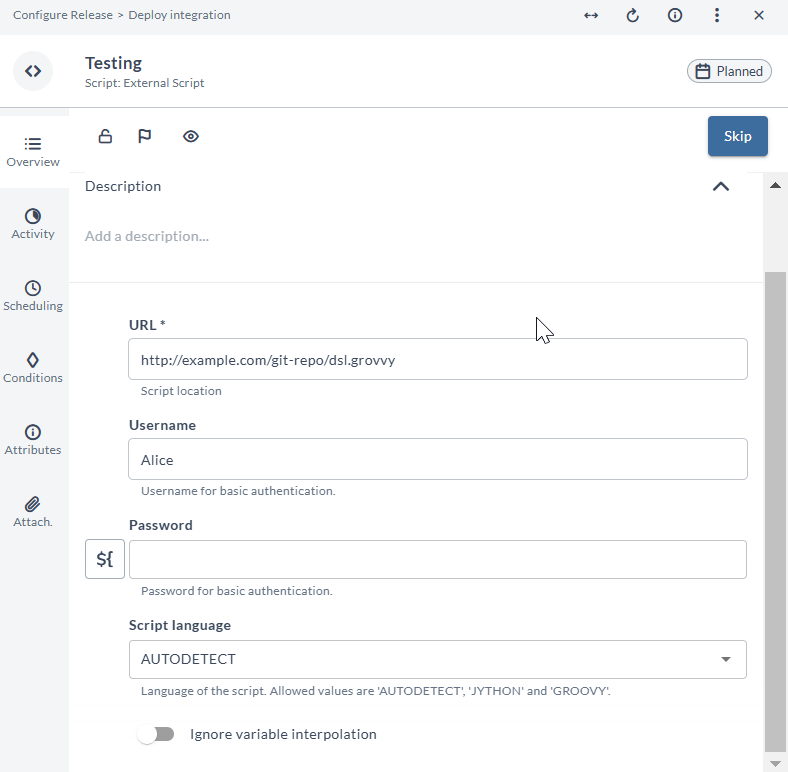
The input properties of the External Script task are as follows:
| Option | Description |
|---|---|
| URL* | Enter the HTTP/HTTPS URL that points to a script file |
| Username* | Enter the username to authenticate to the URL |
| Password* | Enter the password to authenticate to the URL |
| Script Language | Language of the script. Select one of the options from the drop-down list:
|
You can toggle on the Ignore variable interpolation toggle button to ignore variables from being used in the script. See the Variable Interpolation section below for more information on variable interpolation.
In the Overview tab of the External Script task, you can add tags to your External Script task in the Task Tags field for filtering.
In the release flow editor, External Script tasks are marked with a gray border.
Security and External Script tasks
When an External Script task becomes active, Release executes the script in a sandbox on the Release server. The sandbox restricts access to system resources and Java classes. Because an External Script task runs a Jython or Groovy script, the security controls the sandbox uses depend on the script language and on whether Release is running on JDK 21 or JDK 25. For the full script security configuration and upgrade considerations, see Configure Script Security.
JDK 21
On JDK 21, Release can use the Java Security Manager and the XL_RELEASE_SERVER_HOME/conf/script.policy file to restrict script access to resources and Java classes. If a script requires additional permissions or access to Java classes, configure the appropriate permissions in script.policy.
JDK 25
JDK 25 does not support the Java Security Manager, so Release enforces Java class access directly without using script.policy. To allow a script to load additional Java classes or packages, add them to the xl.security.scripting.sandbox.allowedJavaClasses list in the XL_RELEASE_SERVER_HOME/conf/xl-release.conf file:
xl.security.scripting.sandbox.allowedJavaClasses = ["com.company.domain.*", "com.company.utils.HelperClass"]
You can also explicitly prevent scripts from accessing Java classes or packages by configuring xl.security.scripting.sandbox.deniedJavaClasses. A Jython script is also validated before execution and can be blocked by import or module restrictions. In earlier versions, class access was managed through a script.policy file, which is no longer used on JDK 25. For more information, see Configure Script Security.
Disable the script sandbox
The script sandbox is enabled by default. Disabling it is not recommended.
To disable the sandbox, set the following property in the XL_RELEASE_SERVER_HOME/conf/xl-release.conf file:
xl.security.scripting.sandbox.enabled = false
The effect of disabling the sandbox depends on the JDK version:
- JDK 21: Security Manager policy enforcement and Jython validation are bypassed.
- JDK 25: Java class access restrictions and Jython validation are bypassed.
Disabling the sandbox removes important script security controls. This is particularly significant on JDK 25 because the Java Security Manager is not available.
You must restart the Release server after changing the XL_RELEASE_SERVER_HOME/conf/xl-release.conf file.
Variable Interpolation
You can insert release, folder, or global variables directly into the script using the standard ${variable_name} syntax. However, users should exercise caution when interpolating variables because of the potential for insecurities and code injections, and it is not a recommended practice. This capability will be removed in a future update.
Variable interpolation replaces the ${variable_name} text in the script with the variable value "as is", without any escaping. This means that it will definitely fail if your variable value contains double quotes or new lines and if your Jython code looks like this:
x = "${myvariable}"
You can still work around this issue using triple quotes, but only in the case that your variable itself does not contain triple quotes, for example:
x = """${myvariable}"""
If you wish to use this feature, it is strongly recommended to avoid such characters as quotes, parentheses, and so on in the body of your variable.