Configure Email Servers for Remote Completion Plugin
This topic describes how to configure email servers for Release Remote Completion plugin.
The Remote Completion plugin lets Release send task completion requests by email and process user responses. The plugin requires two email integrations:
- Outgoing email (SMTP): Release uses an SMTP server to send completion request emails to task owners.
- Incoming email (IMAP or Microsoft Graph API): Release monitors a dedicated mailbox to receive and process completion responses. You can use IMAP for most mail servers, or the Microsoft Graph API for Microsoft 365 or Exchange Online.
For more information, see Using the Remote completion plugin.
Prerequisites
Before configuring the Remote Completion plugin, ensure you have:
- Admin permissions: You need the Admin global permission to configure server settings and connections.
- SMTP server details: Hostname, port, and authentication credentials for sending emails.
- Email server details: Depending on your chosen email source:
- For IMAP: Mail server hostname, port, and authentication credentials.
- For Microsoft Graph API: Details required to authenticate with Microsoft 365, including the Client ID, Client Secret, Tenant ID, etc.
- Dedicated email account: A new email account specifically for receiving remote completion emails. All emails in the inbox will be deleted after processing.
Server Configuration
Configure the SMTP Server
Release sends remote completion request emails to users.
To configure SMTP:
- Click Settings > System settings.
- Click SMTP server.
- Enter the required information.
- Click Save.
For more information, see Configure SMTP server.
Configure Email Server for Remote Completion
Release receives incoming remote completion responses through a mailbox. The Remote Completion plugin supports two sources:
- IMAP
- Microsoft Graph API
Release supports the use of only one email server connection.
-
From the navigation pane, click Configuration > Connections.
-
Locate Remote Completion: Email Server, and click
 .
. -
Fill in the required fields:
Field Description Host (IMAP) Mail server hostname. Port (IMAP) Mail server port. Use TLS (IMAP) Enables a secure connection. From Address Email address from which requests to remotely complete or fail a task are received. Enable whitelisting When enabled, only emails sent to or received from whitelisted domains are processed. Domain whitelist Add allowed domains for remote completion. Secret for generating email signatures Generate an email signature that verifies the integrity of a received remote completion email. Note that changing the secret will invalidate all previously sent completion request emails. Email Source Select the backend used for processing incoming emails:
• IMAP
• MicrosoftGraphAPI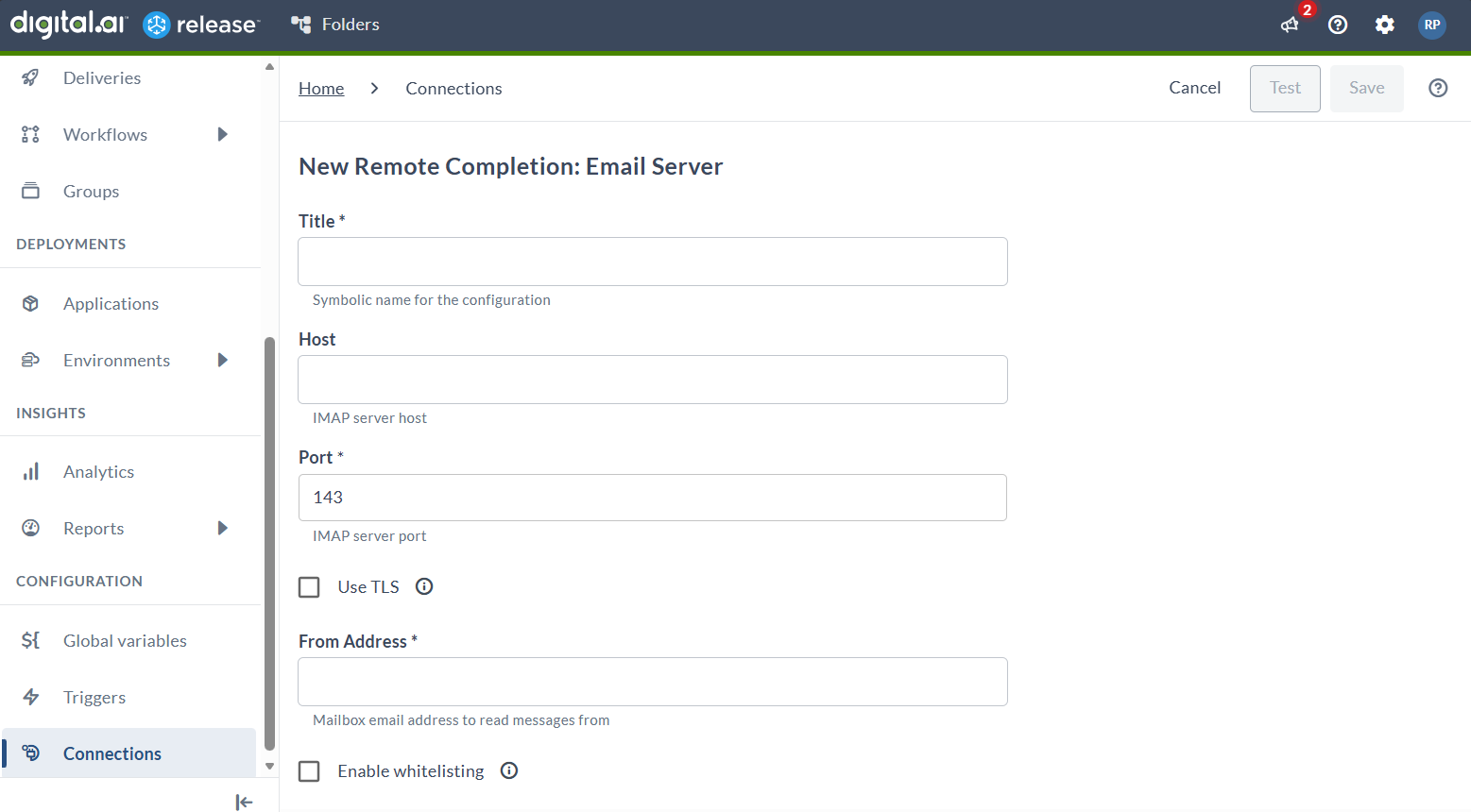
-
Choose the authentication method:
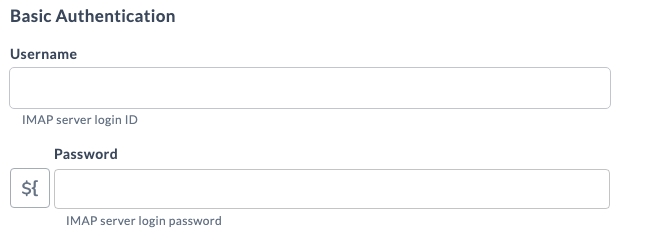
Basic Authentication
Username and Password fields: Specify the login credentials.
OAuth2 Authentication
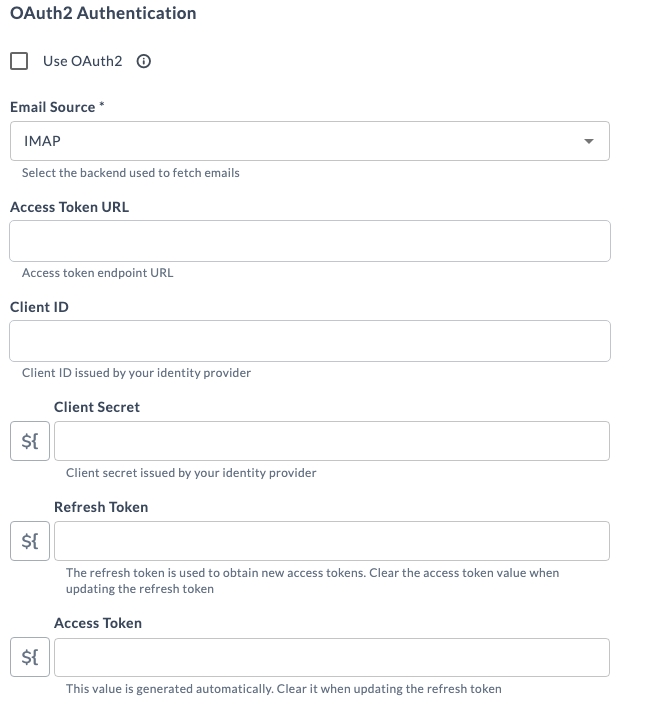
To configure OAuth2:
- Check the Use OAuth2 box.
- Enter the following details:
Field Description Access Token URL OAuth2 token endpoint. Client ID Client identifier issued during application registration. Client Secret Client secret issued during application registration. Refresh Token Token used to generate new access tokens. Access Token Do not enter the value. It is auto-generated. Clear the value when updating the above refresh token. Permissions RequiredThe plugin requires the following permissions to access and update mailbox data via OAuth option:
- Microsoft IMAP -
IMAP.AccessAsUser.Allandoffline_access. - Microsoft Graph -
Mail.ReadWriteandoffline_access.
Advanced Configuration Settings
Advanced configuration settings can be specified inside the XL_RELEASE_SERVER_HOME/conf/xl-release.conf file. The advanced configuration is used by the email fetcher which processes incoming remote completion emails.
xl {
  remote-completion {
    sync-interval = 30 seconds
    startup-delay = 30 seconds
  }
}
sync-interval: specifies the interval time for the email fetcher. The default value is 30 seconds.startup-delay: specifies the initial startup delay of the mail fetcher. The default value is 30 seconds.
Mailbox Auditing
Mailbox auditing can be enabled to log mailbox access by mailbox owners, delegates, and administrators. Contact your mailbox provider to set up mailbox auditing.
Troubleshooting
This section describes how to troubleshoot issues with the Remote Completion plugin.
Release Server
The Release server provides a mechanism for logging the application. By default, only the basic remote completion process is logged.
To enable detailed logging, you can add the following line into the XL_RELEASE_SERVER_HOME/conf/logback.xml file:
<logger name="com.xebialabs.xlrelease.plugins.remotecompletion" level="debug" />
Use the log level trace for more detailed logging.
JavaMail Debugging
A server restart is required after making these configuration changes.
To turn on session debugging, add the following system property to the $JAVACMD inside the shell script that runs the Release server, located in bin\run.sh:
-Dmail.debug=true
Alternatively, to turn on session debugging, set the following flag to true in xlr-wrapper-linux.conf or xlr-wrapper-win.conf for Linux and Windows respectively.
wrapper.java.additional.<INDEX-NUMBER-HERE>=-Dmail.debug=true
This property enables printing of debugging information to the console, including a protocol trace.
Connection Pool
This configuration applies only when using IMAP as the email source.
The remote completion plugin uses a mail server connection pool to reuse the connections. The pool's default size is 1. In order to make mail processing parallel, consider increasing the pool size by setting the following flag (with size 5, for example) in xlr-wrapper-linux.conf or xlr-wrapper-win.conf for Linux and Windows respectively.
wrapper.java.additional.<INDEX-NUMBER-HERE>=-Dmail.imap.connectionpoolsize=5
Security Recommendations
The Release remote completion feature uses emails sent by users to complete or fail any task. These are the risks associated with this feature:
Spamming and Flooding Attacks
Release processes each incoming email for the configured mailbox. To avoid receiving thousands of emails that can flood your mailbox, you can enable whitelisting. Only emails sent to and received from whitelisted domains are processed for remote completion. Use content filters, enable DNS-based blacklists (DNSBL), enable Spam URI Real-time Block Lists (SURBL), and maintain the local blacklists of IP addresses of spam senders. Configure the email relay parameter on the email server to prevent open relay.
Data Leakage
Release sends and receives email from a task owner to take action on any task. To prevent any data leakage during this process, you must encrypt IMAP and SMTP protocols with SSL/TLS and set up SMTP authentication to control user access.
DoS and DDoS Attacks
To avoid DoS and DDoS attacks, limit the number of connection and authentication errors with your SMTP server.
Email Abuse Attack
The majority of the abusive email messages carry fake sender addresses. Activate Sender Policy Framework (SPF) to prevent spoofed sources. The SPF check ensures that the sending Message Transfer Agent (MTA) is allowed to send emails on behalf of the senders domain name. You must also activate Reverse DNS to block fake senders. After the Reverse DNS Lookup is activated, your SMTP verifies that the senders IP address matches both the host and domain names that were submitted by the SMTP client in the EHLO/HELO command.