Octopus Deploy Plugin
Integrate Octopus Deploy with Release to manage deployments within your release pipelines. The plugin enables you to create releases and trigger deployments directly from the Release platform.
Supported Task Types
- Octopus: Create Release
- Octopus: Deploy
The following legacy task types are included for backward compatibility but are deprecated. Their functionality is now part of the main tasks above:
- Octopus: Get Environment Id
- Octopus: Get Project Id
- Octopus: Get Project Package Information
- Octopus: Get Project Version
New in Release 23.1
Abort task logic is now supported in the Octopus Deploy plugin.
Features
- Create a release in Octopus Deploy
- Trigger a deployment in Octopus Deploy
Requirements
Release 10.0.x or later
Install the Plugin
- Download the latest JAR from the Deploy/Release Distribution Site.
- Copy the JAR to the
XL_RELEASE_SERVER/plugins/xlr-officialdirectory. - Restart the Release server.
Connect Release with the Octopus Server
-
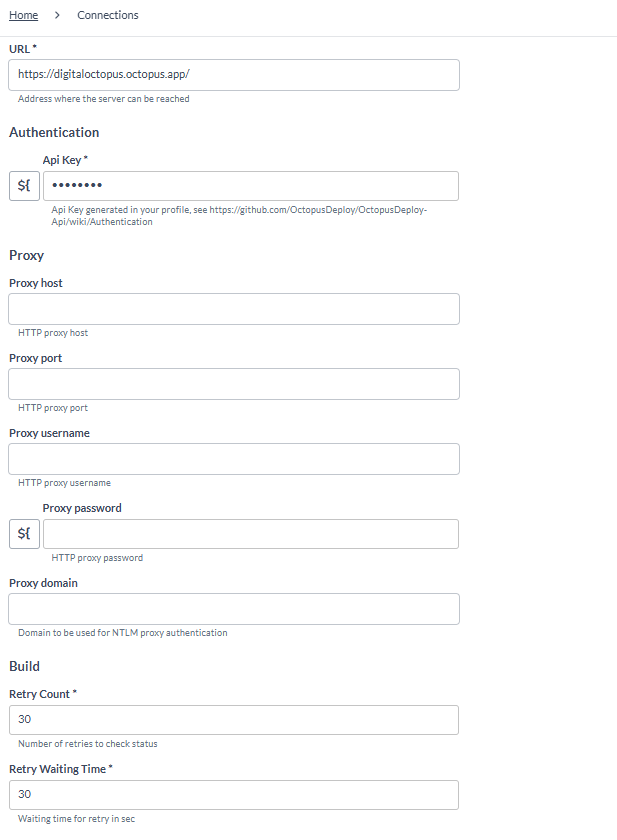
In Release, go to Connections under the CONFIGURATION section.
-
Add a new connection of type Octopus:server.
-
Enter the Title, API URL, and API Key.
-
Test the server connection.
-
(Optional) Set Retry Count and Retry Waiting Time for build setup.
Creating a Release
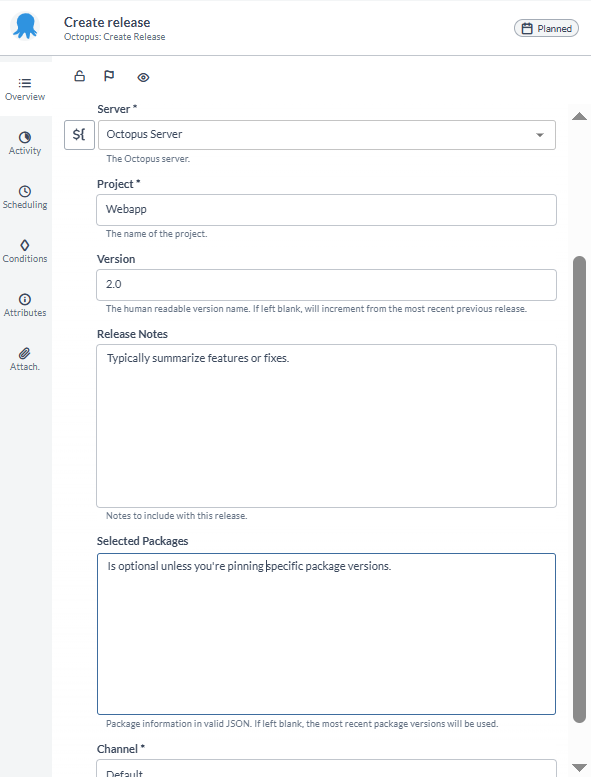
Use the Octopus: Create Release task to:
-
Specify the project name and Octopus channel.
-
Enter a version name, or leave blank to auto-increment.
-
(Optional) Provide package version details in JSON, or leave blank for latest.
-
(For version-controlled projects) Specify a Git Reference (branch, tag, or commit).
Triggering a Deployment
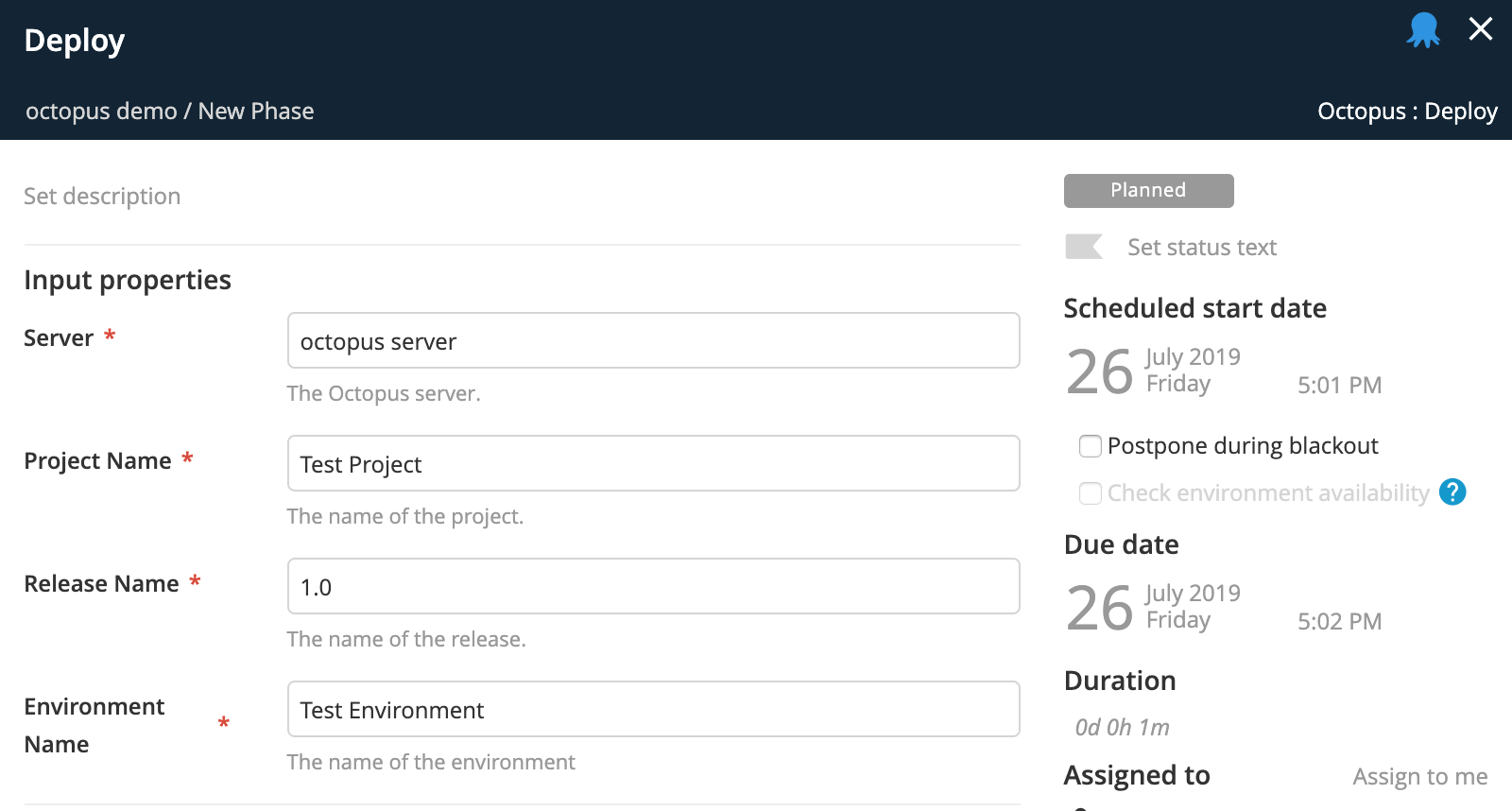
Use the Octopus: Deploy task to:
-
Specify the project and release to deploy.
-
Select the target environment.
Deprecated Tasks
These tasks are retained for legacy support. For new integrations, use the main tasks above.
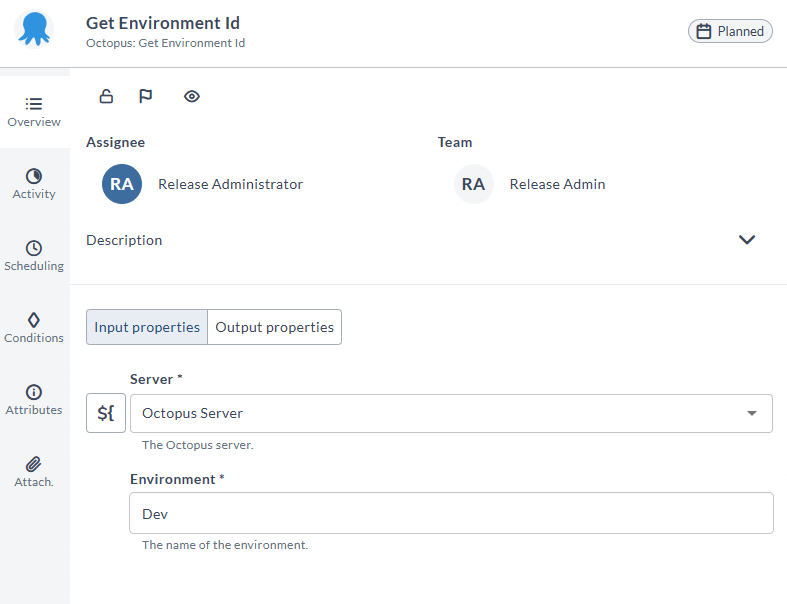
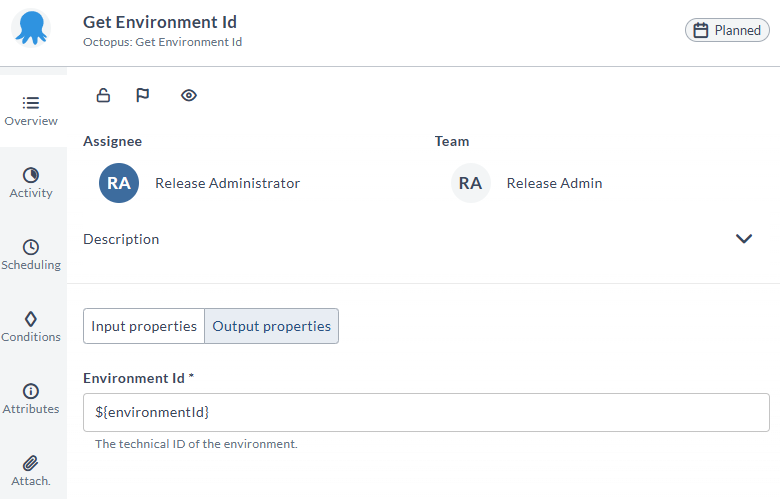
Get Environment ID
Retrieve the technical environment ID by providing the environment name.
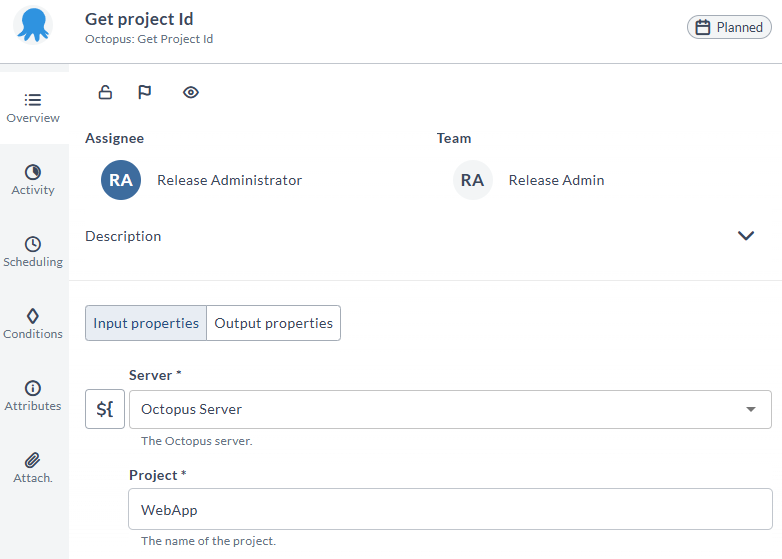
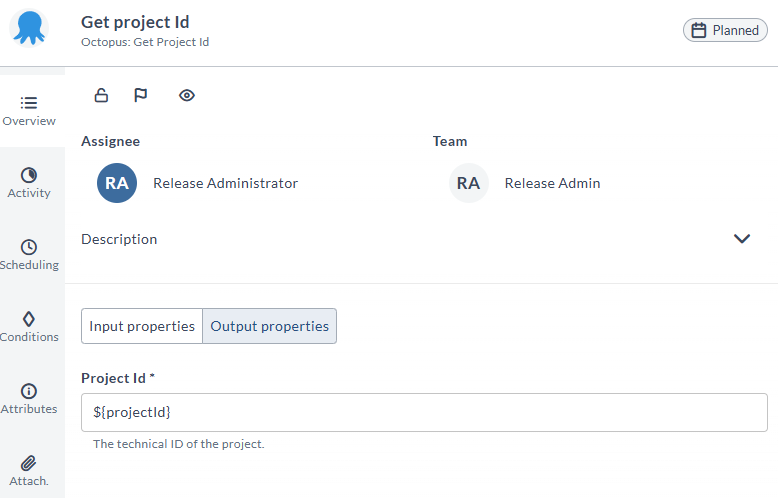
Get Project ID
Retrieve the technical project ID by providing the project name.
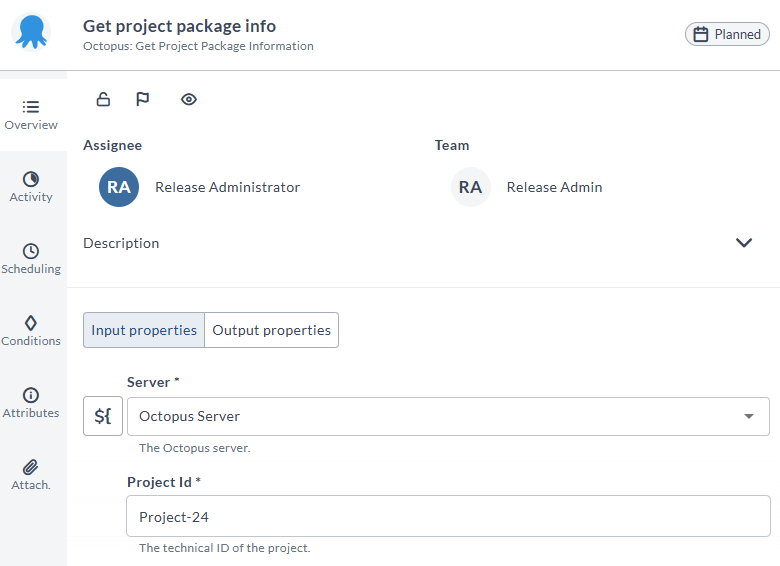
Get Project Package Information
Retrieve package version information using the project ID.

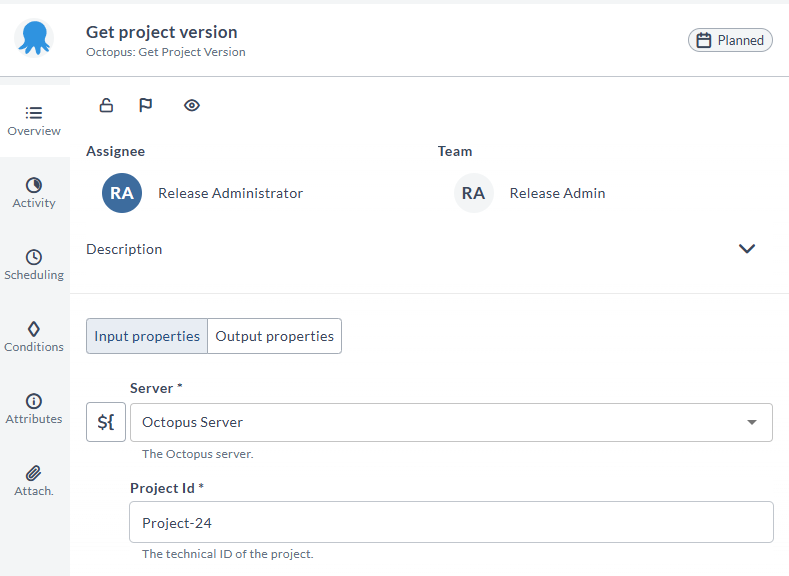
Get Project Version
Retrieve the previous version of a project using the project ID.

Auto Generate Lifecycle
Retrieve all life cycles for a project.
Get Project Details
Retrieve relevant IDs from a project.