Run the Docker containers with Docker Compose
This topic guides you to run the Docker containers with Docker Compose for Digital.ai Deploy.
- To run the Docker image with Digital.ai Deploy, see Docker images for Deploy
Version-specific Docker images for Digital.ai Deploy are published to Docker Hub:
Prerequisites
Before you start, ensure you have the following:
- Docker installed on your machine. You can download it from Docker's official website.
- Docker Compose installed. Follow the instructions on Docker Compose installation.
Run the Container Using the docker-compose.yaml File
To start Digital.ai Deploy with a persistent setup:
-
Download the Docker Compose file using the following command:
curl https://raw.githubusercontent.com/xebialabs/xl-docker-images/master/docker-compose-example/docker-compose.yaml > docker-compose.yaml -
Open the
docker-compose.yamlfile and change the ADMIN_PASSWORD to a secure password. -
Run the file with Docker Compose:
docker-compose up -d -
Access Deploy at
http://localhost:4516/.
You can now remove the passwords from the docker-compose.yaml file.
You must provide a valid license before you can log in. Browse to the URL above and paste the license for Digital.ai Deploy. If you do not have a license yet, apply for a Deploy trial license on the Digital.ai website.
Set up Digital.ai Deploy using Docker Compose
If you want to use Digital.ai Deploy with Docker Compose, you can use the following example configuration. This allows you to start the container and move all command-line options into a file.
-
Create a file called
docker-compose.yamland copy the following contents inside:xld:image: xebialabs/xl-deploy:24.1.0container_name: xldports:- "4516:4516" -
If you want to enable caching and configure an external cache server like Infinispan, add the following sections to the
docker-compose.yamlfile: Note: We have used Infinispan as the example for this section.
-
image: name of the Docker image of caching provider
-
networks: Name of the network that contains all container services.
-
ports: Port number for the caching server.
-
environment: User name and password for the caching server.
infinispan: image: infinispan/server networks: xld-network ports: "11222:11222" environment: USER: admin PASS: admin Download the necessary JAR files and the cache provider property files and add this information to mount them on to the master and worker nodes:
volumes:
- $PWD/xl-deploy-server/conf/infinispan-hotrod.properties: /op/xebialabs/xl-deploy-server/conf/infinispan-hotrod.properties
- $PWD/xl-deploy-server/conf/hotfix/lib: /op/xebialabs/xl-deploy-server/conf/hotfix/lib:z
-
Start the container with this single command:
docker-compose up -d -
Both containers will start and the password can be viewed using these commands:
docker logs xld -
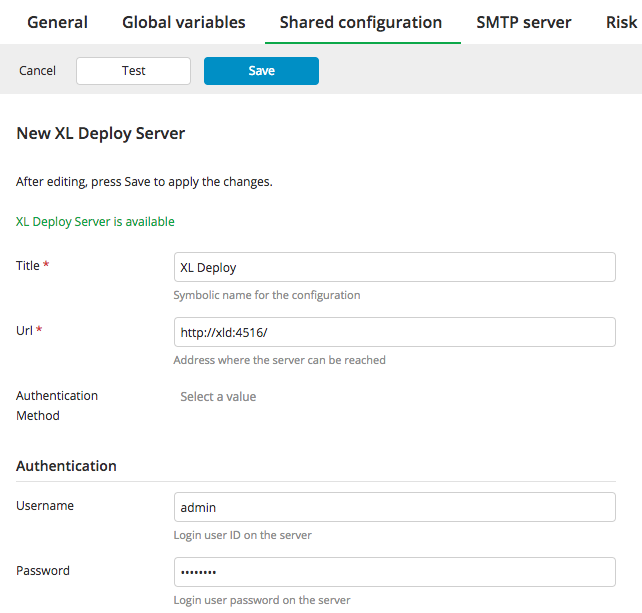
Log in to Digital.ai Release with the admin password. You can configure the Digital.ai Deploy server under Settings > Shared Configuration. Use the following settings:
You can run multiple Deploy containers by modifying the docker-compose.yaml file as needed.