Email Notifications for OKRs
Receive automated email notifications to stay informed about objective assignments, updates, comments, and upcoming session deadlines. Digital.ai OKRs sends timely notifications to keep teams aligned and ensure accountability.
Notification Types
Digital.ai OKRs supports the following email notification scenarios:
Assignment and Update Notifications
Receive notifications when objectives are assigned to you or when progress is updated:
- Objective Assignment: When someone shares an objective with you as an owner, you receive an email notification immediately.
- Comment Notifications: When comments are added to objectives you own or are shared on, you receive instant notifications.
- Key Result Create/Updates: When key results are created or updated and objective progress changes, all owners receive notifications.
- Progress Updates: When the overall progress percentage of an objective changes, shared owners are notified.
Session Deadline Reminders
Administrators can configure automated reminder emails for OKR sessions to prompt users to review and update their objectives. These reminders help ensure timely progress tracking and objective completion.
Objective Assignment Notifications
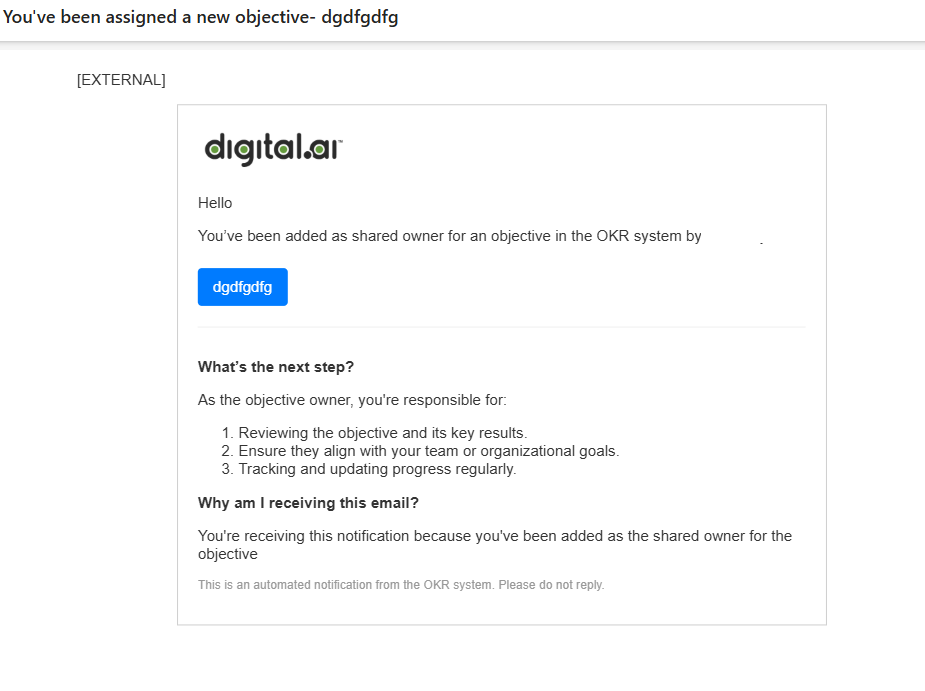
When someone shares an objective with you as a co-owner, you receive an email notification immediately.
Email Contents
The assignment notification includes:
- Objective title and description: Clear identification of the assigned objective
- Owner information: Who created and shared the objective
- Next steps: Guidance on actions to take, such as reviewing the objective, adding key results, or tracking progress
- Direct link: One-click access to view the objective in Digital.ai OKRs
Access Shared Objectives
- Open the email notification you received.
- Click View objective or the direct link provided in the email.
- The objective details page opens in Digital.ai OKRs, displaying:
- Objective description and owner
- Session assignment
- Shared access details showing all co-owners
- Key results and progress tracking
- Comments and activity history
Comment and Update Notifications
Stay informed when team members add comments or update objectives you're involved with.
Comment Notifications
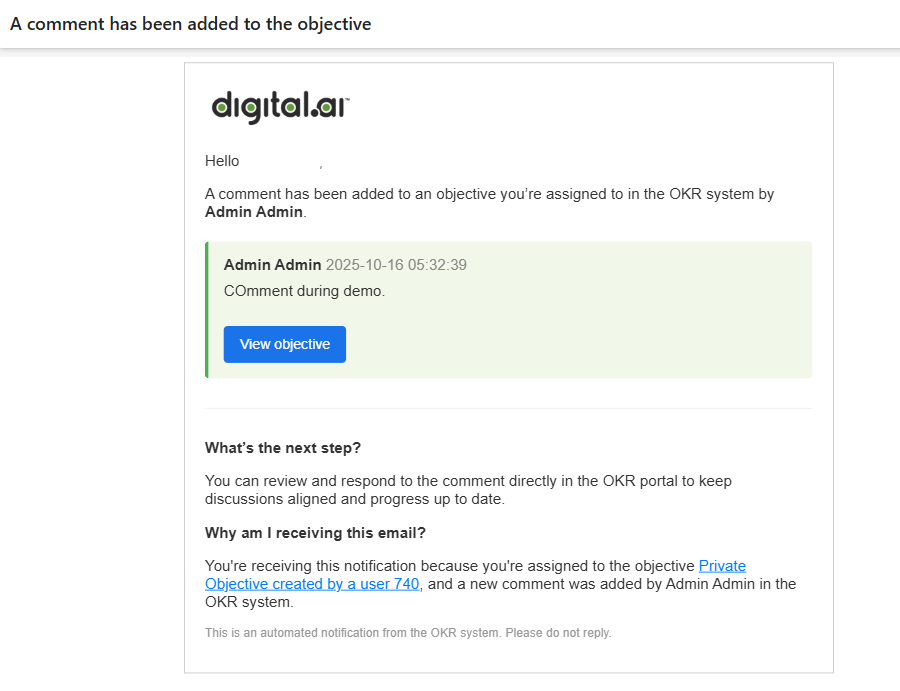
When someone adds a comment to an objective you own or are shared on:
- You receive an immediate email notification.
- The email displays:
- The commenter's name and timestamp
- The comment text
- Direct link to view the comment in context
Key Result Create/Update Notifications
When key results are created or updated and the objective progress changes:
- All shared owners receive email notifications.
- The notification indicates:
- Which key result was created or updated
- The new progress value
- Overall objective progress percentage
- Link to review the updated objective
Note: Email templates for key result updates are being finalized. You will receive notifications when progress changes, with complete details about the updates.
Configure Session Reminder Notifications
Administrators can set up automated reminder emails for OKR sessions to prompt users to review pending objectives. These reminders are sent to all users who have objectives in "Not Started" or "In Progress" status within the session.
Set Up Session Reminders
- Click the hamburger icon
 > OKRs > Sessions.
 - Select the session you want to configure or create a new session.
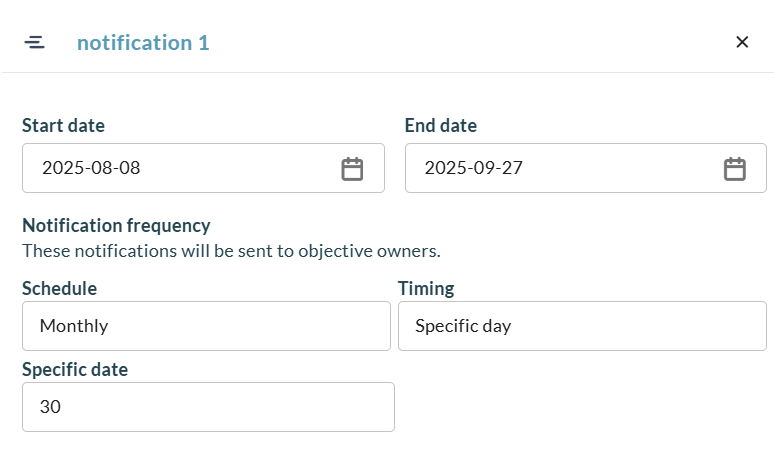
- In the session configuration dialog, locate the Notification frequency section.
-
Configure the reminder schedule:
- Schedule: Choose the frequency (Weekly, Biweekly, or Monthly)
- Timing: Select when reminders are sent
- Weekly: Choose the specific day of the week
- Biweekly: Choose the specific day every two weeks
- Monthly: Choose "First day," "Last day," or "Specific date"
- Specific date: If you selected "Specific date" for monthly, enter the day of the month (for example, 20 for the 20th of each month)
-
Click Save.
When Reminders Are Sent
- Time: All session reminder emails are sent at 9:00 AM UTC on the configured day
- Recipients: All users who own objectives in the session that are in "Not Started" or "In Progress" status
- Frequency: Based on your configuration (weekly, biweekly, or monthly)
Note: The session configuration page displays a message indicating that notifications will be sent at 9:00 AM UTC based on your schedule settings.
Session Reminder Email Contents
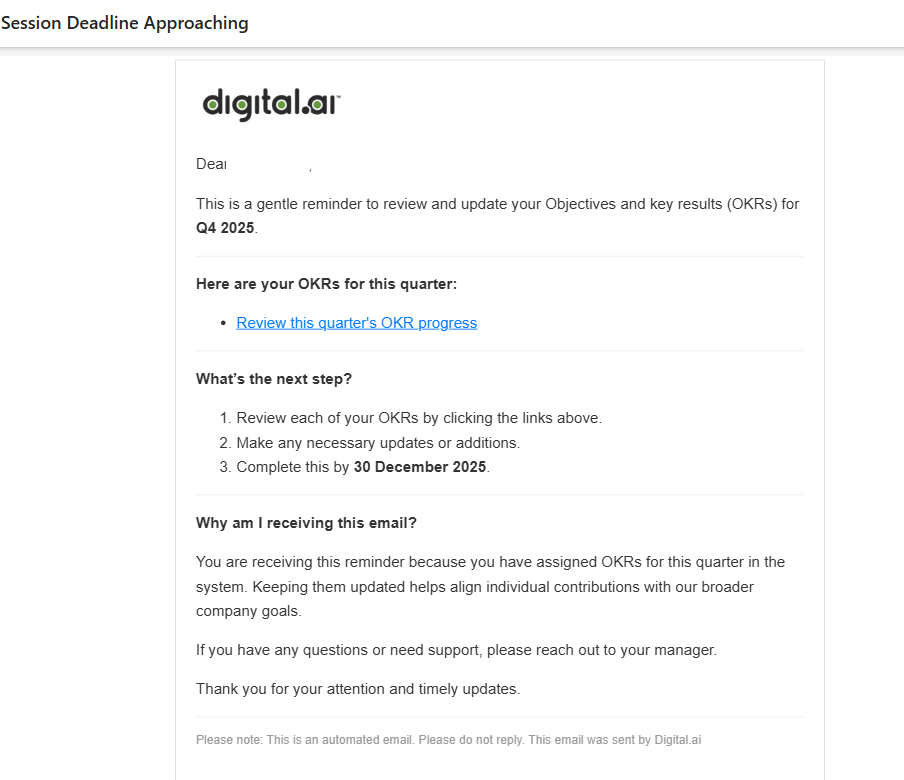
Users receive automated reminder emails based on the session configuration.
Email Information
The session reminder email includes:
- Session name and dates: Clear identification of the quarter or period
- Session end date: Deadline information to create urgency
- Action link: "Review this quarter's OKR progress" button that opens a filtered view
- Next steps: Guidance on reviewing objectives and updating progress
Access Objectives from Reminder
- Open the session reminder email.
- Click Review this quarter's OKR progress or the provided link.
- The OKRs page opens with an automatic filter applied, showing:
- All objectives for the specific session
- Only objectives in "Not Started" or "In Progress" status
- Your objectives requiring review and updates
This filtered view helps you focus on pending work and take action on objectives approaching their deadlines.
Notification Best Practices
- Check emails regularly: Assignment and update notifications are sent immediately when actions occur
- Act on session reminders promptly: Reminders are sent at scheduled intervals to ensure timely progress updates
- Update progress frequently: Regular updates reduce the number of reminder emails team members receive
- Configure appropriate reminder frequency: Choose weekly reminders for fast-paced quarters or monthly for longer-term objectives
- Use comments for collaboration: Comments trigger notifications to keep all shared owners informed
- Review filtered views: Use the filtered OKR view from reminder emails to efficiently update multiple objectives
Tips
- Notifications are sent for objectives where you are listed as an owner or shared owner
- Session reminders only include objectives in active status (Not Started or In Progress), not completed objectives
- Configure session reminder frequency based on your team's cadence and review cycles
- Use the "Shared Access With" field to ensure the right people receive notifications for each objective
- Click links in notification emails to go directly to the relevant objective or filtered view
- Session reminder timing (9:00 AM UTC) ensures global teams receive notifications at the start of their business day
Related Topics
- How to Share OKRs with Other Users - Grant specific users access to objectives
- Sessions in OKRs - Understand OKR sessions and time-based planning
- Adding a Session - Create new OKR sessions with date ranges
- Adding New OKRs - Create objectives and key results
- Managing OKRs Visibility Options - Control who can view and edit objectives