View Test Results in Test Reporter
Overview
After executing tests with Smart Agent, you can analyze results in the Test Reporter UI. This walkthrough guides you through filtering, analyzing failures, and debugging using real execution data.
Scenario
You executed a test run with:
Test Execution Results
| Build ID | Run ID | Test Case ID | Test Name | Status | Retry | Last Error |
|---|---|---|---|---|---|---|
1234 | run-001 | TC-101 | iOSNativeLoginTest | Failed | 2 | Element not found |
1234 | run-001 | TC-102 | iOSBankPaymentTest | Passed | 0 | — |
1: Open Test Reporter
-
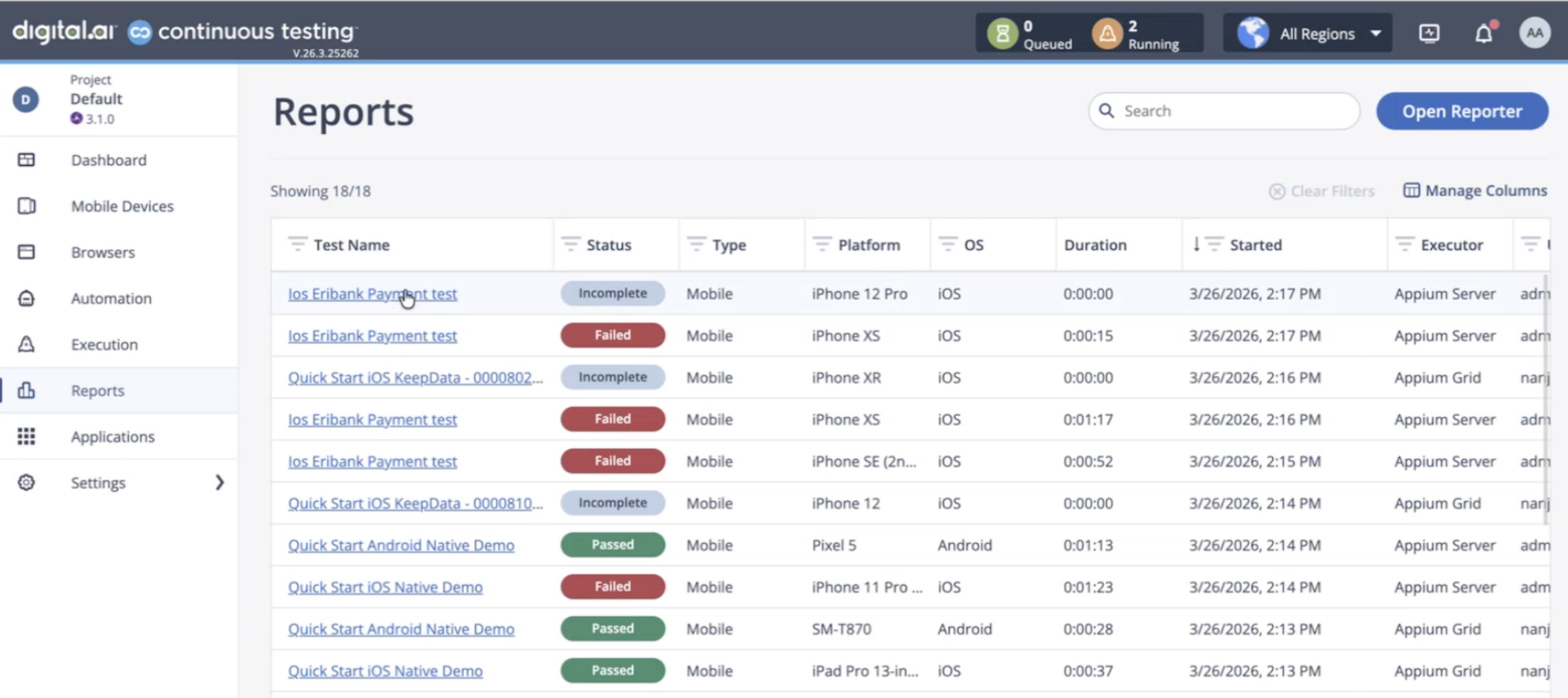
In the Digital.ai Testing cloud, navigate to the Reports page.
This page shows all executions across users and projects.
2: Filter by Build ID
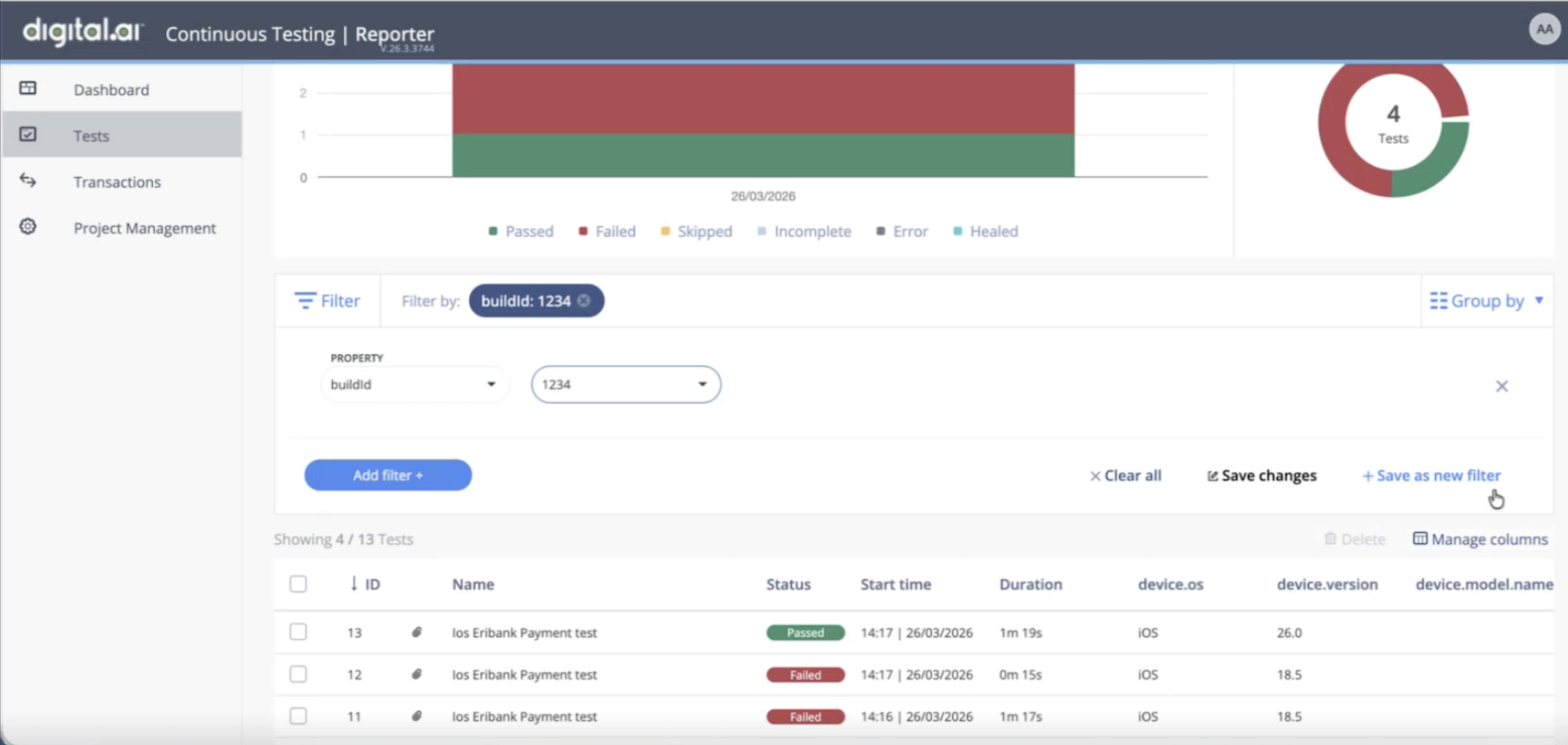
- Click the filter option and type Build ID and press enter:
- Apply the filter to narrow down results.
Result
Displays only tests executed as part of this specific run.
3: Review Test Results
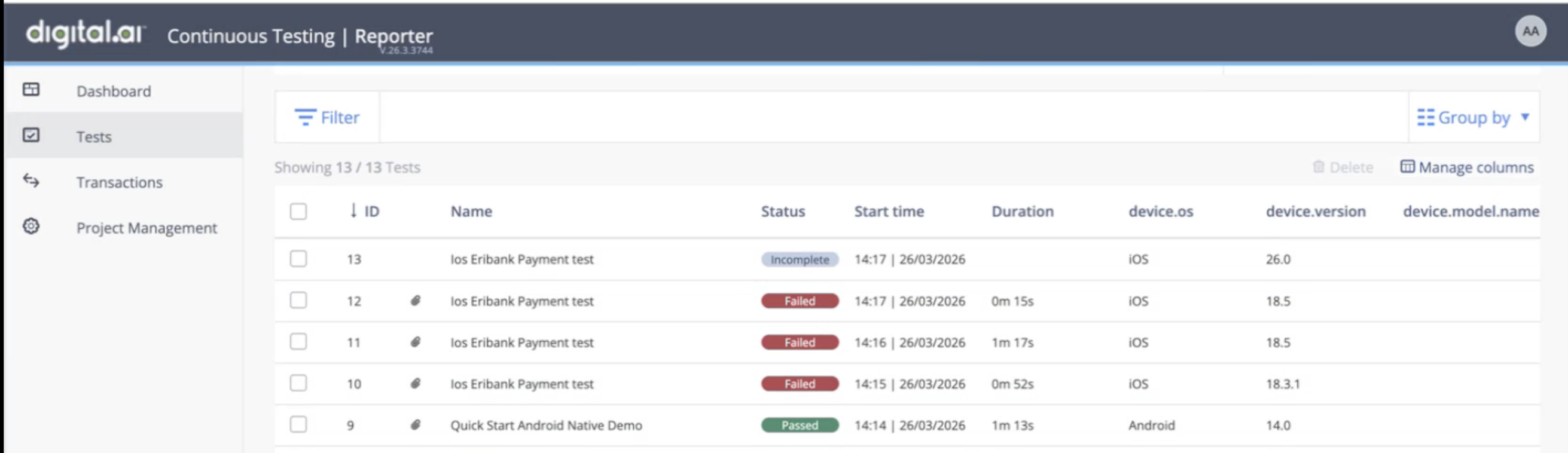
You will now see filtered results:
iOSNativeLoginTest(Failed)iOSBankPaymentTest(Passed)
4: Analyze a Failed Test
- Click on the failed test to open detailed results.
Example Failure
- Error: Element not found
What this means:
The test could not locate a UI element—likely a locator or UI issue.
5: Check Retry Attempts
Scroll to view retry attempts for the failed test.
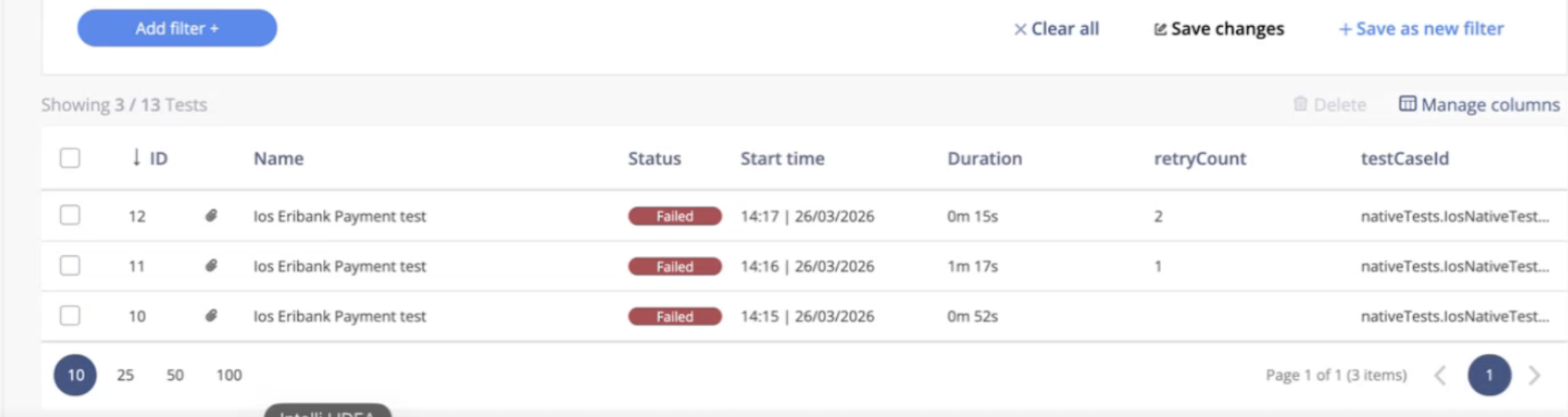
You may see:
- Attempt 1 → Failed
- Attempt 2 → Failed
- Attempt 3 → Failed
Insight:
If all retries fail, the issue is likely not flaky and requires fixing.
6: Filter by Test Case ID
To analyze test history:
- Copy the Test Case ID
- Apply the filter
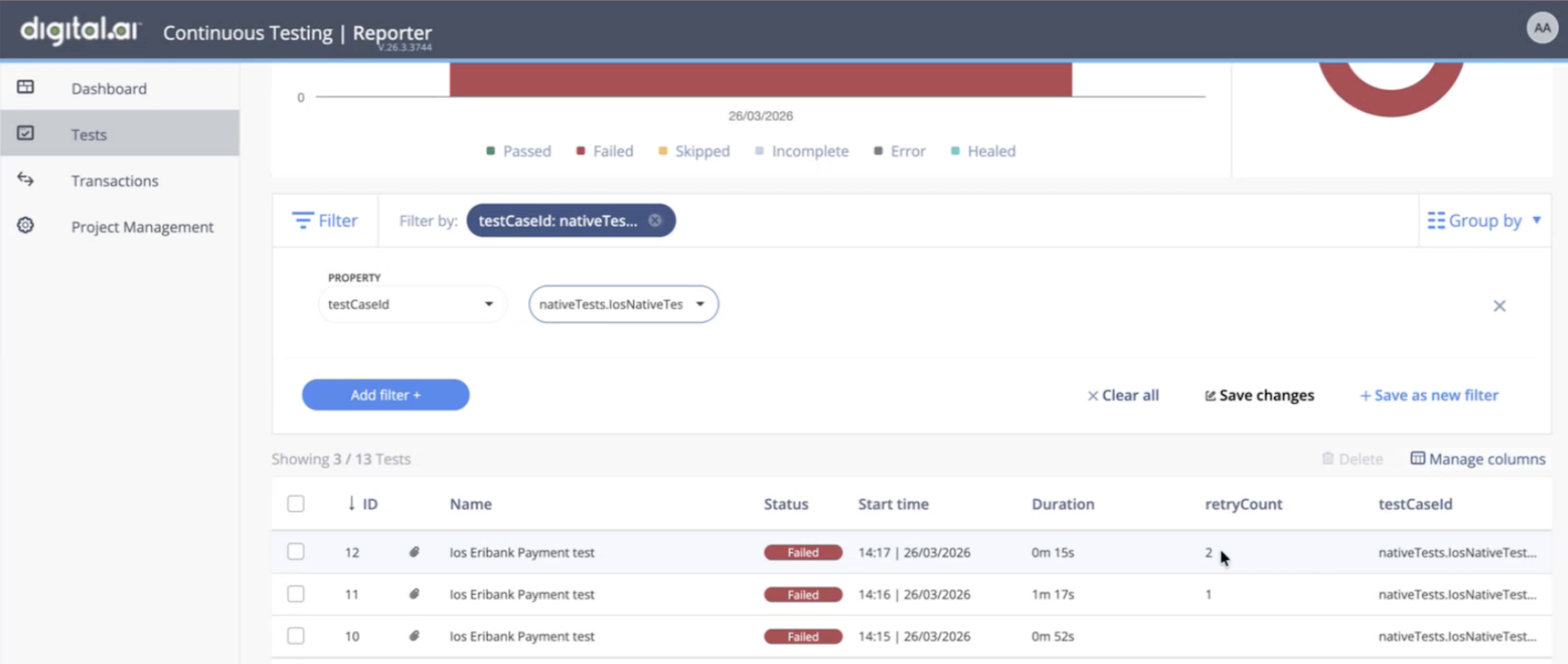
What you learn:
- Past executions
- Stability trends
- Flaky behavior
7: Filter by Run ID (Advanced)
If multiple agents are used:
- Locate Run ID filter
- Select a Run ID
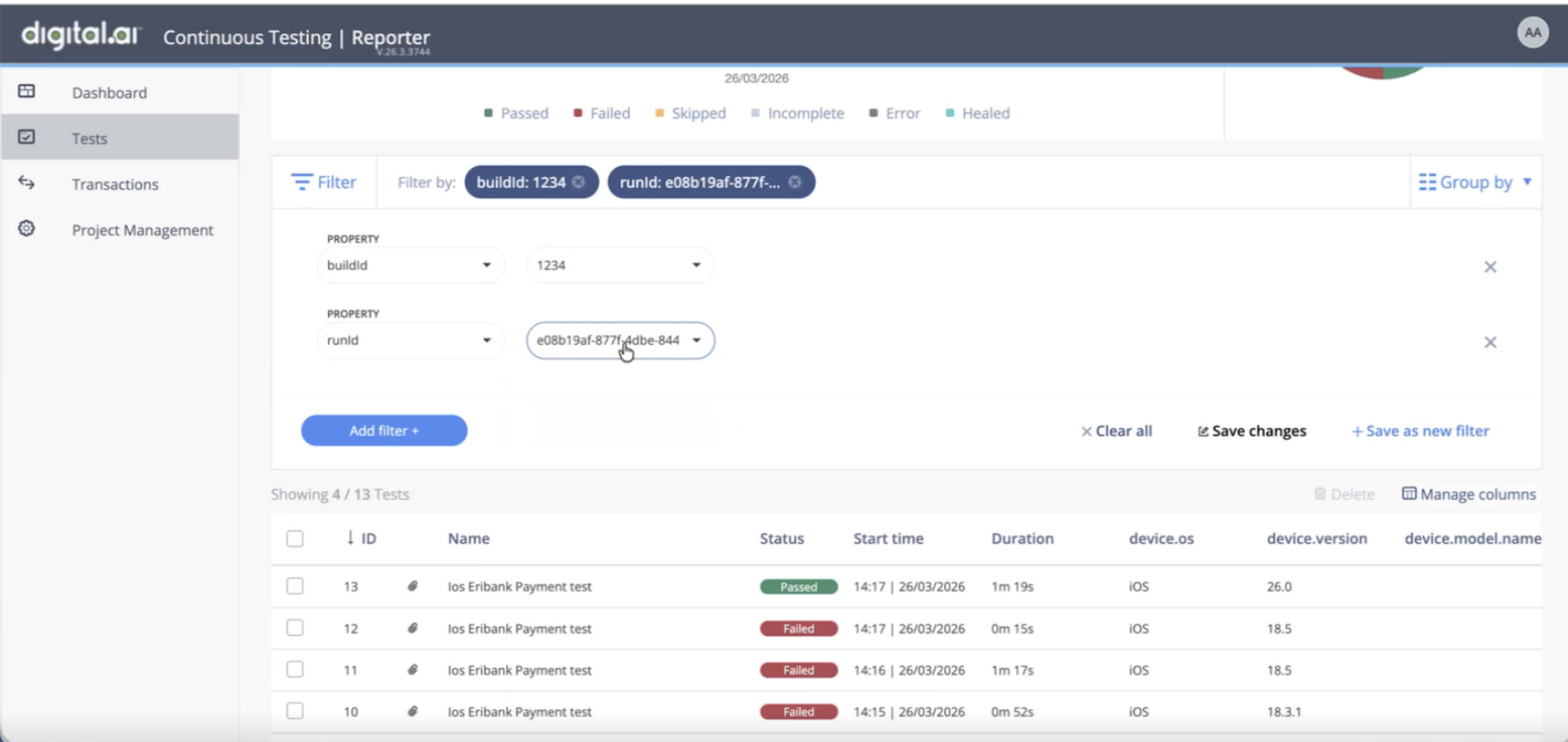
Use case:
Isolate results from a specific Smart Agent execution.
8: Debug Using Logs
- Open logs for the failed test.
- Review execution flow, retry attempts, and failure reasons.
Goal: Identify the root cause quickly.
End-to-End Flow
- Execute: Trigger tests using the Smart Agent.
- Trace: Use the build.id to isolate the specific execution in the Cloud Reporter.
- Analyze: Identify failures and investigate logs or video recordings for root cause analysis.
- Validate: Review automated retries to distinguish between environmental flakiness and genuine code defects.
- Optimize: Debug the script or environment, apply the fix, and re-run the targeted tests to confirm resolution.