Using the Deployment Pipeline
A deployment pipeline represents the sequence of environments that an application passes through during its lifecycle. The pipeline view lets you:
- See which version of an application is deployed to each environment.
- Review the most recent deployment details per environment.
- Deploy, upgrade, or promote a version from one environment to the next.
Prerequisites
Before you can use a deployment pipeline, you must configure one and associate it with your application. See Create a deployment pipeline for step-by-step instructions.
Every application shows a Deployment pipeline option in its context menu, but selecting it will display a notification if no pipeline has been configured yet.
Viewing the deployment pipeline
To open the deployment pipeline for an application:
- Expand Applications in the left pane.
- Hover over the application, click
 , and select Deployment pipeline.
A new tab opens in the right pane showing each environment in the pipeline.
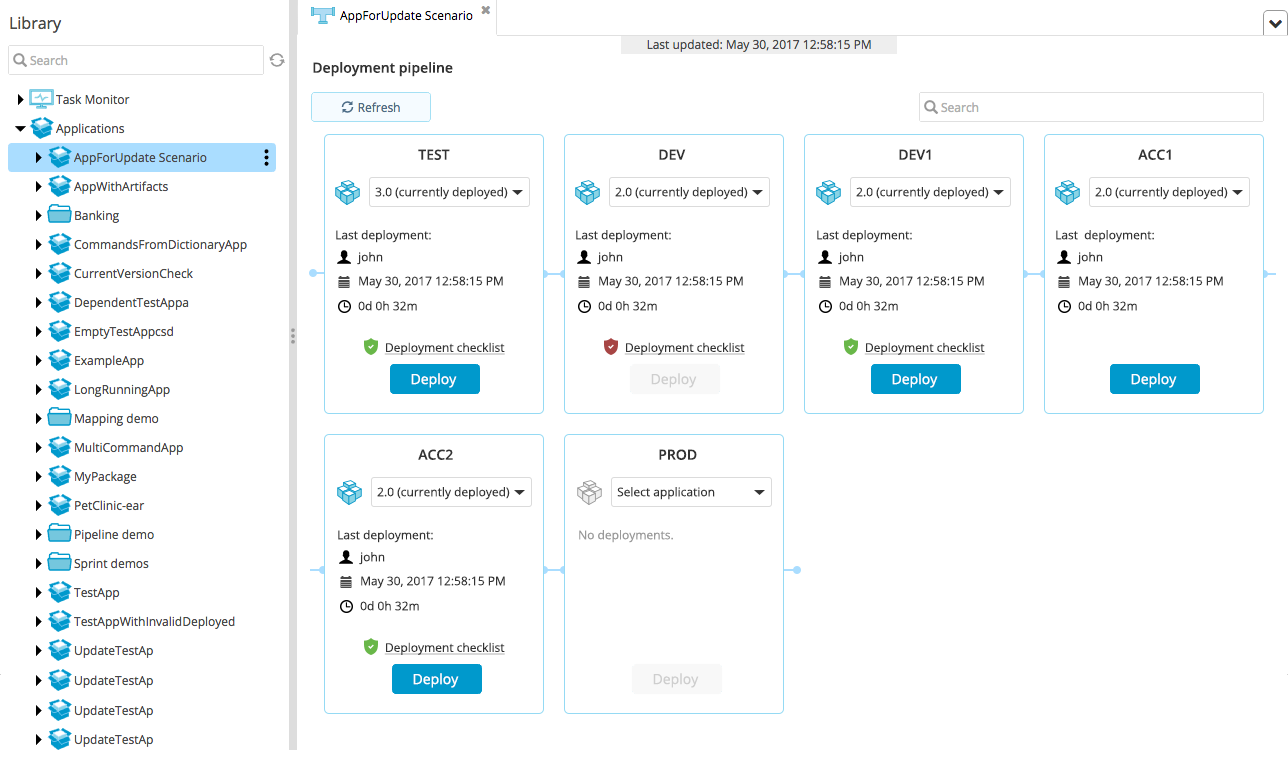
- You can also open the pipeline from a specific deployment or provisioning package using the same context menu.
- Double-click an application to see a read-only version of the pipeline on the summary screen.
- Use the search bar to filter environments by name.
- Click Refresh to retrieve the latest data from the server.
Understanding environment details
Each environment card in the pipeline displays the following information:
| Detail | Description |
|---|---|
| Version selector | A drop-down list of all available deployment or provisioning package versions for the application. |
| Last deployment | Details of the most recent deployment to this environment. |
| Deployment checklist | A link to the checklist items that must be satisfied before deploying to this environment. |
| Deploy button | Initiates a deployment (upgrade or downgrade) of the selected version to this environment. |
Deployment checklists
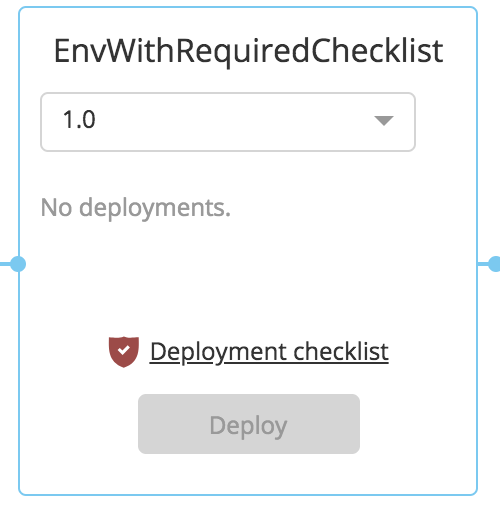
When you select a package from the version drop-down, Deploy automatically checks whether a deployment checklist exists for that package and environment. If a checklist is configured:
- Click Deployment checklist to view and update the checklist items.
- The Deploy button is enabled only after all checklist items are satisfied.
- A checklist link in red indicates that outstanding items remain. Click it to complete the required items. Once all items are satisfied, the link turns green and deployment is allowed.
Deploying and promoting versions
From the pipeline view, you can deploy a specific version to an environment or promote an already-deployed version to the next environment in the pipeline.
Deploy a version to an environment
- In the environment card, select the desired version from the drop-down list.
- Click Deploy and follow the on-screen instructions.
Promote a version to the next environment
If a version is already deployed to an environment and the next environment in the pipeline is empty, you can promote it:
- Click the arrow next to the Deploy button.
- Select Promote to next environment.
This opens the standard deployment screen with the version and target environment pre-selected.
Permissions and security
A user's permissions determine what they can see and do in the deployment pipeline:
| Permission | Capability |
|---|---|
repo#edit on the deployment package | Check off items on the deployment checklist. |
| Access to an environment | View that environment in the pipeline. Users only see environments they have access to. For example, a user with access to DEV and TEST will not see ACC or PROD in the pipeline. |
deploy#initial, deploy#upgrade | Initiate deployments from the pipeline. |
You can also restrict specific checklist items to certain roles. See Create a deployment checklist for details.