Agility Version 26.0 Point Release 1
Overview
Enhancements and bug fixes in Digital.ai Agility.
Enhancements
Digital.ai Agility
- Project Workspace usability improvements with select all, search, and always-visible checkboxes.
- Associate releases with portfolio items directly from the Asset Details page.
- Use a custom SAML attribute, such as SecID, for user identification during federated authentication.
Project Workspace Usability Improvements
The Project Tree workspace selector now includes enhanced usability features to simplify selecting and managing multiple workspaces.
Select All Workspaces
Use the Select all workspaces checkbox at the top of the Project Tree to quickly select all workspaces in your project hierarchy. This is particularly useful when you need to apply configuration changes across your entire organization or a large subset of projects.
Always-Visible Checkboxes
Workspace selection checkboxes are now always visible next to projects that contain workspaces. Previously, checkboxes only appeared on hover, making it difficult to identify which projects had workspaces and required selection. The persistent visibility helps you quickly scan the tree and select the workspaces you need.
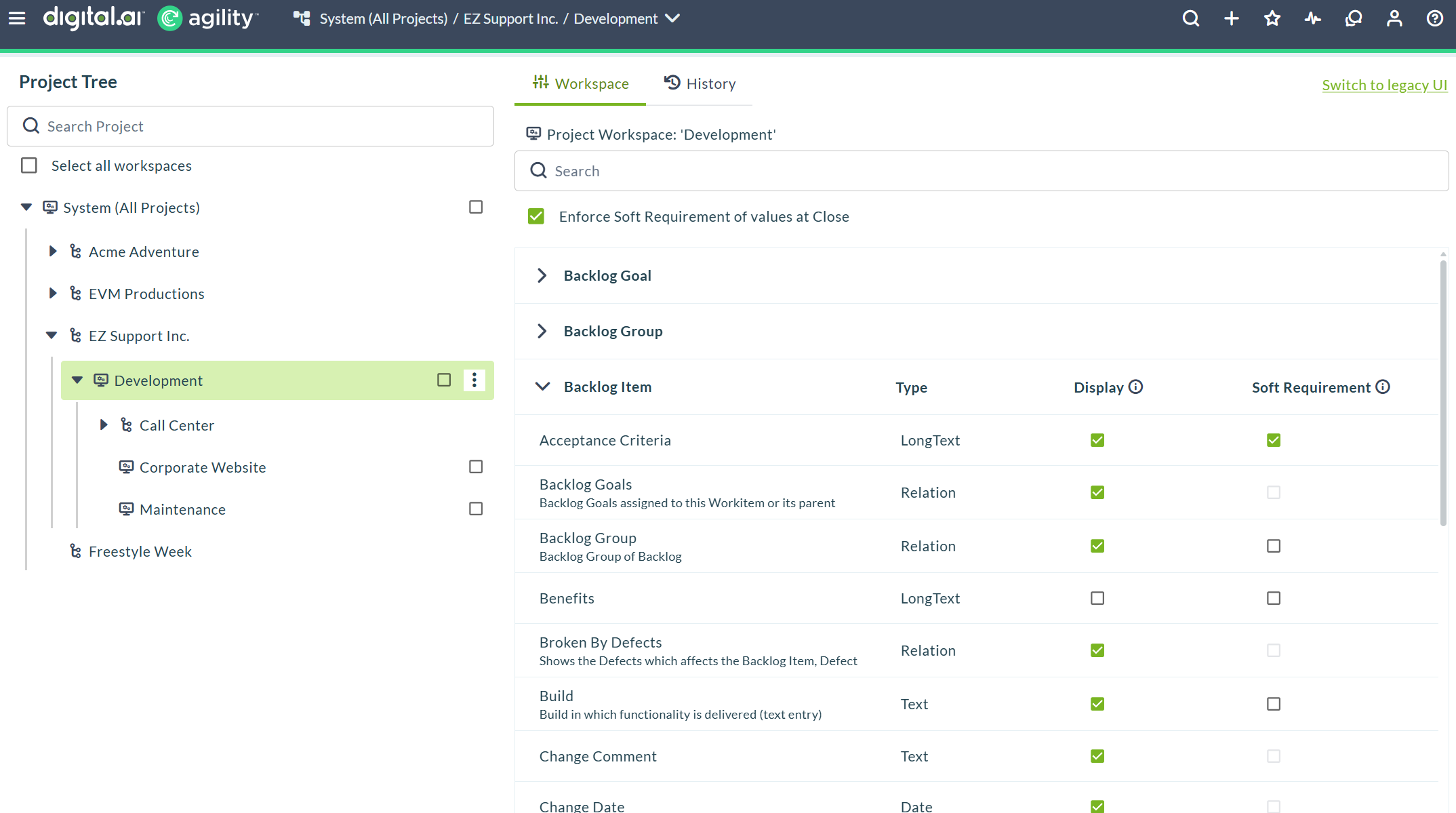
Search Projects
A search field at the top of the Project Tree lets you filter projects by name. Type any part of a project name to narrow the tree view and locate specific projects quickly, especially useful in large hierarchies with hundreds of nested planning levels.
These improvements address customer feedback about the difficulty of selecting multiple workspaces across complex project hierarchies and make workspace configuration tasks faster and more reliable.
Associate Portfolio Items with Releases
Portfolio items now include a Release field in the Asset Details page, allowing you to associate portfolio items with specific releases directly from the lightbox.
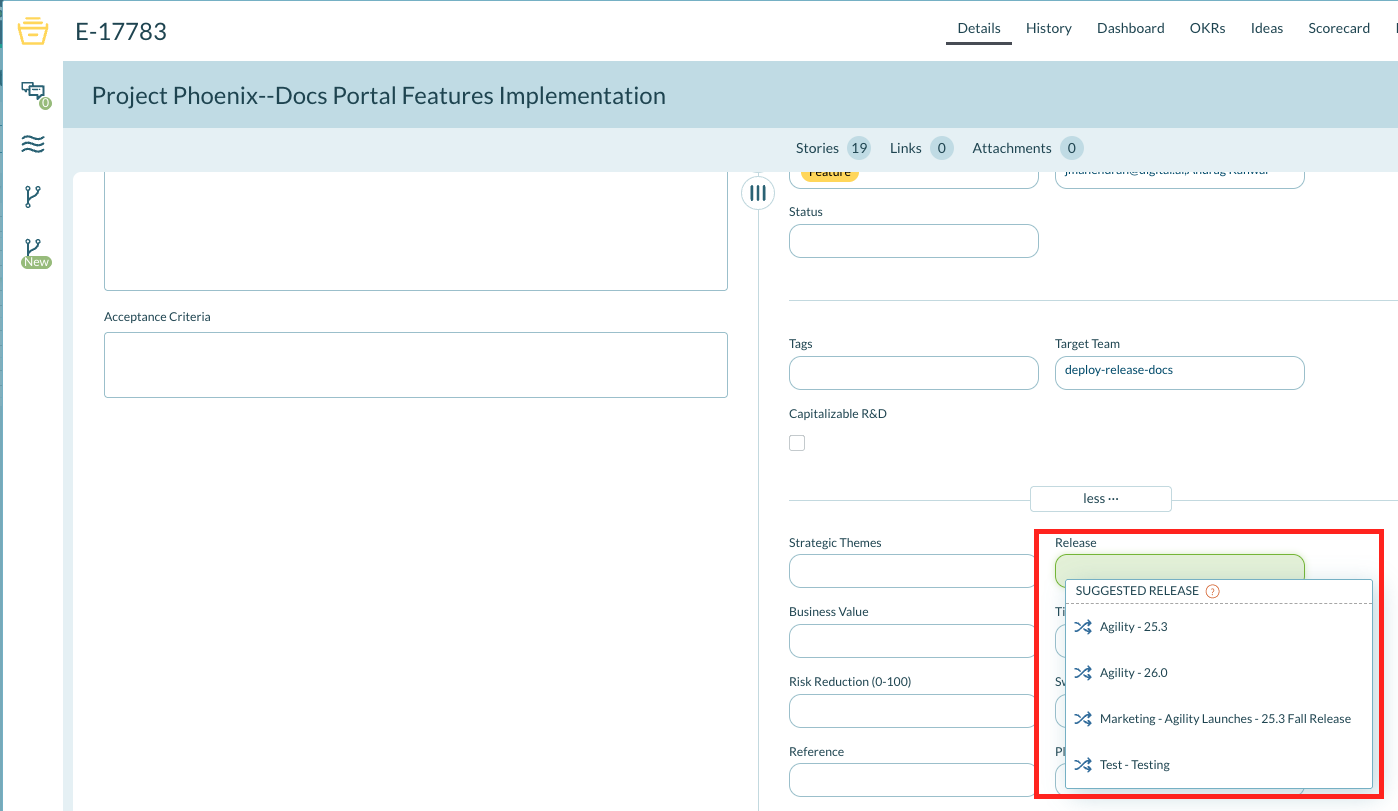
The Release field displays the full release path in the format: Value Stream - Release Name. For example, "Digital Experience Stream - ChocoWeek Q3 2025". You can edit the release assignment at any time using either:
- The Release field in the portfolio item lightbox
- The Release widget in the Asset Details page
You can also filter portfolio items by Portfolio Item Release directly from the portfolio item list page, making it easy to view all portfolio items associated with a specific release.
This enhancement makes it easier to plan and track portfolio items across releases without navigating to separate planning views.
Enhanced Federated Authentication SAML Attribute Support
You can now configure Agility to use a custom SAML attribute for user identification instead of the standard NameID. By default, Agility uses the NameIdentifier claim from the SAML payload, but with this enhancement, system administrators can specify a custom attribute—such as secId—to be used instead. The default NameID-based authentication remains available if no override is set. Enable this option through a configuration setting.
Example SAML Assertion
The following example shows a SAML assertion with a custom secid attribute:
<saml2:Assertion xmlns:saml2="urn:oasis:names:tc:SAML:2.0:assertion">
	<saml2:AttributeStatement>
		<saml2:Attribute Name="secid">
			<saml2:AttributeValue>1234567890</saml2:AttributeValue>
		</saml2:Attribute>
	</saml2:AttributeStatement>
</saml2:Assertion>
What You Can Do
- Configure Agility to use a custom SAML attribute (such as
secId) for user identification - Continue using the default NameIdentifier claim if no override is set
Requirements
- System administrator access to update SAML configuration
- SAML assertion must include the custom attribute with the required value
Release Planning
- Generate release notes automatically with Sage AI-powered assistance
AI-Powered Release Notes Generation
Sage now includes a Release Notes Generation quick action that automatically generates release notes for your releases. This AI-powered feature analyzes the stories and defects associated with a release and creates comprehensive release notes including new features, enhancements, critical fixes, and technical updates.
Available for editions supporting Sage.
How to Generate Release Notes:
- Navigate to Release Planning Board > select your Value Stream > click on a release name to open the release details drawer.
- Click the Sage tab in the release details drawer.
- In the Sage Quick Actions section under WRITING & CONTENT, click Release Notes Generation.
- Sage analyzes the associated work items and generates release notes automatically.
- Review the generated content and refine as needed by typing additional instructions in the message box.
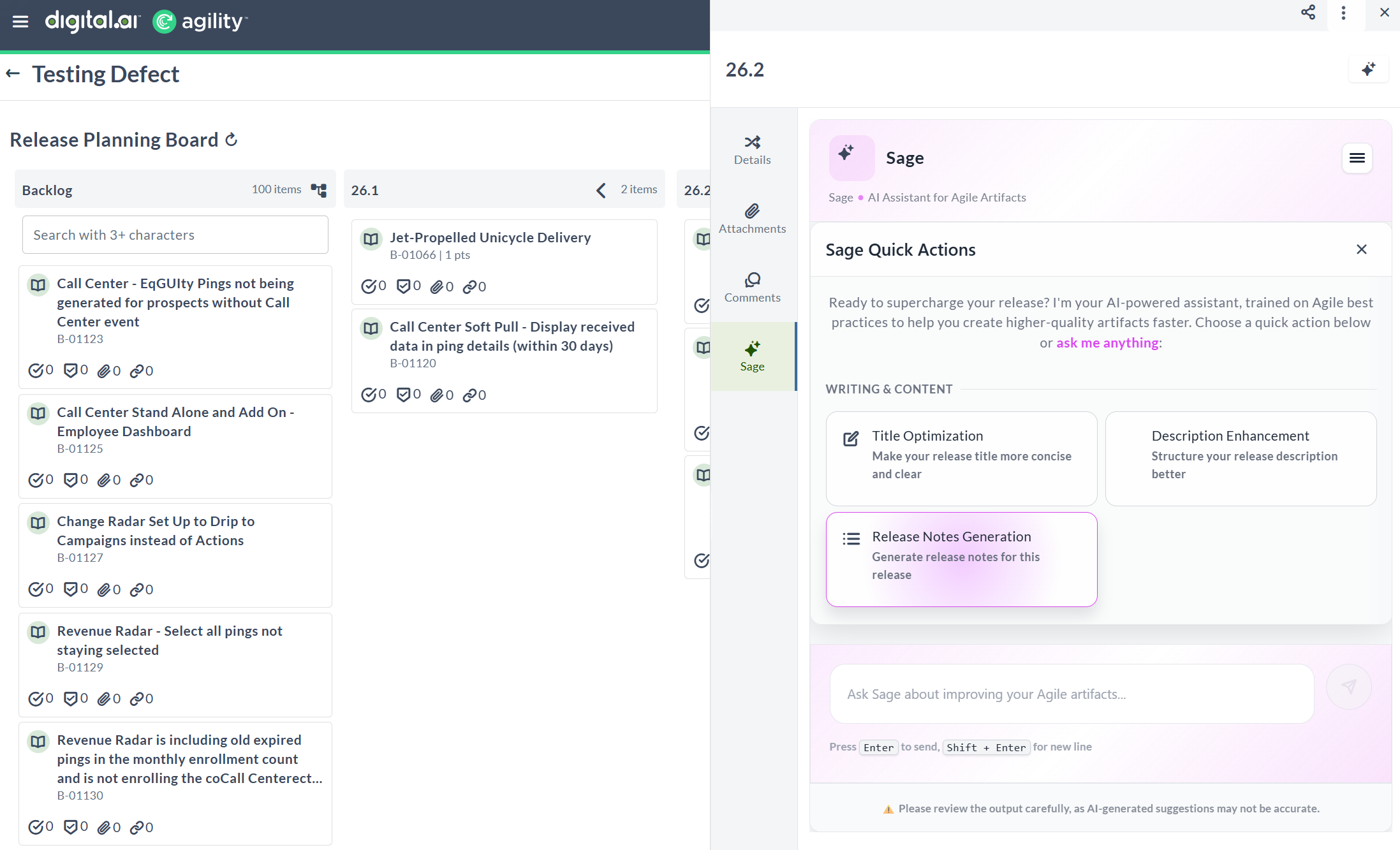
This feature helps teams create consistent, high-quality release documentation faster by leveraging AI trained on Agile best practices.
For more information, see Generate Release Notes.
Rooms 2
- Portfolio Kanban and Portfolio Tree features available in Planning Rooms (Rooms 2)
- Closed Work-Item widget available in Sprint execution, Sprint planning, and Kanban views
Portfolio Kanban and Portfolio Tree in Planning Rooms
The experimental Portfolio Kanban and Portfolio Tree features are now available in Planning Rooms, built on the Rooms 2 infrastructure. These features provide enhanced performance and a modernized interface for portfolio-level planning and visualization.
Access Portfolio Features in Rooms 2
To use Portfolio Kanban and Portfolio Tree in Planning Rooms, enable the experimental feature in your Agility Preferences:
- Click the profile icon on the header and select Agility Preferences.
- In the Agility Preferences window, navigate to the Experimental Features tab.
- Click the toggle next to Portfolio Planning in Rooms 2.0.
- Navigate to a Planning Room and click the Try Rooms 2 button to access the Portfolio Kanban and Portfolio Tree features.
The setting saves automatically.
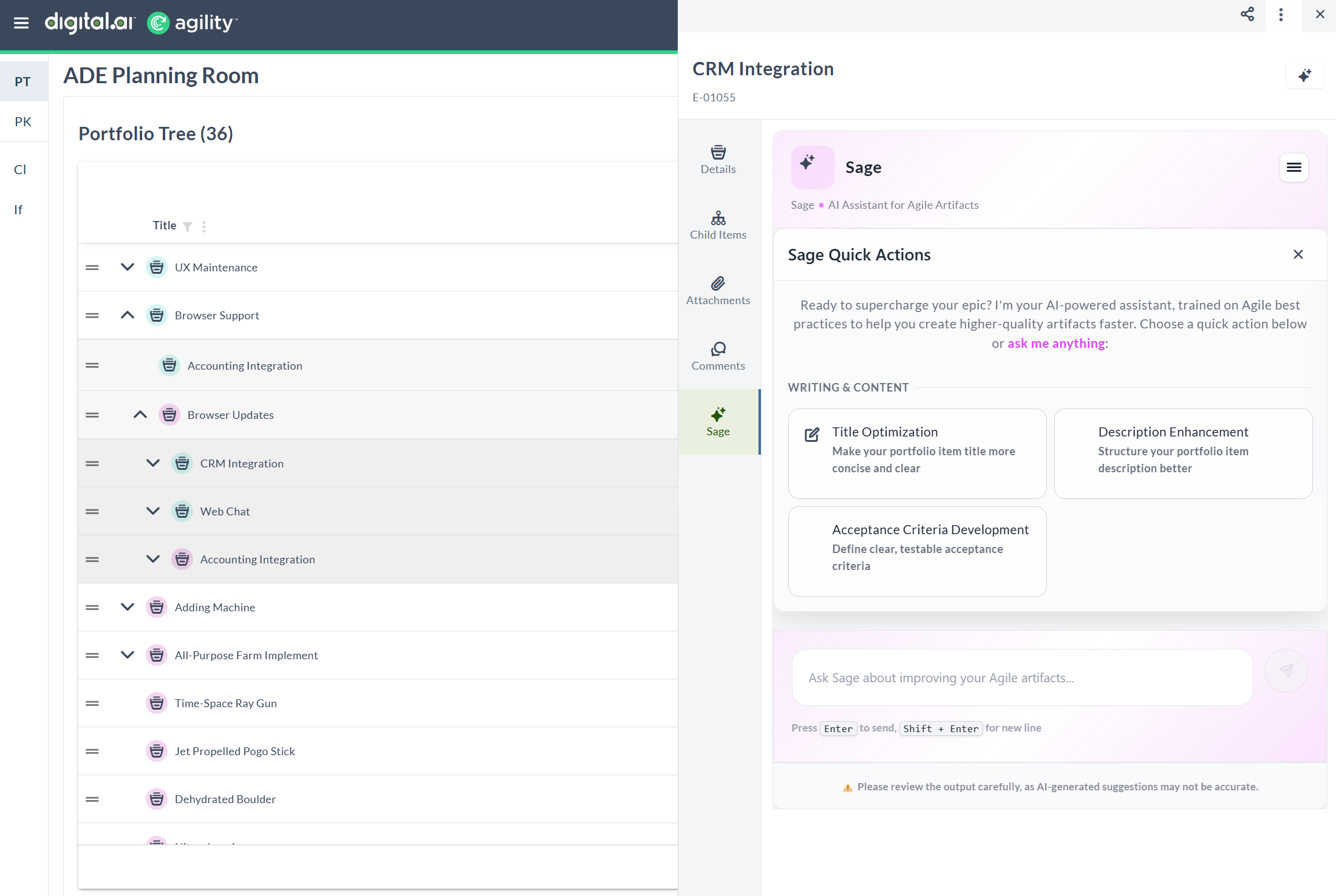
Experimental Feature: Portfolio Planning in Rooms 2.0 is currently available as an experimental feature. Each user must individually enable this feature in their preferences to access Portfolio Kanban and Portfolio Tree capabilities in Rooms 2.
View Closed Work Items in Rooms 2
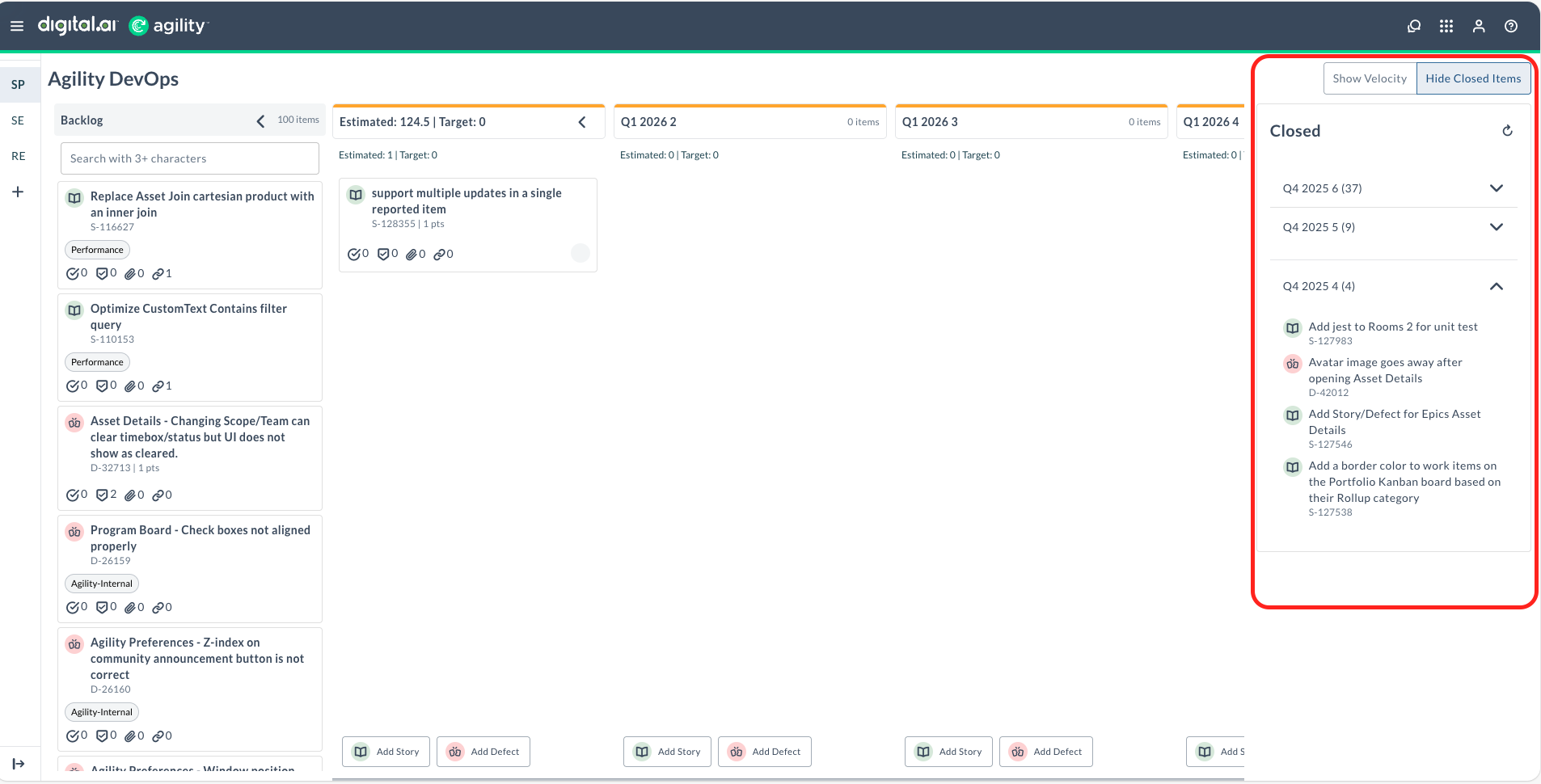
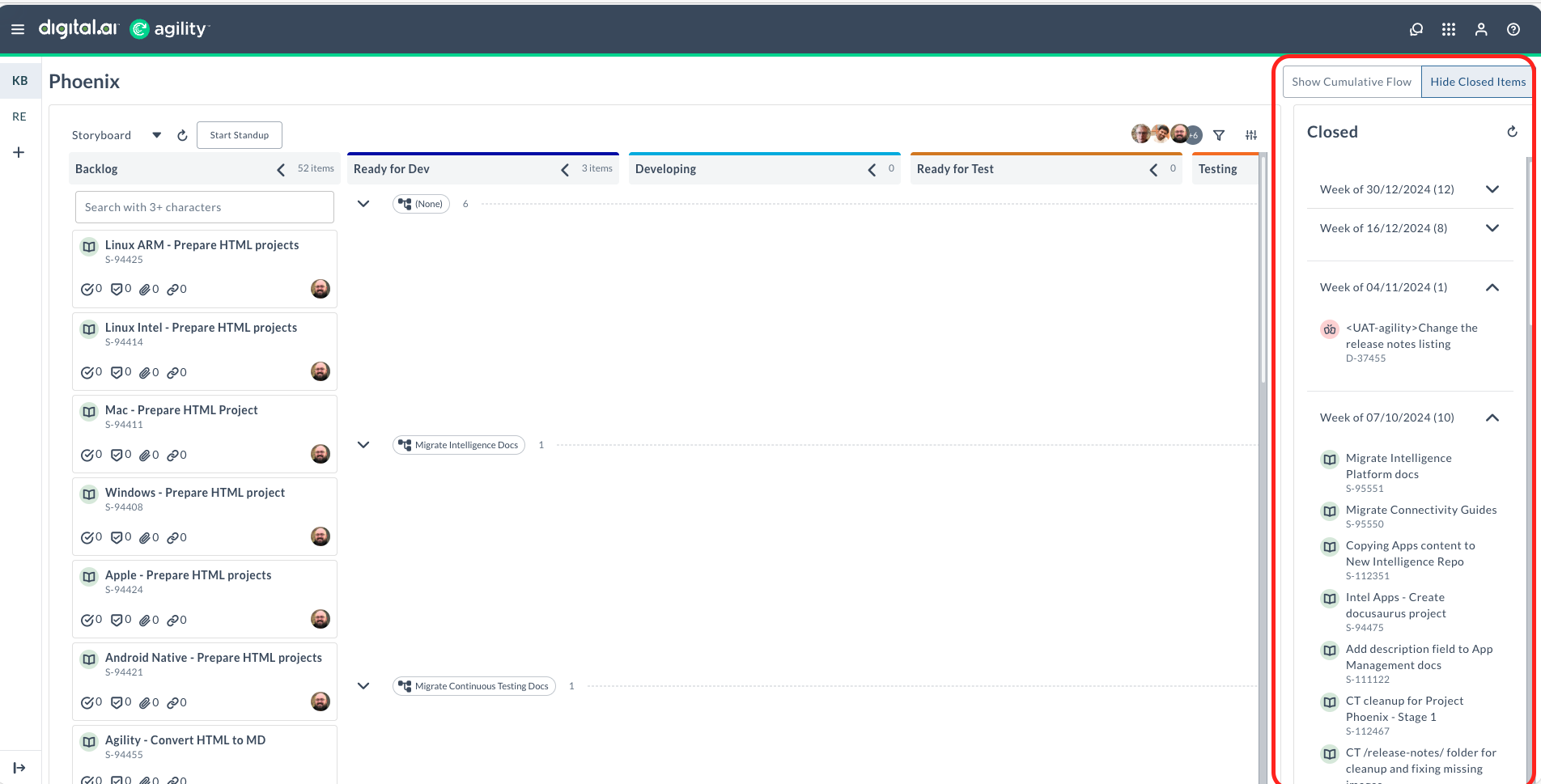
The Sprint execution, Sprint planning, and Kanban views include a Closed Work-Item widget that displays recently closed items. Use this widget to review completed work and track delivery progress.
Access closed items:
- Click Show Closed Items in the top-right corner.
- The closed items panel opens on the right side of the view.
- Click Hide Closed Items to close the panel.
In Sprint planning and execution views:
- Closed items are grouped by sprint
- Expand or collapse each sprint group to view details
- View items closed during previous sprints
In Kanban view:
- Closed items are grouped by week
- Expand or collapse each week group to view details
- View items closed in previous weeks
Additional capabilities:
- Click the refresh icon to update the closed items list
- The Closed Work-Item widget operates independently from other buttons like Show Cumulative Flow, allowing you to view multiple panels simultaneously
- Click on any closed item to open the asset detail drawer and view more information about the closed item
Fixes
Dropdown and Multi-Select Field Hover Error
Fixed an issue where hovering over dropdown or multi-select field values (such as Owners) displayed an "Error: Not Found" tooltip when the field was in edit mode. The error occurred when you clicked into a dropdown or multi-select field to edit it and then hovered over the existing values. The field now displays the correct information tooltip in both view and edit modes.
To Do Hrs Attribute Not Available in Project Workspace
Resolved an issue where the "To Do Hrs" attribute was not available for configuration in the Project Workspace UI. This attribute, which is a calculated value, was missing from the list of configurable columns for Soft Requirement work items. The system now includes "To Do Hrs" as a configurable attribute where appropriate.
Agility Sync
Enhancements
Ubuntu 22.04 LTS Support for Hosted Customers
Agility Sync now supports Ubuntu 22.04 LTS for hosted deployments, providing a modern, long-term support operating system platform for your integration infrastructure.
What's supported:
- Fresh installations of Agility Sync on Ubuntu 22.04 LTS.
- Migrations from RHEL 8 to RHEL 9, and from Ubuntu 20.04 to Ubuntu 22.04.
- Both MongoDB and Amazon DocumentDB cluster configurations.
- All standard Agility Sync integrations including Agility, ServiceNow, JIRA Cloud and on-premises, Salesforce, and Azure DevOps.
This update ensures your Agility Sync environment operates on a current, secure operating system with extended support coverage through 2027.
Fixes
Failed Event Cancellation Error
Fixed an issue where cancelling failed events threw an "x not in list" error. The fix also addresses a related problem where failed events were not being cancelled and the pending count was not updated correctly.
What changed:
- Cancelling failed events no longer generates an error message.
- Failed events are now properly cancelled when you select the cancel action.
- The pending event count updates accurately after cancelling failed events.
This fix ensures you can successfully clear failed synchronization events from your integration logs and maintain an accurate view of pending work items.
Dependency Synchronization Between Agility and JIRA
Fixed an issue where dependencies between Agility and JIRA were not synced correctly. The system was incorrectly using child work item information instead of parent work item information when syncing dependencies, causing the dependency sync to be skipped.
What changed:
- Dependency synchronization now correctly uses parent work item information.
- Dependencies between Agility and JIRA work items sync as expected.
- The sync process no longer skips dependencies due to missing parent information.
This fix ensures work item relationships and dependencies are accurately reflected across both Agility and JIRA, maintaining consistent project visibility.
Duplicate Team-Specific Status Values in Mapping
Fixed an issue where duplicate team-specific status values were displayed in the value mapping. When status values were recreated with the same names after disabling previous versions, the sync displayed both the disabled and active versions in the mapping dropdown, causing confusion about which value to select.
What changed:
- Value mapping dropdowns now display only active status values.
- Disabled status values no longer appear as duplicate entries in the mapping interface.
- The correct active status value is clearly identifiable for mapping configuration.
This fix prevents sync failures caused by selecting disabled status values and ensures clear, accurate status mapping between integrated systems.
Job ID Error When Cancelling Events
Fixed an issue where cancelling events in the view logs page displayed a "Given job ID doesn't exist" error in specific scenarios. This occurred when the corresponding job ID was deleted from the sync queue before attempting to cancel the event.
What changed:
- Cancelling events no longer generates a "job ID doesn't exist" error when the job ID has been removed from the sync queue.
- The cancel operation completes successfully even when the associated job ID is not found.
- Error handling now manages missing job IDs during event cancellation.
This fix ensures you can cancel events from the view logs page without encountering errors, even when the underlying job has already been removed from the queue.
Bulk Update Synchronization from Agility
Fixed an issue where bulk updates from Agility were not syncing completely. When multiple work items were updated simultaneously in Agility, only one or two items synced to the connected system while the rest were skipped.
What changed:
- All work items in a bulk update from Agility now sync correctly to connected systems.
- The sync process no longer skips work items during bulk update operations.
- Bulk updates are processed reliably, ensuring data consistency across integrated systems.
This fix ensures that when you update multiple work items at once in Agility, all changes are properly synchronized to JIRA or other connected systems.
JIRA API Compatibility Across Versions
Fixed an issue where JIRA API calls were not handled consistently across different JIRA versions. The sync now correctly processes API responses regardless of the JIRA version you're using.
What changed:
- JIRA API handling is now version-agnostic and works consistently across different JIRA releases.
- The sync correctly interprets API responses from various JIRA versions.
- Integration stability is improved when connecting to different JIRA environments.
This fix ensures reliable synchronization with JIRA regardless of whether you're using older or newer versions of JIRA.
Additional JIRA Integration Fixes
Fixed multiple issues affecting synchronization between Agility and JIRA.
What changed:
- Acceptance Criteria from JIRA now display correctly in Agility without formatting distortion.
- Class of Service and Backlog Group fields in Agility are now visible and sync properly.
- Parent issue updates between JIRA and Agility work correctly in both directions.
- Resolved a "list index out of range" error that occurred during migration updates when Tags or Labels were included in field mappings.
These fixes improve data accuracy and reliability for organizations using Agility Sync to connect Agility with JIRA, particularly when syncing acceptance criteria, classification fields, parent relationships, and label mappings.
View Logs and List Mapping Page Performance
Fixed an issue where the View Logs page and List Mapping pages displayed 504 timeout errors for mappings with high event volumes. The timeout occurred when more than 600,000 events existed for a single mapping, preventing users from accessing logs or viewing the mapping list.
What changed:
- View Logs and List Mapping pages now load successfully for environments with high data volumes.
- Query optimization eliminates timeout errors for mappings with hundreds of thousands of events.
- Page responsiveness is improved across all mapping configurations.
This fix ensures you can access synchronization logs and mapping configurations regardless of event volume.
Point Releases
| How to Upgrade | Agility Enterprise | Agility Ultimate |
|---|---|---|
| On-demand (auto-upgrade) | January 31, 2026 | January 31, 2026 |
| If your system is not in the auto-upgrade program, contact support to be added to the program or to schedule your upgrade. | Contact us | Contact us |
| On site | ||
| Contact us if you need a 2026 annual license for your on-site system. | Contact us | Contact us |