Using Search Option in the Planning Level Workspace
The new search functionality in the Planning Level Workspace optimizes the workflow for discovering and modifying attributes and list values, making these tasks faster and more efficient.
Search Projects in the Planning Level Tree
A search field at the top of the Planning Level project tree lets you filter projects by name. Type any part of a project name to narrow the tree view and locate specific projects quickly, especially useful in large hierarchies with hundreds of nested planning levels.
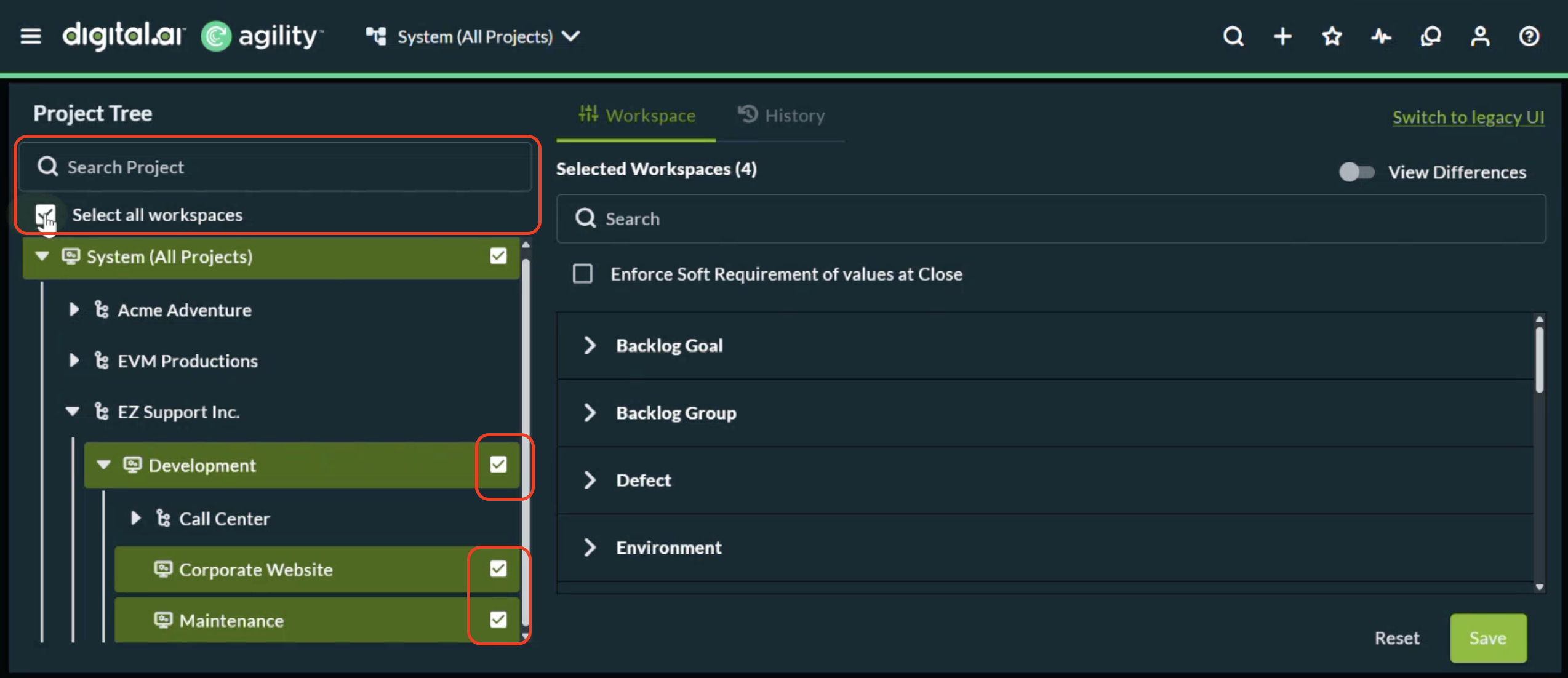
This search functionality helps you quickly locate and select specific workspaces across complex project hierarchies, making workspace configuration tasks faster and more reliable.
Search Attributes and List Values
Steps
-
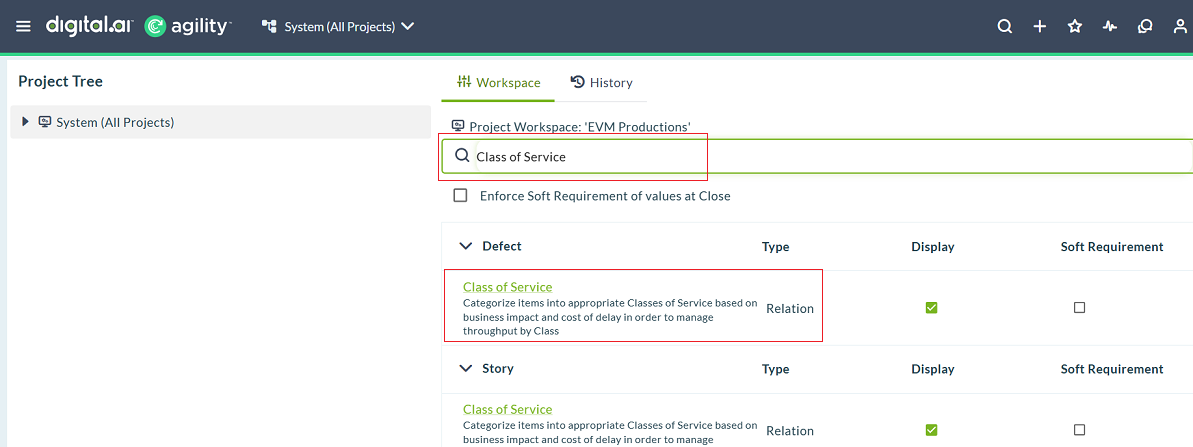
In the Planning Level Workspace page, navigate to the Search bar
-
Enter the name of the attribute you wish to find (Example: Class of Service).
-
The search results automatically display all instances where the selected attribute appears across various asset types
-
You can then navigate directly to the displayed attribute to view or modify its value.
Using the Search option with List Values
The availability of the Search option within the List Values makes it easy to locate specific values in long lists, helping you efficiently manage which options are visible during artifact creation or editing.
Steps
- Identify the attribute which has a list value with multiple options.
- Click the Attribute.
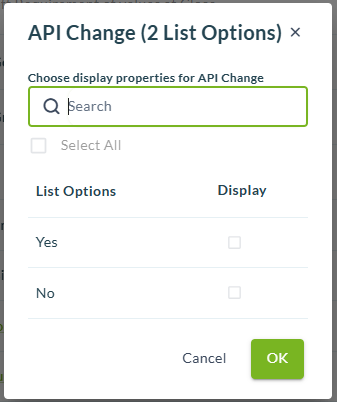
- In the Search bar enter the list value you want to find.
- Check or uncheck the boxes next to each list value to determine its visibility during the creation of new artifacts
- Click OK.