Assist-AI-Assisted Authoring in Trackers
Assist brings AI-assisted authoring to the Trackers module. When Assist is configured and enabled, you can use it to draft or improve an artifact's Title and Description, producing clearer, more consistent artifacts with less manual effort.
Assist has two parts:
- Configuration - A site administrator connects TeamForge to an AI service and enables the feature in Admin > System Tools > Assist.
- Usage - Project members use the Assist action on the Create Artifact and Edit Artifact screens.
AI-generated content may be incomplete or inaccurate. Always review Assist output and verify critical details before saving.
Configure Assist
Site administrators connect TeamForge to an AI service and turn the feature on.
-
Select My Workspace > Admin.
-
Select System Tools.
-
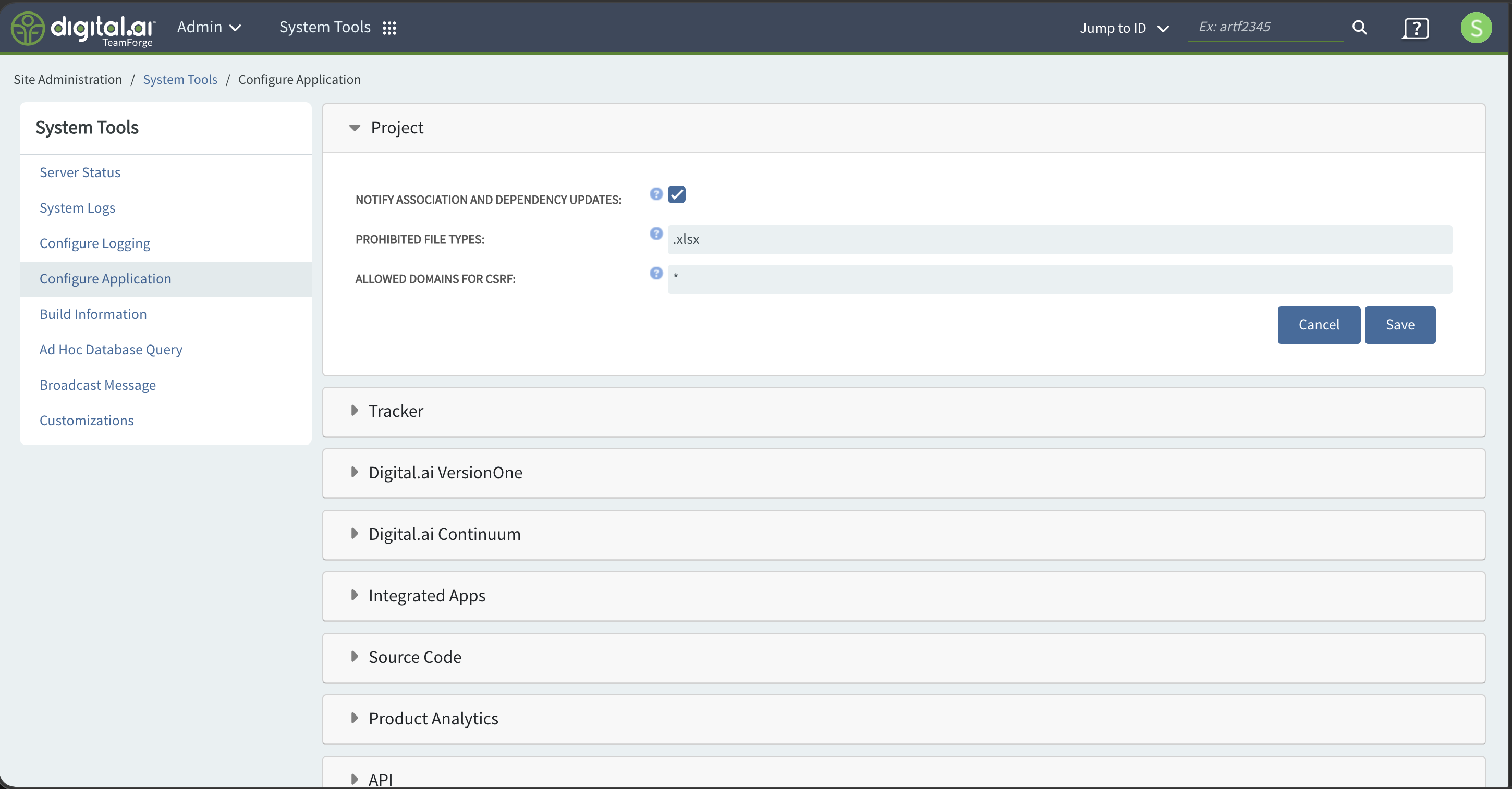
In the sidebar, click Configure Application, then scroll down and expand the Assist section.
-
Provide the connection details for your AI service:
Field Description Domain The base URL of the AI service (for example, the provider's API domain). Chat Endpoint The chat/completions endpoint path appended to the domain. Model The model identifier to use for generating titles and descriptions. Token The API token or key used to authenticate with the AI service. Enable AI Feature in ALM Select this check box to make the Assist action available to users in the Trackers module. 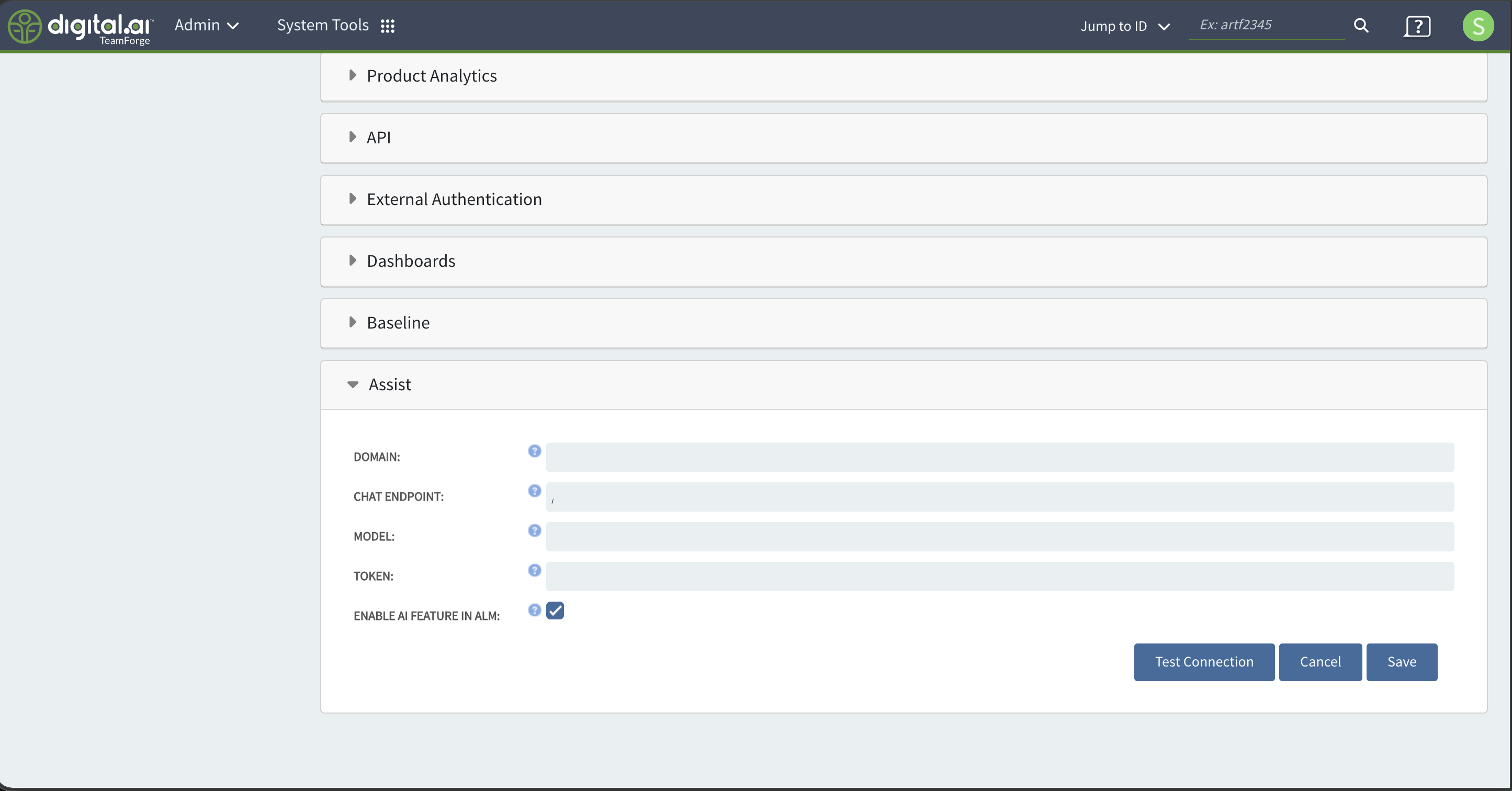
-
Click Test Connection to validate the domain, endpoint, model, and token.
-
Click Save.
When Enable AI Feature in ALM is not selected, the Assist action does not appear on the Create Artifact and Edit Artifact screens, even if the connection details are saved.
Use Assist to Draft or Improve an Artifact
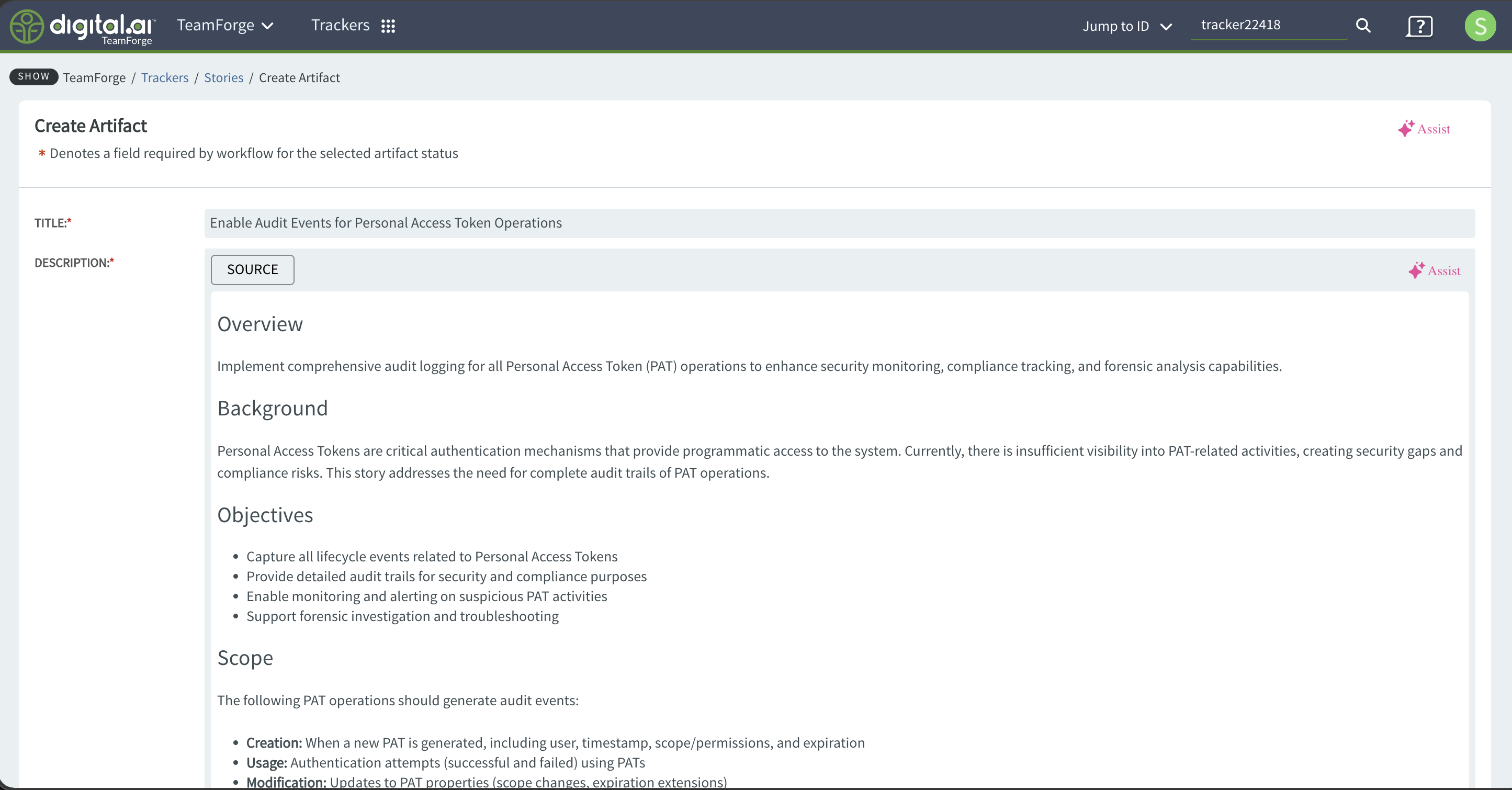
When Assist is enabled, an Assist action appears on the Create Artifact and Edit Artifact screens - at the top right of the form and next to the Description field.
-
Open the Create Artifact (or Edit Artifact) screen and select a tracker.
-
Enter a Title, or use Assist to help draft one.
-
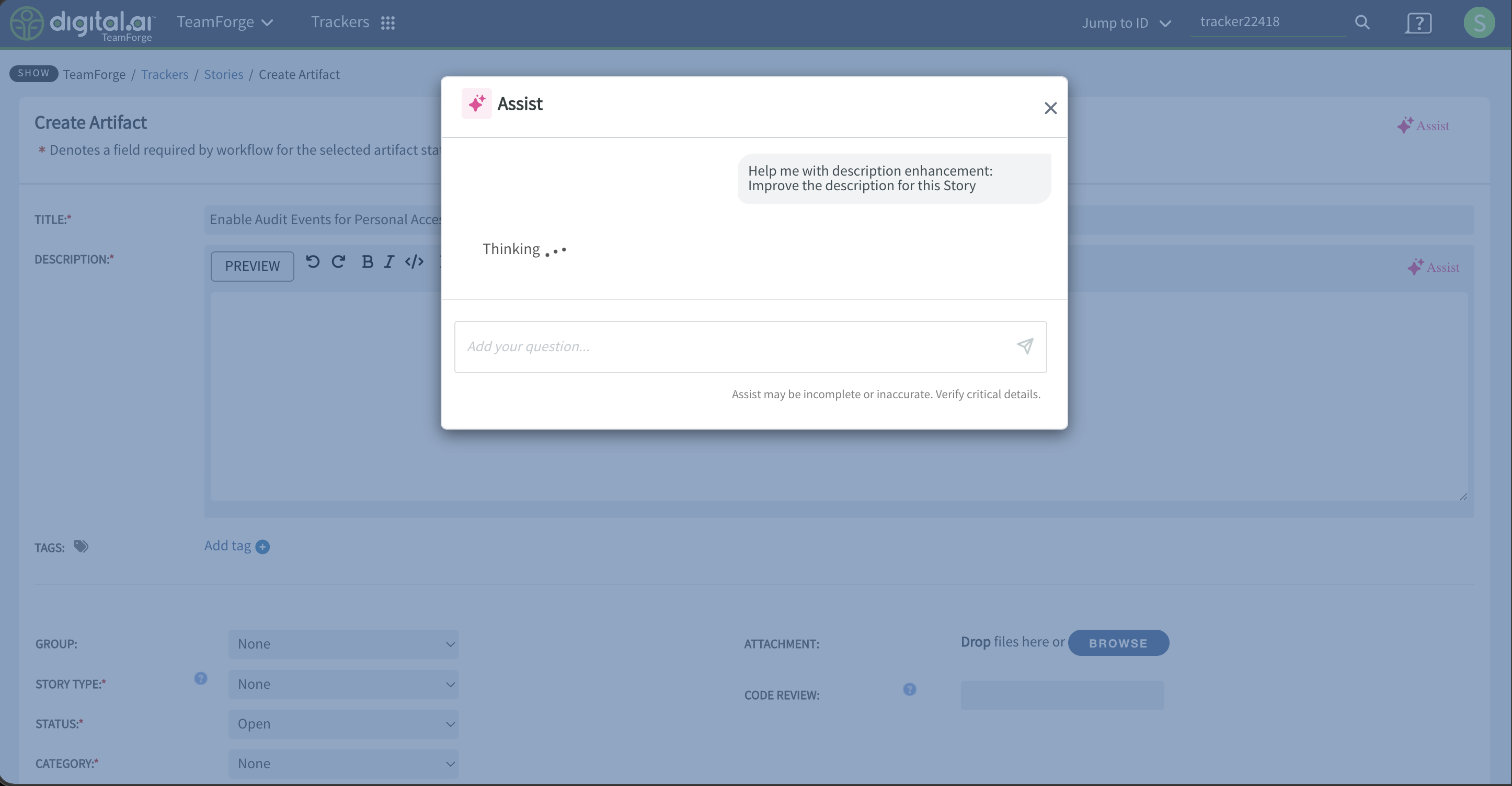
Select Assist. The Assist panel opens.
-
Choose a suggested prompt or type your own request in the Add your question box, and send it.
-
Assist generates a draft. Review the result and refine it with follow-up questions if needed.
-
Apply the generated content to the Title or Description. The Description field is a Markdown editor, so you can switch between Preview and Source to fine-tune the formatting.
-
Complete the remaining required fields and click Save.
The Assist panel shows the reminder "Assist may be incomplete or inaccurate. Verify critical details." Always review AI-generated titles and descriptions for accuracy and completeness before saving.