TeamForge—Jenkins Integration Using the Webhooks-based Event Broker
It is assumed you have Jenkins 2.504.1 installed and this topic discusses how to configure the Jenkins integration plugin to integrate Jenkins with TeamForge.
Configure Jenkins Integration Plugin to Notify the Webhooks-based Event Broker
The Jenkins integration plugin 2.0.10 for TeamForge 26.0—Jenkins 2.504.1 integration—if configured—can notify the TeamForge's native Webhooks-based Event Broker (WEBR) about the build data.
CollabNet Jenkins Plugin's Features
-
Notify TeamForge Webhooks-based Event Broker when builds complete.
-
Authenticate users from TeamForge. If set up as the "Build & Test" application, it can even use Single Sign-On.
-
Authorization from TeamForge, including the ability to set permissions in Jenkins based on roles in your TeamForge project.
-
Upload the build log or workspace artifacts to the TeamForge Documents.
-
Upload workspace artifacts to the TeamForge File Release System, as a post-build publishing task or as a build promotion task.
-
Open/update/close TeamForge Tracker artifacts based on the Jenkins build status.
-
Upload workspace artifacts to the Lab Management Project Build Library. (Requires CollabNet Lab Management).
Click here to download or know more about the requirements for installing the latest CollabNet plugin.
EventQ has been completely removed in TeamForge 20.0. Hence, you must configure Jenkins to notify the TeamForge Webhooks-based Event Broker (WEBR) for TeamForge—Jenkins integration.
Use the following instructions to have the Jenkins integration plugin notify the native Webhooks-based Event Broker.
- Download the TeamForge—Jenkins integration plugin 2.0.10.
- Select Manage Jenkins > Manage Plugins > Advanced.
- Click Choose File from the Upload Plugin section, browse and select the plugin file.
- Restart your Jenkins server.
- Configure an Individual Jenkins Job to notify the TeamForge Webhooks-based Event Broker.
-
As a privileged Jenkins user, locate the job you wish to report build data to TeamForge Webhooks-based Event Broker and navigate to its configuration page.
-
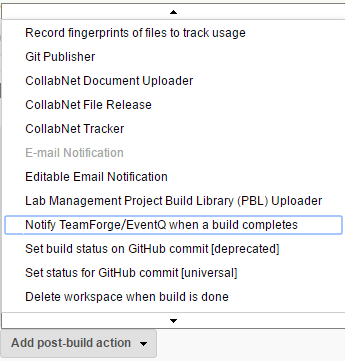
Add a post-build action to Notify TeamForge/EventQ when a build completes.
-
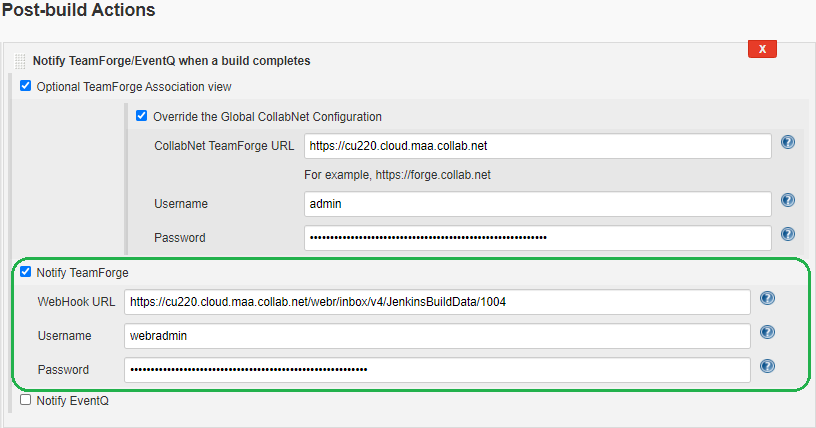
Select the Notify TeamForge check box.
-
Enter the TeamForge WebHook URL to which the build data will be sent, Username, and Password in the respective fields.
noteYou can obtain TeamForge Webhook URL by running the
create_webhook_event.pyscript. -
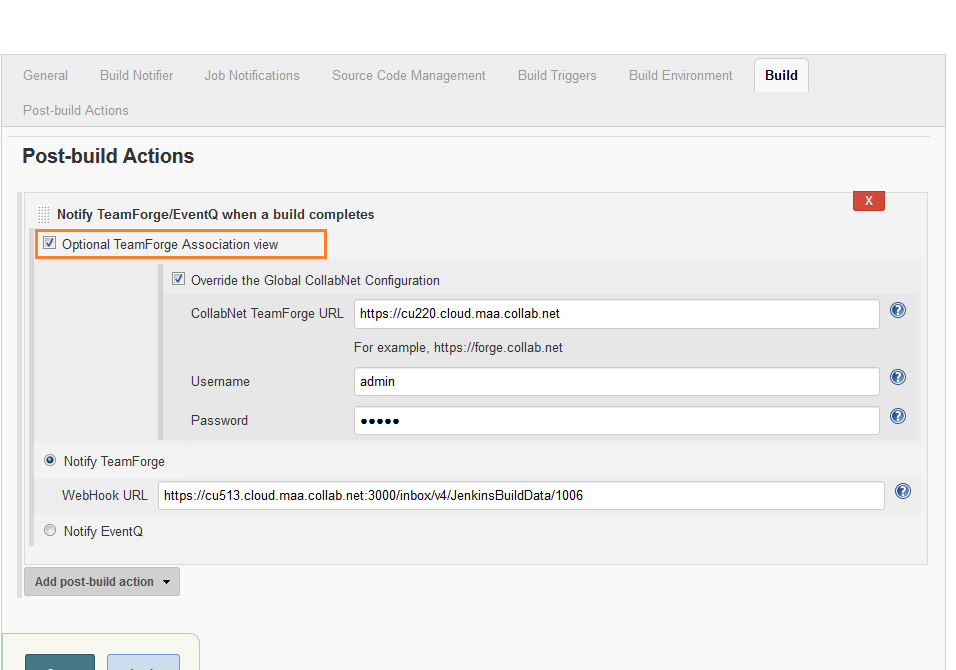
By default, the Optional TeamForge Association View check box is selected. If required, you can override the global configuration by entering the TeamForge URL and user credentials.
-
Save the job configuration.
-
Run a build to test the new configuration and verify configuration. Information and errors will be reported to your Jenkins log and to the build console.
warningDO NOT select the Notify EventQ option as EventQ has been completely removed from TeamForge 20.0 and later.
-
Trigger Jenkins Builds Using TeamForge Gerrit Webhooks
In addition to having Jenkins notify TeamForge about build data, you can configure TeamForge to automatically trigger a Jenkins build whenever code is pushed to a Gerrit repository. This is achieved by configuring TeamForge repository Webhooks to call the Jenkins Generic Webhook Trigger plugin's invoke URL on Gerrit events such as ref-updated, patchset-created, and change-merged.
This method uses TeamForge's repository-level Webhooks (Source Code > Settings > Policies) to trigger builds and does not require the CollabNet Jenkins integration plugin described above. Use it when your goal is to start Jenkins builds from Gerrit push events.
Step 1: Install Git on the Jenkins Machine
-
Install Git for Windows on the Jenkins server.
-
In Jenkins, select Manage Jenkins > Tools > Git installations and set the Path to Git executable:
C:\Program Files\Git\bin\git.exe
Step 2: Install the Required Jenkins Plugins
Install the following plugins from Manage Jenkins > Plugins:
- Generic Webhook Trigger plugin
- Git plugin
Step 3: Configure the Git Repository (SCM) in Jenkins
-
Navigate to the Jenkins job and select Configure > Source Code Management.
-
Select Git.
-
Set the Repository URL to your Gerrit repository, for example:
https://<username>@<teamforge-host>/gerrit/<repository-name> -
Set the Credentials. To add credentials, select Manage Jenkins > Credentials > System > Global credentials > Add Credentials and create a Username with password entry using your Gerrit user name and password.
-
Set the Branch Specifier to the branch you want to build, for example
*/master. -
Click Save.
Step 4: Enable the Generic Webhook Trigger in Jenkins
- Navigate to the Jenkins job and select Configure > Triggers.
- Select the Generic Webhook Trigger check box.
- Set a Token, for example
testwebhooks. This token is used in the Webhook URL to authorize the trigger. - Click Save.
Step 5: Configure the Webhook URLs in TeamForge
-
In TeamForge, navigate to your project and select Source Code.
-
Select the repository, select the Settings tab, and then select the Policies tab.
-
Under Webhook URLs, add the following three entries, each pointing to the Jenkins Generic Webhook Trigger invoke URL. Select the corresponding event type from the drop-down list for each entry and click Add.
Gerrit event Webhook URL gerrit:ref-updatedhttp://<Jenkins_IP>:8080/generic-webhook-trigger/invoke?token=testwebhooksgerrit:patchset-createdhttp://<Jenkins_IP>:8080/generic-webhook-trigger/invoke?token=testwebhooksgerrit:change-mergedhttp://<Jenkins_IP>:8080/generic-webhook-trigger/invoke?token=testwebhooks -
Click Save.
Verify the Configuration
Run the following command from the TeamForge server to confirm that Jenkins is reachable and the Webhook triggers the build:
curl -v "http://<Jenkins_IP>:8080/generic-webhook-trigger/invoke?token=testwebhooks"
A successful response looks similar to the following:
{"jobs":{"test_webhooks":{"triggered":true, ...}}, "message":"Triggered jobs."}
Once configured, any commit pushed to the Gerrit repository automatically triggers the Jenkins build. The build console shows Started by Generic Cause instead of Started by user, confirming that the build was triggered by the Webhook.