TeamForge WebConnect UIs
You must use the TeamForge WebConnect administrator credentials to log on to WebConnect.
- You can get the WebConnect administrator user's credentials from the
/opt/collabnet/teamforge/runtime/conf/webr/webr.config.jsonfile. - The administrator password is auto-generated and encrypted when WebConnect is installed as part of the TeamForge installation.
Log on to TeamForge WebConnect
-
Go to
<teamforge-domain>:<webconnect-port>/webr/. For example,https://cu079.cloud.maa.collab.net:3000/webr/.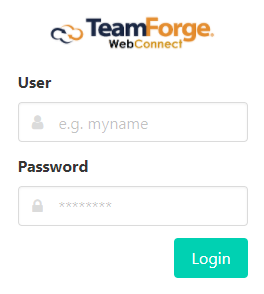
-
Type the WebConnect username and password.
-
Click Login.
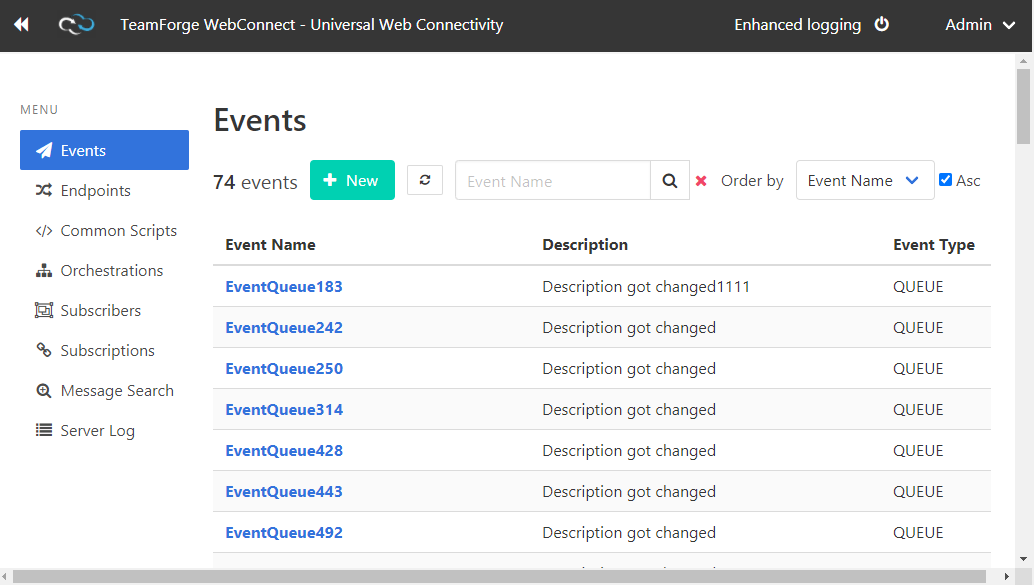
Enable Enhanced Logging
Click Enhanced Logging on the top navigation bar to turn enhanced logging on or off.
Create New Events
- Click Events from the left pane.
- CLick + New.
- Type a name and description for the event and select the event's type.
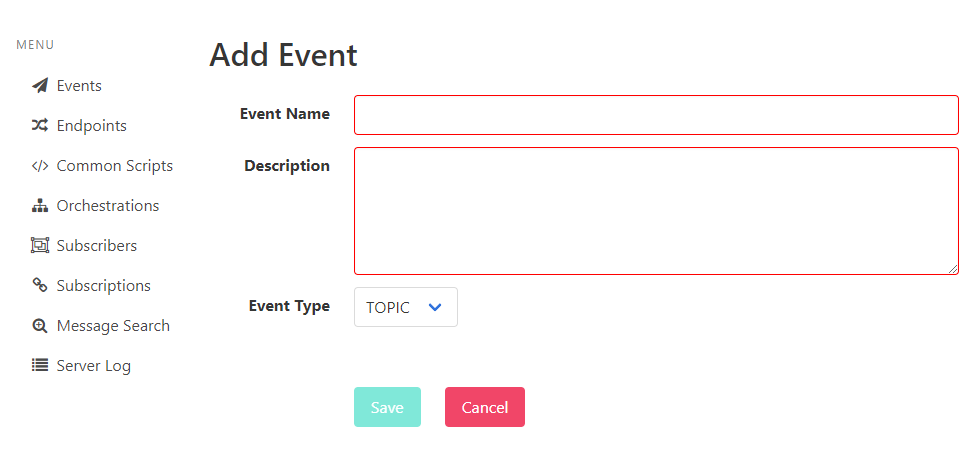
- Click Save.
Here’s a list of predefined post-submit and pre-submit events in TeamForge WebConnect.
- Teamforge.Artifact.Create
- Teamforge.Artifact.Update
- Teamforge.Artifact.Move
- Teamforge.Artifact.Clone
- Teamforge.Artifact.Delete
- Teamforge.Artifact.Create.Presubmit
- Teamforge.Artifact.Update.Presubmit
- Teamforge.Artifact.Move.Presubmit
- Teamforge.Artifact.Clone.Presubmit
- Teamforge.Artifact.Delete.Presubmit
Create New Endpoints
- Click Endpoints from the left pane.
- CLick + New.
- Type a name, URL, username, passowrd and http headers for the endpoint.
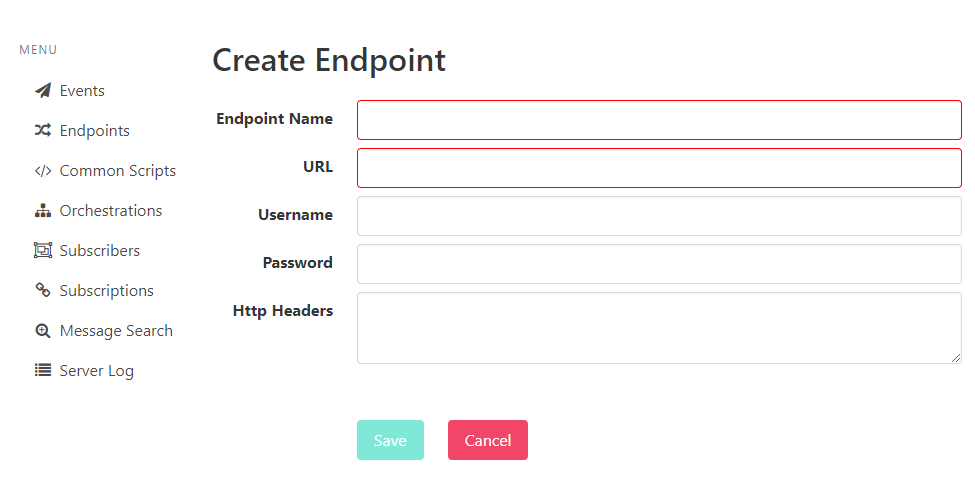
- Click Save.
Create Common (Reusable) Scripts
Common scripts are scripts that are commonly reusable in orchestration, transformation and response scripts using the $include$scriptname syntax.
- Click </> Common Scripts from the left pane.
- CLick + New.
- Type a script name.
- Type (or copy/paste) the script.
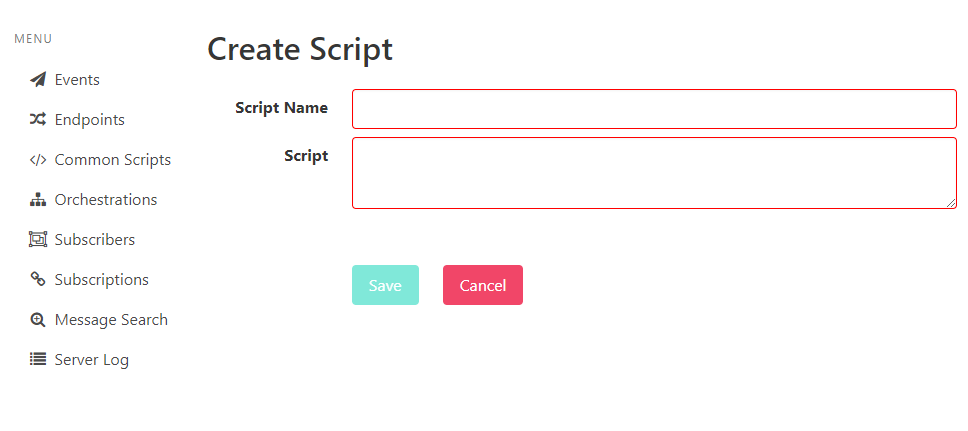
- Click Save.
Create New Orchestration Scripts
For more information about orchestration scripts, see [Integrate Tools Using WEBR Orchestration Scripts][webr-orchestration].
- Click Orchestrations from the left pane.
- CLick + New.
- Type an orchestration name.
- Type (or copy/paste) the orchestration script.
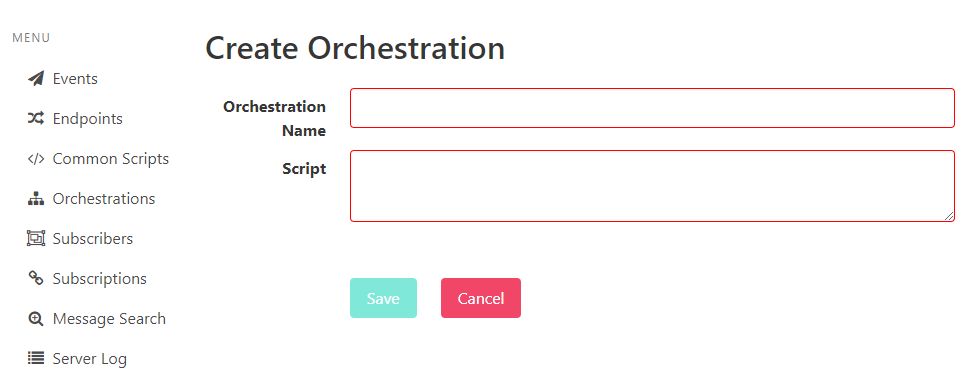
- Click Save.
Create New Subscribers
For more information, see [Subscribers and Subscriptions][webhooks-event-broker-overview].
- Click Subscribers from the left pane.
- CLick + New.
- Type a subscriber name, description, and http headers for the subscriber.
- Select a status for the subscriber—Active or Inactive—from the drop-down list.
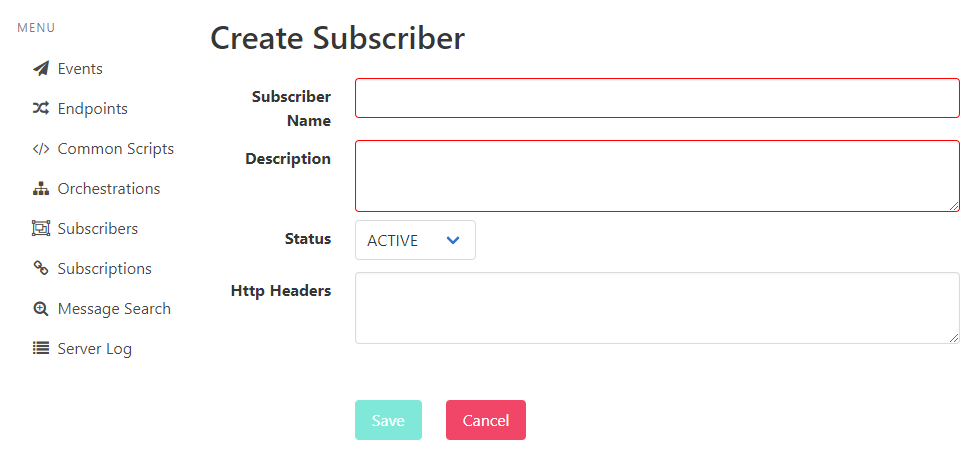
- Click Save.
Create New Subscriptions
For more information, see [Subscribers and Subscriptions][webhooks-event-broker-overview].
-
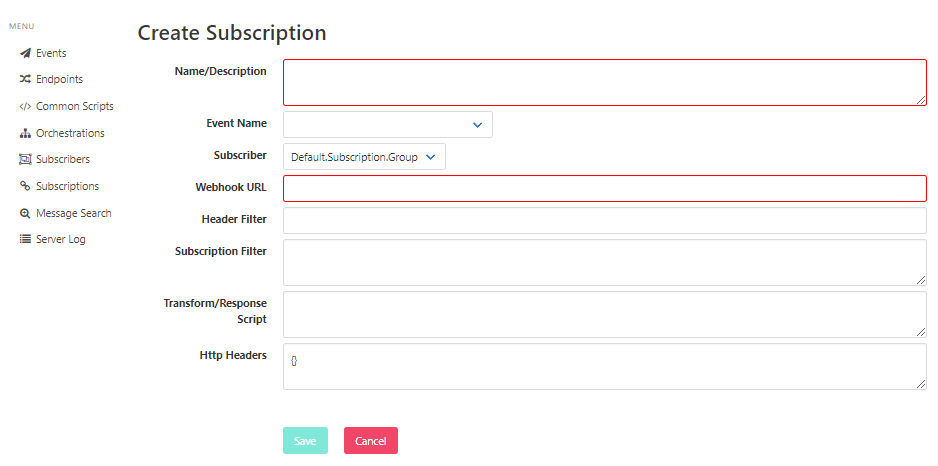
Click Subscriptions from the left pane.
-
CLick + New.
-
Type a subscription name and enter all the other required subscription information such as the event name, subscriber, webhook URL and so on.
For more information, about subscription filter, tranform/response script, and header filter, see Scripts and Filters in the TeamForge Webhooks-based Event Broker.
-
Click Save.
Search Messages
Click Message Search from the left pane and you can search for messages using filters such as:
- Event Name
- Endpoint Name
- Message ID range (From MsgID and To MsgID)
- Date range
View Server Logs
Click Server Log from the left pane to view the server logs.