Managing Tasks with the Task Drawer
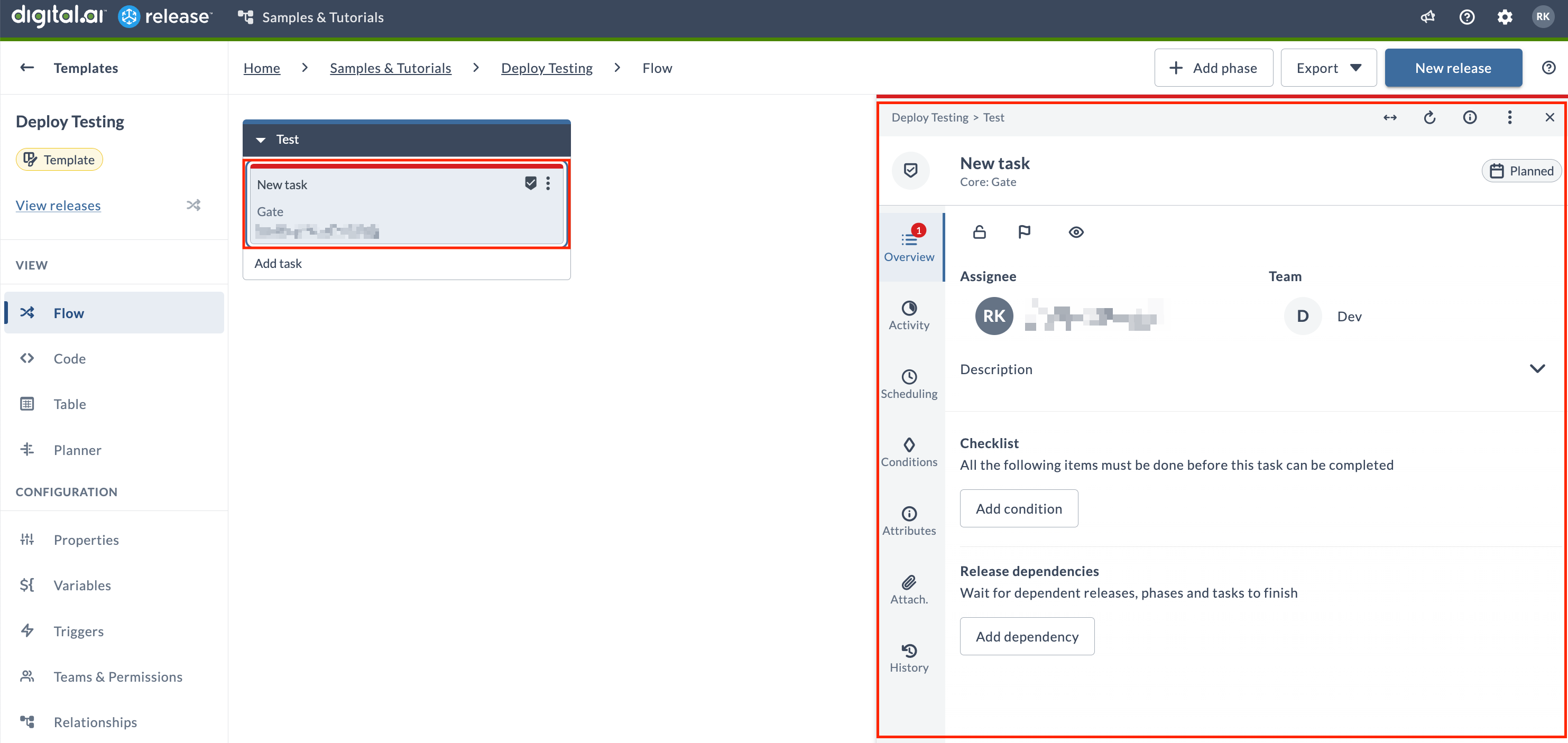
The Task Drawer lets you view, configure, and manage tasks without leaving the release flow, for both manual and automated tasks.
The Task Drawer offers several essential capabilities that streamline your task management process:
- Integrated task management alongside the workflow
- Unified interface for manual, automated, and container-based tasks
- Real-time task updates and notifications
- Comprehensive task configuration options
- Collaborative features including comments and file attachments
Task Drawer Components
The Task Drawer consists of several key components, each serving specific functions in task management.
Header Section
The header section serves as your primary navigation and control center within the Task Drawer. It contains three distinct areas:
Top Header
- Displays the task context as Release title / Phase title
- Provides non-clickable breadcrumbs for orientation
Main Header Actions
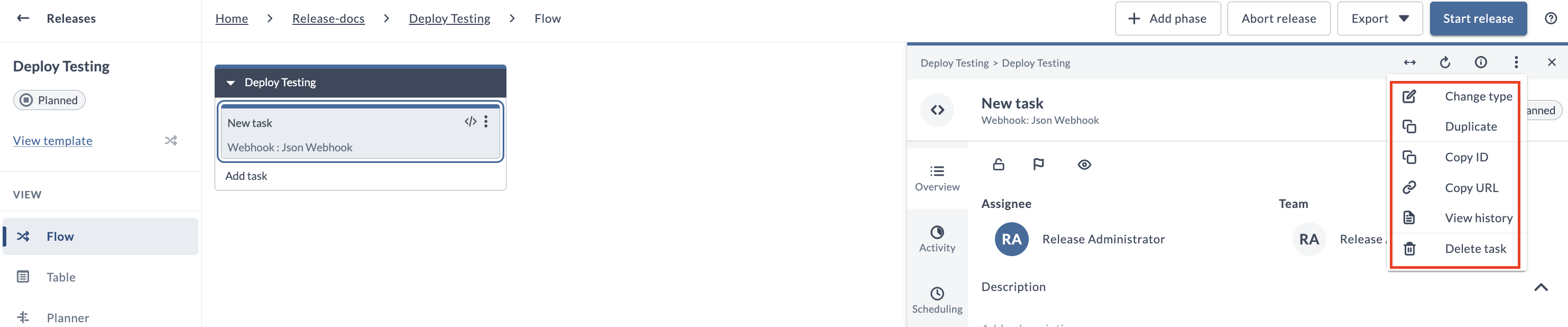
Access these task management features through the ellipsis menu:
- Change type: Modify task type
- Duplicate: Create task copies
- Copy ID: Get task identifier
note
Task ID format:
Applications/Folder{identifier}/Release{identifier}/Phase{identifier}/Task{identifier} - Copy URL: Get direct task link
- View history: Access change logs
- Delete task: Remove task permanently
Quick Actions
Easily access frequently used functions in the top-right corner:
- Maximize/minimize drawer
- Refresh task
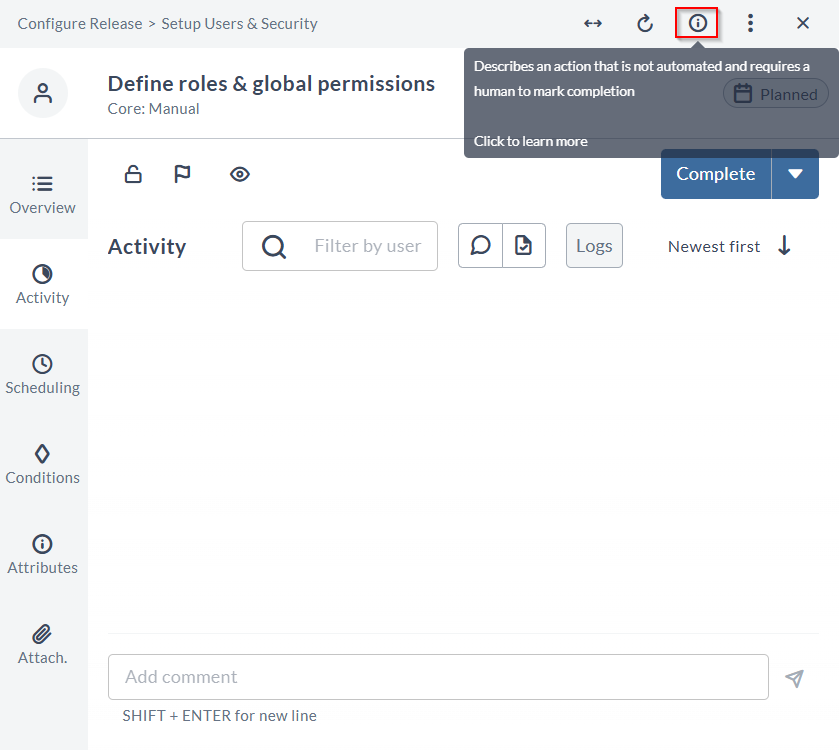
- View task type (hover)
- Edit task title
- Close drawer
- Access help documentation (see Task Type Documentation)
Task Type Documentation
Click the help icon in the Task Drawer header to open the documentation page for the current task type. This works for all built-in tasks and plugin-provided tasks.
For custom plugins, you can link to your own documentation site by adding a documentationPage property in synthetic.xml:
<type-modification type="xlrelease.CreateReleaseTask">
    <property name="documentationPage" required="false" hidden="true" default="how-to/create-a-create-release-task.html"/>
</type-modification>
Task Management Features
The Task Drawer provides the following task management capabilities:
Lock/Unlock Tasks
- Control task modifications
- Manage access permissions
- Learn more about task locking
Status Flags
Color-coded flags signal task status:
- Black: Normal status
- Orange: Needs attention
- Red: At risk
Add custom messages to flags for more status detail
Watcher Management
- Start/stop watching tasks
- Add additional watchers
- Receive task event notifications
Watcher changes are logged in release history
Core Task Sections
The Task Drawer organizes its main functionality into seven key tabs, each focusing on specific aspects of task management.
Overview
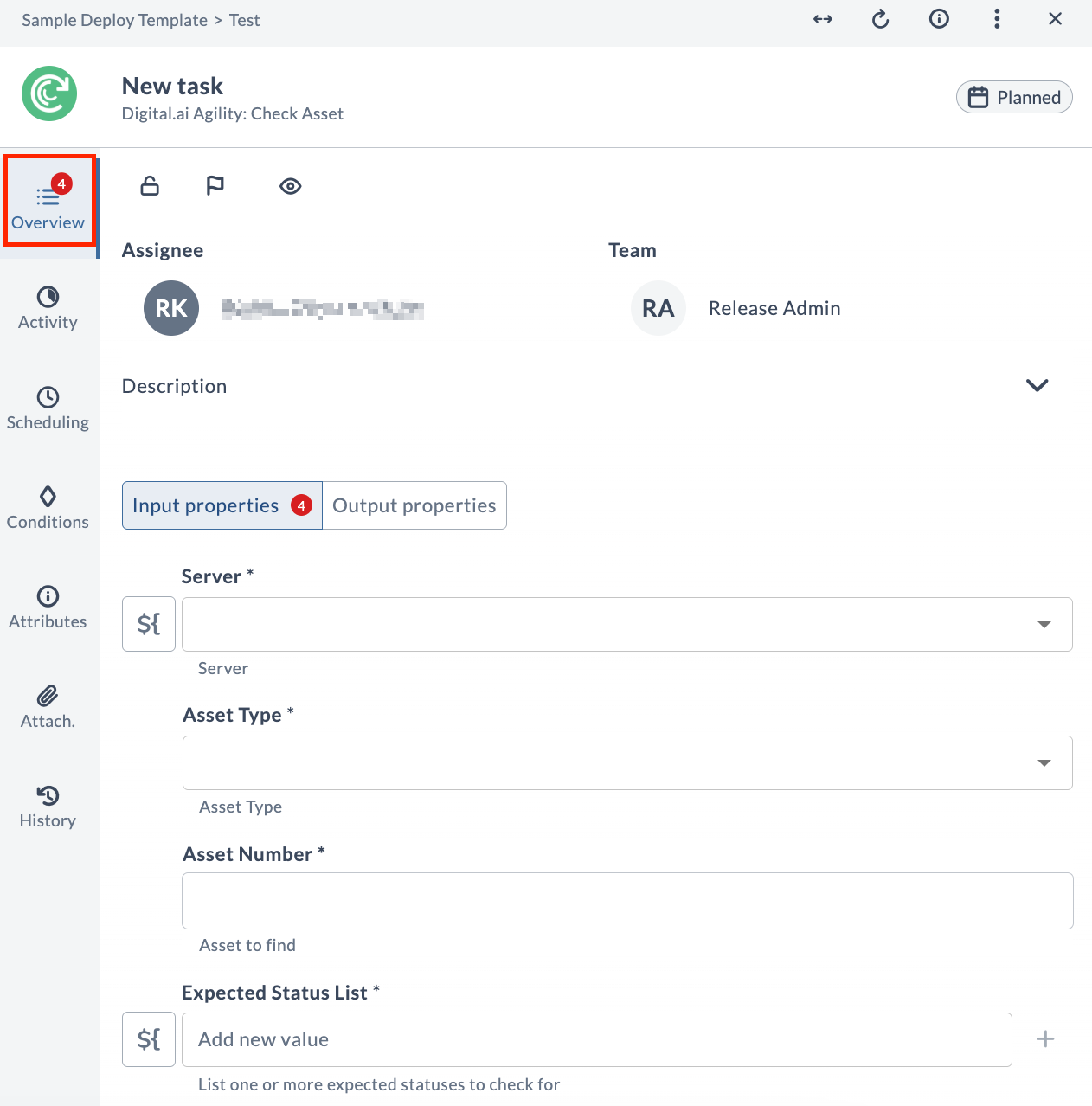
The Overview tab serves as your primary workspace for basic task configuration and management. Here you'll find:
- Assignee Management
- Hover over "Unassigned" placeholder
- Select users or teams from dropdown
- Use "Assign to me" for quick self-assignment
- Description Management
- Click "Add a Description" placeholder
- Enter task details
- Save changes
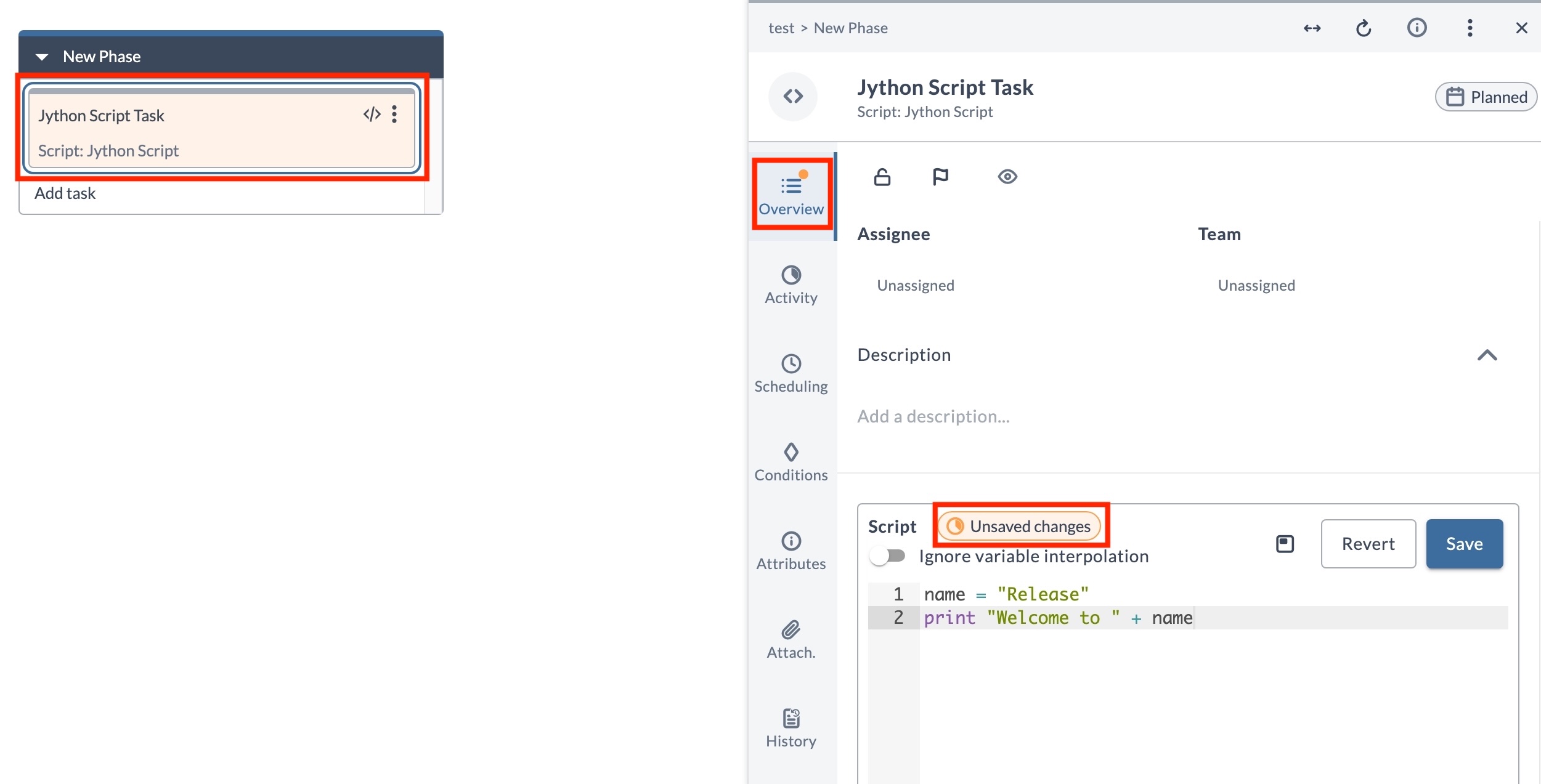
Unsaved Changes in Script Fields
Script fields in the Task Drawer preserve unsaved changes within your session, so you do not lose work when you navigate away from a task. This applies to the Script field in Jython Script, Groovy Script, and Webhook: Wait for JSON Event tasks, to precondition and failure handler scripts, and to custom tasks that include a script editor component.
When a script field has unsaved changes:
- An unsaved changes badge appears in the Script editor field.
- An orange badge marks the affected tab in the Task Drawer.
- The task card turns orange in the Template and Release Flow pages.
The indicator is visible only when a task is in one of the following statuses: Planned, Pending, Failed, Failing, or Waiting for Input. Unsaved changes are not considered when a task starts executing.
Closing the Task Drawer with the X button or pressing Esc prompts you to confirm whether to discard the changes. Clicking outside the Task Drawer keeps the changes without prompting, and the unsaved changes badge remains visible.
Unsaved changes are cleared on login.
Activity
The Activity tab centralizes all task-related communications and updates in one place:
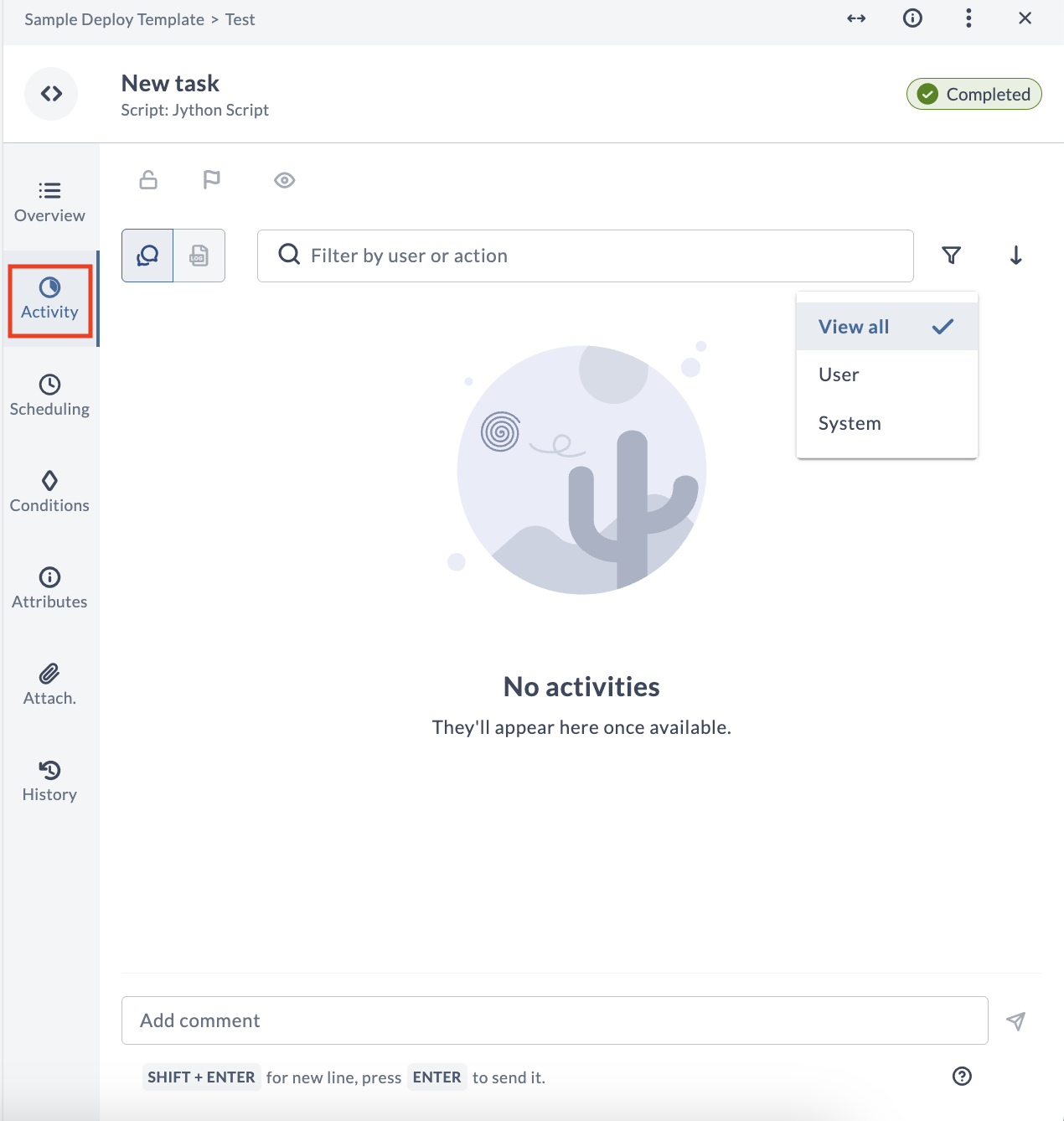
Use these communication tools:
- Real-time comment updates
- @mentions for team notifications
- Comment filtering (User/System)
- Log viewing for automated tasks
- Live container logs
- Download capability for live logs
Press Shift + Enter for new line in comments
Scheduling
The Scheduling tab provides comprehensive timing and execution controls for your tasks:
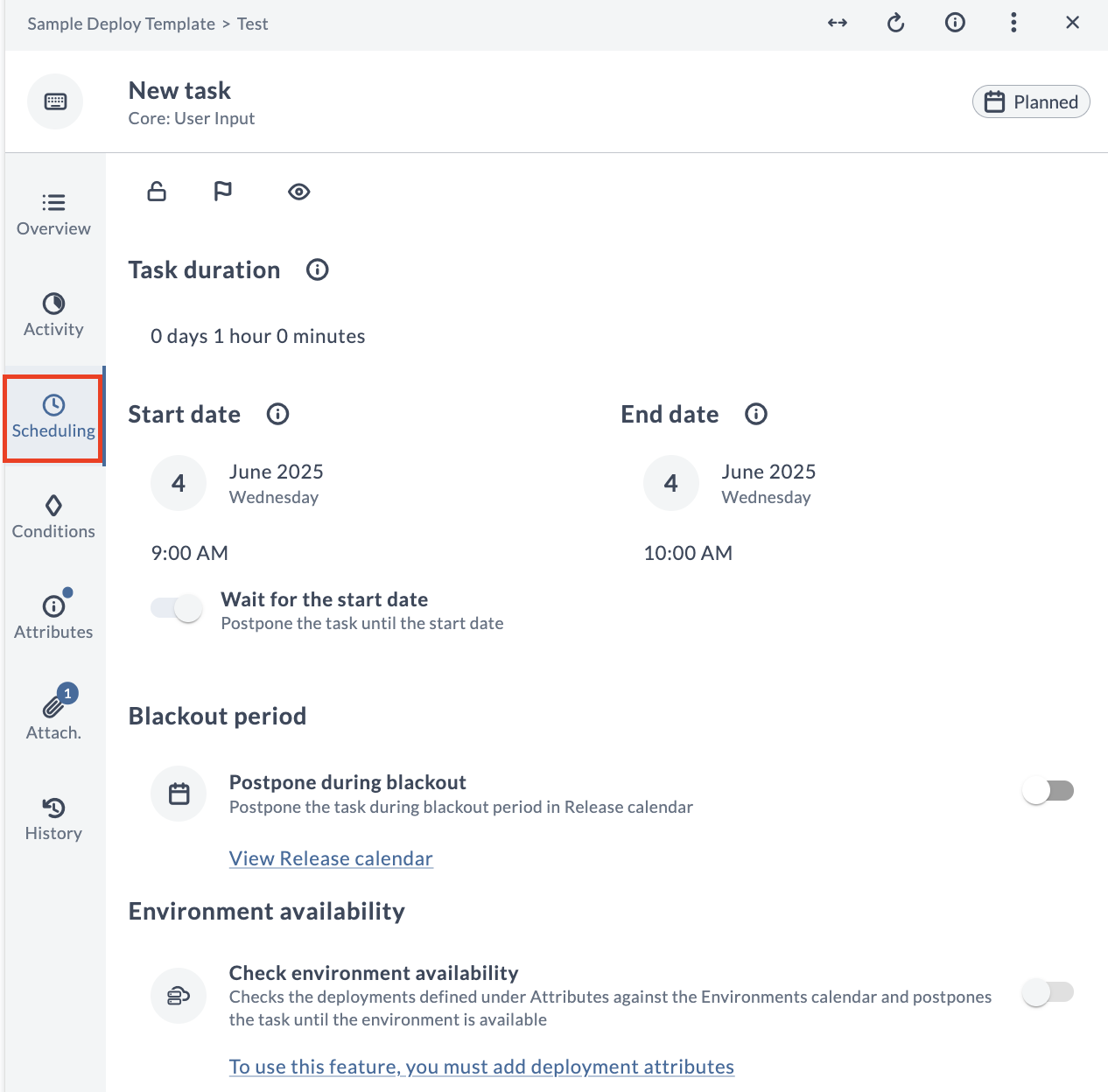
Configuration Options
Manage your task timing with these settings:
- Set start and end dates
- Configure task duration
- Manage blackout periods
- Control environment availability
Conditions
The Conditions tab allows you to define execution rules and handle failures effectively:
Preconditions
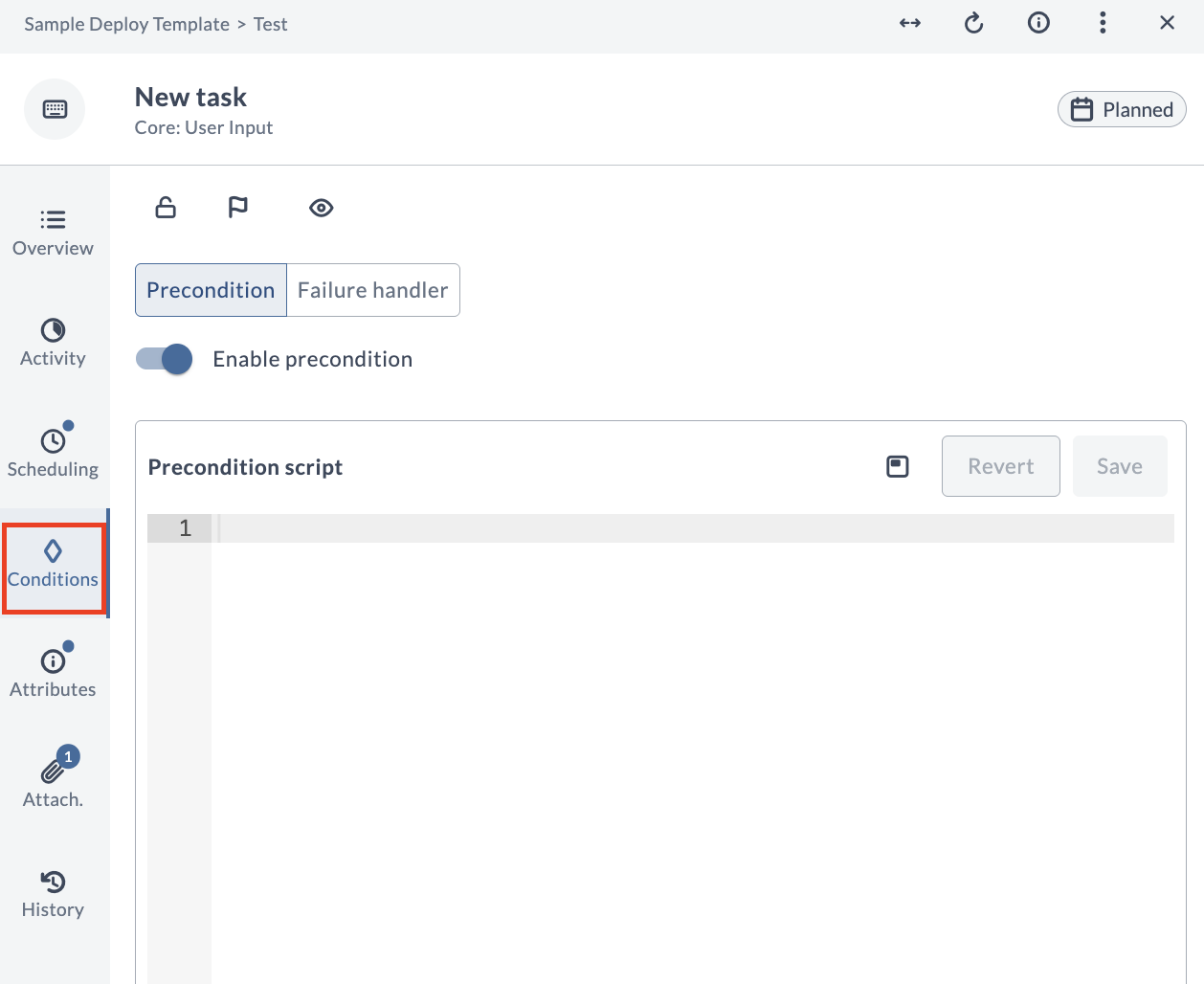
Precondition scripts can be written in Jython and Expression language. If you navigate away without saving a precondition script, your changes are preserved within your session and an orange badge marks the Conditions tab.
Failure Handling
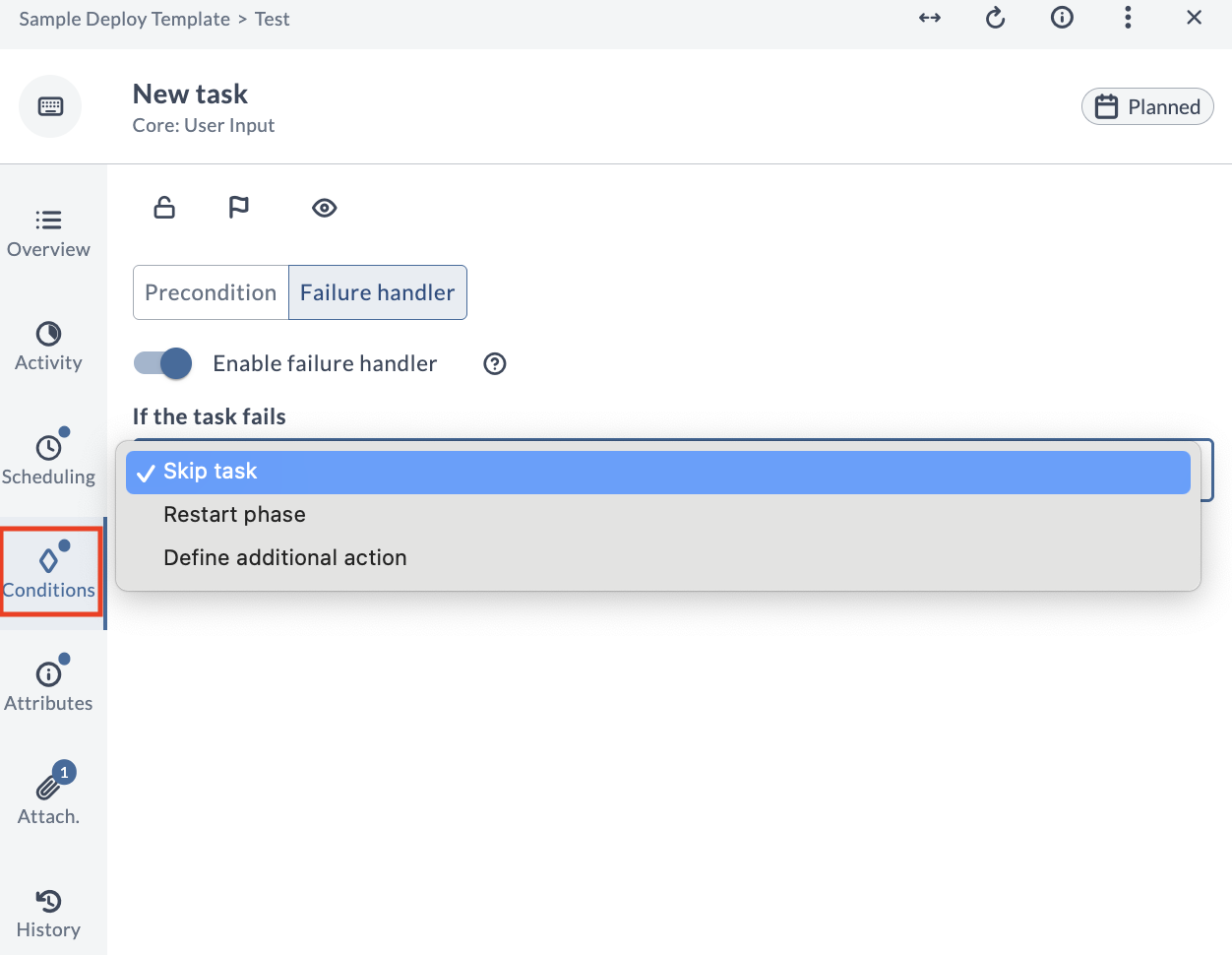
Options include:
- Skip task
- Restart phase
- Custom failure actions
Precondition and failure handler scripts behave like the Script field in the Overview tab. The Conditions tab displays a badge that indicates the configuration state: a blue badge shows that a precondition or failure handler is configured and saved, and an orange badge shows that it has unsaved script changes.
Attributes
Use the Attributes tab to manage task properties and relationships:
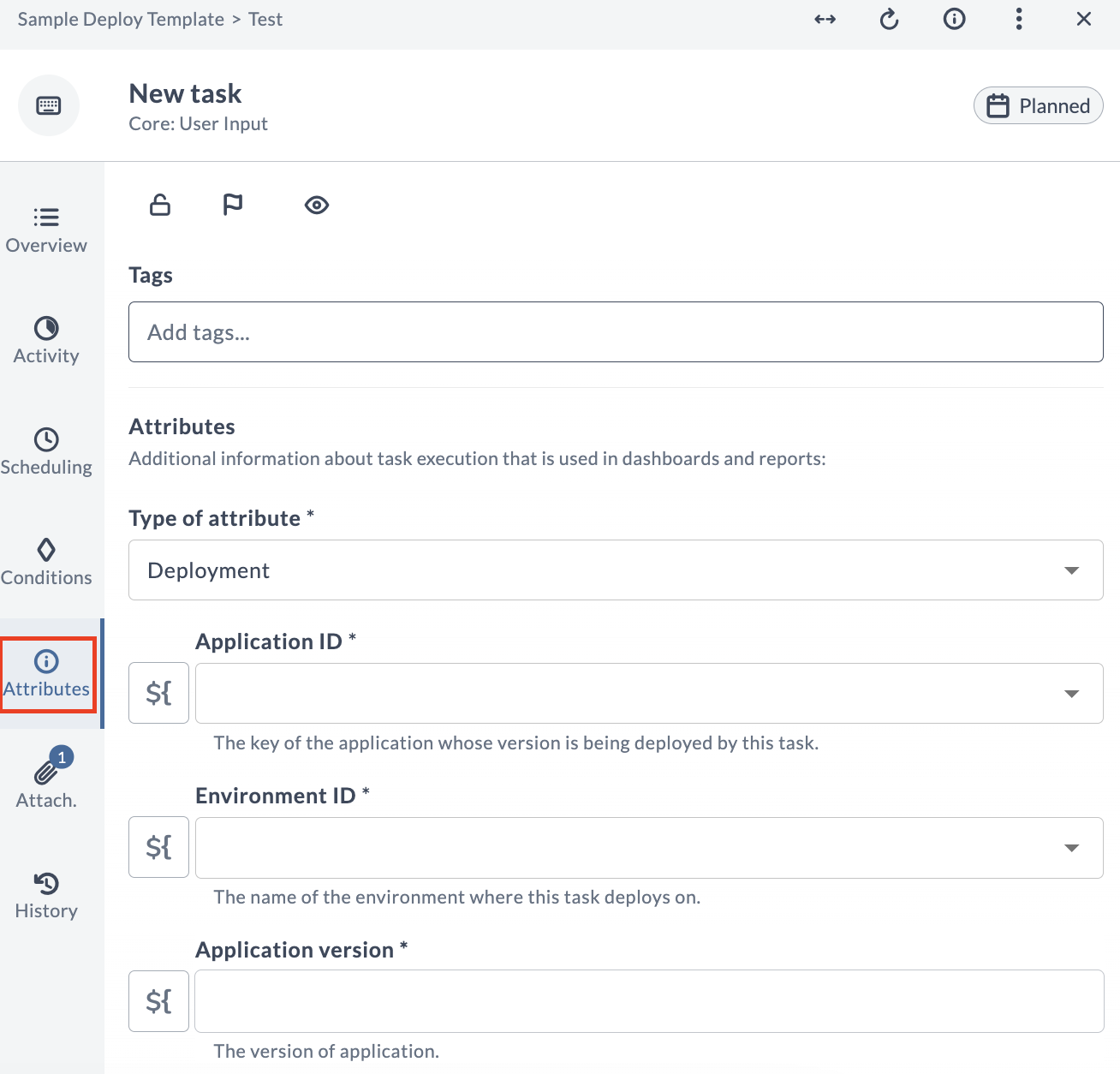
- Link deployments to deliveries
- Manage application versions
- Set environment IDs
- Add filterable tags
Attachments
The Attachments tab provides a central location for managing task-related files:
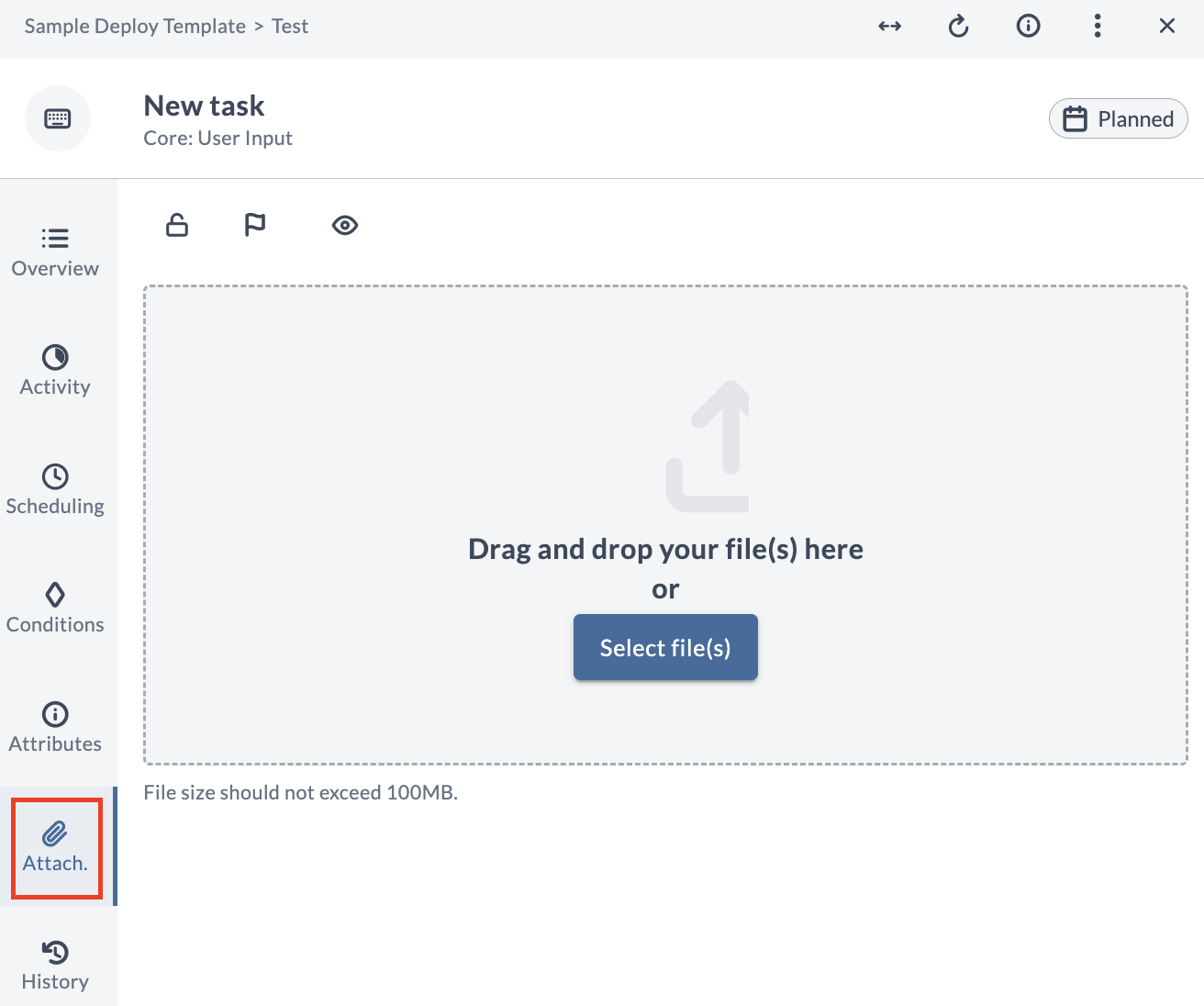
- Upload files
- Drag-and-drop support
- Attachment organization
History
The History tab maintains a comprehensive audit trail of all task-related activities:
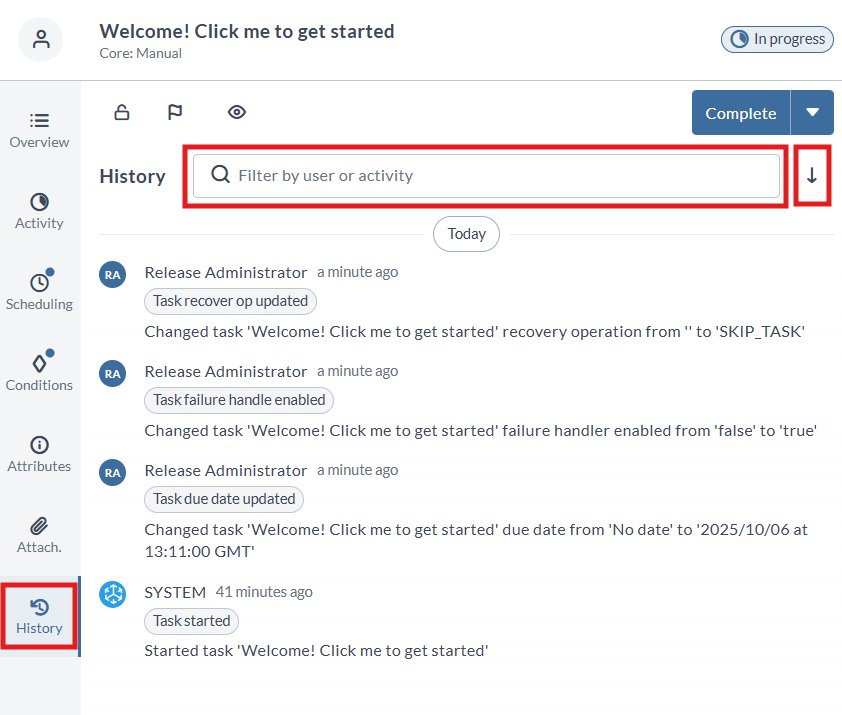
View Options
Navigate through task history using these tools:
- Filter by user/activity
- Sort by timestamp
- Track all task modifications
- Monitor user actions
Use the search functionality to quickly locate specific history entries