Digital.ai Release Home Page
Digital.ai Release introduces a new Home page that serves as a centralized hub, providing users with a comprehensive view of their recent workflows, releases, and other relevant information in a single place. This Home page offers a high-level overview, simplifying access to critical information.
For all users within your organization, the Digital.ai Release Home page serves as a customizable starting point. It enables the display of essential updates, product usage guidelines, and highlights new features. This enhances the visibility of the latest product functionalities.
Release Administrators have the flexibility to edit and customize the Home page to align with their organization's unique requirements. This customization facilitates a quicker onboarding process for new users and ensures that existing users can access the most relevant information that is tailored to their specific needs.
When upgrading, if the Home page was never customized, it will be automatically updated to the latest default layout. If the Home page was previously customized, it will remain unchanged and will not be overridden.
Here's a look at the Digital.ai Release Home page.
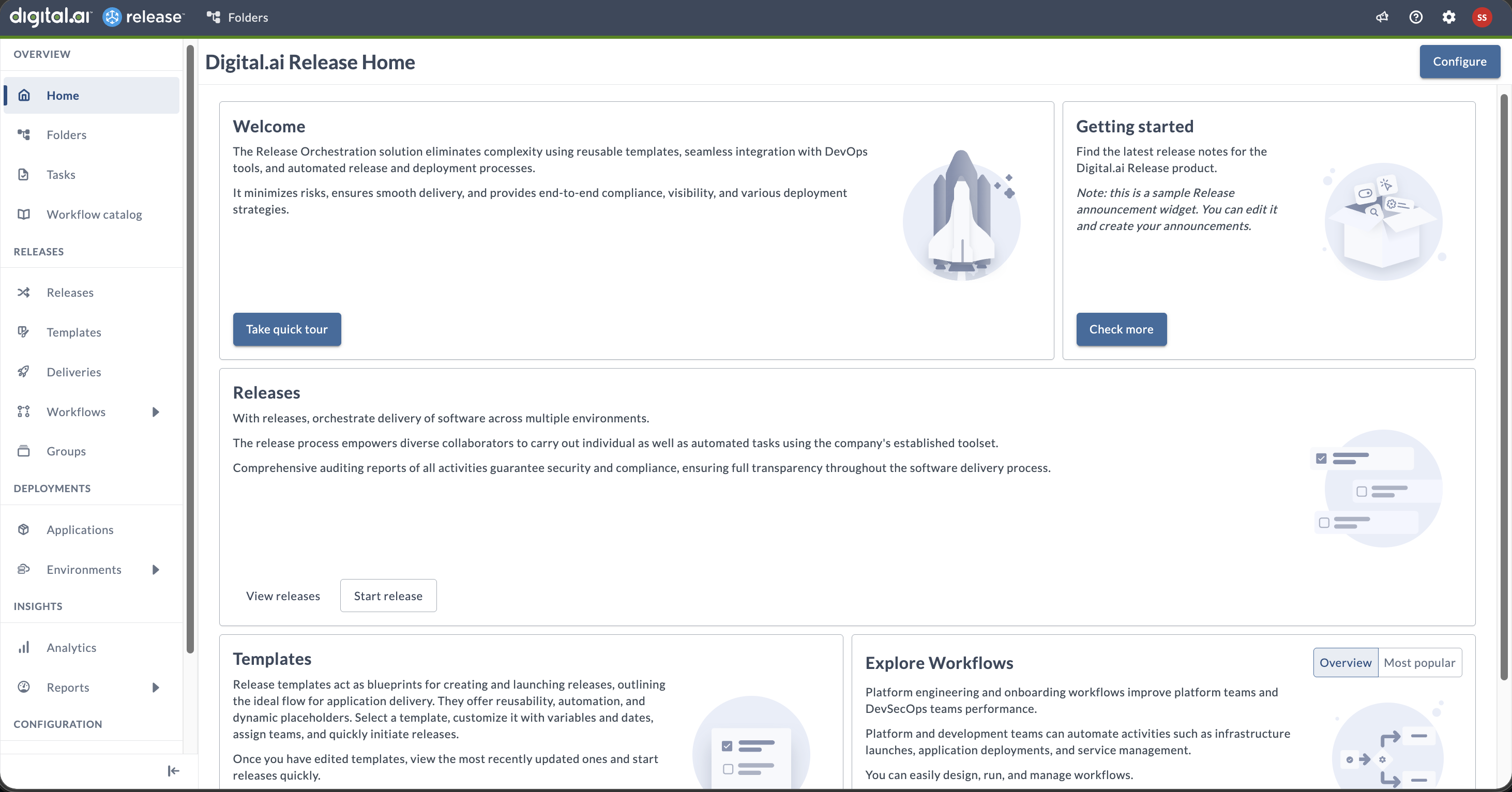
Tiles
You can add the following tiles:
- Welcome to Digital.ai Release tile
- Getting started tile (Global)
- Release tile (Global)
- My tasks tile (Global)
- Template tile (Global)
- Explore Workflows tile (Global)
When you're new to Digital.ai Release or haven't utilized Workflows, Releases, or Templates, you will encounter descriptions and call-to-action buttons to generate these items in their respective Workflow, Release, and Template tiles. After creating a template or initiating a release or workflow, these tiles will begin displaying information. It's important to note that the tile showcases the five most recently updated templates, releases, or workflows.
Welcome to Digital.ai Release tile
The Welcome to Digital.ai Release tile is tailored to onboard the new users of Release. This gives an interactive tour around the Digital.ai Release product.
Getting started tile (Global)
The Getting started tile helps new users get up to speed with Digital.ai Release. It provides links to the latest release notes and serves as a sample Release announcement widget that administrators can customize with their own announcements.
Release tile (Global)
The Release tile displays the 5 most recently updated or created releases. Each row includes the current Release status, the Planned End date, and the duration. The End date for overdue releases will be highlighted in red, and there will be an accompanying icon to indicate this. Click the row to open the release flow information for overview.
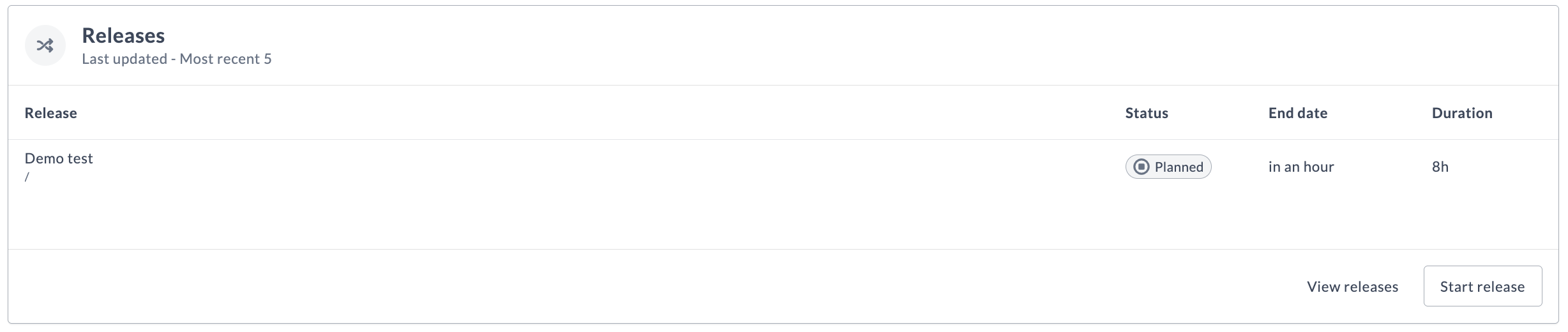
- Click Start release on the Releases tile to create a new release.
- Click View releases on the Releases tile to view the existing releases.
- You can view the recently updated
5releases on this tile. - Click the release row to open the Release flow editor.
My tasks tile (Global)
The My tasks tile lists the active tasks that are assigned to you that are in the In progress, Pending, or Failed status. Tasks are sorted by due date in ascending order, so the tasks that are due soonest appear first. This tile is included in the default Home page layout.
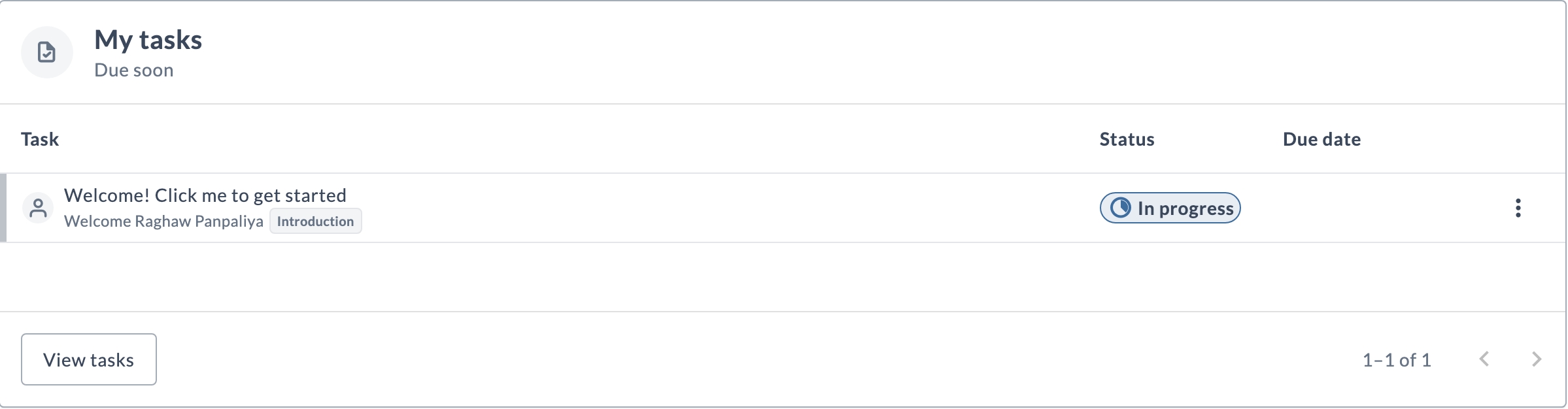
Each row shows the task name, the release the task belongs to, and the phase that contains it, along with the task status and due date. By default, the tile displays 5 tasks at a time, and Administrators can change this number in the tile settings. If there are more than 5 tasks assigned to you, scroll within the tile or click the arrows in the lower-right corner to view the next set.
- Click a task row to open the release that contains the task, with the task drawer open for that task.
- Click the ellipsis menu in a task row to Complete, Skip, or Fail the task. You are prompted for a comment before the action is applied.
- Click View tasks on the My tasks tile to open the Tasks page, filtered to show the tasks assigned to you.
Template tile (Global)
The Template tile showcases the 5 most recently updated or modified Release templates. Each row provides information about the template, its folder location, the number of releases initiated from that template, and the timestamp of the last update action. Clicking a template row opens the template in Edit mode. You can also access a context menu to quickly start a new release from this template.
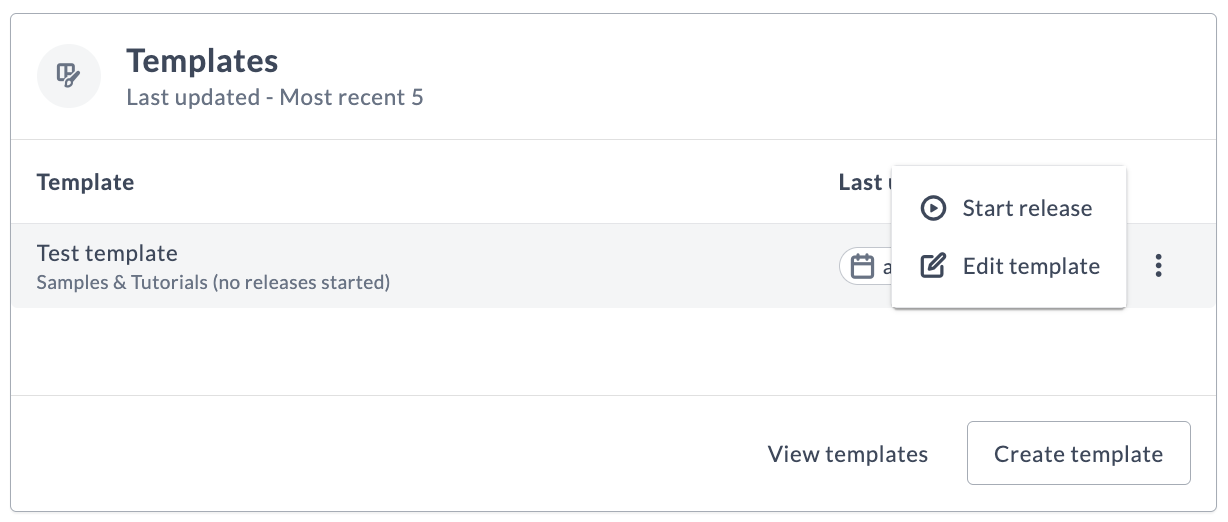
- Click Create template on the Templates tile to create a new template.
- Click View templates on the Templates tile to view the already available templates.
- You can view the recently updated
5templates on this tile. - Click the ellipsis menu in the template row to start a release or edit a template.
Explore Workflows tile (Global)
The following Workflows section is displayed if you have not executed any workflows.
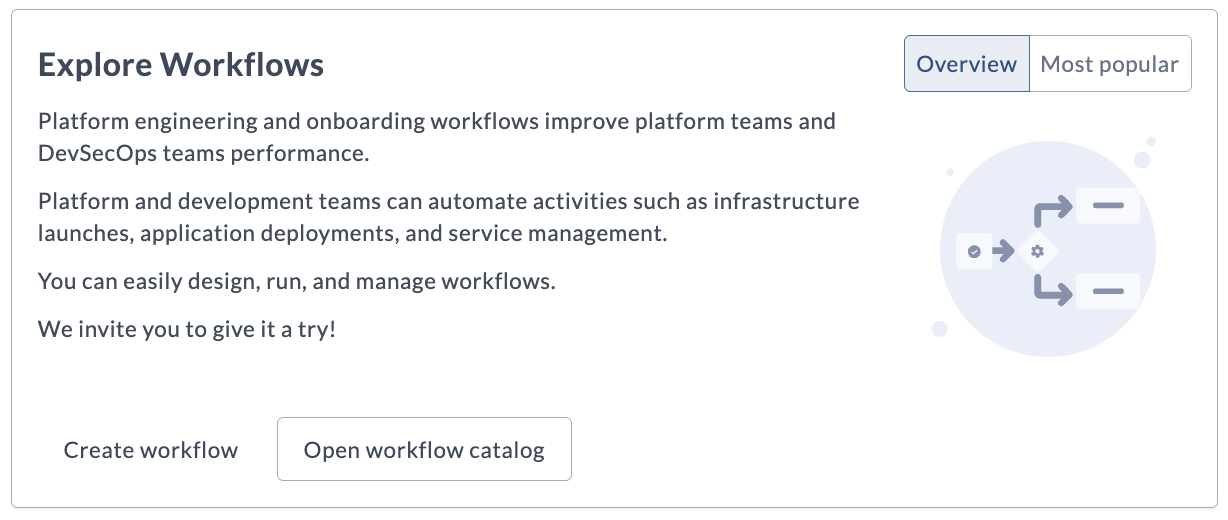
You will see 2 tabs:
- Overview: Provides a description of the workflow.
- Most popular: Displays the 5 most recently executed workflows.
Click the relevant row of the workflow to run it.
The following Workflows section is displayed if you have executed any workflows.
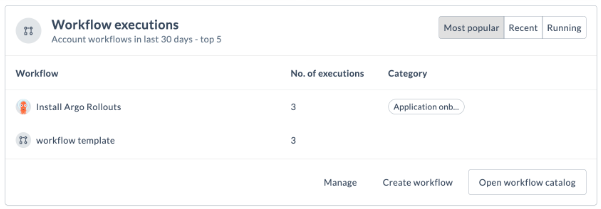
You will see 3 tabs:
- Most popular: Displays the 5 most recently executed workflows.
- Running: Displays information about the most recently executed workflows that are not in the Aborted or Completed states. Click the workflow row to navigate to the workflow's current active step.
- Recent: Displays the most recently completed or aborted workflow executions. Click the workflow row to navigate and review the terminated workflow.
Click Open workflow catalog on the Explore Workflows tile to view the Workflow catalog page.