Variables in Digital.ai Release
Digital.ai Release uses variables to make your release templates more flexible and reusable. Variables allow you to parameterize your release processes, making it easier to manage dynamic content and configuration across different environments and scenarios.
Understanding Variables
When creating release templates, you'll create tasks that contain information that varies based on the release. For example, you can have one generic release template used for releasing several applications, where each release requires different application names.
You can use variables to manage information that:
- Is not known when designing a template, such as the name of the application
- Is used in several places in the release, such as the name of the application, which you can use in task descriptions and email notifications
- May change during the release, such as the version number of the release that is being pushed to production
Variables are identified by the ${ } syntax. Release supports several types of variables. Examples: text, password, number, and list.
Variable Scope
In Digital.ai Release, variables can be created with different scopes to control their visibility and usage:
- Release variables can only be used in a specific template or release.
- Folder variables can be used in all templates and releases inside a specific folder.
- Global variables can be used in all templates and releases.
Folder and global variable names must start with a scope prefix, which also appears in their ${ } reference:
- Folder variable names must start with
folder., for examplefolder.owner, and are referenced as${folder.owner}. - Global variable names must start with
global., for exampleglobal.website, and are referenced as${global.website}.
Release variable names cannot start with folder. or global., and are referenced as ${varName}.
Creating Variables
How to Create a Release Variable
If you have the Edit Template or Edit Release permission on a template or a release, respectively, you can create a release variable by:
- Typing the variable name in a field in the release flow editor using the
${ }syntax - Using the Variables screen
For more information about creating, editing, and deleting release variables, see Create release variables.
How to Create a Folder Variable
If you have the Edit folder variables permission on a folder, you can create folder variables in Overview > Folders of the navigation pane, select a folder, then select Variables.
For more information about creating, editing, and deleting folder variables, see Configure folder variables.
How to Create a Global Variable
If you have the Edit Global Variables permission, you can create global variables in Settings > Global variables. For information about creating, editing, and deleting global variables, see Configure global variables.
The properties must be configured correctly to ensure proper variable behavior across the system.
Using Variables
You can use variables in most fields in releases, for example, in the titles of phases and tasks, in descriptions of phases, tasks, and in conditions and scripts.
You can reorder variables on the Variables screen by dragging and dropping them using the drag handle (⋮⋮). This order is maintained on the Create Release page, where users filling in variable values see them in the same sequence.
While release, folder, and global variables can be used in input properties of tasks, only release variables can be used in the output properties of such tasks.
You can create release variables that must be filled in before a release or task can start. For more information, see Create release variables.
You can change the values of variables in an active release, although doing so will only affect tasks that are in a planned state.
Variable Value Resolution in Text Fields
Text type fields, by default, fetch and show the values of the String type variables added to them. Text type fields show the variable's name in case the variable has no values assigned to it.
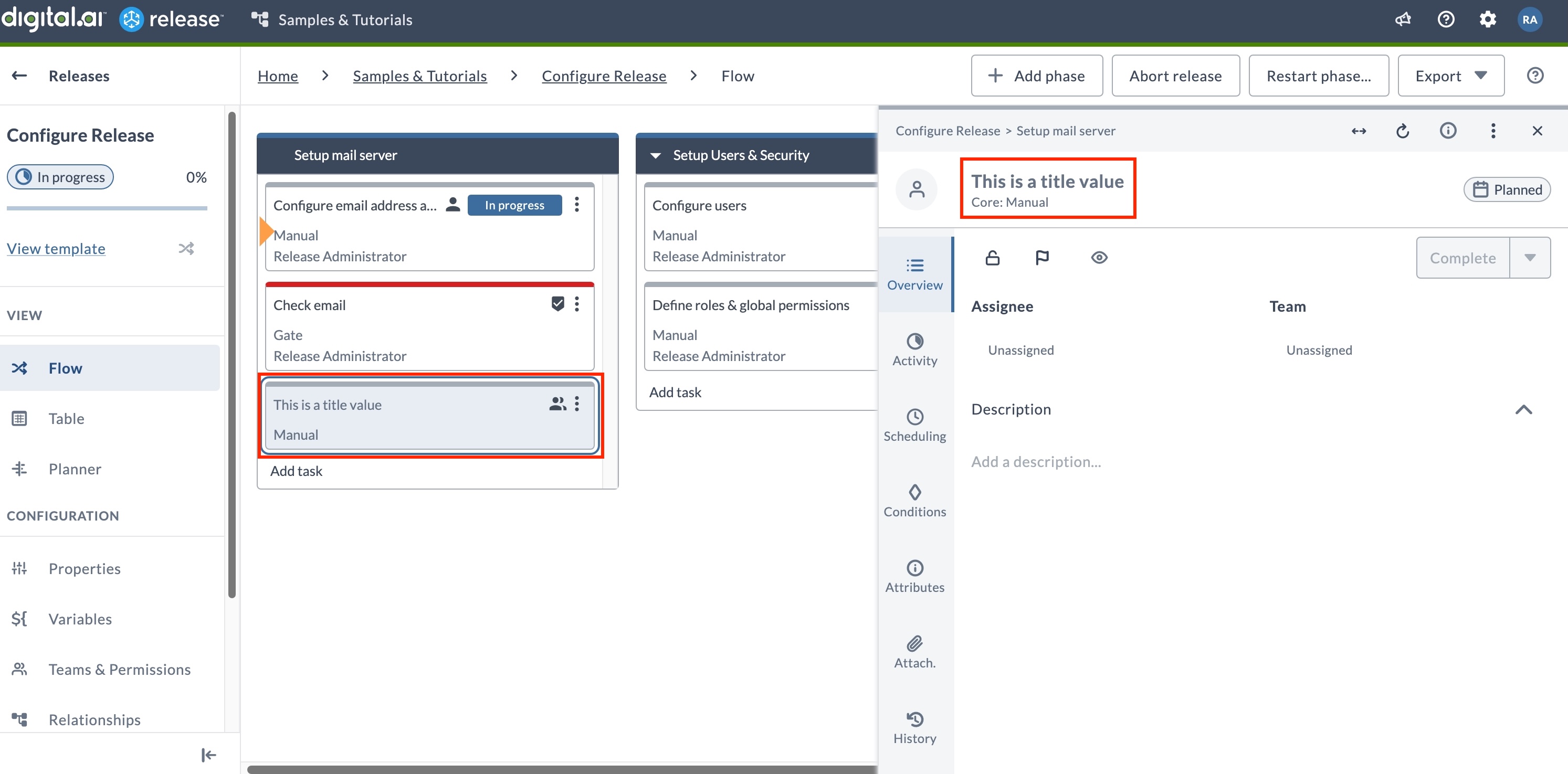
For example, here's the Text type field ${title} with a value assigned to it.

Here's how the Release Title text field shows the value of the String type variable when you add the variable to the Release Title field.
Variable Autocomplete in Description Fields
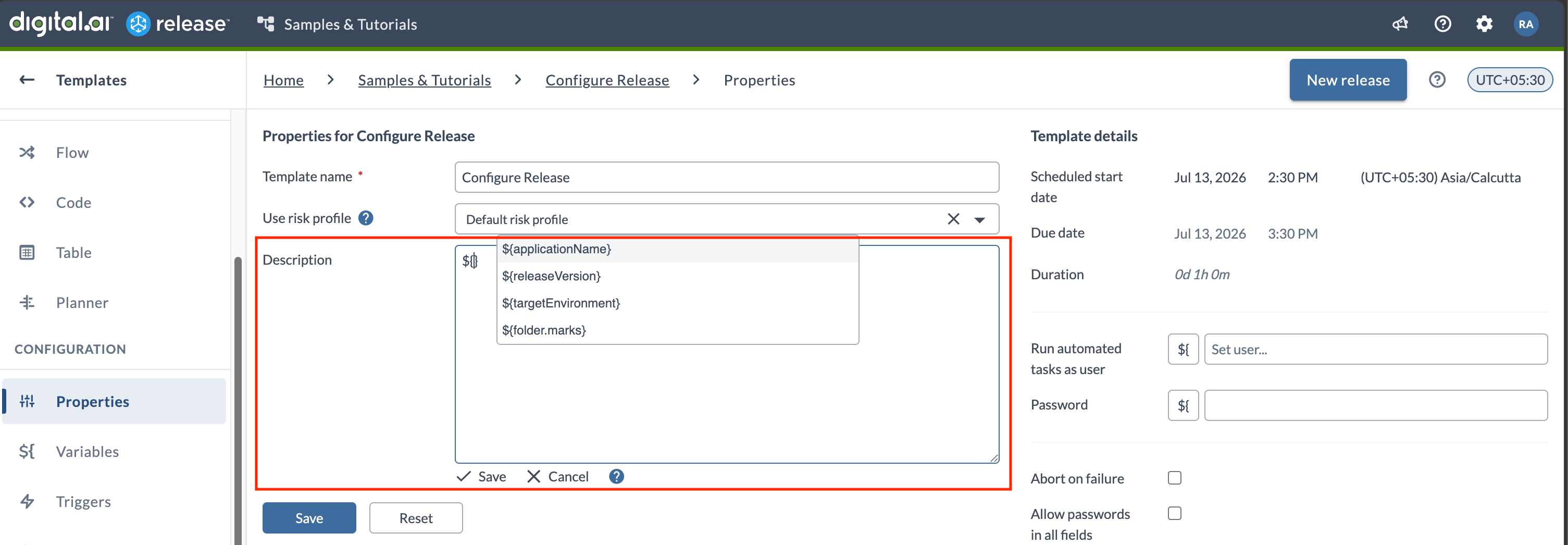
The description fields on the Template, Release, and Workflow properties pages support variable autocomplete, including folder variables.
When you type ${ in a description field, a suggestion list displays the available variables so you can insert one without typing its full label. After you save the description, the field displays the resolved variable values.
Nested Variables
Nested variables let you compose dynamic values at runtime. For example, you can build a URL from separate host and port variables, so changing an environment only requires updating individual components rather than every reference.
You can use variables inside another variable. This does not apply to password types and index/key access of complex types, such as ${list[2]} or ${map['key1']}.
Example 1: String Variables Inside String Type Variable
${host} = localhost
${port} = 5516
${url}  = http://${host}:${port}/
Example 2: String Variables Inside List Type Variable
key: 'list',
value: ['${var1}', '${var2}'],
Example 3: String Variables Inside Set Type Variable
 key: 'set',
 value: ['${var1}', '${var2}'],
Example 4: String Variables Inside Map Type Variable
key: 'stringMap',
value: {'key1': '${var1}', 'key2': '${var2}'},
Preventing Variable Interpolation
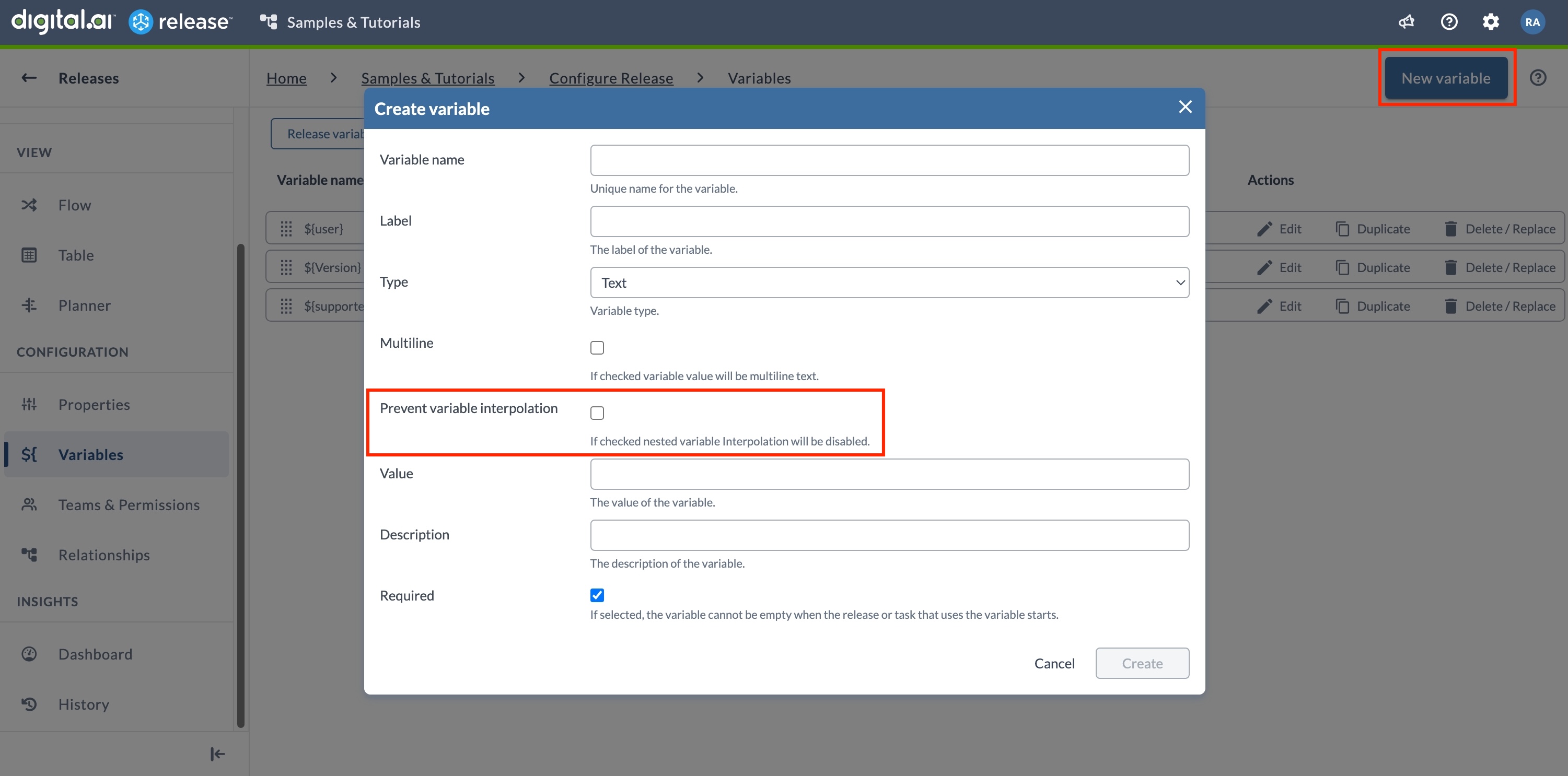
Some text fields contain literal ${ } syntax that should not be treated as variable references, such as shell scripts or configuration snippets. Use the Prevent variable interpolation option to preserve such values as plain text.
To configure this, select the Variables > New variable > Prevent variable interpolation check box. This check box is enabled only when you select Text from the Type drop-down list.
This is applicable only for Text type variables. It can be set at release, folder, and global levels.
Special Release Variables
You can use the following special release variables to access the properties of a release:
${release.url}${release.id}${release.title}${release.status}${release.owner}${release.description}${release.flagStatus}${release.flagComment}${release.tags}
List Box Variables
Using a List Variable as Possible Values
You can create a List variable and use it as a possible value for a List box variable.
- Create a global variable or a release variable with the type List.
- When you create a new variable and select the type List box, click the button next to the Possible values to switch between a list of normal values or a variable of type List.
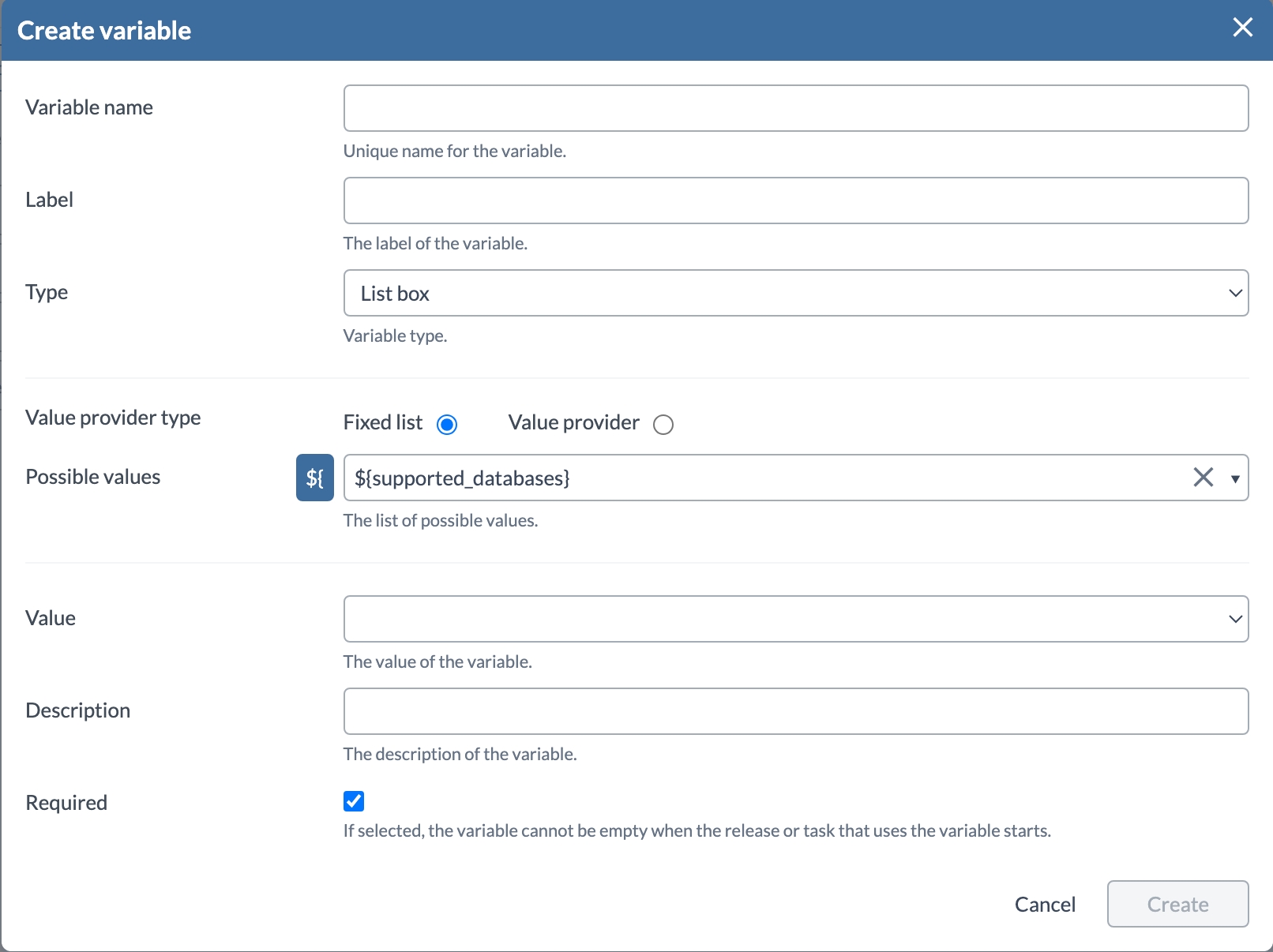
- Select the second option and choose a List type variable.
- Click Save.
You can use the List box variable in templates, releases, or tasks allowing users to select the values from a predefined List variable.
Using Applications or Environments as Possible Values
You can choose a list of Applications or Environments to be used as possible values for a List box variable.
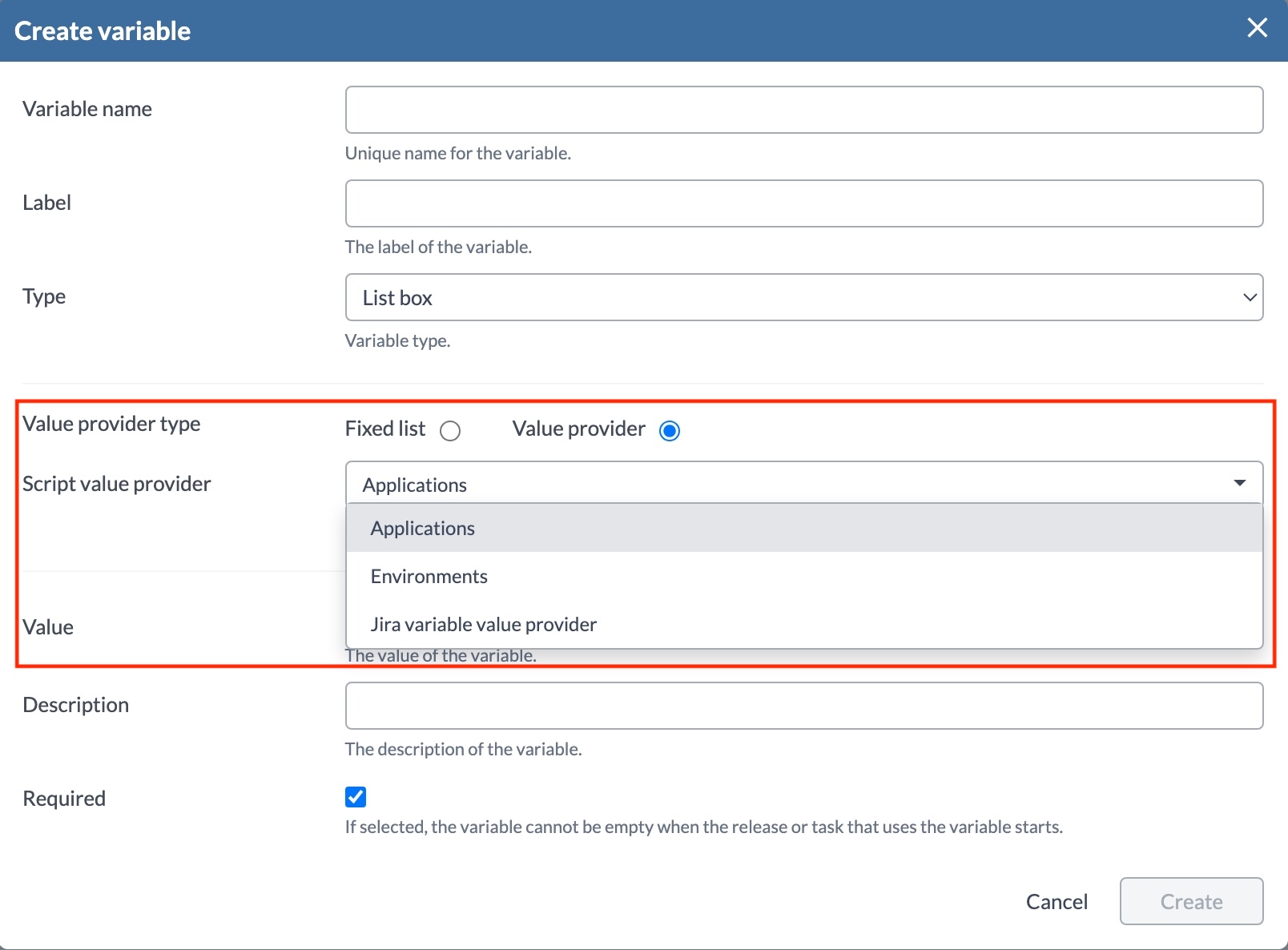
Specify the run-as user and password on the template properties, as those credentials will be used to retrieve the available Applications and Environments.
Applications and environments will only be retrieved during release creation and User Input tasks. The list of values will be empty in other scenarios, such as when manually changing variable values.
Dynamic Value Providers
You can use a script to dynamically retrieve possible values inside a List box variable.
- Create a new List box variable.
- Select Value provider as the Value provider type.
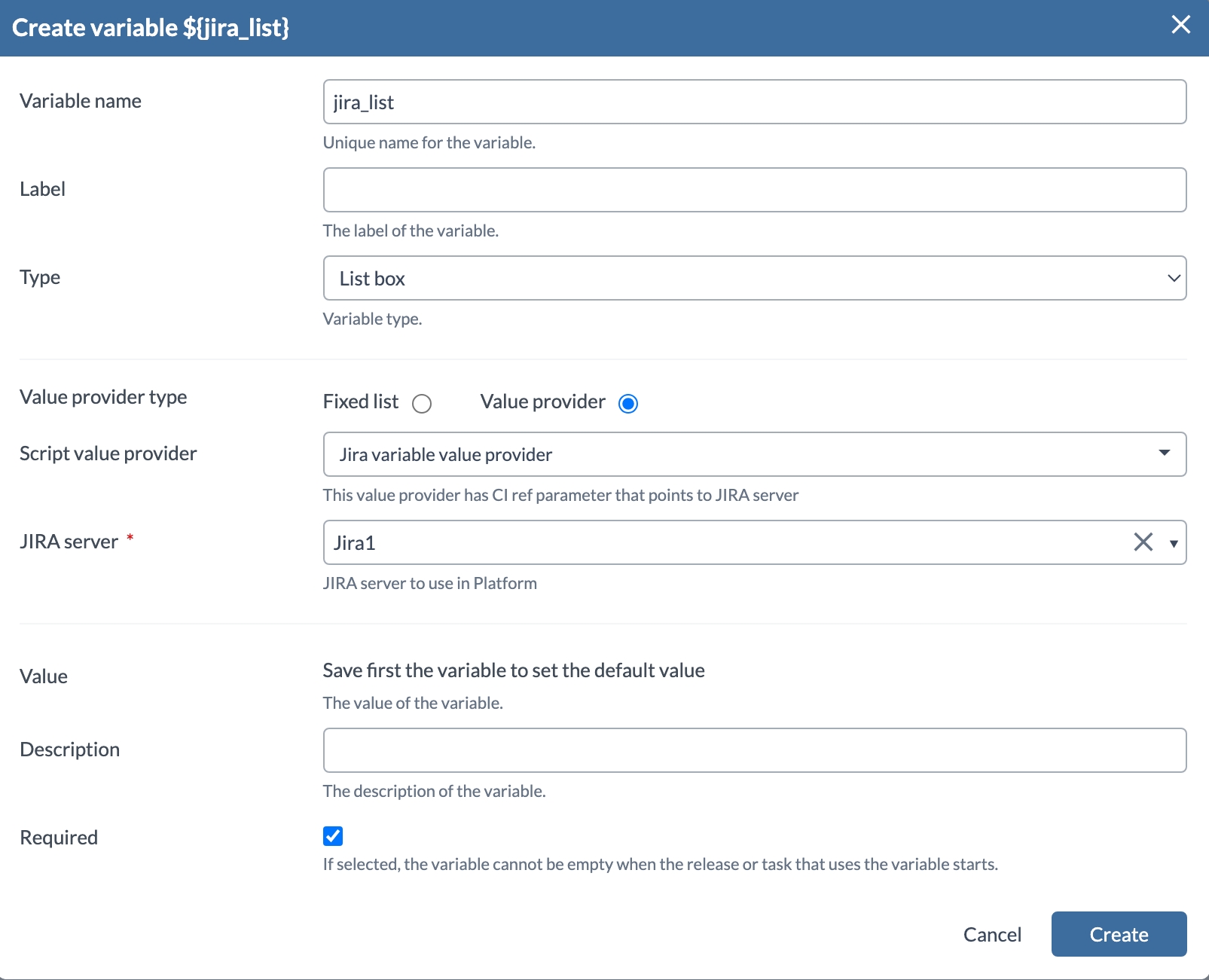
- Select the Script value provider.
- Depending on the selected script, you will have different input fields. The script will be evaluated when creating a release.
- Click Save.
Applications and environments will only be retrieved during release creation and User Input tasks. The list of values will be empty in other scenarios, such as when manually changing variable values.
External Password Variables
Organizations often store credentials in a centralized secret management system to enforce rotation policies, audit access, and avoid embedding secrets in pipeline definitions. External password variables let Digital.ai Release retrieve secrets at execution time from these systems instead of storing them directly in Release. This means credentials stay under the governance of your security team while releases can still consume them seamlessly.
Release supports the following secret managers through dedicated adapters:
Each adapter connects to the secret manager, authenticates, and fetches the requested secret value when a task that references the variable executes. Secrets managed in this way can be used in password fields. Passwords can also be used in regular text fields if Allow passwords in all fields is checked on the Release properties tab.
Configuring Secret Servers
See the related how-to pages for your server:
Mapping an External Secret
Any release, folder, or global variable can be mapped to an external secret by following these steps:
- Create a new variable.
- Choose Password from the Type dropdown.
- Click on the keyboard icon next to the Default value text field.
- Choose your preconfigured Vault, Conjur, AWS Secrets Manager, or Azure Key Vault server.
- For Vault, add the path to the secret and the key of the secret.
- For Conjur, add the path to the secret only.
- For AWS Secrets Manager and Azure Key Vault, provide the path/name of the secret as required by the integration.
Once this is saved, the variable can be used like any other password variable.
Restrictions on External Password Variables
- External secrets can only be mapped to password variables.
- External secrets are treated as string values.
- External secrets cannot be used in dictionary values.
- The value from an external secret is not passed to scripts via the
releaseVariable,folderVariable, orglobalVariabledictionary within a script. - The value from an external secret cannot be retrieved from the Release REST API.
- The path specified when creating the external secret is not validated. It will be resolved during the release execution.