AI Assistant Agents
AI Assistant answers your questions through agents. Each agent is tuned for a specific kind of question and uses its own tools and prompts. This page documents which agents are available and how to choose one. For the assistant overview and setup, see AI Assistant.
AI Assistant was previously called Ask Release.
Available Agents
You select an agent when you start a conversation. The following agents are available:
- Generic Agent: The default agent for general questions about your Release data, such as release status, tasks, templates, folders, variables, and configurations. See AI Assistant for the full list of what you can query.
- Reporting Agent: Answers data questions with visual results such as charts and tables, and can add results to a dashboard. See Reporting Agent.
- Knowledge Base Agent: Answers how-to questions about working with Release and its integrations. See Knowledge Base Agent.
The agents you see depend on your permissions. Agents that are out of scope for your instance are filtered out of the agent list.
AI Assistant also includes task troubleshooting, which explains why a task failed. Troubleshooting is launched from a failed task's Explain error button rather than from the agent selector.
Select an Agent
When you open AI Assistant or start a new chat, choose the agent for your question from the agent selector. Each agent shows its own welcome message and suggested prompt starters to help you get started.
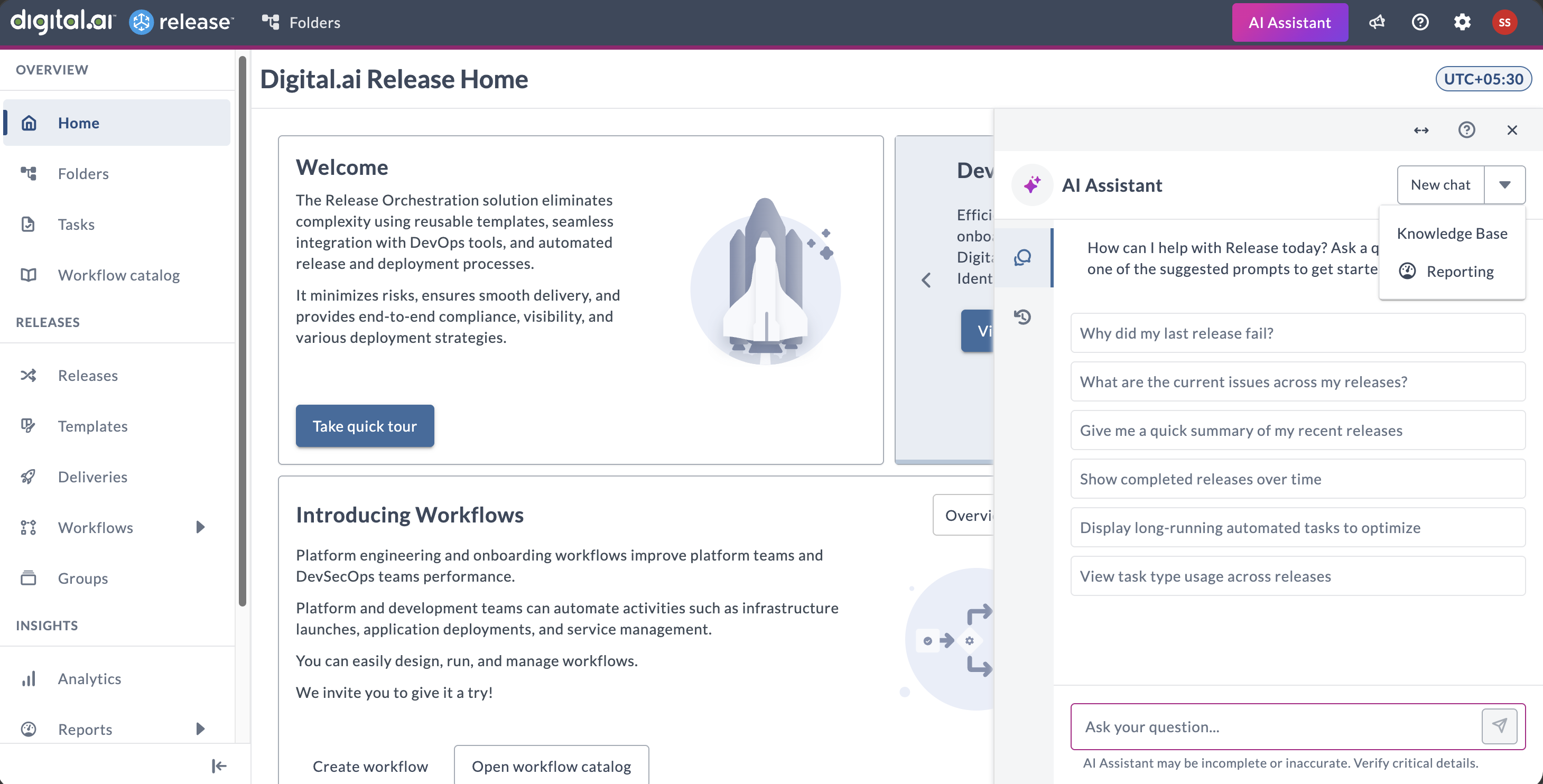
If you do not select an agent, the conversation uses the Generic Agent.
How the Agent Behaves in a Conversation
The agent you choose shapes the whole conversation.
Domain Is Locked per Conversation
Each conversation is permanently associated with the agent it started in. The agent is shown in the conversation and cannot be changed for the life of that conversation. To ask a question that belongs to a different agent, start a new chat and select that agent, as described in Switch to a different agent.
Switch to a Different Agent
Depending on the agent, it may tell you which agent can answer it, or it will state its strict boundaries and refuse the question. Because the agent is fixed for the life of a conversation, you switch by starting a new chat rather than by changing the agent in the current one.
- In the top navigation bar, click the AI Assistant icon to open the chat panel.
- Click the drop-down arrow next to New chat.
- Select the agent you want to use.
- Type your question, or click one of the agent's prompt starters.
The conversation you were in is not lost. To go back to it, select the History tab and choose it from the list.
Prompt Starters and Welcome Message
Each agent has its own welcome message and suggested prompt starters that reflect the kind of questions it handles. The starters give you working examples you can click to run.
Permission Scoping
Every agent respects your Release permissions. Results only include data you are authorized to view. When a result references an item you cannot access, AI Assistant indicates that access is restricted rather than showing the data.