AI Assistant
Ask Release is now called AI Assistant. The name changed in the Release UI, so the top navigation bar and the chat panel show AI Assistant. The feature and the way you use it are unchanged.
AI Assistant is an AI-powered assistant built into Digital.ai Release. It gives you fast, natural-language access to your Release data within your permissions. Ask questions and get instant answers about status, risks, blockers, and more without navigating multiple screens.
AI Assistant answers your questions through agents. Each agent is tuned for a specific kind of question. See AI Assistant Agents for how to choose one.
Why Use AI Assistant
Managing releases at scale is complex. Information is scattered across multiple screens and status checks are manual. AI Assistant removes this friction by letting you ask questions directly and get answers based on live Release data.
Key Benefits
- Instant status visibility: Get quick insights into what is happening across your releases, including risks, blockers, and overdue tasks, without navigating multiple screens.
- Guided exploration: Discover templates, review configurations, and explore your release data through conversational queries.
- Activity and audit lookup: Access recent changes, user assignments, and audit history for tracking and compliance.
- Digital.ai Release expertise: Get answers specifically about releases, templates, tasks, phases, variables, configurations, and integrations within your Digital.ai Release instance.
How to Use AI Assistant
- Log in to Digital.ai Release.
- In the top navigation bar, click the AI Assistant icon.
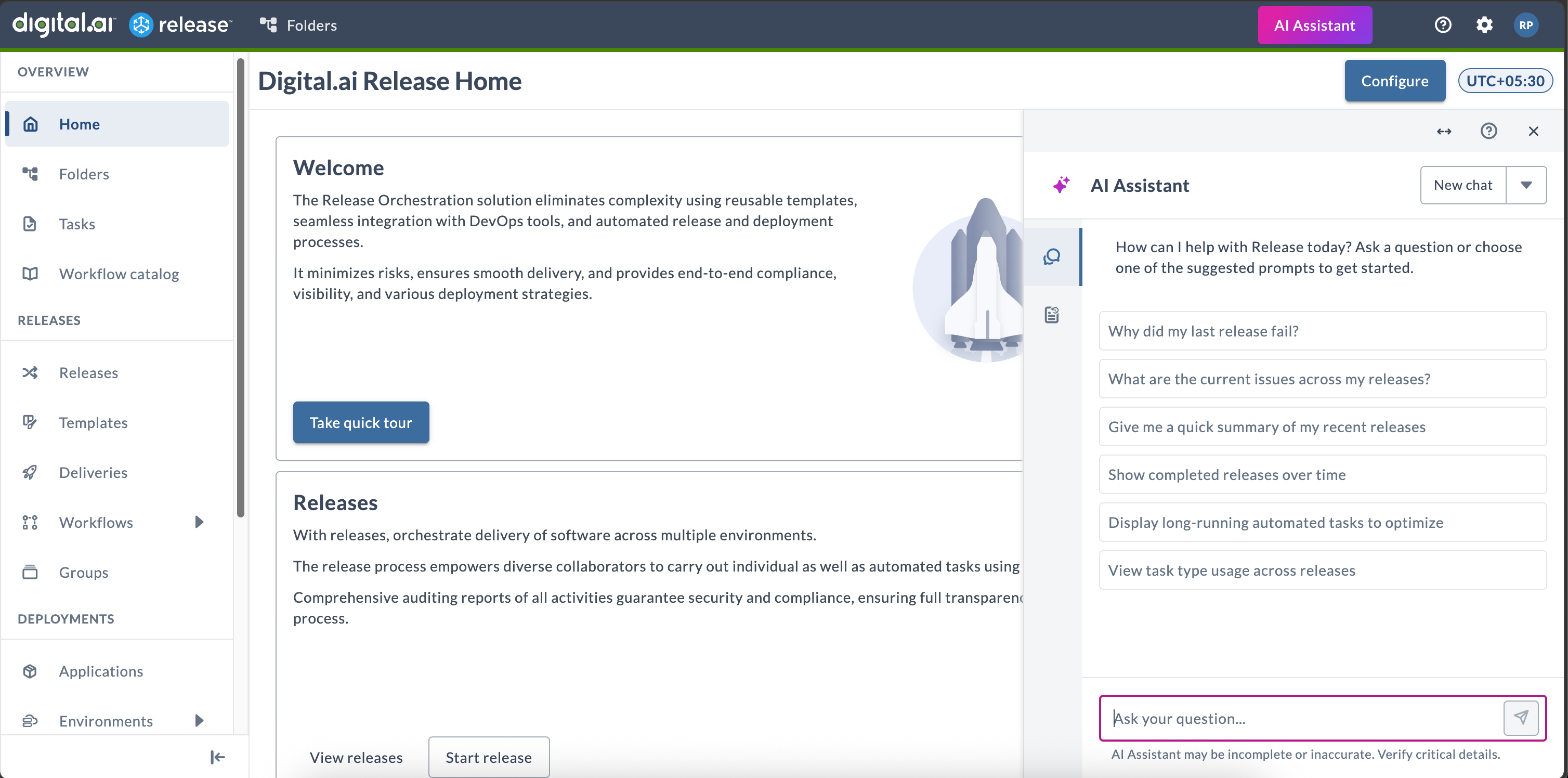
The AI Assistant chat panel opens on the right side of the screen.
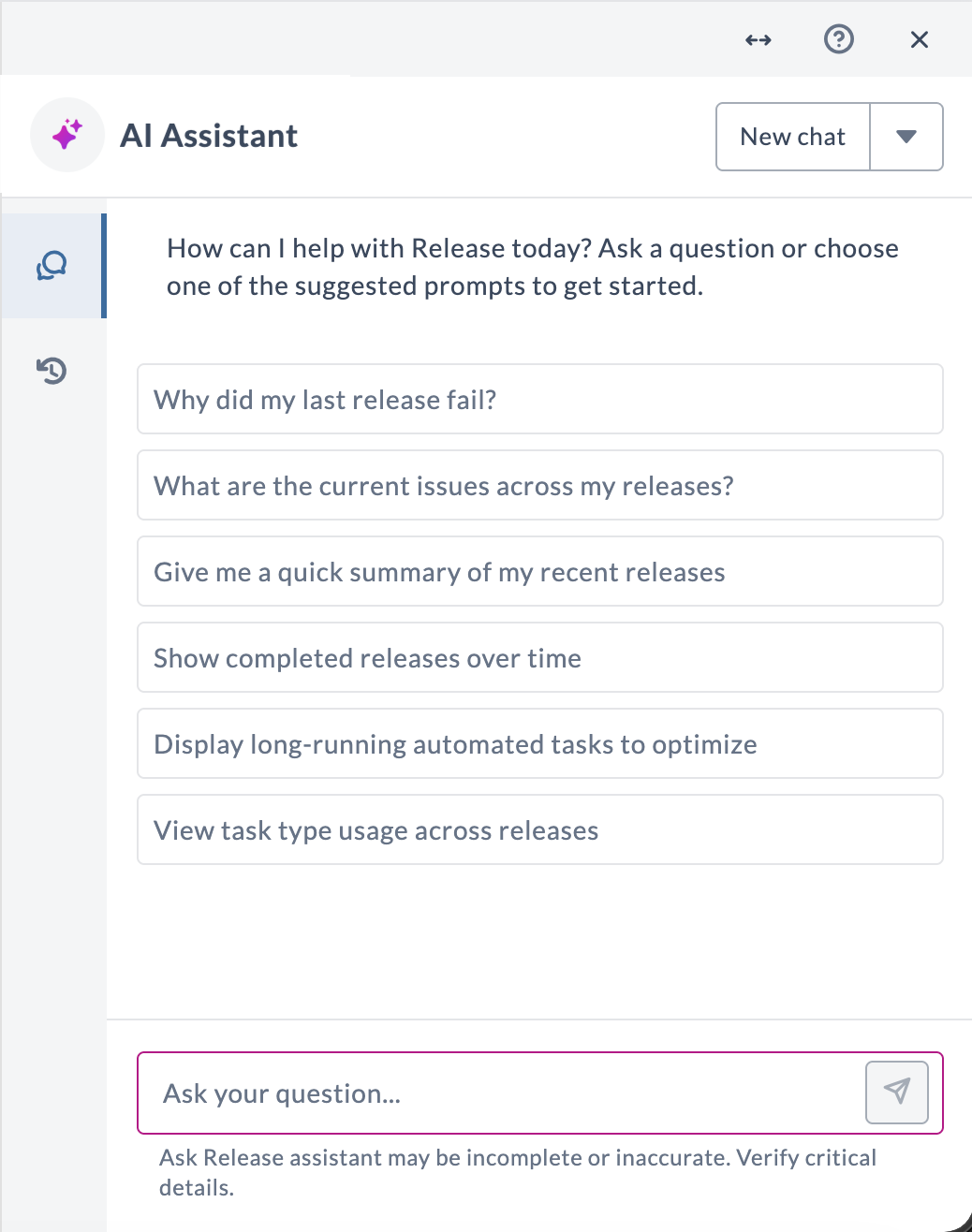
- Type your question in the chat panel.
- Press ENTER or click the send icon.
AI Assistant processes your question and displays the response in the conversation thread.
Context Awareness
AI Assistant is context-aware. It scopes your queries based on the page you open it from, such as a specific release, folder, or the global view.
To pick up the latest state after making changes, click New chat to start a fresh session.
View Conversation History
- Click the History tab in the chat panel.
- Select a conversation to resume it.
Your previous conversations are sorted by most recent activity.
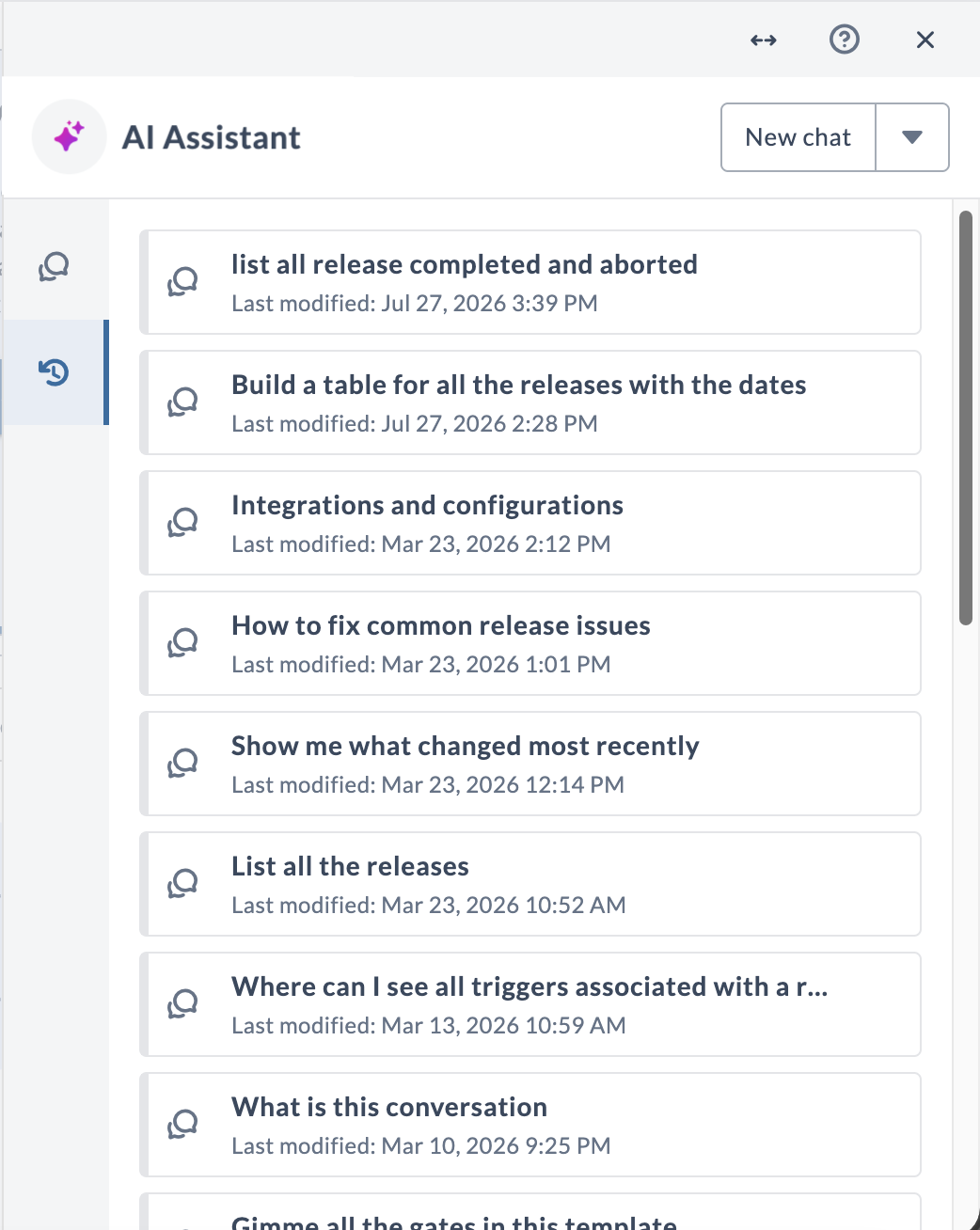
Start a New Conversation
To start a fresh conversation, click New chat in the Chat tab. The Chat tab also includes suggested prompts to help you get started.
What You Can Query
You can retrieve any information you have permission to access through natural-language queries, across the following categories:
Releases and tasks
Query the status, progress, and details of releases and tasks. Filter by status, tags, dates, or ownership, and review activity logs and failure details.
Example questions:
- "What releases are currently active?"
- "What is the status of [release name]?"
- "Show me failed tasks in [release name]"
- "List all releases in [folder name]"
- "Find releases tagged with [tag name]"
- "Show me all paused/failed/aborted releases"
- "How many releases are in progress?"
- "Show me activity logs for [release name]"
- "Find releases created between [date1] and [date2]"
Templates
Explore available templates, view their structure including phases and tasks, and review template configurations.
Example questions:
- "What templates are available in [folder name]?"
- "Show me template details for [template name]"
- "What phases are in [template name]?"
- "Find templates tagged with [tag name]"
Folders and variables
Navigate your folder hierarchy and inspect variables at global, folder, release, and template levels.
Example questions:
- "What folders are in [parent folder name]?"
- "Show me the folder structure"
- "List all global variables"
- "Show me variables in [release name]"
- "What is the value of variable [variable name] in [release name]?"
Integrations and configurations
Discover and view existing integration configurations for external systems such as Jenkins, Jira, Git, and ServiceNow.
AI Assistant can view existing configurations but cannot test connections, create configurations, or troubleshoot integration issues.
Example questions:
- "Show me all Jenkins server configurations"
- "Find the Jira configuration named [name]"
- "What configurations are in [folder name]?"
Attachments
Access and analyze text-based attachments associated with releases and tasks, such as logs, JSON, XML, YAML, and CSV files.
AI Assistant can only read text-based files. It cannot display or analyze images (PNG, JPG, GIF) or binary files (PDFs, executables).
Example questions:
- "Show me attachments on [release name]"
- "Show me the content of [attachment name]"
- "Search for [text] in [attachment name]"
Metadata and task types
Discover available task types, phase types, and configuration types in your instance.
Example questions:
- "What task types are available?"
- "What are the properties of [task type]?"
- "List all configuration types"
What You Get Back
AI Assistant returns responses designed to be immediately useful:
- Clickable navigation: Direct links to releases, tasks, folders, and templates so you can open the exact item with one click.
- Structured data: Tables and lists that make it easy to scan multiple items, grouped and labeled clearly.
- Real-time information: Data that reflects the current state of your Release instance, including live status and current values.
What AI Assistant Cannot Do
AI Assistant is read-only and scoped to querying Digital.ai Release data. The following actions are not supported:
- Creating, modifying, or deleting releases, templates, tasks, or configurations
- Starting, stopping, or triggering releases or tasks
- Testing connections, validating configurations, or troubleshooting integration issues
- Managing users, teams, or permissions
- Accessing triggers, applications, environments, deliveries, patterns, or reports
- Generating predictions or forecasts
Tips for Effective Questions
You get better answers when you give AI Assistant clear context and focus.
- Name specific items - Refer to releases, templates, folders, or tasks by name rather than asking broadly.
- Filter by status - Ask for releases or tasks in a specific state such as failed, active, paused, or at risk.
- Specify ownership - Include an owner or team name, or ask what is assigned to you.
- Add time ranges - Narrow results by asking about a specific period, such as "this week" or "in the last 30 days".
- Ask one thing at a time - Break complex questions into smaller, focused questions for more precise answers.
Architecture
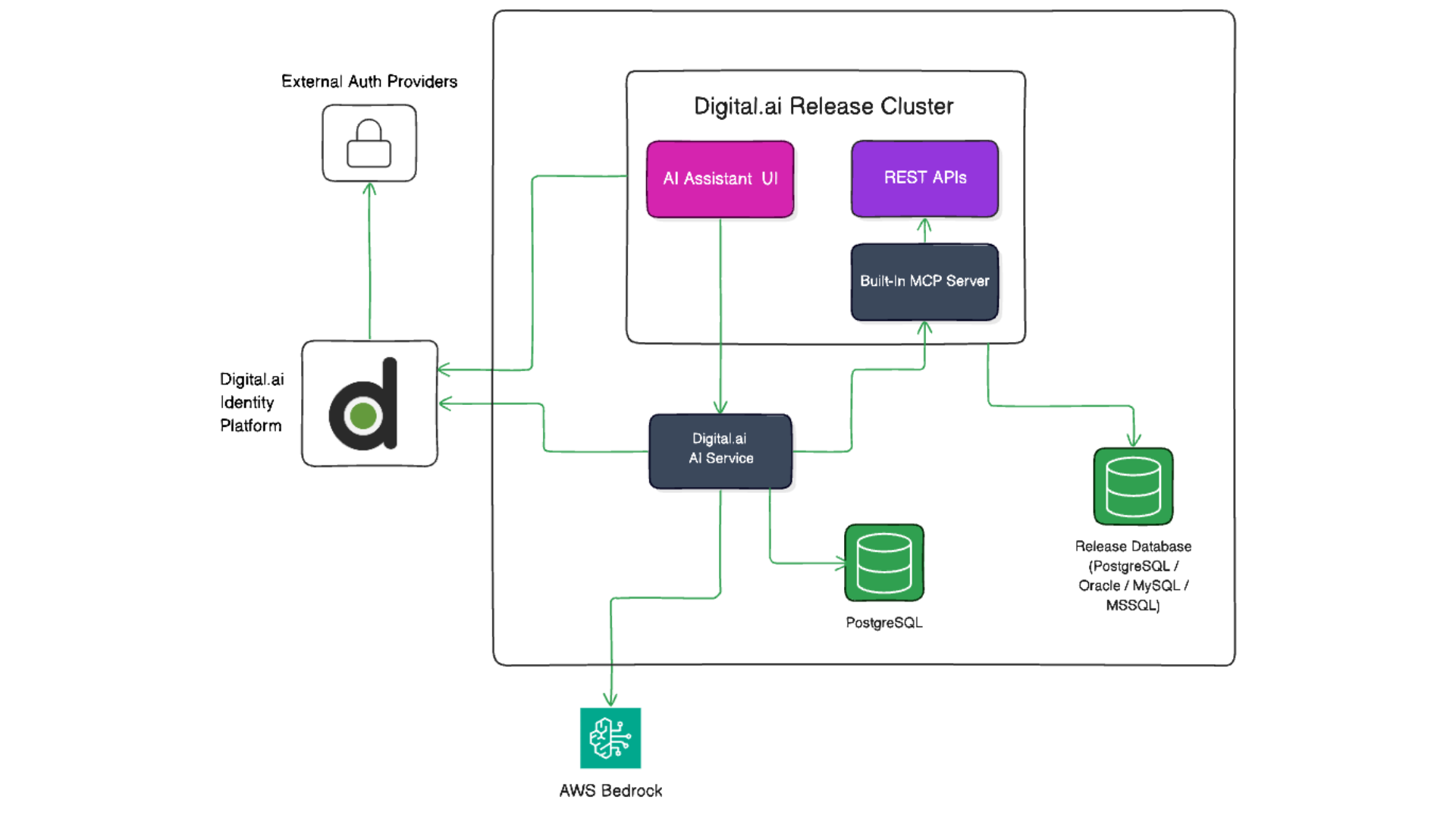
AI Assistant processes your questions through a set of services that authenticate your session, interpret your query, retrieve live Release data, and generate a response.
Data Flow
- You type a question in the AI Assistant UI within Digital.ai Release.
- The Digital.ai Identity Platform authenticates your session using your configured auth provider.
- The AI Assistant UI sends your question to the Digital.ai AI Service.
- The AI Service uses a large language model (LLM) to interpret your question, determines the intent, and queries the Release MCP Server for the required data.
- The Release MCP Server calls the Digital.ai Release REST APIs using your session credentials and permissions.
- The REST APIs retrieve the data from the Release database and return it to the MCP Server.
- The AI Service processes the results using the LLM to generate a natural-language response and stores the conversation in its database.
- The response is streamed back to the AI Assistant UI with navigation links, tables, and summaries.
Security and Data Handling
AI Assistant is built with the following safeguards:
- Authenticated access: Uses your existing Release session (SSO, LDAP, or OAuth) - no separate credentials required.
- Permission-scoped: Queries only return data you are authorized to view. If you cannot access a folder or release in the UI, AI Assistant cannot access it either.
- Read-only: AI Assistant retrieves and displays information only. It cannot start releases, approve tasks, modify variables, or make any changes to your data.
- Scoped to Release data: Queries run against Digital.ai Release only. AI Assistant does not reach into external systems such as Jenkins, Jira, or Git, and cannot create or install plugins.
- Audit logged: All operations are recorded for compliance and traceability.
Do not include sensitive information such as passwords, API keys, or secrets in your prompts.
Availability and Access
AI Assistant is available on Digital.ai Release SaaS instances.
- SaaS trial instances: AI Assistant is pre-integrated and enabled by default. No setup is required it is ready to use as soon as you sign in.
- SaaS non-trial instances (Beta): AI Assistant requires integration with the Digital.ai Platform. See Connect AI Assistant to Your Environment for setup instructions.
- Secure authentication: Uses the Digital.ai Platform Identity Service.
- Data isolation: Data is isolated per customer.
Connect AI Assistant to Your Environment
To enable AI Assistant on SaaS (non-trial) instances, you must integrate Digital.ai Release with the Digital.ai Platform. This integration uses the Platform Identity Service for authentication and access control.
For step-by-step instructions, see How to Integrate Release with the Platform.
SaaS trial users do not need to complete these steps.
FAQs
Why can't AI Assistant find a release I know exists?
You may not have permission to view that release or folder. AI Assistant can only show data you are authorized to access. Check with your administrator if you believe you should have access.
Can AI Assistant make changes to my releases?
No. AI Assistant is read-only. See Security and Data Handling for details.
Is my conversation data secure?
Yes. Conversation data is isolated per customer. For trial instances, data is not retained beyond the trial period.
I'm seeing an error message. What should I do?
See the AI Assistant Troubleshooting guide for a full list of error messages and how to resolve them.