Runner Configuration Templates
This guide is for administrators who manage Release Runners. It explains how to define runner configuration templates and how Digital.ai Release applies them to newly registered runners.
A runner configuration template is a partial set of runner settings that Digital.ai Release applies to a runner when it registers. For each field set in the active template, the value overrides the runner's default, while fields left empty keep the runner's own default. Templates apply only at registration time. Use templates to configure runners consistently, where new runner replicas must register with the correct settings without manual intervention.
Before You Begin
- The Edit runner permission is required to create templates and to select the active template. The View runner permission lets you see which template is active but not change it. See Configure and Register Release Runners.
- To include registry settings in a template, create a runner registry settings connection first. See Configure Release Runner Registry Settings.
Create a Runner Configuration Template
Create runner configuration templates in CONFIGURATION > Connections. Runner configuration templates are available only at the global level.
- Click Connections from the sidebar.
- Click the + icon next to Digital.ai Release runner default settings.
- Complete the fields described below. Set only the fields you want to override on newly registered runners, and leave the remaining fields empty to preserve each runner's default value.
Field Description Title Symbolic name for the configuration. Required. Capabilities Runner capabilities to apply. If empty, the runner's default capabilities are used. Capacity Number of parallel jobs. If empty, the runner's default capacity is used. Eviction time Number of seconds after which an idle job container is evicted. If empty, the runner's default is used. Idle time to live Idle TTL in seconds. If empty, the runner's default is used. Registry settings Registry settings to apply, selected from an existing runner registry settings connection. If empty, the runner's default is used. - Click Save.
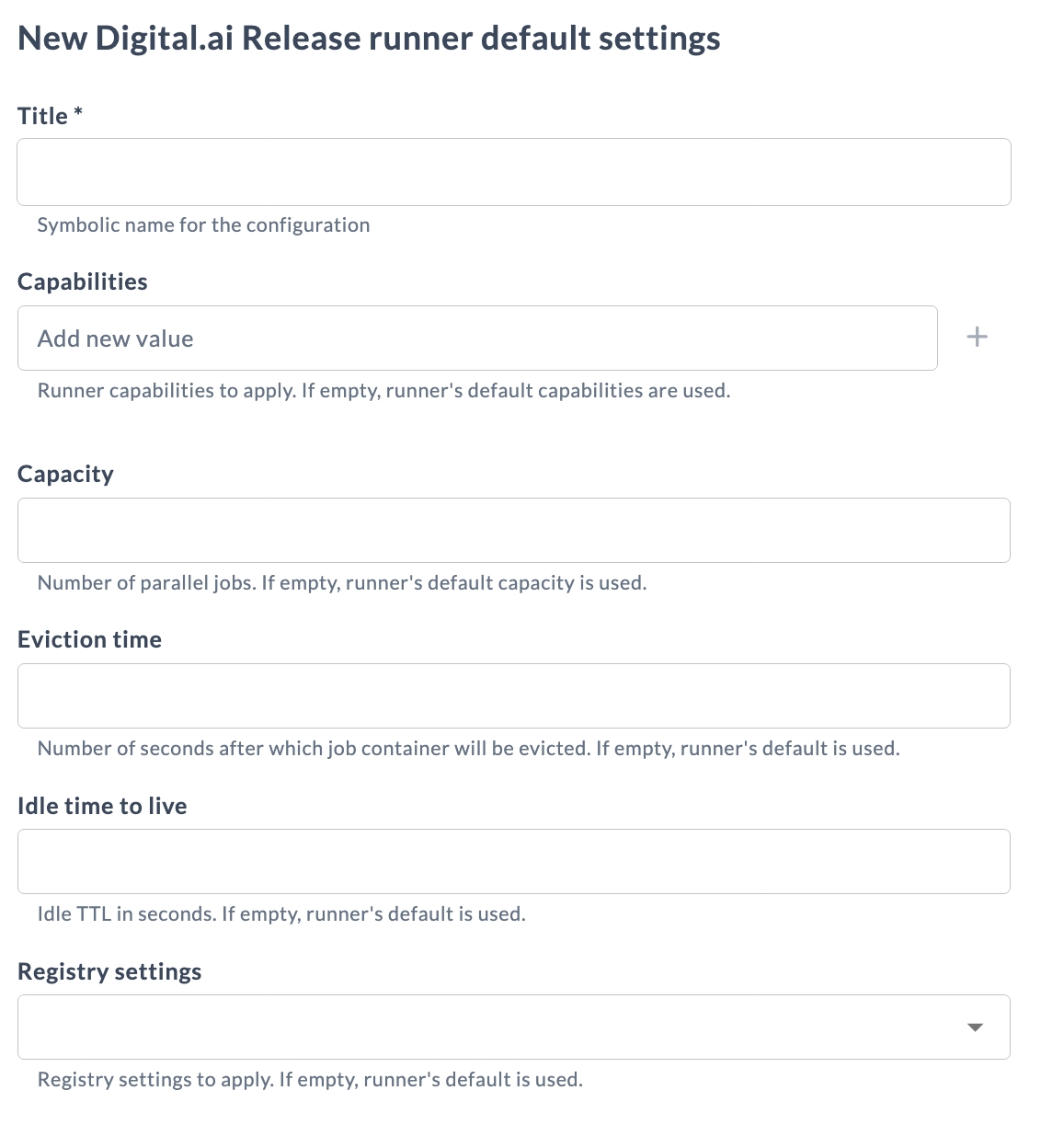
You can create multiple templates. Only the active template is applied during registration. Each added template appears under Digital.ai Release runner default settings in Connections page, where you can edit, duplicate, or delete it. For more information, see Working With Connections.
When a runner registry settings connection is deleted, it is also removed from any template that referenced it.
Set the Active Template
Set the active template on the Runners page. Only one template can be active at a time, and it applies globally to runners that register after it is set.
- Select Settings (
 ) > Runners.
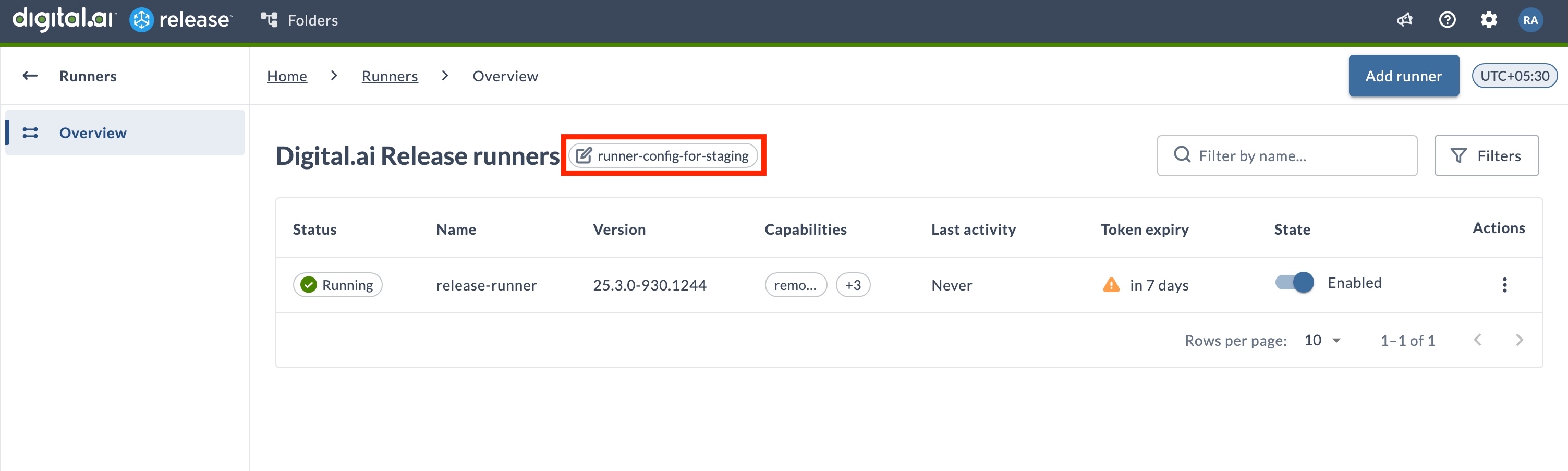
 - Next to the Digital.ai Release runners title, click the active configuration indicator. It shows the name of the active template, or None when no template is active.
- In the Change default runner configuration dialog, select a template from the New default configuration list, then confirm. Select None to have newly registered runners use their default configuration.
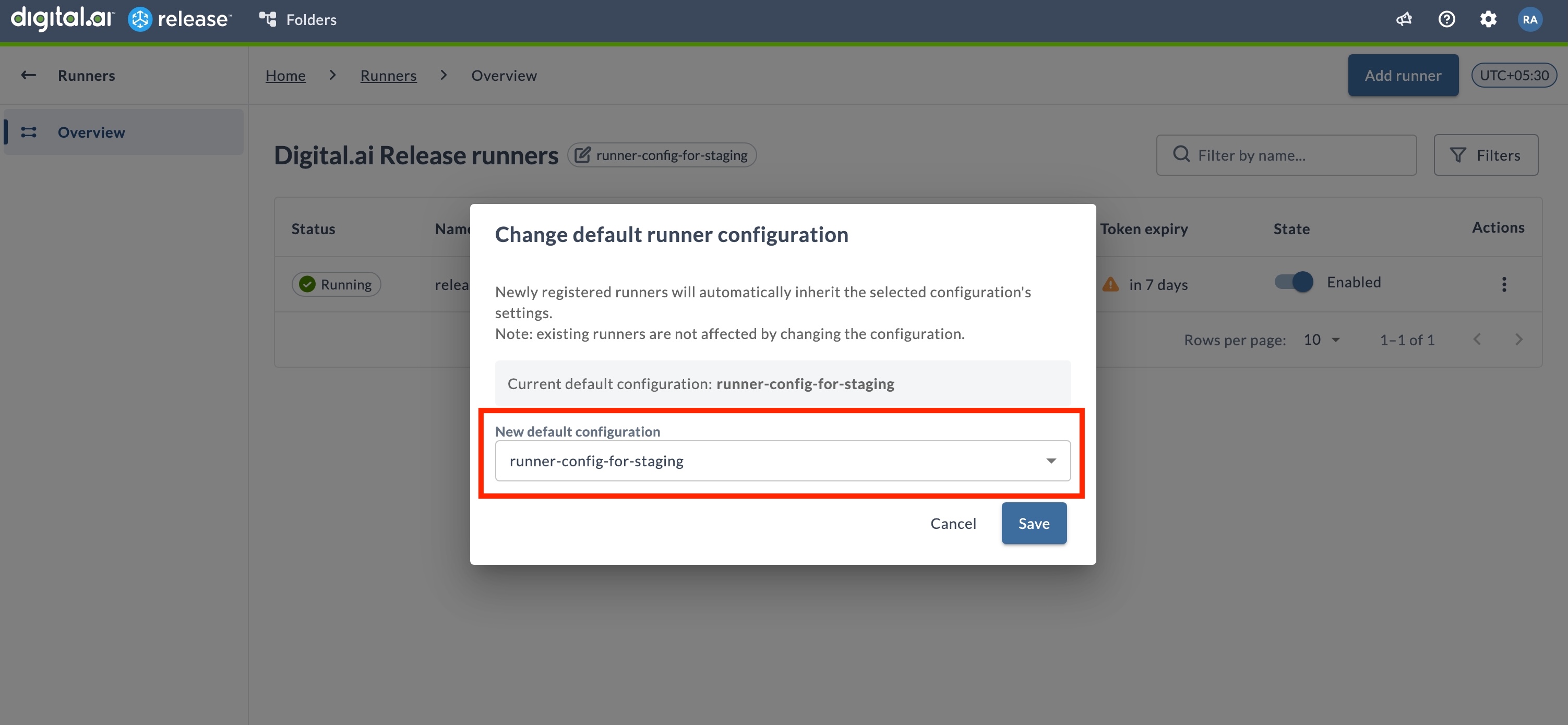 Changing or clearing the active template does not affect runners that are already registered. If no template is active, or the active template cannot be read at registration, the runner registers with its default configuration.
Example: Standardize Autoscaled Runners
This example shows how to make every runner that registers in a staging Kubernetes cluster come up with the same configuration, so autoscaled runner replicas are ready to run tasks without manual editing.
Consider a staging cluster that runs Release Runners behind a Kubernetes autoscaler. During peak load, the autoscaler adds runner replicas. Each new replica registers with its own default configuration, which does not include the staging capability, the capacity the team needs, or the private registry mapping that staging tasks rely on. Without a template, an administrator edits each new runner by hand.
Define a template once, mark it active, and every runner that registers afterward inherits it.
-
Create the registry settings connection that the template will reference. For example, create a connection named
staging-registrythat maps public images to your internal registry. See Configure Release Runner Registry Settings. -
In Connections, click the + icon next to Digital.ai Release runner default settings and set the following fields:
Field Value Title runner-config-for-stagingCapabilities staging,k8sCapacity 3Eviction time 300Idle time to live 600Registry settings staging-registryLeave any field empty to keep the runner's default. Click Save.
-
On the Runners page, click the active configuration indicator next to the Digital.ai Release runners title. In the Change default runner configuration dialog, select
runner-config-for-staging, then confirm. -
Trigger a scale-up. For example, the autoscaler adds a runner replica, or you register a new runner. The new runner registers with Digital.ai Release.
-
On the Runners page, confirm the new runner shows the
stagingandk8scapabilities, a capacity of3, an eviction time of300seconds, an idle TTL of600seconds, and thestaging-registryregistry settings. No manual editing is required.
Runners that registered before you activated the template keep their existing configuration. Update them from the Runners page if you want them to match. See Edit Runner.