Live Deployment Dashboard
The Live Deployments dashboard lists every application that Release tracks in the current folder. The heading shows how many applications are currently listed. Use the icons at the top right to switch between card view and list view.
Card View
Card view is the default. Each application appears as a card with a status-colored bar along the top.
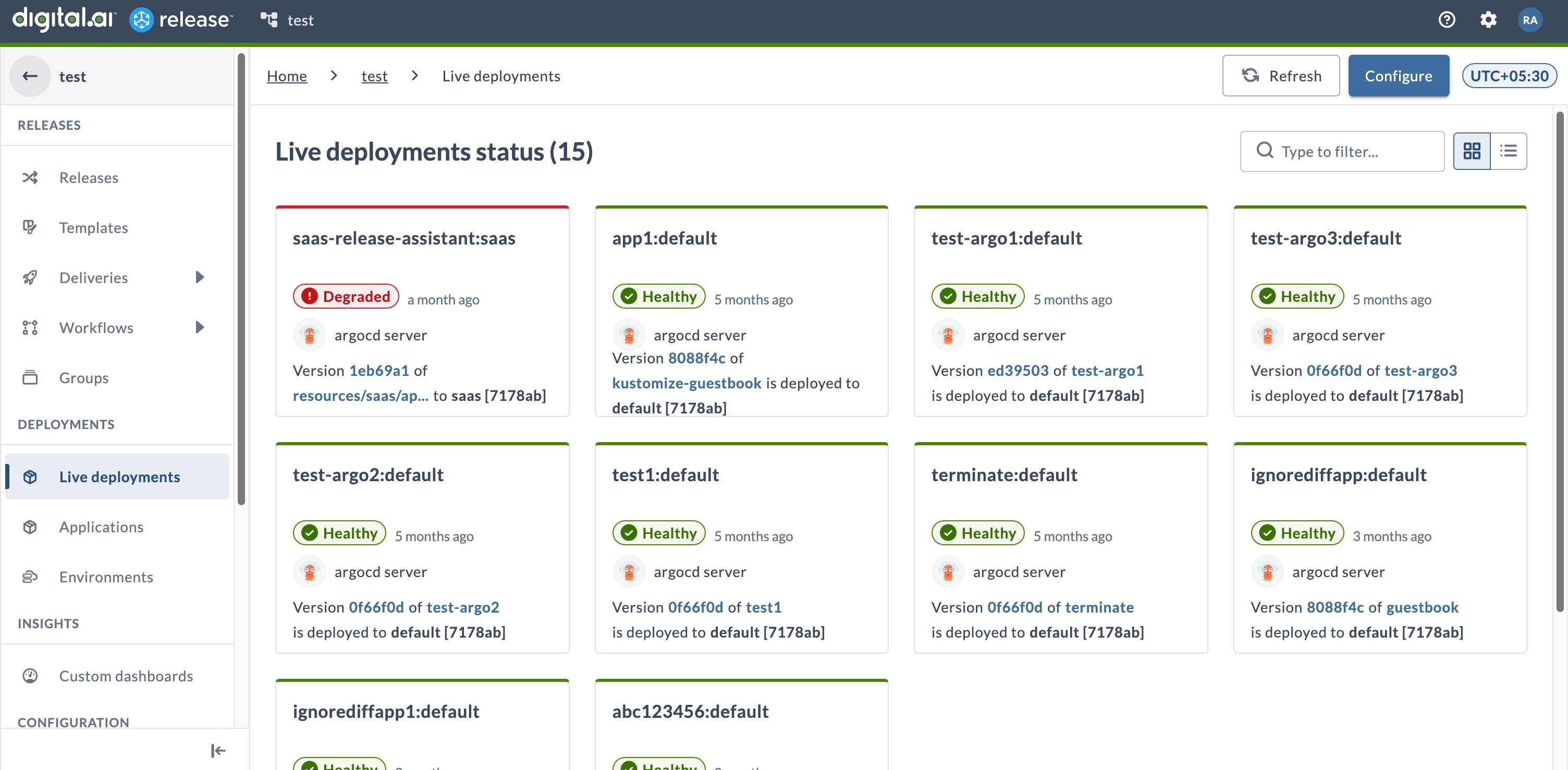
Each card shows the following:
- The application and its namespace, such as
app1:default - The status, such as Healthy or Degraded, and how long ago the application was last updated
- The deployment provider that reports the application, such as
argocd server - The deployed version, the source it was deployed from, and the target environment
- Hover over the version, the source, or the target for more detail. For more information, see Deployment Details on Hover.
List View
List view shows the same applications as a table, which is useful when you want to compare versions or statuses across many applications.
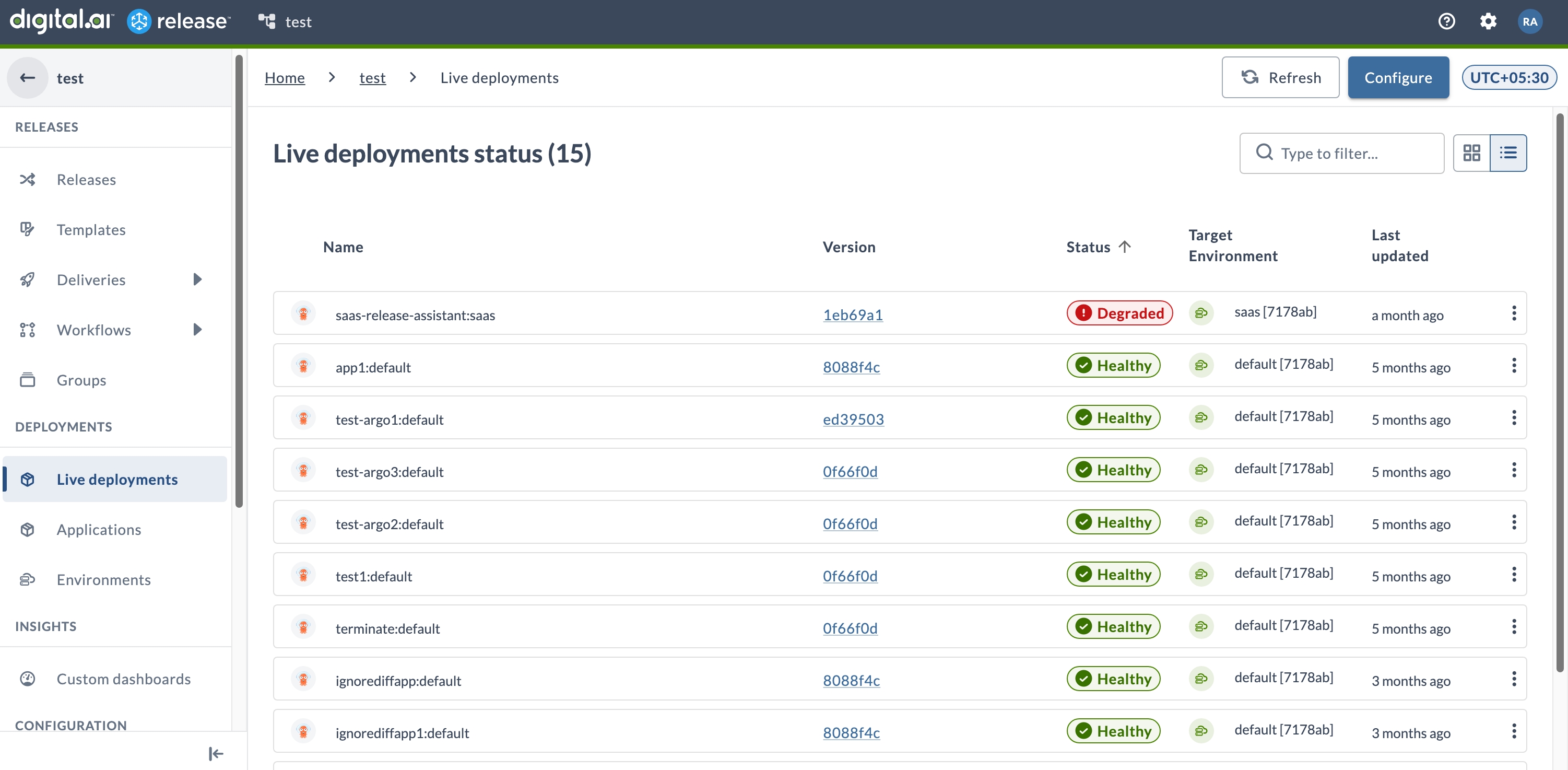
The table has the following columns:
| Column | Description |
|---|---|
| Name | The application and its namespace, with an icon for the deployment provider. |
| Version | The deployed version of the application. |
| Status | The current status, such as Healthy or Degraded. |
| Target Environment | The environment that the application is deployed to. |
| Last updated | How long ago the application was last updated. |
An arrow next to a column heading shows which column the table is sorted by.
Deployment Details on Hover
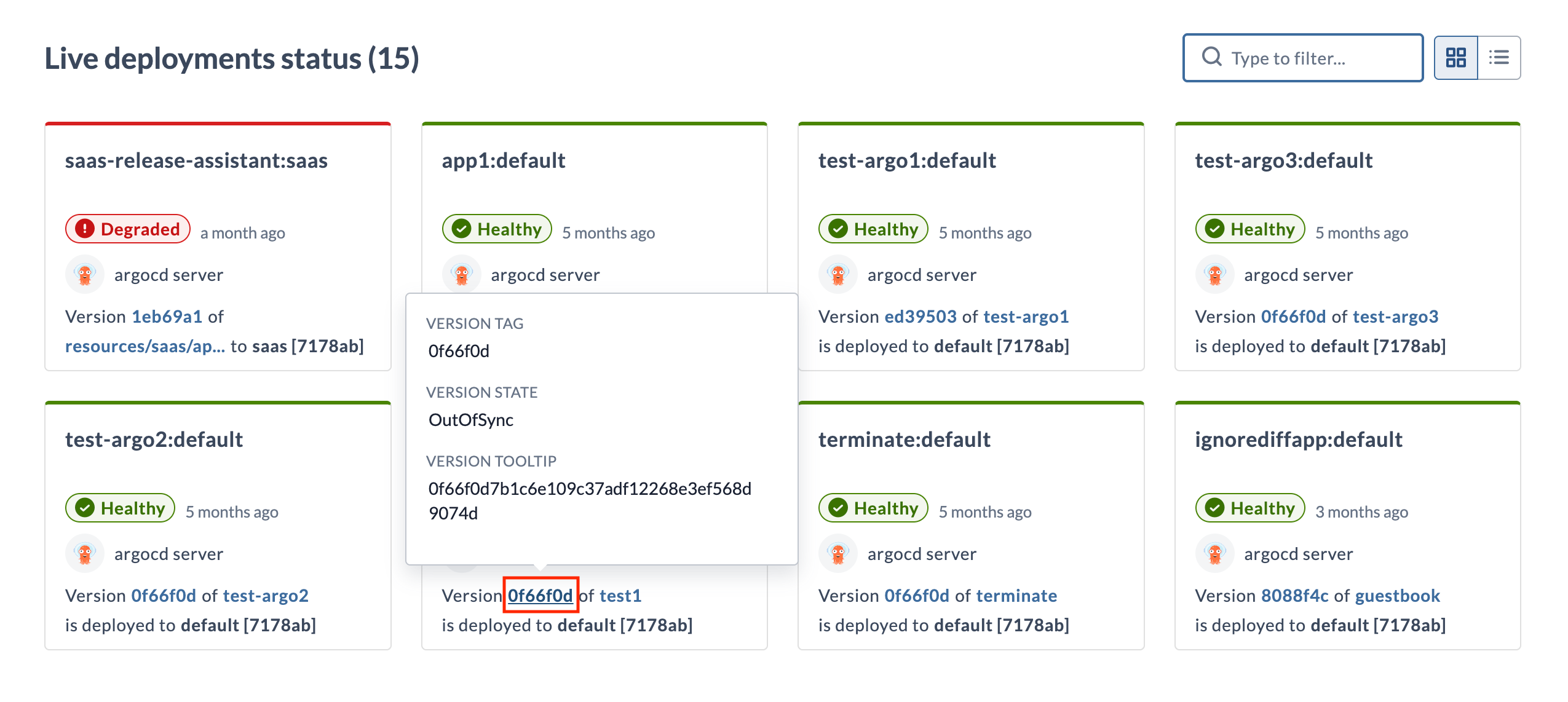
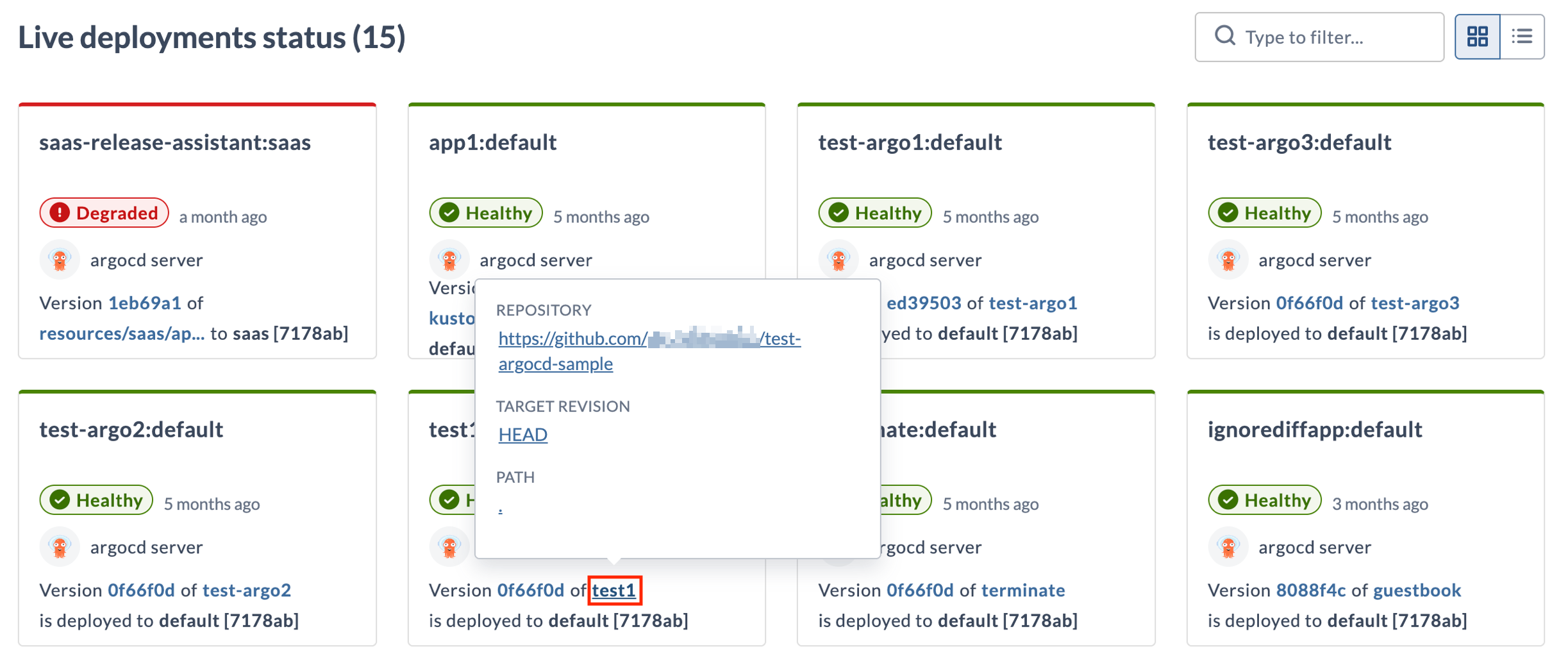
The version, source, and target on a card carry more detail than they show. Hover over any of them to see a tooltip.
Hover over the version to see VERSION TAG, VERSION STATE, and VERSION TOOLTIP. VERSION STATE is either Synced or OutOfSync, and VERSION TOOLTIP holds the full version identifier. Select the version to open that commit in the source repository.
Hover over the source to see REPOSITORY, TARGET REVISION, and PATH. Each value is a link. Select the source to open the repository at the target revision.
Hover over the target to see DESTINATION, NAMESPACE, and EXTERNAL LINKS. EXTERNAL LINKS lists any external links supplied by the deployment provider.
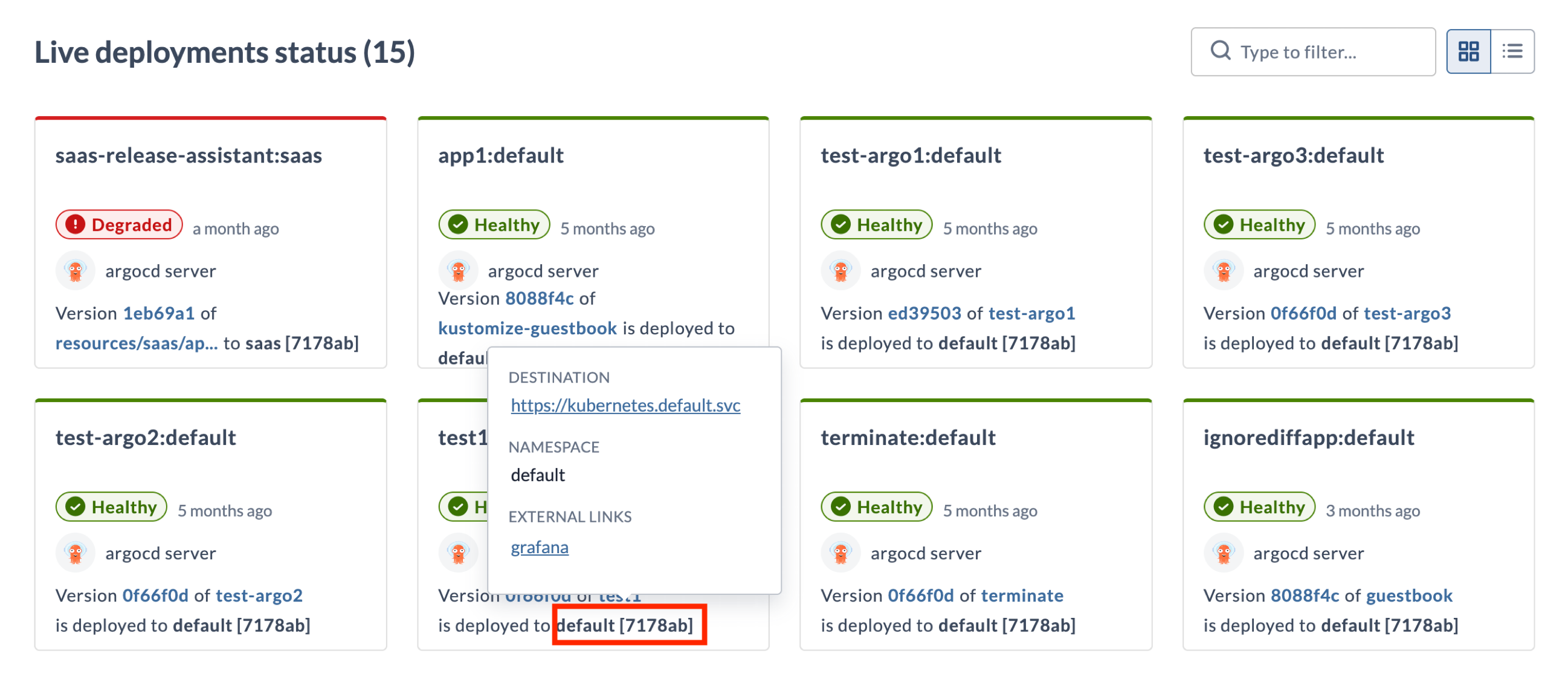
External Links
External links come from Argo CD application annotations that use the link.argocd.argoproj.io/ prefix. For example, adding the following annotation to your Argo CD application adds a link under EXTERNAL LINKS in the tooltip for the deployment target:
annotations:
  link.argocd.argoproj.io/my-link: https://example.com/my-app
Action Menu to Manage Deployed Applications
Click the ellipsis icon on a card, or at the end of a row in list view, to open the action menu. The same actions are available in both views.
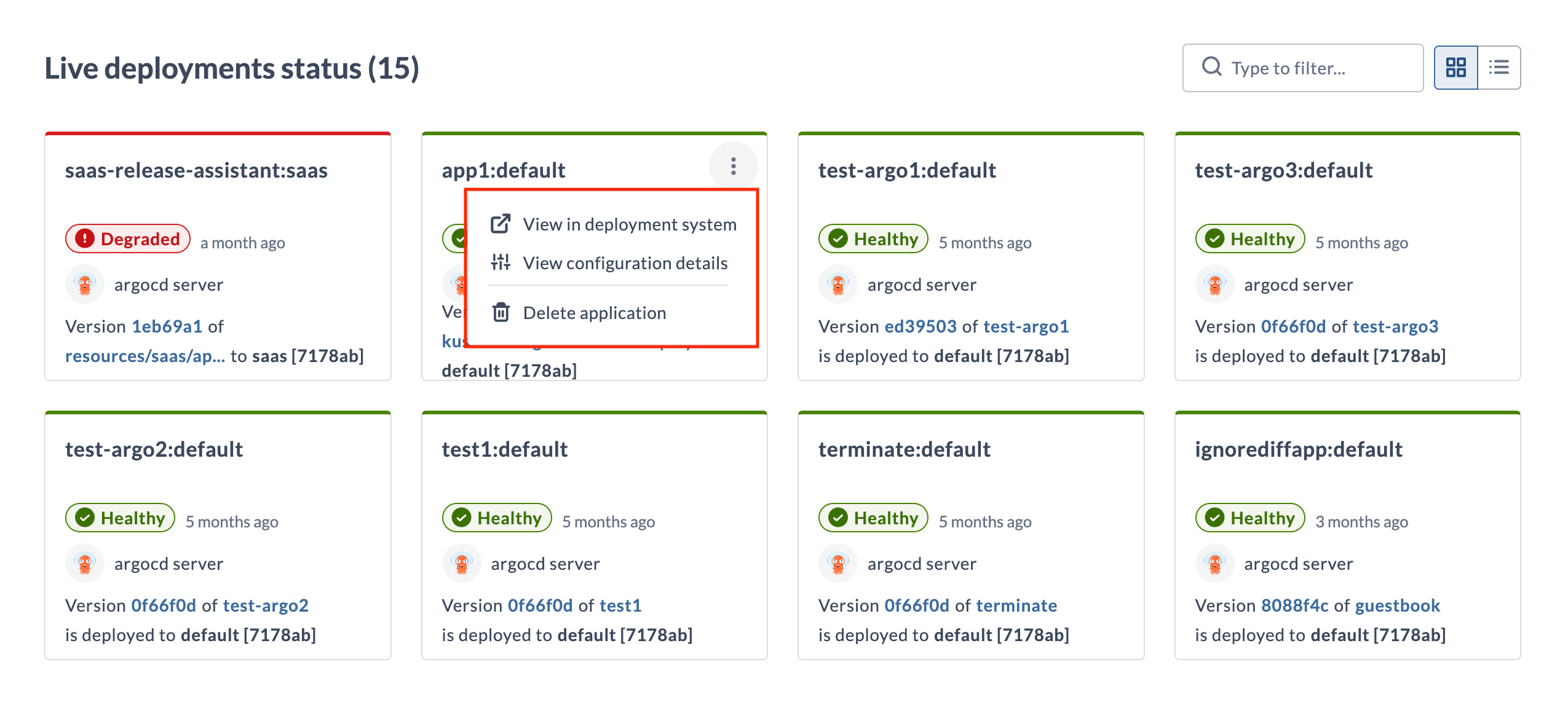
You can do the following for every deployed application in the Live Deployments dashboard.
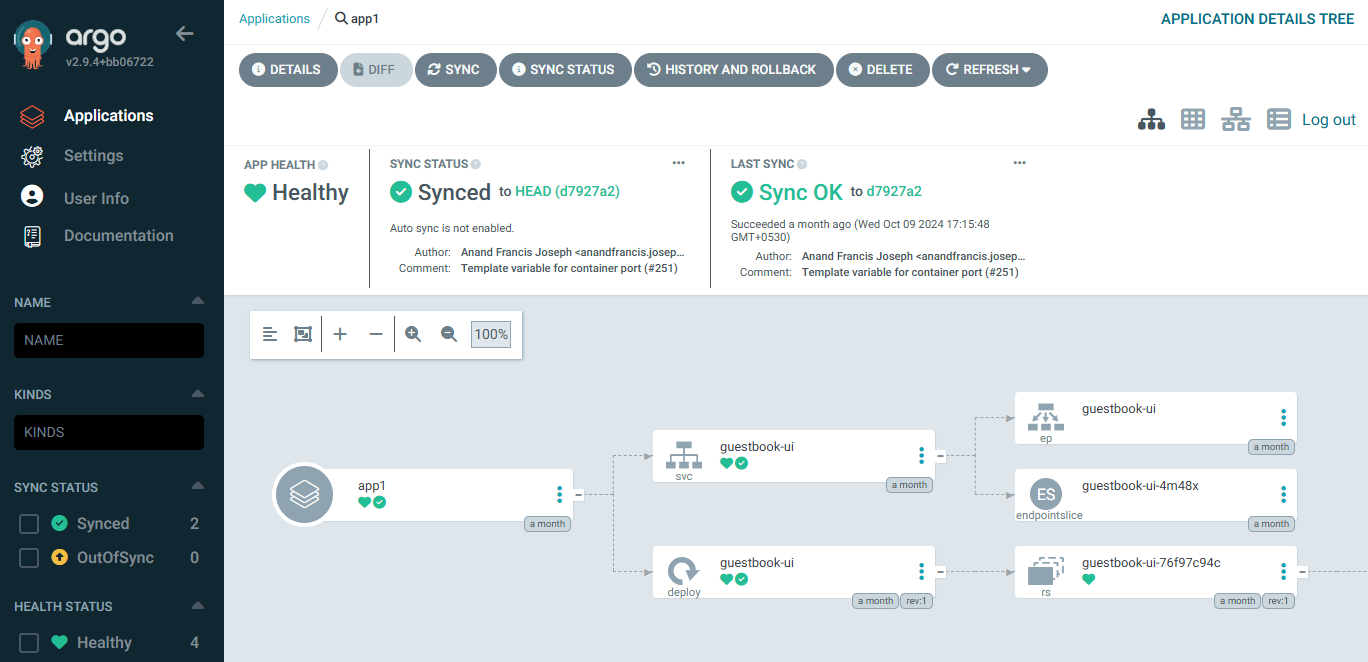
View in Deployment System
Opens the application in the external deployment provider. Here's an example application in Argo CD.
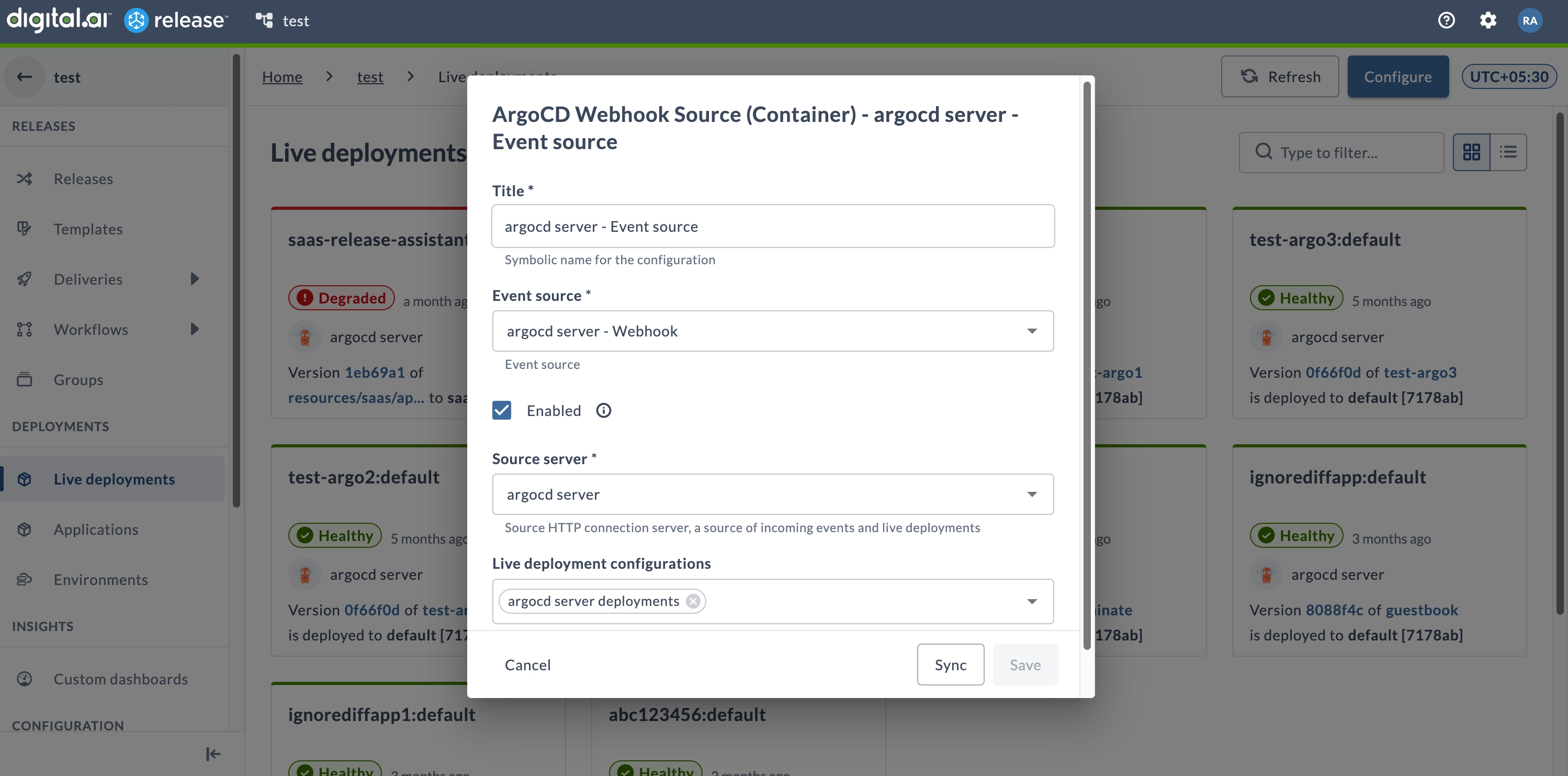
View Configuration Details
Opens the event source configuration for the deployment provider that reports this application.
Delete Application
Undeploys the application. For more information, see Delete / Undeploy Applications.
Filter Applications
Type in the filter box at the top right of the dashboard to narrow the list to applications whose name matches what you type. The count in the heading updates to show how many applications match.
Refresh Deployed Applications
Click Refresh at the top of the Live Deployments dashboard to fetch the current state of all applications from the deployment providers.
For example, when you do not want to see cached deployments in the dashboard or if something went wrong, you can click Refresh to refetch the current state of all the deployed applications.