Create Release in Another Folder
A team can keep a shared template in one folder and create releases from it in a different folder. This page covers the permissions this requires, how to create the release, and the other places the permission applies.
Two folders are involved:
- Source folder holds the template that acts as the blueprint for your release.
- Target folder is where the release is created.
Prerequisites
Before you start, make sure you have a source folder containing the template you want to use, and a target folder to create the release in.
The user needs the following permissions on the source and target folders.
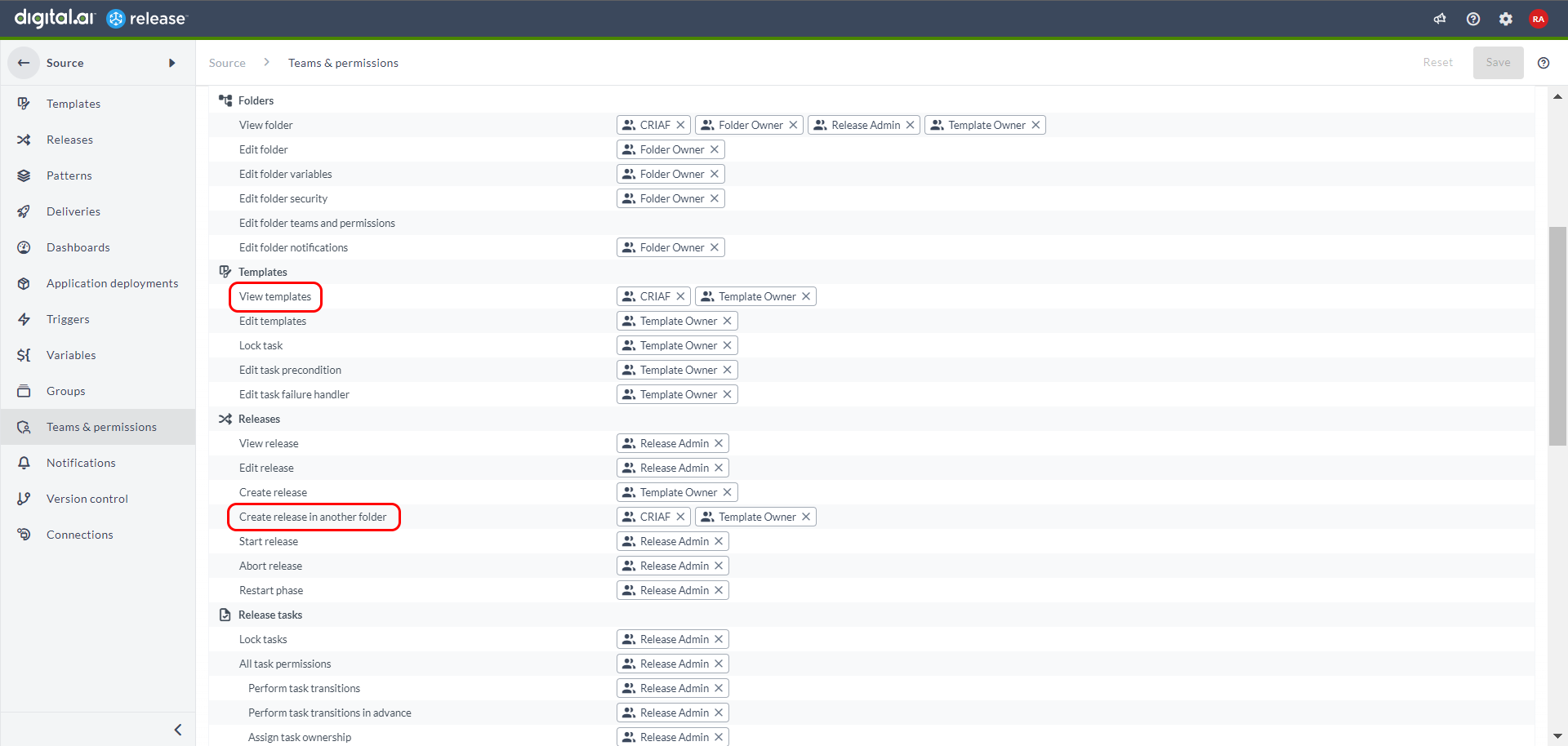
Source Folder
| Permission | Purpose |
|---|---|
View templates (template#view) | See the template that the release is created from. |
Create release in another folder (template#create_release_other_folder) | Create a release from that template in a different folder. |
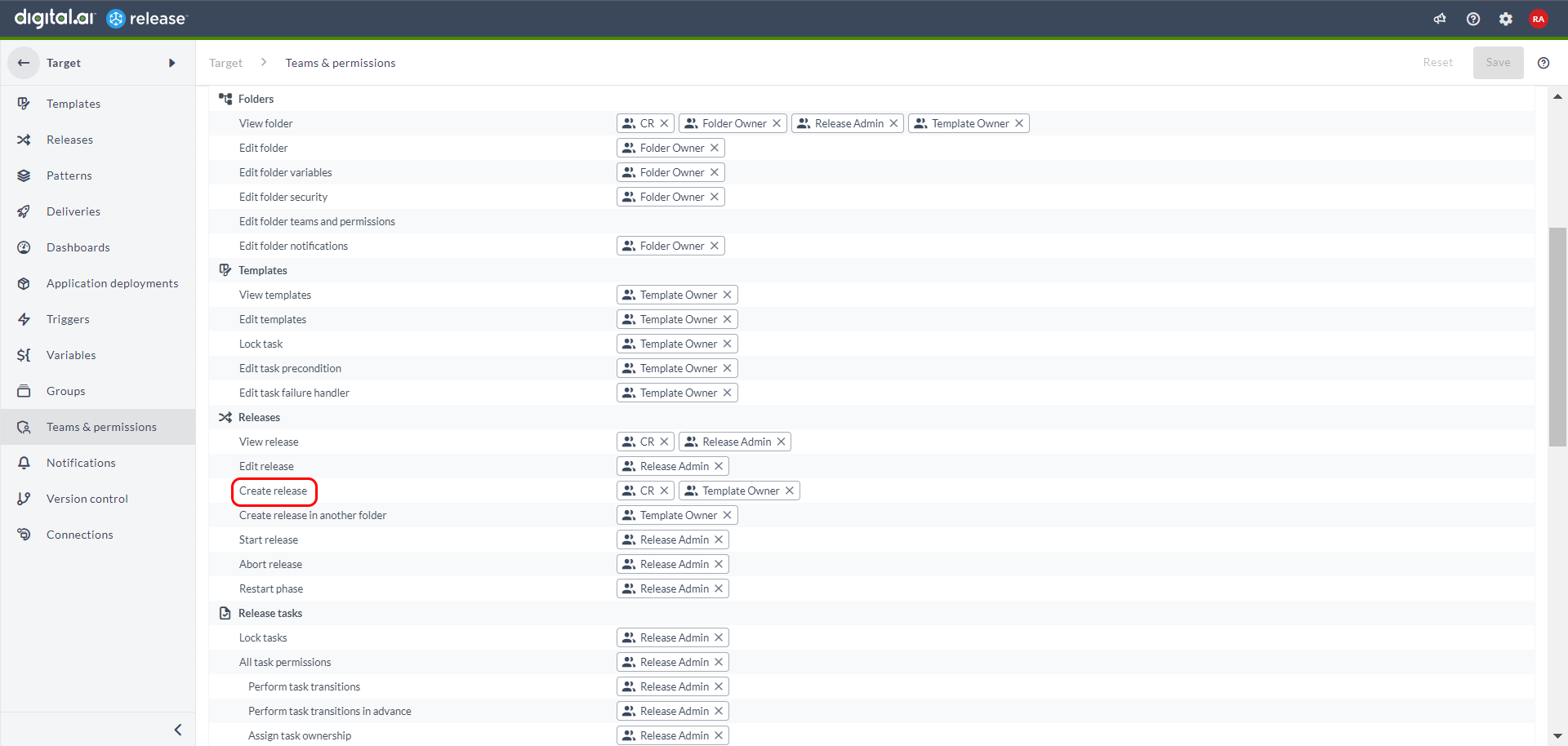
Target Folder
| Permission | Purpose |
|---|---|
Create release (release#create) | Create the release in the folder you select. |
For more information, see Release Teams and Permissions.
Create a Release in Another Folder
-
Create a new release from the template in the source folder. For more information, see Start a Release From a Template.
-
In the Create new release page, enter the release name in the Release name field.
-
From the Use template drop-down list, select the template from which you want to create the release.
-
From the Save to folder drop-down list, select the target folder where you want to create the release.
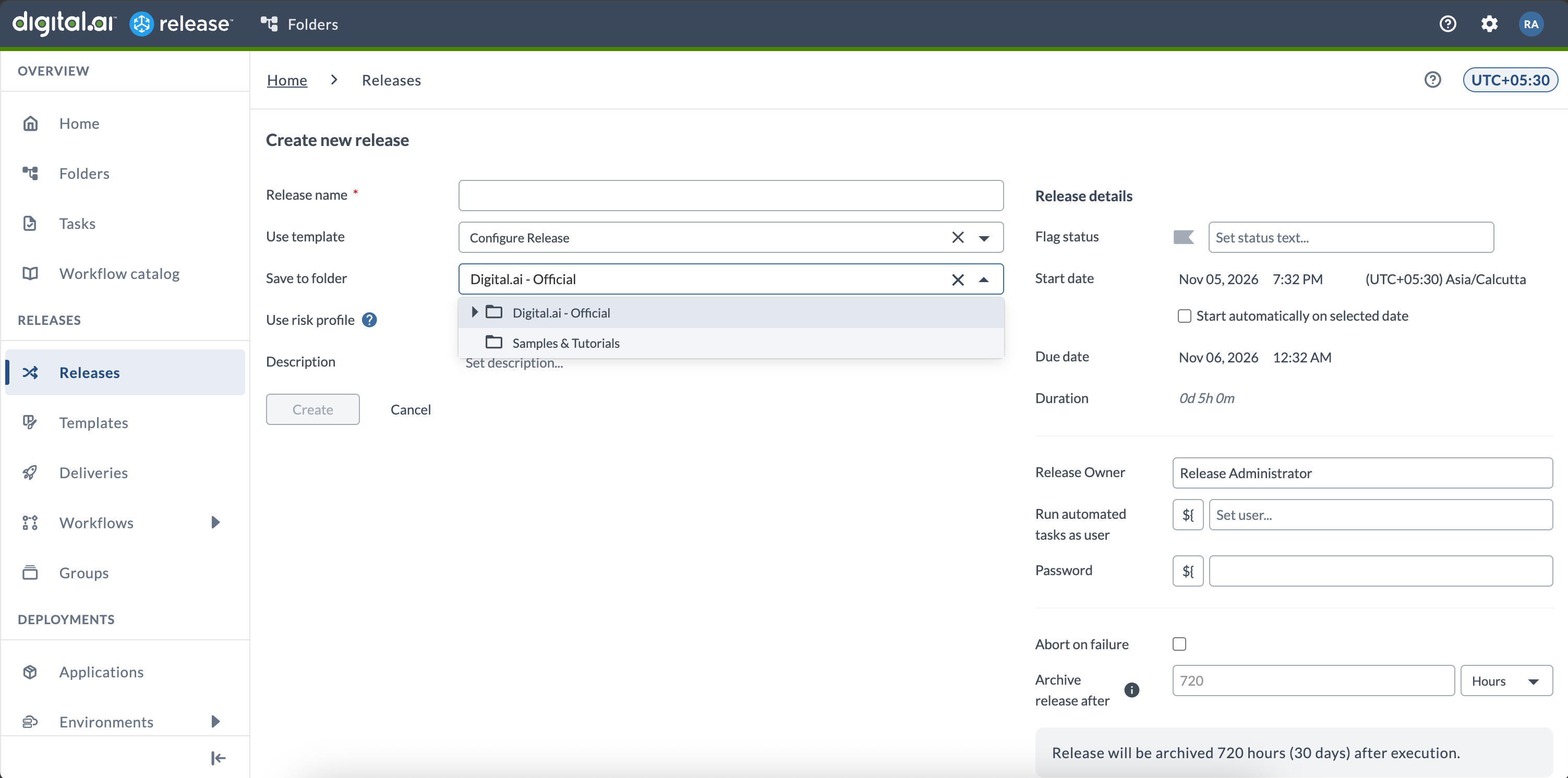
For more information, see Create a New Release.
-
Click Create.
Variables take their possible values from the target folder, not the folder that holds the template. This covers values from a List variable, applications, environments, a script value provider, or a referenced connection. Changing Save to folder refreshes them.
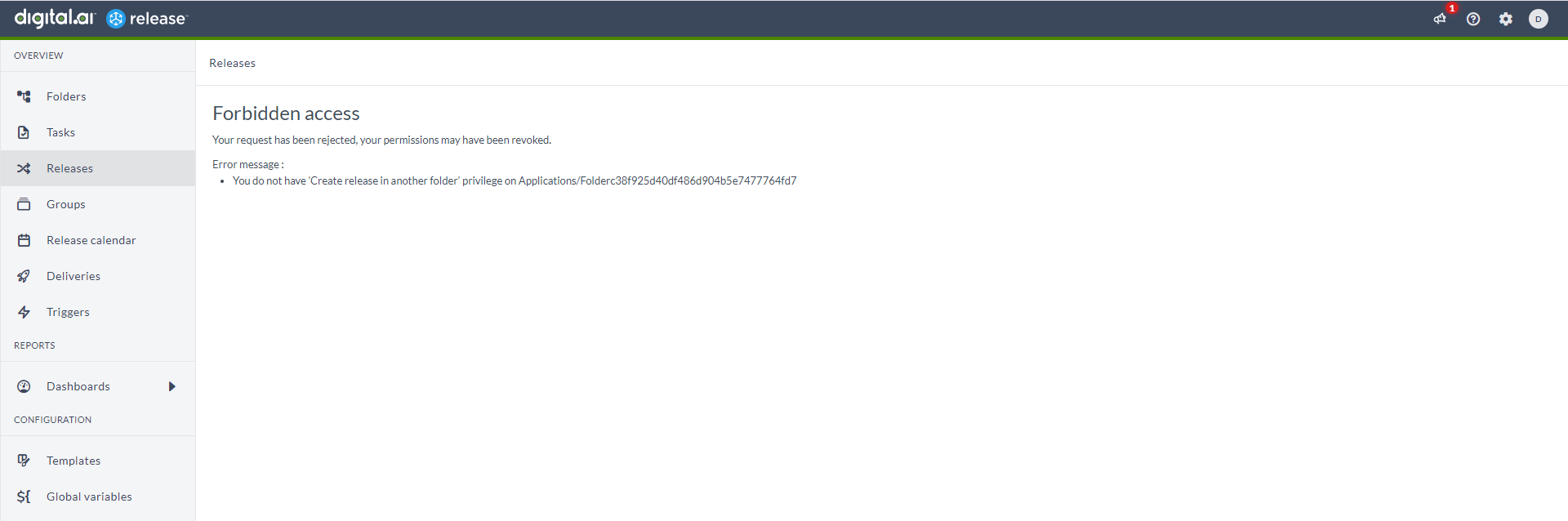
If you do not have the Create release in another folder permission on the source folder, Release displays the following screen.
Other Ways to Use This Permission
Once a user has Create release in another folder on the source folder, they can also:
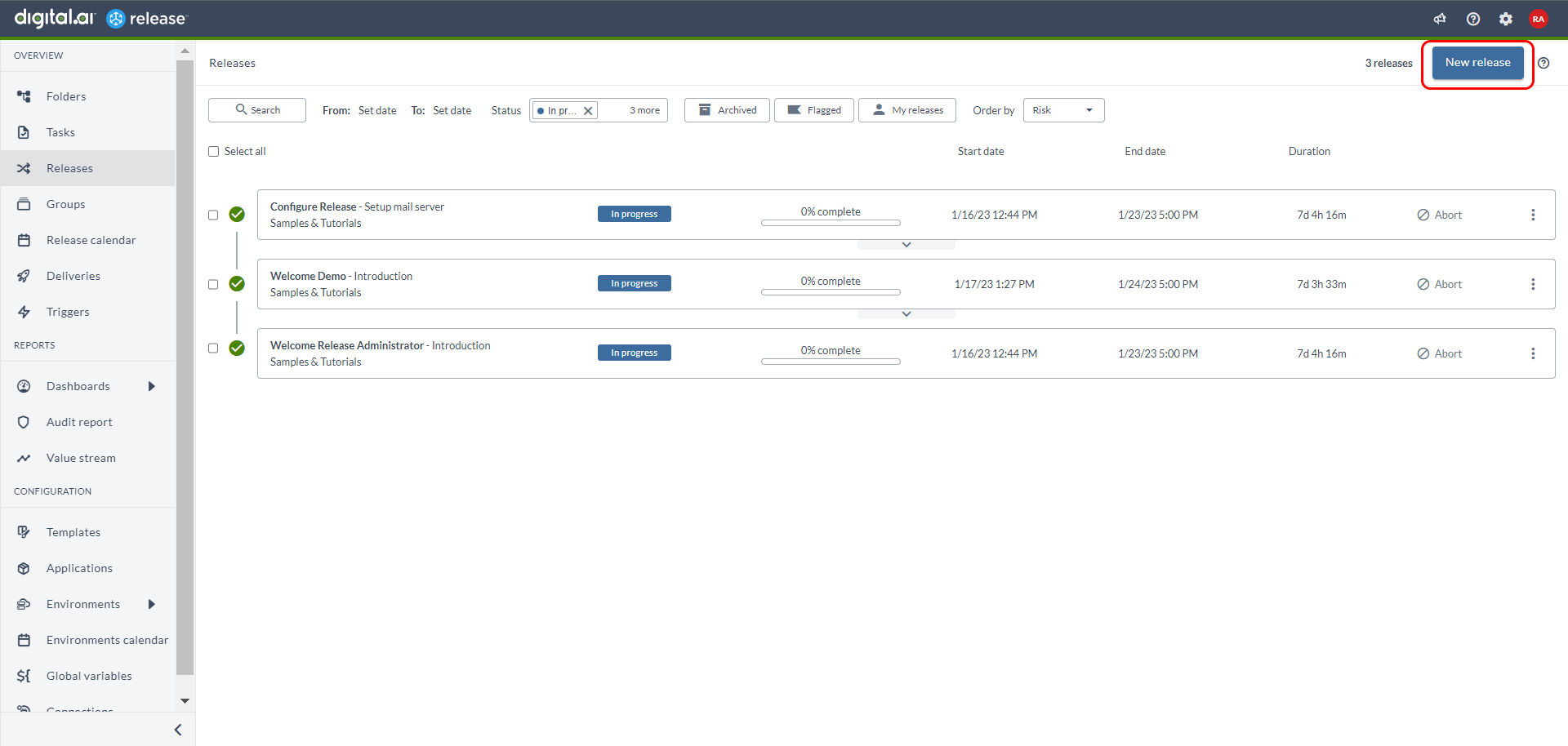
- Create a release from the New release button on the Release Overview page.
- Create a release in the target folder with a Create Release task.
- Download the release as code.