Task Troubleshooting
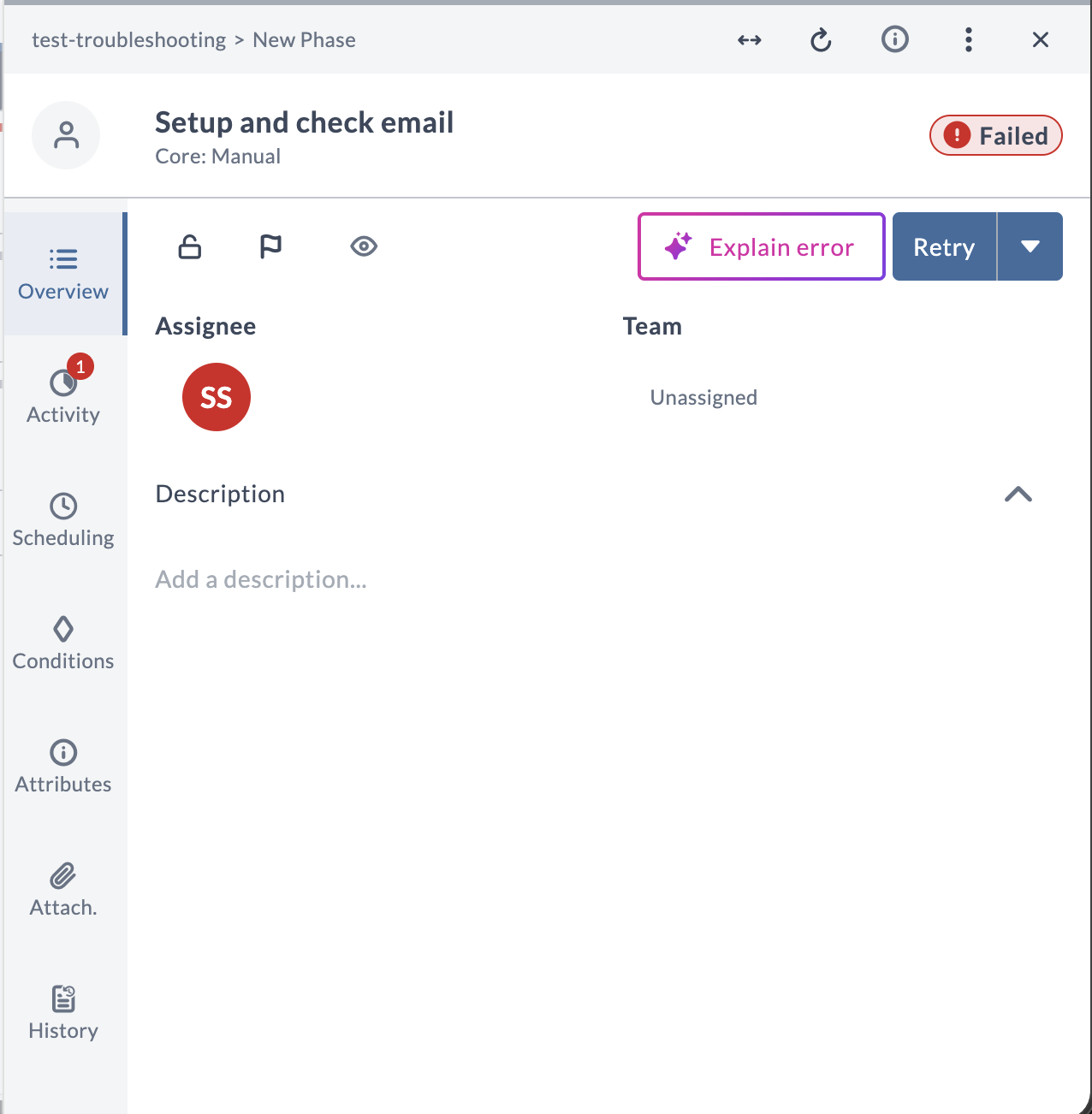
When a task fails, AI Assistant can explain the failure. You start a troubleshooting conversation directly from the failed task by clicking Explain error. AI Assistant provides a plain-language explanation of that specific failure, and you can continue the conversation by asking follow-up questions about the error and its possible causes.
Availability and Requirements
Task troubleshooting has the following requirements:
- AI Assistant is deployed and enabled for your Release instance. You deploy AI Assistant as described in the AI Assistant Docker Deployment Guide. If AI Assistant is not enabled, the Explain error button does not appear on a failed task.
- The task must be in the Failed state. The Explain error button is not shown for tasks in any other state.
How You Start Troubleshooting
Troubleshooting is not available from the agent selector or the new-chat panel. You launch it from a failed task.
- Open a task that has failed. The Explain error button appears in the task drawer's action bar.
- Click Explain error.
- AI Assistant begins troubleshooting the failure automatically and opens the explanation directly in the AI Assistant chat.
The conversation stays scoped to the failure for its entire life. After the explanation is generated, you can type follow-up questions in the conversation's input field.
What It Can Help With
Troubleshooting can help you with the following:
- Explain a failed task: A plain-language explanation of why the specific task failed, based on the failure details Release provides.
- Answer follow-up questions: Continue the conversation to ask about the explanation and get answers in the same troubleshooting context.
Questions Outside Troubleshooting
Troubleshooting answers questions about the failure it was launched with. If you ask about something unrelated, such as a reporting question or a general question about your release data, AI Assistant states that it is strictly limited to root cause analysis and does not answer the question. To ask about other topics, start a new chat from the AI Assistant panel.
Conversation History
Troubleshooting conversations appear in the AI Assistant History tab alongside your other conversations. To revisit an explanation, open the History tab and select the conversation for that task. The explanation is preserved for the same failure, as long as the task is still in the same failed state. If the task is retried and fails again, the previous explanation is discarded and you can generate a new one.
Known Limitations
- Troubleshooting is available only from a failed task. It is not listed in the agent selector or the new-chat panel.
- Troubleshooting covers task-level failures only.
- AI Assistant explains the failure. It does not recommend how to fix the issue, to avoid the risk of an inaccurate or hallucinated recommendation. It cannot retry the task, change its configuration, or make any other change in Release.