Reporting Agent
The Reporting Agent is a Tech Preview feature. It is available for evaluation and is subject to continuous improvement.
The Reporting Agent is an agent in AI Assistant that answers questions about your Release data and returns the result as a chart or table with a short explanation. Ask in natural language instead of building a report, exporting data, or writing a query by hand.
The agent turns your question into a read-only query against the Release Archive database, runs it within your permissions, and formats the result as a chart, table, or text answer. Because it reads the Archive database, it reports on historical data. That data covers completed and aborted releases. For the state of work in progress, use the Generic Agent.
You can save a result to a custom dashboard as a tile.
For the AI Assistant architecture and how it authenticates and scopes data, see AI Assistant. For how agents work in general, see AI Assistant Agents.
Availability and Requirements
The Reporting Agent is part of the Release reporting capability. It has the following requirements:
| Requirement | Details |
|---|---|
| AI Assistant | Deployed and enabled for the Release instance. For more information, see AI Assistant Docker Deployment Guide. |
| View reports and analytics global permission | User must have this permission assigned. For more information, see Global Permissions. |
| Reporting (Archive) database | Tested with PostgreSQL 18.3 / 17.9 (recommended), MySQL 9.7 LTS / 8.4 LTS, Microsoft SQL Server 2025 (17.0), and Oracle 26ai LTS / 19c LTS. |
Without the View reports and analytics permission, you can still select the Reporting Agent, but the message input is disabled and the conversation explains that the permission is missing. The same applies when you reopen an earlier Reporting conversation after the permission is revoked.
Results follow Release permissions (RBAC), so the agent returns only the releases and entities you are authorized to view.
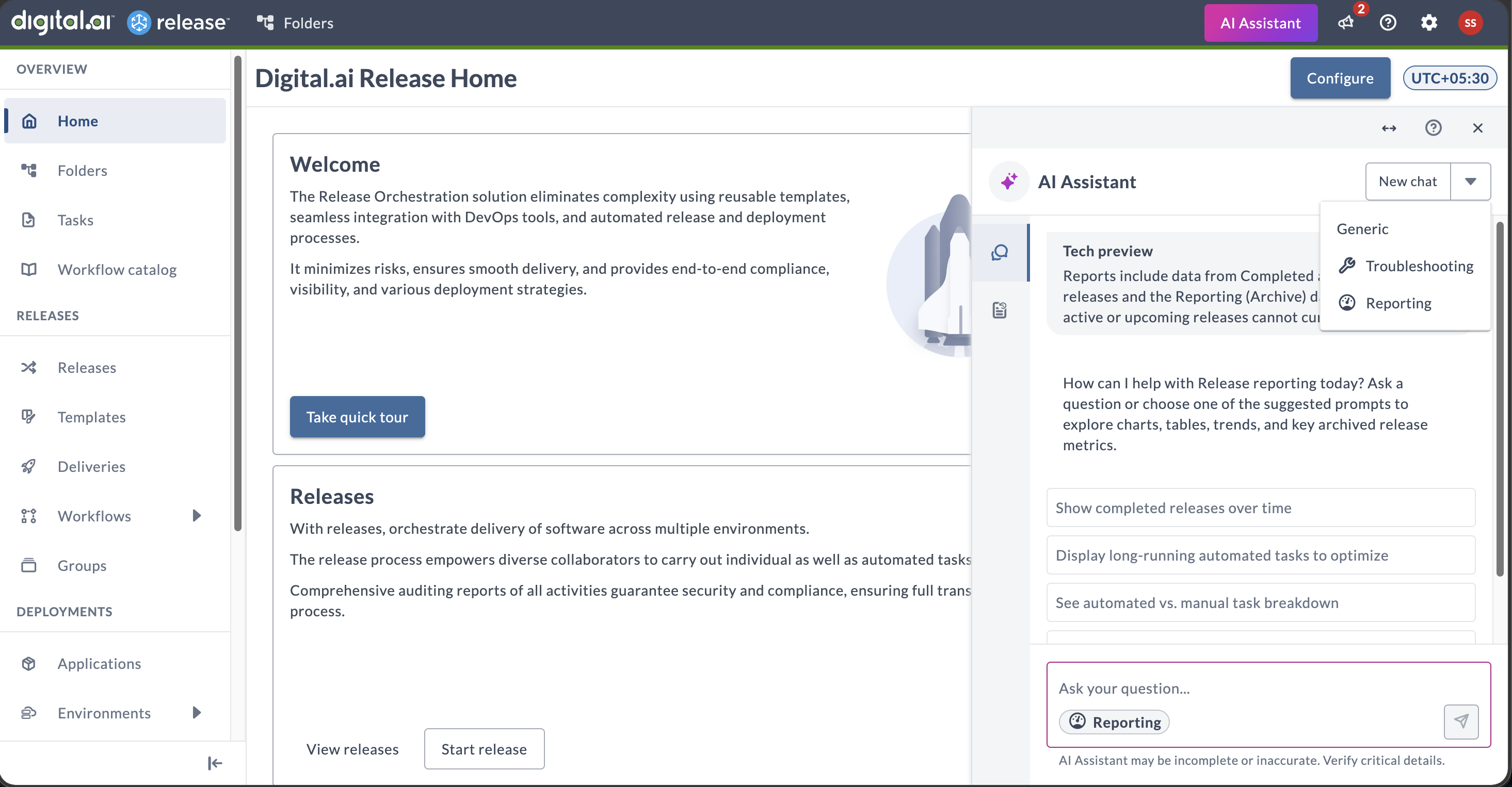
Start a Reporting Conversation
- Open AI Assistant and start a new chat.
- Select the Reporting agent.
- Type a data question, such as "How many releases completed in the last 30 days grouped by folder?", or click one of the prompt starters.
The Reporting Agent interprets your question, queries the reporting data within your permissions, and returns a chart or table with key findings. While it works, it shows the steps it is taking. The steps are collapsed by default so the answer stays readable, and you can expand them to see how the result was produced.
A conversation stays with the Reporting Agent once it starts. To ask a different kind of question, start a new chat. For more information, see AI Assistant Agents.
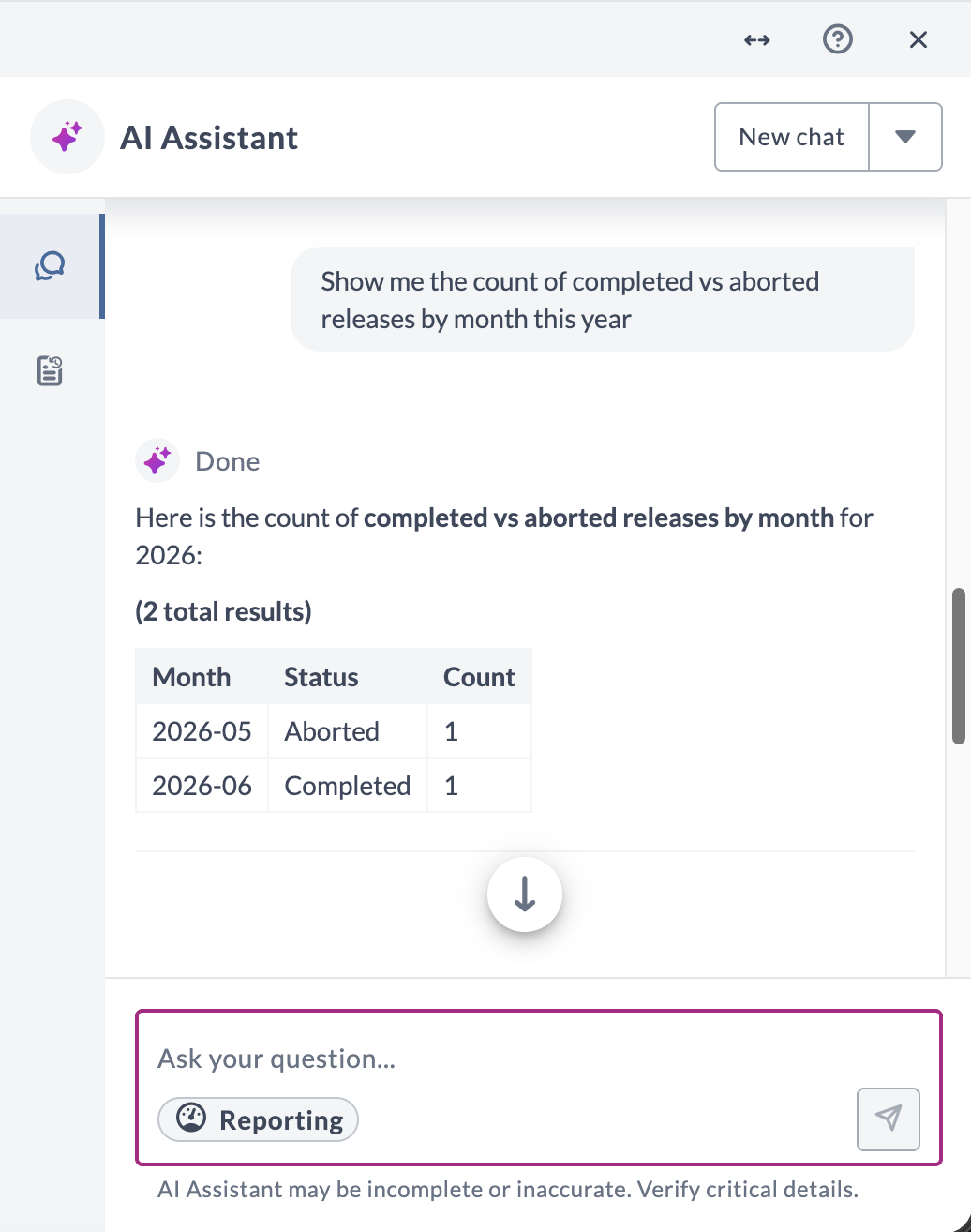
Prompt Starters
The Reporting Agent offers prompt starters that you can click instead of typing a question:
- Show completed releases over time
- Display long-running automated tasks to optimize
- See automated vs. manual task breakdown
- View task type usage across releases
Some of these prompt starters also appear in the Generic Agent. Selecting one there switches you to the Reporting Agent, because only the Reporting Agent queries historical data and returns charts.
What You Can Ask About
The Reporting Agent answers questions across these data domains:
- Releases and tasks: Counts, status breakdowns, durations, and long-running tasks.
- Task failure counts: How many times a task failed during a release. Available for completed and aborted releases only, and recorded only for task executions on Release 27.1 or later. Earlier releases and tasks are not backfilled.
- Deployments and deployment history: Deployment activity and historical records. Unlike other reporting data, deployment data covers active as well as finished releases, and you can query it without referencing a release.
You can scope a query by folder or template, by time range, and by status where applicable.
Filter by Folder or Template Title
You can filter a query by the title or ID of a folder or template, such as asking for the long-running tasks of a template by name.
Folder and template titles are resolved from the Live database at query time, so results reflect current names.
Reporting Agent vs. Generic Agent
The Reporting Agent and the Generic Agent cover different data, and each one points you to the other when your question belongs there:
- Charts and Archive data: Only the Reporting Agent returns charts and queries the Archive database. If you ask the Generic Agent for a chart, or for data on completed and aborted releases, it directs you to the Reporting Agent.
- Live data: Questions that need live data, such as the state of a release that is in progress, are answered by the Generic Agent. If you ask the Reporting Agent for live data, it routes the question to the Generic Agent.
- Mixed questions: A single query cannot span both databases. The Reporting Agent answers from the Archive database (completed and aborted releases) and tells you that in-progress and failed releases are not included.
- Out-of-scope questions: For a question outside the reporting data domains, the agent explains what it can report on and names the agent that can answer the question.
The Reporting Agent cannot query live data from active and upcoming releases. It explains this instead of returning a result.
To move a question to the other agent yourself, start a new chat and select that agent. For more information, see AI Assistant Agents.
Charts
The Reporting Agent chooses the result format based on the question. A response can combine text, a chart, and a table.
Charts are interactive, so you can hover over a data point to see its label and value. Duration values are aggregated to seconds or minutes, and time-based results use the UTC time zone.
Chart Types
- Bar
- Horizontal bar
- Stacked bar
- Line
- Pie
- Table (used as a fallback)
Export a Chart
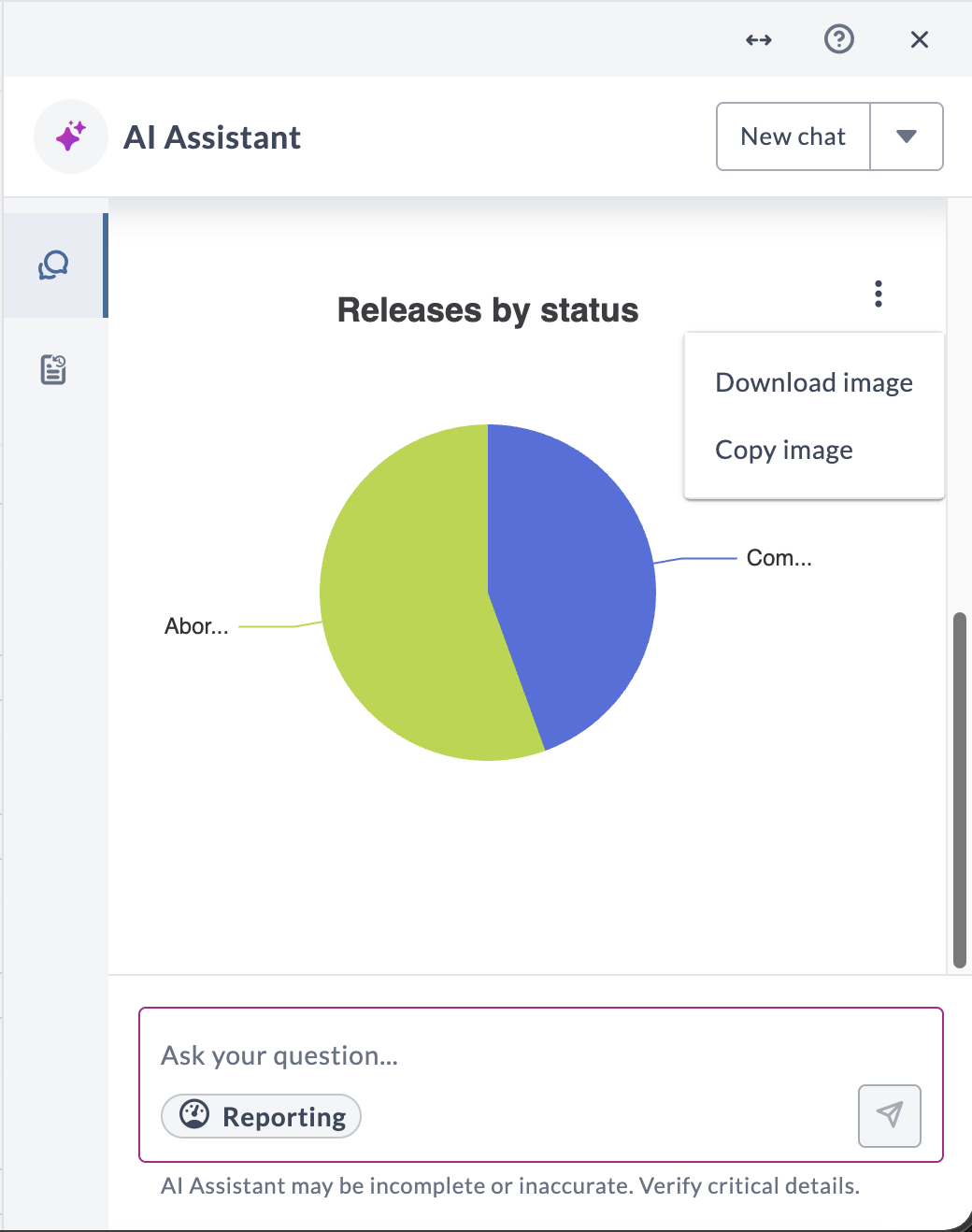
Each chart provides export options:
- Download image: Downloads the chart as a PNG file.
- Copy image: Copies the chart to your clipboard as an image.
Add a Result to a Dashboard
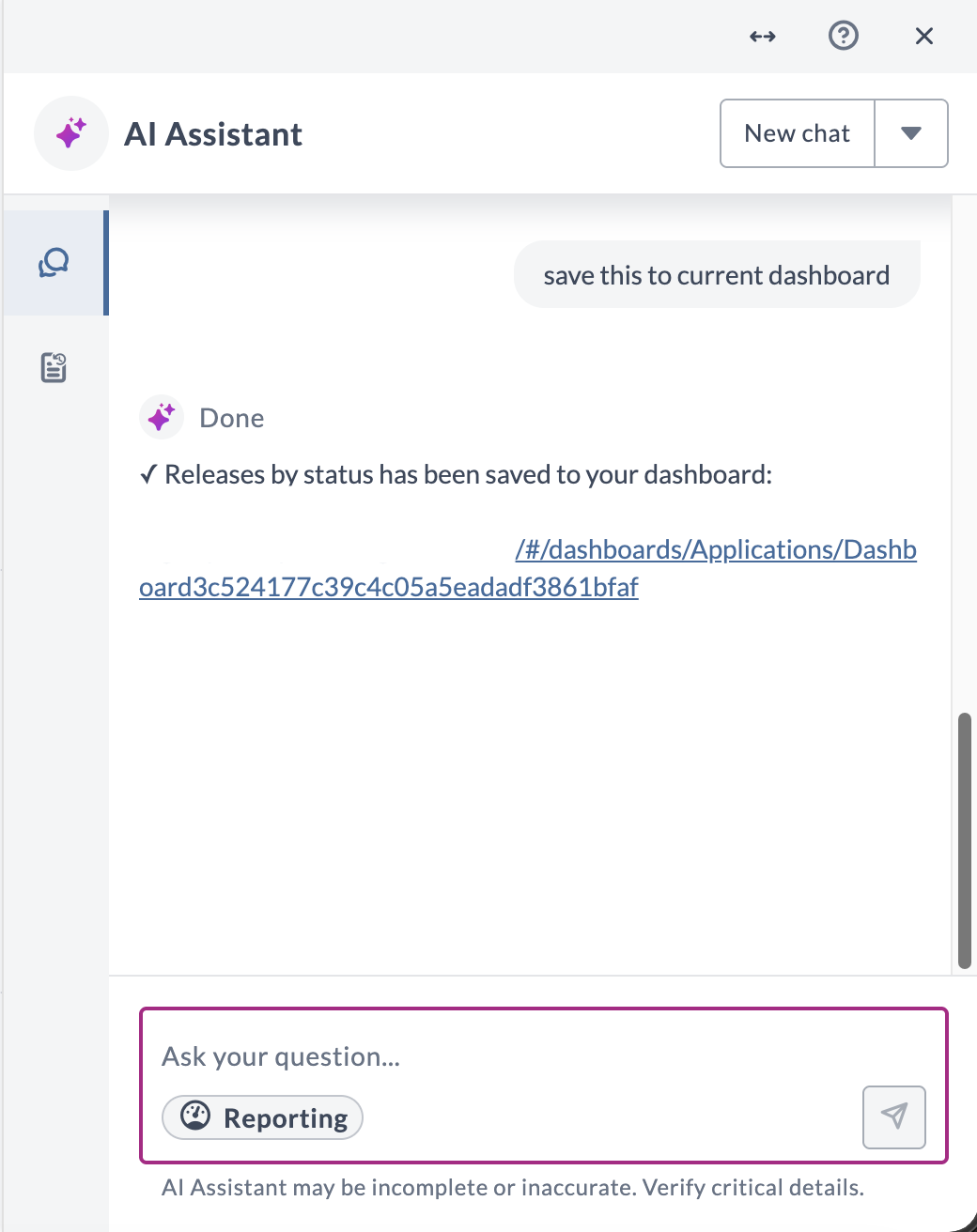
You can save a reporting result as a tile on a custom dashboard. The tile refreshes with current data each time you open the dashboard.
This requires an open custom dashboard. For instructions on creating one and setting its properties, see Configure Custom Dashboards.
Creating a custom dashboard requires the Create dashboards permission. Without it, Release shows: "You do not have the permissions required to create dashboards. Contact the Release administrator for assistance."
Save a Reporting Result as a Tile
- Open the custom dashboard you want to add the tile to.
- Open AI Assistant, select the Reporting agent, and ask a question that returns a chart or table.
- When the agent offers to save the chart as a tile, confirm. You can also ask at any time, "Save this to the current dashboard."
The agent saves the tile and returns a link to the dashboard.
Tile Filters
The reporting tile supports two filters:
- Time range: Last 7 days, Last 30 days, Last 3 months, Last 6 months, Last year, or a custom date range. If your question covers a period that no fixed range matches, such as yesterday, the tile is saved with the equivalent custom date range.
- Parent or source template: Filters the tile by folder (parent ID) or by source template.
Limits and Error Handling
Limits
- Reporting queries run against the Archive database. Not all Release data is available there.
- A single query cannot combine Live database data with Archive database data. In-progress and failed releases are in the Live database and are out of scope for the Reporting Agent, including their task failures. Use the Generic Agent for those.
- Task failure counts are recorded only for task executions that run on Release 27.1 or later. Existing releases and tasks are not backfilled, so failure counts are not available for them.
- A query returns up to 50 rows, displayed 10 at a time, and covers a maximum window of one year. When a query matches more records than the limit, the agent reports that the result set is limited and suggests narrowing the query with a filter such as a folder, template, or time range.
- The agent reports on Release data only. It does not report on external systems.
Error Handling
The agent responds clearly when a query cannot be completed or a result cannot be rendered:
- Invalid query: The agent explains that it could not build a valid query and suggests rephrasing.
- No results or a failed query: The agent states that no matching data was found. It does not render an empty chart.
- Unstructured data: The response falls back to a markdown answer.
- Chart cannot be rendered: The agent falls back to a table, or shows the raw data as text. It does not leave blank space.