Groovy Script Tasks
This topic covers the use of Groovy Script tasks in Release, detailing how to write and execute Groovy scripts on the Release server.
For more information, see Groovy script. This is an automated task that completes when the script finishes successfully.
For detailed information about the contents of the task, see Task Drawer for Tasks.
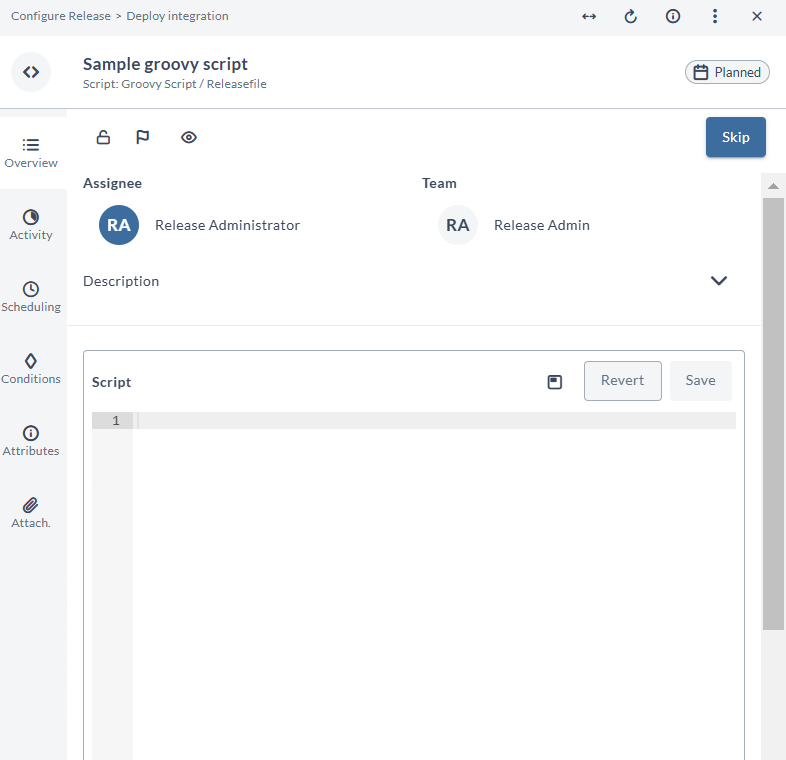
In the Overview tab of the Groovy Script task, you can:
- Add tags to your Groovy Script task in the Task Tags field for filtering.
- Type or paste a Groovy script into the Script field. Click Save to save the changes or click Revert to undo your changes. If you navigate away from the Task Drawer without saving, the Script field retains your changes within your session and an Unsaved changes label appears next to the field. For more information, see Unsaved Changes in Script Fields.
The output of the remote script task is in Markdown format. For more information, see Using Markdown in Release.
In the release flow editor, Groovy Script tasks have a gray border.
Variables and Public API Access
You can access releaseVariables and globalVariables from a script, which gives you the same set of API services that are available for the Jython Script task type. You can use releaseVariables and globalVariables in a script, in addition to the release-as-code API.
You can not use the Release-style ${myReleaseVar} expression in a Groovy Script task because it is a valid syntax of the Groovy language. This means that Release does not support variable interpolation for Groovy Script tasks, however, you can use this syntax in Jython Scrip tasks.
For example:
def server(type, title) {
  def cis = configurationApi.searchByTypeAndTitle(type, title)
  if (cis.isEmpty()) {
    throw new RuntimeException("No CI found for the Type and Title")
  }
  if (cis.size() > 1) {
    throw new RuntimeException("More than one CI found for the Type and Title")
  }
  cis.get(0)
}

def globVar = globalVariables['global.globalVariable']

def myReleaseVar = releaseVariables['myReleaseVar']
If you are creating an integerVariable, then you must ensure that you include negative values of integerVariable inside parentheses ( ). Positive values do not need to be included inside parentheses.
In the example shown below, the negative value -100 is placed inside parentheses:
integerVariable {
  name "integerVariable"
  value (-100)
  }

integerVariable {
  name "integerVariable"
  value 700
  }
Security and Groovy Script Tasks
When a Groovy Script task becomes active, Release executes the script in a sandbox on the Release server. The sandbox restricts access to system resources and Java classes. The security controls the sandbox uses depend on whether Release is running on JDK 21 or JDK 25. For the full script security configuration and upgrade considerations, see Configure Script Security.
JDK 21
On JDK 21, Release can use the Java Security Manager and the XL_RELEASE_SERVER_HOME/conf/script.policy file to restrict script access to resources and Java classes. When the sandbox is enabled, restricted scripts use the Security Manager permissions defined by the built-in grants and script.policy. If a script requires additional permissions or access to Java classes, configure the appropriate permissions in script.policy.
JDK 25
JDK 25 does not support the Java Security Manager, so Release enforces Java class access directly without using script.policy.
Release provides a built-in allowlist of Java classes that scripts can access. To allow a script to load additional Java classes or packages, add them to the xl.security.scripting.sandbox.allowedJavaClasses list in the XL_RELEASE_SERVER_HOME/conf/xl-release.conf file:
xl.security.scripting.sandbox.allowedJavaClasses = ["com.company.domain.*", "com.company.utils.HelperClass"]
You can also explicitly prevent scripts from accessing Java classes or packages by configuring xl.security.scripting.sandbox.deniedJavaClasses. In earlier versions, class access was managed through a script.policy file, which is no longer used on JDK 25. For more information, see Configure Script Security.
Disable the script sandbox
The script sandbox is enabled by default. Disabling it is not recommended.
To disable the sandbox, set the following property in the XL_RELEASE_SERVER_HOME/conf/xl-release.conf file:
xl.security.scripting.sandbox.enabled = false
The effect of disabling the sandbox depends on the JDK version:
- JDK 21: Security Manager policy enforcement and restricted script-engine selection are bypassed.
- JDK 25: Java class access restrictions are bypassed.
Disabling the sandbox removes important script security controls. This is particularly significant on JDK 25 because the Java Security Manager is not available.
By default, all password properties for release, phase, and task are encrypted in script task context. It is possible to get decrypted password properties by updating the XL_RELEASE_SERVER_HOME/conf/xl-release.conf file:
xl.security.scripting.sandbox.decryptPasswords = true
This is a deprecated feature and it will be removed in future releases.
You must restart the Release server after changing the XL_RELEASE_SERVER_HOME/conf/xl-release.conf file.
Sample Script
This sample script creates a release containing one Manual task:
xlr {
    release("Sample release with a Manual task") {
        description "Sample template created from Groovy DSL"
        phases {
            phase {
                title "Sample"
                tasks {
                    manual("Manual task") {
                        description "Manual task description"
                    }
                }
            }
        }
    }
}