Release History
The Release History provides a complete audit trail of all activities performed in a release, capturing user actions along with dates and times. This helps track progress, monitor changes, and troubleshoot issues with greater visibility.
Overview
The History tab is available contextually in the following areas:
- Release templates
- Workflow templates
- Releases
- Workflow executions
- Delivery patterns
- Deliveries
- Triggers
The overall layout is consistent across these views, with minor variations depending on the context.
Accessing the History Tab
To open the History tab:
- Navigate to a release or template.
- Click VIEW > Flow in the sidebar.
- Click INSIGHTS > History.
You can also access it directly from the Task Drawer shortcut menu:
- Open the Task Drawer.
- Click the ellipsis icon (
 ).
). - Select View history.
This redirects you to the History tab.
Key Features
On the History tab, you can:
-
View Activity Logs
The table lists all events with the following columns:- Performed by: The user or system actor that executed the action.
- Activity: A description of the event (for example, task started, release completed, task skipped).
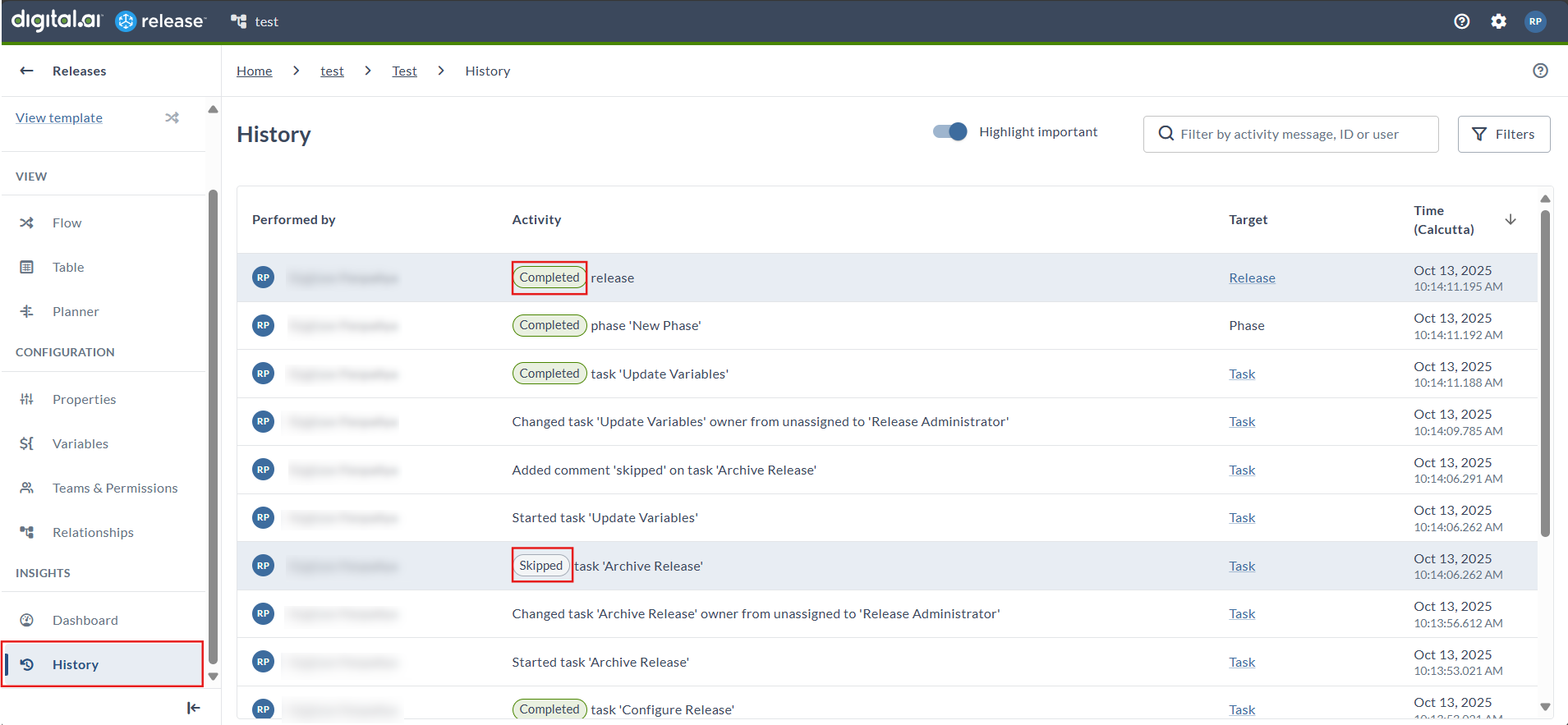
Long log messages are trimmed and can be expanded using Show more. Status-based events such as failed, completed, or skipped are highlighted with badges.
- Target: The object affected by the action (release, phase, task, or trigger).
If a task ID is present, it links directly to the task. If unavailable (for example, for attachments), an alternative message is shown.
- Time: The date and time (including milliseconds) when the event occurred. Use the arrow icon to sort in ascending or descending order.
-
Highlight Important Activities
Enable the Highlight important toggle to emphasize critical events such as:- Failed or skipped tasks
- Completed releases or workflows
- Aborted executions
- Phase and stage starts/completions
The system highlights the following event types:
DELIVERY_COMPLETEDITEM_COMPLETEDITEM_COMPLETED_MANUALLYITEM_DESCOPEDITEM_REMOVEDITEM_RESCOPEDITEM_RESETITEM_RESET_MANUALLYITEM_SKIPPEDITEM_TRANSITION_APPROVEDPHASE_STARTEDRELEASE_ABORTEDRELEASE_COMPLETEDRELEASE_FLAG_COMMENT_UPDATEDRELEASE_FLAG_STATUS_UPDATEDRELEASE_STARTEDSTAGE_COMPLETEDSTAGE_REMOVEDSTAGE_STARTEDTASK_ABORT_SCRIPT_COMPLETEDTASK_ABORT_SCRIPT_STARTEDTASK_DELETEDTASK_FAILEDTASK_FLAG_COMMENT_UPDATEDTASK_FLAG_STATUS_UPDATEDTASK_RECOVEREDTASK_RECOVERY_STARTEDTASK_SKIPPEDTASK_SKIPPED_IN_ADVANCETRANSITION_EXECUTED_AUTOMATICALLYTRANSITION_EXECUTED_MANUALLYWORKFLOW_EXECUTION_ABORTEDWORKFLOW_EXECUTION_COMPLETEDWORKFLOW_EXECUTION_STARTED
Default Display
- By default, all activities are displayed in the History tab with the most recent entries at the top.
- This eliminates the need to manually select the Category filter.
Filter and Search
-
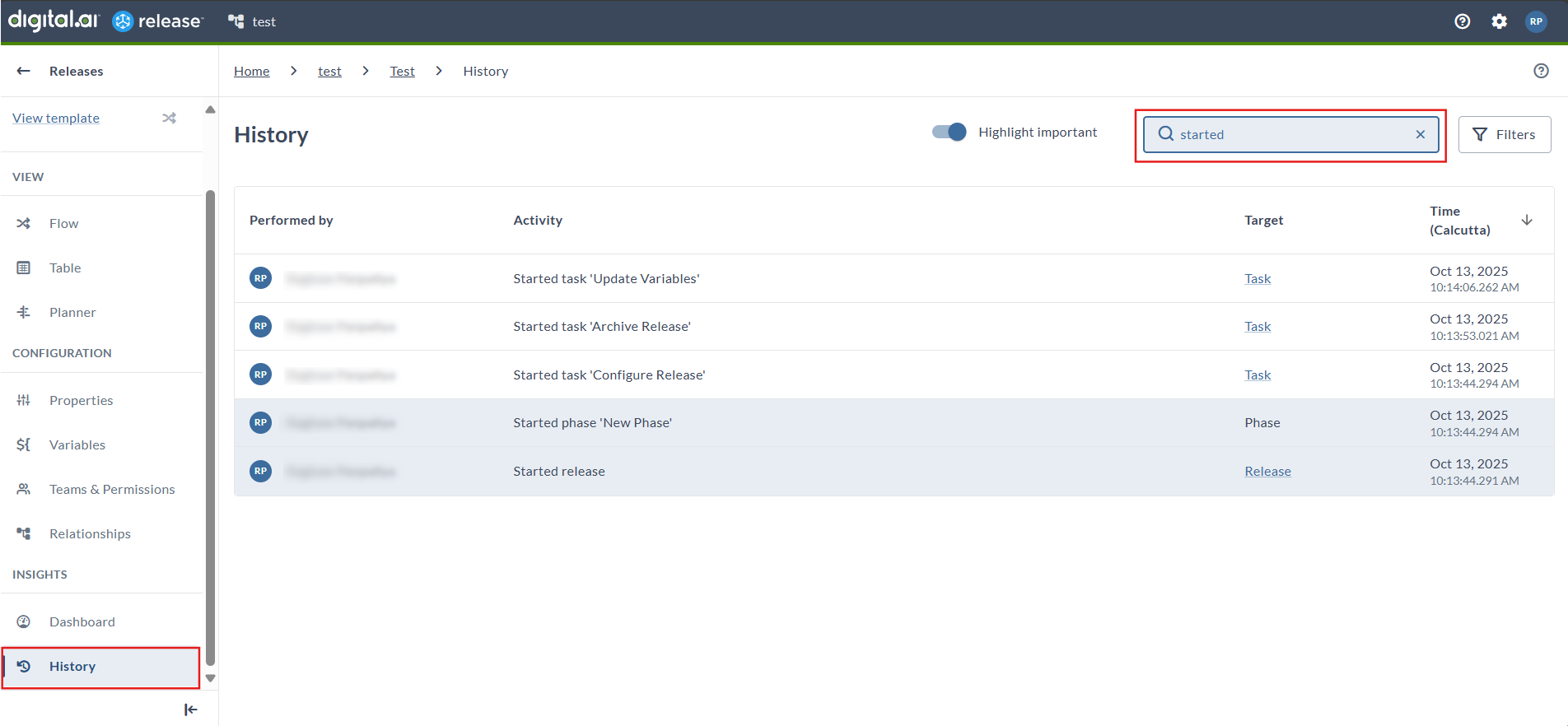
Use the search bar to quickly find logs by user, activity type, or log ID.
-
Release administrator actions (for example, task comments) are grouped under Release Administrator.
Example: Filtering logs by user and activity type
-
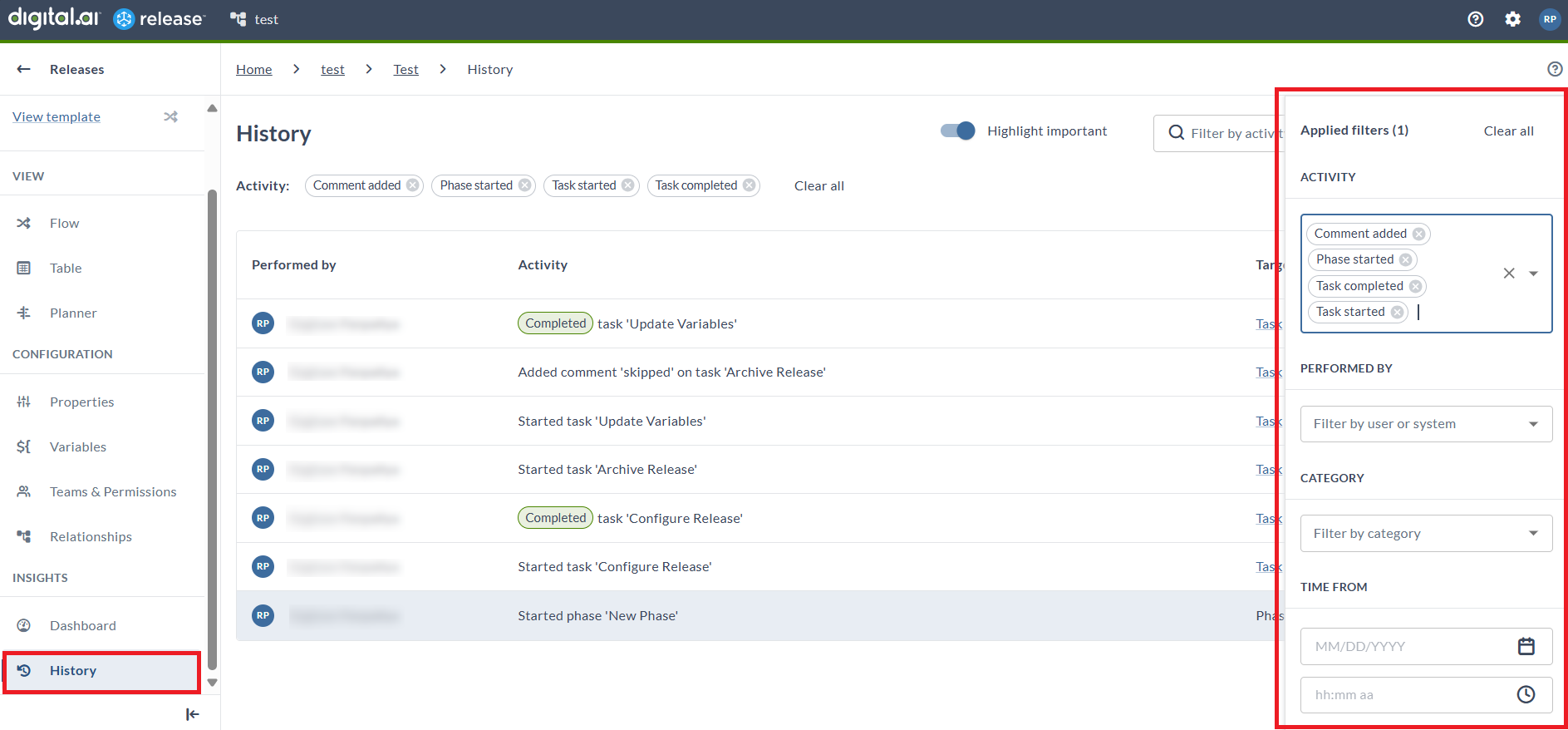
Apply advanced filters using the filter drawer (target, time, or user).
-
The number of active filters appears in both the filter button badge and the subheader.
Example: Advanced filter drawer with multiple options
Persistent Filters
- Any filters or selections you make update the URL.
- When you refresh or return later, the same filters remain applied via local storage.
Color-Coded Tags
-
Visual labels (pills) help distinguish completed, failed, or skipped items for quick scanning.
Categories of Activities
The History tab groups activities into the following categories:
- Task-Level Activities
- Examples: Task started, Task completed, Task skipped.
- Tracks the execution and outcome of individual tasks.
- Release and Phase Activities
- Examples: Release started, Release completed, Phase started, Phase failed.
- Provides visibility into overall release progress and health.
- System-Generated Activities
- Examples: Error messages, failure reasons, or system-triggered status updates.
- Helps with root cause analysis during troubleshooting.
- Sub-Release Creation
- When a child release is created using the Create Release task, the History tab records the parent release as the Target.
- This ensures proper linkage and avoids confusion where the child release was previously shown as the target.
- Trigger-Based Release Creation
- When a release is created through a trigger, the History tab displays the Trigger name and lists the Target as Trigger.
- This improves traceability by showing how and why the release was initiated.