Manage secrets using CyberArk Conjur
This topic explains how to integrate Deploy with CyberArk Conjur to dynamically retrieve secrets — such as service account usernames and passwords — at deploy time. Deploy never stores or caches secrets from Conjur; they are fetched live from the Conjur API during each deployment or infrastructure lookup.
Compatibility
The xld-cyberark-conjur plugin is compatible with:
- CyberArk Dynamic Access Provider
- Conjur Open Source server
- CyberArk Conjur Cloud (SaaS)
How It Works
Conjur organizes secrets in a hierarchical namespace. Every secret lives at a full path made up of two parts:
<policy path>/<variable name>
For example, a service account password stored at service-accounts/prod/db-svc/password has:
- Policy path:
service-accounts/prod/db-svc - Variable name (Variable ID in Deploy):
password
The Deploy plugin mirrors this structure with three configuration items (CIs):
| Deploy CI | Purpose | Example value |
|---|---|---|
| ConjurServer | Connection to the Conjur server (URL, account, credentials) | https://conjur.example.com |
| ConjurPolicy | A policy path prefix scoped under a server | service-accounts/prod/db-svc |
| ConjurDictionary or ConjurLookupValueProvider | Consumer that lists variable names to retrieve | username, password |
At runtime, Deploy combines the policy path and variable name to build the full Conjur path, calls the Conjur API to retrieve the value, and either substitutes it into a deployment package placeholder or resolves it as a CI property value. For details on Conjur policies, see Understanding Conjur policy.
Choosing Between a Dictionary and a Lookup Value Provider
| Use case | Use this |
|---|---|
Inject secrets into a deployment package (for example, replace {{db-password}} in a config file) | ConjurDictionary assigned to an environment |
| Resolve a secret for a CI property field (for example, the password field of a host or cloud target) | ConjurLookupValueProvider referenced from the CI field |
Both use a ConjurPolicy to scope which secrets are accessible.
User Access Control
Deploy provides controls to limit access to Conjur secrets, ensuring that:
- Developers are authenticated and authorized to read secrets
- Role-based access to secrets is supported
- Conjur policies control which credentials can be used and by whom
Install the Plugin
- Download the Deploy CyberArk Conjur plugin from the distribution site.
- Place the plugin inside the
XL_DEPLOY_SERVER_HOME/plugins/directory. - Restart Deploy.
For details, see Install or remove Deploy plugins.
End-to-End Example: Retrieve a Service Account From Conjur
This example walks through the complete setup for dynamically retrieving a service account username and password stored in Conjur.
Conjur secrets (already stored on your Conjur server):
service-accounts/prod/db-svc/username  →  "svc_db_prod"
service-accounts/prod/db-svc/password  →  "s3cr3t!"
Deployment package (config file with placeholders):
db.username={{username}}
db.password={{password}}
At deploy time, Deploy resolves {{username}} and {{password}} by fetching:
service-accounts/prod/db-svc/usernameservice-accounts/prod/db-svc/password
from Conjur and substituting the values inline. The steps below show how to configure this.
Step 1: Create a CyberArk Conjur Server Connection
The ConjurServer CI stores the connection details for your Conjur server.
-
Hover over Configuration, click
 , and select New > secrets > cyberark > conjur > ConjurServer.
 -
In the Name field, enter a name for the connection.
-
In the Server Address field, enter the Conjur server URL, such as
https://conjur.example.com. For CyberArk Conjur Cloud, append/apito the tenant base URL, such ashttps://<tenant>.secretsmgr.cyberark.cloud/api. -
In the Account field, enter your Conjur account name.
-
Complete the authentication fields that apply to your Conjur identity. See Authentication methods.
-
Click Save or Save and close.
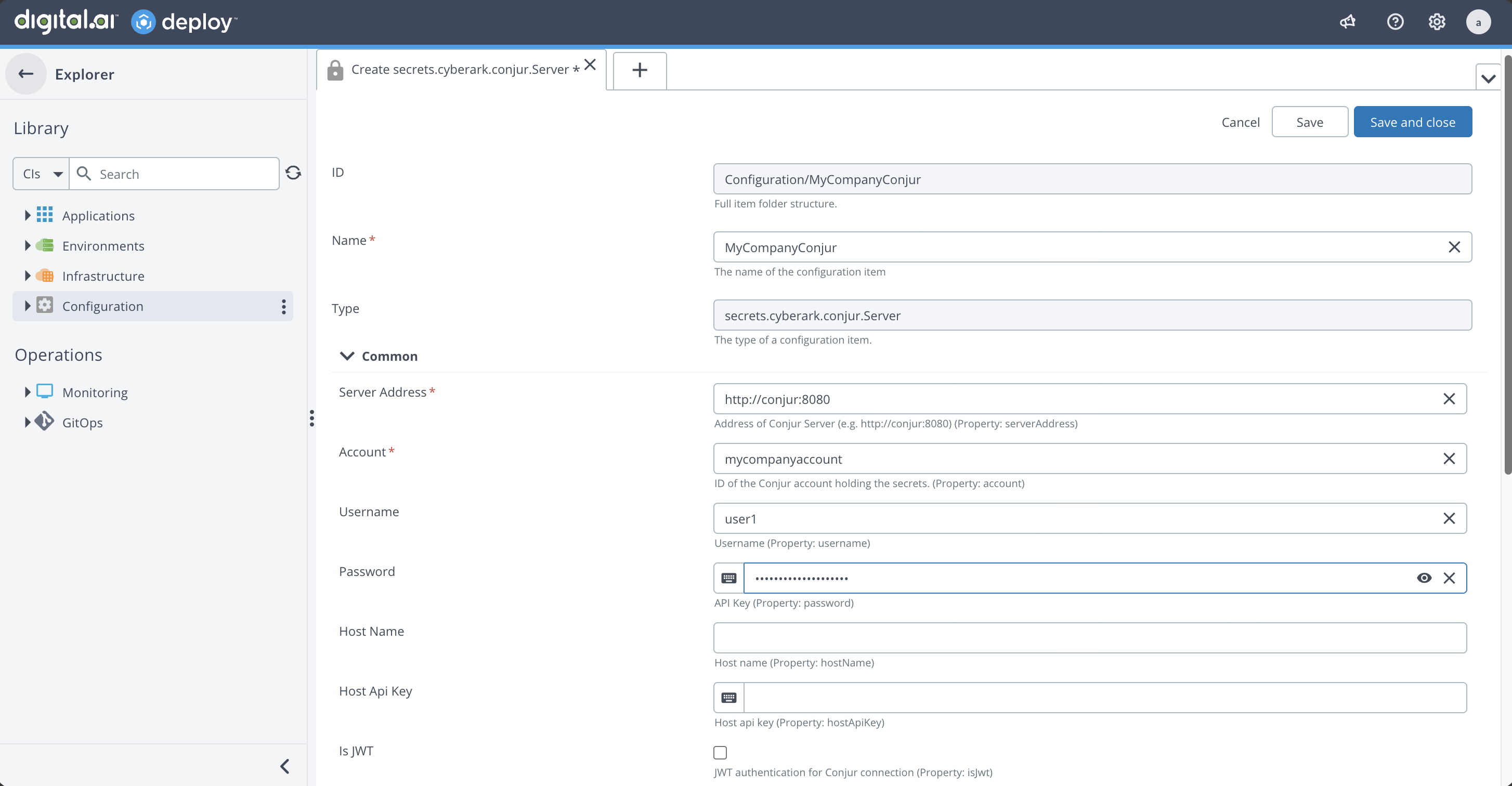
Authentication Methods
Deploy supports the following authentication methods on a ConjurServer connection:
-
Username and password: Enter a Username and Password. Use this method when the Conjur identity is a user.
-
Host and API key: Enter the Host Name and Host API Key. Use this method when the Conjur identity is a host rather than a user.
-
JWT: Select Is JWT, then enter the JWT Service ID of the JWT authenticator configured in Conjur. Deploy supports two ways to provide the JWT token:
- Client credentials: Enter the Client ID, Client Secret, Token URL, and Scope. Deploy uses these credentials to obtain a JWT token.
- JWT Token File Path: Enter the path to a file that contains the JWT token. Use this option when an external process writes the token to a file that Deploy can read.
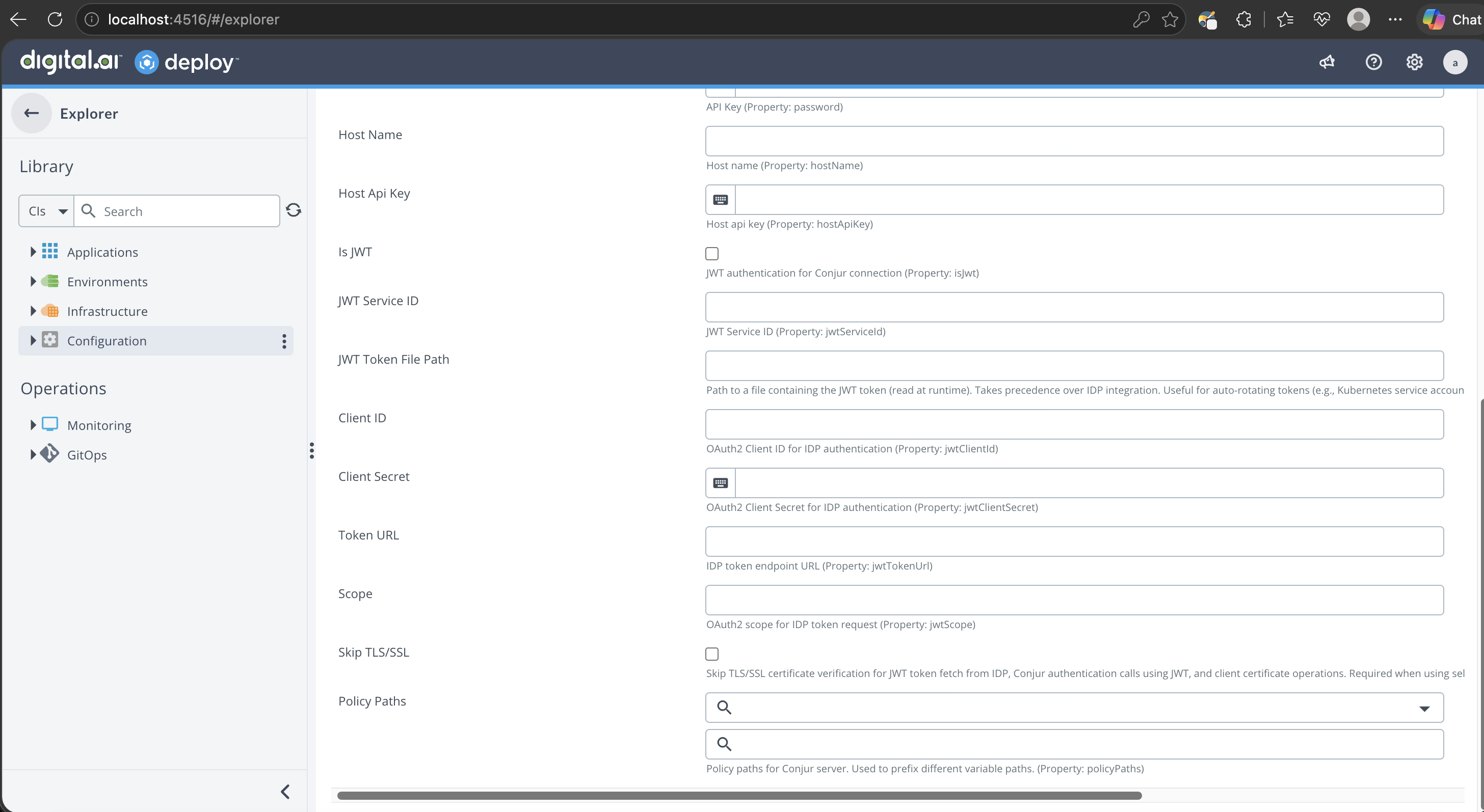
When using client credentials, Deploy obtains a JWT token and uses it to obtain a Conjur token. Deploy then uses the Conjur token to authenticate and authorize the request to retrieve the secret value.
Username and password authentication and host and API key authentication apply to Conjur Open Source and CyberArk Dynamic Access Provider. CyberArk Conjur Cloud requires JWT authentication.
The JWT method requires the JWT authenticator to be enabled and configured on the Conjur server, and the authenticating identity must be permitted to read the variables you want to retrieve. For details, see the CyberArk workload authentication documentation.
Step 2: Add a Policy Path to the Server Connection
A ConjurPolicy CI represents a path prefix in your Conjur secret hierarchy. It scopes which secrets a dictionary or lookup provider can access. One server can have multiple policies — for example, one per application or environment.
-
Expand the Configuration node.
-
Hover over the Conjur server connection, click
, and select New > secrets > cyberark > conjur > ConjurPolicy. -
In the Name field, enter a descriptive name (for example,
prod-db-service-accounts). -
In the Path field, enter the policy path as it exists on your Conjur server (for example,
service-accounts/prod/db-svc). Leave this blank only if your variables are stored directly under the root policy. -
Click Save or Save and close.
-
Repeat to create additional policies as needed.
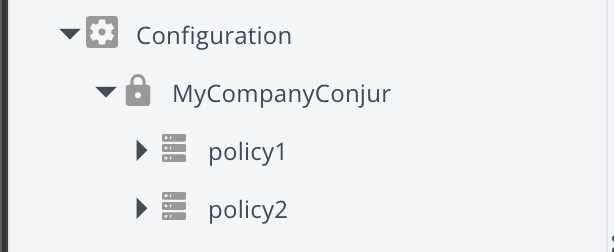
The new policies appear listed under the server connection and in the Policy Paths field when you open the server CI.

Step 3: Create an External Dictionary (for Placeholder Substitution)
A ConjurDictionary resolves secrets from Conjur and substitutes them into {{placeholder}} references in your deployment packages. The Variable IDs you list are the variable names relative to the selected policy path — they are also the placeholder keys used in your package.
Using the example above:
- Policy path:
service-accounts/prod/db-svc - Variable IDs:
username,password - Deploy fetches:
service-accounts/prod/db-svc/usernameandservice-accounts/prod/db-svc/password - Package placeholders resolved:
{{username}}and{{password}}
To create an external dictionary:
-
Hover over Environments, click
, and select New > secrets > cyberark > conjur > ConjurDictionary. -
In the Name field, enter a name for the dictionary.
-
In the Conjur policy field, select the ConjurPolicy you created in Step 2.
-
In the Variable IDs field, enter each variable name as it appears under the policy path in Conjur (for example,
usernameandpassword). These must exactly match the Conjur variable names and will be used as the placeholder keys in your deployment package. -
Click Save or Save and close.
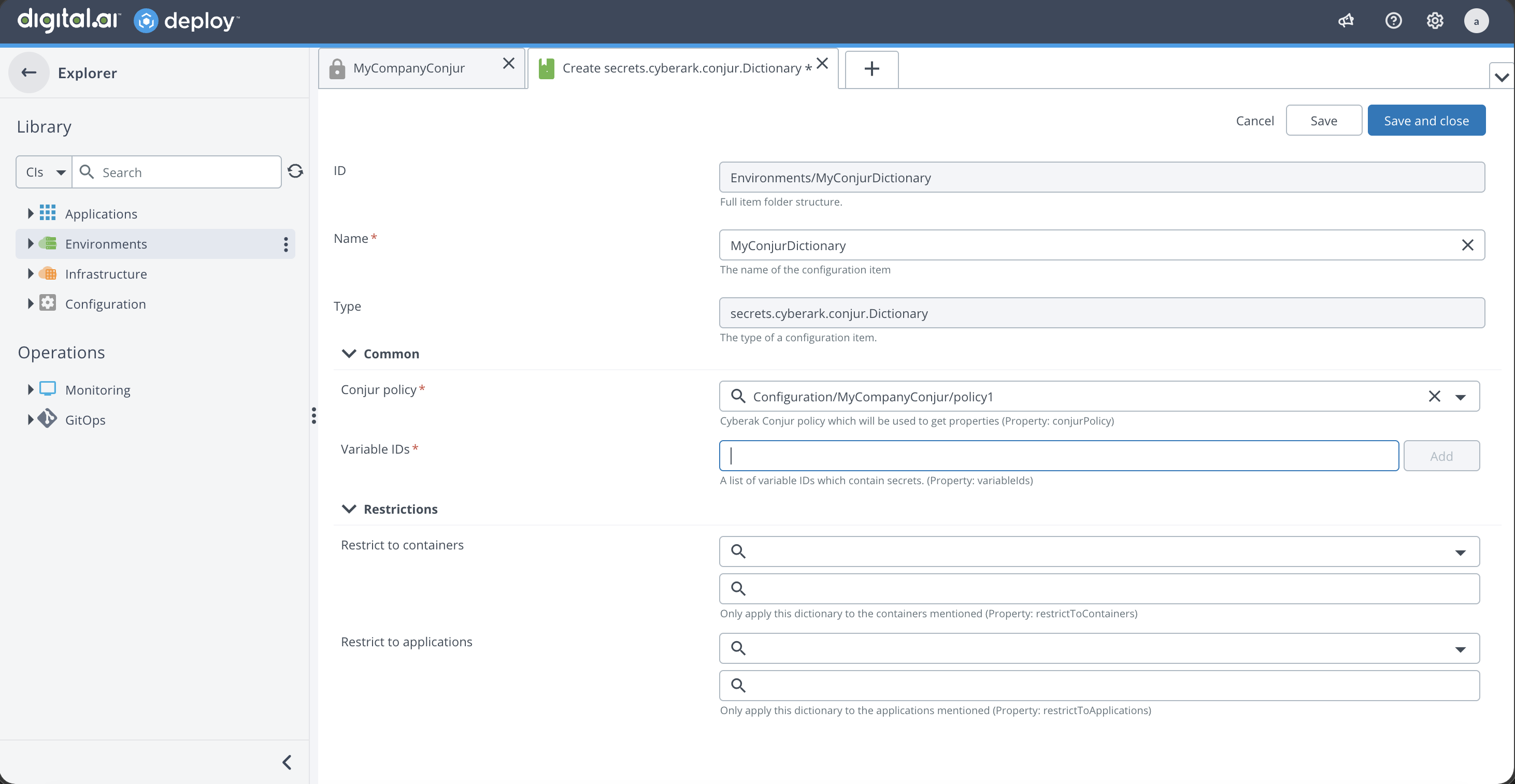
-
Assign this dictionary to an environment so it is available during deployments to that environment.
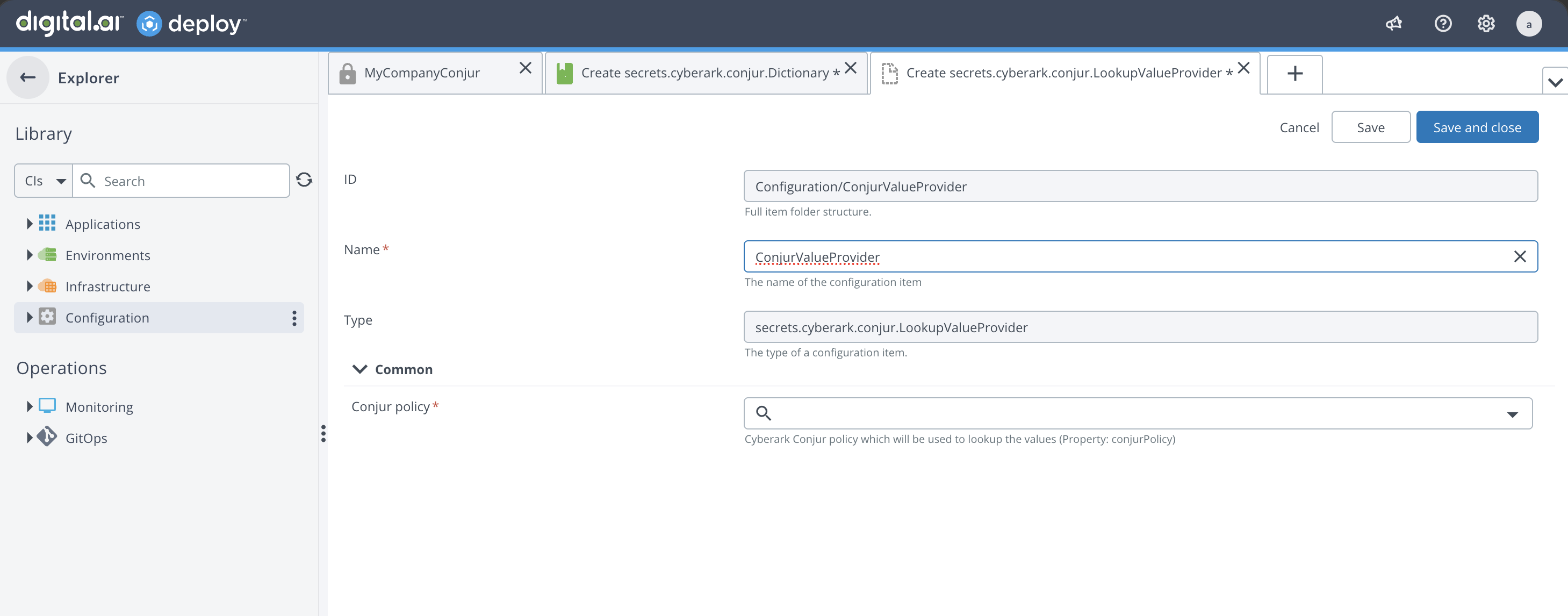
Step 4: Create a Lookup Value Provider (for CI Property Fields)
Use a ConjurLookupValueProvider when you need to resolve a secret directly into a CI property field — for example, a service account password for a host or cloud target — rather than into a deployment package placeholder.
-
Hover over Configuration, click
, and select New > secrets > cyberark > conjur > lookup > ConjurLookupValueProvider. -
In the Name field, enter a name for the lookup provider.
-
In the Conjur policy field, select the ConjurPolicy that contains the secrets you want to resolve.
-
Click Save or Save and close.
Step 5: Use the Lookup Value Provider on a CI
After creating a lookup value provider, you can use it to resolve a secret into any CI property field that supports external lookup. The Lookup provider key you enter is the variable name relative to the policy path — the same as a Variable ID in the dictionary.
For example, to resolve a service account password for a host:
- Hover over Infrastructure, click , and select New > overthere > SshHost.
- Complete the required fields for the CI.
- In the SU password field, click
 and select the ConjurLookupValueProvider you created in Step 4.
 - In the Lookup provider key field, enter the variable name as it appears under the policy path in Conjur (for example,
password). Deploy will fetch<policy path>/passwordfrom Conjur at runtime. - Click Save or Save and close.