Infrastructure as Code
Infrastructure as Code in Digital.ai Deploy supports bidirectional exchange of configuration, infrastructure, environment, and application Configuration Items (CIs) with a Git repository using YAML files. You can export CIs from Deploy to Git for versioning and review, and import CIs from Git into Deploy to create or update them. Import and export are performed through a control task.
This page builds on the shared Git setup described in GitOps in Deploy. Create a git.GitSource and a git.GitDirectory there before you import or export.
With Infrastructure as Code, you can:
- Define and maintain configuration, infrastructure, environment, and application CIs as YAML files (compatible with
xl apply) - Store CIs as YAML in Git repositories for version control, review, and auditing
- Import CIs from Git into Deploy to create or update them
- Export CIs from Deploy to YAML files in Git
- Keep secret values out of Git. Exported YAML files contain placeholders, while the actual values remain securely stored in Deploy
Supported Configuration Item Types
The following CI types are supported:
- Configuration: Configuration CIs
- Infrastructure: Host and container definitions
- Environments: Environment structures, including dictionaries and encrypted dictionaries
- Applications: Applications and deployment packages, including file artifacts such as
file.File,file.Folder, and URI-based artifacts - Permissions: Directory-level permission assignments
For details on the YAML structure for these types, see Work with the YAML format for Deploy.
Encrypted dictionary values are exported as secret placeholders and resolved during import through the GitOps secrets mechanism. See How GitOps Handles Secrets.
Prerequisites
Before you import or export CIs, ensure the following prerequisites are met:
-
A
git.GitSourceand agit.GitDirectoryare created, as described in GitOps in Deploy. -
Any CI that needs to be exported or imported through Git must be grouped under a folder in Deploy. For example, infrastructure CIs should be under a folder like
Infrastructure/devand environment CIs underEnvironments/dev. -
YAML file names are determined by the
kindthey represent:configuration.yaml- used for CIs withkind: Configurationinfrastructure.yaml- used for CIs withkind: Infrastructureenvironment.yaml- used for CIs withkind: Environmentsapplication.yaml- used for CIs withkind: Applications
During export, Deploy generates the appropriately named file based on the kind. During import, Deploy reads the matching file for each kind.
Permissions (kind: Permissions) must be included inside the respective kind's YAML file, such as configuration.yaml. Do not create a separate permissions.yaml file. Deploy supports one YAML file per kind, and permissions are the only kind allowed to coexist inside another kind's YAML file. During import, Deploy splits the YAML into separate documents behind the scenes and processes them individually.
For most workflows, keep both infrastructure and environment configuration in the same repository and directory to ensure they stay aligned.
Export CIs to Git
Deploy supports exporting CIs to YAML files in a Git repository for version control and reuse. CIs are exported at a directory level.
To export, you must have a folder created under the corresponding root in Deploy. For example, Infrastructure/dev or Environments/dev.
Export requires a valid directory path. You cannot export without a folder under the corresponding root in Deploy.
Before exporting, ensure the Git Directory CI specifies the source directory for each kind you want to export. For example:
- Infrastructure source directory: The path under Infrastructure from which CIs will be exported, such as
Infrastructure/dev - Environment source directory: The path under Environments from which CIs will be exported, such as
Environments/dev
Exporting CIs to Git
-
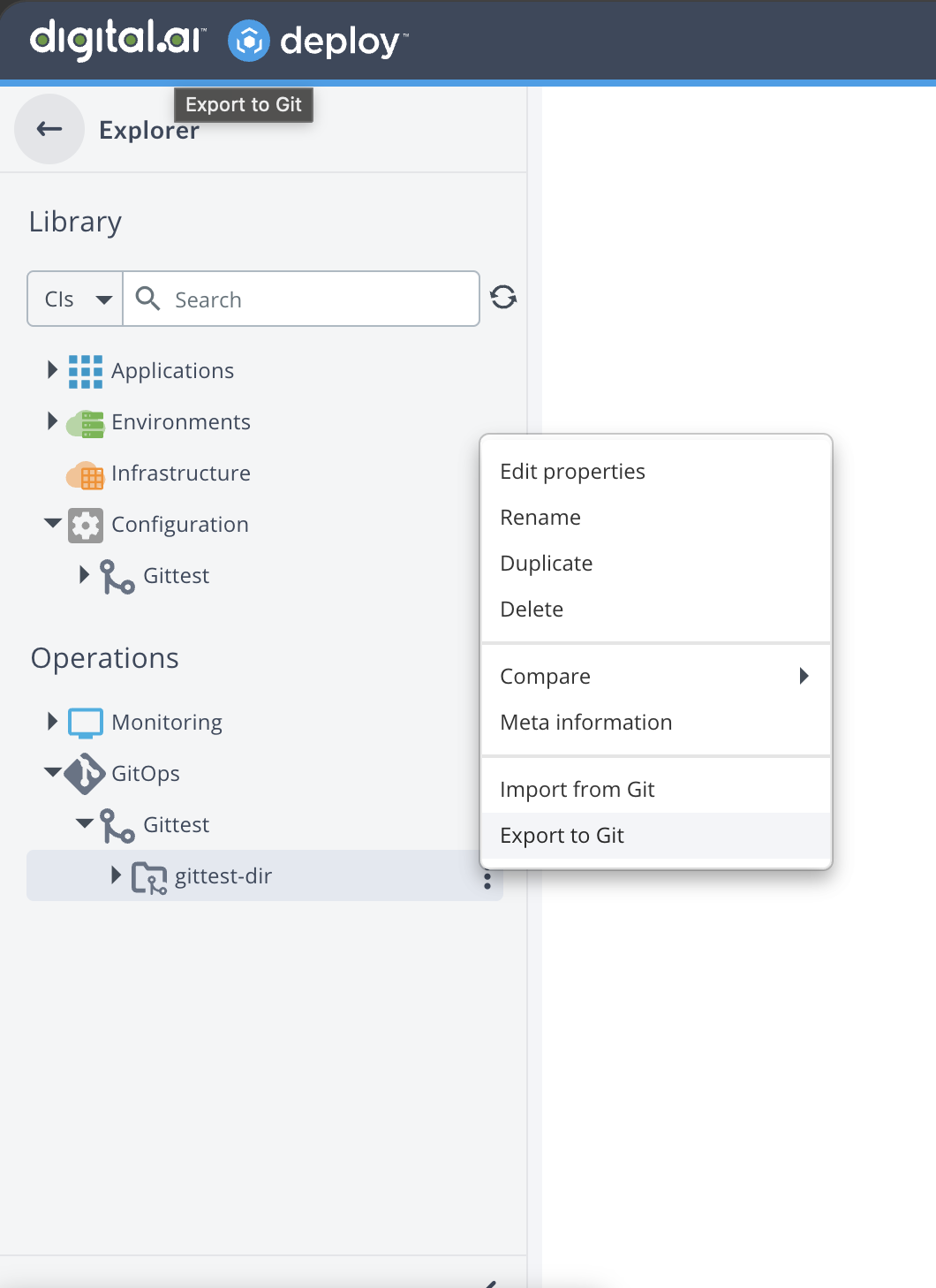
Right-click the
git.GitDirectoryCI under thegit.GitSource. -
Select Export to Git to start the export workflow.
-
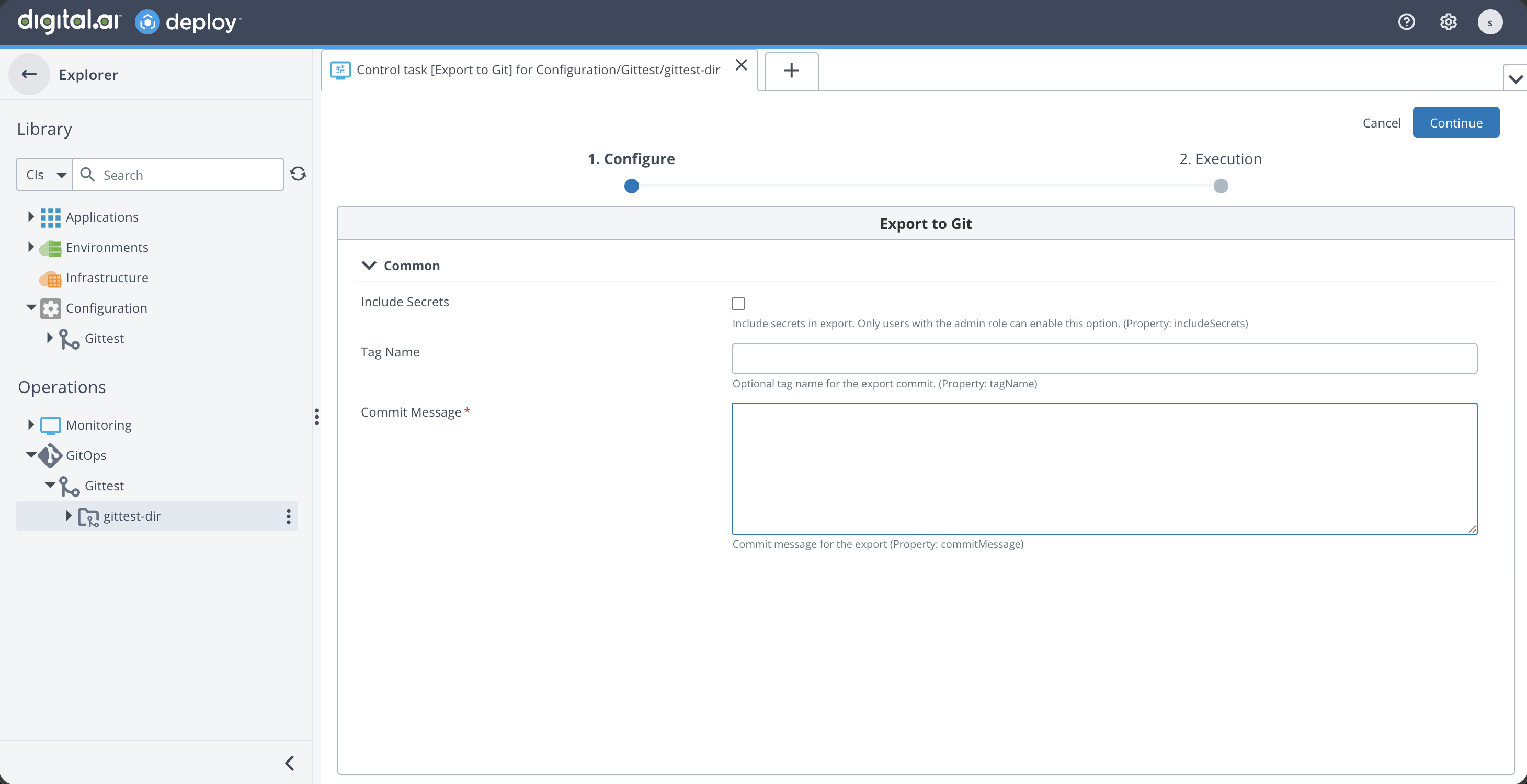
(Admin only, optional) Select Include Secrets to include secret values in the export. This option is unchecked by default and is available to admin users only. See Include Secrets in Export.
-
Enter a Tag name and Commit message. The tag name is optional, but the Commit Message is mandatory to proceed to the next step.
-
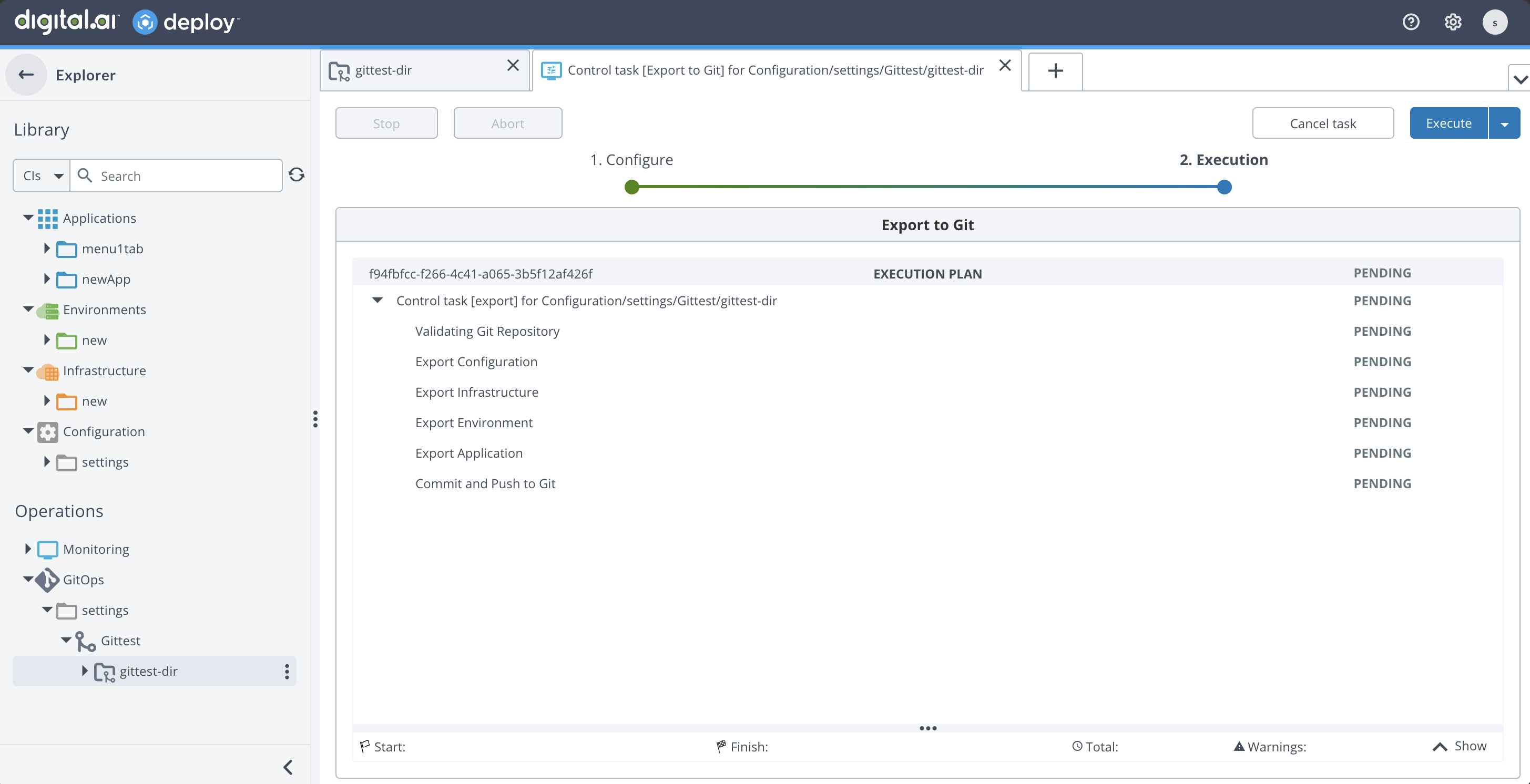
Deploy generates YAML files and pushes them to the Git repository.
During export, Deploy updates the YAML files in the configured Git repository path with the latest CIs.
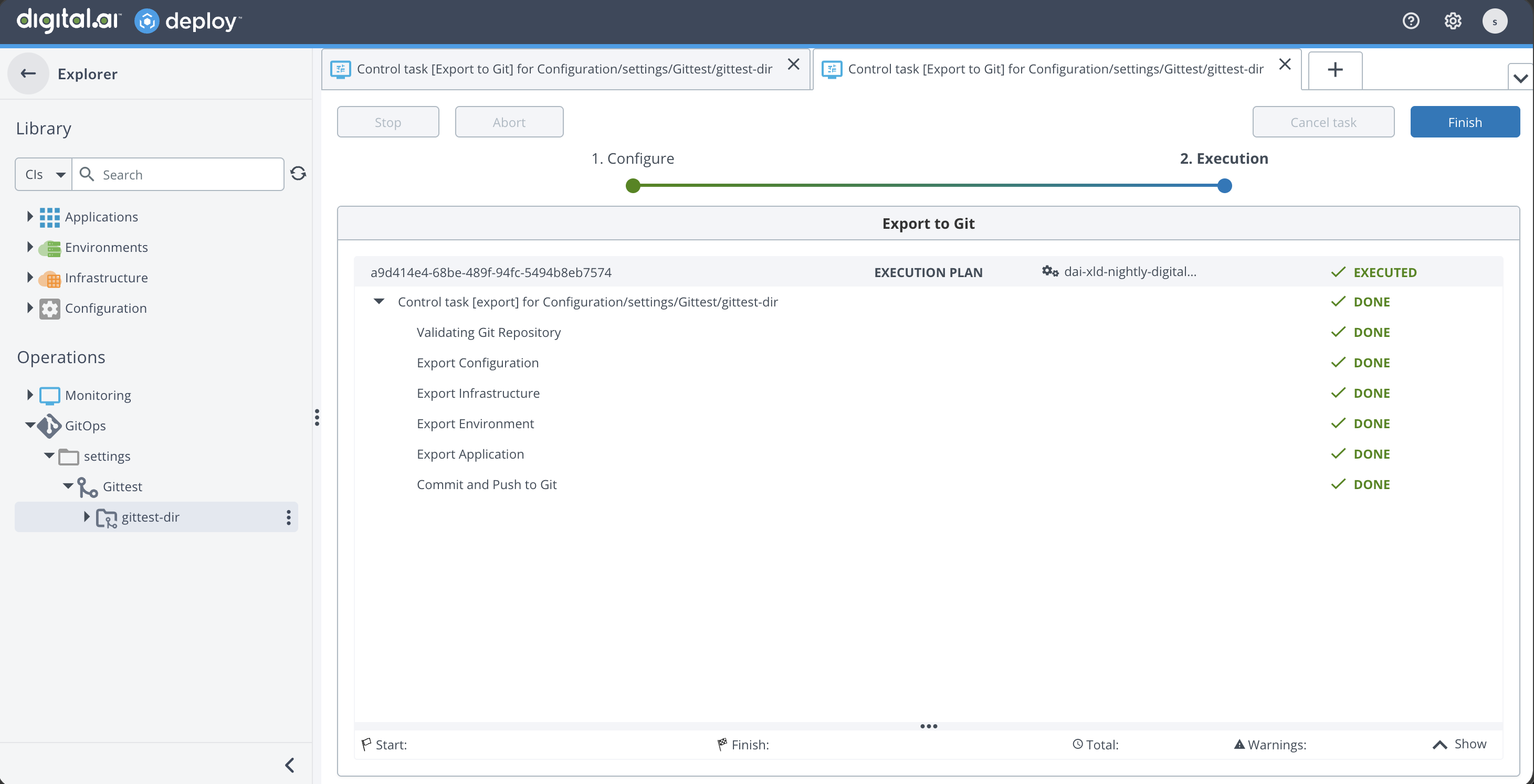
Once the task is executed successfully, the tags are created in the Git repository along with the CI changes.
If you encounter errors during export, see Troubleshooting.
Include Secrets in Export
The Export to Git dialog includes an Include Secrets checkbox, shown at the top above Tag name and Commit message. It controls whether secret values are captured as part of the export and aligns GitOps export behavior with the xl CLI.
Regardless of this setting, plain-text secret values are never written to the Git repository. The exported YAML always contains placeholders. When Include Secrets is enabled, the actual secret values are stored in the Deploy database so they can be restored during a later import. For details, see How GitOps Handles Secrets.
- Default: Unchecked (
false). Secrets are not exported unless a user with admin permission explicitly enables the option. - Admin users and users with admin permission: The checkbox is enabled and interactive. This includes the built-in admin user and regular users who have been granted admin permission. These users can check the box to include secrets or leave it unchecked.
- Regular users (without admin permission): The checkbox is greyed out (read-only) and cannot be toggled. Export proceeds with secrets excluded.
If a user without admin permission forces the option on by editing the UI element or bypassing the UI through the API, Deploy rejects the export with the following error:
PermissionDeniedException: You do not have admin permission to export secrets
How GitOps Handles Secrets
When you export CIs that contain secret properties, such as passwords, keys, certificates, and encrypted dictionary entries, Deploy never writes the actual values to Git in plain text. Instead:
- The exported YAML files contain placeholders in the form
!value "<key>"for secret properties. - The actual secret values are stored encrypted in the Deploy database.
- During a later import, Deploy resolves the placeholders from the stored values and restores the secret properties on the created or updated CIs.
This prevents sensitive values from being exposed in Git or any third-party Git provider.
The stored secret values are produced by the export operation. If you import YAML files that contain secret placeholders before the secrets were exported (or into an instance where no values are stored), the import completes with a missing or invalid secret warning and the secret properties remain empty. Open the affected CI and reset the property values manually.
Export as Secret for External Plugin Properties
Starting from Deploy 27.1, certificate and private key fields (such as caCert) use the export-as-secret="true" attribute so their values are not written to Git as plain Base64 text. External plugins define custom CI properties through synthetic XML, and Deploy cannot always infer which of those properties hold sensitive data. Properties that contain sensitive content, such as certificates, private keys, or .pem file contents, can be marked with the export-as-secret="true" attribute in the plugin's type definition:
<type type="k8s.master" extends="...">
    <property name="caCert" export-as-secret="true"/>
</type>
GitOps then treats the property like any other secret. The exported YAML contains only a placeholder, and the actual value is stored encrypted in the Deploy database:
caCert: !value "Infrastructure_k8s_master_caCert"
Keep the following in mind:
- Unlike
password="true", a property marked withexport-as-secret="true"remains visible as plain text in the Deploy UI. Use it for fields that must stay readable in the UI but must not be exported to Git in plain text. - If a property sets both
password="true"andexport-as-secret="true", thepasswordbehavior takes precedence. The value is masked in the UI and handled through the existing password secret flow. - The attribute was previously named
secret="true"and has been renamed toexport-as-secret="true". - Existing CI storage, UI rendering, and YAML files exported before this change are not affected and continue to import correctly.
Import CIs from Git
Import reads YAML from the configured Git repository path and creates or updates the corresponding CIs in Deploy. If the YAML contains secret placeholders, Deploy resolves them from the values stored during a previous export. See How GitOps Handles Secrets.
- Right-click the
git.GitDirectoryCI under thegit.GitSource(from GitOps or Configuration). - Select Import from Git to start the import workflow.
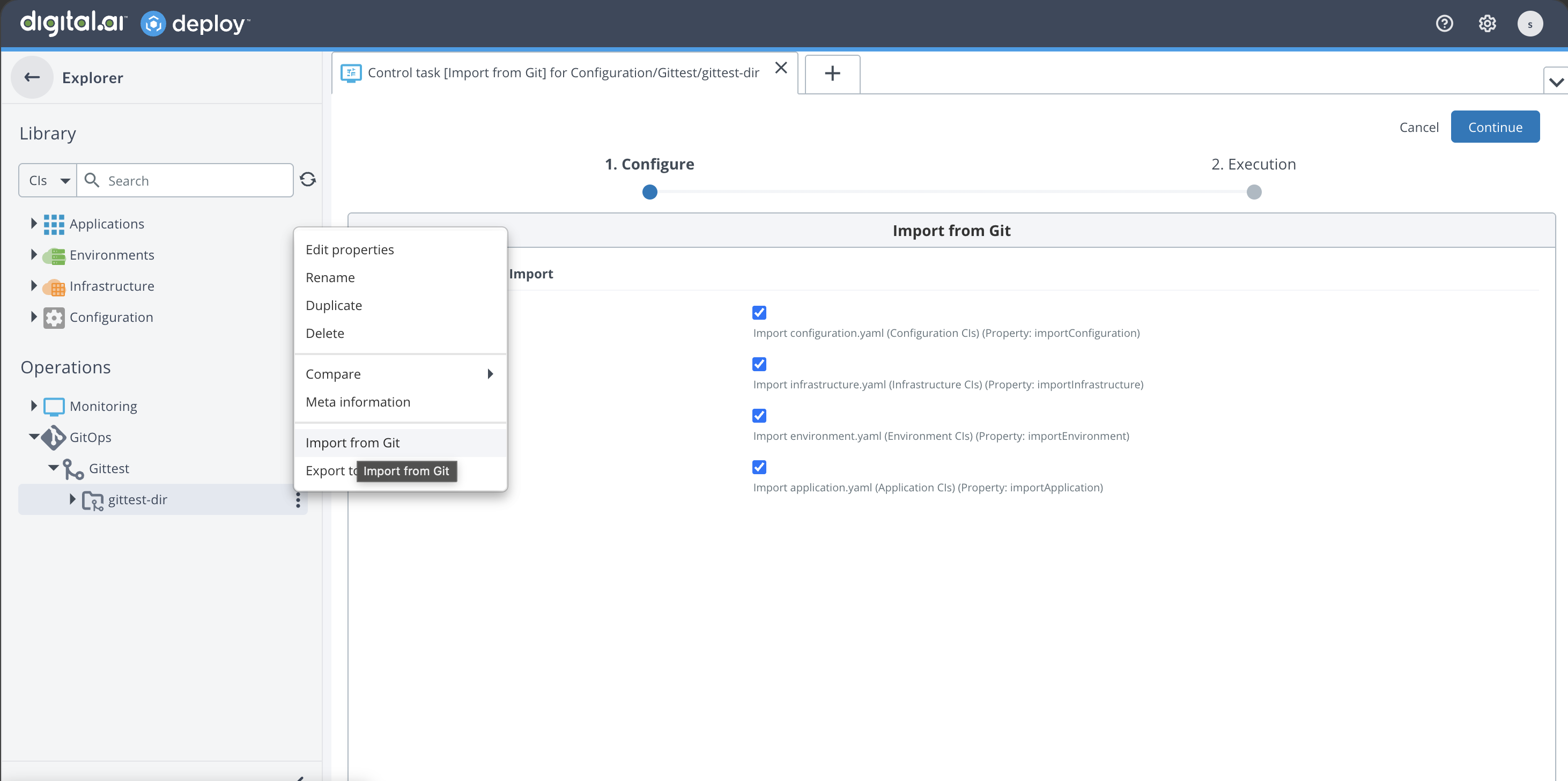
Select Kinds to Import
Before the import executes, Deploy presents a Select CI Kinds to Import screen where you can choose which kinds to import. All kinds are selected by default. The available kinds and the YAML file each one reads are:
| Kind | YAML file |
|---|---|
| Configuration | configuration.yaml |
| Infrastructure | infrastructure.yaml |
| Environment | environment.yaml |
| Application | application.yaml |
Select the kinds that correspond to the YAML files present in your Git repository and click Proceed. Deploy generates import steps only for the selected kinds. Unselected kinds are excluded entirely from the workflow.
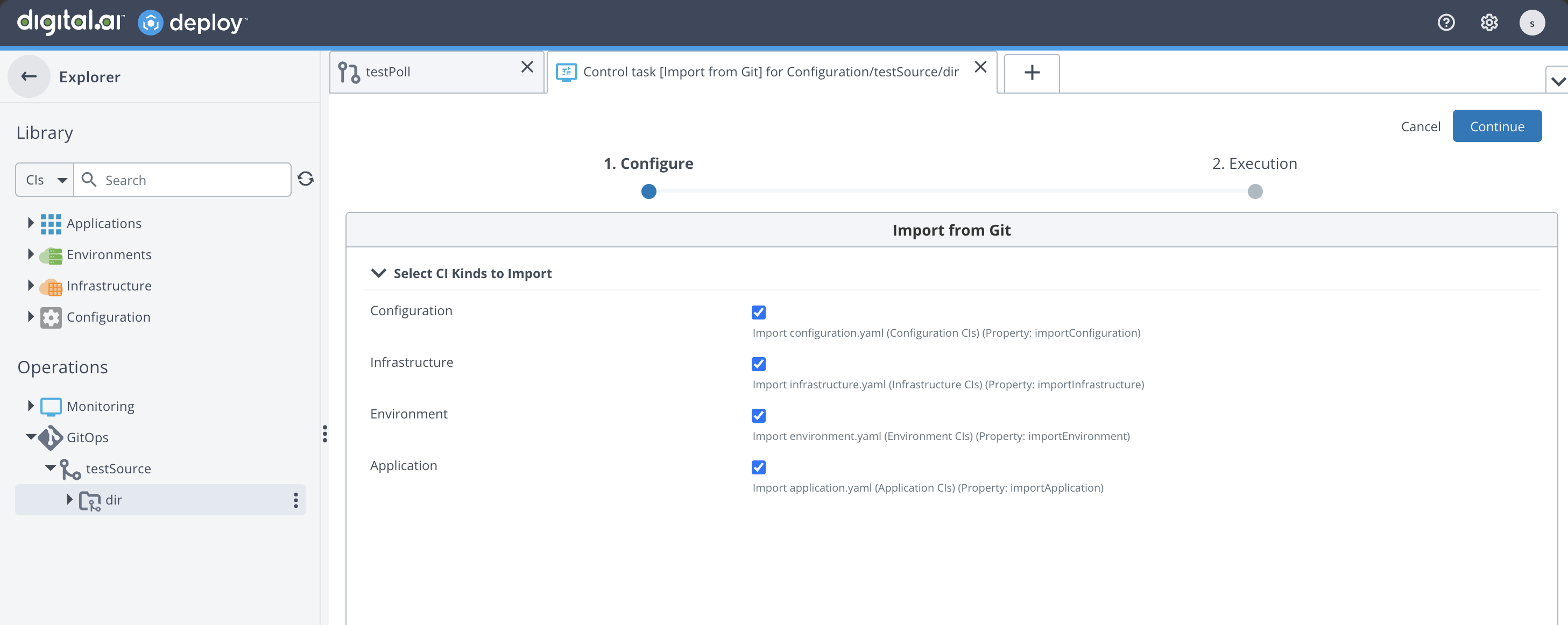
Select only the kinds for which you have corresponding YAML files in the Git repository. This avoids unnecessary failures from missing files.
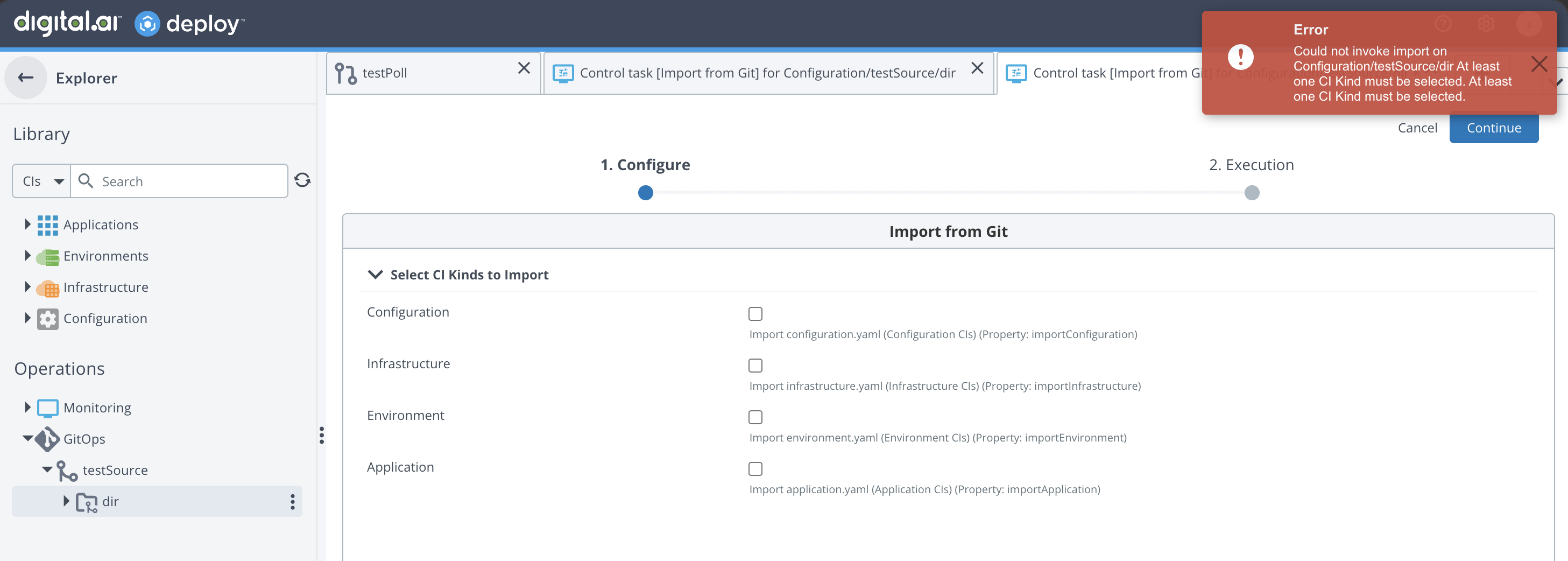
The kind selection screen enforces the following validations:
- At least one kind must be selected. You cannot proceed without selecting at least one checkbox.
In addition, keep the following execution-time behavior in mind:
- A selected kind is not validated against the repository at selection time. If you select a kind but the corresponding YAML file is not present in the Git repository, that import step will fail during execution. You can skip the failed step and continue with the remaining steps.
Import Execution and Summary
After selecting the kinds and proceeding:
- Deploy creates import steps only for the selected kinds.
- Each step imports the corresponding YAML from Git and creates or updates the matching CIs in Deploy.
- After execution, a Summary is displayed that consolidates all CIs that were created or updated across all import steps.
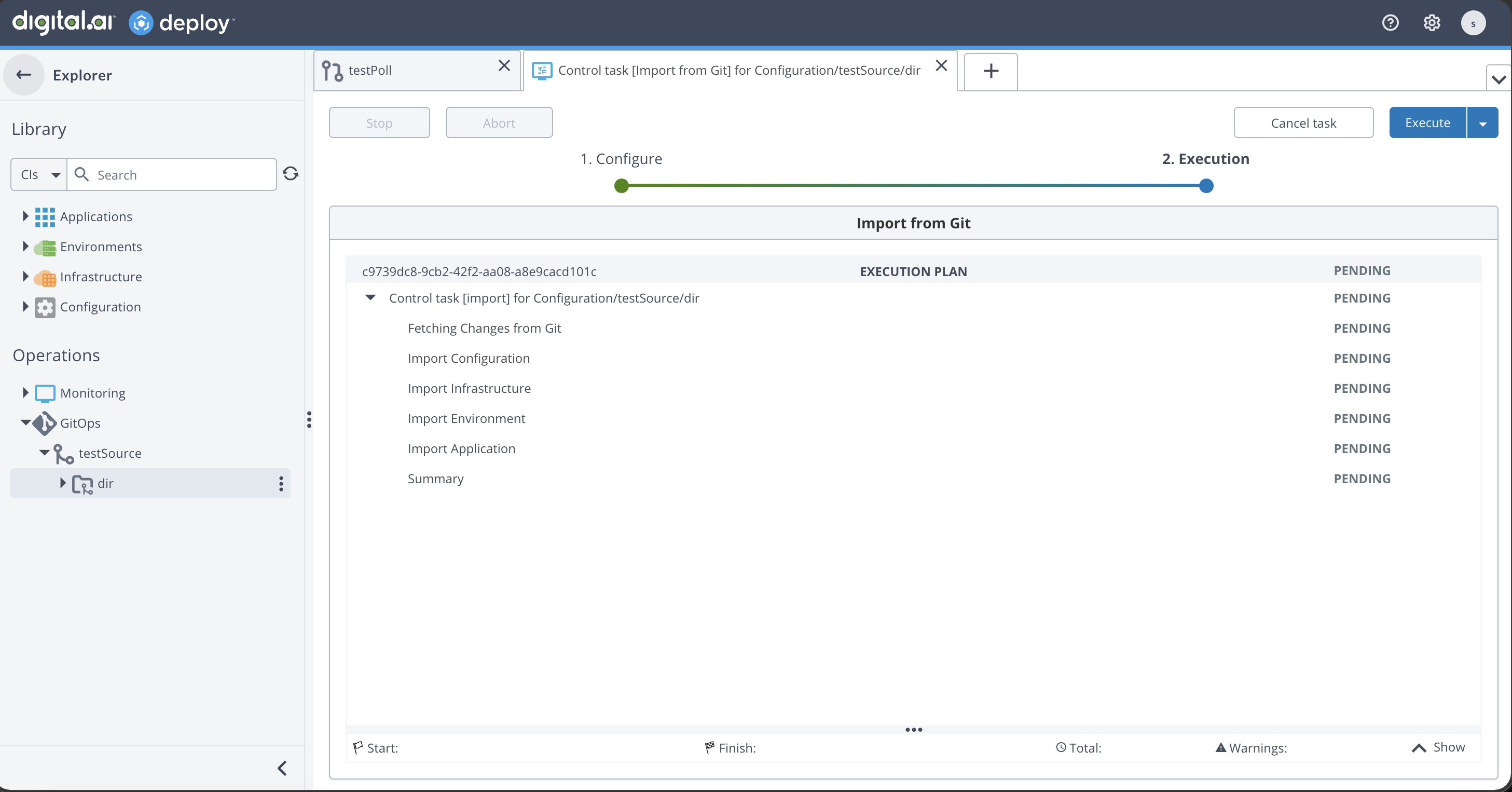
The summary provides a single view of all changes made during the import, so you do not need to check each step individually.
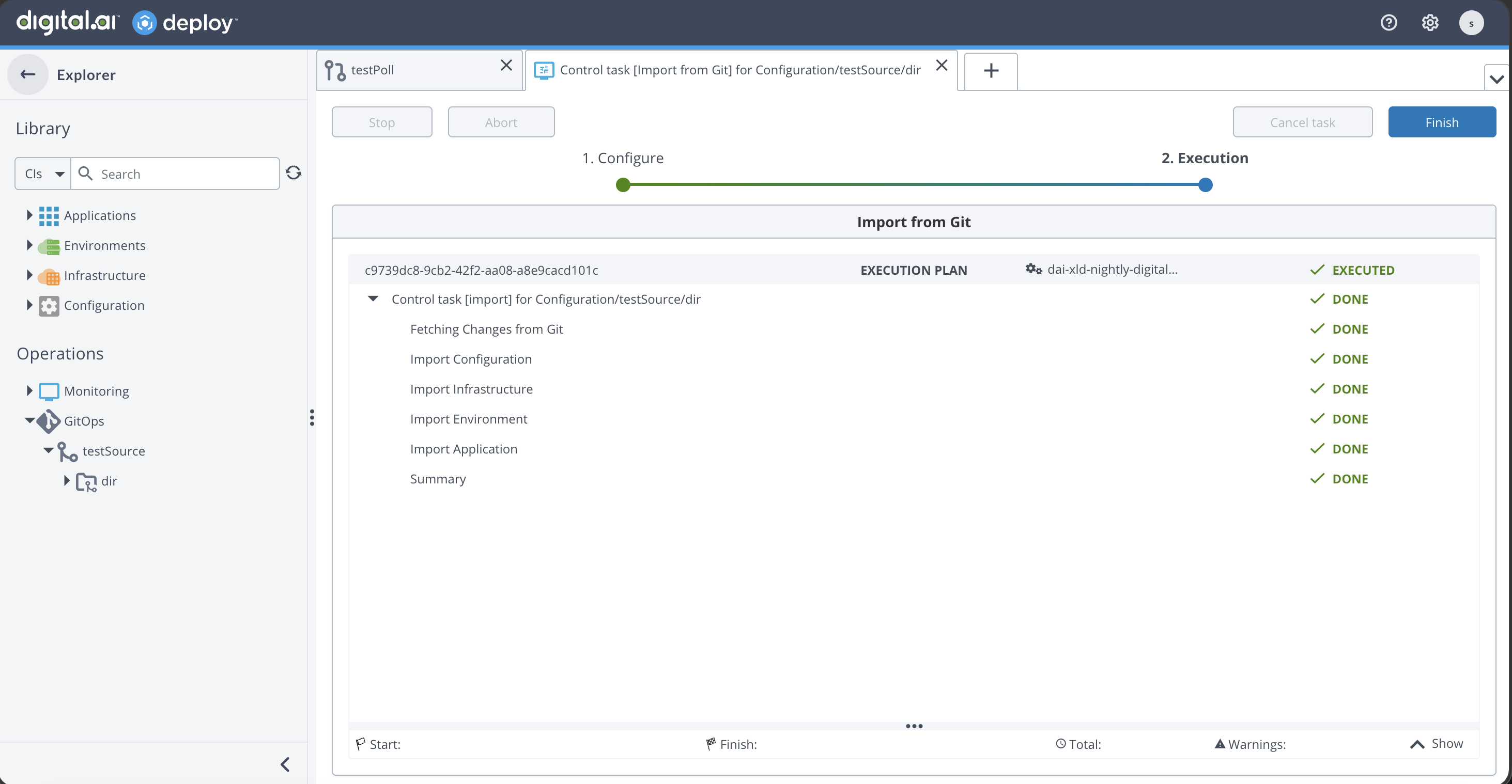
Import Behavior with Multiple Kinds
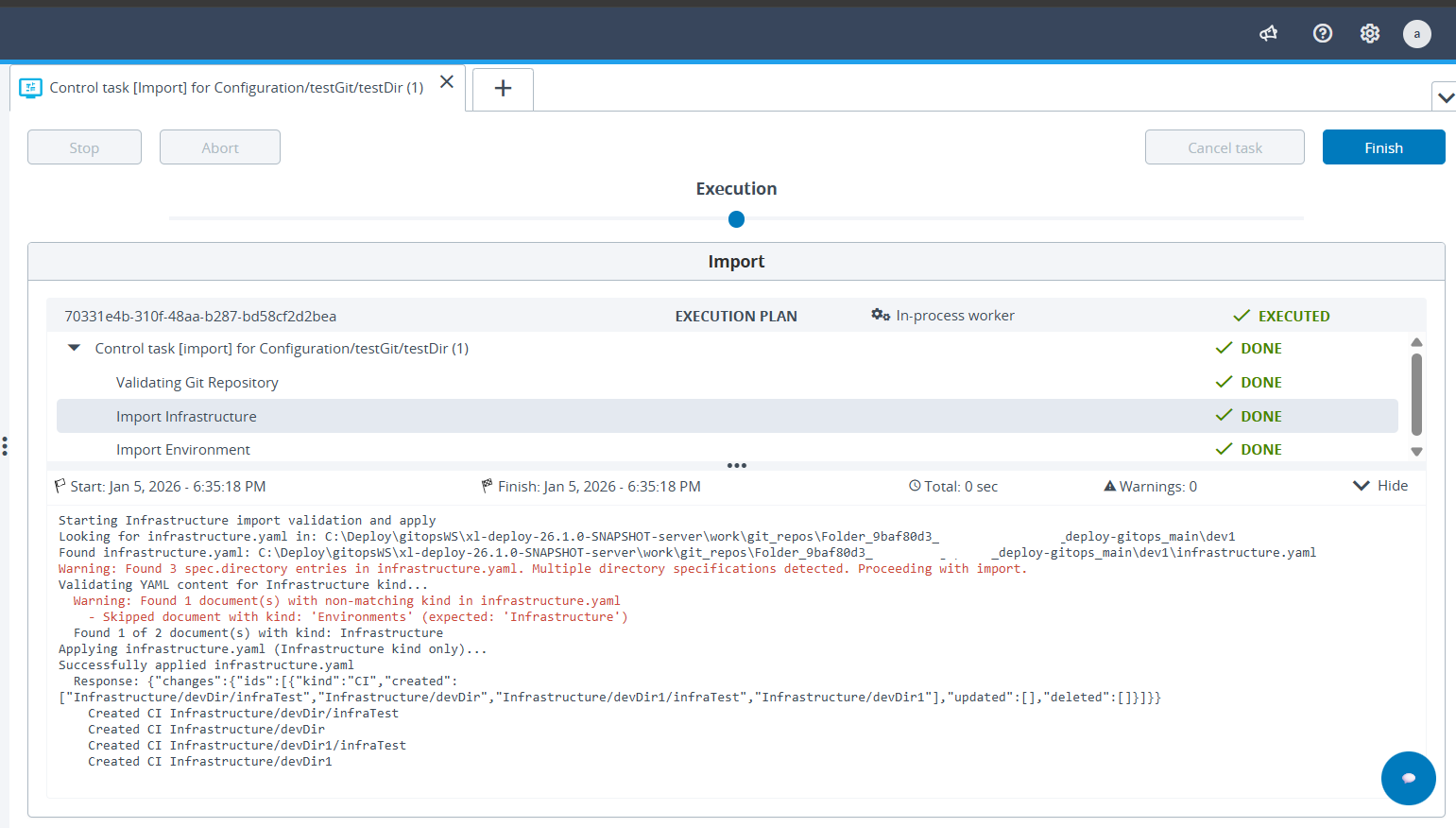
When importing YAML files, Deploy processes only the matching kind for each step and skips non-matching kinds with a warning.
Scenario 1: YAML file contains multiple kinds
If infrastructure.yaml contains both kind: Infrastructure and kind: Environments then during the Import Infrastructure step, only kind: Infrastructure is processed. The kind: Environments section is ignored with a warning. If multiple spec.directory entries exist within a single kind, Deploy logs a warning but proceeds with the import.
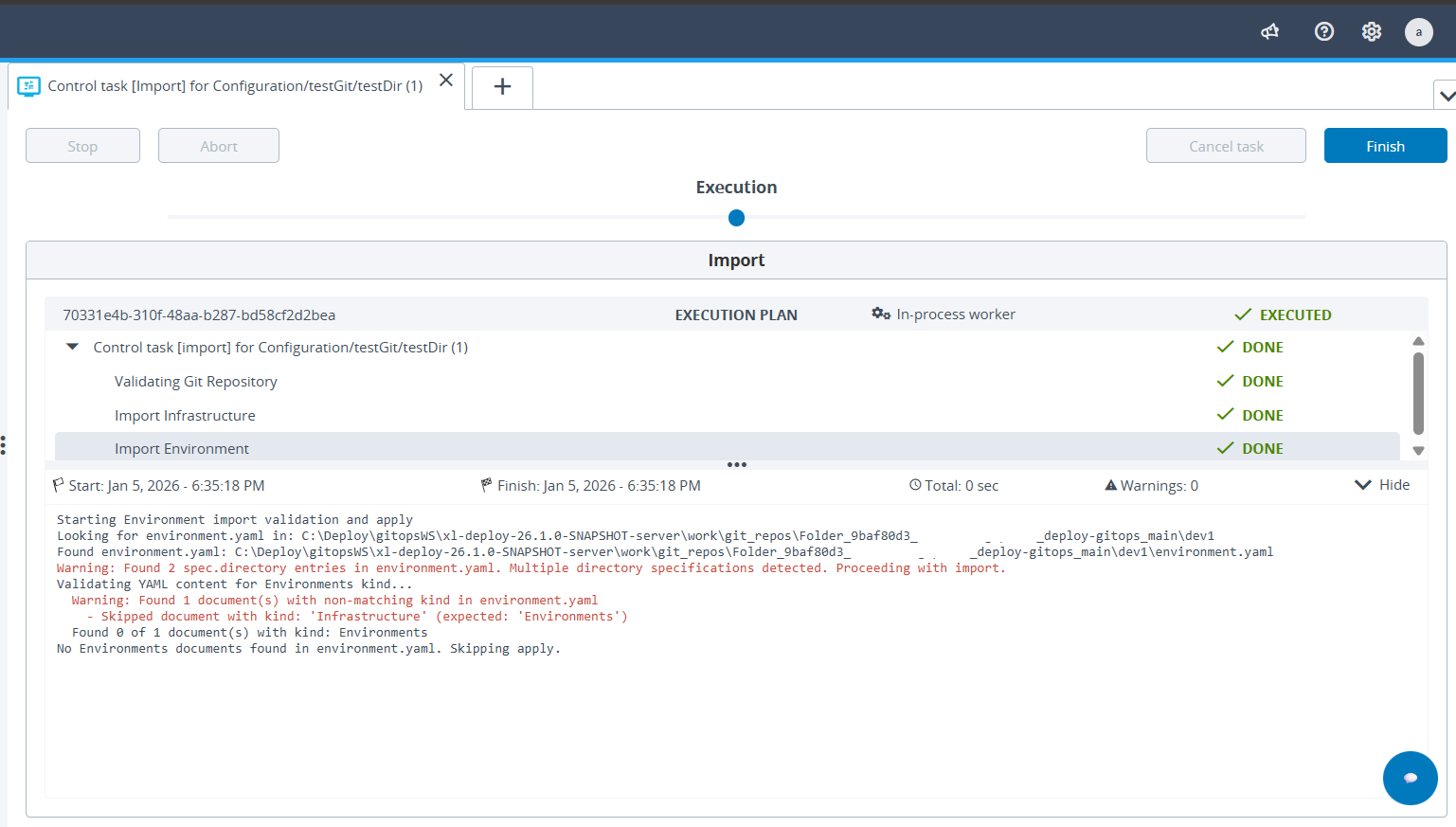
Scenario 2: YAML file contains a non-matching kind
If environment.yaml contains only kind: Infrastructure instead of kind: Environments:
During the Import Environment step, Deploy finds no matching kind: Environments and skips the apply step with a message indicating no matching documents were found.
Importing CIs with Permissions
GitOps import supports kind: Permissions for applying directory-level permissions during import. Permissions are not imported from a separate YAML file. Instead, they must be included within the respective kind's YAML file, such as configuration.yaml.
During import, Deploy automatically splits the YAML document behind the scenes, processes the CIs first, and then applies the associated permissions to the directory.
For example, if configuration.yaml contains both kind: Configuration and kind: Permissions:
- Deploy splits the YAML into separate documents.
- The Import Configuration step creates or updates the configuration CIs.
- Permissions are applied to the target directory.
To verify the applied permissions, right-click the directory in the Configuration tree and select Edit permissions.
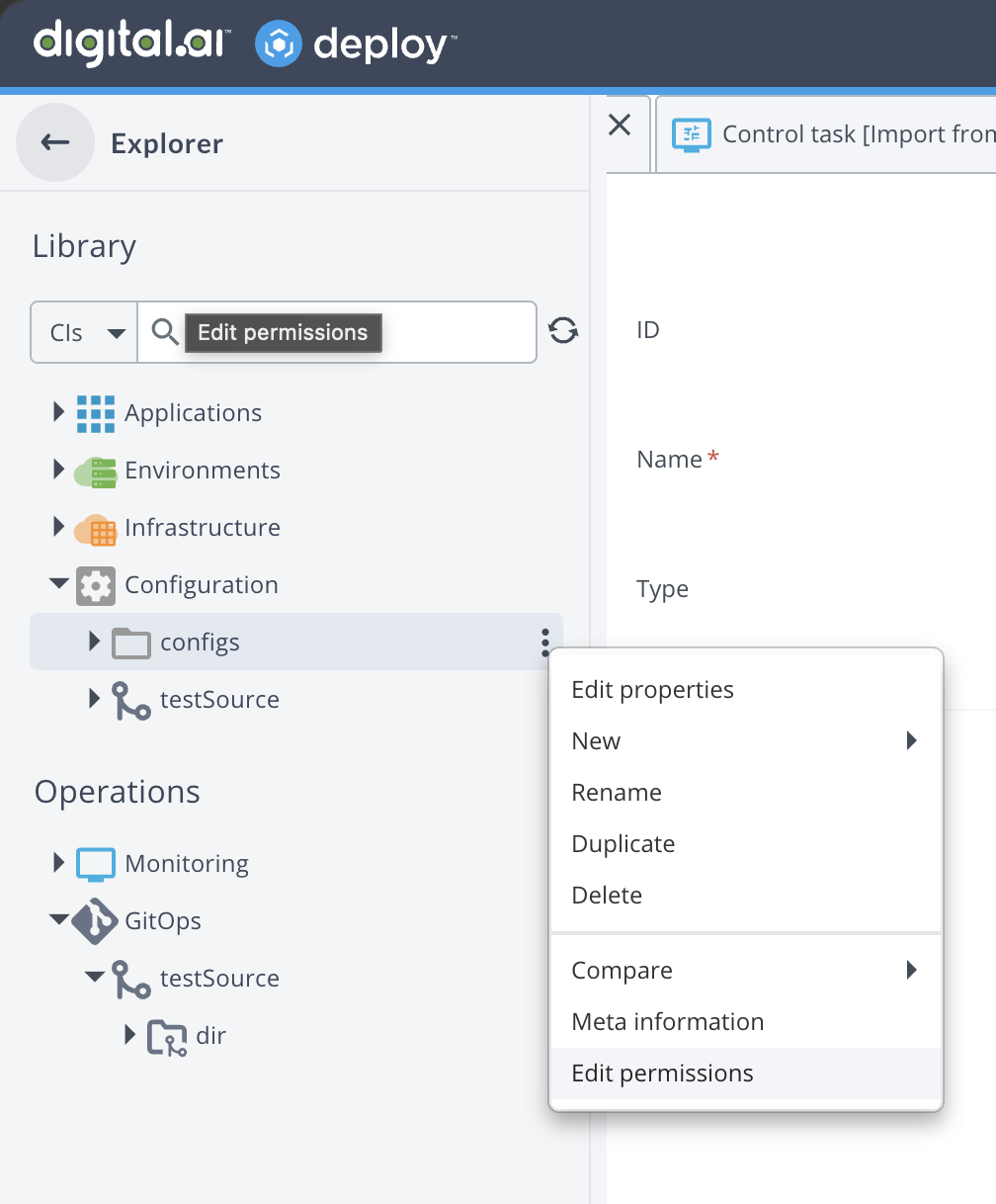
The permissions view shows the roles and permissions applied to the directory.
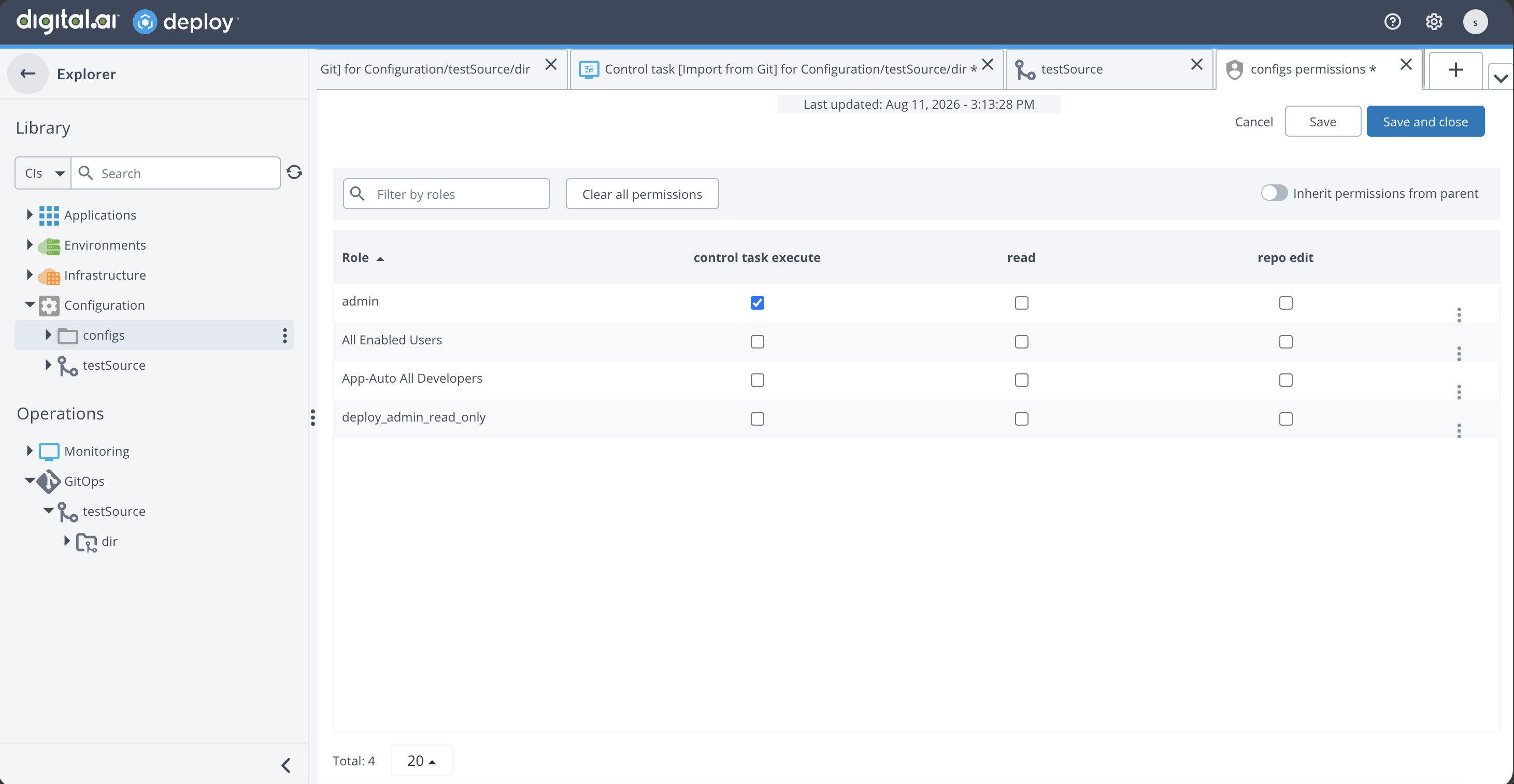
After execution, the Import Summary displays the count of CIs created and updated.
Permissions are always applied at the directory level. Deploy supports one YAML file per kind. kind: Permissions is the only kind that can coexist inside another kind's YAML file.
Importing and Exporting Applications with File Artifacts
GitOps supports the Application kind, including deployment packages that contain file artifacts such as file.File, file.Folder, and URI-based artifacts. The associated files are included as part of the export and import operations.
This is supported across all artifact storage backends such as:
- File system storage
- Database storage
- External workers
For applications that contain file artifacts, you must run the export operation before the import operation. The export produces the artifact content that the import depends on. If you run import first, Deploy blocks the operation with a validation error and the import fails. This rule applies to both file.File and file.Folder artifacts.
Troubleshooting
If you encounter errors during import or export, the Deploy UI displays descriptive error messages. Common issues include:
| Issue | Cause |
|---|---|
| Branch not found | The specified branch does not exist in the Git repository |
| Path not found (Import) | The Git repository path does not exist |
| Path not found (Export) | The Configuration, Infrastructure, Environment, or Application source directory does not exist in Deploy |
| No matching kind | The YAML file does not contain the expected kind for the import step |
| YAML file not present | The expected YAML file is missing from the repository |
| Sub-folders not supported | Export only supports root-level directories |
| Duplicate tag | The specified tag name already exists in the repository |
| Empty directory | The target directory contains no configuration items to export |
| Application import fails (file artifacts) | Import was run before export for an application with file.File or file.Folder artifacts. Run export first to produce the required artifact content, then import |
| Permission denied when exporting secrets | A non-admin user attempted to export with Include Secrets enabled. Only admin users can include secrets in a GitOps export |
| Secret already exists (Export) | Secrets from a previous export already exist in the Deploy database for this Git Directory. The warning is informational, the export proceeds and the stored secrets are overwritten |
| Missing or invalid secret (Import) | A !value placeholder in the YAML has no stored value in Deploy because the import was run before the secrets were exported. Run export first, or reset the secret property values on the CI manually |
Invalid !value format (Import) | A secret placeholder in the YAML file is malformed. Correct the value at the YAML path shown in the warning message |
When a YAML file contains multiple kind definitions, Deploy imports only the matching kind for the current step and logs a warning for ignored kinds.