Configure Deploy on Event
Deploy on Event is available in Digital.ai Deploy 26.3 as a Technical Preview. It allows changes in Git to automatically trigger deployments.
Deploy polls a configured deployment file in a Git repository. When that file changes at the watched path, Deploy validates the change, creates a deployment plan, and executes the deployment automatically.
This capability is intended for DevOps and release engineers who want Git changes to initiate deployments instead of starting each deployment manually.
Detection leads directly to execution. When Deploy detects a relevant change, the deployment runs without an approval step or manual intervention. Automatic execution is still subject to application locking. If a deployment of the same application to the same environment is already running, the new deployment is placed in the STOPPED state and must be started manually. See Deployment policy enforced by the poll.
How Deploy on Event Works
Deploy on Event uses Git polling, so it works in on-premises environments without requiring an inbound webhook.
- Each polling configuration maps to exactly one deployment file of
kind: Deploymentin Git and, through that file, to exactly one target environment. - The target environment is defined in the deployment file and cannot be set manually. This reduces the risk of mis-targeting errors.
- Each poll tracks the commit of its own deployment file and creates a deployment only when that file has changed since the deployment it last triggered. See Change detection.
- Deploy on Event supports one deployment file per GitPoll. Configure one
git.GitPollfor that deployment file. - The polling interval is defined using a cron expression, so the deployment file is polled on its own schedule.
- Deployments created by a poll are serialized through application locking. The properties that control this are fixed on the polling configuration and override the deployment file. See Deployment policy enforced by the poll.
Prerequisites
Before configuring Deploy on Event, ensure the following prerequisites are met:
- You have administrative permissions. Creating, editing, and running a polling configuration requires administrative permissions. See Set up roles and permissions for more information.
- A
git.GitSourceConfiguration Item (CI) already exists for the repository. Deploy on Event reuses this existing Git connection (HTTPS URL, username, and personal access token) used for GitOps import and export. No additional Git credentials are required. To create a Git Source, see GitOps in Deploy. - A deployment file of
kind: Deploymentis committed to the Git path you want to watch. - The environment referenced by the deployment file already exists in Deploy.
Define the Deployment File
The deployment file is a YAML file of kind: Deployment, stored in Git. It declares the package to deploy and the target environment.
Deploy resolves the environment from spec.environment and displays it as read-only in the polling configuration.
apiVersion: xl-deploy/v1
kind: Deployment
spec:
 package: Applications/Greet-web/1.0
 environment: Environments/TEST
All existing validation for the deployment file still applies. Committing a new version to this file at the watched path is the explicit trigger for a deployment to Environments/TEST.
Even if the file sets allowConcurrentDeployments and onSuccessPolicy under spec, Deploy ignores those values and uses the fixed values on the polling configuration. See Deployment policy enforced by the poll.
Step 1: Create a Polling Configuration
Create the polling configuration as a git.GitPoll CI under the git.Directory that maps to your Git repository path. Deploy nests these CIs in a fixed hierarchy: a git.GitSource defines the repository connection, a git.Directory under it maps to a repository path and branch, and a git.GitPoll under that directory watches a single deployment file. Because the GitPoll is created under a git.Directory in the UI, it inherits the Git Source and branch from that parent, so on the GitPoll you set only the deployment file and the schedule.
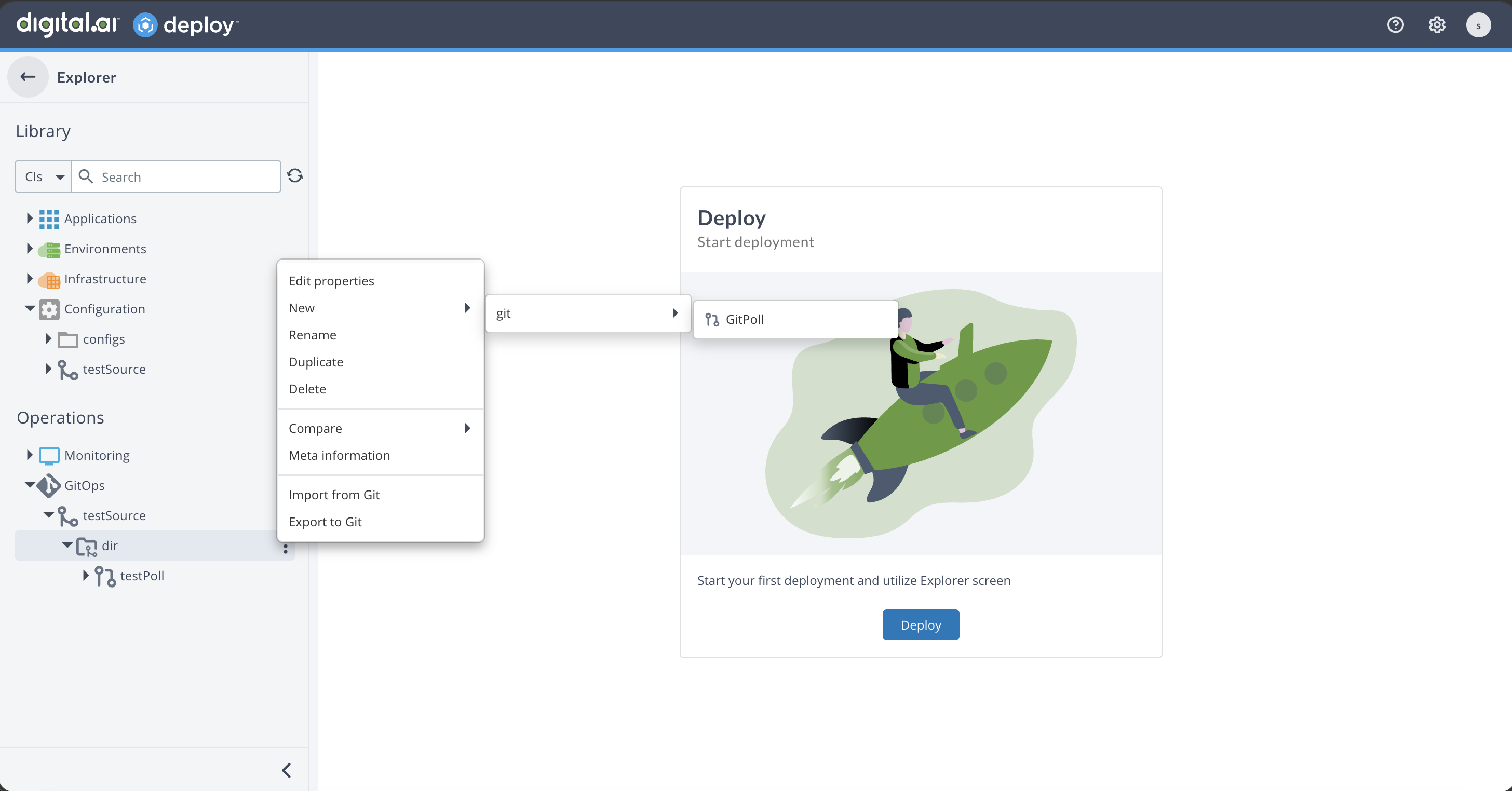
- In the Explorer, under Operations → GitOps (or under Configuration), right-click the git.Directory CI beneath your git.GitSource and select New → git → GitPoll.
-
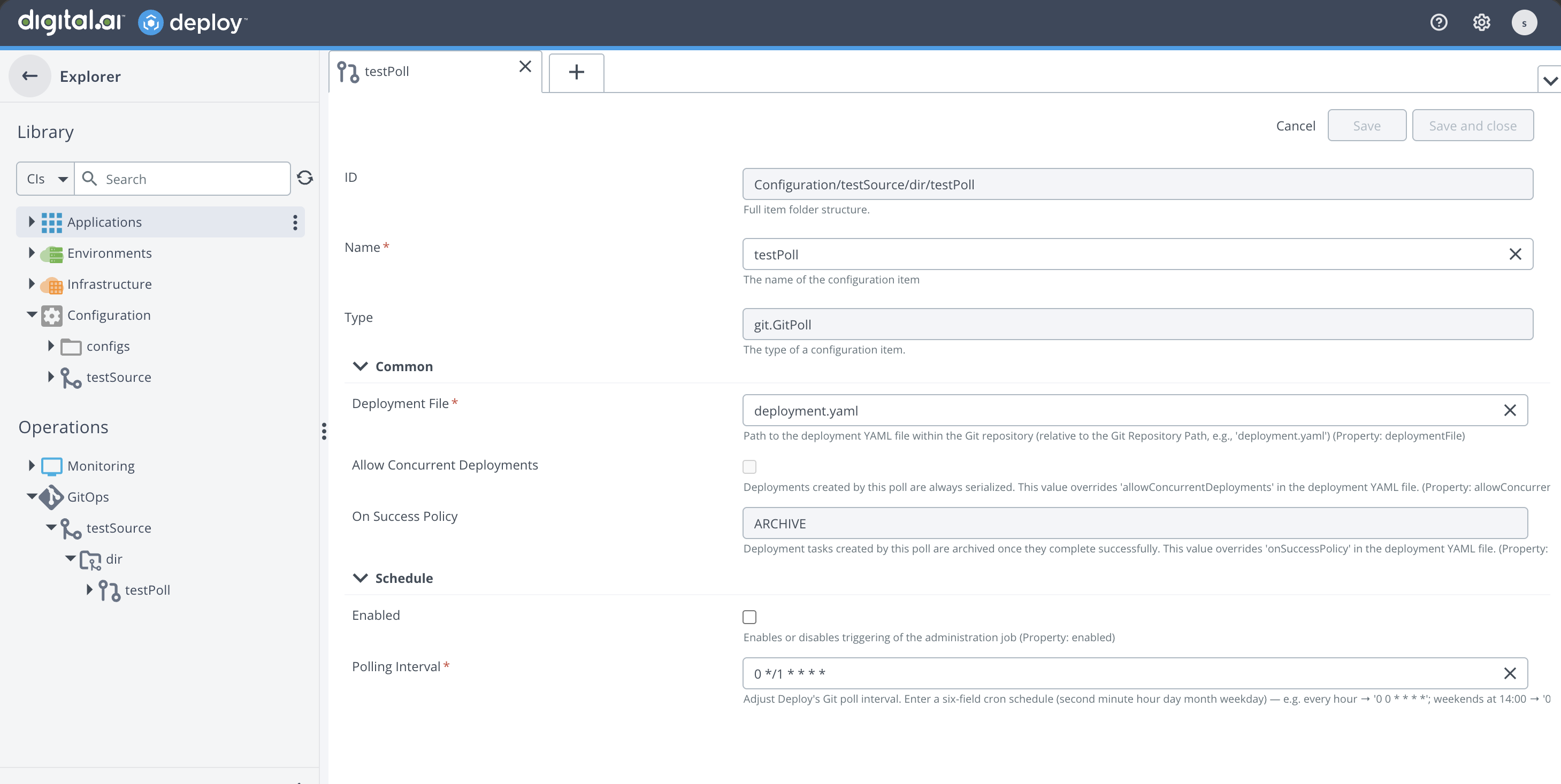
In Name, enter a name for the polling configuration. Type is set to
git.GitPoll. -
Under Common, configure:
- Deployment File: the path to the deployment YAML file within the Git repository, relative to the Git repository path set on the parent git.Directory, such as
deployment.yaml. - Allow Concurrent Deployments: read-only and fixed to
false, so the deployments this poll creates are serialized through application locking. - On Success Policy: read-only and fixed to
ARCHIVE, so a deployment task created by this poll is archived when it completes successfully. Archiving releases the lock the task holds.
Both properties are displayed for information only. You cannot change them on the poll, and they override the values set in the deployment file. See Deployment policy enforced by the poll.
- Deployment File: the path to the deployment YAML file within the Git repository, relative to the Git repository path set on the parent git.Directory, such as
-
Under Schedule, configure:
- Enabled: select to start polling. Leave it cleared to save the configuration without triggering deployments.
- Polling Interval: a cron expression that sets how often Deploy polls for changes. The default schedule polls every five minutes.
-
Click Save and close.
Deploy reads the target environment from the referenced deployment file (spec.environment). It is not set on the GitPoll.
If Deploy cannot parse the deployment file, confirm that it is a valid kind: Deployment file and that spec.environment resolves to an environment that exists in Deploy. See Failure handling.
Step 2: Run the Poll and Verify the Execution
After you save the configuration, you can trigger the poll on demand instead of waiting for the next scheduled interval. This runs the same control task that the scheduler uses, so it is a quick way to confirm that the configuration works.
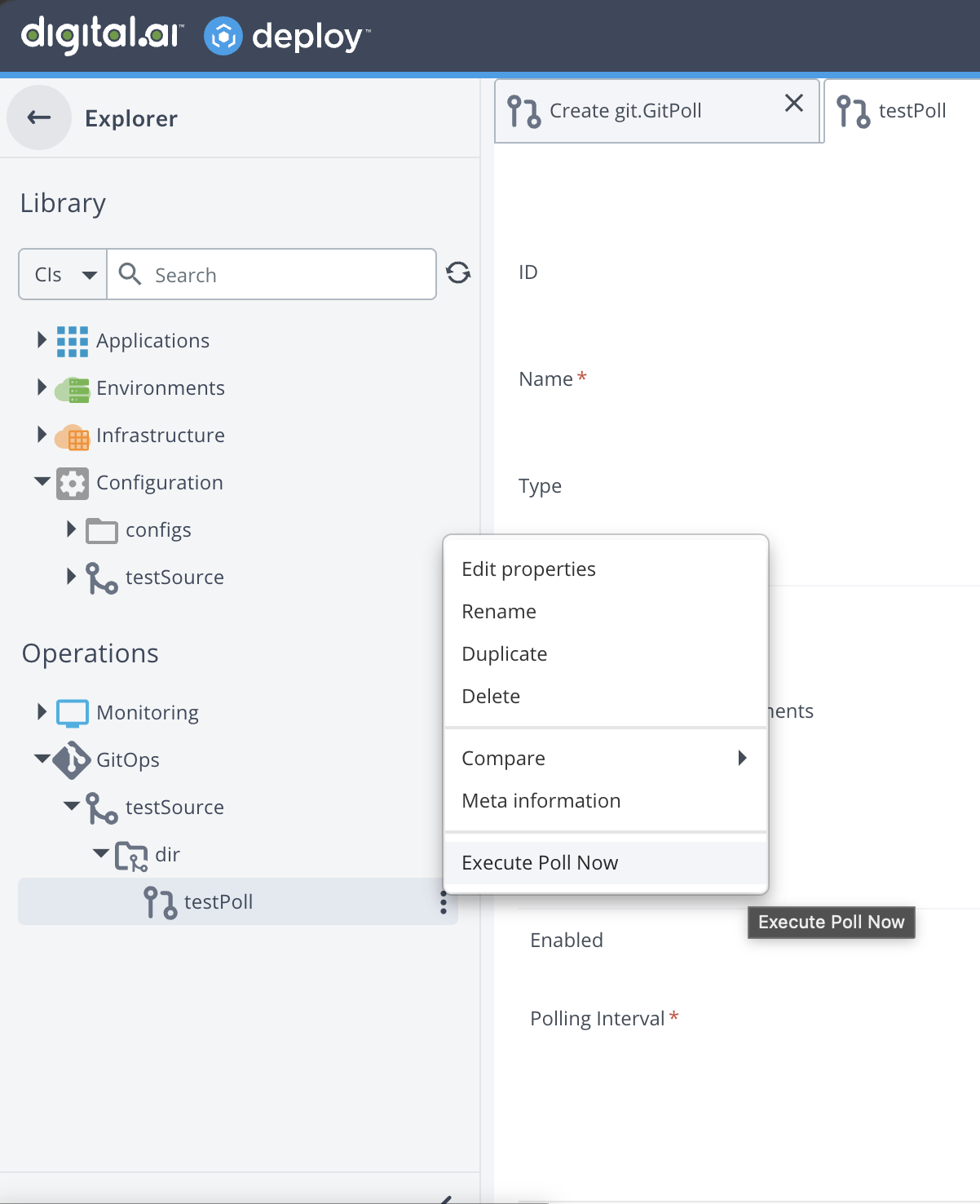
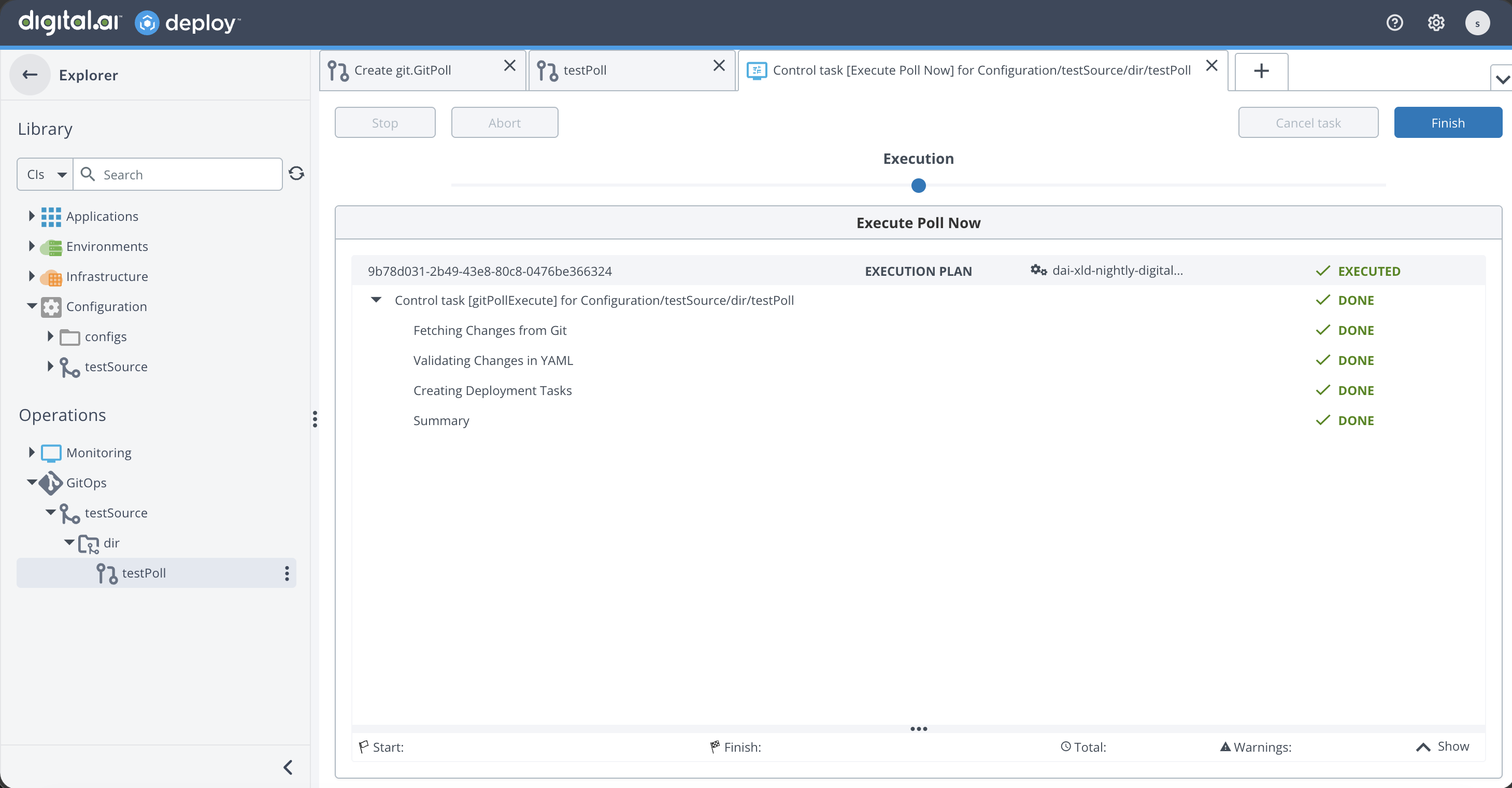
- In the Explorer, right-click the git.GitPoll CI and select Execute Poll Now.
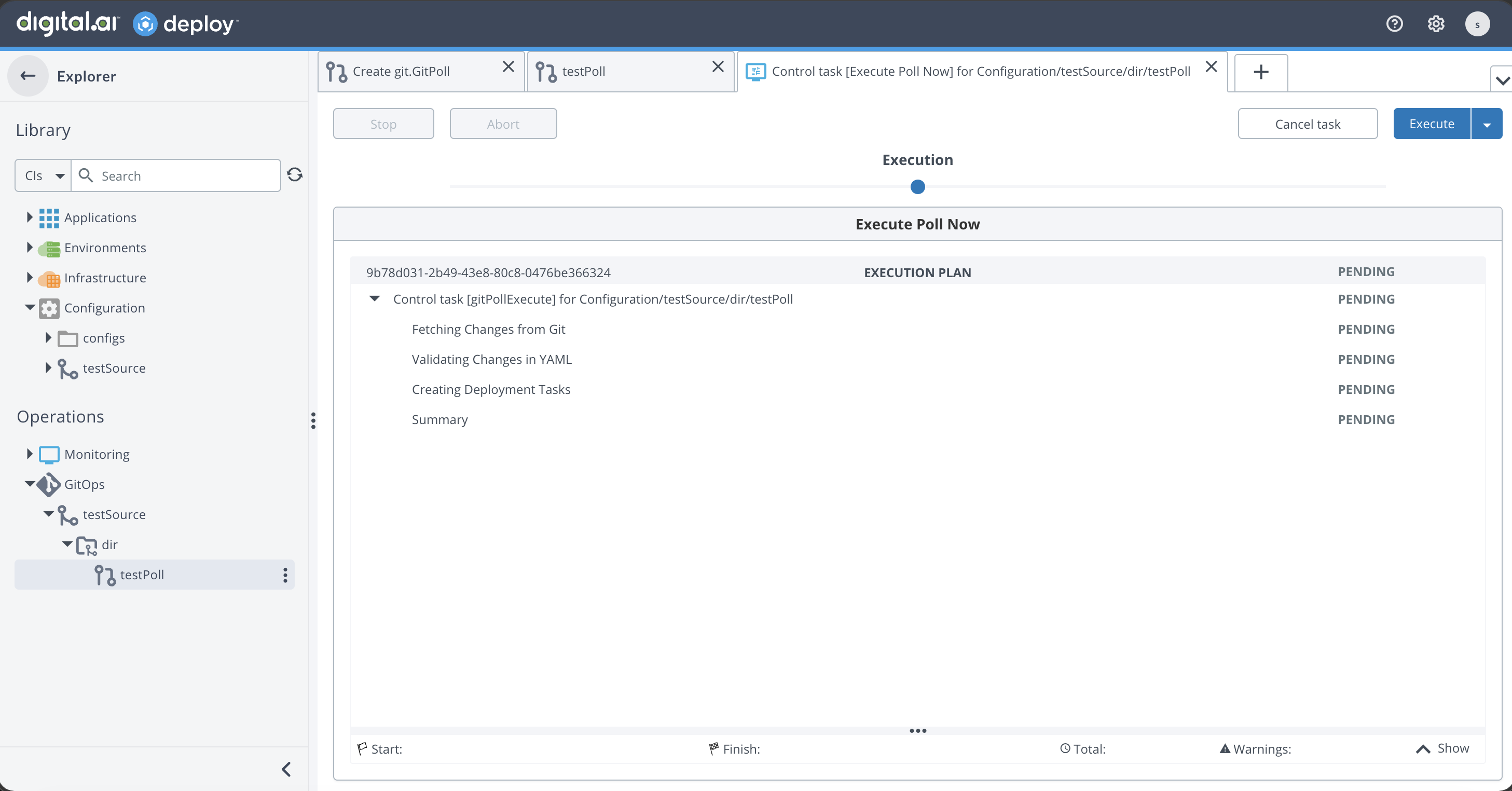
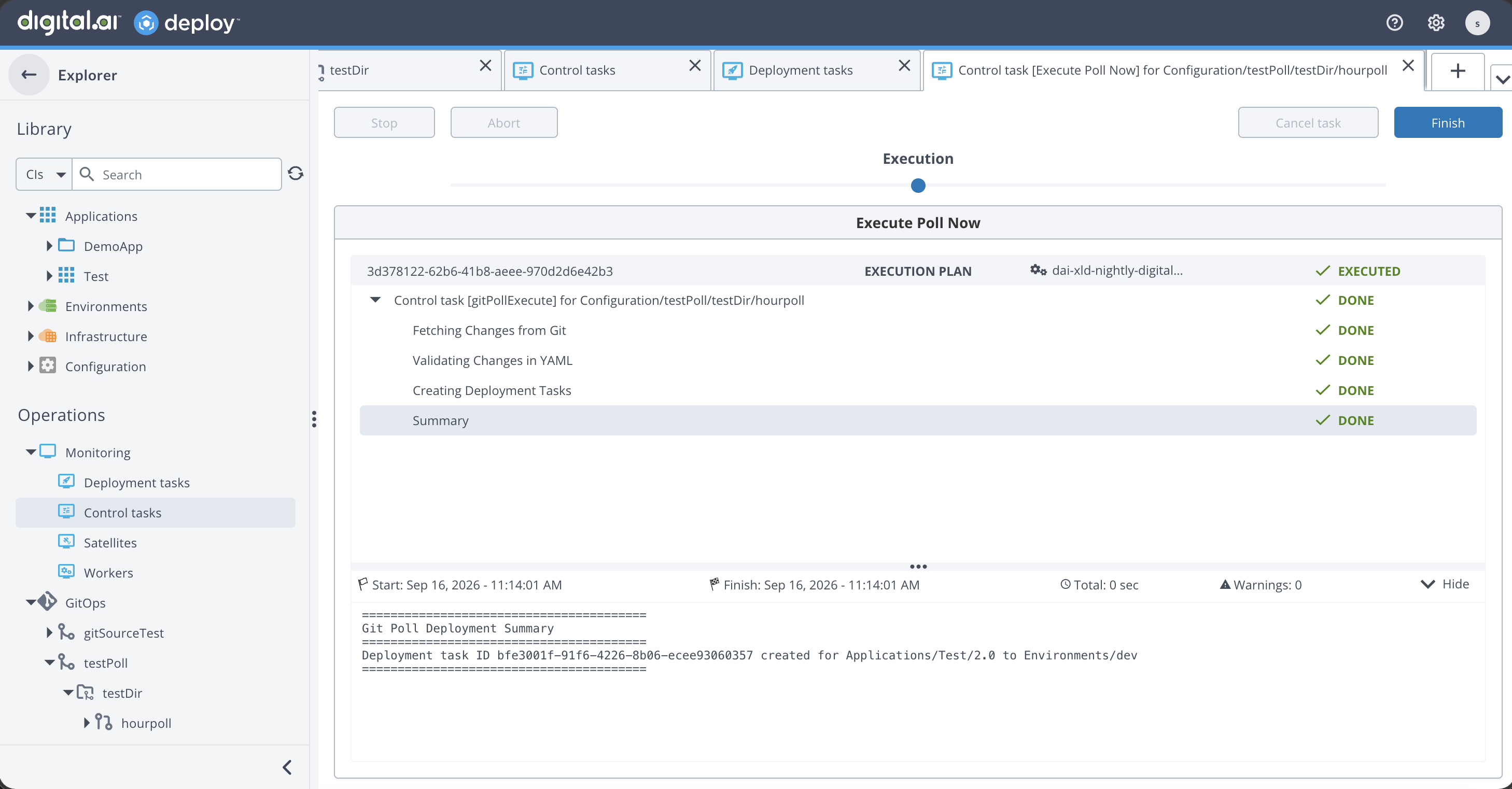
- The Execute Poll Now control task opens in a new tab. Click Execute to run it. The task runs the following steps:
- Fetching Changes from Git
- Validating Changes in YAML
- Creating Deployment Tasks
- Summary
- When every step shows Done and the task state is Executed, click Finish.
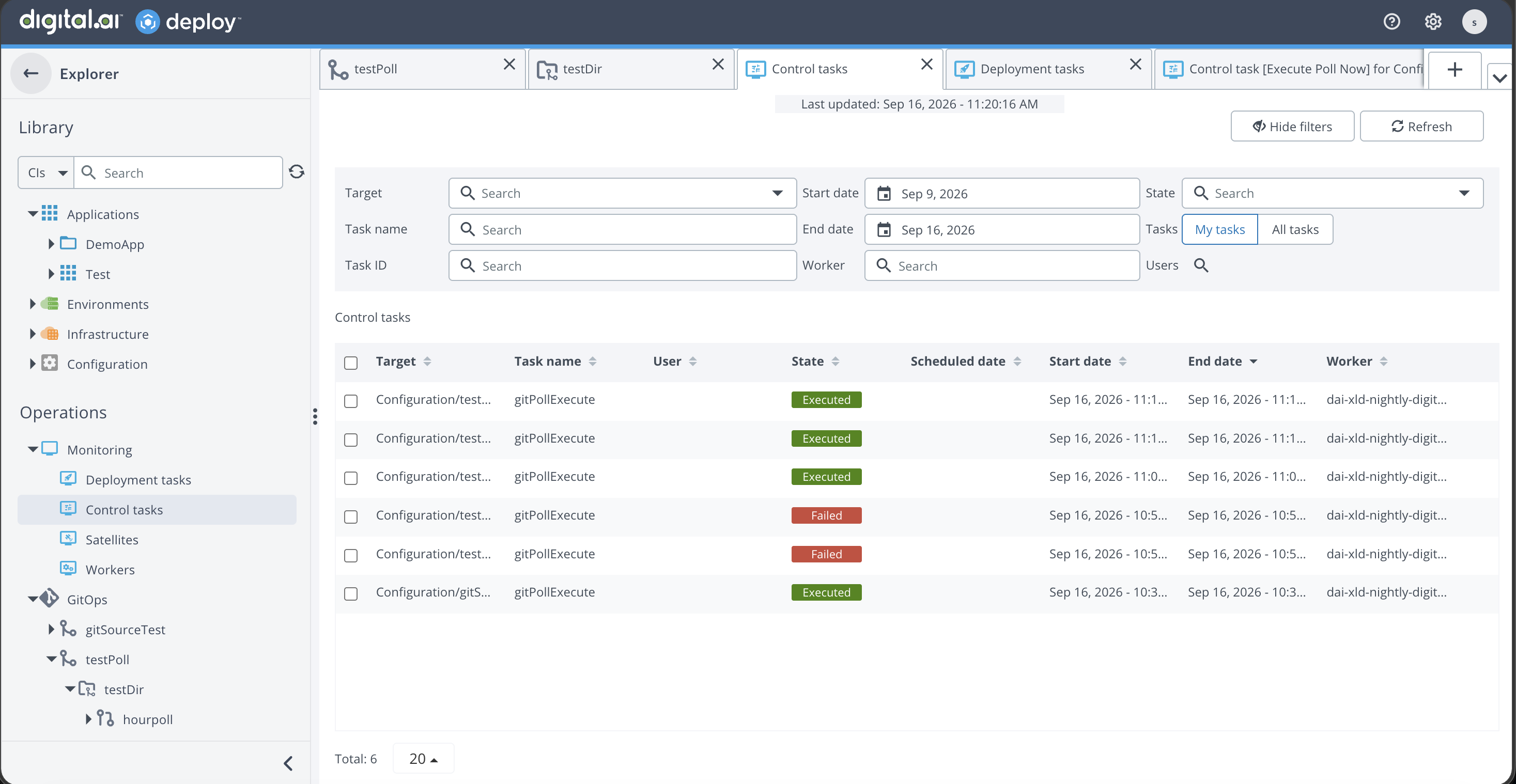
- While the poll runs, the
gitPollExecutecontrol task appears in Operations → Monitoring → Control tasks with the state Executing.
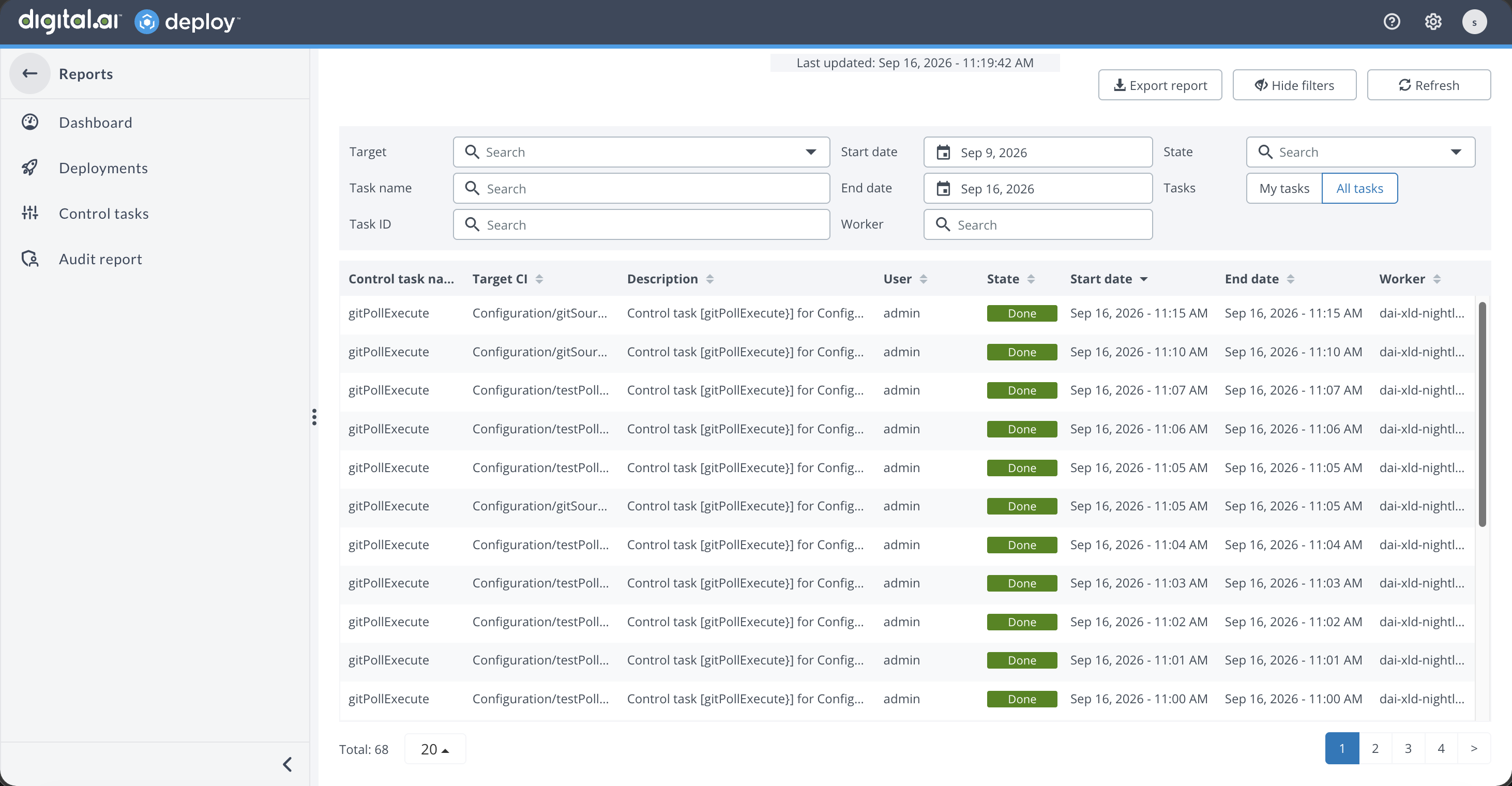
- After the task completes, On Success Policy is
ARCHIVE, so it is archived and moves to Reports → Control tasks with the state Executed, along with its target, user, start and end time, and worker. The same task appears whether the poll is triggered manually or by its schedule.
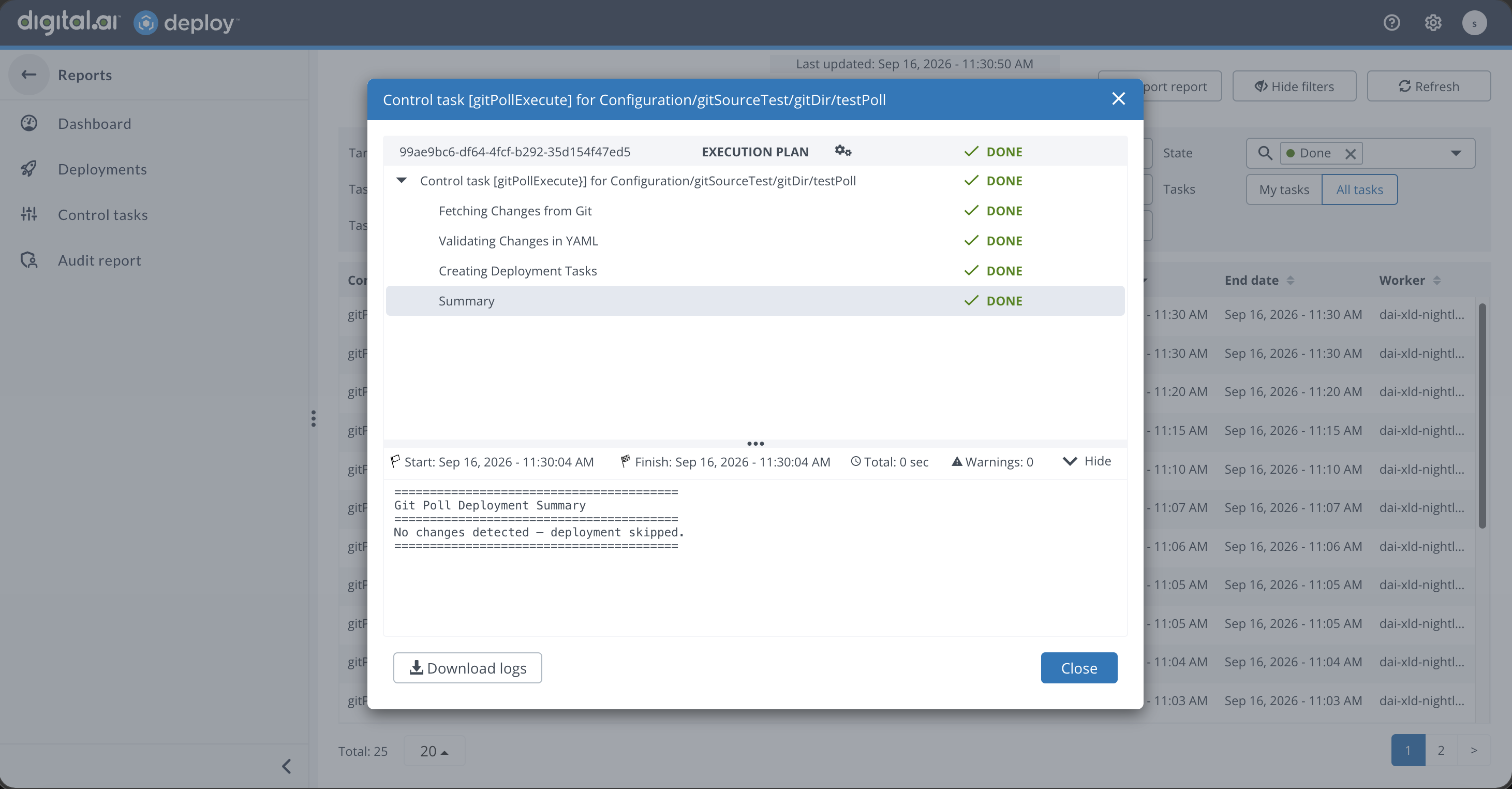
- Click the Executed control task to open its details. The step log shows the commit ID considered, whether a change was detected, and the ID of the deployment it created. When no change is detected, it reports that no changes were found and no deployment was triggered.
Any deployment created by the poll runs as a standard deployment task. See Monitor executions to track it.
Change Detection
A poll does not create a deployment on every run. It compares the current commit of its deployment file in Git against the commit of the deployment it last triggered, which it records in its working directory on the Deploy server.
- When the two commits match, no change is detected. The poll ends at the Summary step and reports that the deployment was skipped. No deployment task is created.
- When the commits differ, the poll fetches the file, records the new commit, and creates a deployment task.
Each poll checks only its own deployment file, and it does so on its own schedule. Polls run independently, so one poll's schedule does not affect another. A poll looks for changes to its file in Git only when its own schedule triggers.
A poll watches only the deployment file configured on it. If that file depends on content held in other files in the repository, changes to those files do not trigger a deployment. Commit a change to the tracked deployment file to trigger one.
Deployment Policy Enforced by the Poll
Every poll enforces two fixed settings that you cannot change: Allow Concurrent Deployments is false and On Success Policy is ARCHIVE. The deployment file cannot override them.
Because concurrent deployments are not allowed, only one deployment of an application to an environment runs at a time. If a poll detects a new change while a deployment is still running, the new deployment is placed in the STOPPED state and does not start until the running deployment completes and is archived.
A stopped deployment is not restarted automatically. Start it manually only if it is still the version you want to deploy.
Deployment File Values Are Overridden
The poll always enforces its own values for allowConcurrentDeployments and onSuccessPolicy. If the deployment file sets different values, the poll ignores them and logs a warning during the Validating Changes in YAML step. The following file produces both warnings:
apiVersion: xl-deploy/v1
kind: Deployment
spec:
  package: Applications/DemoApp/SampleApp/1.0
  environment: Environments/Env
  allowConcurrentDeployments: true
  onSuccessPolicy: NOOP
'allowConcurrentDeployments' is set to true in the deployment file, but the Git Poll configuration enforces false. The deployment file value is ignored.'onSuccessPolicy' is set to NOOP in the deployment file, but the Git Poll configuration enforces ARCHIVE. The deployment file value is ignored.
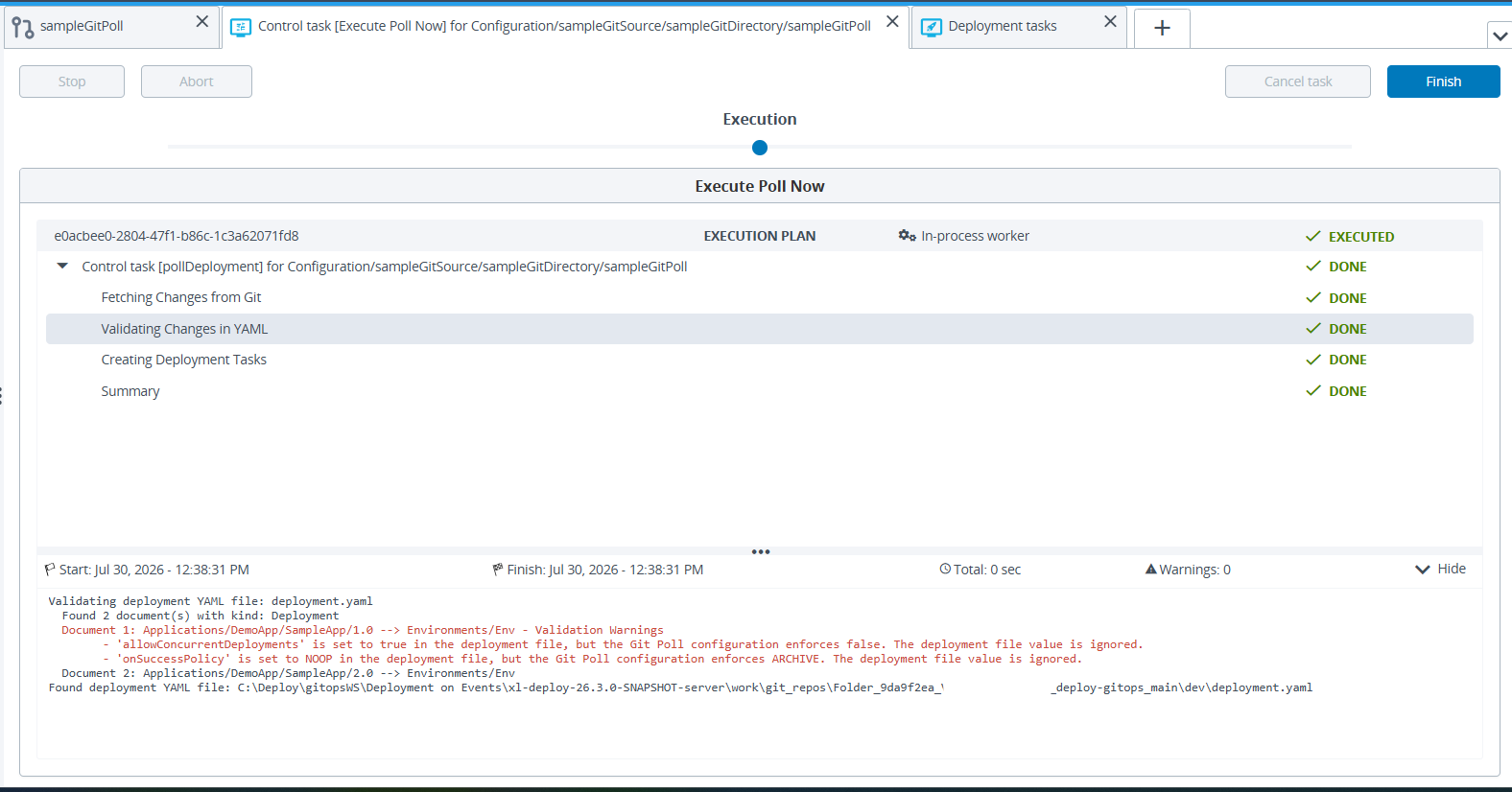
To avoid the warnings, omit both properties or set them to the enforced values:
apiVersion: xl-deploy/v1
kind: Deployment
spec:
  package: Applications/DemoApp/SampleApp/1.0
  environment: Environments/Env
Configure Polling as Code
The same configuration can be expressed as code and applied with xl apply. The polling configuration is a CI of kind: Configuration and type: git.GitPoll. Under the spec, list item, name, type, gitSource, branch, deploymentFile, pollingInterval, and enabled are siblings at the same indentation level.
In the UI, a GitPoll inherits its Git Source and branch from the parent git.Directory. In code, there is no parent git.Directory to inherit from, so you set gitSource and branch directly on the git.GitPoll CI.
apiVersion: xl-deploy/v1
kind: Configuration
spec:
- name: Configurations/prod-hourly-poll
  type: git.GitPoll
  gitSource: Configurations/git/MyGitSource
  branch: main
  deploymentFile: deployments/deployment-prod-hourly.yaml
  pollingInterval: "0 0 * * * *"
  enabled: true
The target environment is never declared on the git.GitPoll CI. Deploy resolves it from the referenced deployment file and returns it during xl apply. Deploy rejects any attempt to set the environment on the CI.
Define one deployment file per git.GitPoll configuration.
Monitor Executions
Deploy on Event does not add a separate execution-history screen. Each poll that triggers a deployment creates a standard Deploy deployment task, tagged with its originating polling source and the triggering commit. Use the existing Monitoring view to list, filter, and search these deployments by application, environment, task ID, date range, state, and type, and to open the full step log.
Failure Handling
Because deployments run automatically, Deploy classifies failures. The classification shows why a source is not deploying without the need to read the server logs. Deploy detects validation failures before a deployment starts, and every failure surfaces with an appropriate failure message so you can identify the cause directly from the poll or task.
A failed execution does not leave the Deploy model in a partially deployed state, and it does not block the next poll from being processed.