Running Cucumber (BDD) Tests with Playwright
You can run Playwright tests written in Cucumber BDD (Behavior-Driven Development) format on Digital.ai Testing Cloud using the playwright-bdd framework. Your Gherkin feature files and step definitions run through the Execution Service like a standard Playwright project, and the results, including video and per-step detail, are captured in the Cloud report.
This page covers the Cucumber-specific setup. For general Playwright project structure, image versions, and NPM dependencies, see Playwright Project.
Prerequisites
- Node.js installed on the machine where you build the project.
- A Cross Browser License, and Playwright enabled for your environment. See the Playwright prerequisites.
Set up the project
-
Create the project directory and initialize it.
mkdir playwright-cucumber-bddcd playwright-cucumber-bddnpm init -y -
Install the required packages.
npm install -D @cucumber/cucumber playwright-bdd -
Structure the project as follows.
playwright-cucumber-bdd/├── features/│ └── login.feature├── step_definitions/│ └── login.steps.js├── .features-gen/ (auto-generated by playwright-bdd)├── playwright.config.js└── package.jsonThe
.features-gendirectory is generated byplaywright-bdd. You don't create or edit it.
Write a feature file
Create your scenarios in standard Gherkin format.
features/login.feature
Feature: Cucumber Test

Scenario: Search Playwright in Google
  Given I launch the Google home page
  When I search for "Playwright"
  Then the result page URL should contain "Playwright"
Define the step definitions
Map each Gherkin step to Playwright code. Import createBdd from playwright-bdd to use Playwright's built-in fixtures, such as page.
step_definitions/login.steps.js
const { createBdd } = require('playwright-bdd');
const { expect } = require('@playwright/test');

const { Given, When, Then } = createBdd();

Given('I launch the Google home page', async ({ page }) => {
  await page.goto('https://google.com');
});

When('I search for {string}', async ({ page }, searchTerm) => {
  const searchInput = page.locator('textarea[name="q"], input[name="q"]').first();

  await searchInput.fill(searchTerm);
  await searchInput.press('Enter');
});

Then('the result page URL should contain {string}', async ({ page }, searchTerm) => {
  const urlRegex = new RegExp(`.*${searchTerm}.*`);

  await expect(page).toHaveURL(urlRegex);
});
Configure playwright-bdd
Point the framework at your feature files and step definitions, and define your target browsers in the projects section.
playwright.config.js
const { defineConfig, devices } = require('@playwright/test');
const { defineBddConfig } = require('playwright-bdd');

// Map features to their step implementations
const testDir = defineBddConfig({
  features: 'features/*.feature',
  steps: 'step_definitions/*.js',
});

module.exports = defineConfig({
  testDir,   // Points Playwright to the auto-generated specs directory

  // Define your browser environments here
  projects: [
    {
      name: 'chromium',
      use: { ...devices['Desktop Chrome'] },
    },
    {
      name: 'webkit',
      use: { ...devices['Desktop Safari'] },
    },
    {
      name: 'firefox',
      use: { ...devices['Desktop Firefox'] },
    },
  ],

  use: {
    // Options: 'on', 'off', 'retain-on-failure', 'on-first-retry'
    video: 'on',
    screenshot: 'only-on-failure',
  },
});
The supported browsers are Chromium, Firefox, and WebKit.
Use a single module system throughout the project
-
Use the same module syntax (CommonJS or ESM) in
playwright.config.jsand in every other file in your project. -
If
playwright.config.js(or.ts) uses ESM syntax (import/export default) while the rest of the project uses CommonJS (require/module.exports), the project is detected as CommonJS, the Digital.ai reporter does not apply, and your Cloud report is generated without any test steps. The tests themselves still run and pass, which makes this easy to miss. -
The example above uses CommonJS throughout. If your project uses ESM, convert the config and your step definitions together.
Run the tests
Package and submit the project the same way as any Playwright project. See Execute a Playwright Job. Image versions are supplied through the conf parameter or a digitalai.json file, as described in Playwright Project.
Understand the report
This section describes the fields in the Cloud report for a Cucumber run.
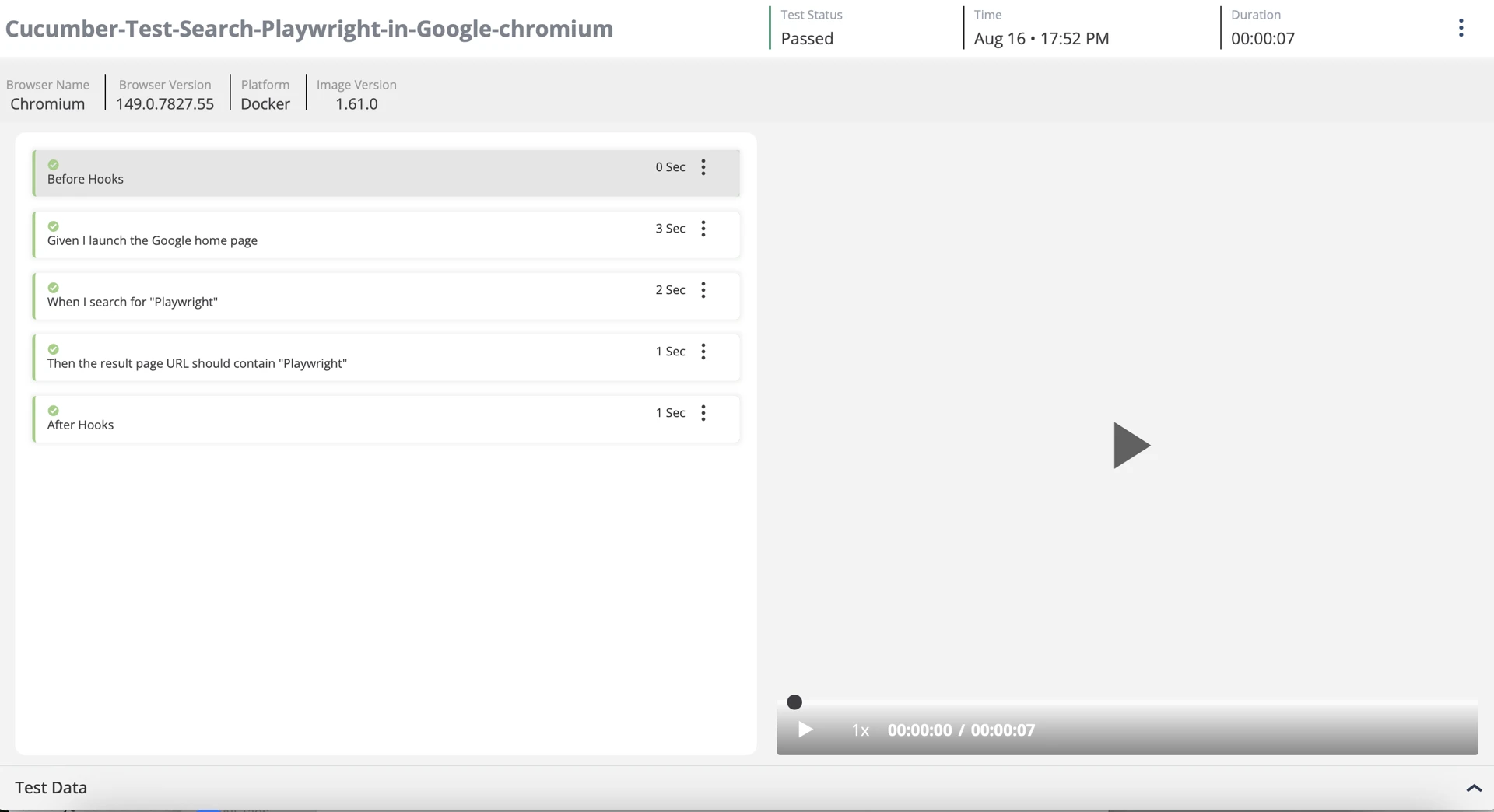
The report contains:
| Field Name | Description |
|---|---|
| Test name | The feature name, scenario name, and browser name, joined with hyphens. For example, Cucumber-Test-Search-Playwright-in-Google-chromium. |
| Execution details | Displays the Browser Name, Browser Version, Platform, and Image Version in the report header, along with the test status and duration. |
| Steps | Displays each Gherkin step as an individual step with a pass/fail indicator and duration. Steps are grouped between the Before Hooks and After Hooks entries. |
| Video | Displays the video recording attached to the test. The video can be played directly from the report. |
| Test Data | Displays test data in an expandable panel at the bottom of the report. |
Playwright records one video per browser context. Because Cucumber hooks and step definitions can create multiple contexts within a single scenario, a single Cucumber test may produce more than one video. All videos generated during the test are associated with that test in the report.
Version compatibility
Keep your versions aligned using the following mapping of playwright-bdd releases to Playwright versions.
playwright-bdd version | Playwright version requirement | Key notes |
|---|---|---|
| v9.1.x and later | 1.61+ | Supports current Playwright internals and custom reporters. |
| v8.5.x to v9.0.x | 1.60+ | Added support for strict Cucumber-compatible checks and custom parameter types. |
| v8.4.x | 1.55+ | Raised the minimum Playwright version threshold. |
| v7.x.x | 1.40–1.43 | Intended for legacy enterprise setups. |
For the Playwright image version supported by your environment, see Playwright Project.