Manage Local Appium Servers
This feature allows the installation of the wanted Appium servers on all the agents through the cloud. Once we release a new version, you can add it to the cloud without needing to update the cloud.
- All the Appium bundles support the plugins [OCR, Images, gestures].
- Starting from Appium bundle version 2.16.2, we also support Android and iOS axe drivers.
- Exception: Appium 3.0.1 does not support the Axe drivers and the OCR plugin.
Setting up a local repository
For customers who don't have access to the internet, they can set up a local HTTP server that points to a folder that includes:
appium_recipes.jsonfile - a JSON file that includes all the available versions, Node.js, and Android SDK information.node.tar.gzfileandroidSDK.tar.gzfileappium-<version>.tar.gzfiles
All these files can be pulled from our AWS S3 bucket:
Recipes and tools
Appium bundles
- Support for Appium 2.17.1 and later has been available since version 25.4.
- Support for Appium 3.0.1 and later has been available since version 25.9.
- Support for Appium 3.3.0, 3.3.1, and 3.4.2 is available starting with Digital.ai Testing Cloud 26.5.
Appium 3.3.0, 3.3.1, and 3.4.2 require Digital.ai Testing Cloud 26.5 or later when used with Local Appium Server deployments.
This requirement is specific to Local Appium Server deployments and is due to compatibility changes in the cloud and agent components.
Appium OSS images can use these Appium versions with earlier cloud versions, provided the selected Appium OSS image supports them.
- Appium 3.4.2
- Appium 3.3.1
- Appium 3.3.0
- Appium 3.1.0
- Appium 3.0.1
- Appium 2.19.0
- Appium 2.18.0
- Appium 2.17.1
- Appium 2.16.2
- Appium 2.15.0
- Appium 2.12.1
Notes
- For now, the Appium bundles are built only for Mac ARM machines. They work on Mac Intel, but the OCR and Images plugins will not work.
- With every new version created, you must pull and add the new Appium tar file and the JSON recipes file from the AWS repository.
- Make sure your local HTTP server is accessible to the cloud and all the agents.
Setting up the cloud
To enable local Appium in the cloud, add the following properties:
ct.appium-server.local-execution-enabledastruect.appium-server.local-execution-repositoryhttp://experitest.s3.us-east-1.amazonaws.com/appium_bundles- Or your local server that you set up in the previous step.
- Make sure to remove the old property
ct.appium-server.supported-versions; otherwise, the new Appium servers will not appear in the list of versions in the cloud. - Restart the cloud server.
Chromedrivers
Create folder:
/Users/Shared/localAppium/chromedrivers
Appium Server will download the correct Chromedriver to this folder automatically.
For device host machines without internet access, put all Chromedriver versions that should be supported in this folder. When a new Chrome version is released, a new matching Chromedriver version must be added to this folder.
Select Appium servers
Now we need to pick which Appium servers we want to use in the cloud.
As a cloud administrator:
-
Use the API
GET /api/v1/local-appium/available-versionsto retrieve all available Appium versions from the repository. These versions are defined in theappium_recipes.jsonfile. -
Use the API
POST /api/v1/local-appium/selected-versionsto select the Appium versions that you want to use in the cloud. -
Use the API
GET /api/v1/local-appium/selected-versionsto view the currently selected Appium versions. -
Use the API
DELETE /api/v1/local-appium/selected-versionsto remove a selected Appium version from the cloud.
All the APIs can be found in the "Running Appium Server directly on DHM" documentation.
Alternatively, you can use the Cloud Appium Server page.
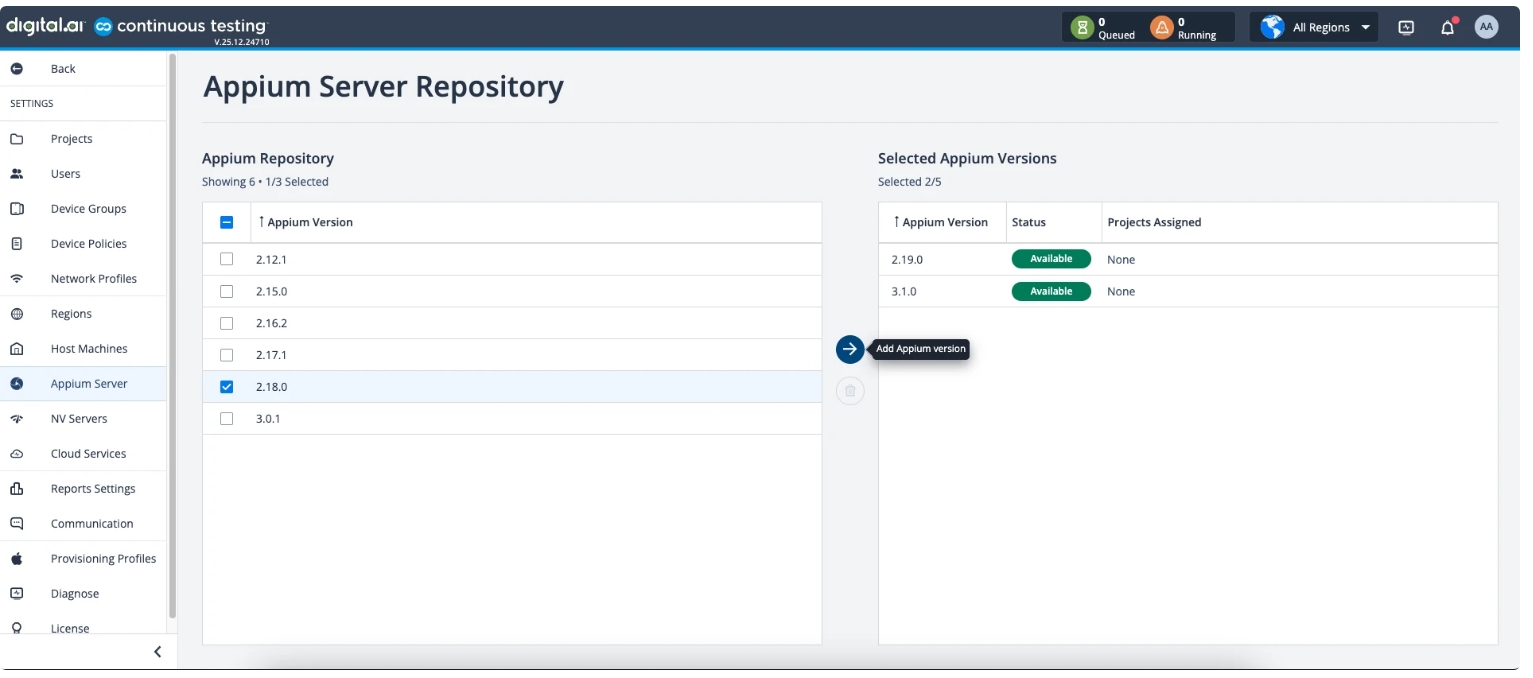
Notes
- After that, the server will request all the agents to install the selected versions.
- While installing, the agent will be in warning status, and once the installation is complete, it should return to online status.
- If the installation fails, the agent will be in warning status with a message including the failing Appium versions.
- On EHMs, since the service is not running as root, we need to give permissions to the
/usr/local/binfolder.- Run
sudo chmod -R 777 /usr/local/bin
- Run
- Documentation on how to use the plugins with local Appium can be found in "Appium Server - Additional Plugins and Driver".