Share Video Reports
You can share a public URL for a video report with users both inside and outside your organization's network. This allows team members and external stakeholders to quickly access and review the recorded test execution directly, without needing to log into the platform.
Before You Begin
Ensure that:
- The feature is enabled by your administrator in Project Management.
- Video Reports are enabled for your project.
- You have permission to access and share test reports.
info
If you need to enable or configure public sharing for video reports, see Reporter Configuration.
Procedure to Share Video Reports
-
Log in to Cloud Web Portal, then click Reports.
-
Open the required test report.
-
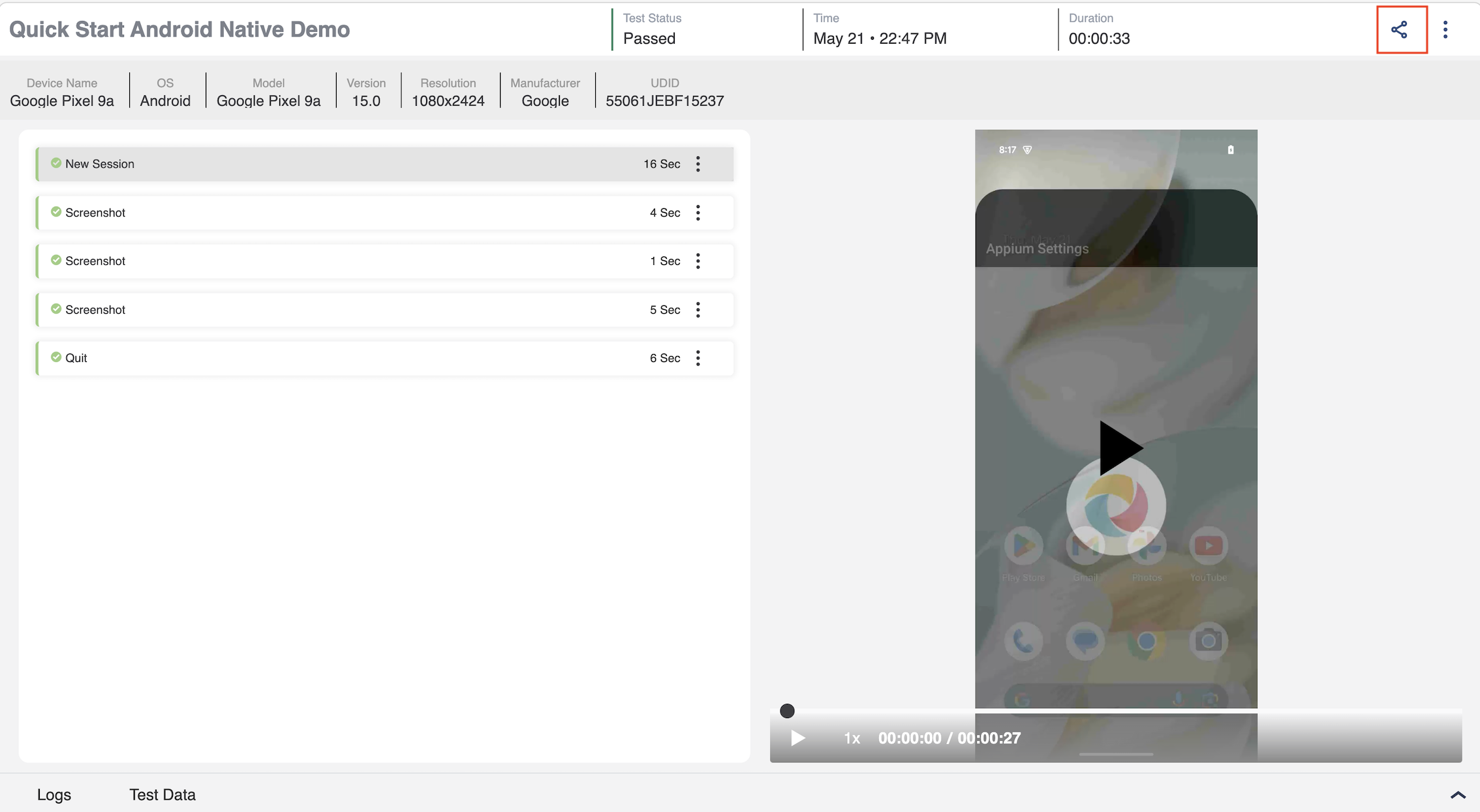
In the upper right corner of the report page, click the Share icon.
-
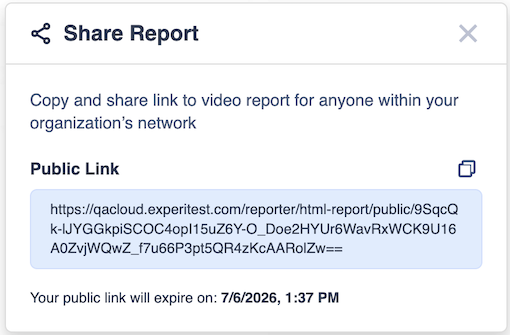
Copy the generated public link.
-
Share the URL with other users.
Public URL Expiration
Public video report URLs automatically expire 14 days after creation. After the URL expires:
- Shared report is no longer accessible.
- Accessing the expired URL returns a 404 error.
Deleted Reports
If the associated report is deleted:
- Public URL becomes invalid.
- Accessing the URL returns a 404 error.
Limitations
- Public reports do not display the Share button.
- Shared public reports cannot be re-shared using another public URL.