How to Use Root Cause Analysis
Root Cause Analysis runs on demand for a single failed or errored execution. Before you start, confirm that the execution meets the conditions in Availability.
Run an analysis
- Run your automated tests.
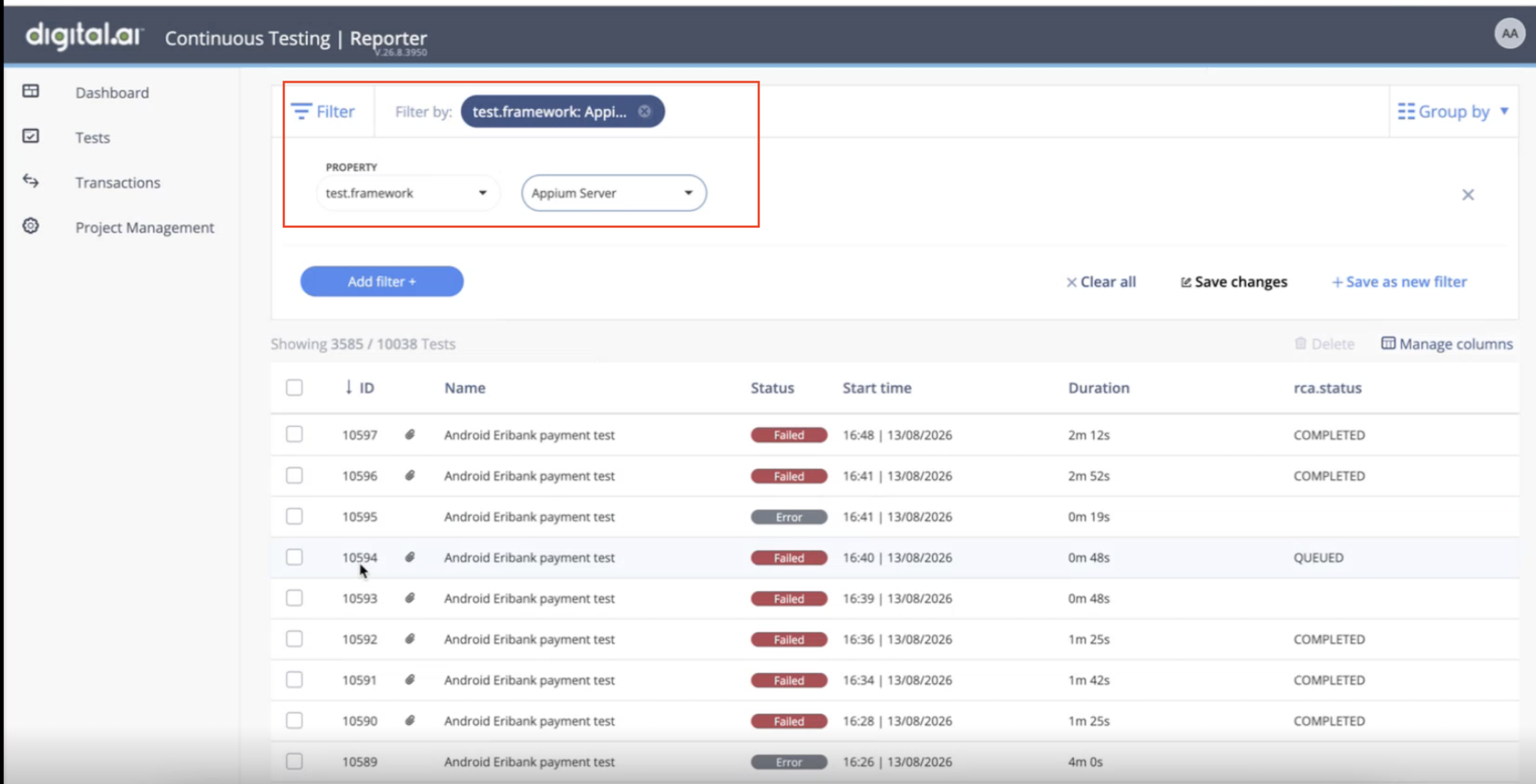
- Open the video report for a test that ended with a
FailedorErrorstatus. - Select the Root Cause Analysis tab.
- Select Analyze with Root Cause Analysis.
Result: The tab shows a loading state while RCA analyzes the execution.
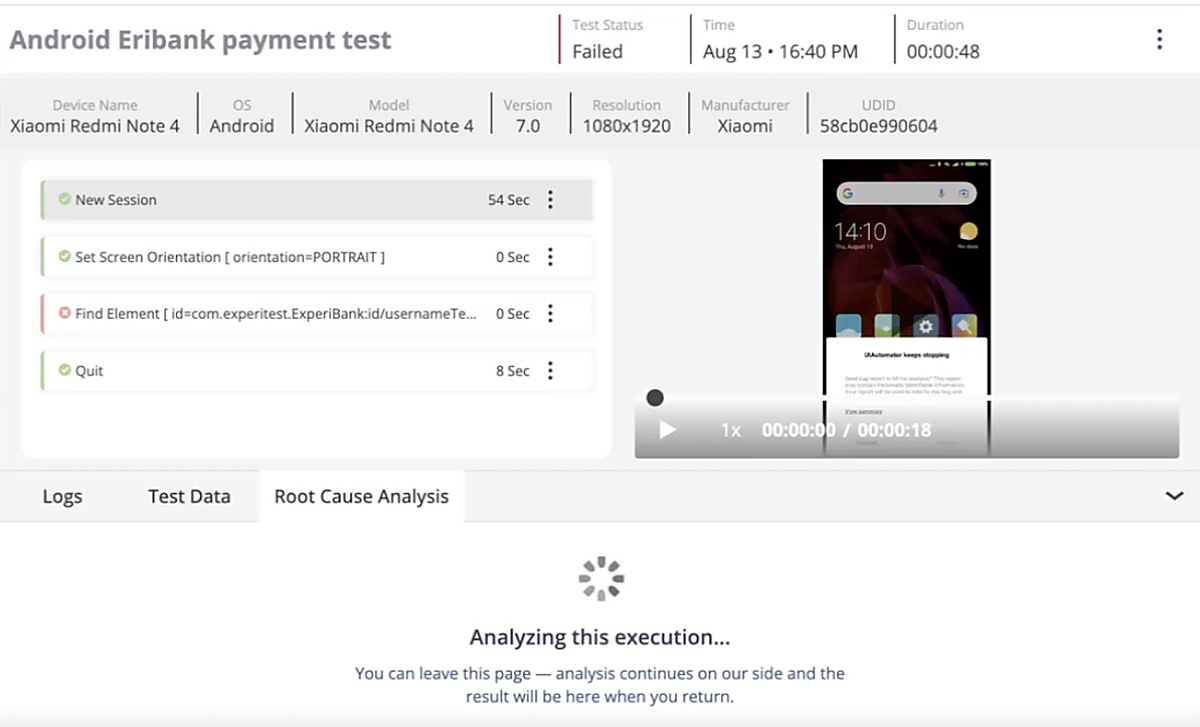
While the analysis runs
User can perform any of the following actions while the RCA is in progress:
- Analysis usually completes within a few minutes.
- You can leave the page or close your browser. The analysis continues in the background.
- If you refresh the page while the analysis is running, the loading state continues while the system waits for the result.
- Several analyses can run at the same time.
Review the result
- Read the root cause hypothesis.
- Expand the supporting evidence to trace the hypothesis back to specific steps, errors, or log lines in the execution.
- Optionally, rate the analysis using the thumbs up or thumbs down control.
 .
.
Retry a failed analysis
-
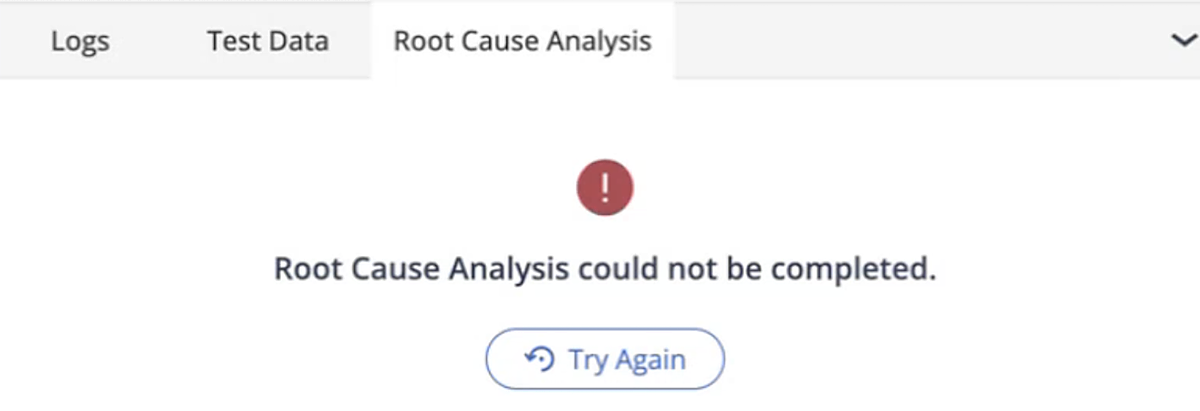
If the analysis cannot be completed, the tab shows a failure message with a Try Again button.
-
Select Try Again to start a new attempt.
 .
.