Filtering Analytics Data
The Filtering section describes the primary and secondary filters available across the Usage, Devices, and Tests Overview views in Digital.ai Testing Advanced Analytics. Use these filters to narrow the data displayed on each page to a specific project, time period, or other criteria.
All Advanced Analytics views use the same filtering experience. Primary filters appear at the top of the page, and additional filters are available through the Add Filter menu. This page describes each available filter and where you can find it.
Primary filters
These two filters appear at the top of every Analytics page and apply to all three views.
| Filter | Use this to | Default |
|---|---|---|
| Project | Display data for specific projects. This is a multiselect filter — select one or more projects to include. | Cloud Admins: all projects. Other users: only the projects they are allocated to. |
| Time Period | Show data for a selected time range. | Last 30 days (30D) |
Filter by project
- Click the Project field at the top-left of the page.
- Type to search, or scroll the list.
- Select the checkbox next to each project you want to include.
- Click outside the field, or click Apply if shown, to apply your selection.
Result: The page updates to show data for only the selected projects.
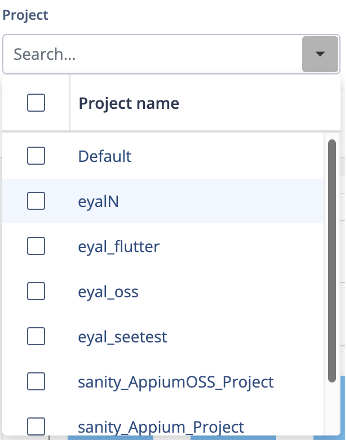
The Project filter supports search and multi-selection.
Set the time period
- Click one of the preset ranges — 1D, 7D, 30D, or 90D — next to Project.
- To use a custom range instead, click Custom, then choose a start and end date.
- Click Apply.
Result: The page updates to show data for the selected range, and the range appears as a chip under Filter by.
Secondary filters
Additional, view-specific filters are available from the Add Filter menu next to the active filter chips. Only filters relevant to the current view are displayed, and the available values are limited to the projects and resources you are authorized to access.
Apply a secondary filter
- Click Add Filter, next to the filter chips.
- In the drawer, select one or more values in any of the listed fields.
- Click Apply.
Result: The drawer closes, a chip appears for each applied filter, and the page updates to match.
Remove a filter
- To remove a single filter, click the X on its chip.
- To remove every filter except the defaults, click Clear all.
Result: The page recalculates using the remaining filters.
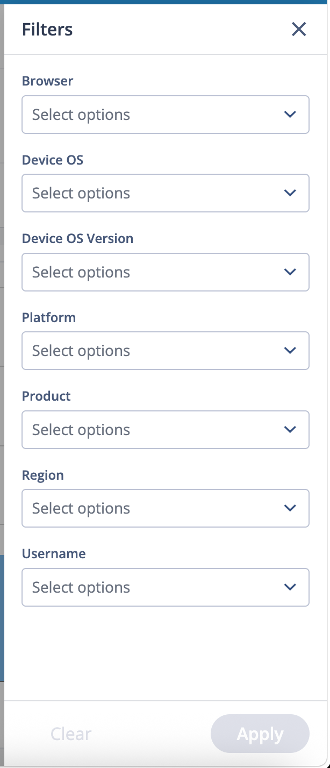
The Add Filter drawer, shown on the Usage page. Devices and Tests Overview open a different, page-specific list.
Filters on the Usage page
The Usage page is available only to Cloud Admins. Use the Add Filter menu to filter the usage data displayed on the page.
| Filter | Use this to |
|---|---|
| Browser | Show sessions from specific browsers. |
| Device OS | Show sessions on a specific device OS, such as Android or iOS. |
| Device OS Major Version | Show sessions by major OS version. |
| Device OS Version | Show sessions on specific OS versions. |
| Platform | Show browser sessions on a specific platform, such as Win10 or MAC. |
| Product | Show sessions for a specific product, such as Appium Server or Manual For Web. |
| Region | Show sessions from specific regions. |
| Username | Show sessions from specific users. |
Filters on the Devices page
The Devices page is available only to Cloud Admins. Use the Add Filter menu to filter the device data displayed on the page.
| Filter | Use this to |
|---|---|
| Device Model | Show specific device models. |
| Device OS | Show devices with a specific OS, such as Android or iOS. |
| Device OS Major Version | Show devices by major OS version. |
| Device OS Version | Show devices with specific OS versions. |
| Region | Show devices from specific regions. |
| Username | Show device usage from specific users. |
Filters on the Tests Overview page
The Tests Overview page is available to Cloud Admins, Project Admins, and Users. Use the Add Filter menu to filter the test data displayed on the page.
| Filter | Use this to |
|---|---|
| App Activity | Show tests from specific Android app activities. |
| App Build Version | Show tests from specific app builds. |
| App Release Version | Show tests from specific app releases. |
| Appium Version | Show tests run with specific Appium versions, such as 2.19.0. |
| Application | Show tests for a specific application package or bundle identifier. |
| Browser Name | Show tests run on specific browsers. |
| Browser Version | Show tests run on specific browser versions. |
| Cause | Show tests with specific failure causes. |
| Cloud Version | Show tests run on specific cloud versions, such as 26.6. |
| Device Manufacturer | Show tests run on devices from specific manufacturers. |
| Device Model | Show tests run on specific device models. |
| Device OS | Show tests for a specific OS, such as Android or iOS. |
| Device OS Major Version | Show tests run on specific major OS versions. |
| Device OS Version | Show tests run on specific device OS versions. |
| Device Screen Size | Show tests run on specific screen sizes, such as 1080x2400. |
| Device Serial Number | Show tests run on a specific device. |
| Error Classification | Show tests with specific error classifications. |
| Framework | Show tests from a specific framework, such as Appium Server, SeeTest Grid, Espresso, or XCUITest. |
| Platform | Show browser tests run on a specific platform, such as Win10 or MAC. |
| Status | Show tests with specific statuses, such as Passed, Failed, Skipped, Error, or Healed. |
| Test Hardware | Show tests with specific test hardware, such as Mobile or Web. |