SeeTest Client - Adding Commands To Your Scripts
Please note that this tool is classified as a Legacy tool. We recommend transitioning to our updated solutions to maintain optimal performance and security in your workflows. For more information on this matter, please reach out to technical support .
In the following section, you will find an explanation for all the commands available in SeeTestAutomation.
Before that - How to add a new command to your script?
Follow the steps below:
Step 1: In the "Test" tab select an empty step.
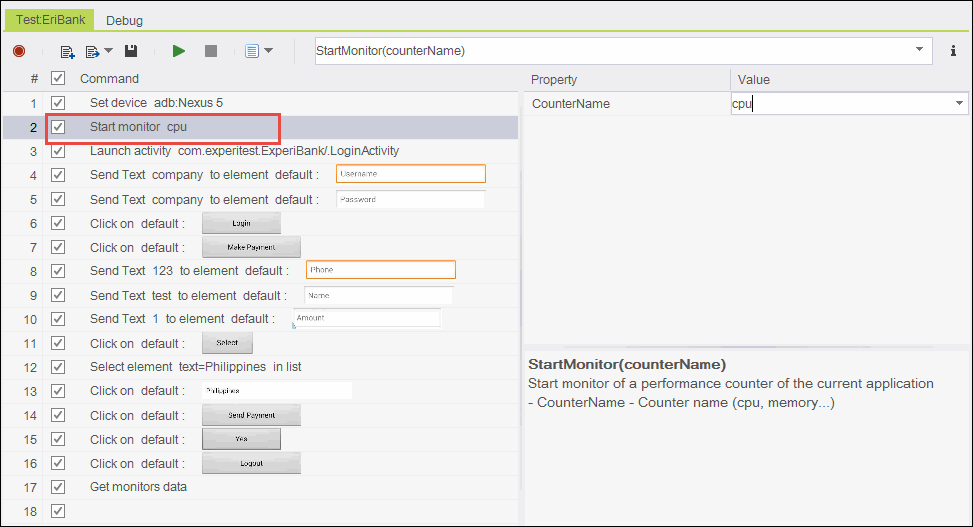
Step 2: Type the name of the command, or in the command window, select a command from the drop-down – for example select the "Click" command.
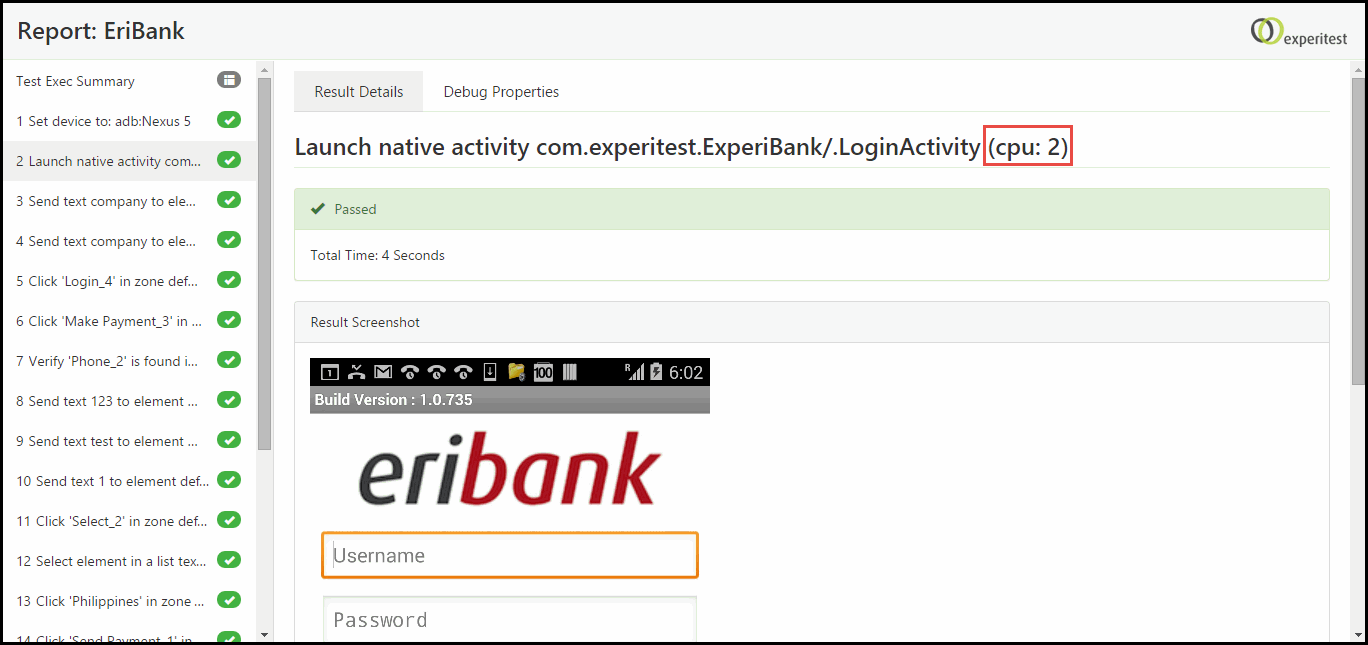
Step 3: Fill in the properties for the chosen command.
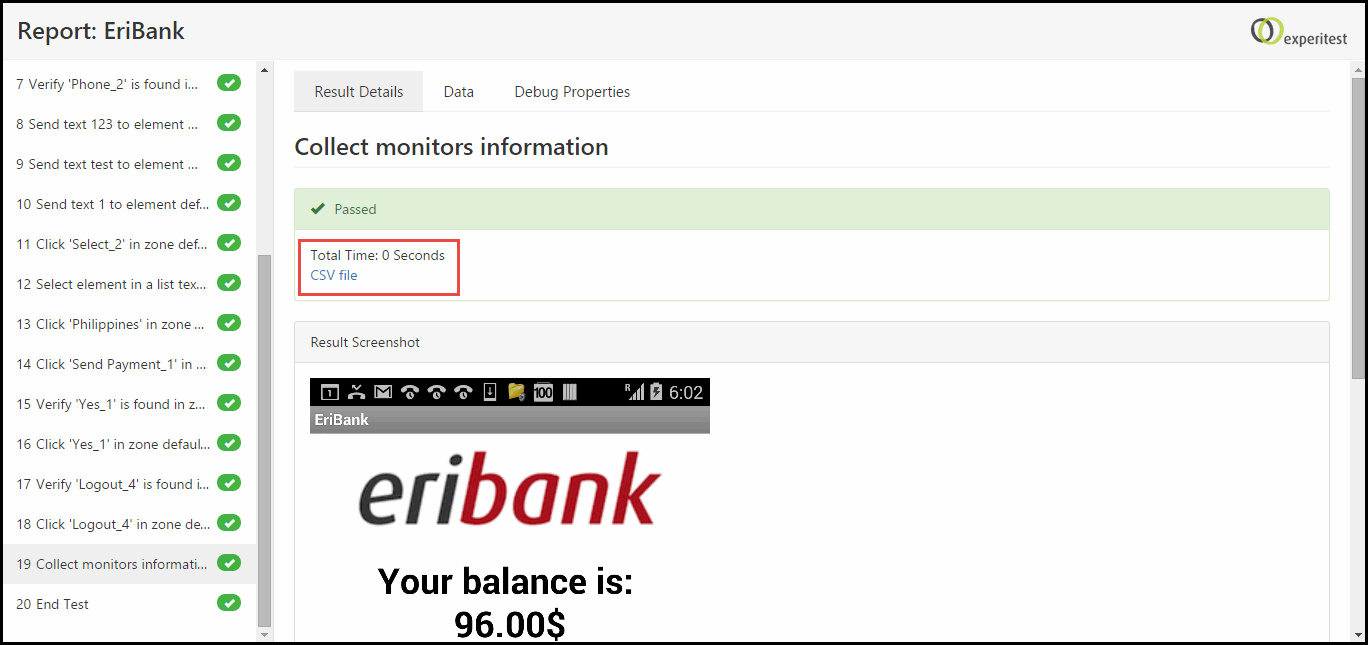
On-Screen Adding Dynamic Commands (another way to add commands)
The Object Spy feature allows you to investigate the Native properties of an Element.
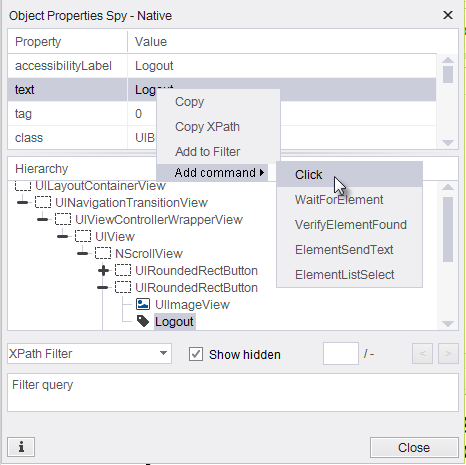
Using the Object Spy you can add Commands directly by clicking on the Element's property:
Step 1: After you have instrumented your application and used the Object Spy feature - click on the Element which you want to execute a command on (Object Spy feature - steps 1-2)

Step 2: Right-click on the Element's property -> Add Command -> Choose the command which you would like to add and the Command will be added to the script.
You can now move on to the next step in the test.