Device Passcode
Shared Devices Note
Device Passcode utility is not supported for Shared Devices.
You can set a passcode on iOS devices using Mobile Studio to test relevant scenarios.
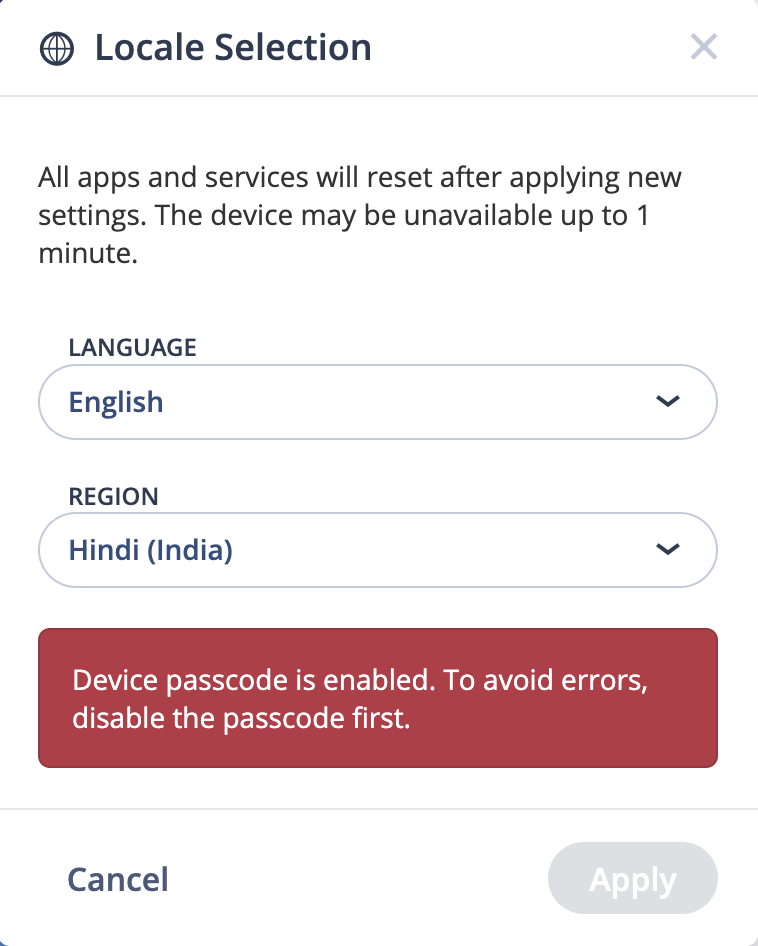
Changing the language or region while a passcode is set is not supported. If you change the language or region on a device with a passcode enabled, the device might not work as expected.
Device Passcode management using Mobile Studio is supported only in the following device locales:
| Language | Code |
|---|---|
| Arabic | ar |
| Chinese (Hong Kong SAR China) | zh-HK |
| Chinese (Simplified) | zh-Hans |
| Chinese (Traditional) | zh-Hant |
| Chinese (Traditional) Hong Kong SAR China | zh-Hant-HK |
| English | en |
| French | fr |
| German | de |
| Hebrew | he |
| Hindi | hi |
| Italian | it |
| Japanese | ja |
| Russian | ru |
| Spanish | es |
| Turkish | tr |
To enable a device passcode:
-
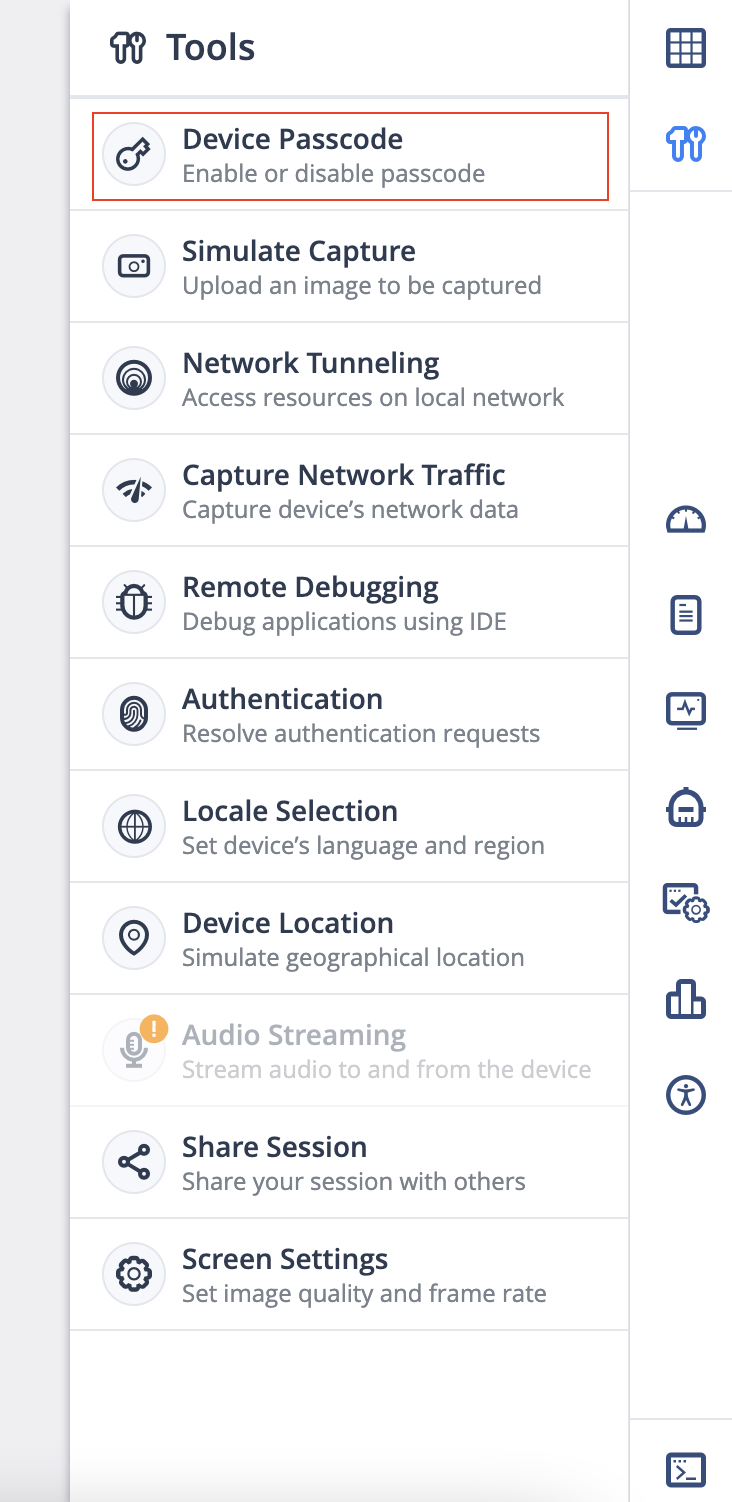
Under Tools, click Device Passcode.
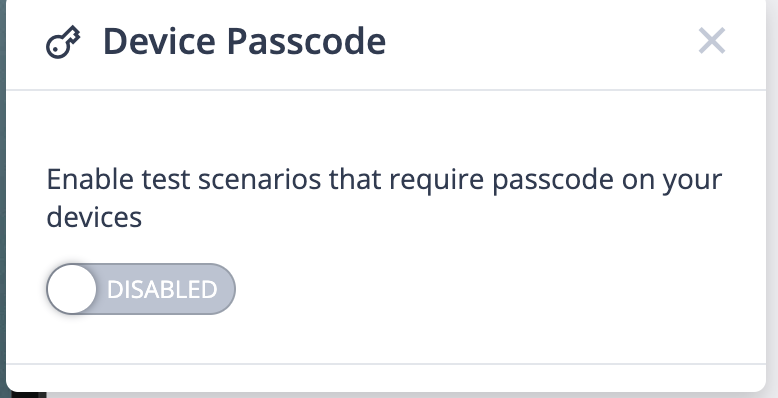
The device passcode dialog opens.
-
If the device passcode is disabled, click Disabled. The passcode is set.
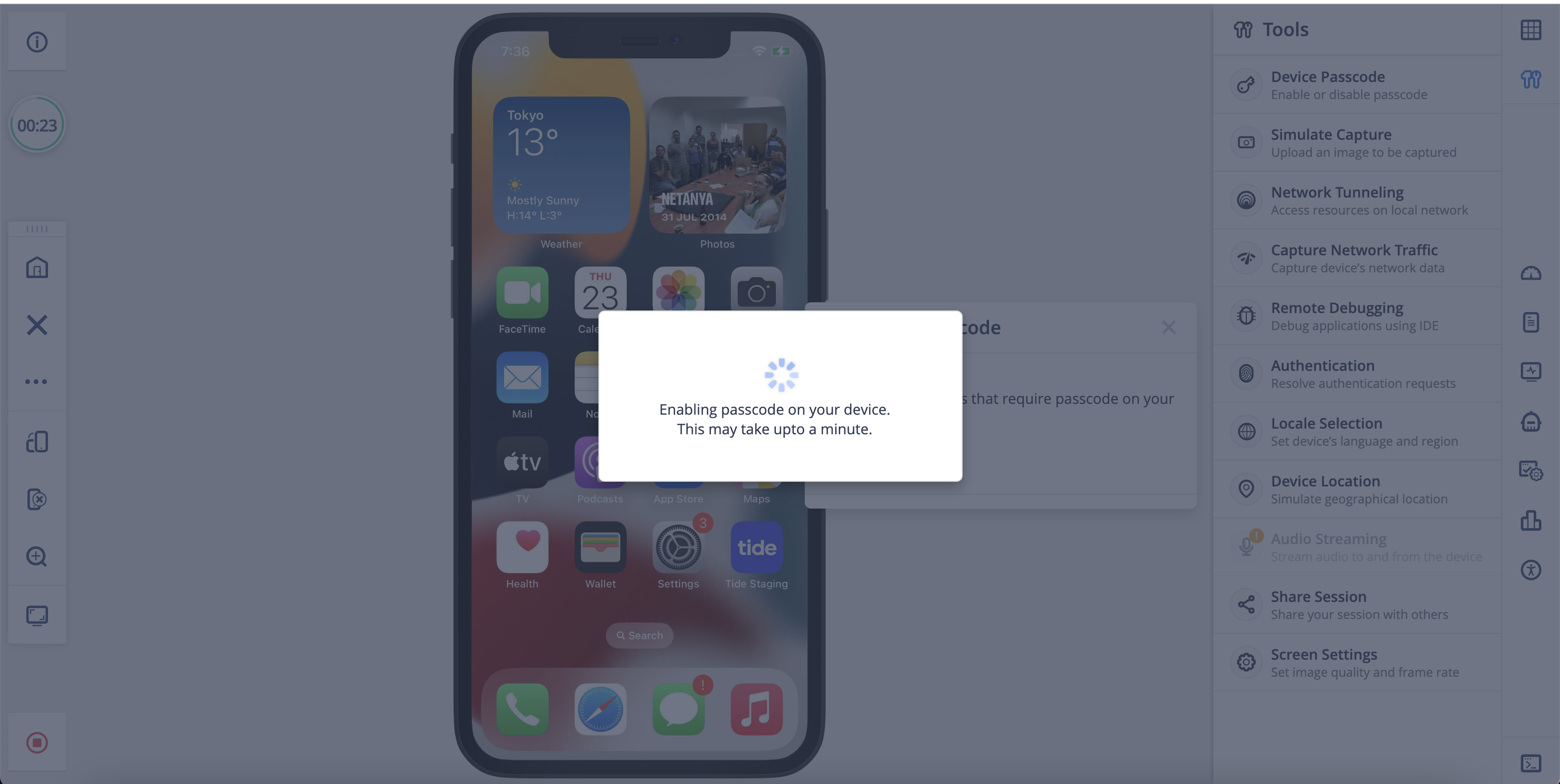
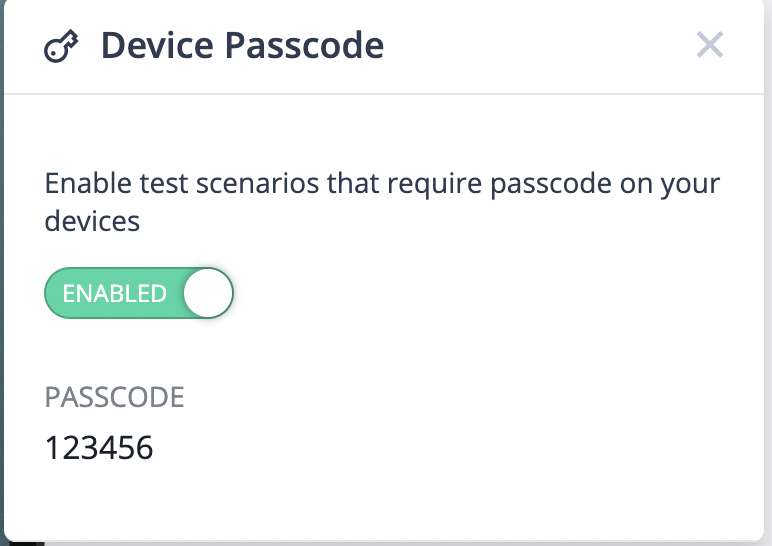
Once the processing is done, the dialog displays the passcode.
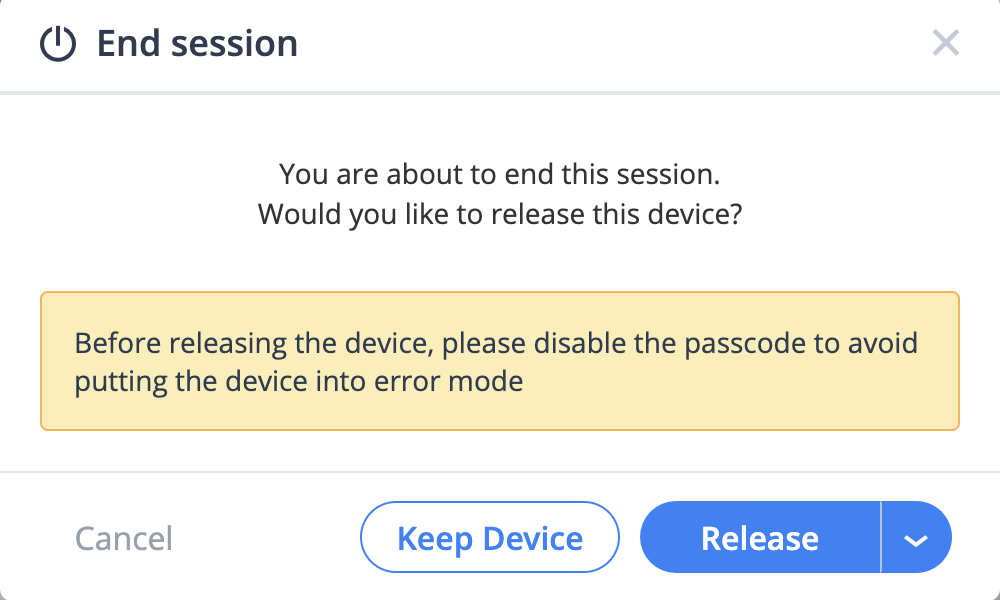
Warning With Enabled Passcode
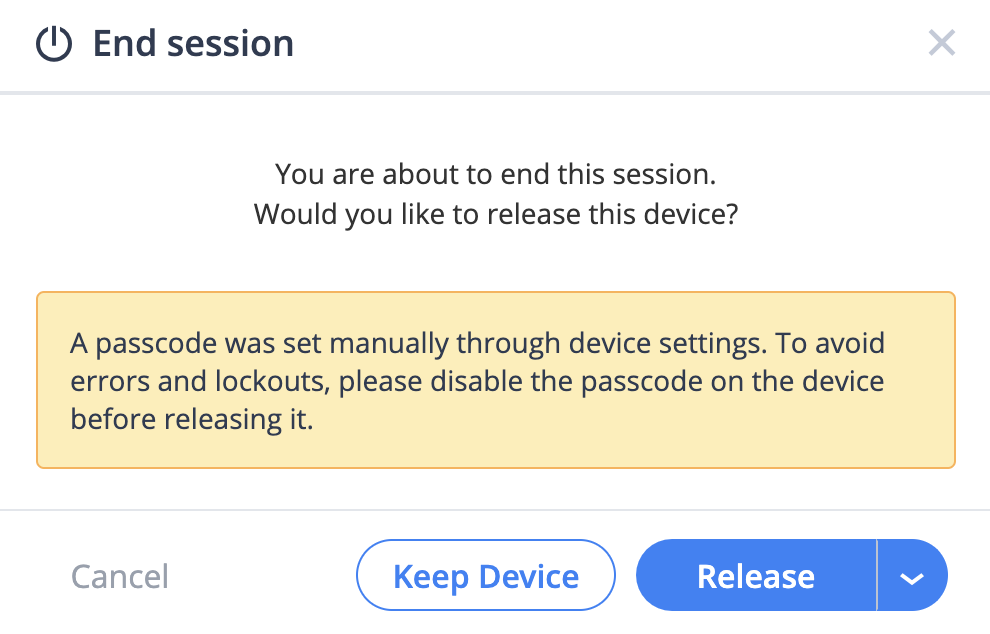
If you try to end the session while passcode has been set from Mobile Studio, a warning is displayed.
Restricted Features with Enabled Passcode
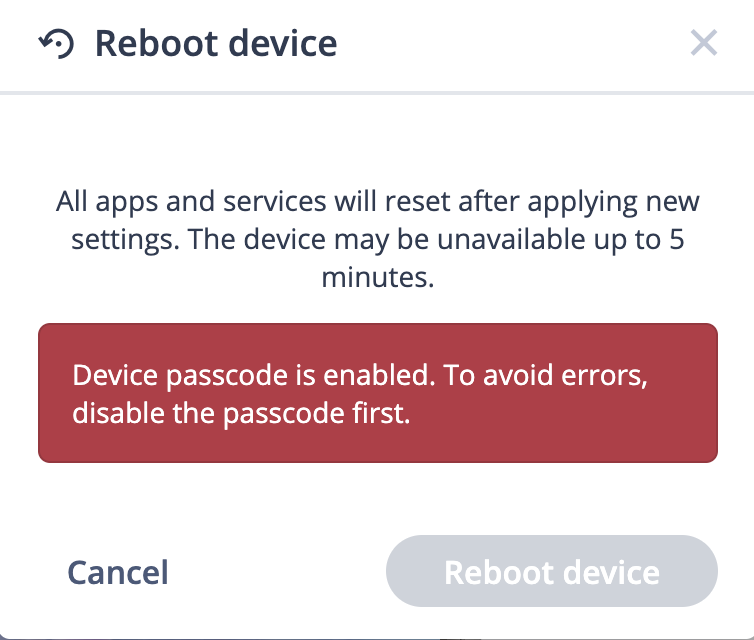
These features are restricted when passcode is enabled as device might go into an error state.
-
Reboot Device
-
Locale Selection
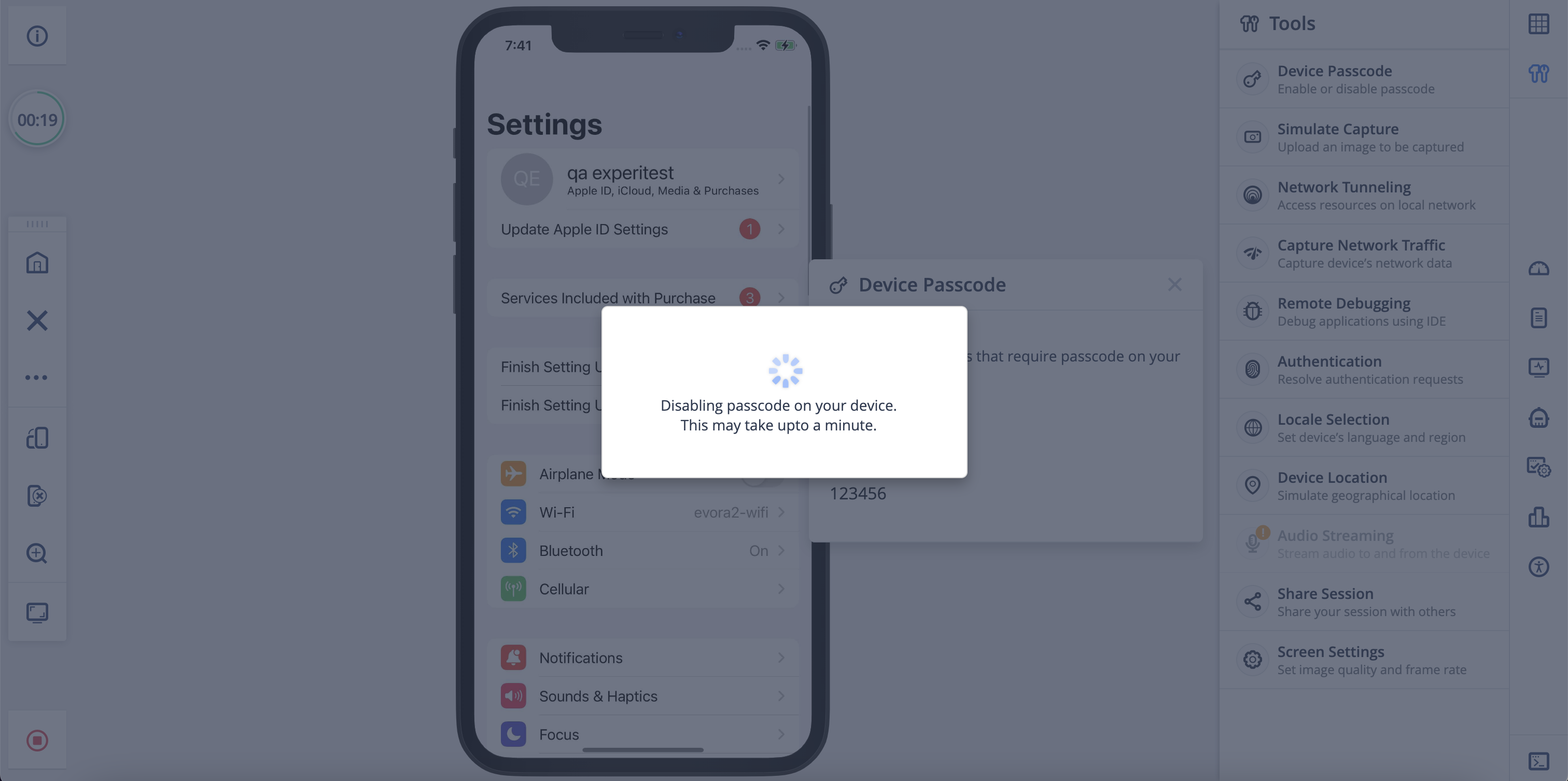
Disable the Passcode
To disable the passcode, click ENABLED.
Passcode Already Set
If a passcode is set on the device manually via the Settings app, you cannot disable the passcode.
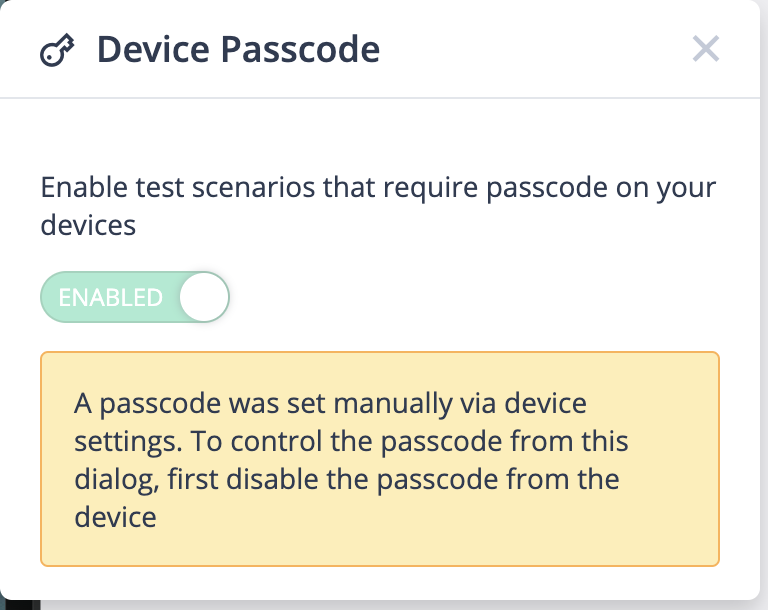
If an Apple Account (Apple ID / iCloud) is signed in on the device, the passcode cannot be disabled by the utility. iOS will prompt for the Apple Account password, which must be entered manually on the device. See Limitations.
Also, a warning appears if you try to end the session with manual passcode set.
This utility is different from the passcode defined in the Devices page when clicking 'Edit Device'. The purpose of this utility is to quickly enable the passcode on devices to test their application whereas setting a passcode on 'Edit Device' allows you to unlock the devices and start the session on them. When setting a passcode on 'Edit Device' it does not trigger Passcode Cleanup.
Best Practices
-
To avoid devices going to an error state, we recommend removing the passcode set on the device using Device Passcode utility, or manually by interacting on the device UI before releasing the device.
-
As a precaution, we recommend a Cloud Administrator enables Passcode Cleanup. This clears the passcode set on the devices using the Device Passcode utility as part of the cleanup. Devices that have the passcode set using manual interaction via the settings app go to an error.
-
When a device is passcode enabled, we do not recommend rebooting the device, killing the springboard, or performing any other operation that can request a passcode on the device. In such cases, manual intervention is required on the devices to enter the passcode.
Limitations
-
If the device has a configuration profile that doesn't allow modifying the passcode, this functionality does not work properly.
-
If the device has Apple Pay cards or Apple Car keys configured, this functionality does not work properly because device passcode removal requires entering the Apple Account password.
-
Apple Account / iCloud sign-in: If an Apple Account (Apple ID / iCloud) is signed in on the iOS device, disabling the passcode using the Device Passcode utility fails. Turning off a passcode on a device linked to an Apple Account triggers an iOS security prompt that requests the Apple Account password, which the utility cannot provide. In such cases:
- Only MDM passcode removal can clear the passcode automatically.
- Alternatively, manually turn off the passcode and enter the Apple Account password directly on the device screen before you end your session.