Proxy Authentication for Manual Browser Sessions
Digital.ai Testing supports proxy authentication to facilitate testing in restricted environments, such as corporate networks or secured infrastructures requiring authenticated outbound traffic. By routing browser traffic through a designated proxy, you can validate applications that are otherwise inaccessible due to firewall or geo-fencing constraints.
Proxy authentication is not supported for Safari browsers.
Overview
When initiating a manual browser session, you can configure proxy authentication directly from the browser launch interface. This ensures that all traffic from the browser session is routed through the specified proxy with proper authentication.
Proxy authentication applies to:
- Web applications behind enterprise proxies
- Internal environments requiring credentials
- Geo-specific routing scenarios
- Security testing use cases
Launching a Manual Browser Session with Proxy
-
From the Digital.ai Testing cloud, click Browsers.
-
Select the desired browser (e.g., Chrome, Firefox, Edge)
-
Choose the operating system from the left panel
-
Select the browser version
-
Click the Open dropdown on the browser card
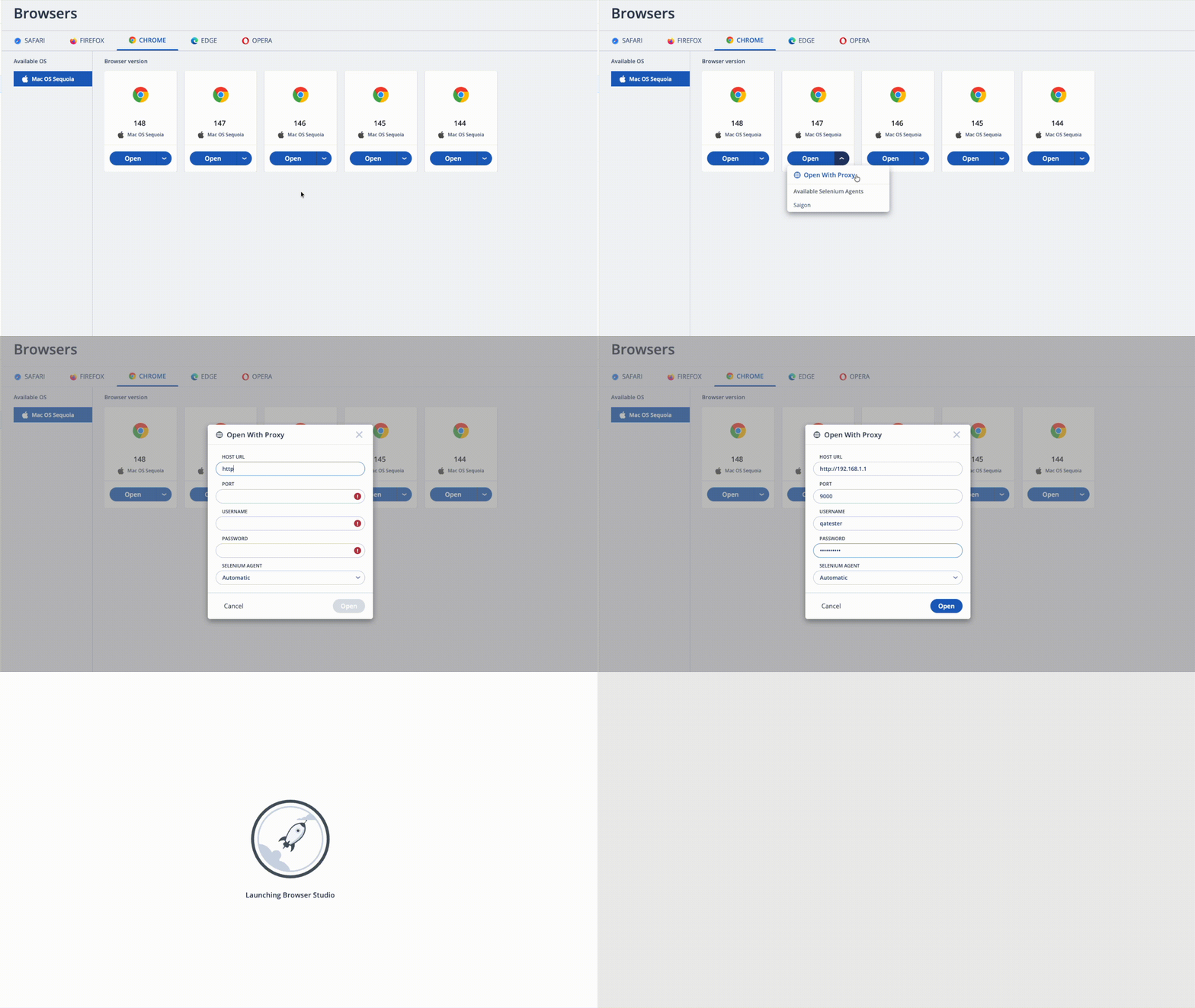
Configuring Proxy Authentication
From the Open dropdown:
-
Select Open With Proxy option
-
In the Open With Proxy dialog, provide the following details:
- Host URL: Enter the hostname or IP address of the proxy server.
- Port: Specify the port number used by the proxy.
- Username: Provide the username for proxy authentication.
- Password: Enter the password for proxy authentication.
- Selenium Agent: Select agent or use default Automatic agent selection.
-
Click Open
Result
The browser session will launch with the specified proxy settings, allowing you to test applications that require authenticated proxy access. All traffic from the browser session will be routed through the configured proxy server with the provided credentials.
Proxy Configuration Parameters
Provide the following details:
| Parameter | Description |
|---|---|
| Host URL | Hostname or IP address of the proxy server |
| Port | Port number used by the proxy |
| Username | Username for proxy authentication |
| Password | Password for proxy authentication |
| Selenium Agent | Select agent or use default Automatic agent selection |
Best Practices
- Use valid and tested proxy configurations
- Avoid sharing credentials in plain text
- Re-enter credentials when reopening the dialog
- Validate proxy access before running critical tests