Scope Change Report
This article explains the scope change report in Agility.
The Scope Change report (formerly called "Project Scope Change" report) compares changes in project scope between two explicit dates (the Start Date and the End Date). Rather than reporting changes that span a range of time, this report looks at those dates only to calculate the differences (or deltas) between the two to show the following:
- the total backlog item count
- stories that have been added and removed
- stories on which the estimates have changed
You can use this report to identify issues (such as scope creep) and to see details about changes to total estimates (which are also highlighted in the Estimate Trend report).
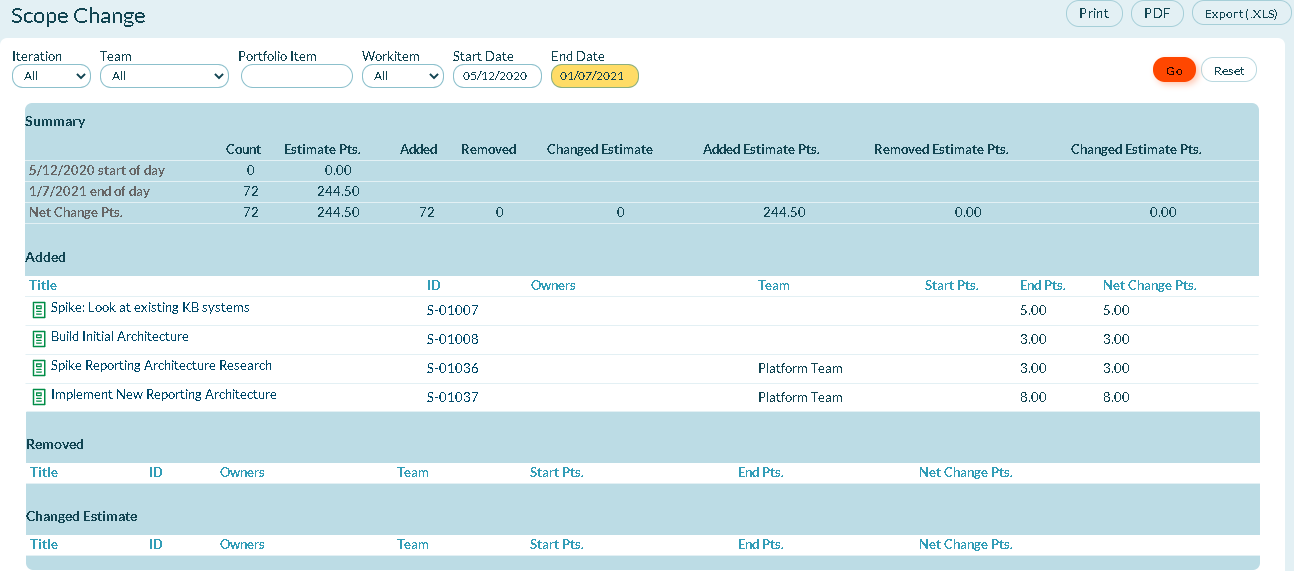
- This report does not show every change that has occurred within the project. Instead, it lists only the affected workitems. Click on an item to see the change history and additional details for that item.
- Any workitems moved between the date range aren't displayed in this report. For details, see How Added and Removed Items Are Determined.
Accessing This Report
- Click the hamburger menu
 > Reports > All Reports.
 - Scroll to the Project or Release Reports section and click Scope Change.
Report Filters or Parameters
-
Sprint or Iteration: Shows data assigned to the sprint or iteration. The default value is "All".
-
Team: Shows Team-specific data for the project or program. The default value is "All" or "Blank".
-
Portfolio Item: Shows work items in the selected portfolio item and all of it's children. The default option is "Blank" and shows all work items.
-
Workitem: Shows data for a specific work item type: All (all workitems), Stories, Defects, or Testsets. The default option is "All".
-
Start Date: The first date the report begins calculating data.
-
- For project-based reports, the default start date is the project start date.
- For sprint/iteration-based reports, the default start date is the sprint/iteration start date.
- For member-based reports, the default start date is 13 weeks prior to the current date.
- If the start date is set to the current date or later, no data displays.
-
End Date: The date you would like the report to end.
Technical Details
-
Because this report does not calculate data based on a date range, anything created or moved between those two dates will not appear in that report.
-
This report compares the project scope at the following times:
-
- At 12:01 AM on the selected Start Date
- 11:59:59 PM on the selected End Date or the at the time the report was generated (whichever is earlier)
Determine Added and Removed Items
The report does not track movement events as they happen. Instead, it takes a snapshot of which workitems are in scope at the Start Date and another snapshot at the End Date, then compares the two lists directly:
- A workitem in the End Date snapshot but not the Start Date snapshot is reported as added.
- A workitem in the Start Date snapshot but not the End Date snapshot is reported as removed.
Because this is a comparison of two fixed points in time rather than a log of individual movements, the added and removed totals are accurate for the net change between the two dates.
Understand Why In-Between Movement Doesn't Appear
If a workitem enters and then leaves scope, or leaves and then re-enters, entirely within the Start Date and End Date window, it will be in the same state in both snapshots. It won't appear as added or removed, even though it moved, because the report only compares the two endpoint snapshots, not the history in between.
Using the API
Using the API, you can query for data between a past date and today's date as follows:
- /rest-1.v1/Hist/Story?sel=&where=Timebox='Timebox:1234'&asof=2006-12-11
- /rest-1.v1/Data/Story?sel=&where=Timebox='Timebox:1234'
These two queries will return the IDs of backlog items that were and are (respectively) in the particular sprint. After comparing the lists, details for specific backlog items can be retrieved using the following:
/rest-1.v1/Data/Story?sel=Name,Number,Description&where=IsDeleted='true','false';ID='Story:1052','Story:1011','Story:1005'