Get Started as Team Member
As a team member, you track assigned work, update progress daily, and collaborate with teammates to deliver valuable software. This overview covers the essential workflow: viewing and updating your work, adding new items, collaborating with your team, and tracking progress.
Digital.ai Agility uses "sprint" and "iteration" interchangeably to refer to fixed time periods for development work. Similarly, "story" and "backlog item" both refer to units of work to be delivered.
First day checklist
Complete these tasks on your first day to ensure you're set up correctly:
Profile and access
- Update your profile with full name and contact information.
- Set time zone and language preferences.
- Bookmark your workspace URL.
- Verify you can see your assigned team in the hamburger menu
 > Rooms > My Room.
Team orientation
- Find your team's TeamRoom.
- Identify the current sprint on the Taskboard.
- Locate work items assigned to you.
- Review acceptance criteria for your first story.
- Introduce yourself in team Conversations.
First work updates
- Move one task to "In Progress" to signal you're working.
- Update "To Do" hours on a task at end of day.
- Add a comment on a work item to test collaboration.
- View the Sprint Burndown to understand team progress.
You're ready when you can:
- See your team's current sprint and assigned work.
- Update task status and log time without errors.
- Find team members to ask questions.
- Access sprint reports to understand progress.
Troubleshooting common issues:
- Can't see your team? You may not be added as a project member. Contact your administrator to verify project membership and permissions.
- Can't update work items? You need at least Team Member role permissions. Contact your project administrator to verify your role assignment.
- Can't see certain features? Some features require specific Agility editions or system-level enablement. Check with your administrator about available features.
Need help? Contact your scrum master or team lead if you cannot complete any checklist items.
Step 1: View and track your work
Use your TeamRoom to manage daily work activities:
- Click hamburger menu > Rooms > All TeamRooms and select your team's room.
- View the Taskboard or Storyboard to see all work items assigned to you.
- Drag items across columns (To Do, In Progress, Done) as you work on them.
- Click on a task to update the To Do hours remaining at the end of each day.
- If your team tracks effort, enter time spent in the Effort column.
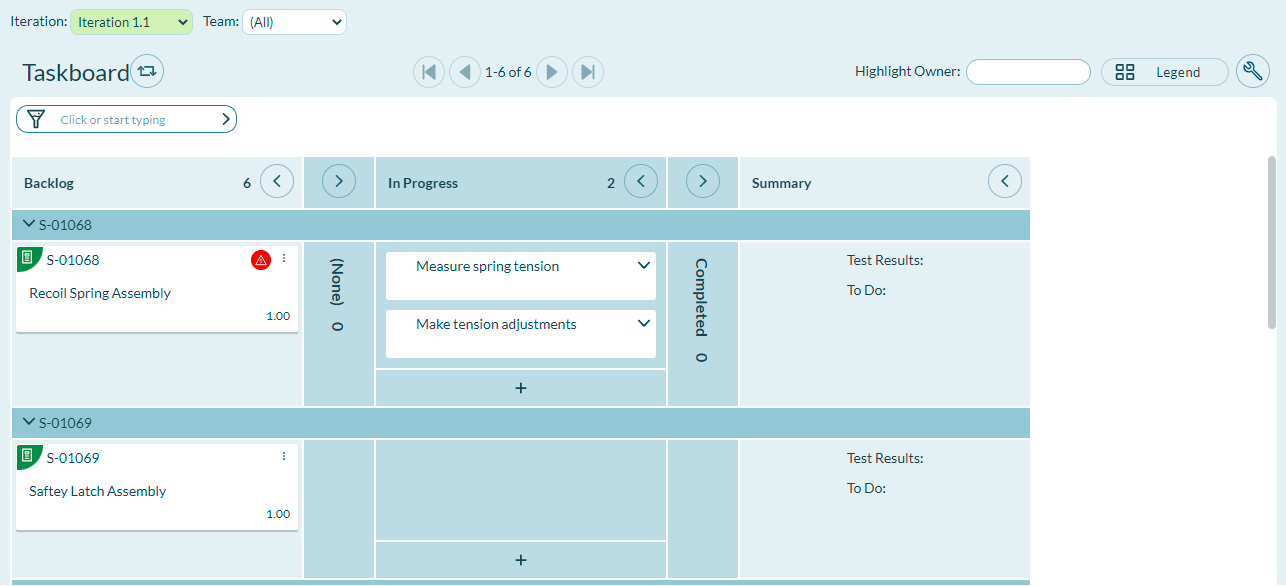
You can also view work from My Room (hamburger menu > Rooms > My Room) and Detail Tracking (hamburger menu > Iteration > Detail Tracking). Bookmark your TeamRoom URL for quick access.
Step 2: Add backlog items and defects
Add new backlog items and defects when you identify work:
- Use the Backlog panel in your TeamRoom.
- Click the plus icon in the left Sidebar.
- Enter items directly into any backlog grid.
- Use the import feature to load multiple items at once.
- Use Story Planner view to plan tasks and acceptance tests (click Plan Story in any grid row).
Step 3: Collaborate with team members
Use collaboration tools to stay connected:
- Use Conversations in your TeamRoom for questions and discussions.
- Create Communities to share agreements and best practices.
- Run Estimably estimation games in your TeamRoom.
- Use Mobile Connect to stay current from mobile devices.
Step 4: View progress
Track team progress with built-in reports:
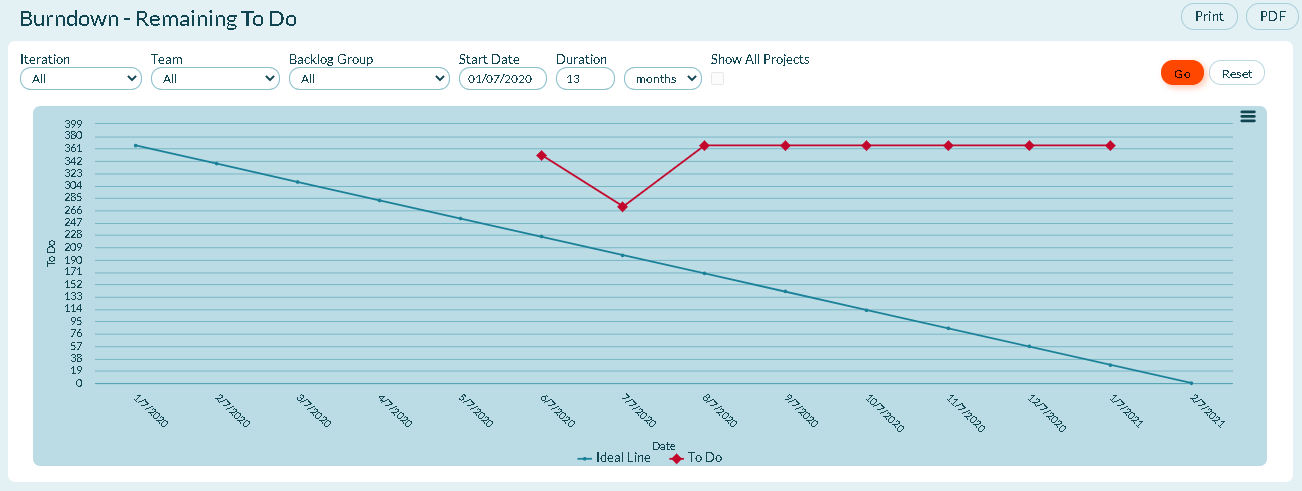
- View Sprint Burndown in the TeamRoom - burns down as you decrement To Do values.
- Use Sprint Dashboard report (hamburger menu > Reports > All Reports > Sprint Dashboard) for more detail.
- Use Cycle Time and Cumulative Flow reports for Kanban processes.
- View Increment Burndown chart for higher-level progress tracking.
Step 5: Search for work items
Find work items quickly:
- Type search terms in the search box in the upper right corner.
- View quick matches as you type.
- Press Enter or click the magnifying glass for Advanced Search.
- Filter by asset type and use filters to narrow results.
Related Topics
- Get started by role - Find guidance for other roles
- Team rooms - Collaborative planning spaces
- Sprint tracking - Track sprint progress