The Mappings List Page
On the sidebar, click the List Mappings  icon.
icon.
Here's the Mappings List page.
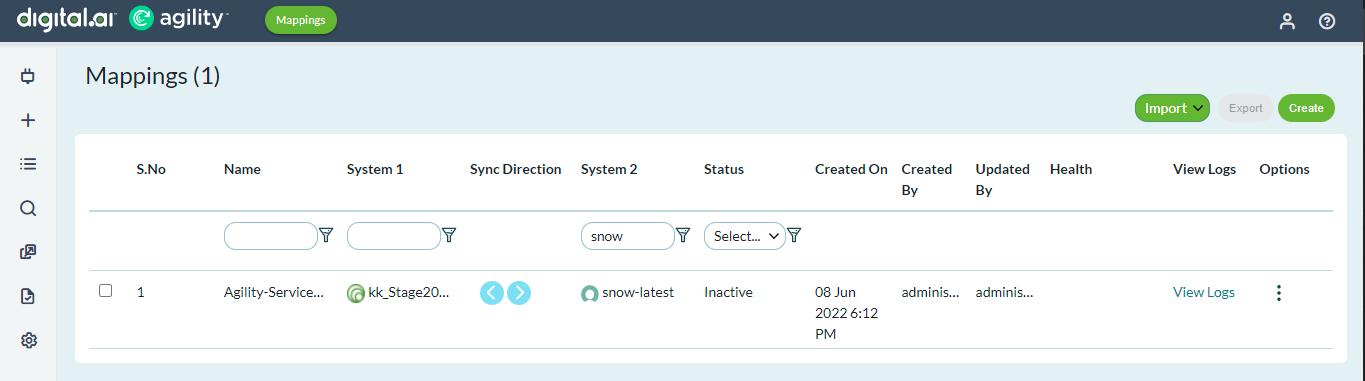
The Mappings List page lists all the mappings available with the following information.
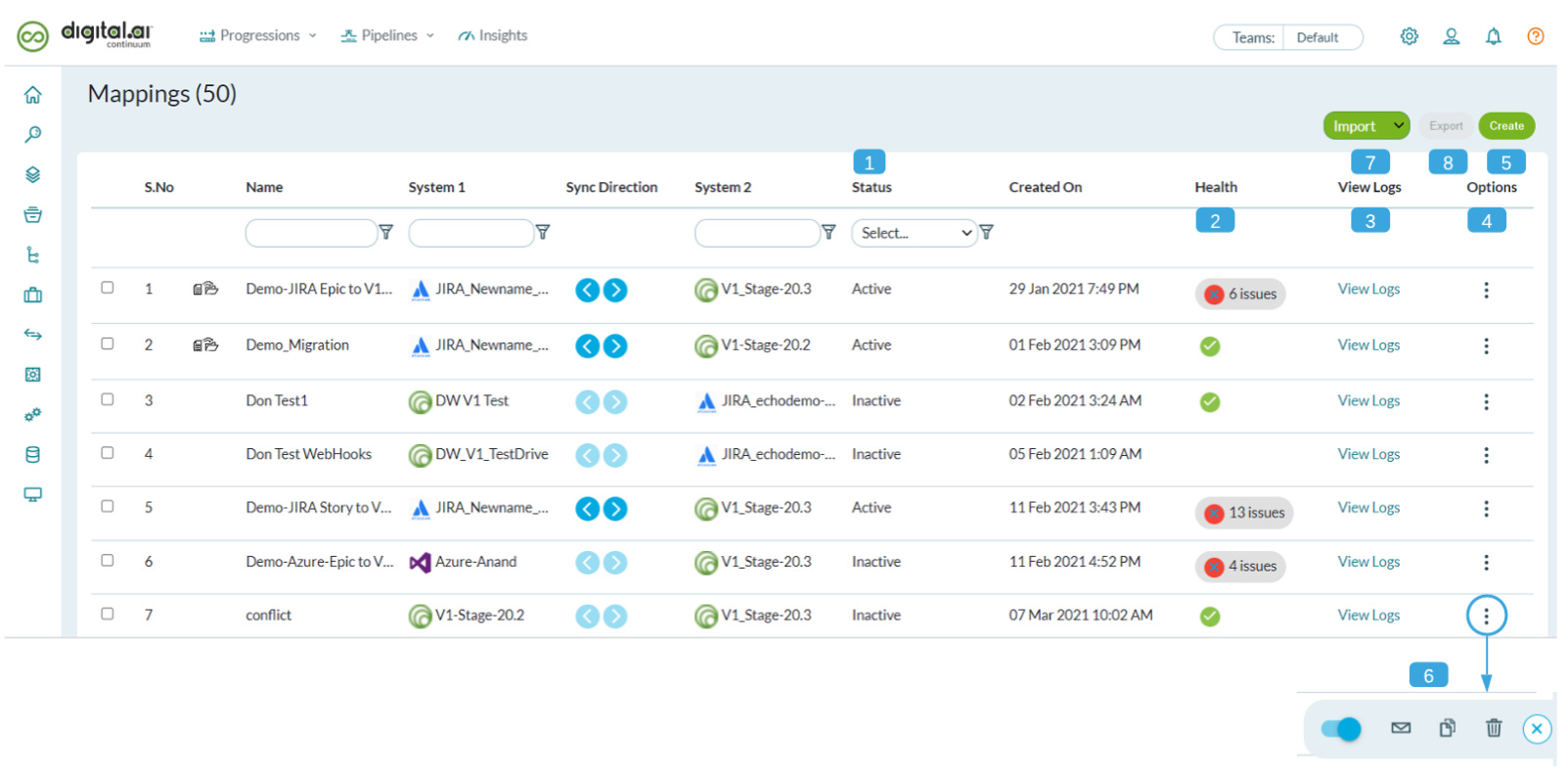
Status (1)
- Shows a mapping's current status (Active or Inactive).
Health (2)
- Sync events can—at times—fail due to certain issues—for example, network outage.
- The Health column shows whether a mapping has any sync issues.
- A tick mark means the sync was successful with no errors whatsoever.
- In case of any sync issues, no further sync can happen until you resolve the issues.
- The Health column shows the number of issues with a mapping.
- Clicking the Health issues from the Mapping List page shows the Logs page with the list of all failed sync events.
- Once you have fixed the issues, you can click the Resync icon to attempt syncing the failed event manually.
- The Resync Count column shows the number of manual retry attempts you have made so far.
Here's an example of the Logs page of a failed event.
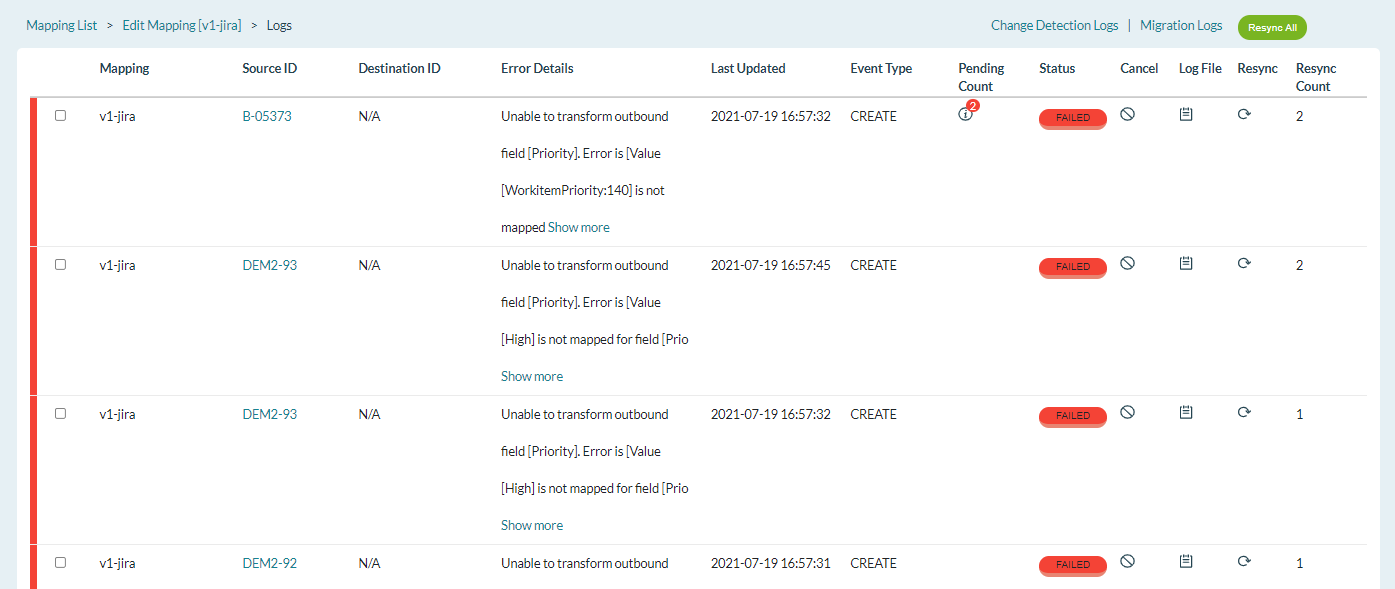
- Click the View Log icon to view the webhook log for the event.
- Once you have fixed the issues, you can click the Retry icon to attempt syncing the failed event manually.
- The Retry Count column shows the number of manual retry attempts you have made so far.
View Logs (3)
Click View Logs link to view the complete logs for all the sync events between the tools you mapped.
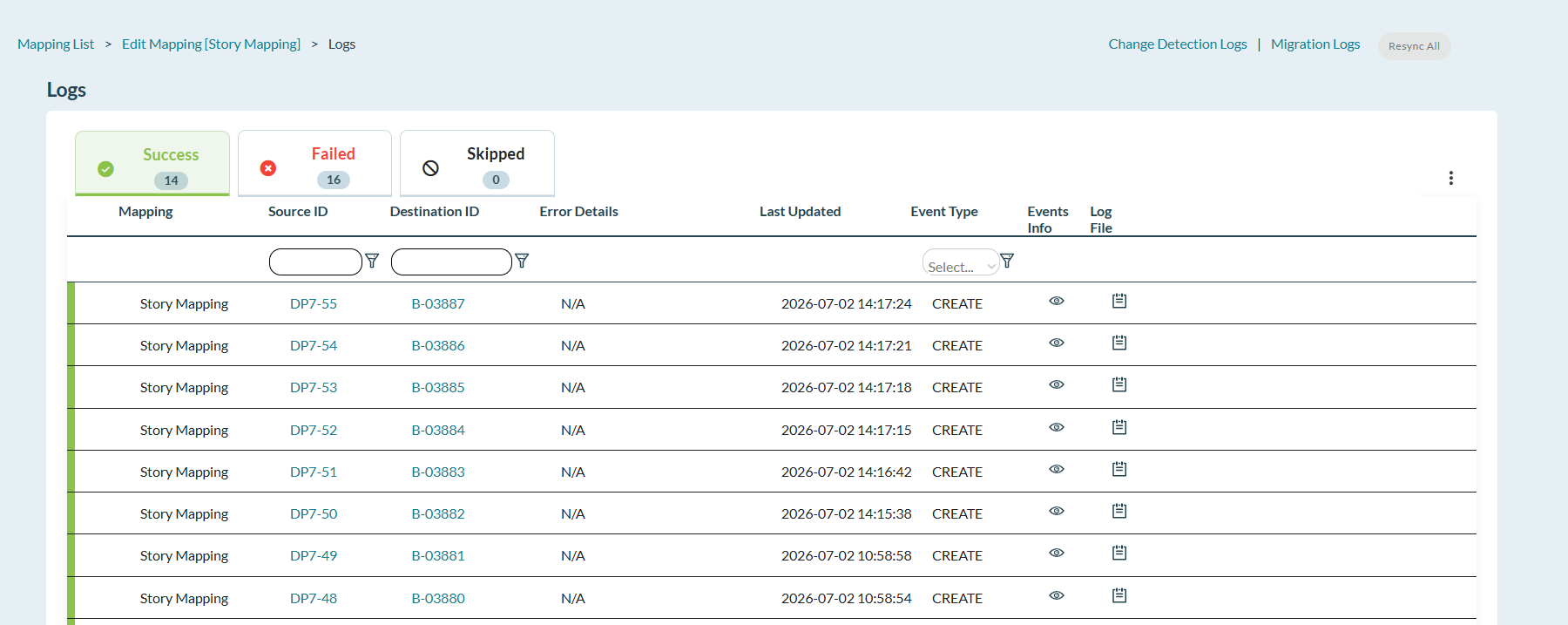
As you can see, the Logs page has information such as the event type (CREATE/UPDATE), error details (if any), source and destination IDs, and the status of the event. As discussed earlier, you can also view the webhook log for any event and retry sync manually from the Logs page.
The Logs page loads log entries by status using three tabs: Success, Failed, and Skipped. Each tab shows the number of entries for that status. The Success tab is selected by default, and only Success entries load. Selecting the Failed or Skipped tab loads only the entries for that status. Loading entries by status keeps the page responsive for mappings with a large number of events.
The following behavior is retained across all three tabs:
- Search—Filter by Source ID or Destination ID. A search you perform on one tab persists across all tabs, so matching entries for the searched ID appear under Success, Failed, and Skipped without searching again.
- Pagination and sorting—Page through and sort entries independently within each tab.
- Load More—Load additional entries for the selected status.
- Optional columns—Click the options (three dots) menu to show or hide optional columns, where you can configure the columns. Your column selection is retained when you switch tabs and when you refresh the page.
After you cancel a failed event or trigger a manual resync, the Logs page does not refresh automatically. When a failed event is cancelled, a "Cancellation is Successful" popup is displayed, and the event disappears from the list. When a manual resync is triggered, the popup message "Resync of data is in progress. Please refresh the page after some time to view updated status." is displayed, and the event also disappears from the list. Refresh the page manually to view the updated status of the cancelled or resynced event.
Auto Resync
In addition to the manual Resync option, Agility Sync can automatically retry failed events. When an event fails, Agility Sync attempts to resync the event up to five times at ten-minute intervals. This helps recover events that fail due to temporary issues, such as a network glitch, without any manual action.
Auto Resync is a configurable option that you control from the Agility Sync settings.
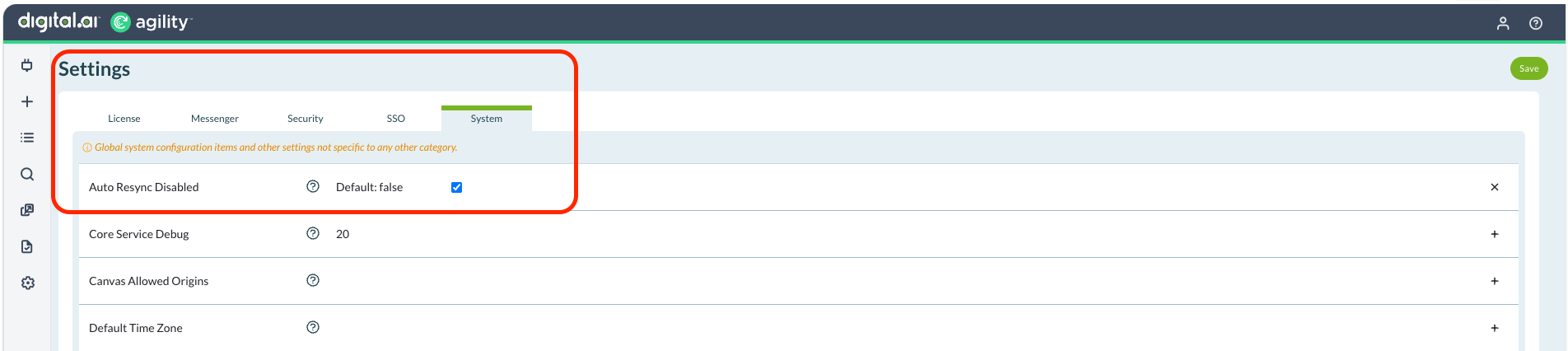
- Auto Resync is enabled by default.
- To turn off automatic resync, go to Settings > System, select the Auto Resync Disabled checkbox, and click Save. When selected, Agility Sync no longer retries failed events automatically, and you resync failed events manually from the Logs page.
Disabling Auto Resync is useful when a mapping has a large number of events failing for a persistent reason, where repeated automatic retries add little value and the failures require manual attention instead.
Options (4) and (6)
The Options menu lets you:
- Activate or inactivate a mapping—Click the Activate/Inactivate toggle icon to activate and inactivate the mapping respectively.
- Clone a mapping—Click the Clone Mapping icon. A confirmation message appears. Click Ok to clone the mapping.
- Delete a mapping—Click the delete icon.
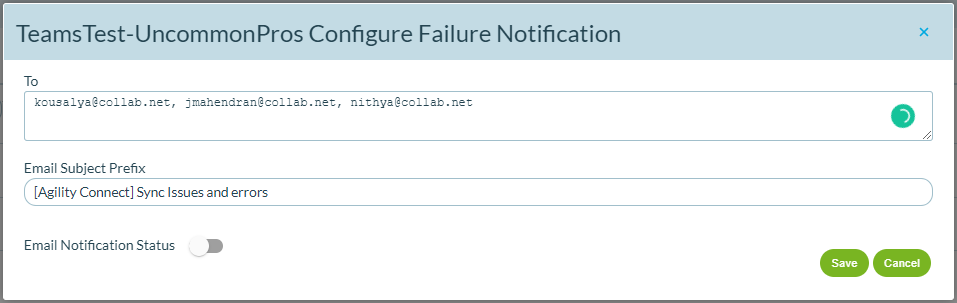
- Configure Sync Failure Notifications—Click the email icon to set up the email subject prefix for emails generated in case of sync failures. You can also add up to ten comma-separated email IDs for sending failure notifications.
To enable Email Notifications, you must have configured the SMTP Server for Agility Sync and enabled it.
Create Mapping (5)
The Create Mapping button to create new mappings, which is discussed next.
Import Mapping (7)
See Migrate your ALM Connect Data to Agility Sync.